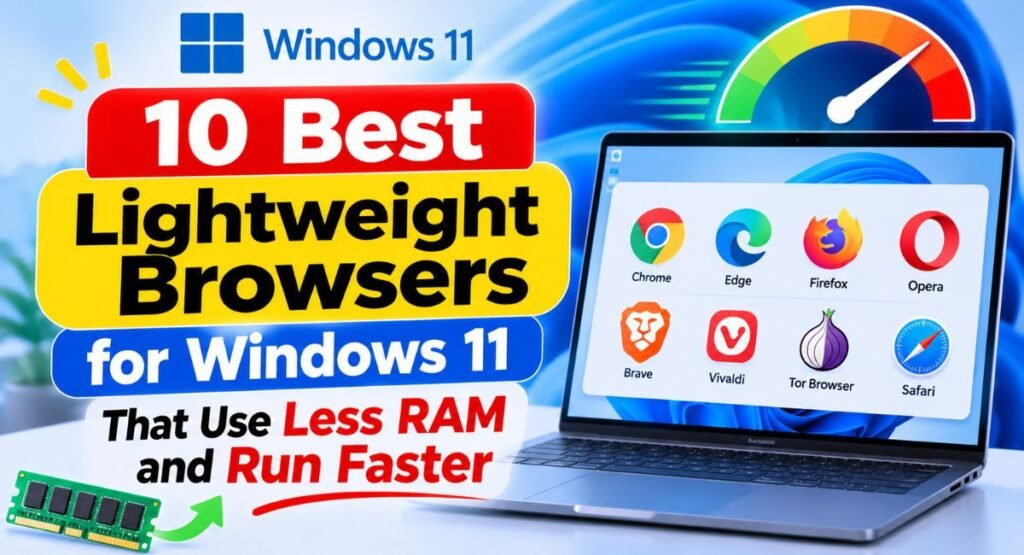
Is your PC slowing down every time you open a web browser? Some browsers consume too much memory, making Windows 11 feel sluggish, especially on older computers or devices with limited RAM. The good news is that you don’t need an expensive PC to enjoy smooth browsing. Choosing the right lightweight browsers for Windows 11 can reduce memory usage, improve page loading speeds, and make everyday tasks easier.
In this guide, we’ll explore 10 fast and reliable browsers that use less RAM without sacrificing essential features. Whether you’re using a low-end PC or simply want better performance, you’ll find a suitable option here.
What Does “Lightweight Browser” Actually Mean?
A lightweight browser uses fewer system resources than the average browser while still letting you do normal things like streaming, shopping, banking and working in web apps. In practice that usually comes down to three things:
- Lower RAM use when you open the same number of tabs.
- Less background activity, such as built-in extras, sync services or bundled apps that you never asked for.
- Tools that put idle tabs to sleep so they stop eating memory.
One honest note before we start: browser memory use depends heavily on which websites you open, how many tabs you keep, and which extensions you install. That’s why this article doesn’t quote exact RAM numbers. Instead, it explains how each browser is built and what it gives you to keep things lean. If you want to see the real numbers on your own PC, the next section shows you how.
How to Check How Much Memory Your Browser Is Using
Before switching, it helps to know whether your current browser is really the problem.
- Press Ctrl + Shift + Esc to open Task Manager.
- If you see a small window, click More details at the bottom.
- On the Processes tab, find your browser in the list. Click the arrow next to it to expand its tabs and helper processes.
- Look at the Memory column. Click the column header to sort from highest to lowest.

If your browser regularly sits at several gigabytes with only a handful of tabs open, one of the options below may help.
The 10 Best Lightweight Browsers for Windows 11
1. Microsoft Edge (With Efficiency Mode Turned On)
Edge is already installed on Windows 11, so it costs you nothing to try. It isn’t the lightest browser on this list out of the box, but it has built-in tools designed to cut resource use, and you don’t have to install anything extra.
What makes it light:
- Efficiency mode reduces how much CPU and memory the browser uses, which can also help laptop battery life.
- Sleeping tabs put inactive tabs into a low-resource state so they stop using as much memory.
Downsides: Some features and promotions built into Edge can feel like clutter. You can turn many of them off in Settings.
Best for: People who don’t want to install anything new and just want their current setup to run better.
How to turn on the savings:
- Open Edge and click the three-dot menu (…) in the top-right corner, then choose Settings.
- Select System and performance from the left sidebar.
- Under the performance section, turn on Efficiency mode and Save resources with sleeping tabs.

The exact wording can differ slightly between Edge versions, but both options live on this page.
2. Brave
Brave is built on Chromium, the same foundation as Chrome and Edge, so it works with almost every website and supports Chrome extensions. What sets it apart is that it blocks ads and trackers by default. Pages that load fewer scripts and ads tend to load faster and use less memory.
What makes it light:
- Built-in ad and tracker blocking (called Shields), so you may not need a separate blocker extension.
- A memory-saving option for inactive tabs, found in its settings.
Downsides: Brave includes extras such as a rewards system, a crypto wallet and AI features. You can hide or turn off most of them, but they’re there by default.
Best for: Chrome users who want a similar experience with less clutter and built-in blocking.
3. Mozilla Firefox
Firefox runs on its own engine rather than Chromium, which means it doesn’t share Chrome’s habits, good or bad. It’s a solid all-rounder, supports a huge library of extensions, and gives you control over how it uses your PC.
What makes it light:
- It can unload tabs in the background when your system is running low on memory.
- It has a built-in about:processes page (type it in the address bar) that shows which tabs and add-ons are using the most resources, so you can close the heavy ones.
- It doesn’t push many bundled extras.
Downsides: A handful of sites are built mainly with Chrome in mind and may feel slightly rougher. This is much rarer than it used to be.
Best for: Anyone who wants a dependable, privacy-friendly browser that isn’t Chromium-based.
4. Opera
Opera is also Chromium-based, but it adds helpful built-in tools so you don’t need as many extensions.
What makes it light:
- A Battery saver mode that helps laptops last longer.
- Built-in ad blocking and a free browser VPN, which replace extensions that would otherwise use memory.
Downsides: Opera has a lot of built-in sidebar features. Turn off the ones you don’t use to keep the browser tidy.
Best for: People who like having tools built in rather than installing add-ons.
5. Vivaldi
Vivaldi is the most customizable browser here. It’s Chromium-based and packed with features, so it isn’t the lightest out of the box. We include it because it gives you good control over background tabs.
What makes it light:
- Tab hibernation lets you put background tabs to sleep to free up memory.
- You can turn off the features you don’t use, which keeps the interface simple.
Downsides: There’s a lot to configure, which can feel overwhelming at first.
Best for: Power users who keep many tabs open and like to fine-tune everything.
6. Falkon
Falkon is a small, simple browser from the KDE project. It has a clean interface, a built-in ad blocker and the basics you expect: tabs, bookmarks and history. It has far fewer extras than the big names, so there’s less running in the background.
Downsides: It has a small extension library, and a few complex websites may not behave perfectly.
Best for: Older or lower-powered PCs, or anyone who wants a simple, no-fuss browser.
7. Pale Moon
Pale Moon started as a lighter spin-off of Firefox and uses its own engine. It’s designed for people who want a classic browsing experience on modest hardware.
Downsides: This is the one to be careful with. Because it uses its own engine, some modern websites and web apps may not work properly, and it doesn’t support the same extensions as Firefox. Check that the sites you rely on, such as your bank, work before you commit, and keep it updated.
Best for: Very old or low-spec PCs, and people who prefer a classic style and don’t depend on the newest web apps.
8. Min
Min is a minimalist, open-source browser. The interface is stripped down to a single combined address and search bar, and it blocks ads and trackers by default. It’s built on Electron, so it uses the Chromium engine underneath, but without the heavy feature set of larger browsers.
What makes it light: A tiny interface, built-in blocking, and a task-based way of grouping tabs that helps you keep your tab count under control.
Downsides: It has a limited feature set and doesn’t use the regular Chrome extension store.
Best for: Anyone who wants a clean, distraction-free second browser for everyday reading and searching.
9. Google Chrome (With Memory Saver Turned On)
Chrome has a reputation for using a lot of RAM, and it’s fair to say it isn’t naturally lightweight. We include it because many people need it for compatibility with certain sites and work tools, and because it has built-in controls that make a real difference.
What makes it lighter:
- Memory Saver frees up memory from tabs you aren’t using.
- Energy Saver reduces background activity to help battery life.
How to turn it on:
- Click the three-dot menu in the top-right corner of Chrome and choose Settings.
- Select Performance from the left sidebar.
- Turn on Memory Saver, and turn on Energy Saver too if you use a laptop.

Best for: People who have to stay on Chrome but want it to behave better.
10. Waterfox
Waterfox is a Firefox-based browser that focuses on privacy and keeping extras to a minimum. It performs much like Firefox, so don’t expect a dramatic drop in memory use. Its appeal is that it’s straightforward and doesn’t add unnecessary features.
Downsides: It’s a smaller project than the major browsers, so updates and support may not be as fast.
Best for: People who like Firefox but want a leaner, more privacy-minded version.
Quick Comparison: Which One Should You Choose?
| Browser | Engine | Built-in Ad Blocking | Best For |
|---|---|---|---|
| Microsoft Edge | Chromium | Limited tracking prevention | No new install needed |
| Brave | Chromium | Yes | Chrome-like with less clutter |
| Firefox | Gecko | Tracking protection | All-round reliability |
| Opera | Chromium | Yes | Built-in tools |
| Vivaldi | Chromium | Yes (tracker and ad blocker) | Heavy tab users |
| Falkon | QtWebEngine | Yes | Simple, modest PCs |
| Pale Moon | Goanna | No | Very old PCs |
| Min | Chromium (Electron) | Yes | Minimal second browser |
| Chrome | Chromium | No | Compatibility with Memory Saver |
| Waterfox | Gecko | Tracking protection | Leaner Firefox |
If you’re not sure where to start, try Brave or Firefox first. They balance speed, compatibility and ease of use better than most. If your PC is quite old, try Falkon or Min.
How to Make Any Browser Lighter
Switching browsers helps, but these habits matter just as much, and they work in all ten browsers above.
- Remove extensions you don’t use. Each one runs in the background. Keep only the ones you really need.
- Close tabs you’re finished with. Bookmark pages you want to read later instead of leaving them open.
- Use the browser’s own task manager. In Edge, Chrome and Brave, press Shift + Esc to see which tabs and extensions use the most resources, then end the heavy ones.
- Keep your browser updated. Updates often include performance and security fixes.
- Restart the browser now and then. If it has been open for days, a restart clears out memory that has built up.
How to Set a New Browser as Your Default on Windows 11
After installing a new browser, you can make it the one Windows opens links in.
- Press Windows + I to open Settings.
- Click Apps in the left sidebar, then select Default apps.
- Find your new browser in the list and click it.
- Click the Set default button at the top of the page.

If you don’t see a Set default button, Windows may list file and link types separately for that browser. In that case, select the browser and choose it for links such as HTTP and HTTPS.
Frequently Asked Questions
1. What is the lightest browser for Windows 11?
There’s no single winner, because it depends on what you do. Simple browsers like Falkon and Min use fewer features and tend to be light on resources. For everyday use with good website compatibility, Firefox and Brave are good balanced choices. The best test is to try one and check Task Manager with your usual tabs open.
2. Is Microsoft Edge lightweight on Windows 11?
Edge isn’t the lightest browser out of the box, but it has Efficiency mode and sleeping tabs built in. With those turned on, it can use fewer resources, and you don’t need to install anything.
3. Are lightweight browsers safe to use?
Most well-known ones are, as long as you keep them updated. Be more careful with small or less frequently updated browsers, because security fixes may arrive more slowly. If you do online banking or shopping, choose a browser that gets regular updates.
4. Will a lightweight browser make my old PC faster?
It can make browsing feel smoother, especially if you have limited RAM. It won’t speed up the rest of your PC, though. If your whole system is slow, also check startup apps and available storage.
5. Can I keep using my Chrome extensions in a lightweight browser?
In Chromium-based browsers like Brave, Edge, Opera and Vivaldi, you can usually install Chrome extensions. Firefox and Waterfox use their own add-on library, and Falkon, Pale Moon and Min have limited extension support.
Final Thoughts
A lighter browser doesn’t have to mean giving up the features you rely on. Start by turning on the built-in saving tools in the browser you already have, then try one or two alternatives from this list. Keep the one that feels fastest with your own tabs and sites. Your PC, and your battery, will thank you.




[…] Google Chrome bookmarks go missing because of sync errors, accidental deletion, or incorrect browser settings. In other cases, your Chrome bookmark bar may disappear, making saved websites seem […]
[…] you previously exported your favorites, or you used another browser such as Chrome or Firefox, you can import them […]
[…] you don’t have to search for every website again. All three browsers offer simple ways to restore previous sessions, recover recently closed tabs, and continue browsing […]