Introduction
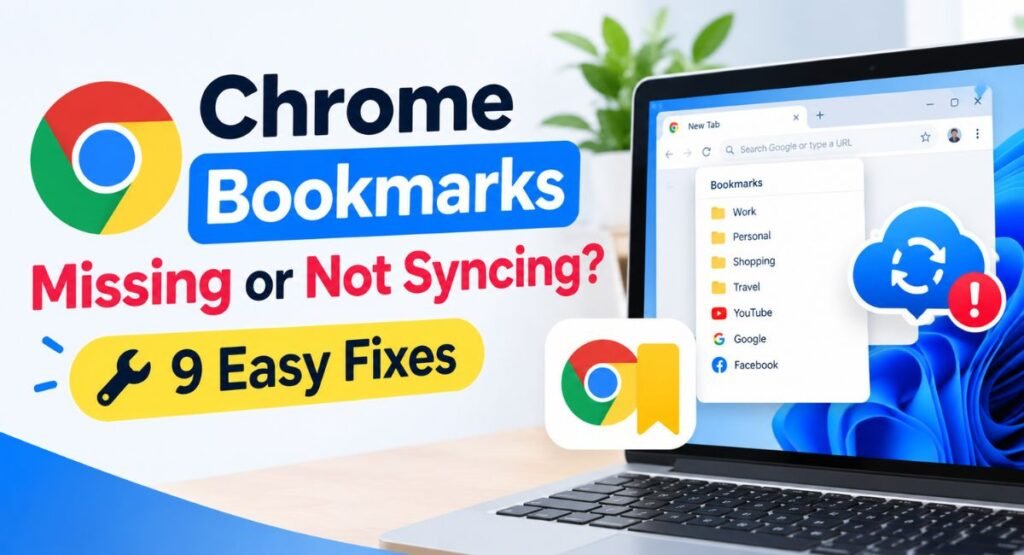
Have your Chrome bookmarks suddenly disappeared or stopped syncing across your devices? This problem can make it difficult to access your favorite websites and saved pages. Sometimes, Google Chrome bookmarks go missing because of sync errors, accidental deletion, or incorrect browser settings. In other cases, your Chrome bookmark bar may disappear, making saved websites seem lost.
The good news is that you can often fix these issues without reinstalling Chrome or losing your browsing data. In this guide, you’ll discover nine easy ways to restore missing bookmarks, fix Chrome Sync, check your Google Account, and recover your saved websites on Windows 11.
Why Chrome Bookmarks Disappear or Stop Working
A few causes account for most bookmark problems:
- The bookmarks bar is simply turned off.
- You’re signed in to the wrong Google account or the wrong Chrome profile.
- Sync is paused, signed out, or has bookmarks switched off.
- An extension or a Chrome update interferes with the bookmarks file.
- The local bookmarks file is damaged.
Turn the Bookmarks Bar Back On
If only the bar at the top of Chrome is missing, your bookmarks may be fine.
- Open Chrome and press Ctrl + Shift + B. This toggles the bookmarks bar on and off.
- Or click the three-dot menu (top-right) > Bookmarks and lists > Show bookmarks bar. On older versions the menu item is just called Bookmarks.
- Open Other bookmarks (far right of the bar) and Mobile bookmarks, if you see it. Imported or synced bookmarks often end up in these folders.

Restart Chrome and Update It
A temporary glitch, or a bug in an older version, can make bookmarks vanish or fail to load.
- Close every Chrome window. Check the system tray (the ^ arrow near the clock) and right-click Chrome > Exit if it’s still running in the background.
- Reopen Chrome.
- Type
chrome://settings/helpin the address bar and press Enter. Chrome checks for updates automatically. - If an update appears, click Relaunch.
Check You’re in the Right Chrome Profile
This is one of the most common causes. Chrome keeps separate bookmarks for each profile, and it may have opened a different profile than usual.
- Click your profile picture or icon at the top-right, next to the three-dot menu.
- Look at the other profiles listed and click each one.
- Check whether your bookmarks are in one of them.
If you’re signed in with a different Google account than before, switch to the one you normally use.
Make Sure Bookmark Sync Is Turned On
If your bookmarks are missing or differ between devices, sync is the likely problem.
- Click the three-dot menu > Settings.
- Select You and Google > Sync and Google services.
- If you see a “Paused” or “Sign in again” message, click it and enter your Google password.
- Click Manage what you sync.
- Choose Sync everything, or choose Customize sync and make sure Bookmarks is on.

Give it a minute or two, then check your bookmarks again. Changes don’t always appear instantly.
Restore Bookmarks From Chrome’s Automatic Backup
Chrome saves a backup copy of your bookmarks file called Bookmarks.bak. It’s usually a copy from the previous time Chrome started, so it can rescue bookmarks you lost recently.
Important: Chrome refreshes this backup every time it starts. Once you notice bookmarks are missing, avoid opening and closing Chrome repeatedly, or the good backup may be overwritten. If sync is on, turn it off first (Fix 4 path), or Chrome may re-sync the empty list over your restored file.
- Close Chrome completely (check the system tray too).
- Press Windows + R, paste the following, and press Enter:
%LocalAppData%\Google\Chrome\User Data\Default - In the folder, find the files named Bookmarks and Bookmarks.bak.

- Copy Bookmarks to your desktop as a safety copy, then delete it from the folder.
- Right-click Bookmarks.bak > Rename and change the name to Bookmarks (remove the “.bak”).
- Reopen Chrome and check your bookmarks.
If you use more than one profile, your bookmarks may be in a folder named Profile 1, Profile 2, and so on instead of Default. To find the right one, open Chrome, type chrome://version and look at the Profile Path line.
Export and Import Your Bookmarks
Use this to back up bookmarks that still show up or to move them back after a repair. You can also import an older exported file.
To export:
- Press Ctrl + Shift + O to open the Bookmark Manager.
- Click the three-dot menu at the top-right of the manager page.
- Select Export bookmarks and save the HTML file somewhere safe, like your Documents folder.
To import:
- In the Bookmark Manager, click the same three-dot menu.
- Select Import bookmarks and choose your saved HTML file.

Imported bookmarks usually land in a new folder, so look for one with the import date.
Disable Extensions That Might Interfere
Bookmark managers, tab managers, and some “cleaner” or privacy extensions can change or hide bookmarks.
- Open an Incognito window (Ctrl + Shift + N). Most extensions are off there unless you allowed them.
- If the problem is gone in Incognito, an extension is probably responsible.
- Go to
chrome://extensions. - Turn off extensions one at a time (or all at once), then restart Chrome and check your bookmarks.

Turn them back on one by one to find the cause, then remove or replace the problem extension.
Reset Chrome Sync
If sync keeps failing or your devices disagree, resetting sync can clear the confusion. Export your bookmarks first (Fix 6).
- Go to
chrome.google.com/syncand sign in with the Google account you use in Chrome. - Click Clear data. This removes synced data stored on Google’s servers. It doesn’t delete what’s saved locally on your PC.
- In Chrome, sign out (profile icon > Turn off sync), then sign back in and turn sync on again (Fix 4).
- If bookmarks are missing afterward, import your exported file (Fix 6).
Reset Chrome Settings
If nothing has worked, a settings reset removes deeper configuration problems. According to Google, it doesn’t delete your bookmarks, history, or saved passwords.
- Click the three-dot menu > Settings > Reset settings.
- Click Restore settings to their original defaults.
- Click Reset settings to confirm.

Expect your startup page, pinned tabs, and content settings to reset, and your extensions to be disabled until you turn them back on.
Last resort: If everything above fails, you can reinstall Chrome, but only after exporting your bookmarks and keeping a copy of the Bookmarks and Bookmarks.bak files. Don’t tick the option to delete browsing data when uninstalling.
How to Avoid Losing Bookmarks Again
- Keep sync on and signed in to the right Google account.
- Export your bookmarks to an HTML file every few months.
- Avoid extensions you don’t really need.
FAQs
1. Where does Chrome store bookmarks on Windows 11?
In a file named “Bookmarks” in your profile folder, usually %LocalAppData%\Google\Chrome\User Data\Default. You can confirm the exact folder at chrome://version under Profile Path.
2. Why did my Chrome bookmarks suddenly disappear?
Common reasons are a hidden bookmarks bar, a different profile or Google account, paused sync, an extension, or a damaged bookmarks file. The fixes above cover each one.
3. Can I recover deleted Chrome bookmarks?
Often, yes. Try Bookmarks.bak (Fix 5), a previously exported HTML file (Fix 6), or sync from another signed-in device. Just don’t open and close Chrome repeatedly before trying Fix 5.
4. Why aren’t my Chrome bookmarks syncing between devices?
Sync may be paused, signed out, or set to skip bookmarks. Check Settings > You and Google > Sync and Google services, then follow Fix 4.
5. Will resetting Chrome delete my bookmarks?
No. Per Google, resetting settings keeps bookmarks, history, and saved passwords. It does reset things like your startup page and disables extensions.
Conclusion
Most of the time, missing Chrome bookmarks aren’t actually gone. They’re hidden by a turned-off bookmarks bar, tucked away in another Chrome profile, or waiting on a sync setting that needs a quick fix. So start with the simple checks first: the bookmarks bar, your profile, and sync. If those don’t solve it, Chrome’s Bookmarks.bak file or an exported HTML backup can usually bring everything back.