Introduction
Reopen tabs after a restart in Chrome, Edge, and Firefox without losing your important websites or browsing progress. Sometimes, your computer restarts unexpectedly, your browser crashes, or you accidentally close a window with multiple tabs open.
Fortunately, you don’t have to search for every website again. All three browsers offer simple ways to restore previous sessions, recover recently closed tabs, and continue browsing where you left off.
In this guide, you’ll learn how to enable startup settings, recover lost tabs, and automatically reopen your favorite websites after restarting your computer. These easy methods work for beginners and everyday Windows users.
Why Your Tabs Disappear After a Restart
By default, Chrome and Edge open a fresh New Tab page when they start. Firefox usually does the same. The browsers don’t lose your session on purpose. They just aren’t told to restore it unless you turn that option on.
Tabs can also vanish because:
- The browser was closed while it was updating or crashing.
- You use Private or Incognito windows. These are never restored by design.
- Your browser is set to clear history or site data when it closes.
- You opened several new windows after the restart, which can push the old session out of the “recently closed” list.
Reopen Tabs Right Now (All Browsers)
If you’ve just restarted and want your tabs back immediately, try these in order.
Use the keyboard shortcut
- Open your browser.
- Press Ctrl + Shift + T.
- If the last window you closed had several tabs, they often come back together as one window.
Use the browser’s history
Each browser keeps a list of recently closed tabs and windows. The exact steps are in the sections below.
Look for the “Restore” prompt after a crash
If your browser closed unexpectedly, it may show a small message when you reopen it, such as “Restore pages?” in Chrome and Edge. Click Restore and your tabs return.
How to Reopen Tabs After Restart in Google Chrome
Use Recently Closed from the History menu
- Open Chrome.
- Click the three-dot menu in the top-right corner.
- Hover over History.
- Look under Recently closed. You’ll see individual tabs, and sometimes entries like “5 tabs” that represent a whole window.
- Click the entry to reopen it.
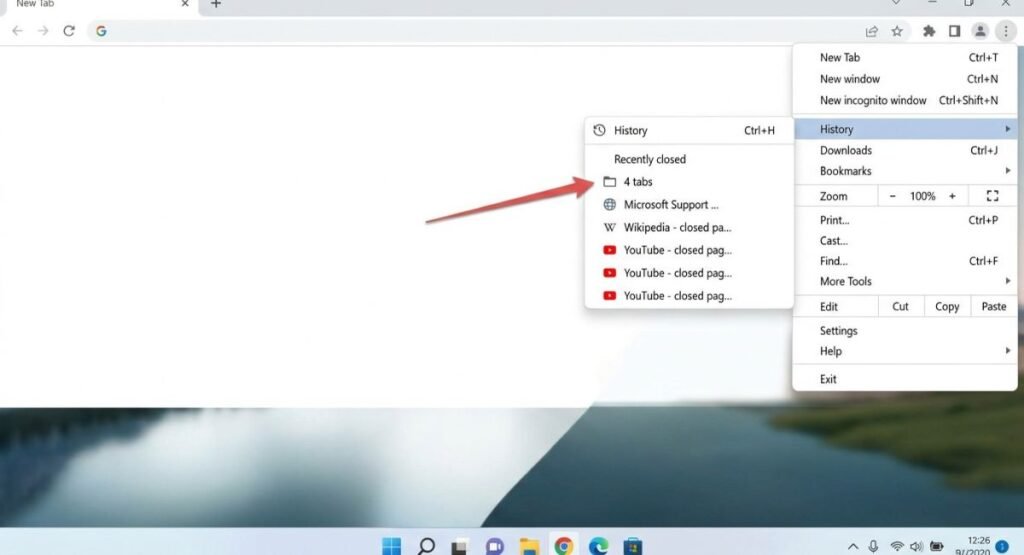
You can also press Ctrl + H to open the full History page.
Make Chrome restore tabs automatically
- Click the three-dot menu and choose Settings.
- In the left sidebar, click On startup.
- Select Continue where you left off.
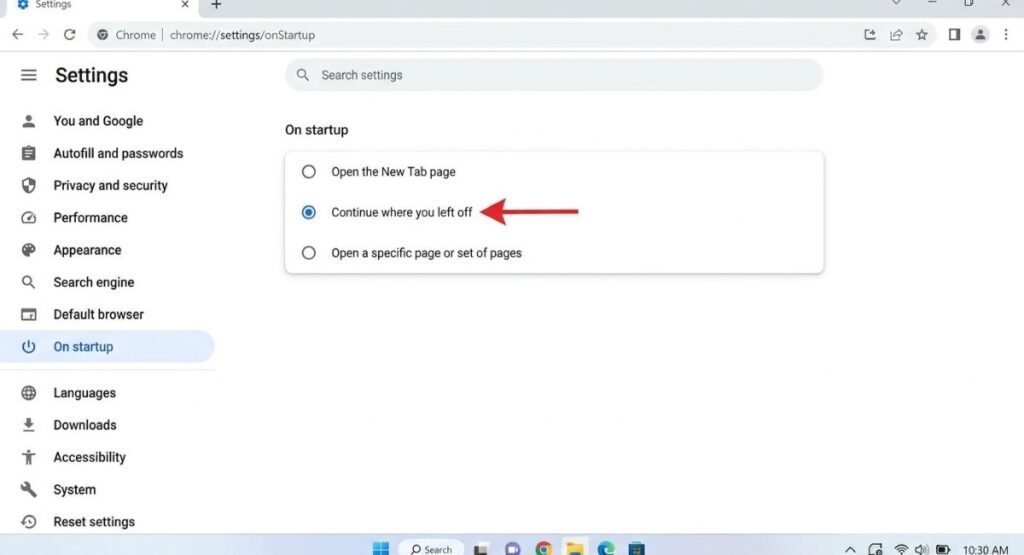
From now on, Chrome reopens the tabs from your last session each time it starts. You can also paste chrome://settings/onStartup into the address bar to jump straight there.
Good to know: Chrome doesn’t restore Incognito tabs. If you’re also signed out of sites after restarting, check whether you’ve set Chrome to clear cookies and site data when you close it, since that setting causes it.
How to Reopen Tabs After Restart in Microsoft Edge
Use Recently Closed from History
- Open Edge.
- Press Ctrl + H to open the History panel.
- Look for the Recently closed section at the top.
- Click a tab or window to reopen it.
You can also open the three-dot menu (Settings and more) and choose History.
Make Edge restore tabs automatically
- Click the three-dot menu and choose Settings.
- Click Start, home, and new tabs in the left sidebar.
- Under When Edge starts, select Open tabs from the previous session.
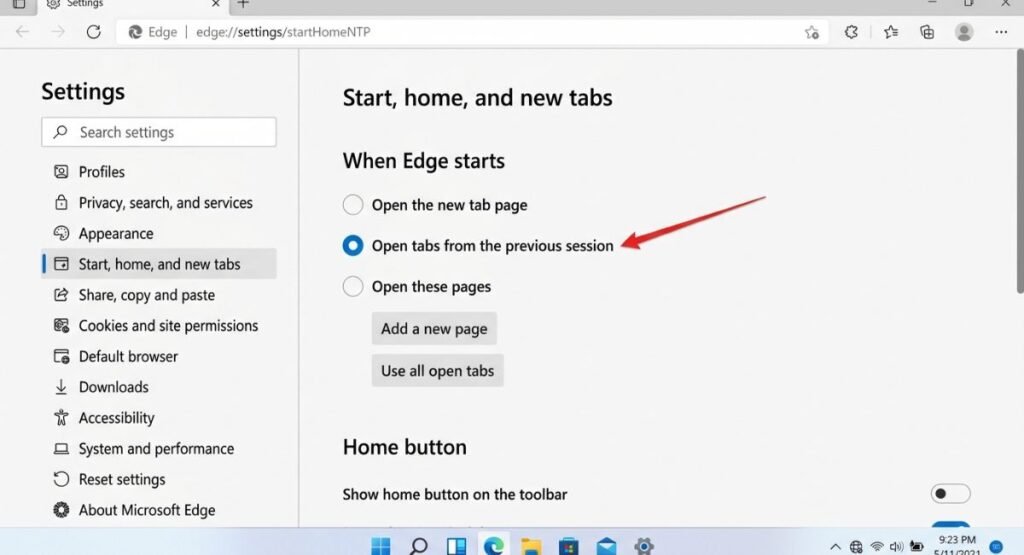
Edge will now reopen your last set of tabs every time it launches. The shortcut address is edge://settings/onStartup.
If Edge still clears your tabs
Edge has a setting that wipes data on exit, and it can interfere with restoring a session.
- Go to Settings > Privacy, search, and services.
- Scroll to Clear browsing data and click Choose what to clear every time you close the browser.
- Check that browsing history and cookies aren’t set to clear automatically if you want your session kept.
How to Reopen Tabs After Restart in Mozilla Firefox
Restore Previous Session
If Firefox opened with a blank page, you can bring the last session back manually.
- Open Firefox.
- Click the menu button (three horizontal lines) in the top-right corner.
- Choose History.
- Click Restore Previous Session.

If you don’t see this option, Firefox may already be set to restore tabs automatically, or there’s no previous session to restore.
Reopen recently closed tabs or windows
In the same History menu, you’ll also see Recently Closed Tabs and Recently Closed Windows. Pick the one you want. If you closed an entire window by accident, Ctrl + Shift + N reopens it.
Make Firefox restore tabs automatically
- Click the menu button and choose Settings.
- Stay on the General tab.
- Scroll to the Startup section.
- Check the box Open previous windows and tabs.

You can also type about:preferences in the address bar to get there quickly.
If Firefox still forgets your tabs
Firefox can be set to clear history every time it closes, which can stop session restore from working.
- Go to Settings > Privacy & Security.
- Scroll to History.
- If it’s set to Use custom settings for history, make sure Clear history when Firefox closes is unchecked.
Make Sure Windows 11 Isn’t Getting in the Way
Your browser handles its own tabs, but Windows 11 has a related option that can reopen some apps after you sign back in. Look for it here:
- Open Settings (Windows key + I).
- Click Accounts, then Sign-in options.
- Look for the toggle about automatically saving restartable apps and restarting them when you sign back in.
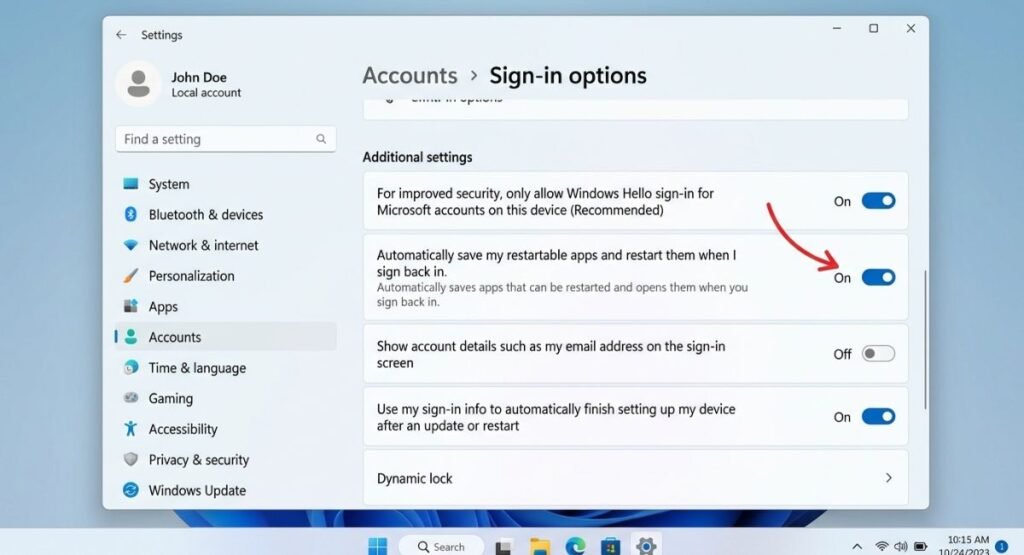
Wording and availability vary between Windows 11 versions, so don’t worry if yours looks slightly different. This setting won’t replace the browser’s own startup option, so it’s still worth setting that one up.
How to Avoid Losing Tabs in the Future
- Turn on the startup restore option in your browser. It takes ten seconds and covers most situations.
- Bookmark all open tabs before a planned restart. In Chrome, Edge, and Firefox, press Ctrl + Shift + D to save every open tab to a folder.
- Close the browser normally instead of force-quitting it, so the session saves properly.
- Avoid Private or Incognito windows for tabs you want to keep. They’re never restored.
Frequently Asked Questions
Why did my tabs not come back after restarting my computer?
Most often, the browser’s startup setting is on “Open the New Tab page” instead of restoring the previous session. A browser crash, a privacy setting that clears data on exit, or using a Private/Incognito window can also stop tabs from returning.
Can I reopen tabs after I already restarted and closed the browser?
Often, yes. Open the browser and press Ctrl + Shift + T, or check History for the Recently closed list. It works best if you haven’t opened and closed lots of new windows since.
Can I restore Incognito or Private browsing tabs?
No. Incognito and Private windows are designed not to save session data, so those tabs can’t be restored once the window is closed.
Does restoring tabs also restore the pages I was logged in to?
Usually the pages reload, but you may need to sign in again if the site’s login session expired or if your browser clears cookies on exit.
Does Ctrl + Shift + T work in all three browsers?
Yes. It reopens the last closed tab in Chrome, Edge, and Firefox, and repeating it brings back earlier ones in order.
Conclusion
Press Ctrl + Shift + T for a quick rescue, and switch on your browser’s startup restore setting so you don’t have to think about it again. If tabs still vanish, check whether a privacy setting is clearing your history on exit.