Introduction
When Bluetooth not showing or missing in Windows, you may be unable to connect wireless headphones, speakers, keyboards, or other devices. This problem can occur in both Windows 11 and Windows 10, especially after a system update, driver issue, or unexpected settings change. Sometimes, the Bluetooth toggle disappears from Settings, while other times, the adapter is missing from Device Manager.
Fortunately, you don’t need to replace your computer immediately. Several simple troubleshooting methods can help you identify the cause and restore Bluetooth functionality. In this guide, you’ll discover 10 practical fixes to resolve Bluetooth missing issues, update drivers, and restore wireless connectivity on your Windows PC.
Check Bluetooth Settings and Enable Bluetooth
Start by checking whether Bluetooth is disabled in Windows. A quick settings change may restore the missing toggle without requiring a driver reinstall. Open the Settings app and look for the Bluetooth controls. On Windows 11, go to Settings > Bluetooth & devices. On Windows 10, open Settings > Devices > Bluetooth & other devices. If the switch appears, turn Bluetooth on and check whether your wireless devices reconnect.
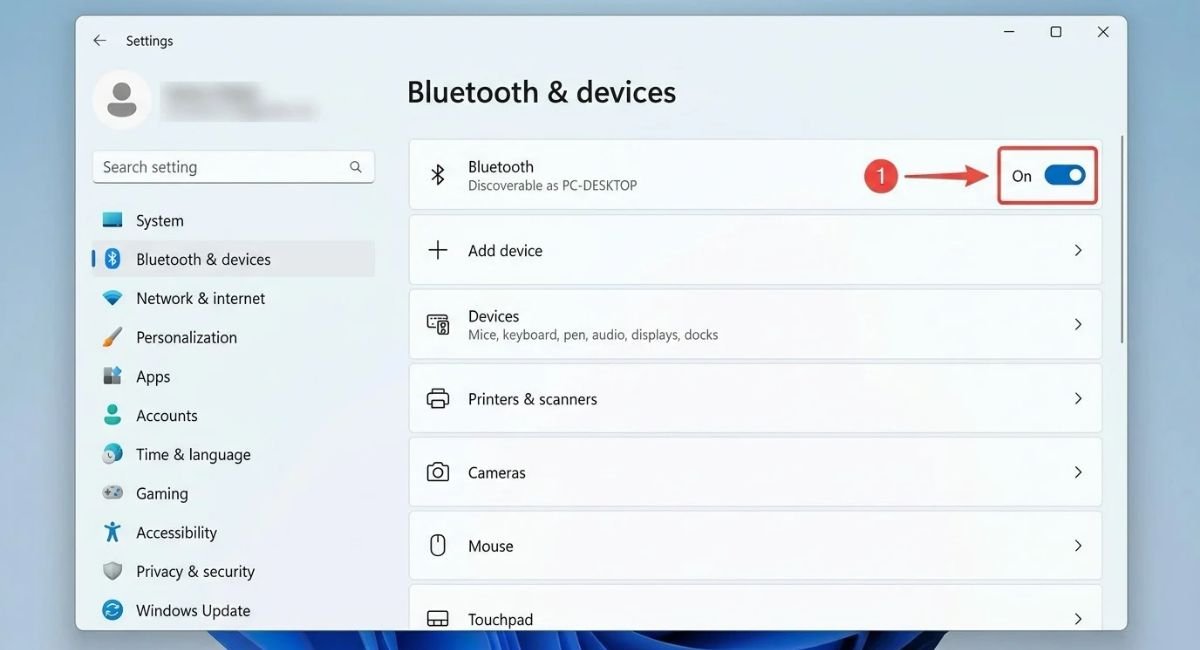
If Bluetooth settings are missing, do not assume your computer has a hardware failure. The system may not detect its Bluetooth adapter, or the installed driver may have stopped working. Also, some desktop computers do not include built-in Bluetooth. Check your PC or motherboard specifications to confirm support. If your computer has no built-in adapter, you will need a compatible internal card or USB Bluetooth adapter.
Check Bluetooth in Windows Quick Settings
Press Windows + A to open Windows Quick Settings in Windows 11. Look for the Bluetooth tile and select it if available. If the tile is missing, select the edit option and check whether Bluetooth can be added. In Windows 10, open the Action Center and look for the Bluetooth quick action. Its availability depends on your device and Windows configuration.
Confirm That Your PC Supports Bluetooth
Check your computer manufacturer’s specifications or product manual. Look for a built-in Bluetooth radio or a wireless card that supports Bluetooth. Wi-Fi support alone does not guarantee Bluetooth support, even when both features use the same wireless module. If your computer never included Bluetooth hardware, software troubleshooting will not add the missing hardware.
Turn Airplane Mode On and Off
Airplane Mode can disable wireless connections, including Bluetooth on some devices. A temporary wireless-state issue can also prevent Bluetooth from appearing or working correctly. Open Windows Settings and locate the network or wireless controls. Turn Airplane Mode on, wait about ten seconds, and then turn it off. Next, check whether Bluetooth has returned. This simple step can refresh wireless connectivity without changing your drivers or personal files.
Go to:
Settings > Network & internet > Airplane mode
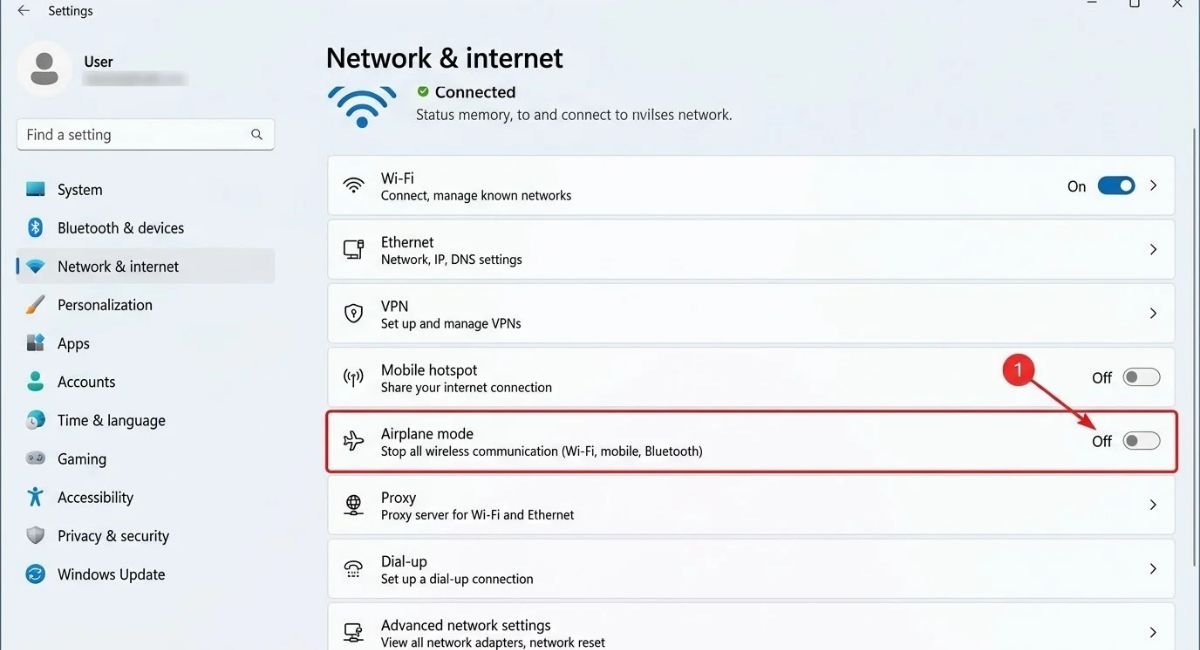
If Bluetooth remains missing, check for a physical wireless switch or a keyboard shortcut. Some laptops use a function key to control wireless radios. The exact key depends on the manufacturer, so consult your laptop manual. Remember that Airplane Mode is only a basic check. If the Bluetooth adapter is missing from Device Manager, continue with the hardware and driver checks below.
How to Enable and Disable Airplane Mode
On Windows 11, open Settings > Network & internet > Airplane mode. On Windows 10, open Settings > Network & Internet > Airplane mode. Switch the setting on, wait briefly, and switch it off again. Then open the Bluetooth settings page to check the result. If the Bluetooth option is still absent, the problem may involve a driver, service, or adapter rather than Airplane Mode.
Show Hidden Bluetooth Devices in Device Manager
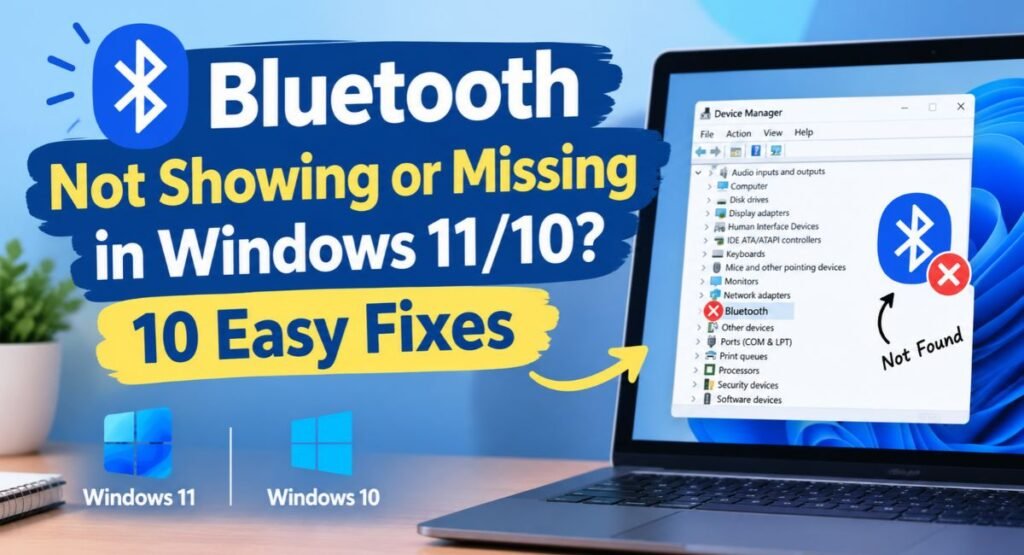
Device Manager lists the hardware Windows detects and the drivers used to control it. Sometimes, an inactive or disconnected device appears as a hidden entry. This can happen after a driver change, hardware update, or temporary detection problem. Open Device Manager by right-clicking Start and selecting Device Manager. Choose View > Show hidden devices. Then look for the Bluetooth category. If it appears, expand it and check whether the adapter is listed in gray.
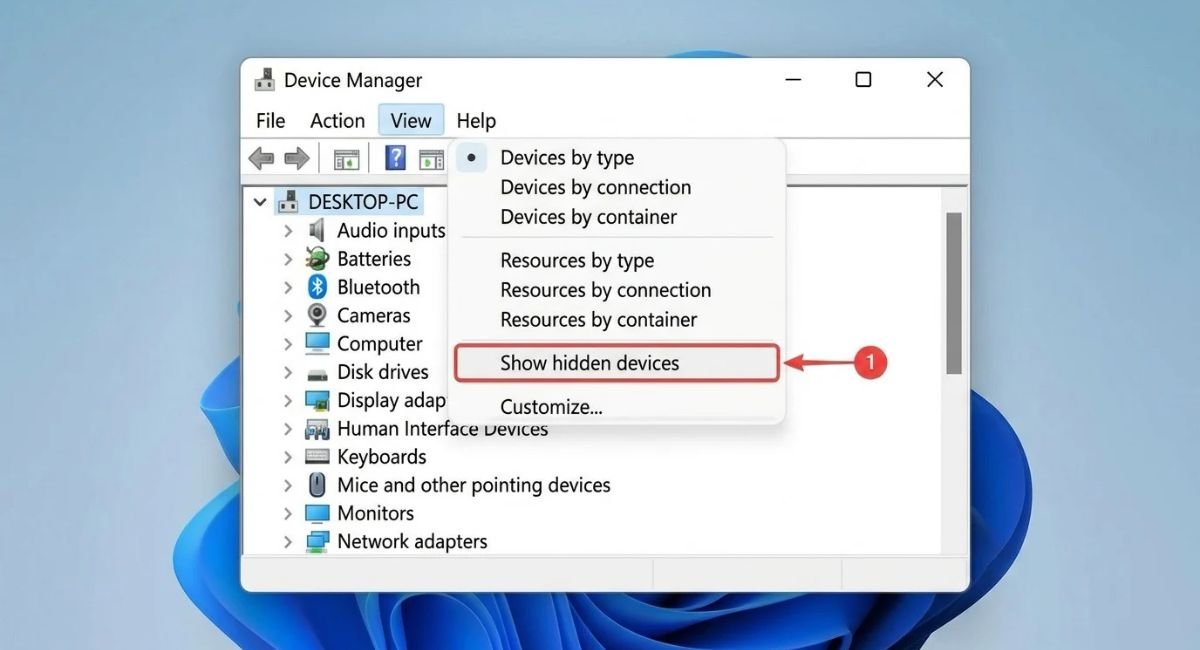
If you find the adapter, right-click it and open Properties. Check the device status for an error message or code. A warning icon may indicate a driver or hardware problem. If Bluetooth is still missing, select the Action menu and choose Scan for hardware changes. Windows will search for connected hardware again. If the adapter does not return, continue with the driver checks in the next section.
Scan for Hardware Changes
The Scan for hardware changes option asks Windows to detect connected hardware again. In Device Manager, select your computer’s name, open the Action menu, and choose the scan option. If Windows detects the Bluetooth adapter, it may restore the category automatically. However, this scan cannot repair a physically disconnected or failed adapter. If the scan changes nothing, check the driver and hardware information.
Check Unknown Devices and Warning Icons
Look under Other devices for entries such as Unknown device. Open an entry’s Properties and review its hardware information and device status. An unknown device may be a Bluetooth component, but it could also be unrelated hardware. Do not assume every unknown entry is Bluetooth. Use your computer manufacturer’s driver list to identify the correct component before installing a replacement driver.
Update, Reinstall, or Roll Back the Bluetooth Driver
Outdated or damaged Bluetooth drivers are a common reason Bluetooth disappears from Windows. A driver allows Windows to communicate with the Bluetooth adapter. If the driver fails, the adapter may stop appearing in Settings or Device Manager. Open Device Manager and expand Bluetooth if the category exists. Right-click your adapter and select Update driver. Choose Search automatically for drivers and follow the instructions.
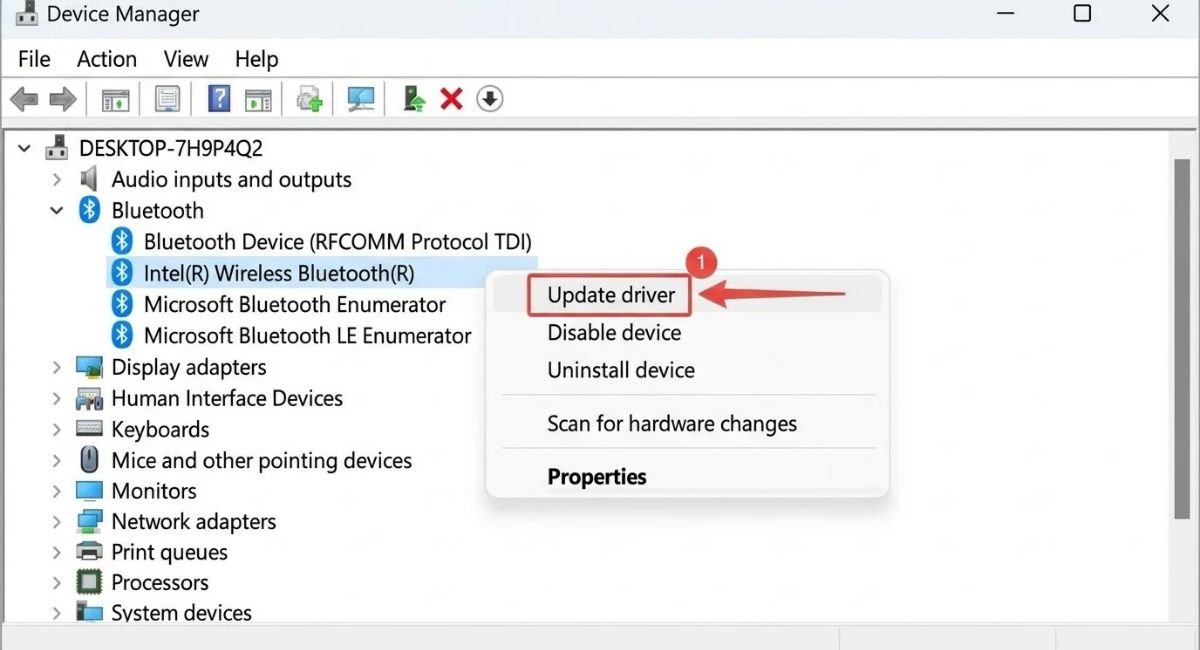
If updating does not help, reinstall the driver. Right-click the Bluetooth adapter and select Uninstall device. If Windows offers an option to remove the driver package, avoid selecting it unless you already have the correct replacement driver. Restart your PC and let Windows detect the adapter again. If the issue began immediately after a driver update, open the adapter’s Properties, select the Driver tab, and check whether Roll Back Driver is available.
Download the Correct Bluetooth Driver
If the Bluetooth driver is missing, download the driver from your PC or motherboard manufacturer’s official website. Search by your exact computer model and Windows version. Some systems use Intel or Realtek wireless hardware, while others use different manufacturers. Install only a driver that matches your hardware. If Bluetooth is not working and your PC has no internet connection, download the driver on another device and transfer it using a USB drive.
Add Bluetooth Driver Manually
Manual installation may help when Windows cannot identify the adapter automatically. First, download and extract a compatible driver package from the manufacturer’s website. In Device Manager, check the Action menu for Add legacy hardware, if that option is available. Follow the wizard only if you know the correct hardware model and have a compatible driver. The options Search for and install the hardware automatically and Common hardware types may appear during the process, but manually adding hardware is not a universal fix for missing Bluetooth.
Do not select a random device from the hardware list. An incorrect choice can cause more driver problems without restoring Bluetooth. For most modern computers, installing the manufacturer’s official driver package is safer than forcing a generic device entry. If Windows still cannot detect the adapter, move on to the Bluetooth service and hardware checks.
Restart the Bluetooth Support Service
Windows uses background services to manage several system functions, including Bluetooth operations. If the Bluetooth Support Service stops or becomes stuck, Bluetooth pairing and related features may fail. In some cases, restarting the service can help restore normal operation. Press Windows + R, type services.msc, and press Enter to open the Services application. Find Bluetooth Support Service in the list and double-click it to review its status.
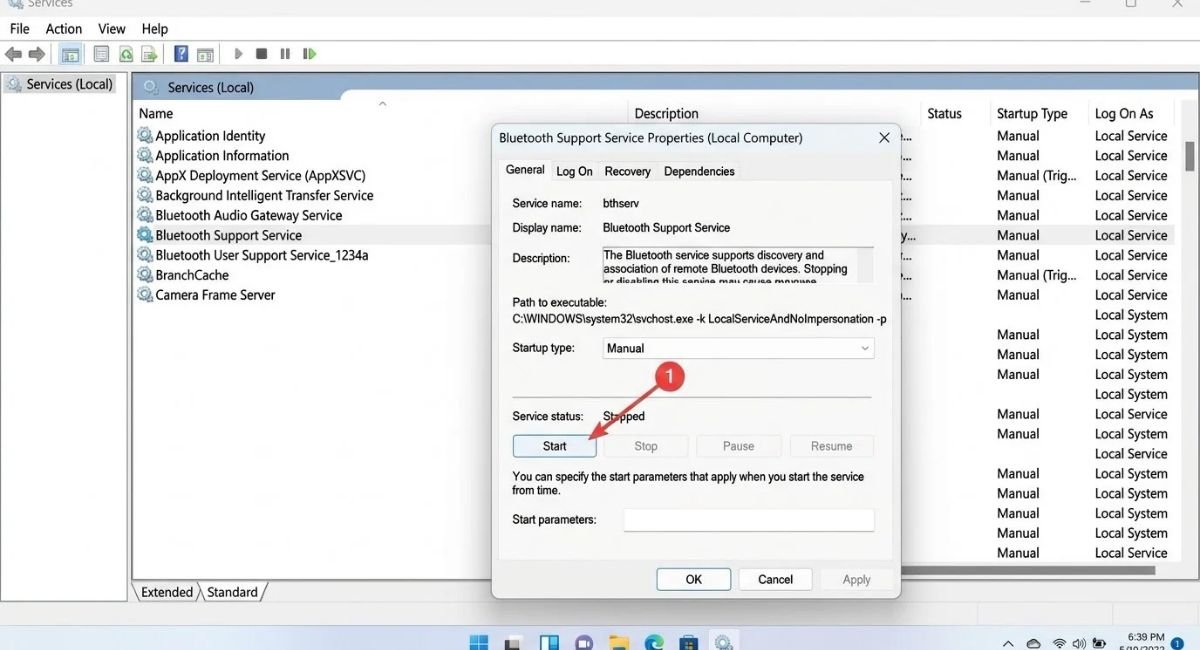
If the service is running, select Stop, wait a few seconds, and select Start. If it is stopped, select Start instead. Check the Startup type and follow the guidance provided by your Windows version and device manufacturer. Avoid changing unrelated services. After restarting the service, open Bluetooth settings and check whether the missing option has returned. If the service is absent or cannot start, driver or system problems may require further investigation.
How to Restart Bluetooth Service
The service restart can clear a temporary service problem, but it cannot repair a missing Bluetooth adapter by itself. If Windows displays an error when you start the service, note the exact message. Check Device Manager for driver errors and install any missing manufacturer drivers. If the service starts successfully but Bluetooth remains unavailable, continue with the USB driver and hardware checks.
Reinstall USB Drivers and Check Bluetooth Hardware
Some internal Bluetooth adapters connect to the computer through an internal USB interface, even when Wi-Fi works normally. A USB controller problem can therefore affect Bluetooth hardware detection. Open Device Manager and expand Universal Serial Bus Controllers. Review the entries for warning icons. If you suspect a USB driver problem, install chipset and USB drivers from your computer manufacturer’s official support page. Restart the computer after installation and check Device Manager again.
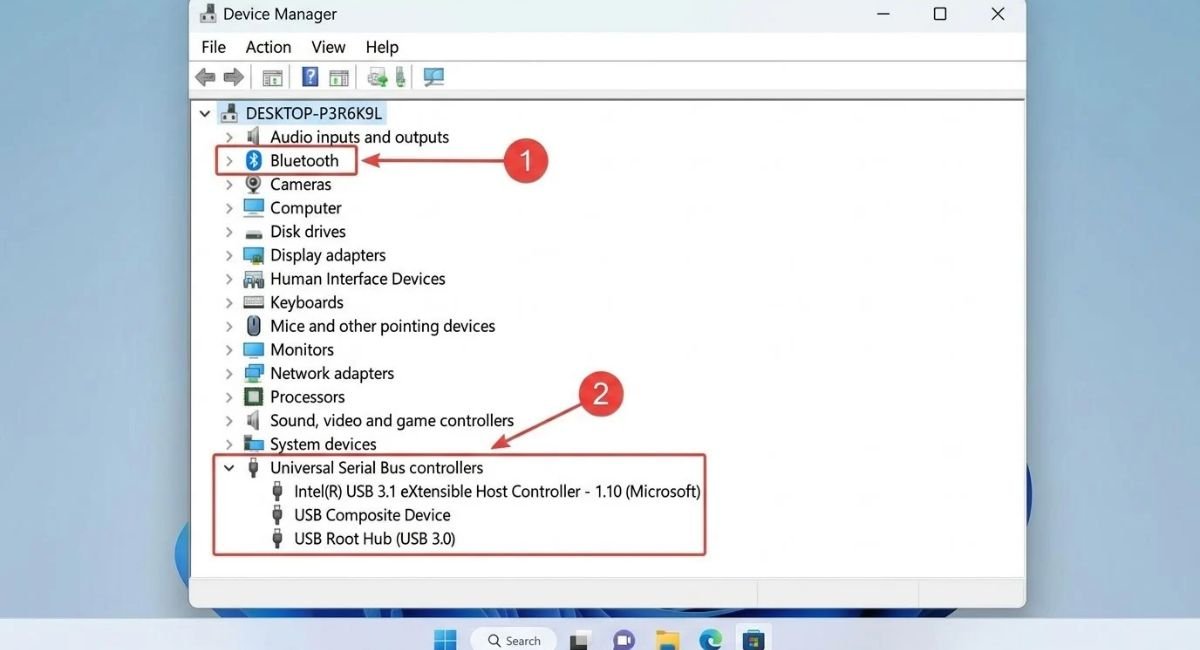
Be careful when uninstalling USB devices. Removing several controllers at once can temporarily disable USB ports, keyboards, or other connected devices. Do not uninstall every entry as a general troubleshooting step. If you must remove a specific problematic device, make sure you understand how Windows will restore its driver and keep another way to control the computer available. If Bluetooth is still missing, test a compatible external USB Bluetooth adapter to help identify a possible internal hardware issue.
Test the Bluetooth Adapter
If your computer has a USB Bluetooth adapter, disconnect it, wait briefly, and reconnect it to another USB port. Avoid using a USB hub during this test. If possible, test the adapter on another compatible computer. If it works there but not on your PC, Windows settings or drivers may be responsible. If neither computer detects it, the adapter itself may have failed.
For built-in Bluetooth, check the manufacturer’s diagnostic tool and hardware support guidance. Some laptops let you enable or disable wireless components in firmware settings. If the adapter is missing from Device Manager after the correct drivers are installed, a hardware fault remains possible. Software fixes cannot repair a physically damaged Bluetooth module.
Run the Bluetooth Troubleshooter in Windows 11/10
Windows includes troubleshooting tools that can identify some common Bluetooth problems. They may detect disabled settings, service issues, or configuration errors. On Windows 11, open Settings and go to System > Troubleshoot > Other troubleshooters, if the Bluetooth troubleshooter is listed for your installation. Select Run Bluetooth troubleshooter when available. Windows may direct you to the Get Help app, which provides guided steps for supported issues.
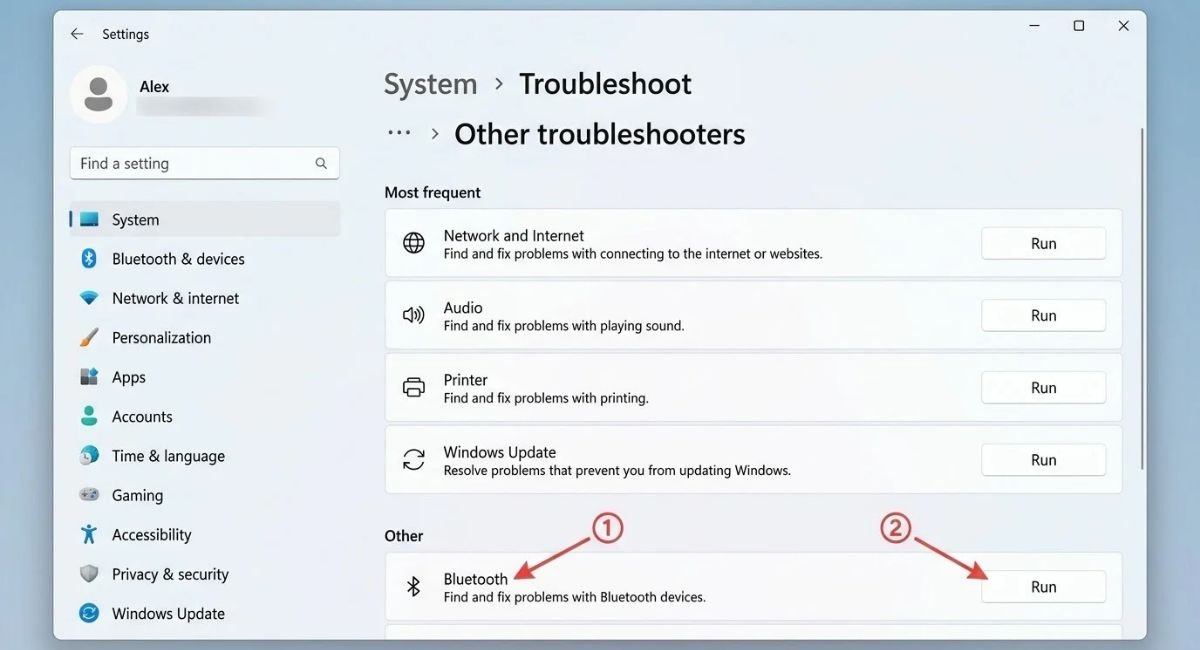
On Windows 10, troubleshooting options vary by version and installed updates. Open Settings > Update & Security > Troubleshoot and look for the Bluetooth option if it is available. Follow the instructions and apply any suggested repair. A troubleshooter cannot fix every issue, especially when Bluetooth hardware is missing or a driver is unavailable. If the tool finds nothing, use the results alongside the checks in this guide rather than repeating the same scan.
What If the Bluetooth Troubleshooter Finds No Problem?
A clean troubleshooting result does not prove the adapter is working correctly. The tool may not detect hardware faults or unsupported driver issues. Return to Device Manager and check whether the adapter appears without warning icons. Then check the Bluetooth service and install official drivers if necessary. This combination often provides more useful information than relying on a single automated check.
Repair System Files Using SFC and DISM
Damaged Windows components can sometimes affect hardware detection, services, or settings. If Bluetooth disappeared after a system failure or interrupted update, repairing Windows files may help. Windows provides two built-in tools: DISM and System File Checker. These commands do not replace a missing hardware adapter or the correct Bluetooth driver. However, they can repair certain corrupted system files that interfere with Windows functions.
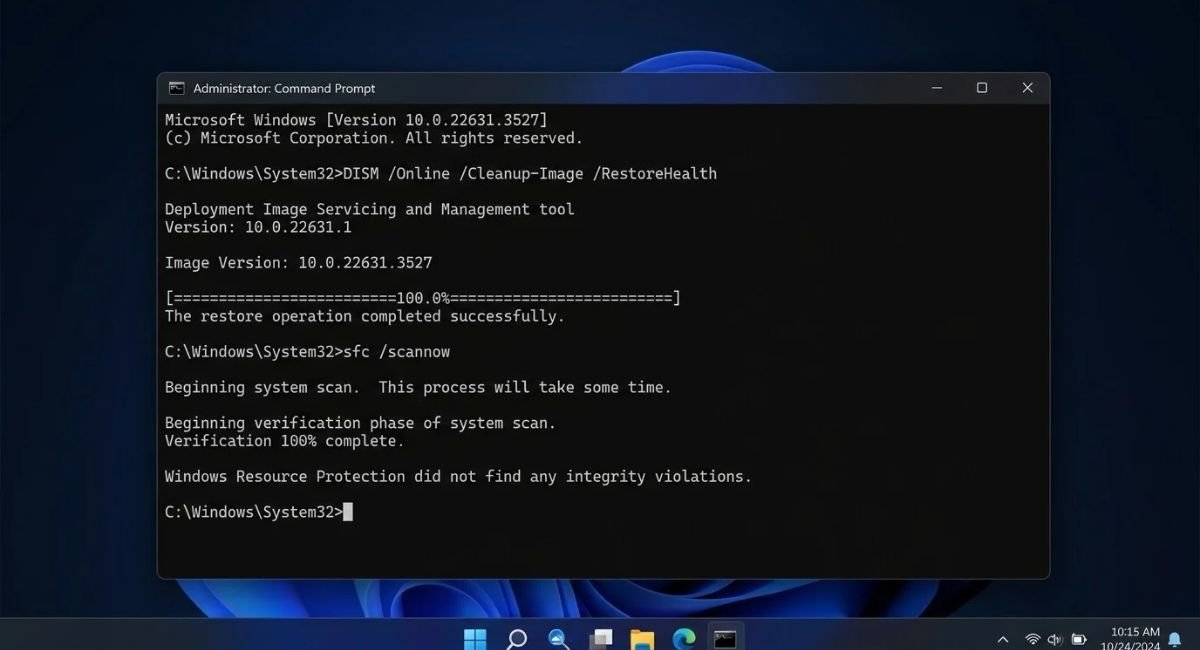
Open the Start menu and search for Terminal or Command Prompt. Choose Run as administrator and approve the prompt. Run the DISM command first, wait for it to finish, and then run System File Checker. The scan may take several minutes. Keep the computer powered on, and do not close the window while the process is running. When both checks finish, restart your PC and check Bluetooth again.
Run DISM and SFC Scans
Type the following command and press Enter:
DISM /Online /Cleanup-Image /RestoreHealth
Wait until DISM completes. Then run:
sfc /scannow
The first command checks and repairs the Windows component store used for system repair. The second scans protected system files and attempts to replace damaged versions. DISM may need access to Windows Update or a suitable repair source. If either command reports an error, record the message rather than repeatedly running the same command without investigating it.
Check Whether System File Repair Worked
After the scans finish, restart Windows and open Device Manager. Check whether the Bluetooth category or adapter has returned. If Bluetooth remains missing, the cause may be a driver, firmware setting, or hardware problem. System file repair is useful when Windows components are damaged, but it is not a direct Bluetooth driver installation method.
Check Windows Updates and BIOS/UEFI Settings
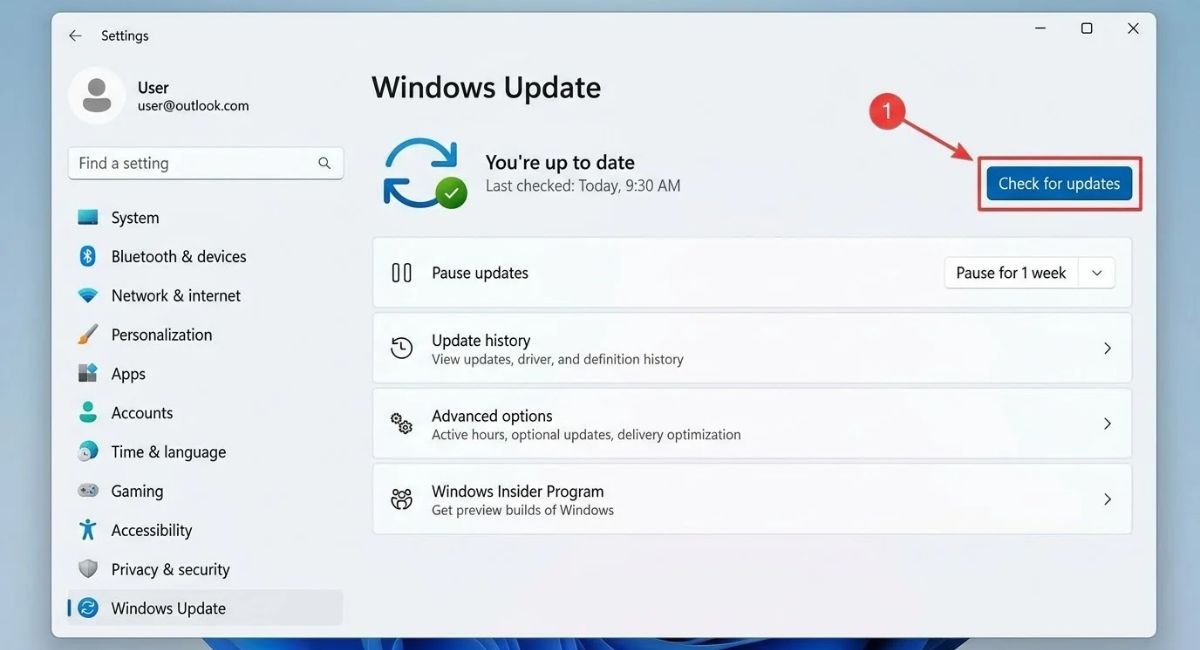
Windows updates can fix driver compatibility issues, but some updates may also expose existing driver problems. Open Settings > Windows Update and select Check for updates. Install relevant updates, then restart your computer if prompted. Check the optional updates section for compatible driver updates when available. Before installing a driver, compare its name and version with the driver offered by your PC manufacturer. Do not assume every optional driver is necessary for your computer.
If Bluetooth remains missing, check whether wireless hardware is disabled in BIOS or UEFI settings. These firmware settings vary by manufacturer, and not every computer provides a Bluetooth control. Restart the computer and enter firmware setup using the key shown during startup or in the device manual. Look for wireless or onboard-device settings, and change only an option you understand. Save the changes and restart Windows. If the Bluetooth option is unavailable or the firmware menus differ, consult your manufacturer’s instructions.
Check Optional Drivers and Firmware Updates
Open Windows Update and review any optional driver updates that match your Bluetooth or wireless hardware. You can also visit the manufacturer’s support page for chipset, wireless, and firmware updates. Install firmware only when it is intended for your exact model, and follow the manufacturer’s instructions carefully. An incorrect BIOS update or interrupted firmware installation can cause serious startup problems. If you are unsure, contact the manufacturer before proceeding.
Did Bluetooth Disappear After a Windows Update?
If Bluetooth disappeared immediately after an update, first check Device Manager for driver errors. Try rolling back the Bluetooth driver if Windows offers that option. Otherwise, install a compatible driver from the manufacturer’s support page. You can also check Windows Update for a newer driver or fix. Avoid removing a recent Windows update unless there is strong evidence that it caused the issue and safer driver fixes have failed.
Windows 10 support note: Standard free support for Windows 10 ended on October 14, 2025. Some eligible users may have extended security update options, but this does not mean every device receives ongoing feature or driver support. If you still use Windows 10, check your device’s support status and consider a supported Windows version when your hardware allows it.
Test Bluetooth in Safe Mode or Restore Windows
If none of the previous fixes works, a third-party program or background service may be interfering with Windows. Windows Safe Mode starts Windows with a limited set of drivers and services. It can help investigate some software conflicts, but Bluetooth may not function normally in this mode because the required drivers or services may not load. Therefore, a missing Bluetooth option in Safe Mode does not prove that the adapter has failed.
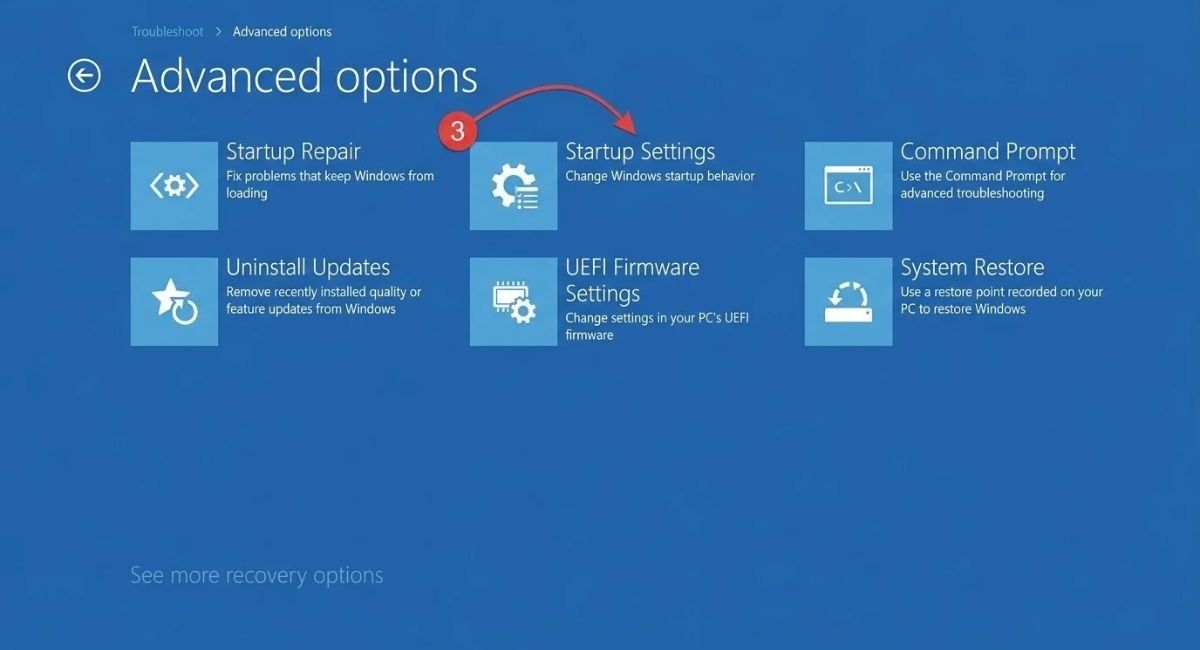
To access Safe Mode, open Settings > System > Recovery on supported Windows 11 installations, then use the recovery options to restart into the Windows recovery environment. Depending on your version, you may also reach recovery through Windows 10’s Update & Security settings. Select Troubleshoot > Advanced options > Startup Settings, then restart and choose a Safe Mode option. The menu names can vary by Windows version. If you are not comfortable with recovery settings, skip this test and contact your PC manufacturer.
Check for Software Conflicts
Think about whether Bluetooth stopped working after installing a new utility, security program, driver manager, or wireless-control application. Use the program’s own settings or official uninstaller to remove a suspected conflict. Avoid disabling security software permanently. Restart Windows and check whether the adapter appears. If the issue returns after a particular application starts, review its settings or contact its developer for help.
Use System Restore if Available
System Restore can return system settings, drivers, and certain installed programs to an earlier state. It may help if Bluetooth worked before a recent driver or software change. Search Windows for Create a restore point and open System Restore if a suitable restore point exists. Review the affected programs before confirming. System Restore is not the same as resetting Windows, and it does not normally delete personal files, but you should still back up important data first.
If Bluetooth remains missing after driver installation, system repair, and hardware checks, contact your computer manufacturer’s support team. Provide the exact computer model, Windows version, Device Manager status, and any error codes. This information can help distinguish a driver issue from a firmware setting or failed Bluetooth module.
Quick Troubleshooting Reference
| Problem | What to check first |
| Bluetooth toggle is missing | Check Device Manager and install the correct driver |
| Bluetooth is missing from Device Manager | Show hidden devices and scan for hardware changes |
| Bluetooth has a warning icon | Check the driver status and update or reinstall the driver |
| Bluetooth disappeared after an update | Try rolling back the driver or installing a compatible version |
| Bluetooth will not turn on | Check Airplane Mode and the Bluetooth Support Service |
| USB Bluetooth adapter is not detected | Try another USB port and test the adapter on another PC |
| Bluetooth still fails after repairs | Check firmware settings and contact the manufacturer |
Conclusion
When Bluetooth not showing or missing in Windows interrupts your work, start with the simplest checks. Confirm that your computer supports Bluetooth, check Windows settings, and inspect Device Manager. These steps can reveal whether the issue involves a disabled setting, missing driver, or undetected adapter.
If basic checks fail, update or reinstall the correct driver, restart the Bluetooth Support Service, and run the available troubleshooting tools. Use SFC and DISM when you suspect Windows system files are damaged. Check firmware settings only when necessary, and avoid forcing incompatible drivers onto your PC.
The most important step is to identify the cause before making major changes. If Windows cannot detect the Bluetooth hardware after the appropriate software and firmware checks, the adapter may need professional attention or replacement. With a careful approach, you can often restore Bluetooth without resetting Windows or losing your personal files.
Frequently Asked Questions
Why Is Bluetooth Not Showing in Device Manager?
Bluetooth not showing in Device Manager can indicate a missing driver, disabled wireless hardware, a detection problem, or a failed adapter. Select View > Show hidden devices, then use Scan for hardware changes. If the adapter remains absent, install the correct driver from your PC manufacturer’s website. If Windows still cannot detect the hardware, check firmware settings and consider professional hardware diagnostics.
How Do I Restore the Missing Bluetooth Toggle in Windows 11?
Open Settings > Bluetooth & devices and check whether Bluetooth appears. Then open Device Manager and inspect the Bluetooth category. If the adapter is present, update or reinstall its driver and restart Windows. If the adapter is missing, check hidden devices and install the correct manufacturer driver. The toggle usually returns only when Windows can detect and support the Bluetooth hardware.
Why Did Bluetooth Disappear After a Windows Update?
An update may expose an incompatible driver or interrupt how Windows detects the adapter. Open Device Manager and check for warnings. If available, roll back the driver to its previous version. Otherwise, install the latest compatible driver from the manufacturer’s support page. Restart Windows and check whether Bluetooth has returned before trying more advanced repairs.
How Do I Reinstall Bluetooth Drivers Without Internet Access?
Use another internet-connected device to download the Bluetooth driver from your computer manufacturer’s official website. Choose the exact computer model and compatible Windows version. Copy the installer to a USB drive and transfer it to the affected PC. Install the driver and restart Windows. Avoid unofficial driver-download websites because they may offer incorrect or unsafe software.
Can a PC Have Bluetooth Without Showing It in Windows?
Yes. A computer may have Bluetooth hardware that Windows cannot currently detect because its driver is missing, the adapter is disabled, or a hardware fault has occurred. Some desktops also lack built-in Bluetooth entirely. Check the PC specifications, review Device Manager, and install the official driver. If the computer has no Bluetooth hardware, a compatible USB Bluetooth adapter can add the feature.