Introduction
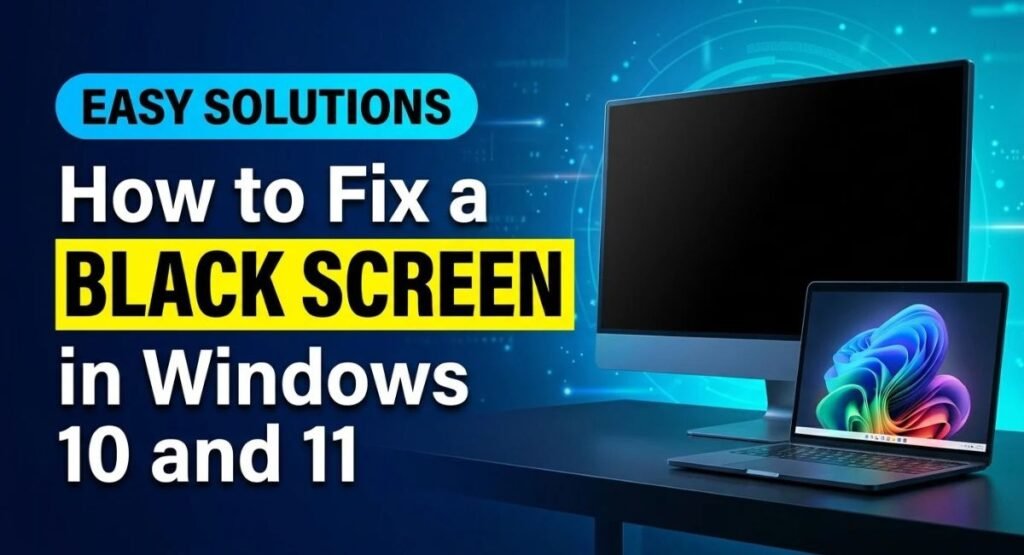
A Black Screen in Windows can be frustrating, especially when your computer turns on but nothing appears on the display. You might see a blank screen before signing in, a black screen with a mouse cursor, or a display that suddenly goes dark after entering your password. This problem can occur because of loose cables, incorrect display settings, outdated graphics drivers, or a recent Windows update.
Fortunately, you can often fix the issue without reinstalling Windows or replacing your computer. In this guide, you’ll learn ten practical ways to troubleshoot a Black Screen in Windows 10 and 11, starting with simple checks and progressing to advanced recovery solutions.
How to Fix a Black Screen in Windows 10 and 11 Quick Checks
Before trying advanced repairs, check whether the problem is caused by a temporary display issue. These simple actions can sometimes restore the picture within seconds.
- Confirm that your monitor is powered on and connected properly.
- Increase your laptop’s screen brightness.
- Press Windows + Ctrl + Shift + B to reset the graphics driver.
- Press Windows + P to check the display output mode.
- Press Ctrl + Alt + Delete to see whether Windows responds.
- Disconnect unnecessary USB devices, docking stations, and external displays.
- Restart your computer if the display remains unresponsive and no update or firmware operation is in progress.
If the screen returns, save your work and check whether the problem happens again. If it remains black, identify the symptoms before choosing the next solution.
Identify Your Black Screen Problem
Different symptoms can point toward different causes. Use this table to decide where to begin.
| Symptom | Possible cause | Recommended starting point |
|---|---|---|
| Monitor displays No Signal | Cable, input, or graphics output problem | Fix 1 |
| Black screen with a mouse cursor | Windows Explorer or graphics driver issue | Fix 2 |
| Black screen after signing in | Desktop or startup process failure | Fix 3 |
| Black screen after a Windows update | Driver or update compatibility problem | Fix 5 |
| Black screen before the login screen | Startup or display driver issue | Fix 4 |
| Black screen before the manufacturer logo | Display, power, or hardware problem | Fix 10 |
| Blinking cursor during startup | Boot device or startup configuration issue | Fix 4 |
These are starting points, not guaranteed diagnoses. Follow the method that matches your symptoms instead of performing every repair immediately.
Check Your Monitor, Display Cable, and Brightness
A black screen does not always mean Windows has stopped working. Your computer might be running normally while the monitor is receiving no signal or the laptop display is too dim to see.
Check Your Monitor and Cable Connections
If you use a desktop computer, confirm that the monitor is switched on and its power indicator is illuminated. Open the monitor’s built-in menu and select the correct input source, such as HDMI or DisplayPort.
Next, inspect the video cable. Disconnect it from both ends and reconnect it securely. If you have another compatible cable or monitor, test it to determine whether the original equipment is causing the problem.
For a desktop PC with a dedicated graphics card, connect the monitor to the graphics card’s video output. The motherboard’s video output may not work unless the processor and system support integrated graphics.
Laptop users should increase the brightness using the keyboard controls provided by the manufacturer. Disconnect external monitors and docking stations temporarily to eliminate display configuration problems.
You can also press Windows + P to open the projection menu. If Windows is sending the desktop to another screen, choose the appropriate display mode.
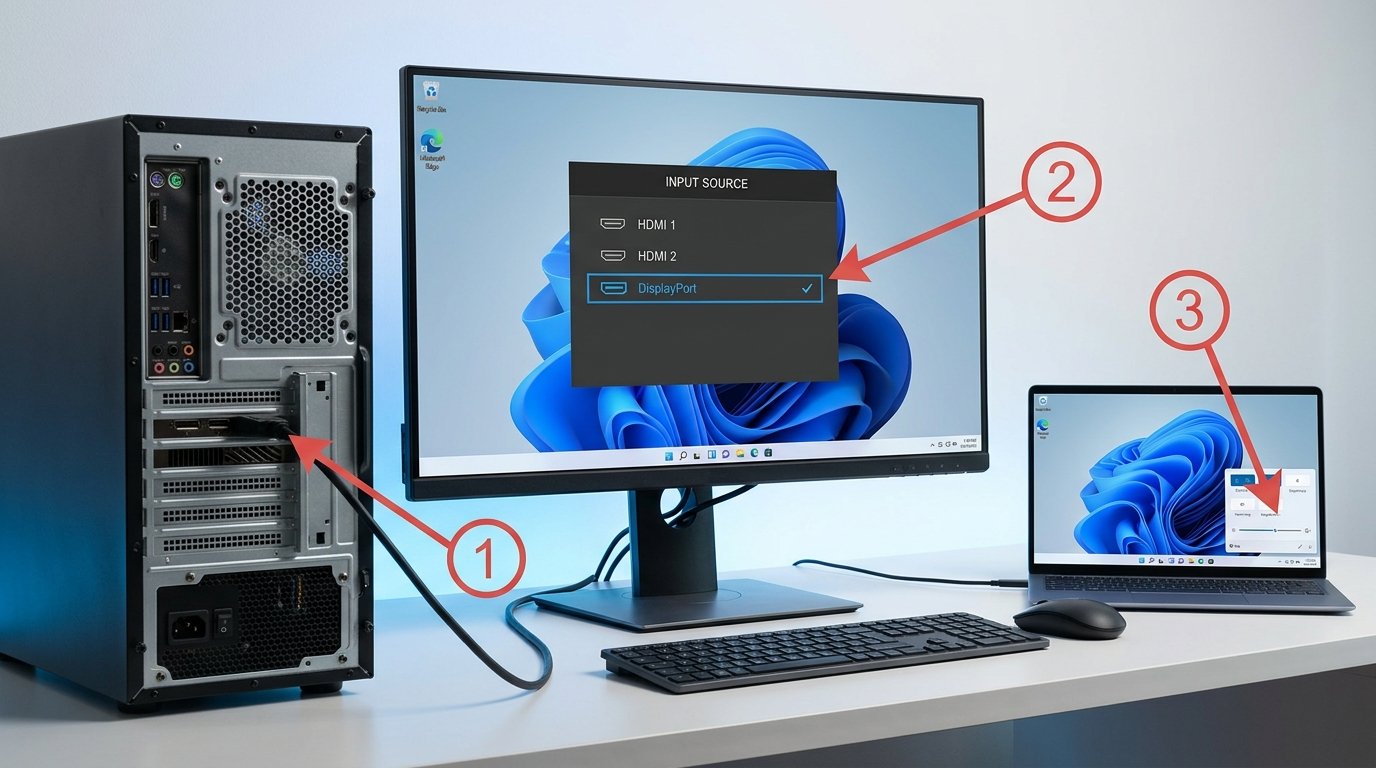
If another monitor works correctly, the original display or cable may need further inspection. If neither display shows an image, continue to the next fixes.
Fix a Black Screen with a Cursor by Restarting Windows Explorer
If your screen is black but the mouse cursor remains visible, Windows may have loaded without displaying the desktop properly. In some cases, Windows Explorer has stopped responding or failed to start.
Windows Explorer manages important parts of the Windows interface, including the taskbar, desktop icons, and File Explorer. Restarting it can restore the desktop when the problem is related to the Windows shell.
Restart Windows Explorer in Task Manager
- Press Ctrl + Shift + Esc to open Task Manager.
- If Task Manager opens in a simplified view, select More details.
- Under the Processes tab, find Windows Explorer.
- Right-click Windows Explorer and select Restart.
If Windows Explorer does not appear in the list, start it manually:
- In Task Manager, select Run new task. Depending on the Windows version, this option may appear under the File menu.
- Type
explorer.exe. - Press Enter.
Wait a few seconds to see whether the desktop, taskbar, and Start menu return.
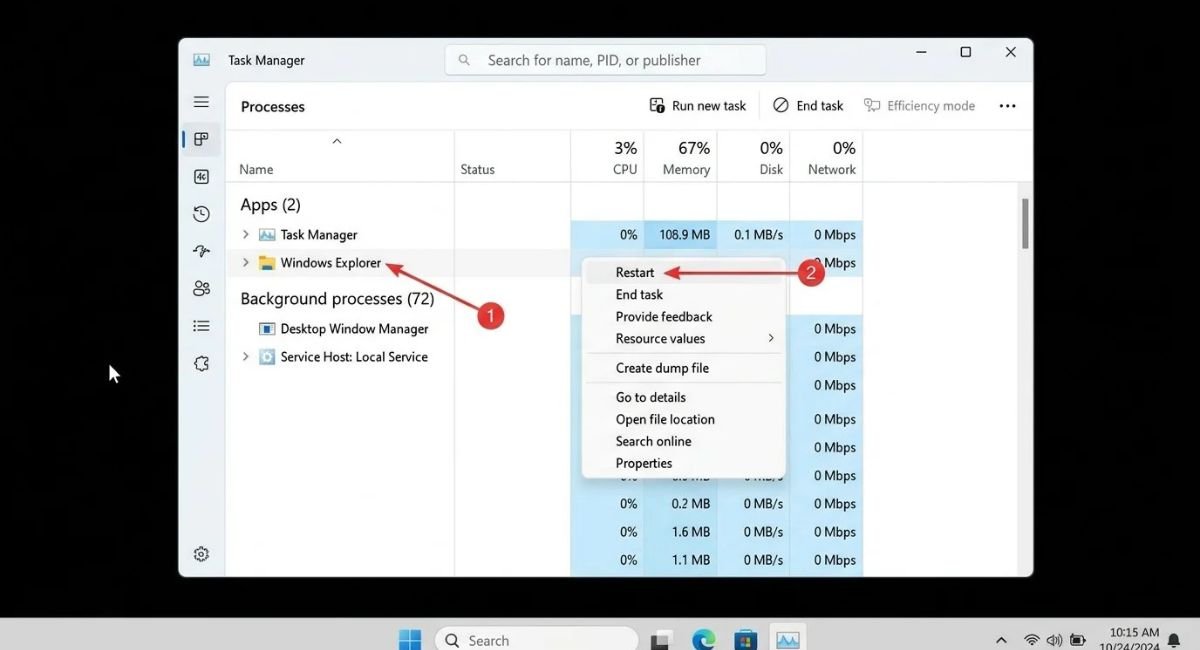
If the desktop returns, restart your computer normally and check whether the problem happens again. If Task Manager does not open or the desktop remains black, continue to the next fix.
Fix a Black Screen After Entering Your Password
Sometimes the sign-in screen works correctly, but the display becomes black immediately after you enter your password or PIN. This usually means the problem occurs while Windows is loading your desktop session rather than before startup.
Check Whether Windows Responds After Sign-In
First, wait about a minute to allow Windows to finish loading. Then press Ctrl + Alt + Delete.
If the security screen appears, open Task Manager and follow Fix 2 to restart Windows Explorer. If you use multiple monitors, disconnect the external display temporarily and check whether the desktop appears on your main screen.
You can also press Windows + Ctrl + Shift + B to reset the graphics driver. If the display flickers or returns, save your work and investigate recent driver or application changes.
If the problem continues, consider whether you recently installed a new startup application, display driver, or Windows update. These changes can interfere with the sign-in process.
If you can reach the Windows sign-in screen but the desktop remains unavailable, try Safe Mode using the instructions in Fix 6.
Avoid deleting your Windows user profile or resetting the computer as an initial response. These actions can create unnecessary disruption and may put locally stored data at risk.
Fix a Black Screen Before the Windows Login Screen
If the screen turns black before the sign-in page appears, Windows might be struggling to start, or the display driver may be failing during startup.
First, disconnect unnecessary accessories and check the monitor connections described in Fix 1. Restart the computer once and watch for the manufacturer logo or Windows loading animation.
If the manufacturer logo appears but the screen goes black as Windows starts loading, a startup problem or incompatible driver may be responsible. If no logo appears at all, investigate the display and hardware before assuming Windows is the cause.
Open Windows Recovery Environment
If Windows repeatedly fails to start, it may automatically open the Windows Recovery Environment (WinRE).
If recovery does not appear, Microsoft’s recovery instructions describe ways to enter WinRE, including using Windows installation media. On supported systems, interrupting normal startup twice may also trigger automatic recovery on a subsequent start. Use this approach only when Windows is not actively installing updates or performing firmware operations.
Once the recovery screen appears, select:
Troubleshoot > Advanced options
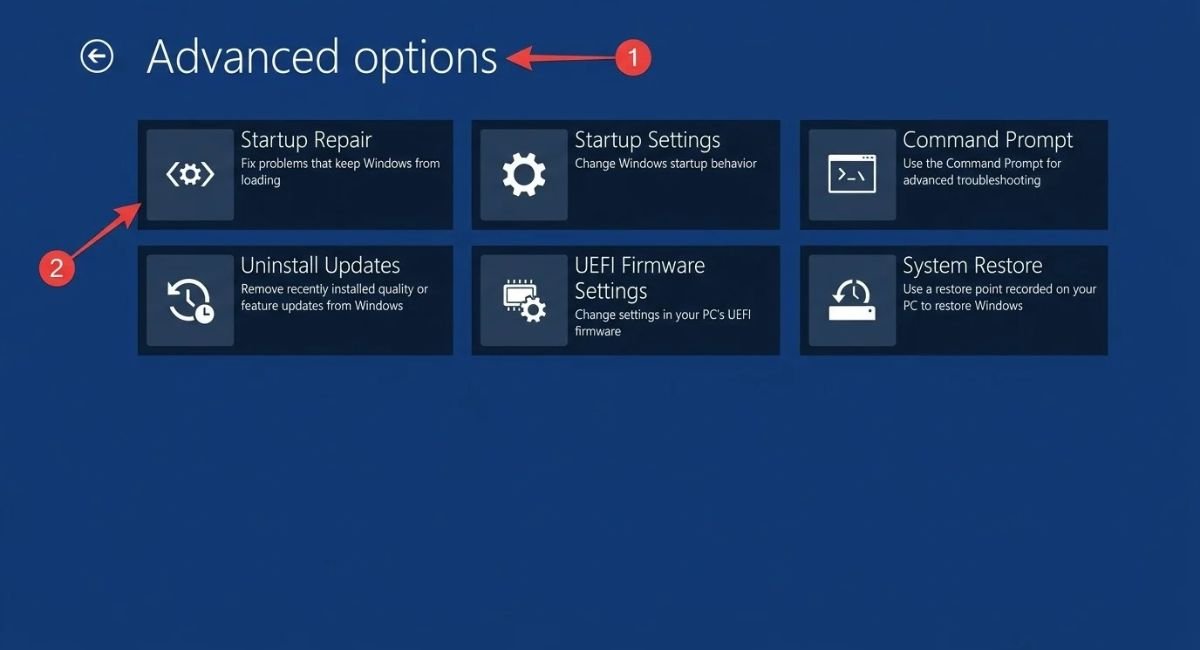
Depending on your system, you may see Startup Repair, Startup Settings, System Restore, Uninstall Updates, and other recovery tools.
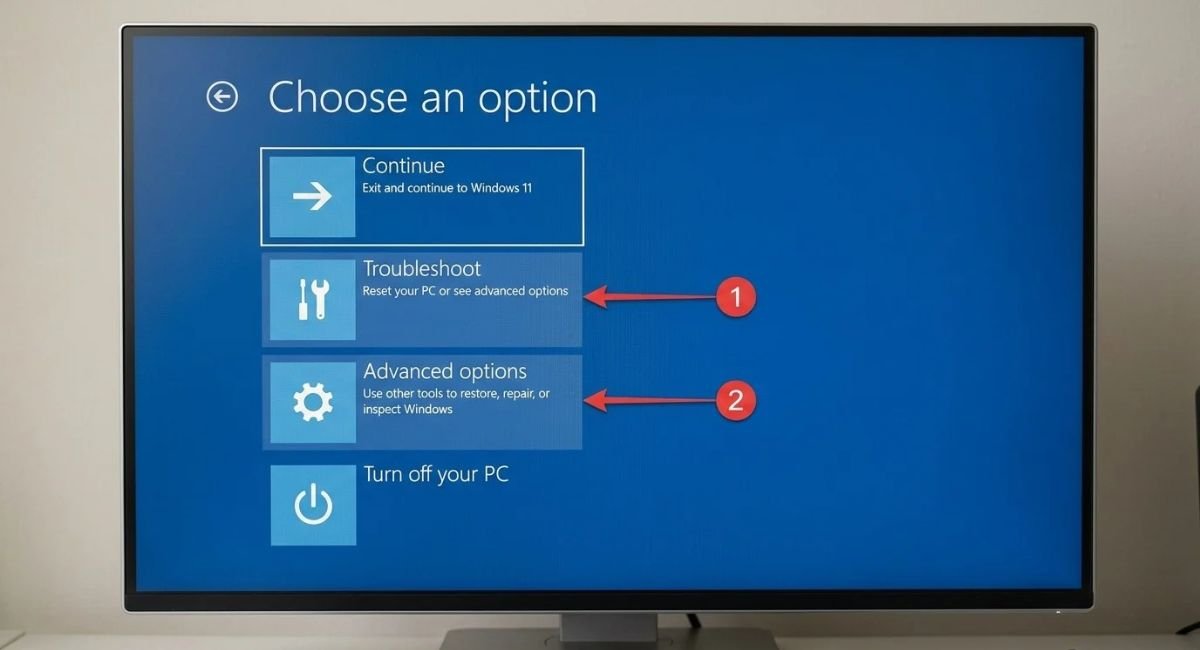
If you cannot see the recovery screen because the display remains completely blank, test another monitor or cable and consult your computer manufacturer’s recovery instructions.
Important: Some recovery options require your BitLocker recovery key. Locate the correct key before proceeding with encrypted-device recovery whenever possible.
Restart the Graphics Driver and Roll Back a Recent Driver Update
Graphics drivers allow Windows to communicate with the computer’s graphics hardware. A damaged, incompatible, or unstable driver can cause a black screen during startup, after sign-in, or when changing display settings.
Reset the Graphics Driver
Press the following keyboard shortcut:
Windows + Ctrl + Shift + B
You may hear a short beep or see the screen flicker if Windows responds. This shortcut resets the graphics driver; it does not reinstall the driver or repair every graphics-related problem.
If the display returns, save your work and check whether the issue started after a driver or Windows update.
Update or Roll Back the Display Driver
If Windows is accessible:
- Right-click Start and open Device Manager.
- Expand Display adapters.
- Right-click your graphics device and select Properties.
- Open the Driver tab.
- If the problem began after a driver update, select Roll Back Driver if the option is available.
If no rollback option is available, check Windows Update or the official support website for your computer or graphics-card manufacturer. Choose a driver that matches your hardware and Windows version.
Avoid third-party driver-updater utilities that promise to fix every problem automatically. Unverified drivers can introduce additional compatibility and stability issues.
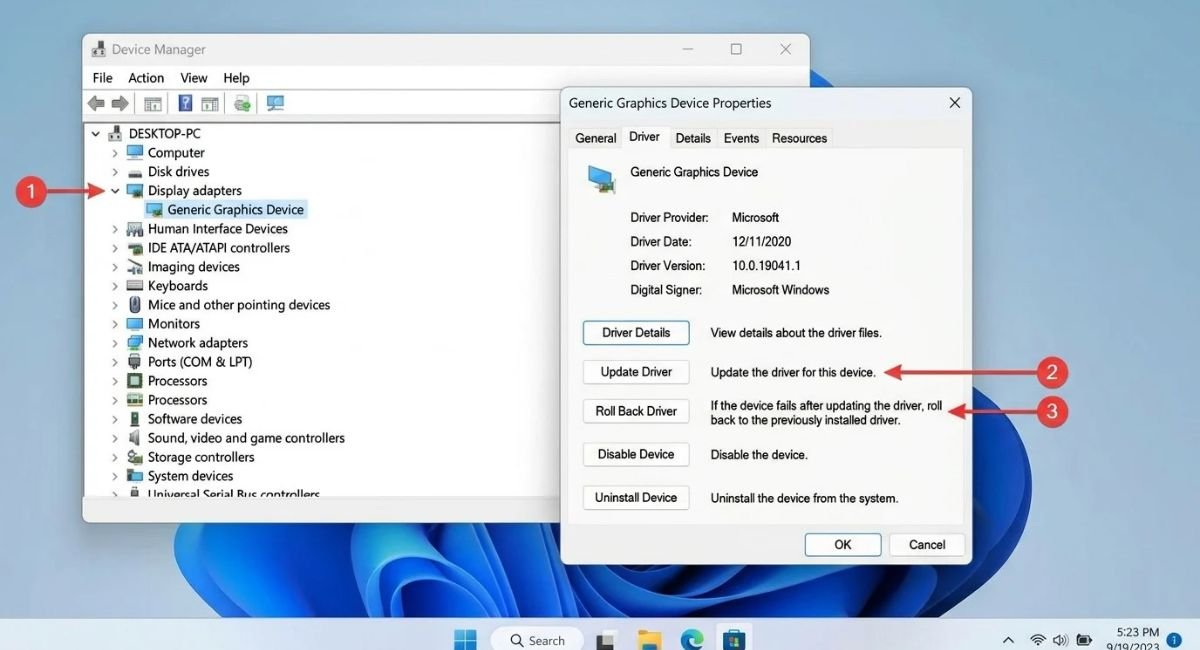
If you cannot sign in to Windows, use Safe Mode to access Device Manager and investigate the driver.
Start Windows in Safe Mode
Safe Mode starts Windows with a limited set of drivers and services. It can help you determine whether a black screen is related to a graphics driver, recently installed application, or another component that does not load in the same way during normal startup.
How to Enter Safe Mode
If the sign-in screen is visible:
- Select the Power icon.
- Hold down Shift while selecting Restart.
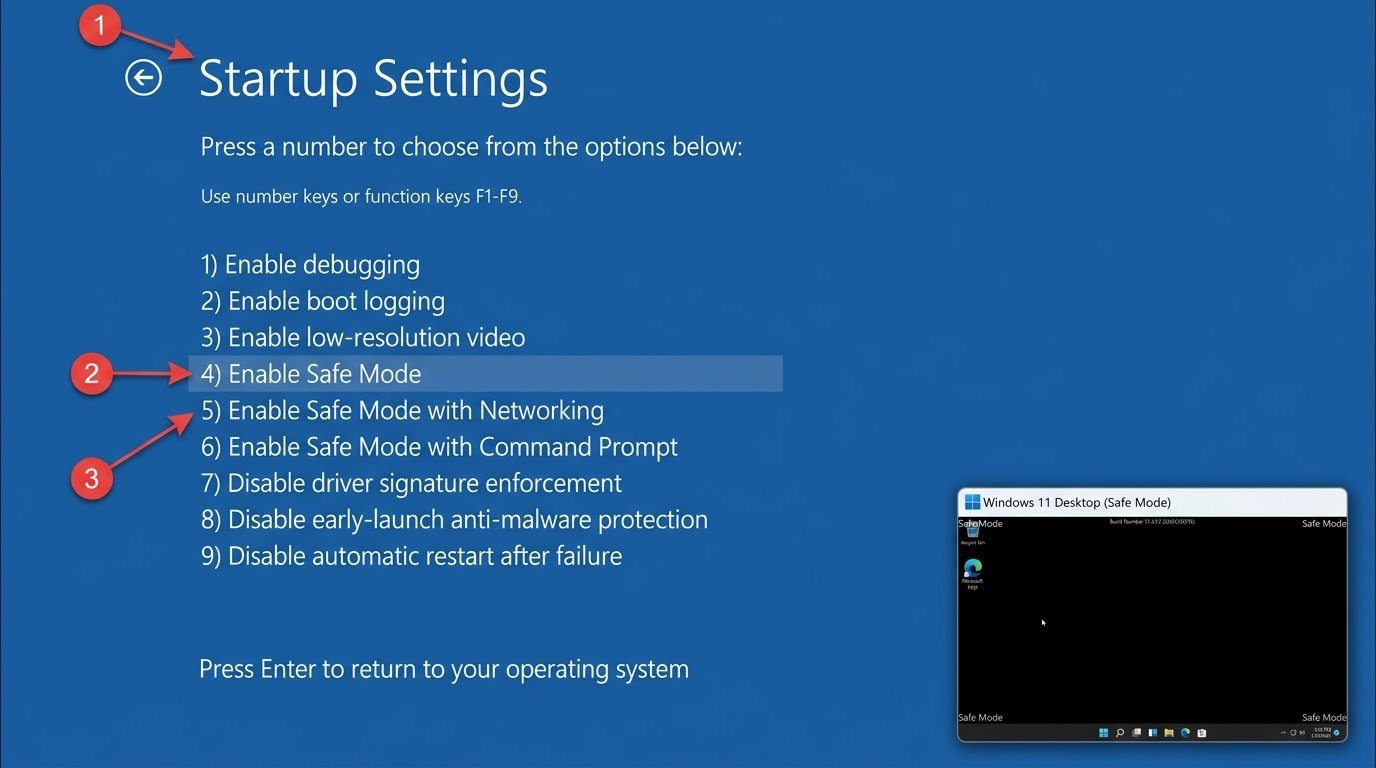
- When the recovery screen appears, select Troubleshoot > Advanced options > Startup Settings > Restart.
- After the computer restarts, press 4 or F4 for Safe Mode. Choose 5 or F5 for Safe Mode with Networking if you need network access.
If you cannot reach the sign-in screen, use the recovery method described in Fix 4.
What to Do After Entering Safe Mode
Check whether the display works normally. If the black screen disappears in Safe Mode, investigate recent graphics drivers, applications, and startup software.
If the issue began after installing a driver, roll it back if possible. If a recently installed application appears to be responsible, uninstall it and restart Windows normally.
Safe Mode does not identify the exact cause by itself, but it helps narrow down the possibilities.
Uninstall a Recent Windows Update
A black screen that begins immediately after a Windows update may indicate an incompatible driver, an incomplete update, or another update-related problem.
Only remove an update when its timing reasonably matches the beginning of the issue. Uninstalling updates is not guaranteed to fix a black screen, and removing security updates can leave your computer exposed to vulnerabilities.
Remove a Problematic Update Through Recovery
If Windows will not start normally:
- Enter Windows Recovery Environment.
- Select Troubleshoot > Advanced options > Uninstall Updates.
- Choose the available option for removing a recent quality or feature update, as appropriate.
- Follow the on-screen instructions.
The available options depend on your Windows installation and the update involved.
If Windows is accessible, you may also be able to open Settings > Windows Update > Update history > Uninstall updates.
Run Startup Repair or System Restore
If Windows cannot start correctly, built-in recovery tools may help repair startup problems or reverse recent system changes.
Run Startup Repair
Startup Repair checks for certain problems that prevent Windows from starting, including some damaged system files and boot configuration issues.
To use it:
- Open Windows Recovery Environment.
- Select Troubleshoot > Advanced options > Startup Repair.
- Choose your Windows installation if prompted.
- Follow the instructions and allow the repair process to finish.
Startup Repair cannot fix every black screen. It will not repair a physically damaged display, a faulty monitor cable, or a defective graphics card.
Use System Restore If Startup Repair Fails
If a suitable restore point exists, System Restore can reverse certain system changes that may have triggered the black screen.
From WinRE, select Troubleshoot > Advanced options > System Restore, choose an available restore point created before the problem began, and follow the instructions.
System Restore is designed to preserve personal files, but it may remove applications, drivers, or system changes made after the selected restore point. Review the available information before confirming the operation.
If Windows requests a BitLocker recovery key, retrieve the correct key before continuing.
Repair Windows System Files with DISM and SFC
Corrupted Windows system files can contribute to operating system instability, startup problems, and other errors. Windows includes two command-line tools, DISM and System File Checker (SFC), that can help repair certain types of system corruption.
This method is most appropriate when you can sign in to Windows or otherwise access a suitable, normally running Windows installation. The commands below target the currently running Windows environment.
Run DISM First
- Open Start and search for Command Prompt.
- Right-click Command Prompt and choose Run as administrator.
- Approve the permission prompt if it appears.
- Enter the following command and press Enter:
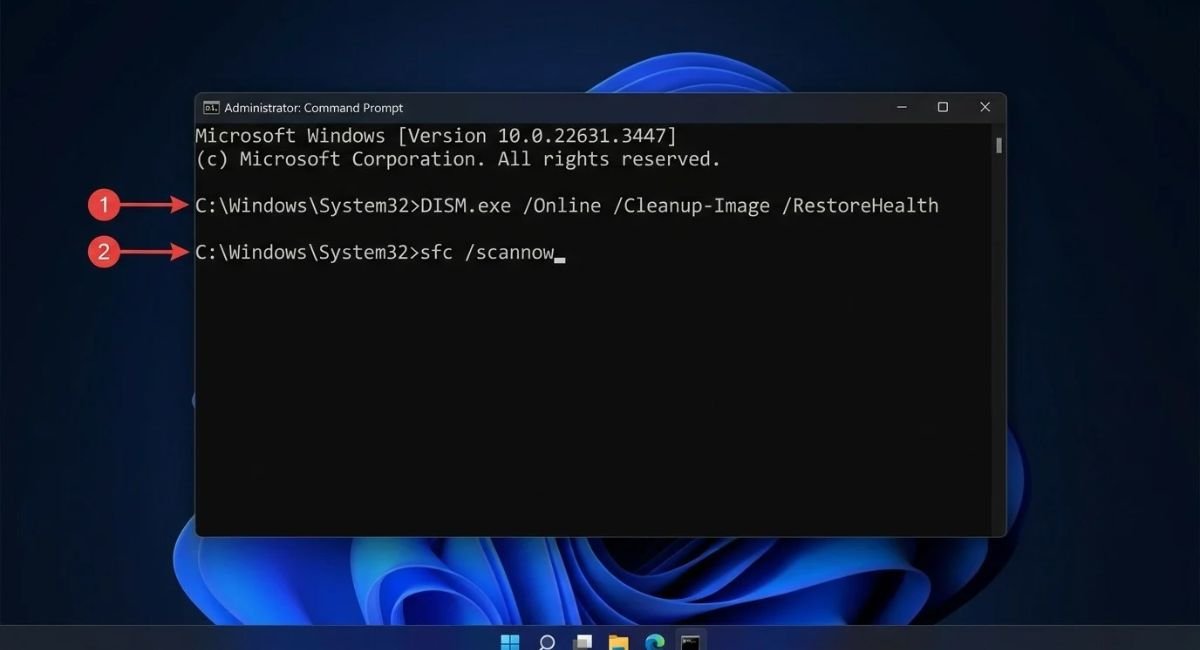
DISM.exe /Online /Cleanup-Image /RestoreHealth
Wait for the operation to finish. It may take several minutes or longer, and DISM may need access to Windows Update or another suitable repair source.
Run System File Checker
After DISM finishes, enter:
sfc /scannow
Press Enter and allow the scan to reach 100% before closing the window. Restart the computer afterward and check whether the black screen has improved.
DISM repairs the Windows image used for component repair, while SFC scans protected Windows system files and attempts to replace damaged copies.
Important: The /Online DISM command targets the currently running Windows installation. Do not assume it will repair an offline Windows installation from every recovery screen. Offline repair requires different parameters and careful identification of the Windows drive.
Check for Hardware Problems
If the previous methods do not resolve the issue, investigate whether the problem comes from the monitor, laptop display, graphics hardware, or power system.
Test the Computer with Another Display
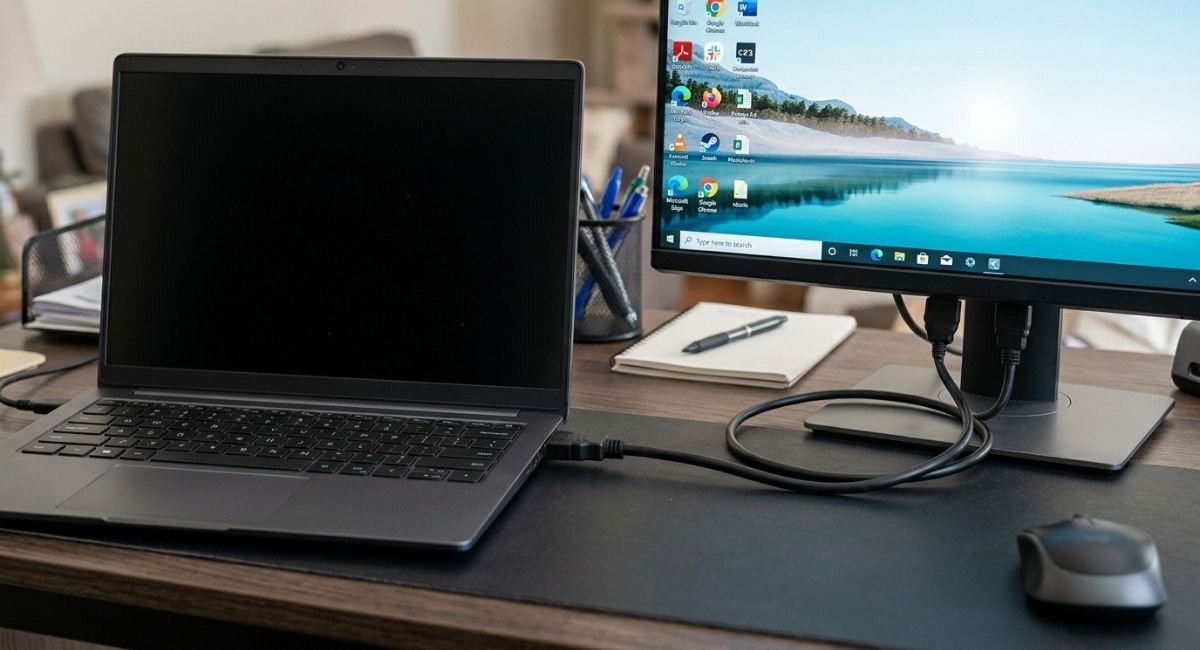
Connect your laptop or desktop to a compatible external monitor or television. Select the correct input on the external display and check whether an image appears.
If an external monitor works but the laptop’s built-in display remains black, the internal screen, backlight, or connecting cable may need inspection. This test narrows down the possibilities but does not prove which component has failed.
If neither display works, observe whether the computer shows the manufacturer logo, diagnostic lights, or other startup indicators. Consult your computer manufacturer’s documentation for model-specific hardware diagnostics.
Desktop users can check the monitor cable and supported graphics outputs. If you intend to inspect internal components, shut down the computer, disconnect power, and proceed only if you have the necessary skills.
When to Contact a Repair Technician
Professional inspection may be necessary if:
- The screen remains black before the manufacturer logo appears.
- Both the built-in display and an external monitor fail to show an image.
- The computer has suffered liquid damage or a physical impact.
- The display flickers when the lid or cable moves.
- You notice burning smells, unusual noises, or excessive heat.
If you suspect an electrical problem, turn off the computer and disconnect power when safe. Do not open a power supply or attempt repairs beyond your experience.
A technician can test the hardware and provide a repair estimate before you approve a replacement part.
Conclusion
A black screen in Windows 10 or Windows 11 does not always mean your computer has failed. The cause may be a loose cable, incorrect display setting, stalled Windows Explorer process, graphics driver issue, or startup problem.
Start by checking the display connections and resetting the graphics driver. If a cursor is visible, restart Windows Explorer. If the problem began after a recent update, investigate the driver or update before moving to recovery tools.
When Windows cannot start, Safe Mode, Startup Repair, and System Restore may help. If the screen remains black before the manufacturer logo or an external display also fails, hardware diagnostics may be necessary.
Frequently Asked Questions
1. How do I fix a black screen on my PC?
Check the monitor’s power, video cable, input selection, and laptop brightness first. Press Windows + Ctrl + Shift + B to reset the graphics driver. If a cursor is visible, open Task Manager and restart Windows Explorer. If the screen remains black, investigate Safe Mode, recovery tools, or hardware problems.
2. Why does my computer turn on but the screen is black?
Possible causes include a disconnected monitor cable, incorrect display input, a graphics driver failure, a startup problem, corrupted system files, or defective hardware. If the manufacturer logo appears, investigate Windows startup. If no image appears at all, check the display and hardware first.
3. How do I fix a black screen with a cursor in Windows 11?
Press Ctrl + Shift + Esc to open Task Manager. Find Windows Explorer and select Restart. If it is missing, choose Run new task, type explorer.exe, and press Enter. If the desktop does not return, reset the graphics driver and investigate recent driver or startup changes.
4. Why does my screen go black after entering my password?
Windows may have signed in without loading the desktop correctly. A stalled Windows Explorer process, incompatible graphics driver, startup application, or display configuration problem can cause this behavior. Press Ctrl + Alt + Delete, open Task Manager if possible, and restart Windows Explorer. If necessary, troubleshoot in Safe Mode.
5. How do I fix a black screen before the Windows login screen?
Check the display cable and monitor input, disconnect unnecessary accessories, and reset the graphics driver if Windows responds. If Windows repeatedly fails to start, use Windows Recovery Environment to access Startup Repair or Safe Mode. If the manufacturer logo never appears, investigate hardware problems as well.