Introduction
When your microphone stops working, you might struggle to join meetings, make voice calls, or record audio. The problem can occur even when your headset is connected and your speakers work normally.
Microphone Not Working in Windows is often caused by disabled privacy permissions, incorrect input settings, outdated drivers, or a muted microphone. Fortunately, you can check these common causes without replacing your hardware. The following fixes cover Windows 10 and Windows 11, starting with simple checks before moving to more advanced solutions.
Check Your Microphone Connection and Mute Settings
Before changing Windows settings, make sure your microphone is connected correctly. A loose cable, faulty USB port, or muted headset can prevent Windows from receiving audio. If you use an external microphone, disconnect it and reconnect it securely.
Test another USB port if your microphone uses USB. For a wired headset, check whether its connector matches your computer’s audio jack. Some headsets use separate microphone and headphone plugs, while others use a single combined connector.
Check Physical Connections and USB Ports
Unplug your microphone and connect it again. If possible, test it on another computer to determine whether the device itself works. You can also try a different USB port to rule out a connection problem.
For a desktop PC, check the microphone jack on the front and back panels. If one port fails, the other might still work.
Check the Microphone’s Mute Button
Many headsets and microphones have a physical mute switch or button. Make sure it is turned off. Some models also include inline controls that can mute the microphone independently of Windows.
If your microphone has an indicator light, check its meaning in the manufacturer’s instructions. Then record a short voice clip or test the microphone in Windows Sound settings.
Enable Microphone Access in Windows Privacy Settings
Windows can block microphone access even when the device is connected correctly. Privacy permissions determine whether apps can use your microphone, so check these settings before reinstalling drivers.
In Windows 11, open Settings > Privacy & security > Microphone. In Windows 10, open Settings > Privacy > Microphone. Turn on microphone access and allow apps to use the microphone.
Go to:
Settings > Privacy & security > Microphone
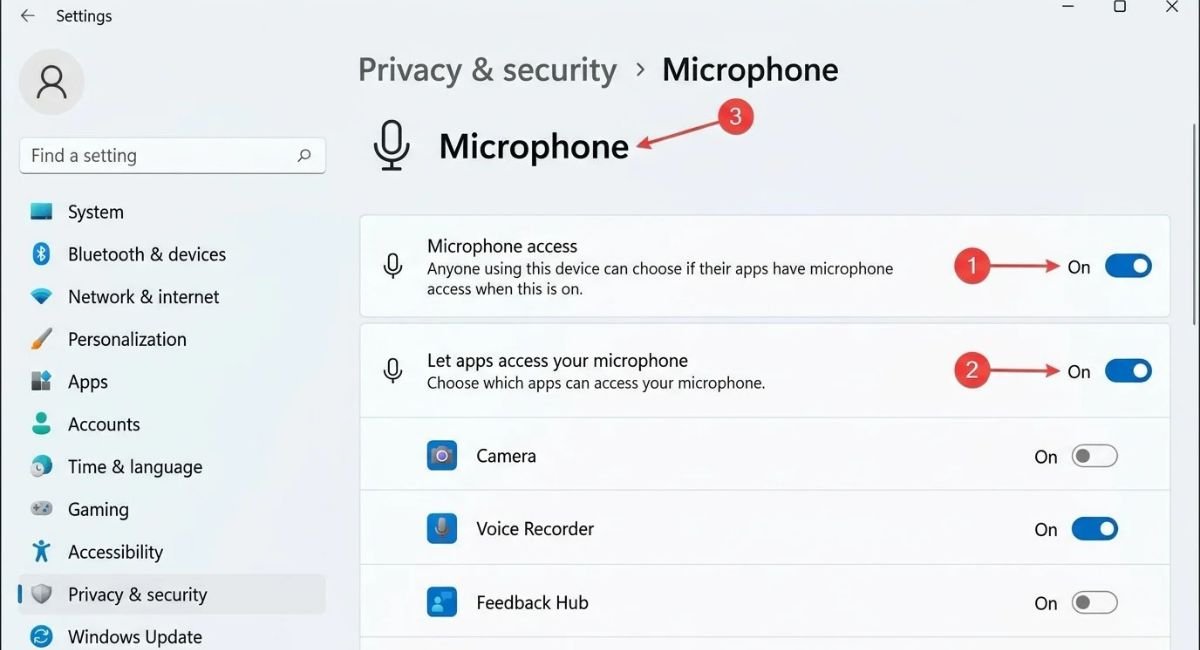
Enable Microphone Access for Apps
Find the option that allows apps to access your microphone and turn it on. If this setting is disabled, supported applications may not receive audio even when the microphone appears connected.
After enabling access, close and reopen the app you want to use. Test the microphone again to see whether the permission change solved the problem.
Allow Desktop Apps to Access Your Microphone
Some programs, including desktop communication and recording tools, need a separate permission setting. On the same Microphone settings page, find Let desktop apps access your microphone and enable it if available.
Remember that desktop apps may not appear individually in the permissions list. If access remains blocked, check the microphone settings inside the specific application as well.
Select the Correct Default Microphone
Windows may select the wrong input device when you connect a webcam, Bluetooth headset, monitor, or USB microphone. Your speakers can still work even if Windows is listening to a different microphone.
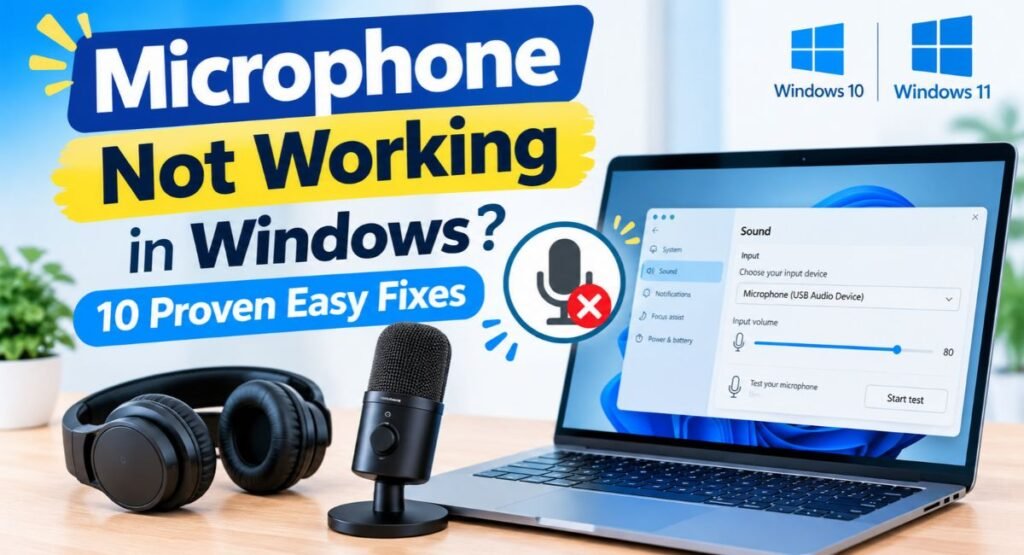
In Windows 11, go to Settings > System > Sound and locate the Input section. Select the microphone you want to use. In Windows 10, open Settings > System > Sound and check the Input device list.
Go to:
Settings > System > Sound > Input
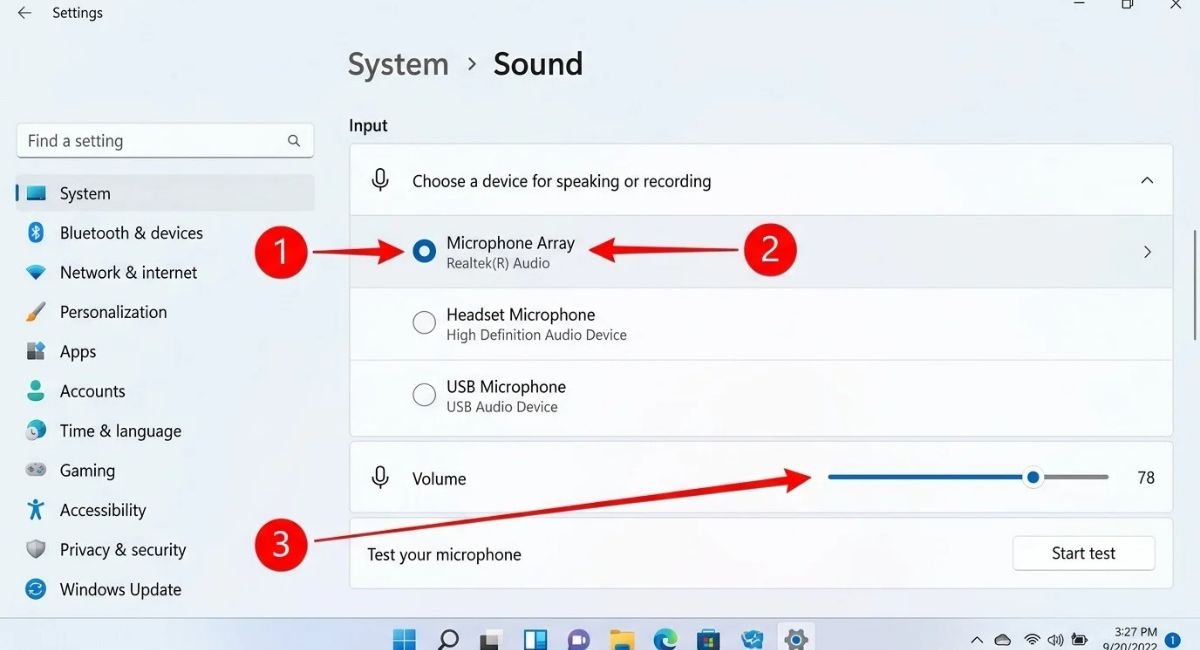
Show Disabled and Disconnected Recording Devices
If your microphone does not appear in the input list, check the classic Sound control panel. Press Windows + R, type mmsys.cpl, and press Enter. Open the Recording tab.
Right-click an empty area and enable Show Disabled Devices and Show Disconnected Devices, if those options appear. If your microphone is listed as disabled, right-click it and select Enable.
Set Your Microphone as the Default Input Device
In the Recording tab, right-click your preferred microphone and choose Set as Default Device. If available, you can also set it as the default communication device.
Select Apply and OK, then test your microphone. If several devices appear, speak into the microphone you intend to use and watch for the level indicator to respond.
Increase Microphone Volume and Test Input Levels
A microphone can be connected and enabled but still produce little or no sound. Windows may have its input volume set too low, making your voice difficult to hear.
Open Settings > System > Sound and select your microphone under Input. Increase the input volume to a reasonable level, then use the available test option to check whether Windows detects your voice.
Increase Microphone Volume and Input Levels
In Windows 11, open the microphone’s properties from the Sound settings page. Adjust the input volume and speak at your normal distance from the microphone. Avoid setting the level too high if it causes distortion.
In Windows 10, open Settings > System > Sound and find the Input section. Select your microphone and adjust its volume. If the device has a manufacturer utility, check its input controls too.
Test Your Microphone in Windows Sound Settings
Open your selected microphone’s settings and look for the input test or microphone test feature. Speak normally and check whether the input meter responds. If the meter moves, Windows is receiving at least some audio.
If the meter stays still, return to the connection, privacy, and default-device checks. You can also test the microphone in another application to find out whether the problem affects Windows generally or just one program.
Run the Windows Audio Recording Troubleshooter
Windows includes troubleshooting tools that can identify some audio input problems automatically. These tools may detect configuration issues or suggest steps to restore microphone functionality.
In Windows 11, open Settings > System > Troubleshoot > Other troubleshooters and run the available audio troubleshooter if offered. Depending on your Windows version, you may also find help through the Get Help app.
In Windows 10, open Settings > Update & Security > Troubleshoot > Additional troubleshooters and look for the available recording or audio troubleshooter. The exact options can vary by version.
Run the Recording Audio Troubleshooter
Follow the instructions shown by the troubleshooter. If Windows identifies a problem, apply its suggested fix and restart the affected application.
When troubleshooting finishes, test your microphone again. If Windows cannot identify the cause, continue with the driver and application checks below.
Update or Reinstall Microphone and Audio Drivers
Drivers allow Windows to communicate with your audio hardware. A corrupted, outdated, or incompatible driver can cause a microphone to disappear or stop capturing sound.
Right-click Start and open Device Manager. Expand Audio inputs and outputs to find your microphone. Also check Sound, video and game controllers for your audio device.
Update Audio Drivers in Device Manager
Right-click your microphone or audio device and select Update driver. Choose the option to search automatically for available drivers.
If Windows cannot find a suitable update, check your computer manufacturer’s support website. Download drivers specifically intended for your computer model and Windows version. Avoid installing drivers from unfamiliar third-party websites.
Reinstall the Microphone Driver
If updating the driver does not help, open Device Manager and expand Audio inputs and outputs. Right-click the affected microphone and select Uninstall device, if available.
Restart your computer and let Windows detect the device again. If the microphone still does not work, install the appropriate audio driver from the computer or device manufacturer’s official website.
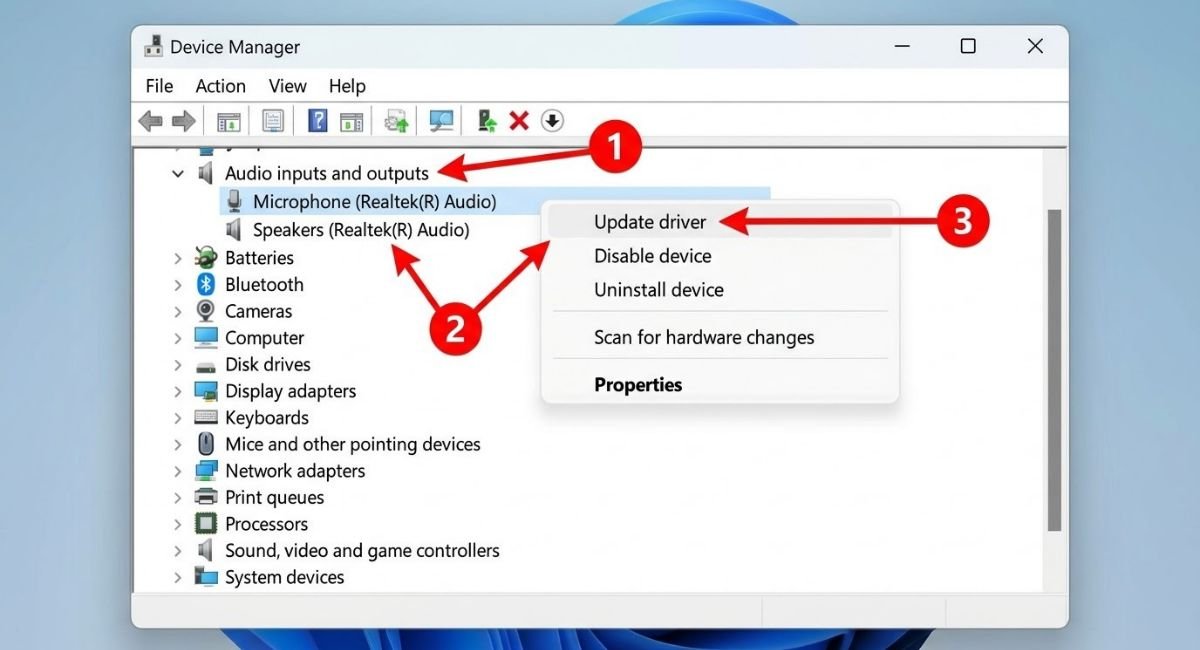
Roll Back a Faulty Audio Driver
If your microphone stopped working immediately after a driver update, rolling back the driver may help. Open Device Manager, right-click the affected audio device, and select Properties.
Open the Driver tab and look for Roll Back Driver. If the option is available, follow the instructions and restart your computer. This option may be unavailable if Windows has no previous driver version to restore.
Fix Realtek Microphone Issues in Windows 11
Some Windows computers use Realtek audio hardware. Microphone problems may occur because of incorrect input selection, driver issues, or settings in the manufacturer’s audio utility.
First, check the selected input device in Windows Sound settings. If your computer includes Realtek Audio Console, open it and review the available microphone or connector settings. The available controls depend on your computer manufacturer and driver version.
Check Realtek Audio Console Settings
Open Realtek Audio Console from the Start menu if it is installed. Review the microphone, input, and connector settings without changing options you do not recognize.
If the application is missing or does not detect your hardware, check your PC manufacturer’s support page for the correct audio driver or utility. Not every computer includes Realtek hardware or supports the same controls.
Check App Permissions and Microphone Settings
If your microphone works in Windows but fails in Zoom, Microsoft Teams, a browser, or another application, the problem may be limited to that app. Applications can use different input devices or have their own microphone permissions.
Open the affected application’s audio settings and select the correct microphone. Make a test call or use its built-in microphone test feature to confirm that your voice is detected.
Check App-Specific Microphone Settings
Open the application’s settings and find its Audio, Voice, or Devices section. Choose the microphone you want to use instead of relying on automatic selection.
If you use a browser, check the website’s microphone permission and your browser’s site settings. You may need to allow access for a particular website before it can capture audio.
Close Apps That May Be Using Your Microphone
Some recording, meeting, or communication apps can interfere with microphone access or keep an unexpected device selected. Close applications you are not using, especially other recording or voice-chat programs.
Reopen only the app you want to test. If the microphone works now, open the other programs one at a time to identify whether a particular application triggers the problem.
Fix Bluetooth Headset and External Microphone Problems
Bluetooth headsets may connect successfully without being selected as the active microphone. Some devices also expose separate audio profiles, so check both the Windows input device and the headset’s connection status.
For external USB microphones, reconnect the device and try another port. If the microphone requires special software, confirm that the software supports your Windows version.
Connect Your Bluetooth Headset Manually
Open Settings > Bluetooth & devices > Devices in Windows 11. In Windows 10, open Settings > Devices > Bluetooth & other devices. Make sure Bluetooth is enabled and your headset shows as connected.
Then open Settings > System > Sound and select the headset as your input device. If it does not appear, disconnect and reconnect the headset before testing again.
Remove and Re-Pair Your Bluetooth Microphone
If your headset connects but its microphone remains unavailable, remove the device from Windows Bluetooth settings. Put the headset into pairing mode according to its manufacturer’s instructions.
Select Add device and pair the headset again. Once connected, return to Sound settings and select the headset microphone. Check its input meter to verify that Windows is receiving audio.
Check Headset Jack and Adapter Compatibility
Some wired headsets use a single four-pole connector, while certain desktop computers have separate headphone and microphone jacks. In that case, you may need a compatible splitter.
Check the headset and computer documentation before purchasing an adapter. If possible, test the headset on another compatible device to rule out a faulty cable or microphone.
Disable Exclusive Mode and Check Conflicting Apps
Some audio devices allow applications to take exclusive control of the microphone. In certain configurations, this can interfere with other applications trying to use the same device.
Open the classic Sound control panel by pressing Windows + R, entering mmsys.cpl, and pressing Enter. Select the Recording tab, open your microphone’s Properties, and look for the Advanced tab.
Disable Exclusive Mode for Your Microphone
If the option is available, clear Allow applications to take exclusive control of this device. You can also clear the related priority option if it is selected.
Click Apply and OK, then reopen your audio application and test the microphone. If the problem continues, restore any setting that made no difference and check for application updates or driver compatibility issues.
Conclusion
A microphone that stops working in Windows does not always need a replacement. Start by checking the connection, privacy permissions, selected input device, and volume level. These simple steps resolve many common microphone problems.
If the issue continues, investigate audio drivers, application settings, Bluetooth connections, and exclusive mode. Test the microphone after each change so you can identify which fix works. If it fails on multiple computers, consult the device manufacturer because the microphone itself may need repair or replacement.
Frequently Asked Questions
1. How do I fix my mic not working on my PC?
First, check the physical connection and make sure the microphone is not muted. Then enable microphone access in Windows, select the correct input device, and increase its volume. If it still fails, update or reinstall the audio driver.
2. How can I fix a microphone problem on Windows?
Start with Windows Sound settings and test the selected microphone. Check privacy permissions, app-specific settings, and the microphone driver. If the problem affects only one application, check that application’s audio configuration before changing system-wide settings.
3. Why is my audio working but not my mic?
Your speakers and microphone use separate audio inputs and outputs. Sound can play normally while Windows selects the wrong microphone, blocks app access, or uses a faulty driver. Check the Input section in Sound settings and confirm that the microphone level responds when you speak.
4. How do I enable my mic on my PC?
Open the microphone privacy settings and enable microphone access. Allow apps or desktop apps to use the microphone as needed. Then open Sound settings, select your microphone, and make sure the device is enabled and not muted.
5. Why is my microphone not detected in Windows 11?
Windows 11 may not detect a microphone because of a loose connection, disabled recording device, incompatible driver, or Bluetooth pairing problem. Check Device Manager and the classic Recording tab for disabled devices. If the microphone is still missing, test another port or computer to help identify a hardware issue.
Official Microsoft Resources