Introduction
If your computer suddenly stops playing audio, you might miss an important meeting, a video, or a notification. The problem can happen even when your speakers are connected and the volume appears normal. Fortunately, you can often restore sound without replacing hardware or reinstalling Windows.
No Sound in Windows can occur because of muted applications, incorrect audio output settings, outdated drivers, or malfunctioning Windows audio services. Sometimes, Windows stops detecting your speakers or switches sound to a connected monitor or Bluetooth headset.
This guide explains how to troubleshoot sound problems in Windows 11 and Windows 10. You’ll learn how to check your speakers, select the correct output device, repair Realtek audio, update drivers, and fix missing audio devices. Start with the simplest solutions and test your sound after each change.
Why Is There No Sound in Windows?
Windows may stop playing audio when it cannot communicate correctly with your speakers, headphones, or audio hardware. The problem can originate from software settings, device connections, drivers, Windows services, or physical hardware.
Understanding the likely cause helps you choose the right solution instead of changing multiple settings unnecessarily.
Common Reasons for No Sound in Windows 11/10
Several issues can prevent your computer from producing sound.
Muted volume: Windows, your keyboard, speakers, or an individual application may be muted.
Incorrect output device: Your computer might send audio to a monitor, disconnected headset, or Bluetooth device instead of your speakers.
Loose connections: A disconnected cable, inactive speaker, or faulty headphone jack can interrupt playback.
Audio driver problems: An outdated, corrupted, or incompatible driver may stop Windows from communicating with the sound hardware.
Windows audio services: Essential background services may stop responding.
Missing audio device: Windows might fail to detect the audio hardware because of a driver or hardware problem.
Recent updates: A Windows or driver update may introduce compatibility problems.
For example, if your laptop speakers work until you connect an HDMI monitor, Windows may have switched the default audio output. If all connected devices suddenly stop working, investigate Windows settings and drivers first.
Why Does My Computer Suddenly Have No Sound?
Sudden sound loss often follows a change in audio output, a Windows update, or a temporary driver or service failure. It can also occur when a Bluetooth headset disconnects or an application changes its audio settings.
Think about what happened immediately before the problem started. If sound disappeared after an update, inspect the audio driver. If it stopped after connecting a headset, check the selected output device first.
1. Check Volume, Mute, and Physical Connections
Start with the easiest checks. A muted application or loose speaker cable can cause a complete loss of audio without indicating a serious system problem.
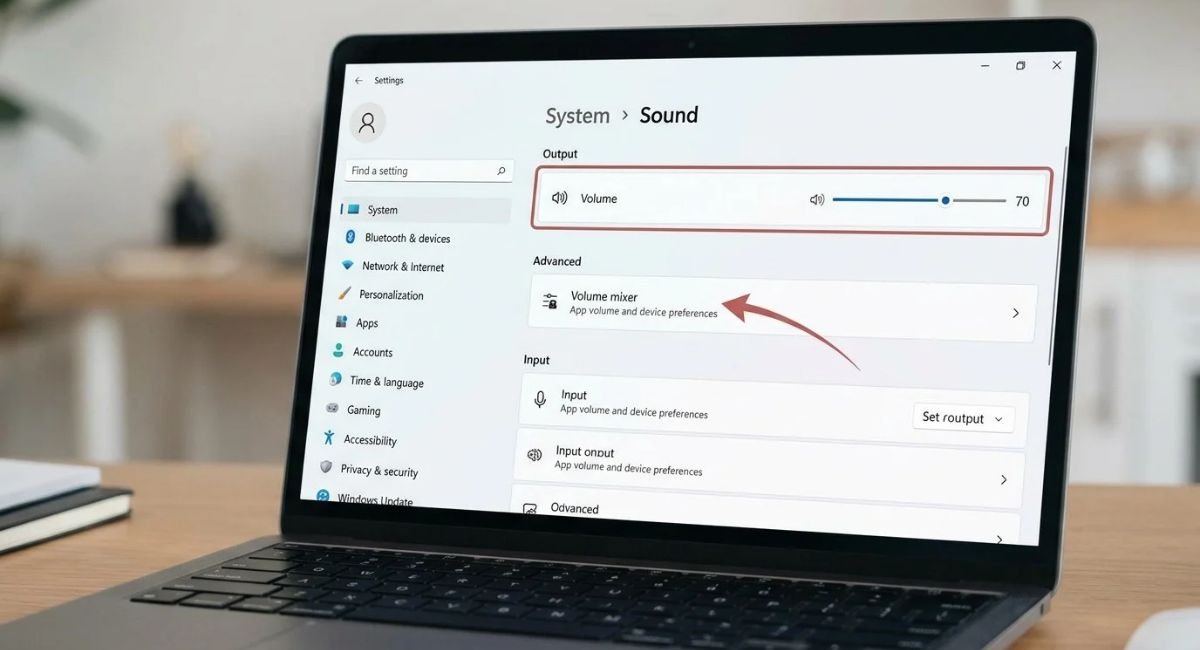
Check System Volume and Mute Settings
Go to:
Settings > System > Sound
- Select the speaker icon on the taskbar.
- Make sure the volume isn’t muted.
- Increase the volume to a comfortable level.
- Open the volume mixer and check the volume of your current application.
- Play audio in another application to see whether the problem continues.
If YouTube has no sound but another media player works, the issue may involve your browser or its volume settings rather than Windows itself.
Also check your keyboard’s mute key and any physical volume controls on your speakers, monitor, or headphones.
Check Speaker Cables and Headphone Connections
For wired speakers, make sure the cable is firmly connected to the correct audio jack. Desktop computers may have separate headphone and microphone ports, so connecting speakers to the wrong port can prevent playback.
If you’re using USB speakers, try another USB port. For wireless headphones, confirm that the battery is charged and the device is connected.
Disconnect unnecessary audio devices temporarily. This makes it easier to identify which device Windows should use.
2. Select the Correct Audio Output Device
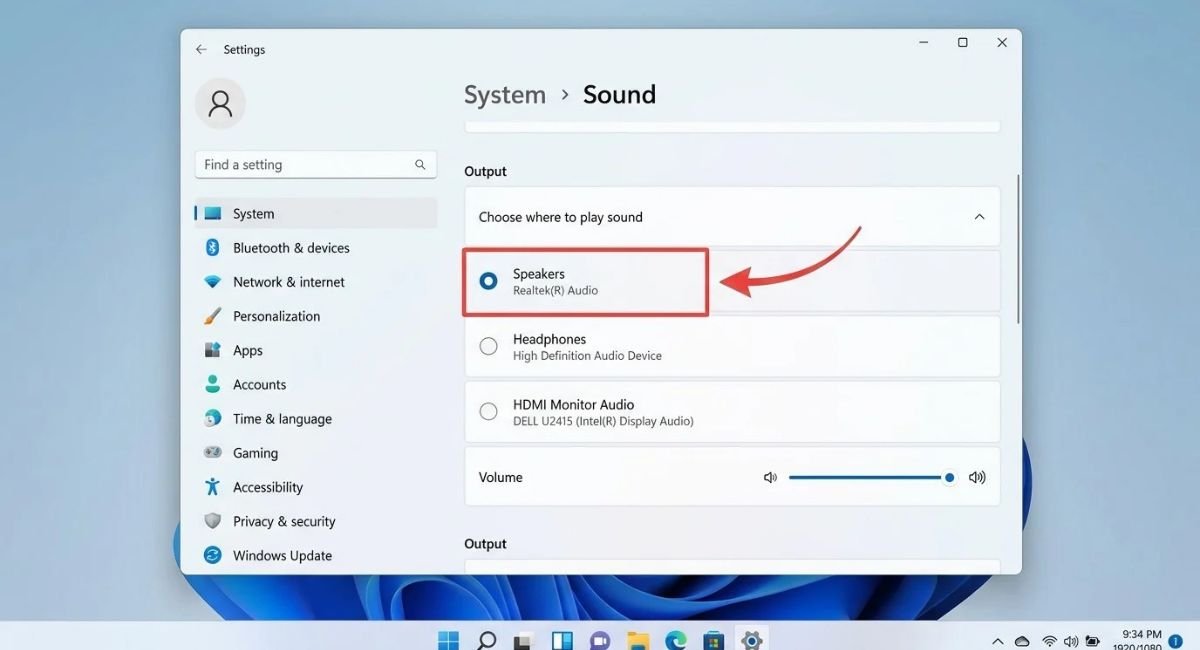
Windows can send audio to the wrong device even when your speakers are working correctly. This often happens after connecting an HDMI monitor, television, USB headset, or Bluetooth speaker.
Go to:
Settings > System > Sound
- Open the Sound settings page.
- Find the Output section.
- Select your actual speakers or headphones.
- Play a video or audio file to test the result.
If multiple devices appear, choose the one you want to use.
For additional control, open More sound settings in Windows 11. Select the Playback tab, right-click your preferred device, and choose Set as Default Device if that option is available.
Fix Speakers Plugged In but No Sound in Windows 11
If your speakers are connected but silent, check the following:
- Confirm that the speakers are powered on.
- Check the cable and audio jack.
- Select the correct speakers in Windows Sound settings.
- Temporarily turn off audio enhancements in the output device properties.
- Test the speakers with another compatible device.
If the speakers work on another computer, investigate your Windows settings, drivers, or audio port. If they remain silent on multiple devices, the speakers themselves may need repair.
3. Run the Windows Audio Troubleshooter
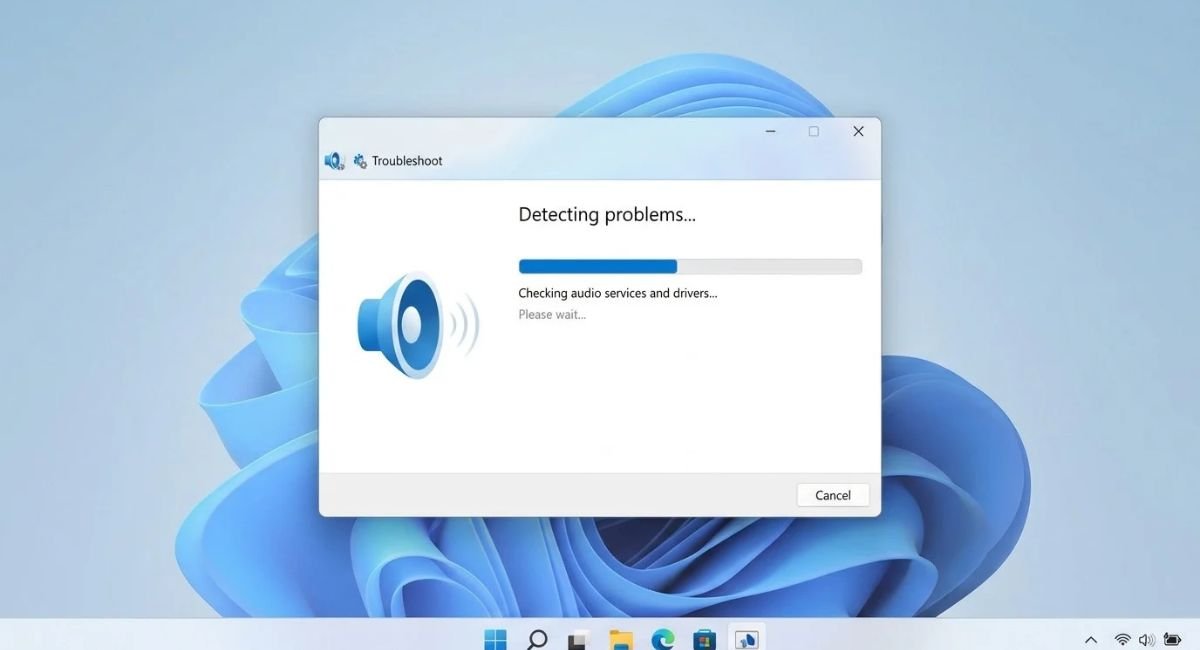
Windows includes troubleshooting tools that can identify common audio configuration problems and recommend appropriate fixes.
Run the Playing Audio Troubleshooter in Windows 11
Microsoft recommends using the automated audio troubleshooter through the Get Help app for Windows 11.
- Open Start and search for Get Help.
- Open the app and search for audio troubleshooting.
- Follow the diagnostic instructions.
- Apply any suggested fixes.
- Test your speakers or headphones again.
You can also open Settings > System > Sound to review available audio troubleshooting options. The exact interface can vary by Windows version.
Run the Audio Troubleshooter in Windows 10
Go to:
Settings > Update & Security > Troubleshoot > Additional troubleshooters > Playing Audio
- Select Playing Audio.
- Click Run the troubleshooter.
- Choose the affected audio device if prompted.
- Follow the recommended steps.
If Windows identifies a disabled device or configuration problem, apply the suggested fix and test your sound.
Windows 10 reached the end of standard support on October 14, 2025. Available security and support options depend on your installation and eligibility.
4. Restart Windows Audio Services
Windows relies on background services to manage audio playback. If an essential service stops responding, applications may become silent even when the speakers are connected correctly.
Restart the Windows Audio Service
- Press Windows + R.
- Type
services.mscand press Enter. - Find Windows Audio in the Services window.
- Right-click it and select Restart, if available.
- Test your sound again.
If the service isn’t running, choose Start when available.
Avoid changing unrelated service settings because they may affect other Windows functions.
Restart Windows Audio Endpoint Builder
In the same Services window, locate Windows Audio Endpoint Builder.
Right-click the service and choose Restart if available. If Windows displays a message about dependent services, review it before proceeding.
These services help Windows manage audio processing and playback devices. Restarting them may resolve temporary service problems, but it won’t repair physically damaged speakers or incompatible hardware.
5. Update or Roll Back Your Audio Driver
An audio driver allows Windows to communicate with your computer’s sound hardware. If the driver becomes corrupted, outdated, or incompatible, sound may disappear entirely.
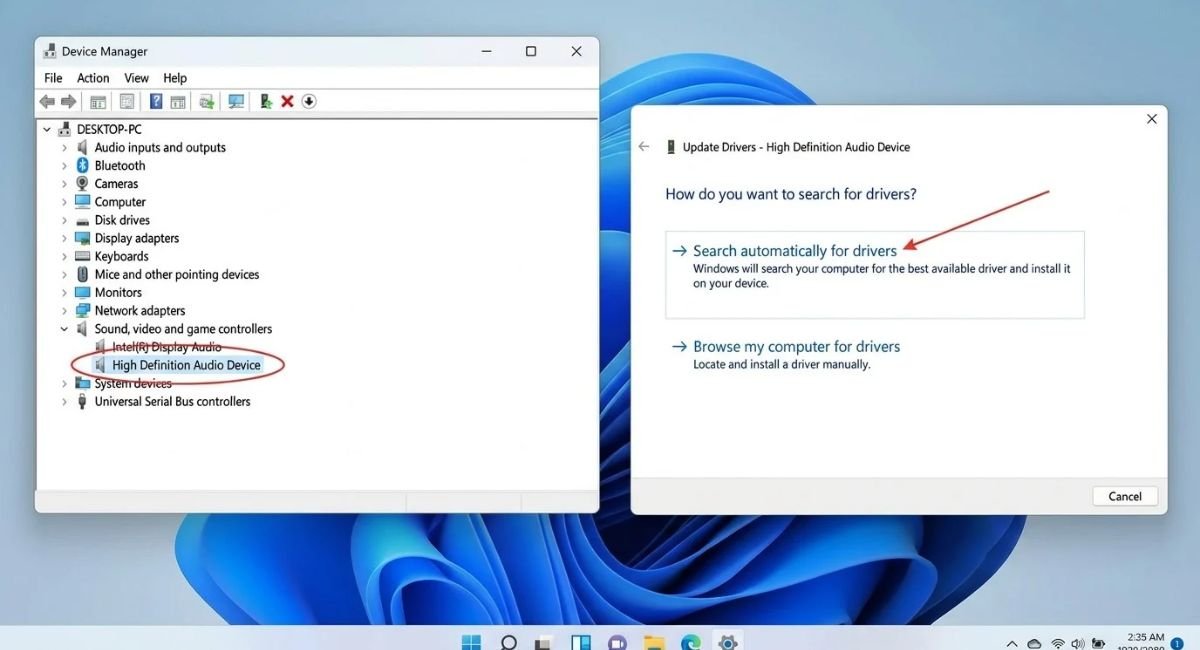
Update Audio Drivers in Device Manager
- Right-click Start and open Device Manager.
- Expand Sound, video and game controllers.
- Right-click your audio device.
- Select Update driver.
- Follow the available search and installation instructions.
If Windows cannot find a suitable driver, visit your computer manufacturer’s official support website. Search using your exact laptop or desktop model.
Download the appropriate audio driver for your Windows version. Avoid unfamiliar driver-download websites because incorrect packages can introduce additional problems.
Roll Back an Audio Driver After a Windows Update
If sound disappeared immediately after a driver update, restoring the previous driver may help.
- Open Device Manager.
- Expand Sound, video and game controllers.
- Right-click your audio device and select Properties.
- Open the Driver tab.
- Choose Roll Back Driver, if available.
- Follow the instructions and restart the computer if requested.
The rollback option may be unavailable if Windows no longer retains a previous driver.
If the problem started after a Windows update, check Microsoft’s troubleshooting guidance before uninstalling system updates.
Reinstall the Audio Driver
If updating or rolling back the driver doesn’t help, reinstalling it may restore normal operation.
In Device Manager, right-click your audio device and select Uninstall device. Review any option to remove the driver package carefully. Before removing an existing package, make sure you can obtain a compatible replacement.
Restart your computer. Windows may reinstall a compatible driver automatically. If sound remains unavailable, install the correct driver from your manufacturer’s official support website.
6. Fix Realtek Audio Not Working
Realtek audio hardware is common in Windows desktops and laptops. When its driver or output configuration fails, built-in speakers and headphone jacks may stop working.
Update or Reinstall the Realtek Audio Driver
Open Device Manager and expand Sound, video and game controllers. Look for Realtek Audio or Realtek High Definition Audio.
If the device appears, try updating the driver first. If the problem continues, visit your computer manufacturer’s official support page and look for a compatible Realtek audio package.
Some manufacturers customize their audio drivers. Therefore, a generic driver may not provide every feature available on your computer.
Check Realtek Audio Output Settings
After updating the driver, open Windows Sound settings and confirm that the intended speakers or headphones are selected.
If your computer includes Realtek Audio Console or another manufacturer-provided audio utility, check its output configuration. Available options depend on your hardware and driver version.
You can also temporarily disable audio enhancements in the output device properties.
If Realtek doesn’t appear in Device Manager, continue to the missing-device troubleshooting section below.
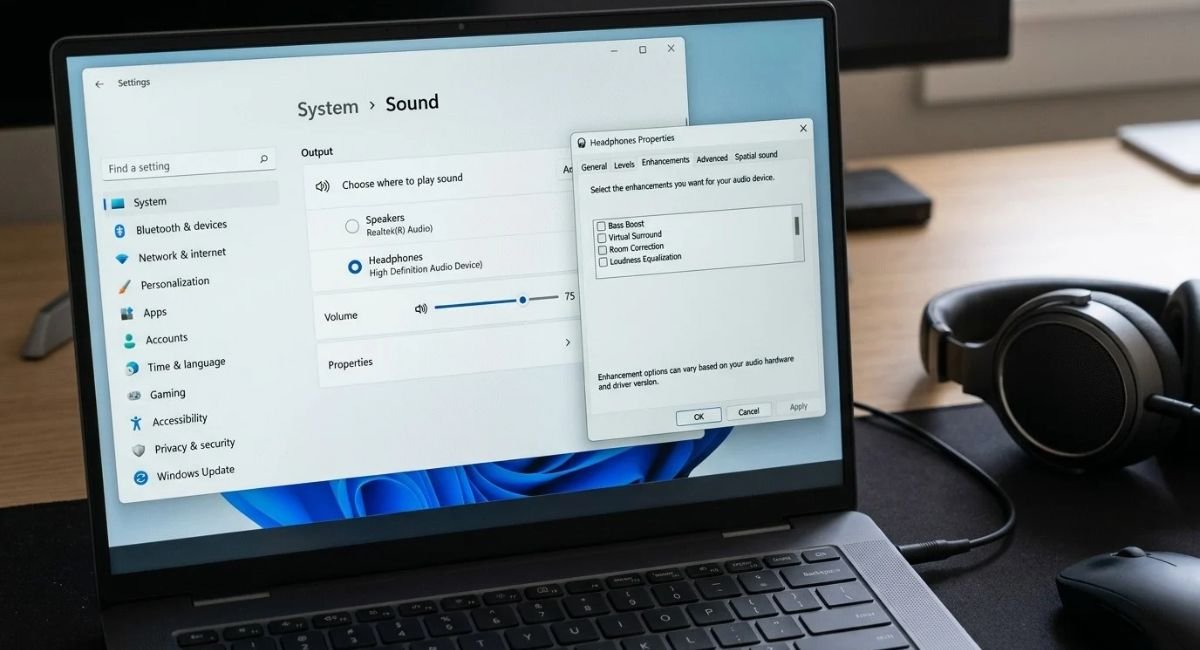
7. Fix Speakers or Headphones Connected but No Sound
Connected audio devices may remain silent because Windows is using another output, the hardware is malfunctioning, or the connection hasn’t been established correctly.
Fix Sound Not Playing Through Headphones in Windows 11
Select your headphones under Settings > System > Sound.
If you’re using a wired headset, disconnect it and reconnect it securely. For USB headphones, try another port. For Bluetooth headphones, disconnect them from other devices temporarily and reconnect them to your computer.
Open the volume mixer and check whether the application you’re using is muted.
Check Bluetooth Audio Connections
Go to:
Settings > Bluetooth & devices > Devices
Make sure Bluetooth is enabled and your headset is connected.
Then open Settings > System > Sound and select the headset as the audio output.
If the headset appears connected but produces no sound, disconnect it and pair it again. If the same headset works with another device, focus on your computer’s Bluetooth connection and audio configuration.
Test External Speakers on Another Device
Testing the hardware separately helps distinguish a Windows problem from a physical fault.
Connect your speakers or headphones to another compatible computer or device. If they remain silent, inspect their power supply, cable, controls, and hardware condition.
If they work elsewhere, return to Windows output settings and driver checks.
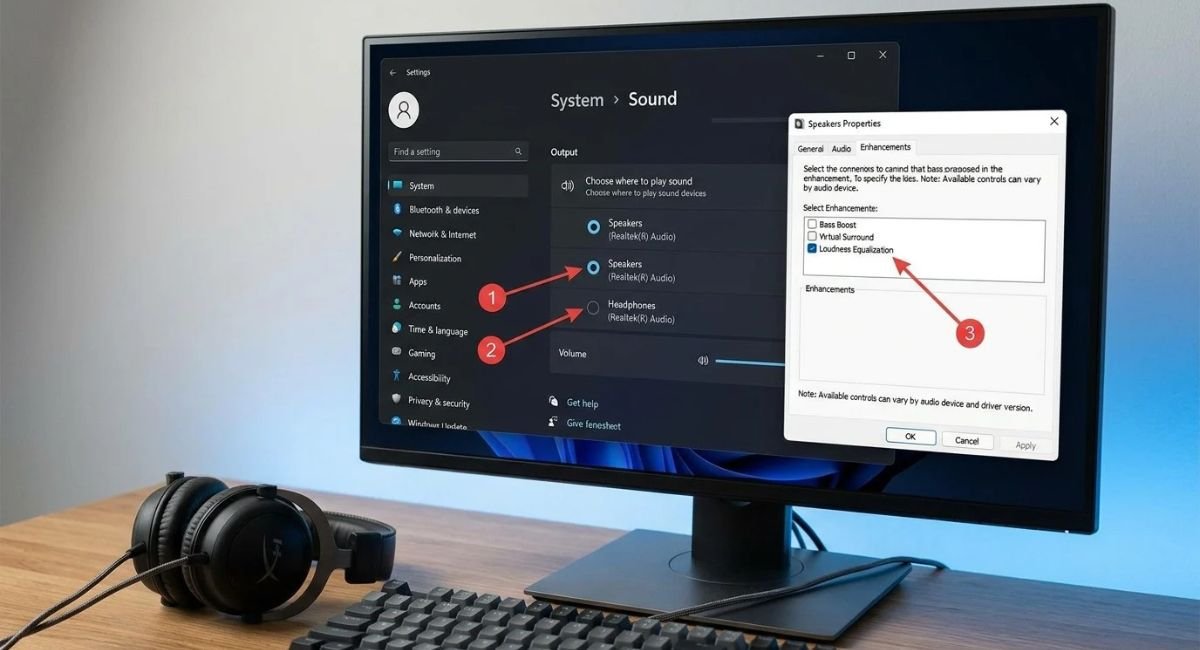
8. Fix No Audio Device Is Installed
The message “No audio output device is installed” usually means Windows cannot identify an available playback device. A disabled device, missing driver, or hardware detection problem may be responsible.
Show Hidden Audio Devices in Device Manager
- Open Device Manager.
- Select View > Show hidden devices.
- Expand Sound, video and game controllers.
- Check whether your audio device appears.
A faded device entry may represent hardware that isn’t currently connected or active. Its presence doesn’t necessarily mean the device is ready to use.
Enable the Audio Device
If your audio device appears disabled, right-click it and look for Enable device. Select that option if available.
You can also open More sound settings and check the Playback tab. Right-click an empty area and enable the options to show disabled or disconnected devices, where available.
If your speakers appear disabled, enable them and set them as the default playback device.
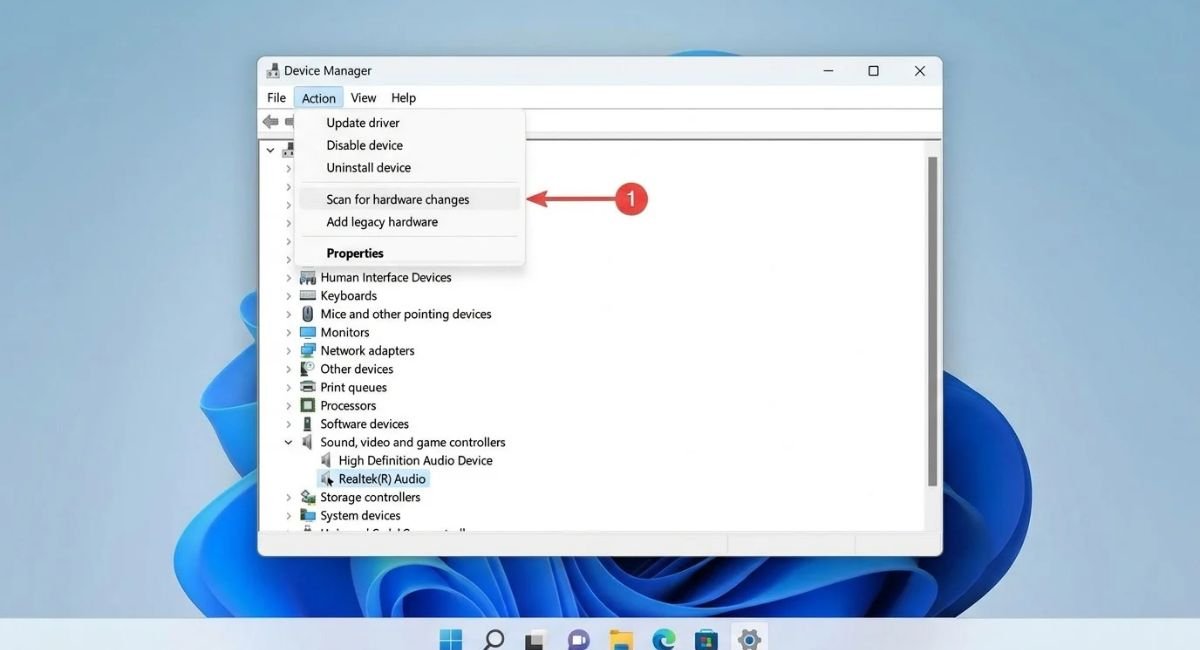
Scan for Hardware Changes
If the device remains missing, open Device Manager and select Action > Scan for hardware changes.
Windows will search for hardware it can detect. If the audio device still doesn’t appear, check the manufacturer’s driver downloads and support instructions.
If the audio hardware is disabled in BIOS or UEFI, Windows may not detect it. Only change firmware settings if you’re comfortable doing so and understand the available options.
9. Install Windows Updates or Uninstall a Problematic Update
Windows updates can deliver driver fixes and system improvements. However, an update may occasionally coincide with an audio problem caused by driver compatibility or an incomplete installation.
Check for Windows Updates
For Windows 11:
Go to:
Settings > Windows Update
Select Check for updates and install appropriate available updates. Restart the computer if prompted and test the sound.
For Windows 10:
Go to:
Settings > Update & Security > Windows Update
Check for available updates and follow the instructions.
If the problem began after an update, don’t assume that every update is responsible. Check the audio driver and output settings first.
Uninstall a Recent Update Causing Sound Problems
Consider uninstalling a recent update only when the timing strongly suggests it caused the problem and simpler fixes haven’t helped.
Open Windows Update settings and look for the update history or uninstall-updates options. Available paths differ between Windows versions.
Before removing an update, review its details and security implications. Avoid uninstalling unrelated updates or repeatedly removing updates without testing the result.
10. Repair System Files and Check for Hardware Problems
If the previous fixes fail, damaged Windows system files or an underlying hardware fault may be responsible. These checks take longer and are best attempted after basic troubleshooting.
Run the System File Checker (SFC)
System File Checker checks protected Windows system files and attempts to repair damaged copies.
- Open Start and search for Command Prompt.
- Select Run as administrator.
- Enter the following command:
sfc /scannow
- Press Enter and wait for the scan to finish.
Keep the Command Prompt window open until the process completes. If Windows reports that it repaired files, restart your computer and test your audio.
Run DISM to Repair Windows Image Files
If SFC cannot repair the problem, Microsoft’s recommended repair sequence uses DISM before running SFC again.
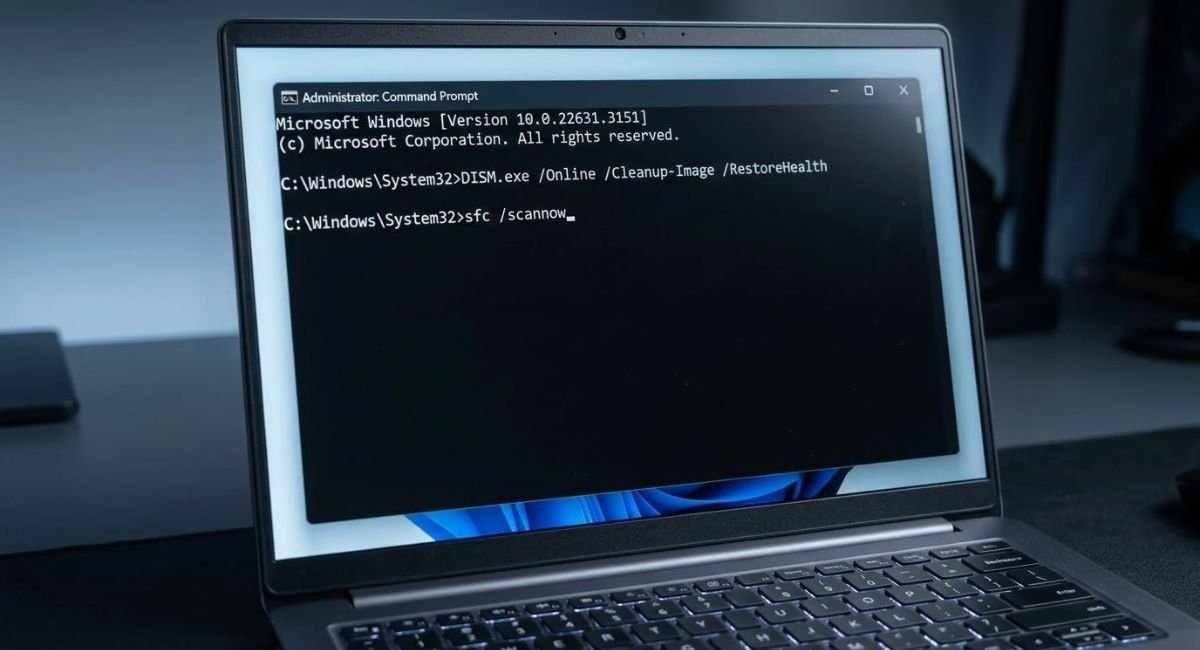
Open an administrator Command Prompt and run:
DISM.exe /Online /Cleanup-Image /RestoreHealth
Wait for the operation to complete. It may take several minutes or longer, depending on your system.
Then run:
sfc /scannow
Restart Windows when both commands finish. These tools repair Windows components and protected system files; they cannot repair physically damaged speakers or a failed sound card.
Test Speakers and Headphones for Hardware Issues
If Windows detects your audio device and the software fixes fail, check the hardware.
Try a known-working headset or speakers. If external audio works but built-in laptop speakers remain silent, the internal speakers or their connections may need inspection.
If no audio device is detected after installing the correct manufacturer driver, the sound hardware or motherboard may require professional diagnosis.
A repair technician can test the audio jack, speakers, sound card, and internal connections. Request a repair estimate before approving hardware replacement.
Conclusion
When you experience No Sound in Windows, start by checking volume, physical connections, and the selected output device. These simple checks can resolve many everyday audio problems without replacing hardware.
If sound remains unavailable, run the Windows audio troubleshooter, restart audio services, and inspect your drivers. Realtek users should check their manufacturer’s driver, while missing-device errors may require enabling or reinstalling the audio device.
Save advanced repairs such as DISM and SFC for problems that persist after basic troubleshooting. If multiple audio devices fail and Windows cannot detect the sound hardware, consider professional diagnosis.
Work through the fixes in order and test your audio after each change. This makes it easier to identify the cause and avoid unnecessary repairs.
Frequently Asked Questions
Why Is There No Sound on My Windows 11 Computer?
The most common causes are muted volume, the wrong output device, a faulty audio driver, or a stopped audio service. Start by checking Settings > System > Sound and selecting the correct speakers. If that doesn’t work, run the Get Help audio troubleshooter and inspect Device Manager.
How Do I Fix No Sound on a Windows 10 Computer?
Check the volume mixer, speaker connections, and default playback device first. Then run the Playing Audio troubleshooter under Settings > Update & Security > Troubleshoot. If the problem continues, update or reinstall the audio driver from your computer manufacturer’s official website.
Why Does My Computer Suddenly Have No Sound?
Sudden audio loss can occur after a Windows update, an output-device change, or a temporary driver or service failure. Check whether Windows switched to a monitor or Bluetooth headset. If the problem began after a driver update, consider rolling back that driver if the option is available.
How Do I Fix Realtek Audio with No Sound in Windows 11?
Select the correct output in Settings > System > Sound and check that the device isn’t muted. Then open Device Manager, find Realtek Audio, and try updating its driver. If necessary, reinstall the compatible driver provided by your computer manufacturer and restart Windows.
Why Are My Speakers Plugged In but There Is No Sound in Windows 11?
Windows may be sending audio to another output, or the speakers may be muted, disconnected, or faulty. Select the speakers under Settings > System > Sound, check their power and cables, and disable audio enhancements temporarily. Test the speakers on another compatible device to rule out hardware failure.