Bluetooth problems can be frustrating, especially when your headphones, wireless mouse, keyboard, or speaker refuses to connect to your Windows 11 PC. Sometimes, Windows detects the device but cannot complete pairing. In other cases, the accessory appears in Settings but remains disconnected, or your computer cannot find it at all.
A Bluetooth connection problem does not always mean your hardware is damaged. The cause could be an inactive pairing mode, a low battery, an existing connection to another device, a corrupted pairing record, or an outdated Bluetooth driver.
Why Is My Bluetooth Device Not Connecting to Windows 10/11?
A Bluetooth device may fail to connect because Windows cannot discover it, the accessory is not in pairing mode, or an existing connection is no longer working correctly.
Common causes include:
- Bluetooth is turned off: Windows cannot establish a Bluetooth connection while the adapter is disabled.
- The accessory is not in pairing mode: Headphones, keyboards, and speakers often require a specific button press to become discoverable.
- The battery is low: A weak battery can prevent pairing or cause frequent disconnections.
- Another device is connected: Your accessory may automatically reconnect to a phone, tablet, or another computer.
- The pairing record is corrupted: An old Bluetooth connection may stop working correctly.
- The Bluetooth driver has a problem: An outdated, incompatible, or corrupted driver can interfere with device detection.
- The Bluetooth adapter is missing: Windows may not detect the adapter because of a driver issue, disabled hardware, or a hardware fault.
Start with the simple checks before changing drivers or Windows services. This approach can solve many Bluetooth problems without requiring advanced troubleshooting.
How to Fix Bluetooth Not Connecting in Windows
Try the following fixes in order. After each step, attempt to connect your accessory again. If the connection works, you can stop troubleshooting.
Check Bluetooth and Pairing Mode
First, make sure Bluetooth is enabled and your accessory is ready to pair.
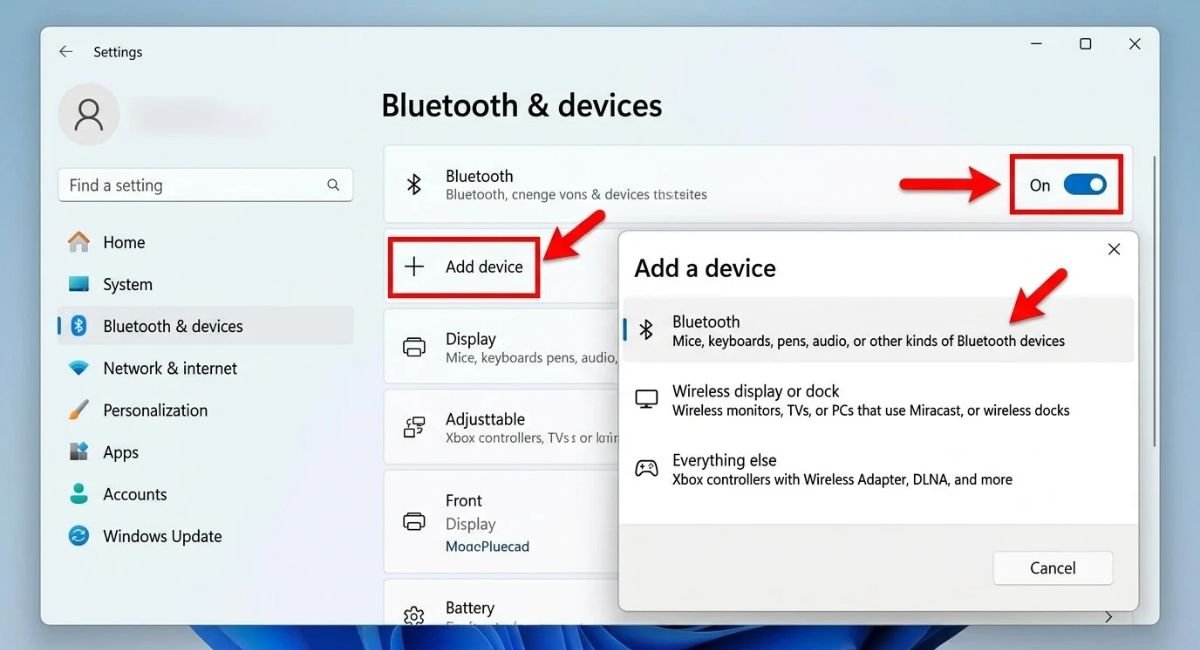
- Open Start > Settings.
- Select Bluetooth & devices.
- Make sure the Bluetooth toggle is turned on.
- Select Add device.
- Choose Bluetooth.
- Put your accessory into pairing mode.
- Select its name when it appears on the screen.
The pairing process depends on the accessory. Some headphones require you to hold the power button, while others have a dedicated pairing button or a button on their charging case. Check the manufacturer’s instructions if you are unsure.
Also, turn off Airplane mode if it is disabling Bluetooth. If your laptop has a physical wireless switch, make sure it is enabled.
Go to: Settings > Bluetooth & devices > Add device > Bluetooth
Turn Bluetooth Off and On Again
A temporary communication problem can prevent Windows from connecting to a previously paired accessory. Turning Bluetooth off and back on may restore the connection.
- Open Settings > Bluetooth & devices.
- Turn Bluetooth off.
- Wait approximately 10 seconds.
- Turn Bluetooth back on.
- Try connecting your accessory again.
You can also use Quick Settings by selecting the network, sound, or battery area on the Windows 11 taskbar.
If the device still will not connect, turn the accessory off and back on as well. This simple step is useful when a Bluetooth mouse, speaker, or headset suddenly stops responding.
Charge Your Device and Move It Closer
A weak battery or poor wireless signal can prevent successful pairing. This is particularly common with wireless headphones, earbuds, portable speakers, and battery-powered accessories.
Charge the device or replace its batteries if necessary. Then place it close to your computer while pairing.
Wireless interference can also affect Bluetooth performance. Try moving the accessory away from crowded wireless environments and poorly shielded USB 3.0 devices. If you use a USB Bluetooth adapter, try another USB port or a short USB extension cable to improve its position.
Once the connection works nearby, move the device to your normal working position and check whether it remains connected.
Disconnect the Accessory From Other Devices
Some Bluetooth accessories automatically connect to the last device they used. For example, your headphones might reconnect to your phone instead of your Windows 11 PC.
To test this:
- Turn Bluetooth off temporarily on nearby phones, tablets, or other computers.
- Put your accessory into pairing mode again.
- Open Settings > Bluetooth & devices.
- Select Add device > Bluetooth.
- Choose your accessory when it appears.
If the connection works, check the manufacturer’s instructions for managing multiple connections. You may not need to remove the accessory from your phone permanently.
Remove the Bluetooth Device and Pair It Again
If Windows shows an accessory as paired but not connected, removing its existing entry and pairing it again can resolve a stale or corrupted connection record.
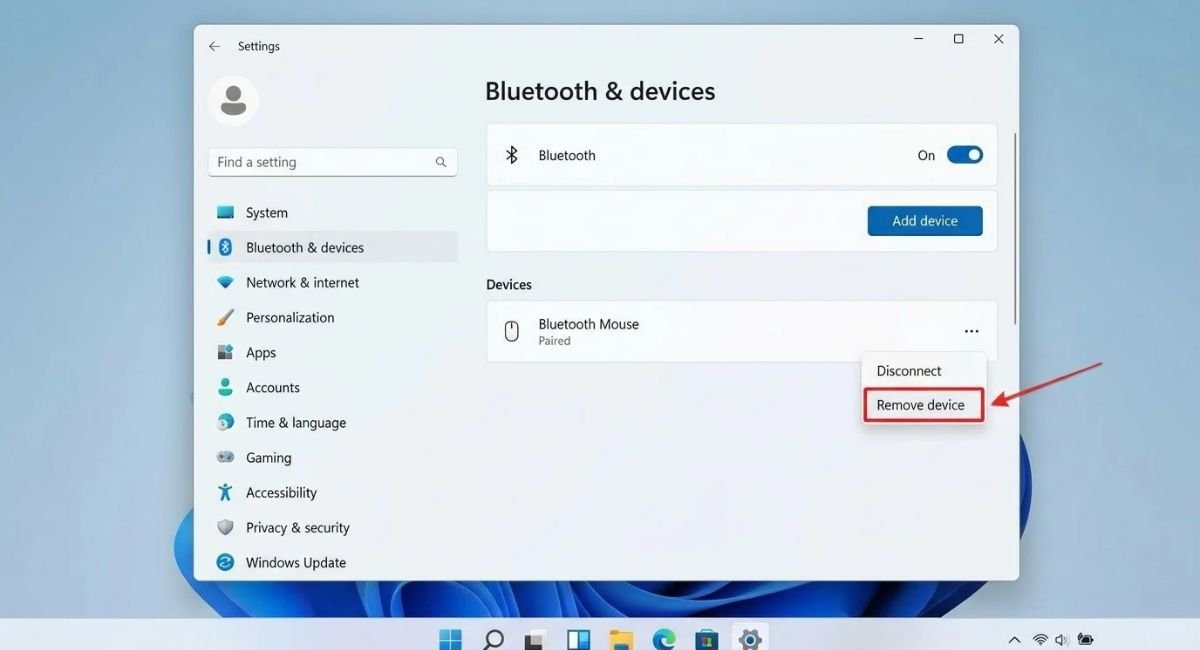
- Open Settings > Bluetooth & devices.
- Find the affected accessory in the device list.
- Select the menu beside its name, if available.
- Choose Remove device and confirm.
- Put the accessory into pairing mode.
- Select Add device > Bluetooth.
- Choose the accessory and complete pairing.
Make sure the accessory is in pairing mode before adding it. Simply switching it on may not make it discoverable.
Removing a device clears its Windows pairing entry, so you will need to pair it again. If Windows cannot remove the entry or repeatedly fails to pair the same accessory, continue to the next fixes.
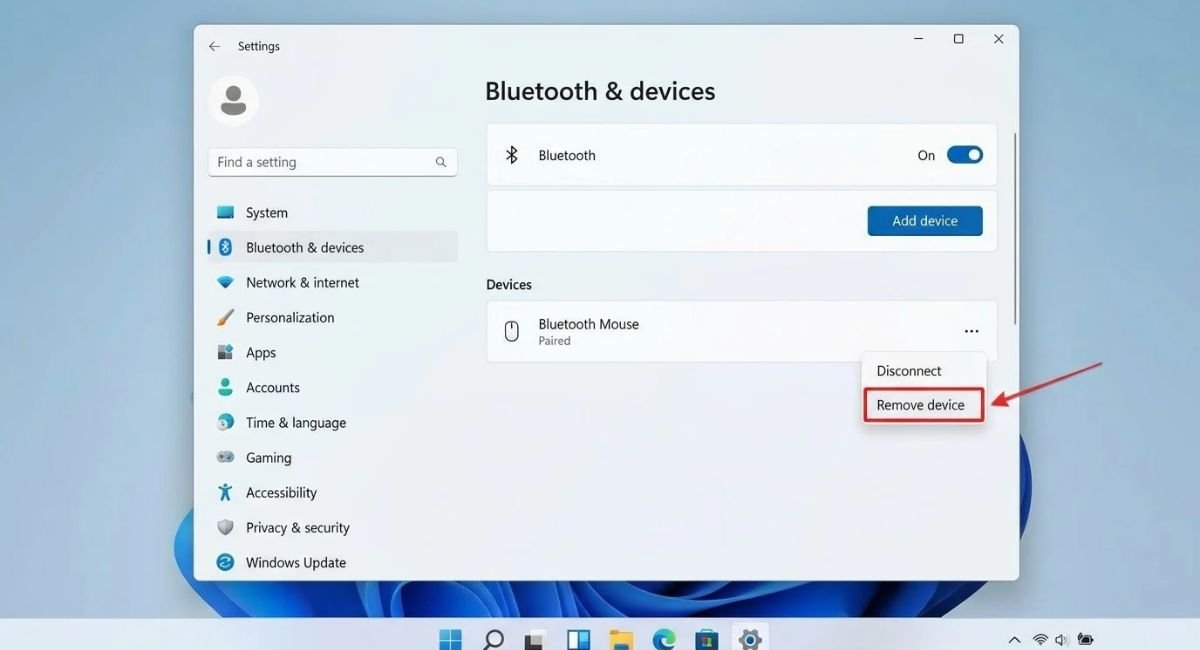
Go to: Settings > Bluetooth & devices > Select your device > Remove device
Run the Bluetooth Troubleshooter
Windows 11 provides diagnostic assistance through the Get Help app. It can help identify common Bluetooth configuration and connectivity problems.
Follow these steps:
- Open Start and search for Get Help.
- Open the app.
- Search for Bluetooth troubleshooting assistance.
- Follow the diagnostic instructions.
- Apply any suggested fixes and test your device again.
The available diagnostic steps may vary depending on your Windows version and configuration. The troubleshooter can help identify some software or configuration problems, but it cannot repair every hardware fault.
If your Bluetooth device remains undetected or the Bluetooth toggle has disappeared, investigate the adapter and driver instead.
Restart the Bluetooth Support Service
Windows uses background services to support Bluetooth discovery and connections. If the relevant service is stopped or temporarily unresponsive, restarting it may help.
- Press Windows + R.
- Type
services.mscand press Enter. - Find Bluetooth Support Service.
- Right-click it and select Restart, if available.
- If the service is stopped, check whether Start is available.
- Try connecting your accessory again.
If the service is already running normally and the connection still fails, avoid repeatedly changing its settings. Continue with the driver checks instead.
Update or Reinstall the Bluetooth Driver
A Bluetooth driver allows Windows to communicate with the computer’s Bluetooth hardware. An incompatible, corrupted, or outdated driver may cause pairing failures, missing devices, or intermittent connections.
To check for an available driver update:
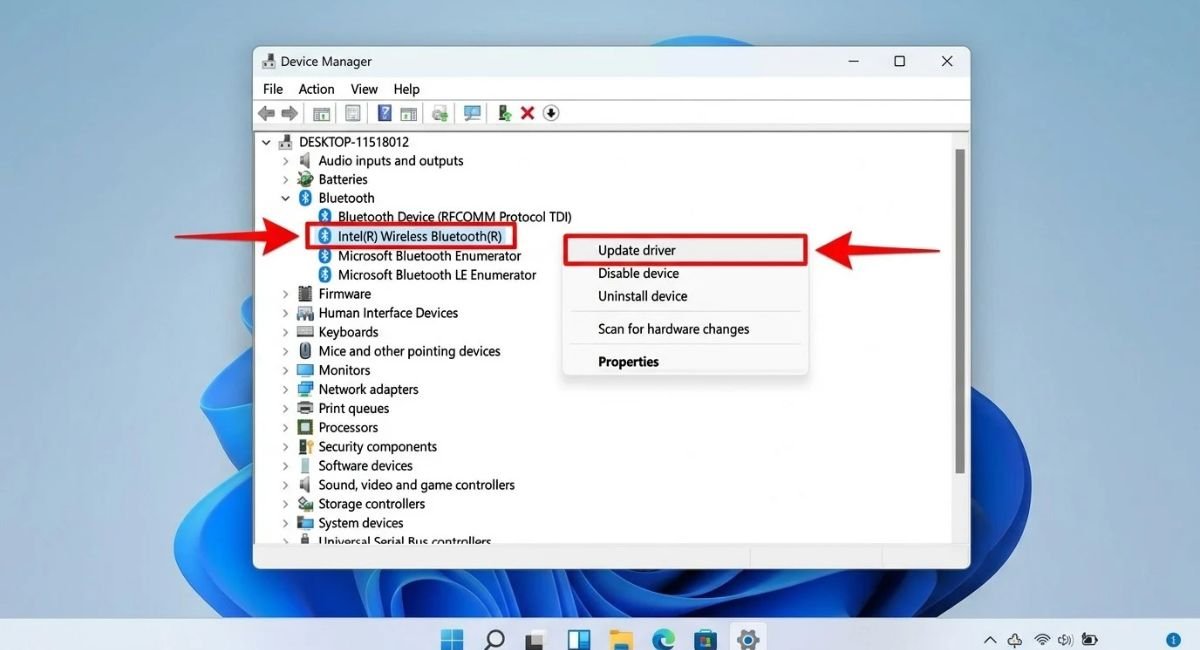
- Right-click Start and open Device Manager.
- Expand the Bluetooth category.
- Right-click your computer’s Bluetooth adapter. Its name may include the word “Radio.”
- Select Update driver.
- Choose Search automatically for drivers.
- Follow any available installation instructions.
- Restart your PC and test the connection.
Windows may report that the best driver is already installed even when the computer manufacturer’s website offers a newer compatible version. If necessary, visit the official support page for your laptop or motherboard model and download the correct Bluetooth driver.
If updating does not help, you can consider reinstalling the adapter driver through Device Manager. Before uninstalling it, download the correct replacement driver if possible, especially if you rely on Bluetooth for your keyboard or mouse.
Right-click the Bluetooth adapter, select Uninstall device, and follow the prompts. Then restart the computer so Windows can attempt to reinstall the driver. If the adapter does not return, open Device Manager and select Action > Scan for hardware changes.
Avoid third-party driver updater utilities that make unsupported promises or bundle unrelated software. Your computer manufacturer’s official support website is generally the safer place to obtain model-specific drivers.
Go to: Device Manager > Bluetooth > Your Bluetooth adapter > Update driver
How to Fix Specific Bluetooth Problems in Windows
Different symptoms can point to different causes. Use the table below to identify which troubleshooting step deserves attention first.
| Bluetooth problem | Possible cause | What to try first |
|---|---|---|
| Device does not appear | Pairing mode or adapter issue | Enable pairing mode and check Bluetooth settings |
| Paired but not connected | Stale pairing or another active connection | Remove and pair again |
| “Couldn’t connect” error | Pairing or driver problem | Restart Bluetooth and re-pair |
| Headphones connect without sound | Incorrect audio output | Select the Bluetooth headset as the output |
| Mouse or keyboard stops responding | Battery, interference, or driver issue | Charge the device and check the adapter |
| Bluetooth toggle is missing | Driver, adapter, or hardware problem | Inspect Device Manager |
Fix the “Couldn’t Connect” Bluetooth Error
The message “Couldn’t connect” does not identify one specific fault. It can occur when an accessory is not in pairing mode, another device is using it, an old pairing has become unreliable, or the Bluetooth driver is malfunctioning.
Try these steps in order:
- Turn Bluetooth off and on again.
- Restart the accessory and place it in pairing mode.
- Disconnect it from other phones or computers.
- Remove the old Windows pairing and add the device again.
- Update the Bluetooth driver if the error continues.
If the error affects several different accessories, focus on Windows, the adapter, and its driver. If only one accessory fails while others connect successfully, check that accessory’s compatibility and manufacturer instructions.
Fix Bluetooth Headphones That Connect Without Sound
Sometimes, Windows successfully connects to Bluetooth headphones, but audio continues playing through the computer’s speakers or another output device.
To check the audio output:
- Connect your Bluetooth headphones.
- Open Settings > System > Sound.
- Under Output, select your Bluetooth headphones if they appear.
- Play audio to test the connection.
If the headphones are not listed, disconnect and reconnect them. You can also remove the device and pair it again.
If Windows recognizes the headphones but sound still does not work, check their battery, volume, and manufacturer-specific audio instructions.
Fix a PC That Cannot Find Bluetooth Devices
If your PC cannot find any Bluetooth accessories, confirm that the accessories are discoverable and that Bluetooth is enabled on your computer.
Keep the devices close together and temporarily disable connections to other computers or phones. Then open Windows Settings and check whether Bluetooth is available.
In Windows 11, some discovery settings are available under Settings > Bluetooth & devices > Devices. If the Bluetooth devices discovery option is present, try Advanced to show additional device types.
If the Bluetooth toggle is missing, or Windows cannot detect any accessories despite these checks, inspect Device Manager.
Fix Bluetooth Missing From Device Manager
If Bluetooth does not appear in Device Manager, the adapter may be unavailable, its driver may not be installed, or the hardware may not be detected correctly.
Try these checks:
- In Device Manager, select View > Show hidden devices.
- Look under Other devices for an unknown device.
- Select Action > Scan for hardware changes.
- Check your computer manufacturer’s website for the correct Bluetooth driver.
- Review your computer’s specifications to confirm Bluetooth support.
Showing hidden devices can reveal previously installed entries, but it does not prove the hardware is currently working.
If the adapter remains missing, check manufacturer-specific instructions or contact the PC manufacturer before considering hardware replacement. Some desktop computers require a separate Bluetooth adapter, while others have built-in wireless hardware that may need the correct driver.
Go to: Device Manager > View > Show hidden devices
Common Bluetooth Troubleshooting Mistakes to Avoid
Avoid these mistakes while trying to fix Bluetooth connection problems:
- Pairing without enabling pairing mode: A device can be powered on without being discoverable. Follow the manufacturer’s pairing instructions.
- Updating the wrong driver: A Wi-Fi driver and a Bluetooth driver may belong to the same wireless card, but they are not interchangeable. Confirm the adapter name and PC model.
- Removing a device without knowing how to pair it again: Check the accessory’s manual first, particularly if its pairing procedure is unusual.
- Installing drivers from untrusted websites: Incorrect or bundled drivers can introduce new problems. Prefer the official manufacturer.
- Buying a Bluetooth adapter too soon: Check the existing hardware and driver before spending money on a replacement.
- Repeating the same fix unnecessarily: If several accessories fail on the same PC, investigate Windows and the adapter rather than troubleshooting every accessory separately.
If you have tried the basic fixes and only one accessory still fails, test it with another compatible phone or computer if possible. This can help determine whether the issue is with the accessory or the Windows PC.
If the accessory fails on multiple compatible devices, consult its manufacturer. If multiple accessories fail only on your PC, concentrate on Windows configuration, the Bluetooth adapter, and its driver.
When Should You Replace a Bluetooth Adapter?
A replacement adapter is worth considering only after you have confirmed that your computer needs one or that its existing Bluetooth hardware is faulty.
Before buying, check that the adapter supports Windows 11, is compatible with your computer, and provides the Bluetooth functionality your accessories require.
A USB Bluetooth adapter can add Bluetooth to a compatible PC that lacks built-in support, but it will not necessarily solve every driver, software, or accessory problem.
Compare manufacturer specifications and support documentation rather than relying on claims that an adapter will fix all connection errors. If Bluetooth disappeared after a driver or firmware update, resolving that issue may be more appropriate than purchasing new hardware.
Final Thoughts
Bluetooth connection problems in Windows 11 can often be resolved by checking pairing mode, restarting Bluetooth, charging the accessory, or removing and pairing the device again.
If these basic fixes do not work, use the Get Help app, restart the Bluetooth Support Service, and inspect the Bluetooth driver in Device Manager. When the Bluetooth toggle or adapter is missing, check your computer’s hardware specifications and manufacturer support documentation before buying replacement hardware.
Work through the fixes in order and test your device after each step. This makes it easier to identify the cause without making unnecessary changes to Windows or purchasing equipment you may not need.
Frequently Asked Questions
Why is my Bluetooth device not connecting to Windows 11?
Your device may not be in pairing mode, its battery may be low, or Windows may have an outdated driver or corrupted pairing record. Start by enabling Bluetooth, checking the accessory’s pairing mode, and removing and pairing the device again if necessary.
How do I fix Bluetooth pairing problems in Windows 11?
Open Settings > Bluetooth & devices > Add device > Bluetooth and select your accessory. If pairing fails, disconnect the accessory from other devices, remove any old Windows pairing, and try again. Update the Bluetooth driver if the issue persists.
Why is Bluetooth not showing in Windows 11 Settings?
A missing Bluetooth toggle may indicate a driver problem, disabled hardware, or an adapter that Windows cannot detect. Check Device Manager, scan for hardware changes, and look for the correct driver on your computer manufacturer’s support website.
Can an outdated Bluetooth driver prevent devices from connecting?
Yes. An incompatible, corrupted, or outdated Bluetooth driver can interfere with device discovery, pairing, and connection stability. Check Device Manager and install a compatible driver from your PC manufacturer’s official support page if necessary.
Should I buy a new Bluetooth adapter if my device will not connect?
Not immediately. First, check the accessory, pairing settings, Windows configuration, and Bluetooth driver. Consider replacing or adding an adapter only after confirming that the existing hardware is absent or faulty.