
When you click an app and nothing happens, it can quickly become frustrating. You might see a loading screen, an error message, or no response at all. Sometimes, Microsoft Store apps stop opening while desktop programs continue working normally. In other cases, several apps fail at the same time.
Apps not opening in Windows 10/11 can happen because of corrupted app files, outdated software, Microsoft Store problems, insufficient storage, or damaged Windows components. Fortunately, you can try several practical fixes before considering a Windows reset.
Start with the simplest solutions and test your apps after each step. This approach helps you identify the cause without making unnecessary changes to your computer.
Why Are Apps Not Opening in Windows 10 and 11?
Apps can stop opening for several reasons. A recent update might cause a compatibility issue, an application may contain corrupted files, or Microsoft Store may have a cache problem.
The number of affected apps can help you narrow down the cause. If only one program fails, start by repairing or reinstalling that application. If several apps fail together, investigate Windows updates, system files, storage, and your user profile.
Windows 10 and Windows 11 also use slightly different Settings layouts. Follow the instructions for your version, and remember that some troubleshooting options may not be available on every PC.
Restart Your PC to Fix Apps Not Opening
Restarting your computer is a simple first step. It closes many temporary processes and reloads Windows services that may have stopped responding.
Save your work and close open documents. Open the Start menu, select the Power icon, and choose Restart.
Wait for Windows to load completely, then open the affected app again. If it works, a temporary process or system issue may have caused the problem.
If the app still refuses to open, move on to the next solution.
Check for Windows Updates
Outdated Windows components can sometimes cause application compatibility problems. Installing available updates may provide fixes for system components and known issues.
On Windows 11, open Settings > Windows Update.
On Windows 10, open Settings > Update & Security > Windows Update.
Select Check for updates and install relevant available updates. Restart your computer if Windows requests it.
After restarting, test the affected app. If the problem started immediately after a specific update, investigate that update before removing it. Avoid uninstalling security updates unless you have a clear reason and understand the risks.
Repair or Reset the App in Windows Settings
If only one app refuses to launch, try repairing it before reinstalling it. Windows provides Repair and Reset options for many supported applications, although these options are not available for every program.
Repair or Reset the App
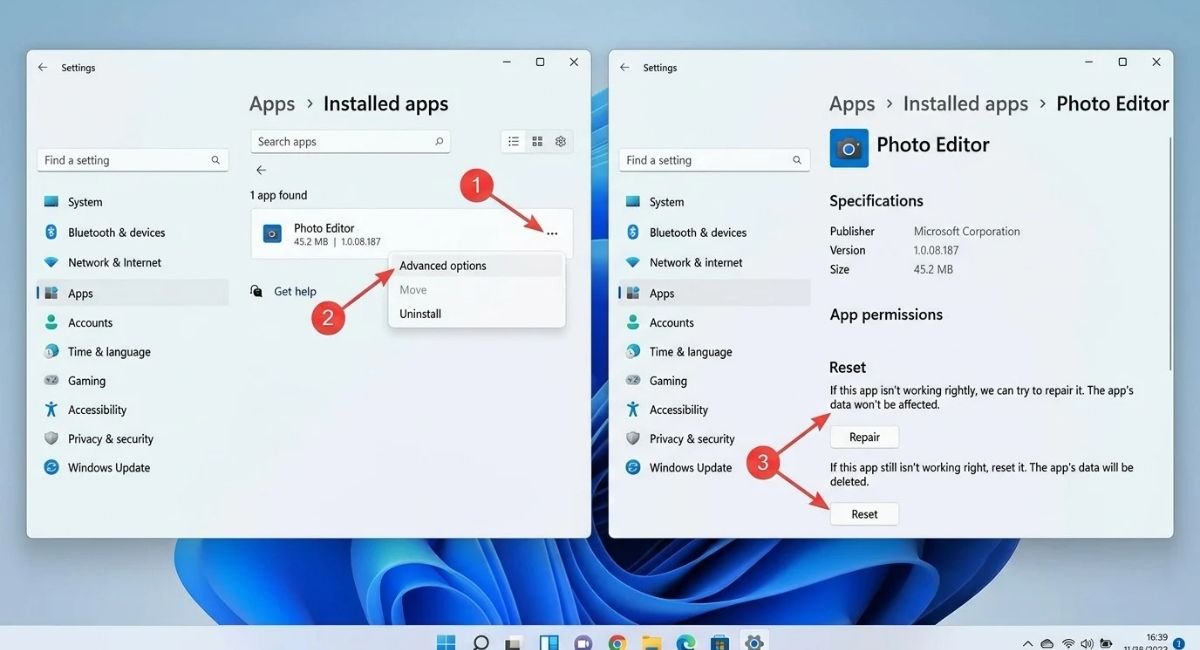
On Windows 11, open Settings > Apps > Installed apps. Find the affected app, select its three-dot menu, and choose Advanced options if available.
On Windows 10, open Settings > Apps > Apps & features. Select the app and look for Advanced options.
Choose Repair first. This attempts to fix the app without removing its stored data.
If Repair does not solve the problem, consider Reset. Resetting may remove local settings, preferences, or app data, so back up important information first.
If neither option appears, use the app’s built-in repair feature or consult the developer’s support instructions.
Reset the Microsoft Store Cache
If Microsoft Store apps are not opening, the Store cache may be causing the issue. Windows includes a built-in command called wsreset.exe that clears the Microsoft Store cache.
Run the Microsoft Store Cache Reset
Press Windows + R to open the Run dialog.
Type this command:
wsreset.exe
Press Enter and wait. A blank Command Prompt window may appear briefly. It should close automatically, and Microsoft Store should open when the process finishes.
Try launching the affected Store app again. If it still does not work, open Microsoft Store and check its Library section for available app updates.
Also verify that your system date, time, and region settings are correct.
If Microsoft Store itself still will not open, follow Microsoft’s official Microsoft Store troubleshooting guide.
Reinstall the App That Won’t Open
Reinstalling an app can help when its installation is damaged or essential files are missing. Try Repair first whenever the option is available.
Open Windows Settings and navigate to the installed apps list. Select the affected application and choose Uninstall.
Restart your PC if the uninstaller requests it. Then download the app again from Microsoft Store or the software developer’s official website.
Install the application and test it before changing additional Windows settings.
Before uninstalling, back up important projects, saved games, documents, and preferences. Some applications remove local data during uninstall. Avoid downloading installers from unfamiliar websites.
Check Antivirus and Firewall Settings
Windows Security or another security application may block a program that appears suspicious. Firewall rules can also prevent apps from connecting to the internet, although a blocked connection does not necessarily explain why an app fails to launch.
First, open Windows Security and review any recent protection notifications. If Windows blocked the app, confirm that you downloaded it from a trustworthy source before taking further action.
If the application needs internet access, open Windows Security > Firewall & network protection and review the available settings. You may be able to allow a trusted app through the firewall.
Do not permanently disable antivirus protection or your firewall to test an application. If you suspect a false positive, verify the software with its developer before creating an exception.
Run Available Windows Troubleshooters
Windows includes troubleshooting tools, but the available options vary by version and installation. Some Windows 10 installations include a dedicated Windows Store Apps troubleshooter, while newer systems may not show it.
On Windows 11, open Settings > System > Troubleshoot > Other troubleshooters. Review the available options and run a relevant troubleshooter if one is offered.
On Windows 10, open Settings > Update & Security > Troubleshoot > Additional troubleshooters. If Windows Store Apps appears, select it and follow the instructions.
Apply any recommended fix and test the affected application again. If no relevant troubleshooter appears, skip this step and continue with the remaining solutions.
Check Available Storage Space
Apps may struggle to update, save temporary files, or run correctly when your Windows drive is nearly full. This is especially worth checking if you have also noticed slow performance or failed updates.
On both Windows 10 and Windows 11, open Settings > System > Storage.
Review the available space on your Windows drive, usually the C: drive. Use Storage settings or Disk Cleanup to remove unnecessary temporary files.
Check the files before deleting anything. Your Downloads folder, Recycle Bin, and old installation files may contain items you still need.
After freeing up space, restart your computer and try opening the app again.
Repair Windows System Files Using DISM and SFC
If several apps still refuse to open, damaged Windows system files may be responsible. Windows includes two tools that can help repair system components: Deployment Image Servicing and Management (DISM) and System File Checker (SFC).
Run DISM and SFC
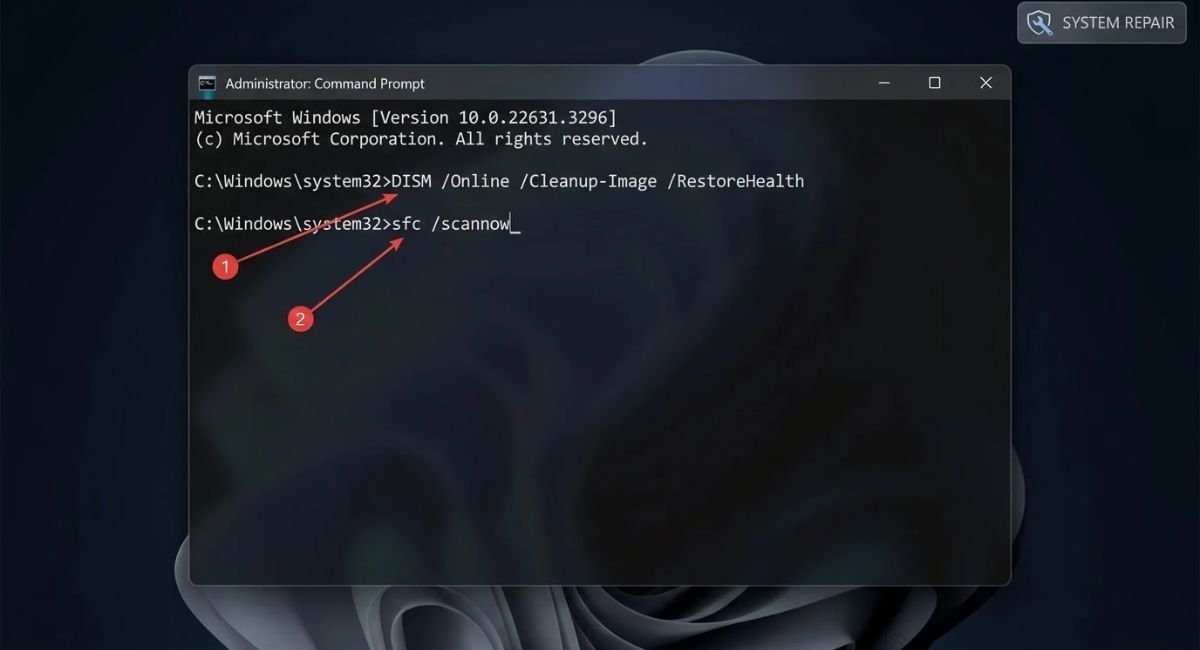
Open the Start menu and search for Terminal or Command Prompt. Right-click the result and select Run as administrator.
First, run this command:
DISM /Online /Cleanup-Image /RestoreHealth
Press Enter and wait for the operation to finish. It may take several minutes, and progress can pause temporarily.
Next, run:
sfc /scannow
Press Enter and let the scan complete. SFC checks protected Windows system files and attempts to repair corrupted files when possible.
Restart your PC after both commands finish. Then test the affected applications again.
If either tool reports that it could not complete the repair, note the exact message before trying more advanced fixes.
For additional instructions, see Microsoft’s System File Checker guide.
Troubleshoot Multiple Apps Not Opening in Windows
If several unrelated applications stop opening around the same time, the issue may involve your Windows user profile or a broader system problem rather than one particular app.
Before making changes to your existing account, check whether the same applications work in another Windows user account. This can help determine whether the problem is limited to your current profile.
Test the Apps in Another User Account
On Windows 11, open Settings > Accounts > Other users.
On Windows 10, open Settings > Accounts > Family & other users. The exact options may vary depending on your edition and account configuration.
If available, add a temporary local user account and sign in to it. You may need administrator permission to create another account.
Open the affected applications and check whether they launch normally.
- If the apps work in the new account: Your original profile settings or user-specific configuration may be involved.
- If the apps still fail: The cause may be related to Windows components, application compatibility, or another system-wide issue.
If the problem appears limited to your original profile, back up important files and investigate the account issue before making permanent changes. Do not delete your original account or profile as a troubleshooting shortcut.
If the applications fail in both accounts, review the earlier fixes that apply to your situation rather than repeating every step.
Troubleshoot a Specific App That Won’t Open
When only one application refuses to launch, focus on that program’s compatibility, error messages, and installation requirements. This is different from a situation in which several unrelated applications fail together.
Check App Compatibility and Error Messages
Try opening the application from the Start menu, desktop shortcut, or installation folder. If one method works and another does not, the shortcut or launch method may be the problem.
Check the developer’s official website for updates and compatibility notes. For an older desktop program, right-click its shortcut, select Properties, and open the Compatibility tab if available. Change compatibility settings only when they are appropriate for that application.
If an error message appears, record its exact wording. Search the developer’s official support resources for that message before reinstalling the program.
Fix “This App Can’t Open on Your PC”
This message may appear when an application is incompatible with your Windows version, uses an unsupported system architecture, or comes from a blocked or untrusted source.
Confirm that the installer matches your Windows version and system architecture. Download a fresh copy from the official developer and review any security warning before proceeding.
For Microsoft Store apps, check for updates and try the Repair or Reset options when available. For older desktop programs, consult the developer’s compatibility guidance.
Conclusion
When apps are not opening in Windows, you usually do not need to reset your entire computer right away. Start with a restart and Windows updates, then repair the affected app or reset the Microsoft Store cache when appropriate.
If several programs continue to fail, check your available storage, run DISM and SFC, and test whether the problem occurs in another Windows user account. If only one application is affected, focus on its compatibility, error messages, and installation.
Frequently Asked Questions
1. Why Are My Apps Not Opening in Windows 11?
Apps may fail to launch because of corrupted files, compatibility problems, pending updates, or damaged Windows components. The right fix depends on whether one app or several apps are affected.
2. How Do I Fix Apps Not Opening in Windows 10?
Restart your computer and repair the affected application through Windows Settings if the option is available. For Microsoft Store apps, try resetting the Store cache. If several applications fail, investigate Windows system files.
3. Why Won’t My Windows Apps Open on My PC?
The cause depends on which applications are affected. A single app may have an installation or compatibility problem, while multiple apps failing together may indicate a broader Windows or user-profile issue.
4. How Do I Fix “This App Can’t Open on Your PC”?
Check that the application is compatible with your Windows version and system architecture. Download it from the official developer, review any security warnings, and try repairing or reinstalling it if necessary.
5. Should I Reset Windows If Apps Still Won’t Open?
A Windows reset should not be your first option. Try the relevant app repairs, check system files, and investigate whether the issue affects one user account or the entire system. Back up important files before considering a reset.

[…] Windows apps or Start menu components continue to malfunction, re-registering app packages may help in some […]