Is your Windows taskbar frozen, unresponsive, or refusing to open apps? You might click the Start button and nothing happens, or your pinned icons may stop responding. Sometimes, the taskbar disappears completely or refuses to hide automatically.
These problems can affect both Windows 10 and Windows 11. Fortunately, you can often fix them without reinstalling Windows or losing your personal files.
This guide explains how to fix Taskbar Not Working in Windows 10/11 with practical troubleshooting methods. You will learn how to restart Windows Explorer, repair broken taskbar icons, fix Start menu problems, troubleshoot auto-hide settings, and repair corrupted system files.
Why Is My Taskbar Not Working in Windows 10 and 11?
The Windows taskbar may stop responding for several reasons. Sometimes, a temporary software glitch causes the problem. In other cases, Windows system files, updates, drivers, or user-profile settings may be responsible.
Here are some common causes and their symptoms.
| Possible cause | Common symptom |
|---|---|
| Windows Explorer stops responding | The taskbar freezes or disappears |
| Temporary Windows glitch | Clicking taskbar icons does nothing |
| Damaged system files | The Start menu and taskbar malfunction |
| Windows update problem | Taskbar issues begin after an update |
| Incorrect taskbar settings | Auto-hide does not work correctly |
| Search or app problem | Search or one pinned icon fails |
| Graphics driver issue | Display glitches affect the desktop |
Before trying advanced repairs, save your work and restart your computer if possible. If the taskbar is completely frozen, you can use keyboard shortcuts to access troubleshooting tools.
Restart Windows Explorer to Fix the Unresponsive Taskbar
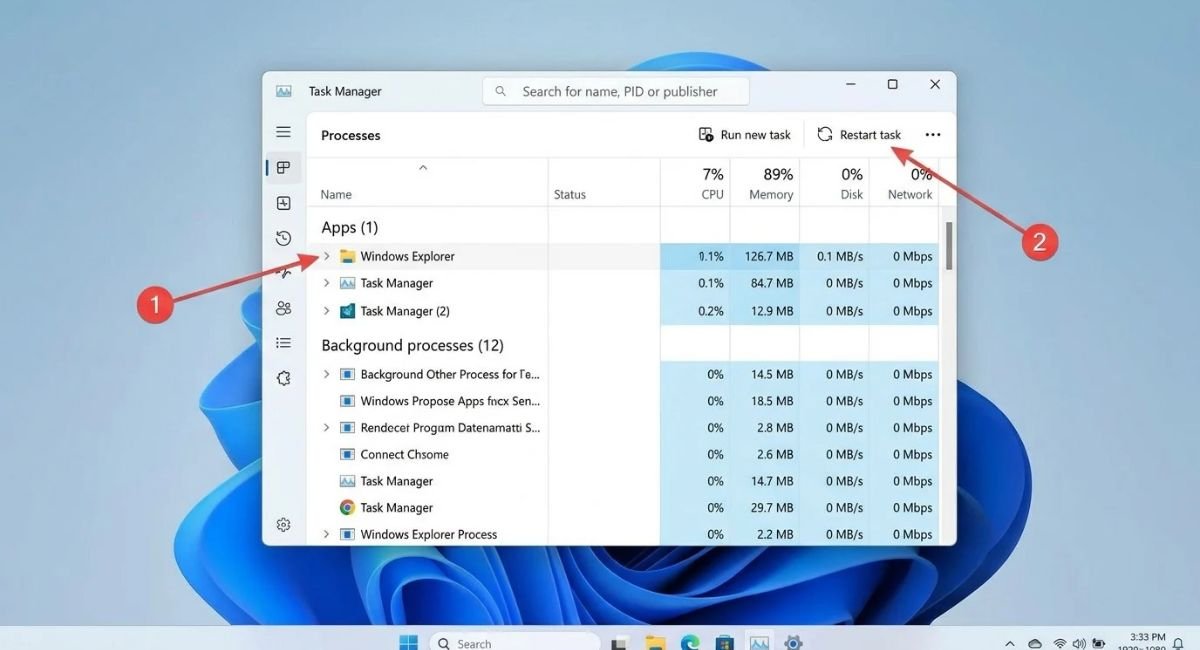
Restarting Windows Explorer is one of the first solutions to try when the taskbar stops responding. Windows Explorer manages important parts of the desktop, including the taskbar and File Explorer.
Restarting this process can refresh the desktop without requiring a complete system restart.
How to Restart Windows Explorer Using Task Manager
Follow these steps:
-
Press Ctrl + Shift + Esc to open Task Manager.
-
Select More details if Task Manager opens in its simplified view.
-
Open the Processes tab.
-
Find Windows Explorer in the list.
-
Right-click Windows Explorer and select Restart.
-
Wait a few seconds for the desktop and taskbar to refresh.
Your screen may briefly flicker, and the taskbar may disappear before returning. This is normal while Windows Explorer restarts.
If Windows Explorer does not appear in Task Manager, select Run new task, enter explorer.exe, and press Enter.
Restart Your PC When the Taskbar Is Completely Frozen
If your taskbar is completely frozen, clicking the Start button, search icon, or pinned applications may do nothing. You may also be unable to open the notification area.
Try restarting your computer if you can access the power options. If the taskbar remains unresponsive, use these keyboard-based methods.
Restart Your PC When the Taskbar Is Frozen
Press Ctrl + Alt + Delete on your keyboard. If the security screen appears, select the power icon and choose Restart.
If Task Manager still opens, you can restart Windows directly:
-
Press Ctrl + Shift + Esc.
-
Select Run new task.
-
Enter the following command:
shutdown /r /t 0
-
Press Enter.
This command restarts your computer immediately. Save any open work before running it because unsaved changes may be lost.
Open Task Manager When You Cannot Click the Taskbar
The keyboard shortcut Ctrl + Shift + Esc is useful when the taskbar does not respond to mouse clicks.
From Task Manager, you can restart Windows Explorer (see Method 1) or launch tools such as Command Prompt and Device Manager. This lets you continue troubleshooting without relying on the broken taskbar.
If the entire computer is frozen and keyboard shortcuts do not work, holding the physical power button may be necessary as a last resort. Use this option only when normal restart methods are unavailable.
Fix Taskbar Search and Icons Not Working in Windows 10 and 11
Sometimes, the taskbar itself appears normal, but individual features do not work. For example, the search icon may not open, or clicking a pinned application may produce no response.
First, determine whether the problem affects one feature or the entire taskbar.
Fix Taskbar Search Not Working in Windows 11
Press Windows + S to check whether Windows Search opens independently of the taskbar search button.
If Search does not open, try these steps:
-
Restart Windows Explorer (see Method 1).
-
Restart your computer.
-
Install available Windows updates if you can access Settings.
-
Test Search again after restarting.
If other taskbar features work normally, focus on Search rather than changing unrelated taskbar settings.
Fix Taskbar Icons Not Responding When Clicked
If one pinned application does not open, try launching it from the Start menu, desktop shortcut, or File Explorer.
If the application opens elsewhere, the issue may be limited to its taskbar shortcut or the Explorer process. Restarting Windows Explorer is a sensible next step.
If every pinned icon stops responding, troubleshoot the taskbar itself rather than reinstalling each application. If only one app is affected, check for updates or repair options for that specific application.
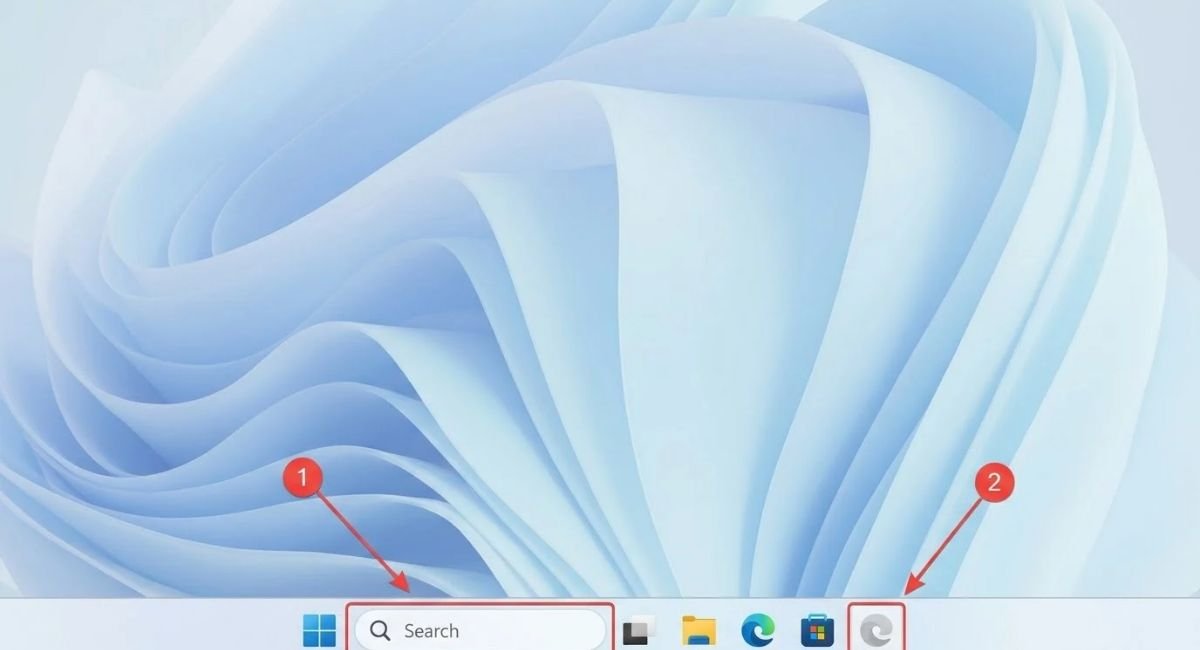
Fix Auto-Hide Taskbar Not Working in Windows 11
The auto-hide feature keeps the taskbar out of sight until you move your pointer to the edge of the screen. If the taskbar remains visible or does not appear when needed, check the taskbar settings.
Check Taskbar Settings and Auto-Hide Options
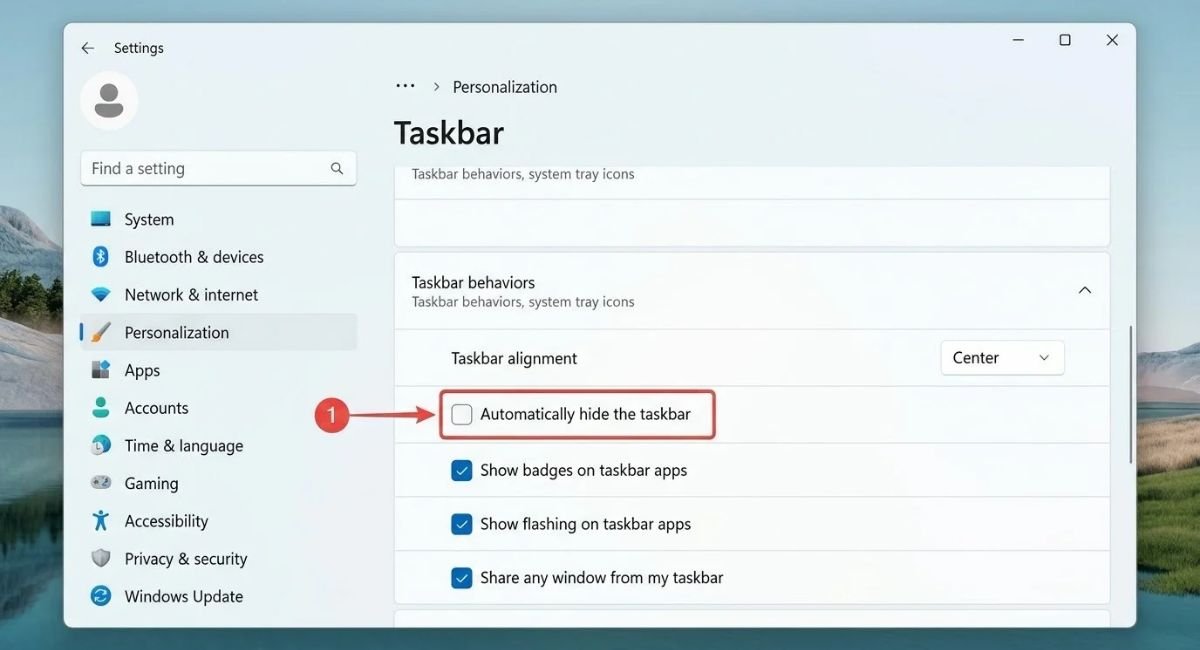
Go to: Settings > Personalization > Taskbar
In Windows 11:
-
Open Taskbar behaviors.
-
Find Automatically hide the taskbar.
-
Turn the setting off and wait a few seconds.
-
Turn it back on if you want to use auto-hide.
-
Move your pointer to the bottom edge of the screen to test it.
In Windows 10, open Settings > Personalization > Taskbar and check the option to automatically hide the taskbar in desktop mode. If your device supports tablet mode, check the tablet-mode option separately.
If auto-hide still does not work, close full-screen applications and restart Windows Explorer (see Method 1). Also check whether a notification or an open application is affecting the taskbar’s behavior.
Fix Drag and Drop to Taskbar Not Working in Windows 11
If dragging a file onto a taskbar icon does not work, first check whether the target application supports that action. Not every application accepts dragged files, and behavior can differ between apps and Windows versions.
Check Whether Drag and Drop Is Supported by the App
Try the following checks:
-
Open the target application normally.
-
Drag the file directly into the application’s window.
-
Confirm that the app supports the file type.
-
Restart Windows Explorer (see Method 1) if drag-and-drop fails across several applications.
-
Restart Windows and test the feature again.
For example, an image editor may allow you to drag an image directly into its window. Another application may not support that action.
If drag-and-drop stopped working after a Windows update, install any relevant updates and check whether the application itself has an update available.
Do not assume every drag-and-drop limitation is a Windows taskbar problem. Testing the file inside the application helps you narrow down the cause.
Run SFC and DISM Scans to Repair Corrupted System Files
If restarting Explorer and checking settings do not fix the issue, damaged Windows system files may be contributing to the problem.
Windows includes two built-in tools that can help repair the system image and protected system files: DISM and System File Checker.
Run DISM to Fix the Windows Image
First, open an elevated Command Prompt.
-
Press Ctrl + Shift + Esc to open Task Manager.
-
Select Run new task.
-
Enter
cmd. -
Select the option to run the task with administrator privileges, if available.
-
Press Enter and approve any permission prompt.
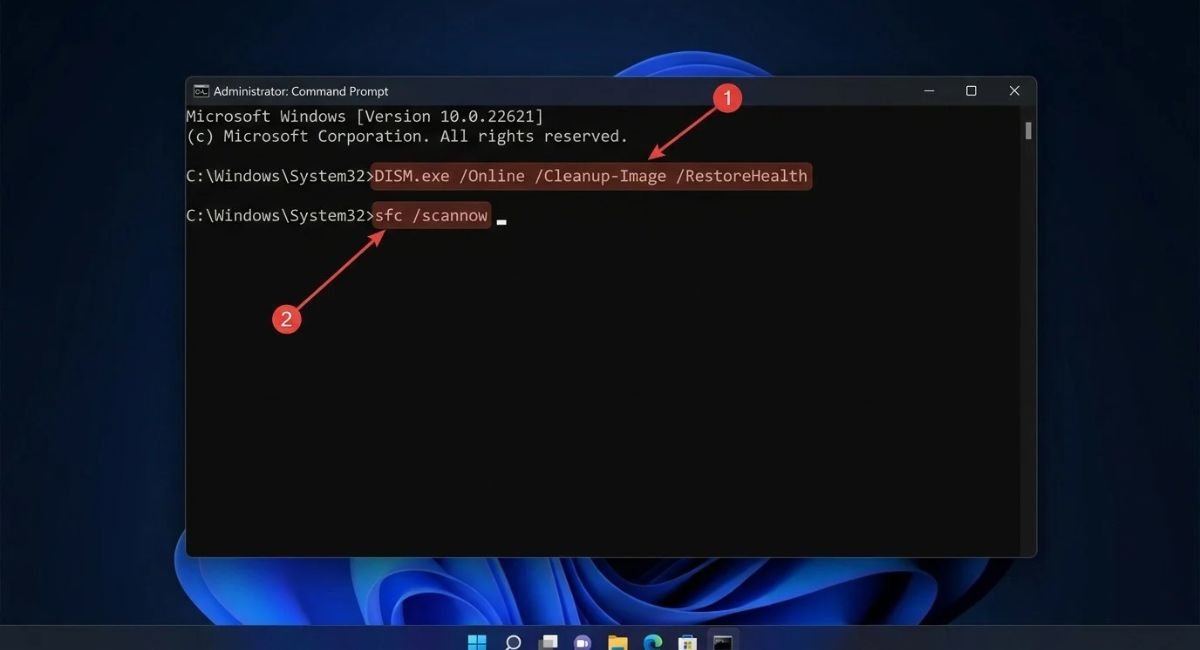
Enter this command:
DISM.exe /Online /Cleanup-Image /RestoreHealth
Press Enter and wait for the process to finish. It may take several minutes, and progress can pause temporarily.
Run SFC /scannow to Repair Windows Files
After DISM completes, run:
sfc /scannow
Press Enter and wait until the scan finishes. Do not close Command Prompt while the scan is running.
Restart your PC after both tools finish, then test the taskbar again.
These commands may repair certain Windows component problems, but they cannot fix every cause of a frozen taskbar. If Windows reports that it could not repair some files, consult Microsoft’s official repair guidance.
Re-Register Taskbar Apps Using PowerShell (Advanced)
If Windows apps or Start menu components continue to malfunction, re-registering app packages may help in some cases. However, this is an advanced troubleshooting step and should not be the first method you try.
Some app-registration commands may produce errors for individual packages. They are not guaranteed to repair every taskbar issue.
Run the PowerShell Command as Administrator
Before proceeding, back up important files. If System Protection is available, consider creating a restore point.
-
Open Task Manager with Ctrl + Shift + Esc.
-
Select Run new task.
-
Enter
powershell. -
Select the administrator-privileges option if available.
-
Press Enter.
A commonly used command to attempt re-registration of app packages is:
Get-AppxPackage -AllUsers | ForEach-Object {Add-AppxPackage -DisableDevelopmentMode -Register "$($_.InstallLocation)\AppXManifest.xml"}
Important: This command attempts to re-register app packages across user accounts. It may fail for some packages, and it is not a universal taskbar repair. Do not run it if you are unsure about its effects or if your computer is managed by your employer or school.
When the process finishes, restart Windows and test the Start menu, Search, and taskbar. If errors appear, record them rather than repeatedly running the command.
Update Windows and Graphics Drivers to Fix Taskbar Issues
Windows updates can include fixes for operating-system problems. Graphics driver issues may also contribute to display glitches that appear alongside taskbar problems.
Install the Latest Windows Updates
Go to: Settings > Windows Update
Select Check for updates and install appropriate available updates. Restart your computer if Windows requests it.
On Windows 10, open Settings > Update & Security > Windows Update.
If the problem started immediately after a particular update, note its installation date. Avoid uninstalling updates randomly. Review Microsoft’s official recovery guidance before removing an update.
Update or Reinstall Your Graphics Driver
If you also notice flickering, display glitches, or unusual desktop behavior, check your graphics driver.
-
Open Task Manager.
-
Select Run new task.
-
Enter
devmgmt.mscand press Enter. -
Expand Display adapters in Device Manager.
-
Right-click your graphics adapter.
-
Select Update driver and follow the instructions.
You can also check the official support website for your computer or graphics card manufacturer.
If the problem began after a driver update, the Roll Back Driver option may be available in the device’s properties. Prefer official drivers and Windows Update over unknown driver-updater utilities.
Create a New User Profile or Use Windows Recovery Options
If the taskbar remains broken after the earlier fixes, test whether the issue is limited to your Windows user profile.
Create a new local account through Settings if you can access it. Sign in to that account and check whether the Start menu and taskbar work normally.
If the taskbar works in the new profile, the issue may be related to your original profile. Back up your personal files before changing accounts or moving data.
If the taskbar remains broken across accounts, consider Windows recovery options. Depending on your situation, System Restore, uninstalling a specific problematic update, or a Windows repair installation may be appropriate.
Recovery options can affect installed applications, settings, or data depending on the method. Read each confirmation screen carefully and back up important files first. If your PC is managed by an organization, contact its IT administrator before making recovery changes.
Frequently Asked Questions
1. How do I fix the taskbar not working in Windows 10 and 11?
Restart Windows Explorer through Task Manager first. If the taskbar remains unresponsive, restart your PC, check taskbar settings, install relevant updates, and run DISM followed by SFC if system-file corruption is suspected.
2. How do I unfreeze my Windows taskbar?
Press Ctrl + Shift + Esc to open Task Manager. Find Windows Explorer, right-click it, and select Restart. If that does not work, use Ctrl + Alt + Delete to access the restart option.
3. Why won’t my taskbar let me click anything?
Windows Explorer may have stopped responding, or a Windows component may be malfunctioning. Restart Explorer first. If the problem keeps returning, check updates and consider repairing system files.
4. How do I enable the taskbar in Windows 11?
The Windows 11 taskbar normally appears automatically. If it is hidden, open Settings > Personalization > Taskbar > Taskbar behaviors and check the auto-hide setting. Restart Windows Explorer if the taskbar still does not appear.
5. Why are the Start menu and taskbar not working in Windows 10?
Possible causes include a frozen Explorer process, damaged system files, a problematic update, or a user-profile issue. Restart Explorer first, then try system-file repairs and test a new user profile if needed.
Conclusion
A frozen or unresponsive taskbar can interrupt your work, but you do not always need to reinstall Windows or pay for a repair service.
Start by restarting Windows Explorer. Then check taskbar settings, troubleshoot Search and pinned icons, install relevant updates, and run DISM and SFC if you suspect damaged system files.
If Taskbar Not Working in Windows 10/11 remains unresolved, note which features are affected and whether the problem started after an update. This information can help you choose the next repair step without making unnecessary changes.