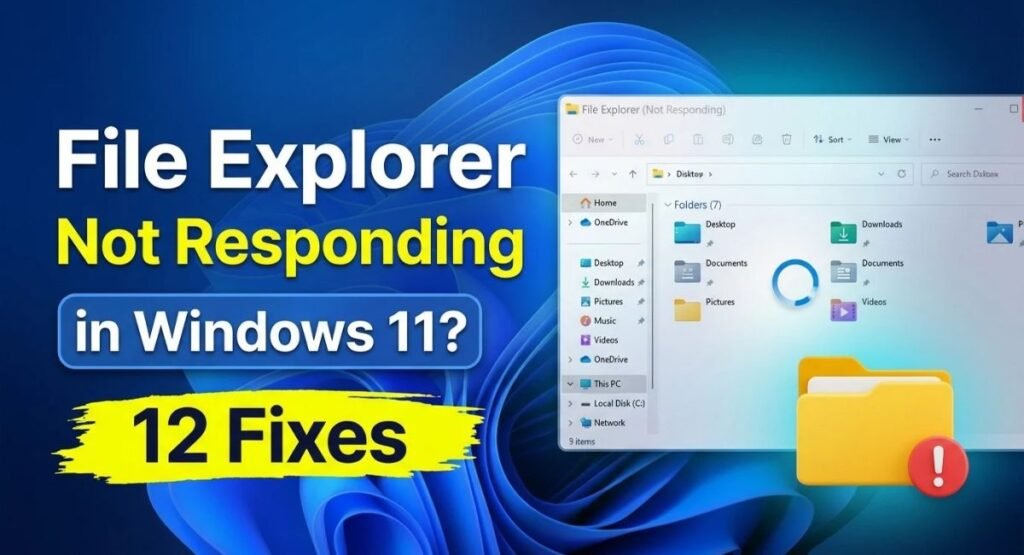
When File Explorer freezes, folders may stop opening, the window may become unresponsive, or Windows may display a spinning cursor while trying to load your files. Sometimes, the taskbar also disappears temporarily or File Explorer closes unexpectedly.
File Explorer not responding in Windows 11 can be caused by a stuck Windows Explorer process, corrupted history, insufficient disk space, conflicting applications, outdated updates, or damaged system files. Fortunately, you can often resolve the problem without reinstalling Windows or losing your personal files.
In this guide, you’ll learn 12 practical ways to fix File Explorer, starting with quick solutions and moving to advanced troubleshooting. Follow the steps in order, and test File Explorer after each fix so you can identify what resolves the problem.
Why Is File Explorer Not Responding in Windows 11?
File Explorer is the Windows component you use to browse folders, open documents, manage drives, and access downloads. It also interacts with the desktop, taskbar, previews, and right-click menus. When its process or a related component stops working correctly, File Explorer may freeze, crash, or take too long to load.
Common causes include:
- A temporary process failure: Windows Explorer may become stuck after a system error or application conflict.
- Corrupted File Explorer history: Recent locations or Home settings may contribute to slow loading.
- Low disk space: A nearly full Windows drive can affect normal system operations.
- Problematic folders: Large folders, damaged thumbnails, or unavailable network locations may take longer to load.
- Conflicting applications: Third-party utilities and shell extensions can interfere with File Explorer.
- Windows update issues: A recent update or incompatible driver may contribute to instability.
- Damaged system files: Corrupted Windows components can cause repeated crashes.
- Malware or unwanted software: Malicious programs may interfere with normal Windows processes.
- User profile problems: Incorrect settings or damaged profile data may affect one Windows account.
The symptoms can help you choose where to start. If File Explorer freezes everywhere, restart Windows Explorer first. If it freezes only when opening Downloads or right-clicking files, investigate the specific folder or recently installed applications.
Quick Comparison: Which Fix Should You Try First?
| Problem | First solution to try | If it doesn’t work |
|---|---|---|
| File Explorer is completely frozen | Restart Windows Explorer | Restart your PC |
| Home or recent locations load slowly | Clear File Explorer history | Change the opening location to This PC |
| One folder freezes Explorer | Check the folder and its contents | Test another folder or drive |
| Windows drive is nearly full | Review Storage settings | Remove unnecessary files safely |
| Freezing began after installing an app | Disable or uninstall the suspected app | Test Safe Mode |
| Explorer crashes repeatedly | Run DISM and SFC | Test a new user profile |
| The problem started after an update | Check for newer updates | Review update removal options |
| Windows remains unstable | Try System Restore if available | Consider Windows recovery options |
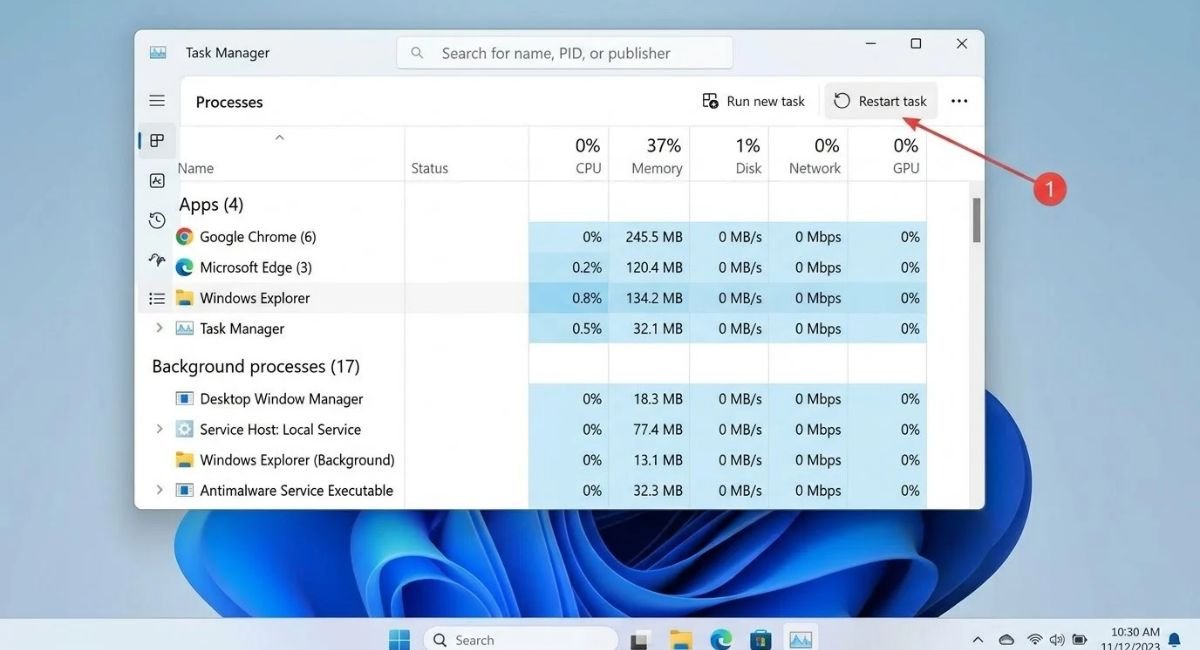
Restart Windows Explorer in Task Manager
Restarting Windows Explorer is one of the quickest ways to fix a temporary File Explorer freeze. It reloads the process responsible for File Explorer and several desktop elements without requiring a full PC restart.
Steps to Restart Windows Explorer
- Press Ctrl + Shift + Esc to open Task Manager.
- Select Processes if it isn’t already active.
- Find Windows Explorer in the process list.
- Right-click it and select Restart.
- Wait a few seconds for the taskbar and desktop to refresh.
- Press Windows + E to open File Explorer again.
Your taskbar or desktop may disappear briefly while Windows restarts the process. This is normal.
What If Windows Explorer Is Missing?
If you cannot find Windows Explorer in Task Manager:
- Open Task Manager using Ctrl + Shift + Esc.
- Select Run new task.
- Type
explorer.exe. - Press Enter.
Windows should start the Explorer process again. Test a few folders to see whether the problem is resolved.
Restarting Explorer does not delete your personal files. If it keeps crashing, move to the next fix rather than repeatedly restarting the process.
Restart Your Windows 11 PC
A complete restart can clear temporary system errors, reload Windows services, and release resources occupied by stuck processes. It is particularly useful when File Explorer starts freezing after your PC has been running for a long time.
Before restarting, save your work and close applications if possible.
- Open the Start menu.
- Select the Power icon.
- Choose Restart.
- Wait for Windows to start again.
- Press Windows + E and test File Explorer.
If the taskbar or Start menu is unresponsive, press Ctrl + Alt + Delete and use the power menu if it is available.
Avoid forcing the computer to shut down by holding the physical power button unless Windows is completely frozen and normal options are unavailable. A forced shutdown can cause unsaved work to be lost.
If File Explorer works after restarting but freezes again later, another application, extension, or system issue may be responsible.
Clear File Explorer History and Change Its Opening Location
File Explorer can display recent files and frequently used folders in its Home view. If a recent location is unavailable or the history data is causing problems, File Explorer may take longer to open.
Clearing its history is a useful troubleshooting step. It removes the displayed history of recent locations, not the actual documents stored on your computer.
How to Clear File Explorer History
- Press Windows + R.
- Type
control folders. - Press Enter to open File Explorer Options.
- Under the General tab, find the Privacy section.
- Select Clear beside the File Explorer history option.
- Select Apply, then OK.
Open File Explorer again and check whether it responds normally.
Change File Explorer to Open This PC
If Home takes too long to load, try opening File Explorer directly to This PC.
- Open File Explorer Options using the steps above.
- Find the Open File Explorer to dropdown.
- Select This PC.
- Select Apply, then OK.
This reduces reliance on the Home view and its recent locations. It may help when those locations are slow or unavailable, although it won’t repair damaged Windows system files.
Check for Windows Updates and Free Disk Space
Outdated Windows components or insufficient storage can contribute to system instability. Checking updates and available disk space is a sensible next step if restarting Explorer hasn’t helped.
Check for Windows Updates
- Press Windows + I to open Settings.
- Select Windows Update.
- Choose Check for updates.
- Install appropriate available updates.
- Restart your PC if requested.
If File Explorer started freezing immediately after a particular update, make a note of the timing. You may need to investigate that update separately rather than assuming that installing more updates will solve the problem.
Free Up Disk Space
- Open Settings.
- Go to System > Storage.
- Review the categories using the most space.
- Remove unnecessary files you recognize and no longer need.
- Check the Recycle Bin before emptying it.
You can also uninstall applications you no longer use or move large personal media files to another suitable drive.
Be careful when selecting files for removal. Do not delete unfamiliar files from Windows system folders. Freeing space can improve overall system operation, but it will not necessarily fix a faulty Explorer process.
Disable Problematic Startup Apps and Third-Party Extensions
Some applications add features to File Explorer, such as archive options, cloud-storage integrations, file previews, and right-click menu commands. These additions are often called shell extensions.
If an extension malfunctions, File Explorer may freeze when opening folders or right-clicking files. Startup applications can also consume resources or interfere with Windows.
Disable Unnecessary Startup Apps
- Press Ctrl + Shift + Esc to open Task Manager.
- Select Startup apps.
- Review the listed applications.
- Right-click a nonessential application you recognize.
- Select Disable.
- Restart your PC and test File Explorer.
Do not disable security software, essential drivers, or unfamiliar system components simply because they appear in the list.
Investigate Recently Installed Applications
Think about whether the problem began after installing or updating a file archiver, cloud-storage client, graphics utility, or context-menu tool.
If File Explorer freezes specifically when you right-click a file or browse a cloud folder, update the suspected application or temporarily uninstall it through Settings > Apps > Installed apps.
Make one change at a time and test the same action again. This makes it easier to identify a conflict.
Avoid downloading unknown utilities that promise to repair every shell extension automatically.
Test File Explorer in Safe Mode
Safe Mode starts Windows with a limited set of drivers and services. It can help you determine whether a third-party application, driver, or background service is contributing to the problem.
How to Enter Safe Mode
Save your work first.
- Open Settings > System > Recovery.
- Find Advanced startup.
- Select Restart now.
- When the recovery menu appears, select Troubleshoot.
- Choose Advanced options > Startup Settings.
- Select Restart.
- After the next restart, choose the Safe Mode option, commonly by pressing 4 or F4.
Menu wording may vary by Windows version.
Once Safe Mode loads, open File Explorer and test the folders or actions that usually cause the freeze.
If Explorer works normally in Safe Mode, a third-party application, startup program, or driver becomes a stronger suspect. Return to normal Windows and investigate recently installed software or drivers.
If File Explorer still freezes in Safe Mode, the cause may involve Windows components, the user profile, or storage.
Restart your PC normally when testing is complete. Safe Mode is a diagnostic tool, not a permanent repair.
Scan for Malware With Windows Security
Malware can interfere with Windows processes, modify system settings, or consume resources. A scan is worthwhile if File Explorer started behaving unusually after you downloaded a suspicious file or installed unfamiliar software.
Run a Full Scan
- Open the Start menu and search for Windows Security.
- Select Virus & threat protection.
- Choose Scan options.
- Select Full scan.
- Click Scan now.
A full scan can take some time, depending on the number and size of files on your PC.
If Windows Security identifies a threat, follow its recommended actions. For persistent concerns, a Microsoft Defender Offline scan may also be appropriate.
Avoid installing several unfamiliar antivirus tools to troubleshoot the same issue. Multiple real-time security products can introduce conflicts and make troubleshooting harder.
If the scan finds nothing, continue with the remaining fixes. A clean scan helps narrow down the possibilities but does not prove that every possible cause has been ruled out.
Run DISM and SFC to Repair Windows System Files
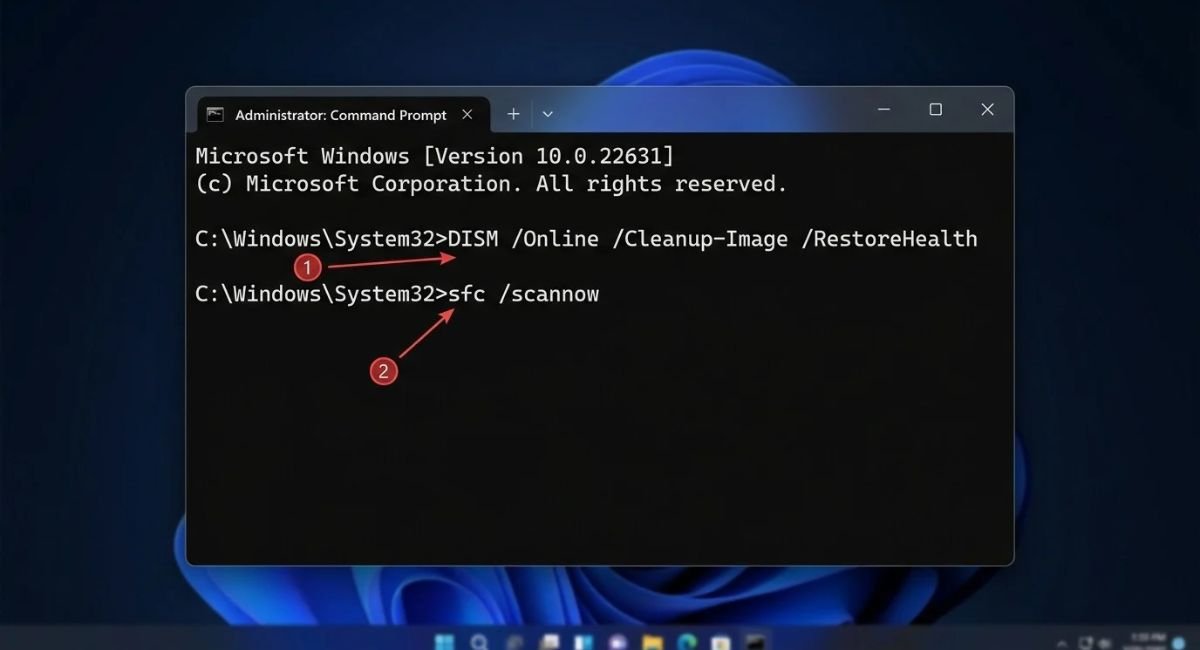
Damaged Windows system files can cause File Explorer crashes and other stability problems. Windows includes two built-in command-line tools that can help repair these components:
- DISM checks and repairs the Windows component store.
- System File Checker (SFC) scans protected system files and attempts to replace damaged copies.
Run DISM first, followed by SFC.
How to Run DISM and SFC
- Open Start and search for Terminal.
- Right-click Windows Terminal and select Run as administrator.
- Approve the User Account Control prompt if it appears.
- Enter the following command and press Enter:
DISM /Online /Cleanup-Image /RestoreHealth
- Wait for the command to finish. It may take several minutes or longer.
- Run the next command:
sfc /scannow
- Wait until the verification reaches 100%.
- Restart your PC and test File Explorer.
Keep the terminal window open while the commands run. Progress may appear to pause temporarily, so avoid interrupting the process just because it seems slow.
If DISM reports that source files cannot be found or SFC cannot repair some files, additional troubleshooting may be necessary. Note the message and investigate the appropriate recovery options instead of repeatedly running commands without understanding the result.
These tools can repair certain Windows component problems, but they cannot fix every issue, such as a faulty drive or incompatible third-party extension.
Create a New Windows User Account
A damaged or misconfigured user profile can affect File Explorer settings, recent locations, and other personalized Windows features. Testing another account helps determine whether the problem is limited to your current profile.
Test File Explorer With a New Account
- Open Settings > Accounts > Other users.
- Select Add account.
- Follow the instructions to create a test account.
- Sign out of your current account.
- Sign in to the new account.
- Open File Explorer and test the same folders.
The available options may vary depending on your Windows version and account setup.
If File Explorer works normally in the new account, the original profile may contain a configuration or application-specific issue.
Do not immediately delete your original account. Back up important documents first, and determine which files and settings need to be transferred. Application settings, credentials, and permissions may not move automatically.
If Explorer freezes in both accounts, investigate system-wide causes instead.
Uninstall a Recent Windows Update
If File Explorer started freezing immediately after a Windows update, the update may be related to the problem. However, timing alone does not prove that an update caused it.
First, check whether a newer corrective update is available. If the problem continues, review the recent update history.
How to Review and Remove an Update
- Open Settings > Windows Update.
- Select Update history.
- Review the recently installed updates and their dates.
- Return to Windows Update and look for Uninstall updates, if available.
- Identify the suspected update and follow the on-screen instructions if Windows permits its removal.
- Restart your PC and test File Explorer.
Not every update can be uninstalled. Some updates have restrictions, and removing a security update may expose your PC to vulnerabilities that it was intended to address.
Use this method only when the timing strongly suggests an update-related problem. Back up important files and check for a newer corrective update or an official workaround before removing a security update.
Use System Restore if Available
If the earlier methods fail and File Explorer began freezing after a recent system change, System Restore may help return certain Windows settings, drivers, installed applications, and system files to an earlier state.
System Restore is not intended to erase personal documents, but applications and drivers installed after the selected restore point may be affected. Back up important files before proceeding.
How to Use System Restore
- Open Start and search for Create a restore point.
- Open the System Properties window.
- Select System Restore, if available.
- Choose a suitable restore point dated before the problem began.
- Review the affected programs.
- Follow the prompts to complete the restoration.
System Restore is available only if a suitable restore point exists and the feature is configured for use.
If no restore point is available, do not download an unofficial tool claiming to recreate one. Consider the Windows recovery options supported by your device instead.
Consider Windows Recovery if Nothing Else Works
If File Explorer continues freezing after system-file repairs, Safe Mode testing, and other troubleshooting, Windows may have a deeper problem. A recovery option may be appropriate, but it should be a last resort.
Before proceeding, back up important documents, photos, and other personal files. If you suspect drive failure or have difficulty accessing important data, prioritize the backup before attempting intensive repairs.
Consider Resetting Windows
- Open Settings > System > Recovery.
- Review the available recovery options.
- If you choose Reset this PC, read each prompt carefully.
- Understand the difference between the available reset choices before confirming.
The Keep my files option is designed to preserve personal files while reinstalling Windows, but it removes applications and resets many settings. It is not a substitute for a backup, and you should not assume that every file will be preserved without risk.
Make sure you can access your account if required and have installers or license details for important applications.
If the computer has other symptoms, such as drive errors, repeated crashes, or problems accessing files outside File Explorer, consider checking drive health or getting help from a qualified technician before resetting Windows.
How to Prevent File Explorer From Freezing Again
After File Explorer starts working normally, a few sensible habits may reduce the chance of similar problems returning.
Keep Windows and Drivers Updated
Install supported Windows updates and obtain drivers from Windows Update or your PC manufacturer’s official support website. Avoid unknown driver-updater utilities.
Keep Large Folders Organized
Folders containing thousands of files, large image collections, or media stored on slow external drives may take longer to load. Organize large collections into smaller folders where practical, and disconnect external drives that are malfunctioning or no longer needed.
Maintain Enough Free Storage
Review Settings > System > Storage regularly. Remove temporary files you recognize and keep enough space available for Windows updates and normal system operations.
Be Careful With Third-Party Extensions
Install reputable applications and keep archive tools, cloud-storage clients, and other File Explorer integrations updated. If freezing starts after installing a new application, investigate it before changing unrelated Windows settings.
Back Up Important Files
Keep regular backups of important documents and photos. If a new application or update appears to trigger the problem, note when it happened and what changed. This information can make future troubleshooting easier.
Conclusion
When File Explorer stops responding in Windows 11, you usually do not need to reset Windows immediately. Start by restarting Windows Explorer, restarting your PC, and clearing File Explorer history. Then check Windows updates, available storage, and potential software conflicts.
If the problem continues, test Safe Mode, scan for malware, and run DISM and SFC. Creating a new user account or using System Restore may help when basic troubleshooting fails.
Work through the fixes one at a time and test File Explorer after each change. This approach helps you identify the likely cause while avoiding unnecessary changes to your Windows installation.
Frequently Asked Questions
1. Why are my files not opening in Windows 11 File Explorer?
Files may fail to open because File Explorer is frozen, the associated application is not responding, the file path is unavailable, or Windows has a system or storage issue. Restart Windows Explorer first. If only one file fails, check whether it still exists and whether its associated application can open it.
2. What causes Windows Explorer to stop responding?
Common causes include temporary process failures, corrupted File Explorer history, incompatible shell extensions, outdated drivers, malware, damaged Windows system files, and user-profile issues. The exact cause depends on when the freezing occurs and whether it affects every folder.
3. How do I fix File Explorer freezing in Windows 11?
Restart Windows Explorer through Task Manager, restart your PC, clear File Explorer history, and check available storage. If those steps do not help, investigate third-party applications, test Safe Mode, scan for malware, and run DISM followed by SFC.
4. How do I fix corrupted File Explorer in Windows 11?
File Explorer is a Windows component rather than a separate application you can always reinstall independently. Start by restarting the Explorer process and clearing its history. Then run DISM /Online /Cleanup-Image /RestoreHealth, followed by sfc /scannow, in an administrator terminal. If the problem persists, test another user profile or consider a suitable Windows recovery option.
5. How do I fix Windows 10 Explorer not responding after an update?
Restart Windows Explorer, restart your computer, and check for newer corrective updates. If the issue began immediately after a specific update, review update history and consider uninstalling the suspected update only when appropriate. SFC and DISM can also help repair damaged Windows components.