Introduction
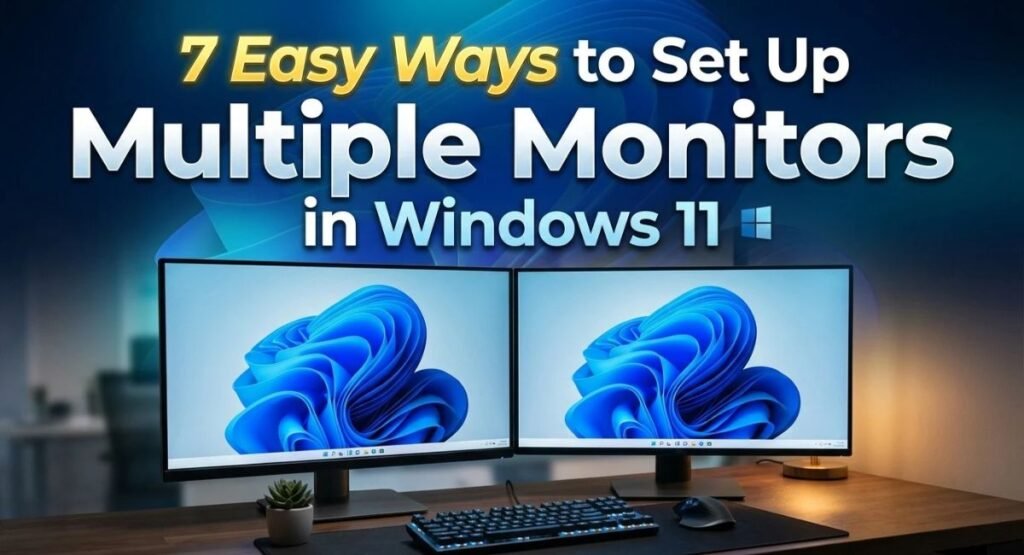
Adding a second screen is one of the fastest ways to make your PC feel more powerful. Whether you’re juggling spreadsheets, editing video, or just want a browser open while you work, a dual-monitor setup saves time and reduces window switching.
The good news is that you don’t need special software or a technician. Windows 11 handles multiple displays well — once you know where the right settings live. In this guide, you’ll learn how to set up multiple monitors step by step, from checking your cables to fixing a monitor Windows refuses to detect. We’ll also cover Windows 10, laptops, refresh rates, and the small settings that make a big difference.
Check Your PC’s Video Ports
Look at the back of your desktop or the sides of your laptop. You’ll typically find HDMI, DisplayPort, USB-C, or VGA ports. Count how many video outputs your PC actually has — that’s your hard limit unless you add an adapter or a docking station.
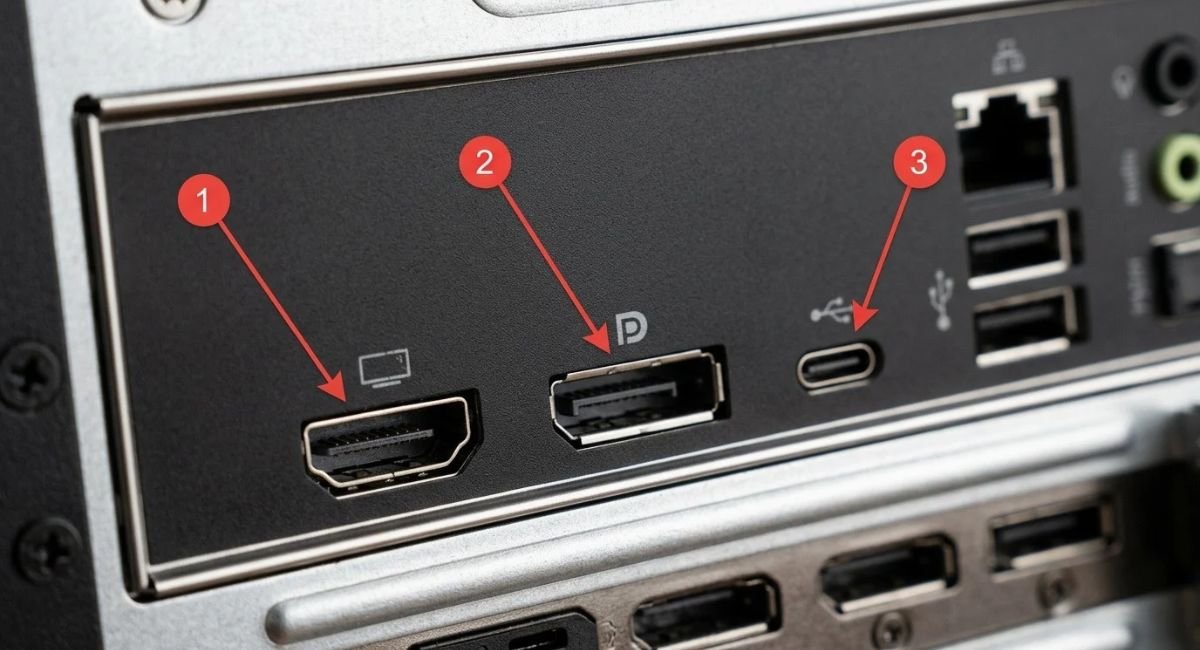
Choose the Right Cable (HDMI vs DisplayPort vs USB-C)
-
HDMI is the most common and works well for 1080p and 4K at 60Hz. HDMI 2.1 supports 4K at 120Hz for gaming.
-
DisplayPort is better for high refresh rates and daisy-chaining monitors. DisplayPort 1.4 supports 8K at 60Hz when Display Stream Compression (DSC) is enabled.
-
USB-C is ideal for laptops and modern ultrabooks, often carrying video, data, and power in one cable. Note that not every USB-C port supports video output — check for “DisplayPort Alt Mode” in your laptop’s specs.
Use the cable that matches both your monitor and your PC’s port. A cheap or damaged cable is a surprisingly common cause of “monitor not detected” errors.
Check Your Graphics Card’s Monitor Limit
Most modern GPUs support two to four displays. Older integrated graphics may cap at two. If you’re planning a triple-monitor setup, check your GPU’s official specs before buying cables.
How to Connect 2 Monitors With One PC
Connect Monitors to Your Desktop PC
-
Plug the first monitor into your primary video port (usually the one closest to the GPU).
-
Plug the second monitor into a different port.
-
Power both monitors on.
-
Boot your PC.
-
Windows 11 will usually detect both screens automatically.
Connect an External Monitor to Your Laptop
Use an HDMI, DisplayPort, or USB-C cable depending on your laptop’s ports. If your laptop only has USB-C, a USB-C to HDMI adapter works fine for most 1080p and 4K displays.
What to Do If You Have Only One Video Port
You have three options:
-
Use a USB-C docking station (best for laptops).
-
Use an HDMI splitter (shows the same image on both screens).
-
Add a USB graphics adapter (works, but performance is lower).
Can You Run 2 Monitors From 1 HDMI Port?
Short answer: yes, but with limits.
Using an HDMI Splitter
An HDMI splitter mirrors the same signal to two displays. Both monitors show identical content — useful for presentations, not for extending your desktop.
Using a USB-C or DisplayPort Adapter
A USB-C hub with HDMI output can drive a second independent display. This is the better option for productivity.
Limitations of Running 2 Monitors From 1 HDMI
-
Splitters usually mirror, not extend.
-
Bandwidth limits may force lower resolution or refresh rate.
-
Some splitters introduce lag or flicker.
If you want two independent screens, use two separate video outputs whenever possible.
How to Set Up Multiple Monitors in Windows 11
Step 1 – Detect Your Displays
-
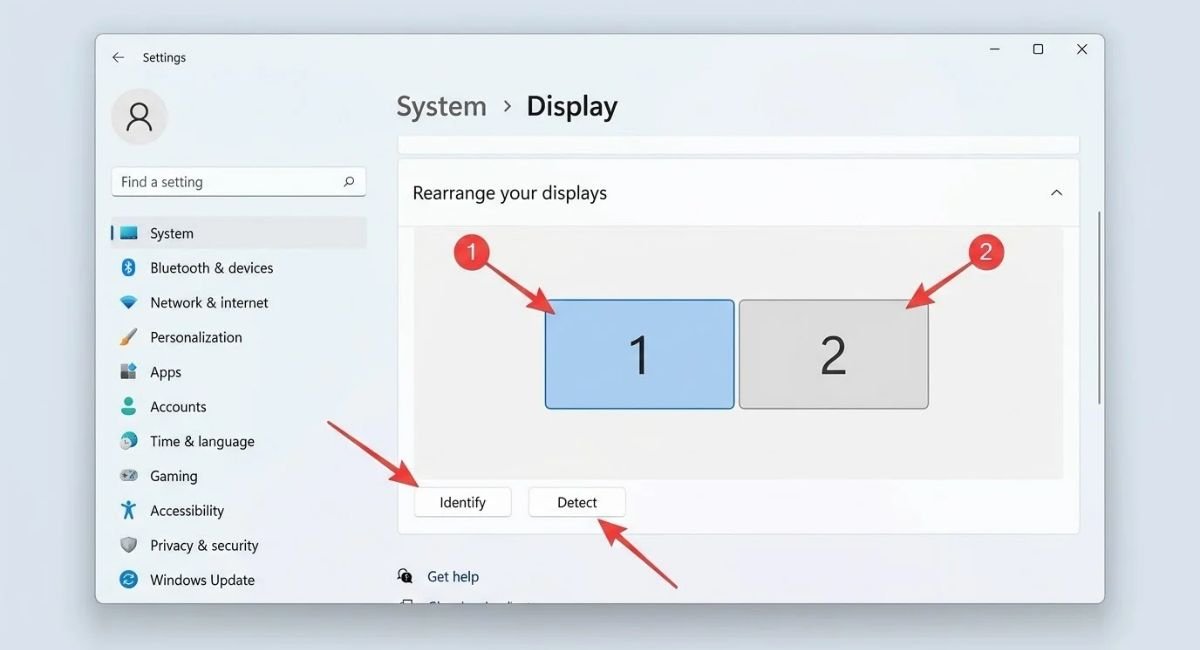
Right-click the desktop and choose Display settings.
-
Scroll down and click Detect if a monitor is missing.
-
Confirm both monitors appear as numbered boxes.
Step 2 – Choose a Display Mode
Pick Extend for a normal dual-screen workflow. Choose Duplicate for presentations, or Second screen only if you’re closing your laptop lid.
Step 3 – Rearrange Your Displays
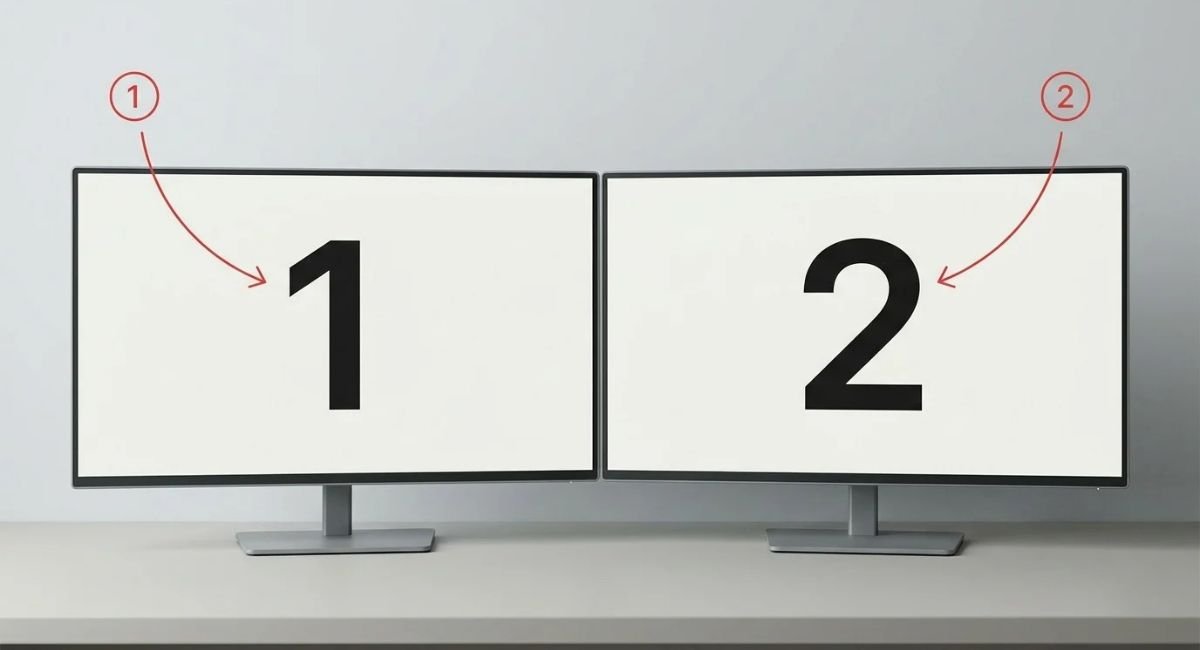
Click Identify to see which number matches which physical screen. Drag the boxes so they match your real-world layout, then click Apply.
Step 4 – Set the Main Display
Select the monitor you want as primary, open Multiple displays, and tick Make this my main display. The taskbar, Start menu, and most apps will open there by default.
How to Set Up Multiple Monitors on Windows 10
The steps are almost identical:
-
Right-click the desktop → Display settings.
-
Under Rearrange your displays, drag the numbered boxes to match your setup.
-
Choose Extend these displays from the dropdown.
-
Click Identify if you’re unsure which screen is which.
Windows 10 vs Windows 11 Key Differences
| Feature | Windows 10 | Windows 11 |
|---|---|---|
| Display settings location | Settings → System → Display | Settings → System → Display |
| Snap Layouts | Limited (Snap Assist only) | Full Snap Layouts + Snap Groups |
| Per-monitor wallpaper | Yes | Yes |
| Virtual Desktops | Yes | Yes (better taskbar integration) |
| Remember window locations | No | Yes |
| Minimize on disconnect | No | Yes |
How to Rearrange Displays and Assign Monitor 1, 2, and 3
Use the Identify Button
Clicking Identify flashes a large number on each screen. This tells you which box in Settings corresponds to which physical monitor.
Drag and Drop to Match Your Physical Layout
If your left monitor sits to the left of your laptop, drag its box to the left in the Settings window. Windows uses this layout to know where your mouse should travel.
Align Monitors Correctly to Avoid Cursor Issues
Line up the tops of the boxes. If one box is slightly higher than the other, your cursor may feel like it “sticks” when moving between screens.
How to Choose the Main Display in Windows 11
What the Main Display Controls
The primary monitor hosts the taskbar, Start menu, Quick Settings, and most new app windows. Choosing the right one matters for daily comfort.
How to Change the Main Display
Select the monitor you want, open Multiple displays, and enable Make this my main display.
How to Change Scale, Resolution, and Orientation for Each Monitor
Adjust the Scale Setting
Scaling makes text and icons readable on high-resolution screens. If one monitor is 4K and the other is 1080p, set scaling separately for each.
Change the Display Resolution
Under Display resolution, pick the recommended option. A lower resolution makes everything larger but blurrier.
Change the Display Orientation
Use Display orientation to rotate a monitor to Portrait — handy for reading long documents or coding.
How to Change the Refresh Rate
-
Open Settings → System → Display → Advanced display.
-
Select each monitor from the dropdown.
-
Choose the highest available refresh rate (e.g., 60Hz, 120Hz, 144Hz).
-
Click Apply.
Mismatched refresh rates between monitors can cause flickering or cursor lag. Set both screens to the same rate when possible.
How to Use Extend, Duplicate, and Second Screen Only Modes
Extend Mode
Best for productivity. Each monitor shows different content, giving you a larger desktop.
Duplicate Mode
Both screens show the same thing — useful for presentations or demos.
Second Screen Only Mode
Turns off your laptop screen and uses only the external monitor.
Switch Modes Quickly With Win + P
Press Windows key + P to open the Project flyout and switch modes instantly.
How to Show the Taskbar on All Monitors
-
Open Settings → Personalization → Taskbar.
-
Expand Taskbar behaviors.
-
Tick Show my taskbar on all displays.
-
Choose where taskbar apps appear (all taskbars, main taskbar + open window, or taskbar where the window is open).
How to Set a Different Wallpaper on Each Monitor
Set Wallpapers Manually
Right-click an image → Set as desktop background → choose the monitor.
Use a Slideshow Across Monitors
Go to Personalization → Background → Slideshow, pick a folder, and Windows will rotate wallpapers across your screens.
How to Manage Individual and Multiple Windows Across Displays
Use Snap Layouts in Windows 11
Hover over a window’s maximize button to see layout options. Snap windows side by side on any monitor.
Use Snap Groups
Windows 11 remembers groups of snapped windows, so you can restore them with one click.
Move Windows Between Monitors
Press Win + Shift + Arrow keys to move the active window to the next monitor.
How to Use Different Desktops on Different Monitors in Windows 11
Create a New Virtual Desktop
Press Win + Tab and click New desktop, or use Win + Ctrl + D.
Switch Between Desktops
Press Win + Ctrl + Left/Right Arrow to move between desktops.
Set Different Wallpapers for Each Desktop
Go to Settings → Personalization → Background and assign a wallpaper per desktop for a clear visual cue.
Can You Run 3 Monitors on Windows 11?
Yes — most modern GPUs support three or four displays. Check your GPU’s specs, confirm you have enough ports, and repeat the same Display settings steps for the third monitor.
Quick tips for a triple-monitor setup:
-
Use DisplayPort daisy-chaining (MST) if your monitors support it — one cable from PC to Monitor 1, then Monitor 1 to Monitor 2.
-
Alternatively, use a mix of HDMI, DisplayPort, and USB-C outputs.
-
Make sure your GPU supports the combined resolution. Three 4K screens at 60Hz needs serious bandwidth.
Why Is My Second Monitor Not Detected in Windows 11?
Check the Cable and Connection
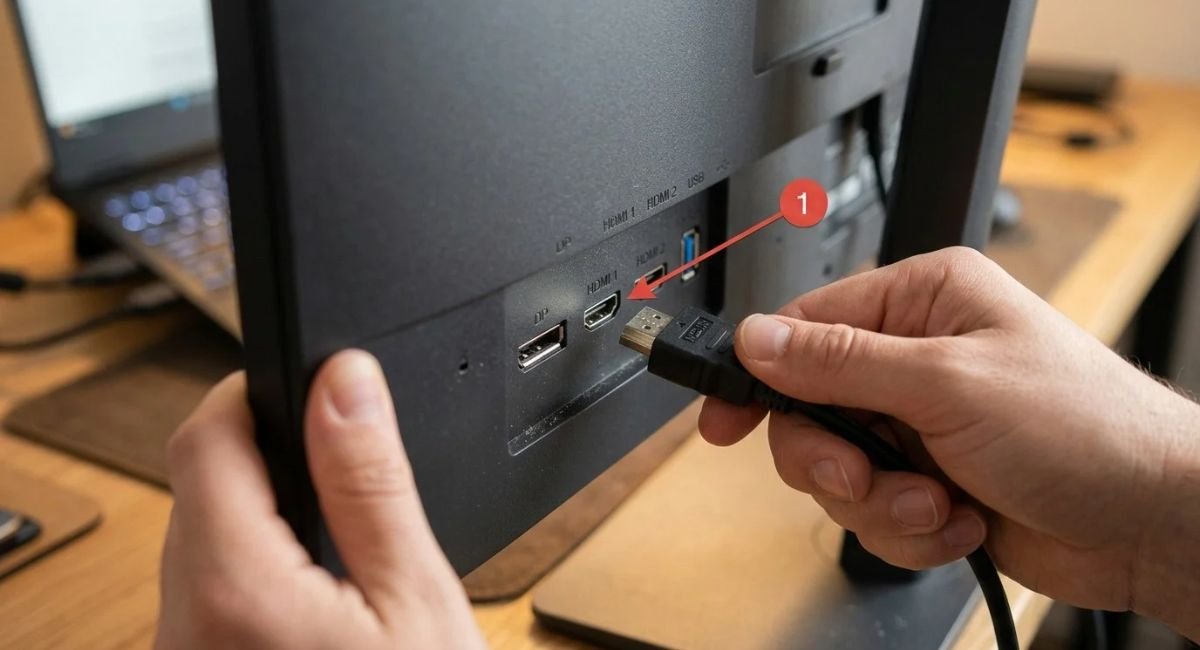
Reseat the cable at both ends. Try a different cable or port to rule out hardware failure.
Use the Detect Button
In Display settings, click Detect to force Windows to search for the monitor.
Restart the Graphics Driver
Press Windows key + Ctrl + Shift + B simultaneously. Your screen will flash and beep — this restarts the GPU driver without a full reboot.
Update Graphics Drivers
Open Device Manager → Display adapters, right-click your GPU, and select Update driver. Or download the latest driver from NVIDIA, AMD, or Intel.
Restart and Reconnect
Shut down, unplug the monitor, reconnect, and boot again. This clears temporary detection glitches.
FAQ Section
1. How do I assign monitor 1, 2, and 3?
Open Display settings, click Identify to see each screen’s number, then drag the boxes to match your physical layout. Windows automatically assigns numbers based on position.
2. Can I run 3 monitors on Windows 11?
Yes. Most modern GPUs support three or four displays. Check your GPU’s specs and make sure you have enough video ports or a compatible adapter. DisplayPort daisy-chaining can help if ports are limited.
3. Why is my second monitor not detected in Windows 11?
Common causes include a loose cable, a faulty port, an outdated graphics driver, or a disabled display in Settings. Try reseating the cable, clicking Detect, restarting the GPU driver (Win + Ctrl + Shift + B), and updating your GPU driver.
4. Can I run 2 monitors from 1 HDMI?
You can, but a standard HDMI splitter mirrors the same image to both screens. For two independent displays, use two separate video outputs or a USB-C/DisplayPort adapter.
5. How do I set up multiple monitors on Windows 10?
Right-click the desktop → Display settings → drag the numbered boxes to match your layout → choose Extend these displays. The process is nearly identical to Windows 11.
Conclusion
A multi-monitor setup is one of the most practical upgrades you can make to any PC. Once you’ve connected your screens, chosen Extend mode, and set your main display, the rest is fine-tuning — scaling, refresh rates, wallpapers, and taskbar behavior.
If something goes wrong, work through the basics first: cables, ports, drivers. Most “monitor not detected” issues are solved with a reseated cable, a quick GPU driver restart (Win + Ctrl + Shift + B), or a driver update. And whether you’re on Windows 11 or Windows 10, the goal is the same — set up multiple monitors that make your daily work faster and more comfortable.
Start with two screens. Once you’ve experienced the extra space, you’ll wonder how you ever worked without it.