Introduction
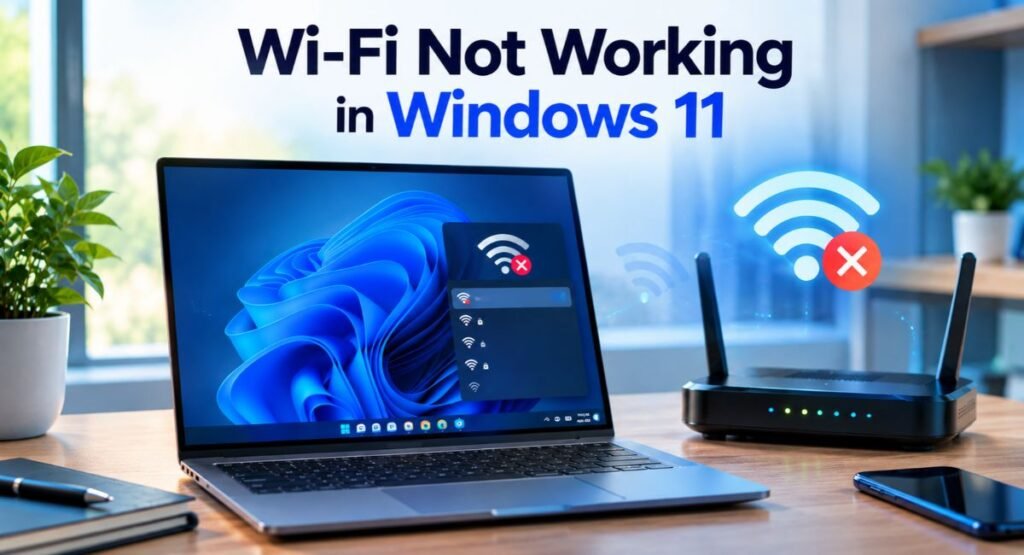
Wi-Fi not working in Windows 11 can be frustrating, especially when you need an internet connection for work, study, browsing, or other online activities. Sometimes the problem is caused by a simple setting such as Airplane mode, while other cases can be related to the Wi-Fi adapter, network driver, Windows services, network configuration, or the router itself.
The good news is that many Windows 11 Wi-Fi problems can be diagnosed and fixed without reinstalling Windows. The important thing is to identify where the problem is coming from before making major changes to your system.
This guide explains practical ways to troubleshoot Wi-Fi problems in Windows 11, including situations where Wi-Fi is missing, the computer cannot connect to a network, the connection keeps disconnecting, or Wi-Fi is connected but there is no internet access.
Before You Start Find Out Where the Problem Is
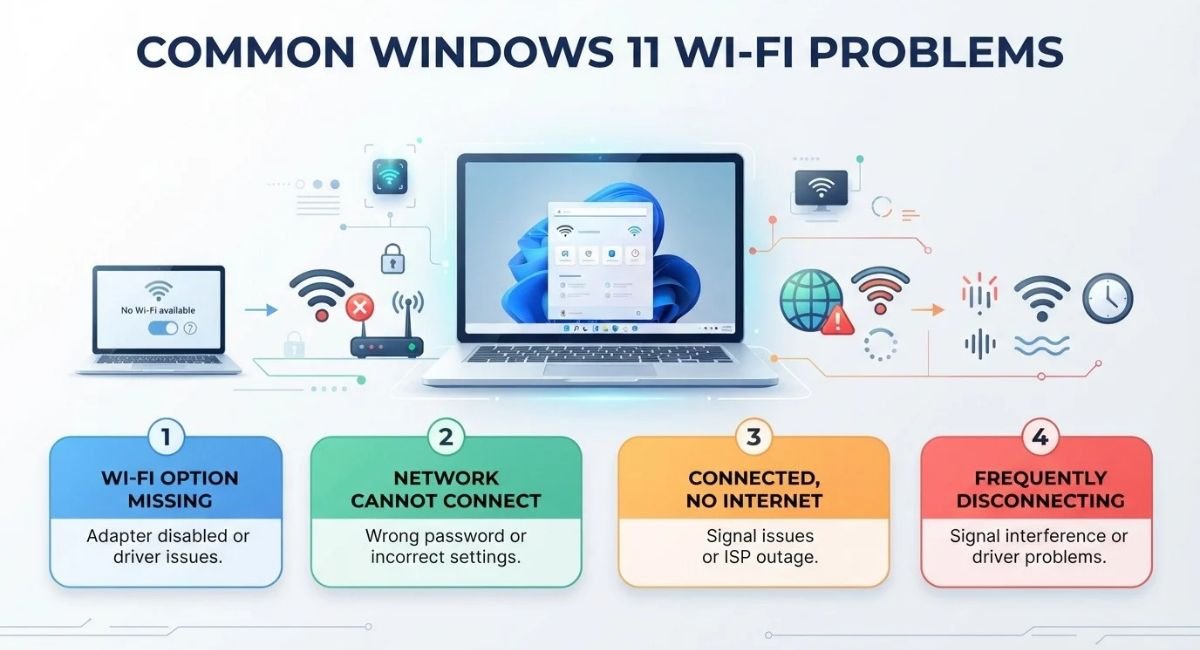
Before changing drivers or resetting network settings, try to determine what exactly is happening.
If the Wi-Fi option is completely missing from Windows 11, the problem may involve the wireless adapter, its driver, or a related Windows service.
If your computer can see your Wi-Fi network but cannot connect to it, the problem may be related to the saved network profile, password, adapter, driver, or router.
If Windows says that you are connected to Wi-Fi but websites do not load, the problem may be related to your router, internet service, DNS, TCP/IP settings, or another network configuration issue.
If Wi-Fi connects but keeps disconnecting, the wireless signal, driver, Wi-Fi frequency, adapter settings, or router may be involved.
If Wi-Fi stopped working immediately after a Windows update, checking the recent update and Wi-Fi driver can be particularly useful.
Knowing which situation you are dealing with can prevent you from making unnecessary changes.
Check Airplane Mode and Wi-Fi
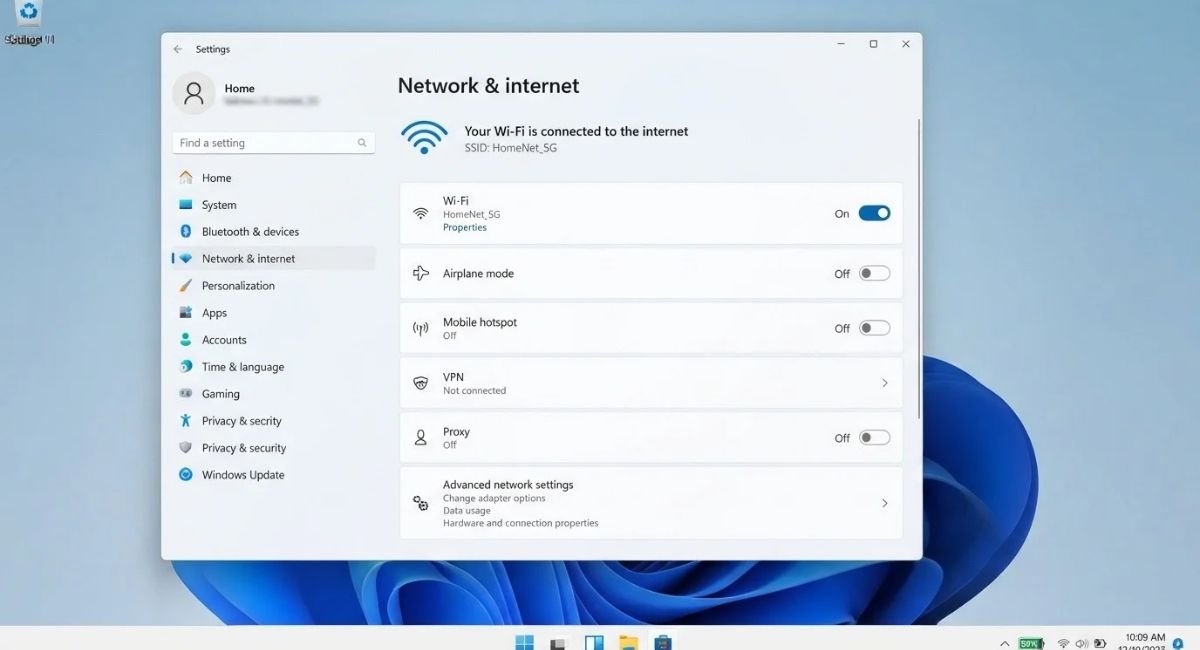
The first thing to check is whether Windows 11 has accidentally disabled Wi-Fi or enabled Airplane mode.
Open Settings and go to Network & internet. Check whether Wi-Fi is turned on and make sure Airplane mode is disabled.
You can also open the Quick Settings panel from the taskbar and check the Wi-Fi and Airplane mode controls.
If Wi-Fi was simply disabled, turning it back on may immediately solve the problem.
If the Wi-Fi option is not visible at all, continue with the troubleshooting steps below because the problem may be related to the wireless adapter or driver.
Restart Your PC and Router
Restarting both the computer and router is a simple step, but it can solve temporary network problems.
First, restart your Windows 11 computer normally.
If the problem continues, restart the router. Turn the router off, wait for a short period, and then turn it back on. Give it enough time to reconnect to your internet service before testing Wi-Fi again.
Temporary problems with the router, network connection, or Windows networking components can sometimes disappear after a restart.
It is also useful to check another device, such as a phone or another computer, using the same Wi-Fi network. If every device has trouble connecting, the issue may be with the router or internet connection rather than Windows 11.
Forget and Reconnect to the Wi-Fi Network
Windows stores information about wireless networks that you have previously connected to. If the saved network information becomes incorrect or corrupted, Windows may have trouble connecting.
You can remove the saved Wi-Fi network and connect to it again.
Open Settings > Network & internet > Wi-Fi > Manage known networks.
Find your wireless network and select Forget.
After removing it, return to the available Wi-Fi networks, select your network, enter the Wi-Fi password, and connect again.
This can help when the computer recognizes the network but repeatedly fails to establish a connection.
Make sure you enter the correct Wi-Fi password when reconnecting.
Run Windows Network Troubleshooting
Windows 11 includes built-in troubleshooting features that can help identify common network problems.
Open Settings > System > Troubleshoot > Other troubleshooters and look for the available network troubleshooting options.
Depending on your Windows version, the exact troubleshooting interface may vary.
Windows can check certain network components and may identify problems involving connectivity or network configuration.
If Windows recommends a specific action, review it before applying the change. If the troubleshooter cannot solve the problem, continue with the other methods in this guide.
Check the Wi-Fi Adapter in Device Manager
The Wi-Fi adapter is the hardware component that allows your computer to connect to wireless networks. If Windows cannot properly detect or use the adapter, Wi-Fi may not work.
Press Windows + X and select Device Manager.
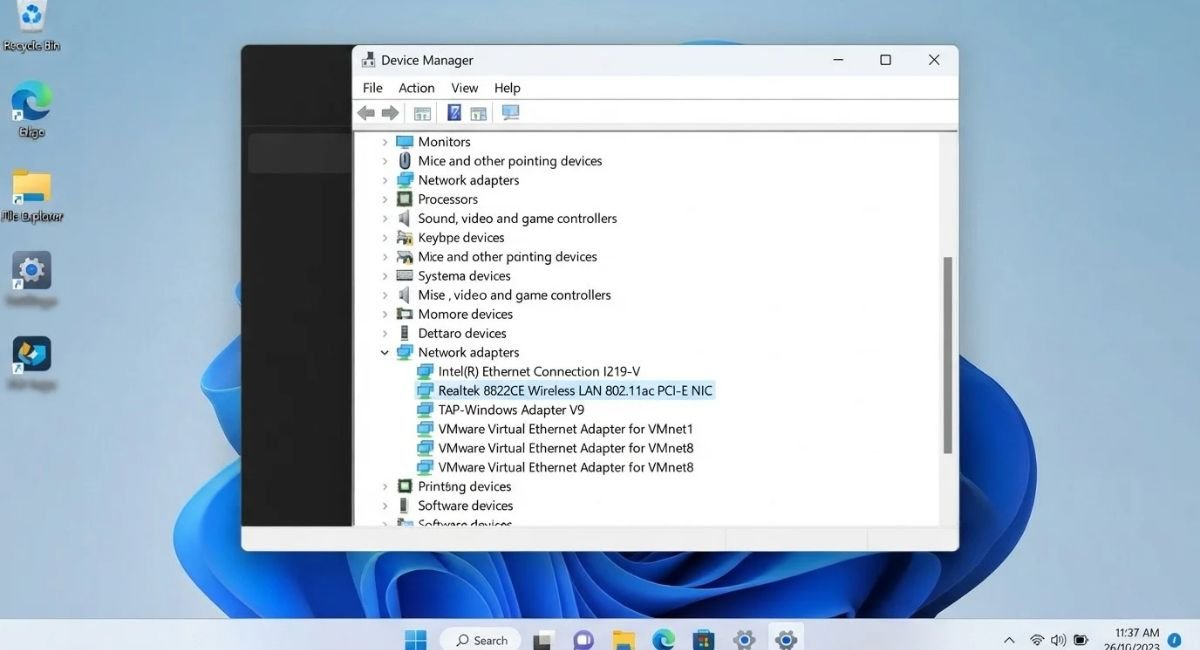
Expand Network adapters and look for an adapter with a name related to Wi-Fi, Wireless, WLAN, Intel, Realtek, MediaTek, Qualcomm, or another network hardware manufacturer.
If the adapter appears with a warning icon, Windows may have detected a problem with the device or its driver.
If the adapter is disabled, right-click it and select Enable device.
What If the Wi-Fi Adapter Is Missing?
If you cannot find a wireless adapter under Network adapters, Windows may not be detecting it correctly.
Possible causes include a missing driver, disabled hardware, a BIOS or firmware setting, or a hardware problem.
Some laptops also have a physical wireless switch or keyboard shortcut that can disable wireless connectivity.
If the adapter does not appear even after restarting the computer, checking the computer manufacturer’s support information may be necessary.
Disable and Re-Enable the Wi-Fi Adapter
Sometimes the Wi-Fi adapter is detected by Windows but is not functioning correctly.
You can try disabling and re-enabling it.
Open Device Manager, expand Network adapters, right-click your wireless adapter, and select Disable device.
Wait briefly, then right-click the same adapter and select Enable device.
After enabling it again, check whether the Wi-Fi option has returned and try connecting to your network.
This can refresh the adapter without changing other network settings.
Update the Wi-Fi Driver
A damaged, outdated, or incompatible driver can cause Wi-Fi problems in Windows 11.
Windows may sometimes install drivers automatically, but you can also check the driver through Device Manager.
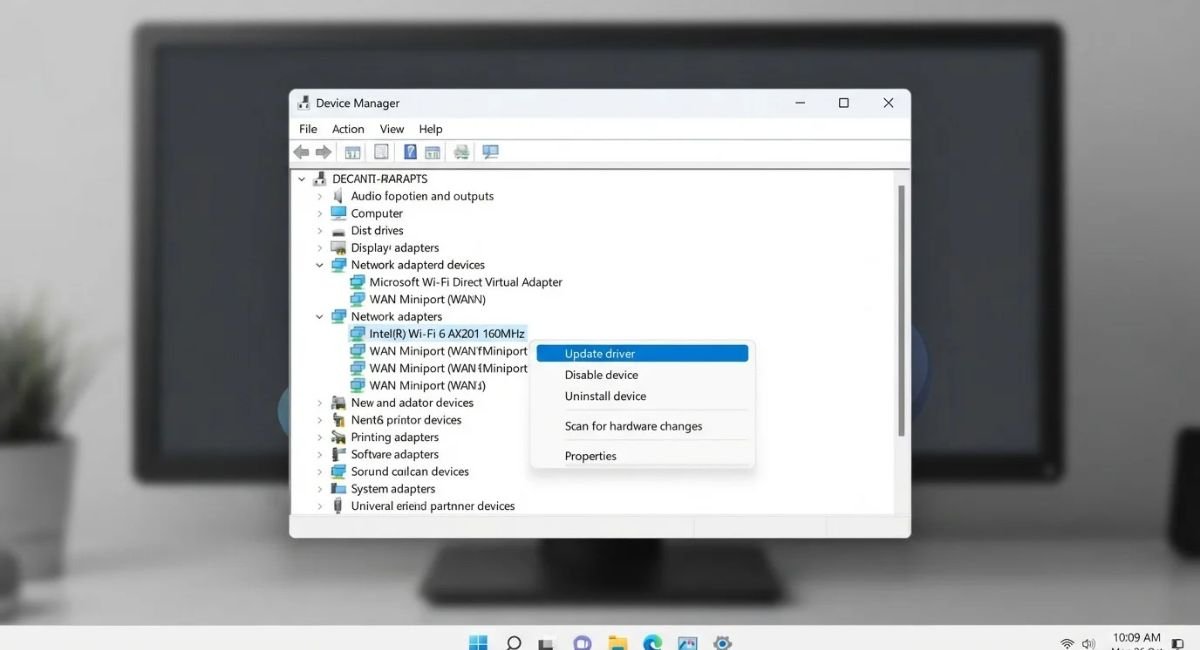
Open Device Manager, expand Network adapters, right-click your Wi-Fi adapter, and select Update driver.
Follow the available options to search for a newer driver.
For some computers, the latest driver may be available directly from the computer manufacturer’s official support website. Laptop manufacturers such as Dell, HP, Lenovo, ASUS, Acer, and others may provide drivers specifically designed for their hardware.
When downloading a driver manually, use the manufacturer’s official support website rather than random driver-download websites.
Reinstall the Wi-Fi Driver
If updating the driver does not solve the problem, the existing driver may be damaged or incorrectly installed.
Open Device Manager, expand Network adapters, right-click the wireless adapter, and select Uninstall device.
After removing the device, restart the computer.
Windows may automatically detect the hardware and reinstall an appropriate driver after the restart.
Important Before Uninstalling the Driver
Before uninstalling a network driver, it is useful to make sure you know where to obtain the correct driver if Windows does not automatically reinstall it.
If possible, download the appropriate driver from your computer manufacturer’s official support website before removing the existing driver. You may need another device and a USB drive if the affected computer has no internet connection.
Roll Back the Wi-Fi Driver
If Wi-Fi worked correctly before a recent driver update and stopped working afterward, rolling back the driver may help.
Open Device Manager, find the wireless adapter under Network adapters, right-click it, and select Properties.
Open the Driver tab and check whether the Roll Back Driver option is available.
If Windows allows the driver to be rolled back, follow the instructions and restart the computer afterward.
This option is particularly useful when a recent driver change appears to have caused the problem.
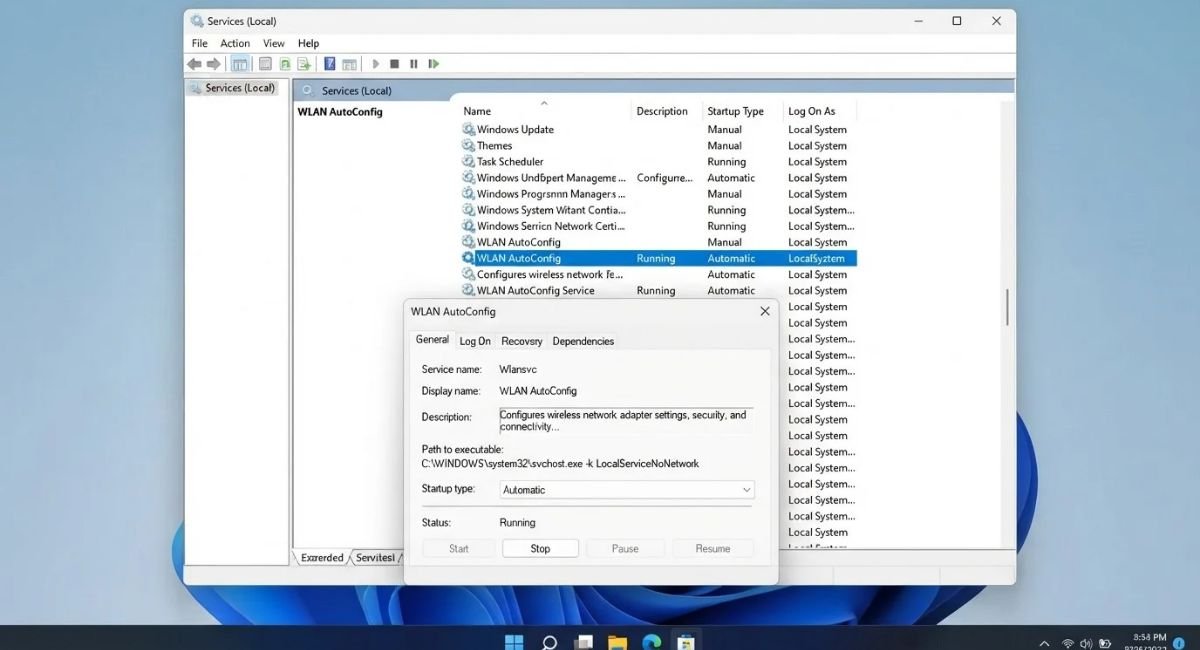
Restart the WLAN AutoConfig Service
Windows uses the WLAN AutoConfig service to manage wireless network connections.
If this service is not running correctly, Wi-Fi functionality may be affected.
Press Windows + R, type:
services.msc
and press Enter.
Find WLAN AutoConfig in the list.
Check whether the service is running. If necessary, right-click it and select Restart.
You can also open its properties and check that the startup type is configured appropriately.
After restarting the service, check whether the Wi-Fi option and available wireless networks are working normally.
Reset TCP/IP and Flush DNS
Windows networking can sometimes experience configuration problems involving TCP/IP or DNS.
If basic troubleshooting has not solved the problem, you can reset several network components using Command Prompt or Windows Terminal with administrator privileges.
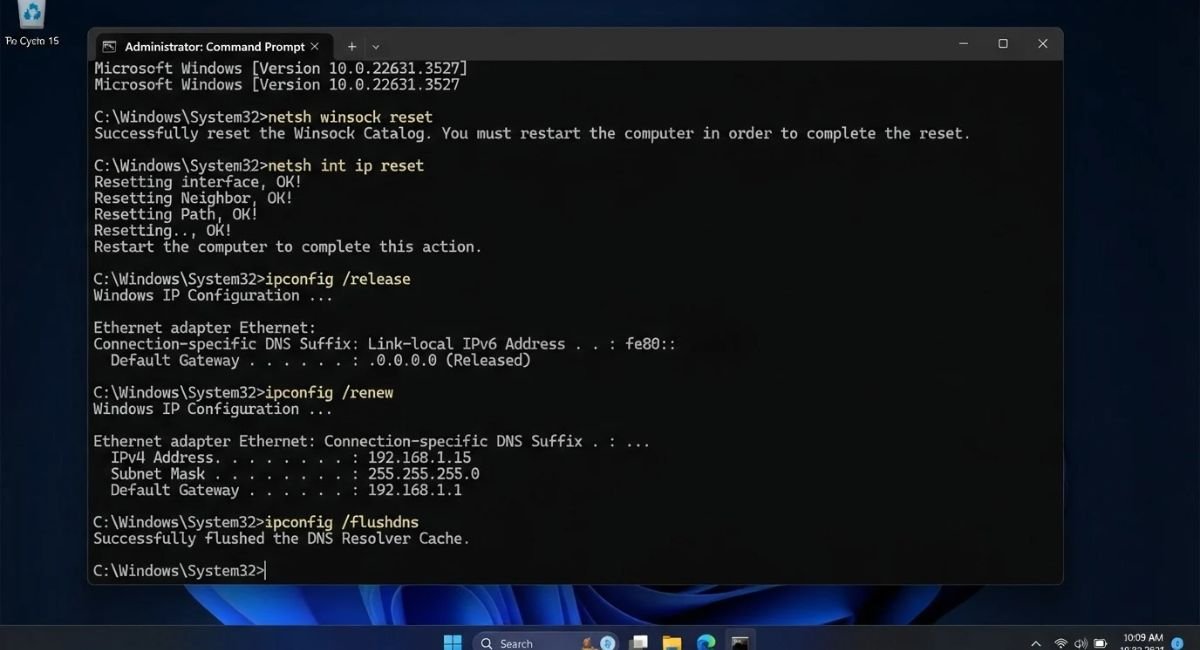
Open Windows Terminal (Admin) or Command Prompt (Admin) and run the following commands:
netsh winsock reset
netsh int ip reset
ipconfig /release
ipconfig /renew
ipconfig /flushdns
Run the commands individually and allow each one to complete.
Afterward, restart your computer and test the internet connection again.
These commands can refresh important network configuration components, but they should not be used randomly if the connection is working normally.
Check for Windows 11 Updates
Microsoft regularly releases Windows updates that can include bug fixes, driver updates, security improvements, and other changes.
Open Settings > Windows Update and check whether updates are available.
Install appropriate available updates and restart the computer if Windows asks you to do so.
If your Wi-Fi problem appeared after a recent Windows update, however, simply installing more updates may not always be the right approach. In that situation, check what changed immediately before the problem started.
Check What Changed If Wi-Fi Stopped After an Update
If Wi-Fi was working normally and suddenly stopped after Windows or driver changes, identifying the recent change can make troubleshooting easier.
Open Settings > Windows Update > Update history and review recently installed updates.
If a particular update appears to coincide with the beginning of the problem, Windows may provide an option to uninstall certain updates.
Driver changes can also be reviewed through Device Manager. If the driver was recently updated and the problem began afterward, the Roll Back Driver option may be available.
Do not remove updates simply because they are recent. Consider whether the timing of the update matches when the Wi-Fi problem actually began.
Check the Router, Wi-Fi Signal, and Frequency
The problem may not be inside Windows at all.
Move the computer closer to the router and check whether the connection becomes more stable. Walls, floors, furniture, appliances, and distance can weaken a wireless signal.
If other devices connected to the same router are also experiencing problems, check the router and internet connection before changing Windows settings.
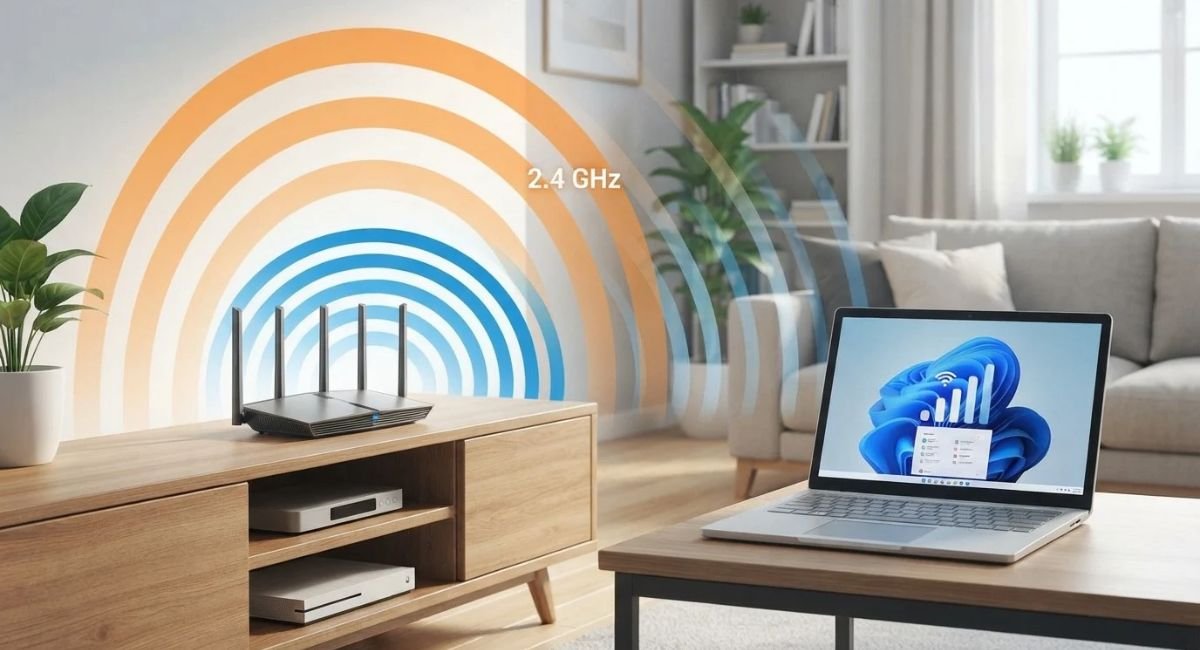
Modern routers may offer different Wi-Fi bands, commonly including 2.4 GHz and 5 GHz. The 2.4 GHz band generally provides better range, while 5 GHz can provide higher performance at shorter distances.
If your router provides both bands, try connecting to the other available network to see whether the problem is specific to one wireless band.
Also check whether your router requires a firmware update or whether your internet service provider is experiencing an outage.
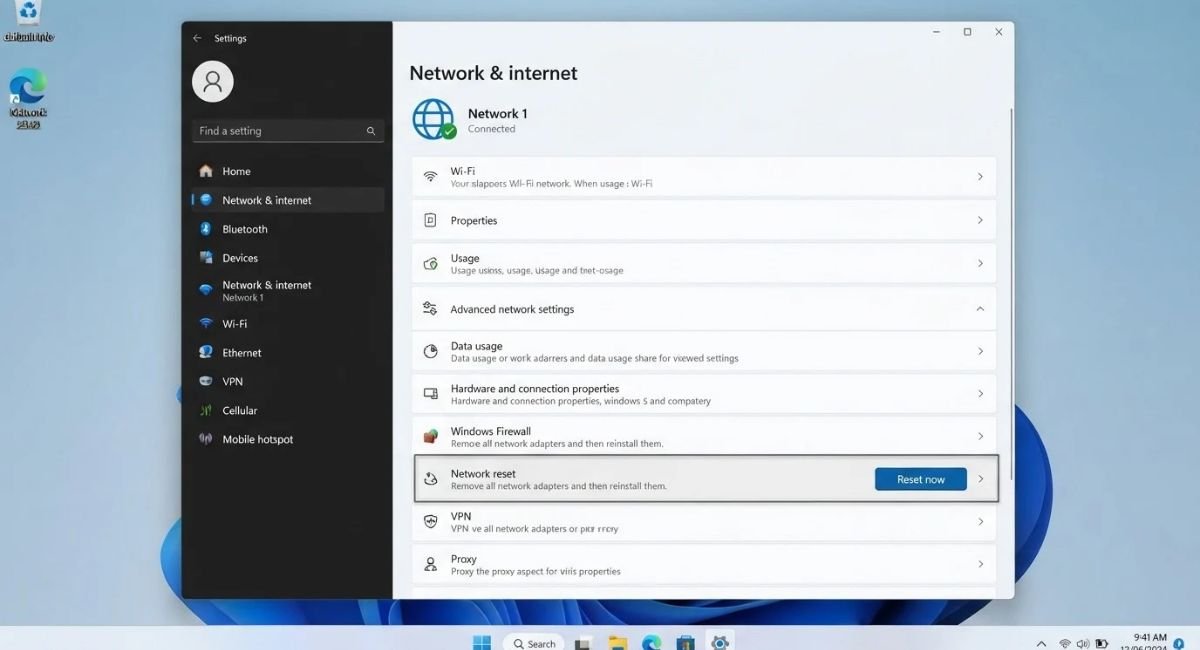
Use Windows Network Reset as a Final Step
Windows 11 includes a Network Reset feature that can reinstall network adapters and return certain networking components to their default configuration.
Because this is a more significant change, it is better to use it after trying simpler troubleshooting methods.
Go to:
Settings > Network & internet > Advanced network settings > Network reset
Review the information shown on the screen and select the option to reset the network if you decide to continue.
Windows may restart the computer as part of the process.
After the reset, you may need to reconnect to your Wi-Fi network and configure certain network-related settings again.
When the Wi-Fi Option Is Completely Missing
A missing Wi-Fi option is different from a normal connection problem.
If Windows 11 does not show Wi-Fi anywhere, first check Device Manager and look under Network adapters.
If the wireless adapter is present but disabled, enable it.
If the adapter has a warning icon, investigate the driver.
If the wireless adapter is completely missing, Windows may not be detecting the hardware or the appropriate driver may not be installed.
For laptops, check whether the manufacturer’s support website provides the correct Windows 11 wireless driver for your exact model.
If the adapter is still missing after the correct driver is installed, a hardware or firmware-related issue may need further investigation.
When Windows 11 Shows Only Ethernet
If Windows shows an Ethernet connection but there is no Wi-Fi option, this usually points toward the wireless adapter rather than the internet connection itself.
Check Device Manager and look for the wireless adapter.
If the adapter is disabled, enable it.
If it has a warning symbol, check the driver.
If it does not appear at all, install the appropriate wireless driver from the computer manufacturer’s official support website if available.
If the computer is a desktop PC, also check whether it actually has built-in Wi-Fi or requires a separate wireless adapter.
When Wi-Fi and Bluetooth Stop Working Together
Wi-Fi and Bluetooth hardware can sometimes be closely related, especially on laptops where both wireless technologies may use the same wireless module.
If Wi-Fi and Bluetooth stop working at approximately the same time, check Device Manager for wireless or Bluetooth adapters.
Look for warning icons, disabled devices, or missing hardware.
A driver problem can sometimes affect both wireless functions.
Installing the correct wireless and Bluetooth drivers from the computer manufacturer’s official support website may help.
If both devices disappear from Windows entirely, further hardware or firmware troubleshooting may be necessary.
When Both Wi-Fi and Ethernet Stop Working
If both wireless and wired internet connections stop working, the problem may involve Windows networking rather than only the Wi-Fi adapter.
Start with a restart and check whether the router and internet connection are working on other devices.
If the internet works on other devices, investigate Windows network settings, TCP/IP, drivers, and network services.
Running the network reset as a later troubleshooting step may also help if other methods have failed.
Common Wi-Fi Troubleshooting Mistakes to Avoid
Wi-Fi troubleshooting can become more complicated when several settings are changed at the same time. It is usually better to make one change, test the connection, and then continue if the problem remains.
Reinstalling Windows Too Early
A Wi-Fi problem usually does not mean Windows needs to be reinstalled.
Driver issues, network configuration problems, disabled adapters, router problems, and Windows services can often be investigated without reinstalling the operating system.
Downloading Drivers From Random Websites
Avoid downloading network drivers from unknown driver websites.
Incorrect or modified drivers can create additional problems.
Whenever possible, use Windows Update, Device Manager, or the official support website of your computer or hardware manufacturer.
Resetting Everything at Once
Avoid immediately changing multiple network settings, uninstalling drivers, resetting Windows networking, and changing router settings at the same time.
If you do everything at once, it becomes difficult to know which change actually fixed or caused the problem.
Make changes gradually and test the connection after each major step.
Ignoring Other Devices
If your phone, tablet, smart TV, and other computers also cannot access the internet through the same Wi-Fi network, the Windows PC may not be the real source of the problem.
Checking another device is one of the quickest ways to determine whether the issue is specific to Windows or affects the entire network.
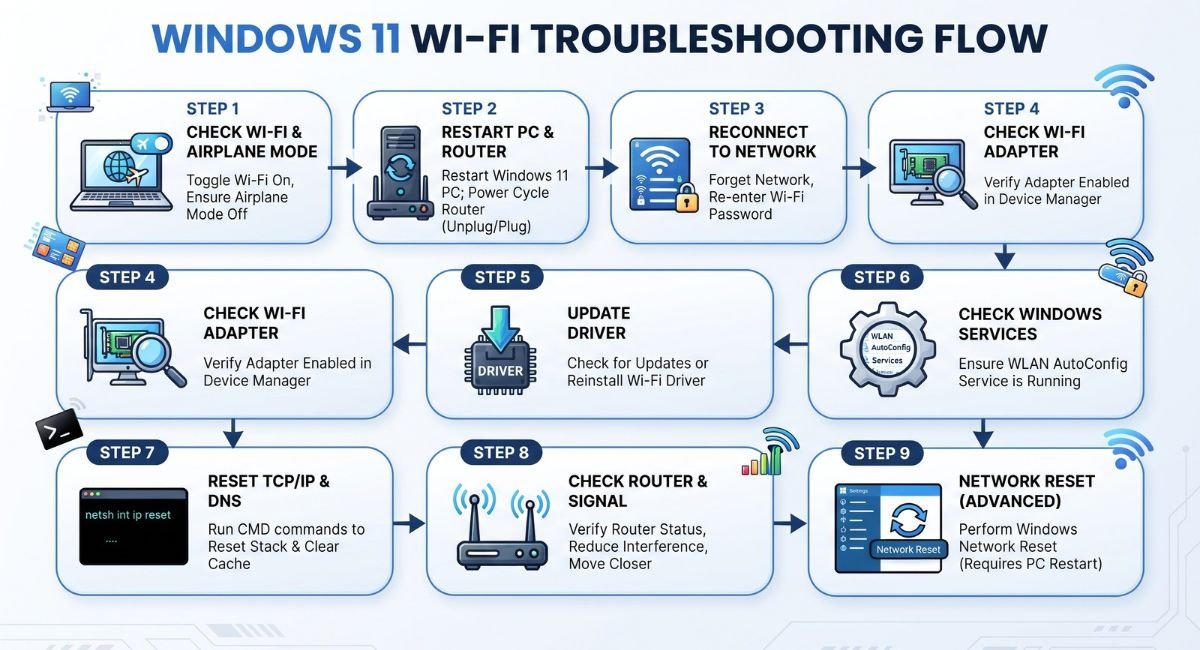
Quick Windows 11 Wi-Fi Troubleshooting Order
When Wi-Fi stops working, start with the simplest checks.
Check whether Airplane mode is disabled and Wi-Fi is enabled.
Restart the Windows 11 computer and router.
Check whether other devices can connect to the same Wi-Fi network.
Forget the Wi-Fi network and reconnect.
Check the wireless adapter in Device Manager.
Disable and re-enable the adapter.
Update or reinstall the Wi-Fi driver if necessary.
Check the WLAN AutoConfig service.
Reset TCP/IP and flush DNS if the problem appears to involve network configuration.
Check Windows Update and recent update history.
Investigate the router, signal strength, and Wi-Fi frequency.
Use Network Reset only after simpler troubleshooting methods have failed.
Following this order can help you avoid unnecessary changes and make it easier to identify the source of the problem.
Frequently Asked Questions
Why is Wi-Fi not working on Windows 11?
Wi-Fi can stop working because of disabled Wi-Fi settings, Airplane mode, adapter problems, outdated or damaged drivers, Windows networking issues, router problems, weak wireless signals, or recent system changes.
The exact cause depends on whether Wi-Fi is missing, cannot connect, keeps disconnecting, or connects without internet access.
Why is the Wi-Fi option missing in Windows 11?
A missing Wi-Fi option can be caused by a disabled or undetected wireless adapter, a missing or damaged driver, a Windows service problem, or a hardware-related issue.
Check Device Manager under Network adapters first.
Why does Windows 11 connect to Wi-Fi but show no internet?
If Windows connects to the router but websites do not load, the problem may be with the router, internet service, DNS, TCP/IP configuration, or another network setting.
Check whether other devices connected to the same Wi-Fi network have internet access.
Why does Wi-Fi keep disconnecting on Windows 11?
Frequent disconnections can be caused by weak signal strength, router problems, driver issues, wireless interference, or problems with the Wi-Fi adapter.
Try moving closer to the router, testing another Wi-Fi band, checking the driver, and restarting the router.
Should I reset Network settings in Windows 11?
Network Reset can be useful when other troubleshooting methods have failed, but it should generally be treated as a later step because it resets network-related configuration and may require you to reconnect to Wi-Fi afterward.
Can a Windows update cause Wi-Fi problems?
A Windows update or driver update can sometimes coincide with a Wi-Fi problem. If the issue started immediately after an update, check Windows Update history and see whether a driver rollback or other appropriate recovery option is available.
Should I reinstall Windows if Wi-Fi does not work?
Usually, no. Wi-Fi problems can often be resolved by checking the adapter, drivers, Windows networking settings, services, and router before considering an operating system reinstall.
Why does Wi-Fi work on my phone but not on my Windows 11 PC?
If other devices work normally on the same Wi-Fi network, the problem is more likely to be specific to the Windows computer. Check the Wi-Fi adapter, driver, saved network profile, and Windows network configuration.
Conclusion
Wi-Fi problems in Windows 11 can have many different causes, so the best approach is to identify the type of problem before making major changes.
Start with simple checks such as Airplane mode, Wi-Fi settings, restarting the computer and router, and testing another device. If the problem continues, inspect the wireless adapter and driver through Device Manager.
For more persistent problems, checking the WLAN AutoConfig service, resetting TCP/IP, reviewing Windows updates, and examining the router or wireless signal can help narrow down the cause.
Network Reset is available when other troubleshooting methods do not resolve the issue, but it should generally be used as a later option.
By troubleshooting each possible cause systematically, you can often restore Wi-Fi in Windows 11 without reinstalling Windows or making unnecessary changes to your computer.