Introduction
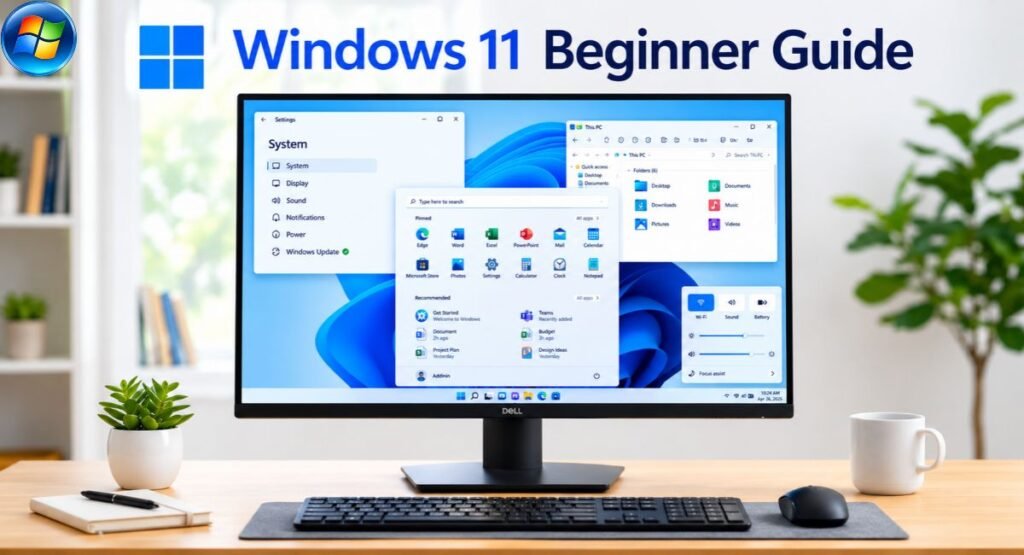
If you are new to Windows 11, the redesigned interface may feel unfamiliar at first. The Start Menu, Taskbar, Settings app, File Explorer, and multitasking features work differently from some earlier versions of Windows.
The good news is that you do not need to learn everything at once. Once you understand the basic parts of Windows 11, everyday tasks such as opening apps, finding files, connecting to Wi-Fi, changing settings, installing software, and protecting your PC become much easier.
This Windows 11 beginner guide explains the essentials in a practical way. You will learn how to set up Windows 11, use the desktop and Start Menu, manage files, install apps, customize your PC, use keyboard shortcuts, protect your information, back up important files, install updates, and troubleshoot common problems.
What Is Windows 11?
Windows 11 is Microsoft’s desktop operating system for compatible PCs. It provides the environment you use to run applications, manage files, connect to networks, configure hardware, install updates, and protect your device.
Think of Windows 11 as the main interface between your computer’s hardware and software. The desktop gives you access to apps and files, Settings controls the system, File Explorer helps you manage files and folders, and Windows Update keeps the operating system current.
For new users, the most important parts to learn first are:
- Start Menu
- Taskbar
- Windows Search
- Settings
- File Explorer
- Windows Update
- Windows Security
- Basic keyboard shortcuts
Once these become familiar, more advanced features such as Snap Layouts, virtual desktops, accessibility tools, and privacy settings are much easier to use.
Is Windows 11 Easy for Beginners?
Yes. Most everyday Windows 11 tasks do not require technical knowledge.
A beginner should first learn how to:
- Open and close applications.
- Find files and folders.
- Connect to the internet.
- Change basic settings.
- Install and uninstall software.
- Keep Windows updated.
- Protect important files.
- Use a few useful keyboard shortcuts.
You can learn these functions gradually instead of trying to understand every Windows feature on your first day.
How to Set Up Windows 11 for the First Time
If you have just purchased a Windows 11 PC or installed Windows 11 on an existing computer, start with the basic setup.
What You Need Before Using Windows 11
Before setting up the computer, have these items ready:
- A reliable internet connection
- Your Wi-Fi password
- A Microsoft account if you want to use Microsoft’s connected services
- A secure PIN or sign-in method
- Any important software you plan to install
- A backup plan for important files
If you are upgrading an existing computer, back up important documents, photos, and other personal files before making major system changes.
Set Up Your Windows 11 PC
When Windows 11 starts for the first time, follow the instructions shown on screen.
Depending on your device and edition, setup can include:
- Selecting your region
- Choosing a keyboard layout
- Connecting to the internet
- Signing in with a Microsoft account
- Creating a PIN
- Reviewing privacy and device settings
Take your time during setup. Do not automatically accept every option without reading it, particularly when the PC will contain personal, financial, work, or family information.
Connect Windows 11 to Wi-Fi
To connect to Wi-Fi:
- Select the network or connectivity controls on the Taskbar.
- Choose your wireless network.
- Select the connection option.
- Enter your Wi-Fi password.
- Wait for Windows to establish the connection.
You can also manage network settings through Settings > Network & internet.
If the connection does not work, check whether another device can connect to the same network. If other devices also have problems, the router or internet service may be responsible. If only the Windows PC has a problem, check its Wi-Fi adapter and network settings.
Set Up a Microsoft Account
A Microsoft account can connect Windows with services such as OneDrive, Microsoft Store, Microsoft Edge, and other Microsoft products.
A Microsoft account can be useful if you want your Windows experience connected across multiple devices.
For users who prefer a more local setup, account options should be reviewed carefully during Windows configuration.
Microsoft currently states that Windows 11 Home requires internet connectivity and a Microsoft account during initial device setup.
Create a Windows Hello PIN
Windows Hello provides sign-in options on supported devices. Depending on the hardware, Windows Hello can use a PIN, fingerprint, or compatible facial recognition hardware.
A PIN should not be something that another person can easily guess.
Avoid using:
- Your birthday
- Repeated numbers
- Simple sequences
- Numbers that are publicly associated with you
Never share your Windows sign-in credentials with other people.
Check Windows Updates
After completing setup, open Settings > Windows Update and check for available updates.
Updates can contain security fixes, bug fixes, compatibility improvements, and other changes. Restart the computer when Windows requires a restart.
Keeping Windows updated is one of the simplest maintenance habits for a Windows PC.
How to Use the Windows 11 Desktop
The desktop is the main workspace you see after signing in.
It can contain:
- App shortcuts
- Files
- Folders
- The Recycle Bin
- Your selected background
- Other desktop items
The Taskbar normally appears along the bottom of the screen and provides quick access to the Start Menu, Search, applications, and system controls.
Start Menu
Select the Start button or press the Windows key on your keyboard.
The Start Menu provides access to applications, Search, account options, power controls, and other shortcuts.
If you are new to Windows 11, get comfortable with opening Start and searching for what you need.
Taskbar
The Taskbar provides quick access to applications and important Windows controls.
You can use it to:
- Open pinned applications
- Switch between open applications
- Access Start
- Use Search
- View connectivity controls
- Adjust sound
- Check battery status on supported devices
- Access other system features
You can also customize the Taskbar according to your preferences.
Windows Search
Windows Search helps you find applications, settings, and files without manually searching through folders and menus.
Press the Windows key and start typing what you need.
For example, type:
- Bluetooth
- Display
- Sound
- Windows Update
- Calculator
- File Explorer
Search can save beginners a lot of time because you do not need to remember exactly where every Windows feature is located.
Microsoft also supports searching for files and apps through the Taskbar and File Explorer.
Quick Settings
Quick Settings provide convenient access to commonly used controls.
Depending on your PC and configuration, you may find controls for:
- Wi-Fi
- Bluetooth
- Volume
- Brightness
- Battery
- Display
- Other connectivity features
Use Quick Settings for simple changes instead of opening the complete Settings application every time.
Widgets
Windows 11 includes Widgets that can provide glanceable information and services.
The content available can vary depending on Windows updates, account configuration, region, and Microsoft’s current services.
If you do not use Widgets, review the relevant Taskbar settings to adjust how they appear.
How to Use the Start Menu and Search
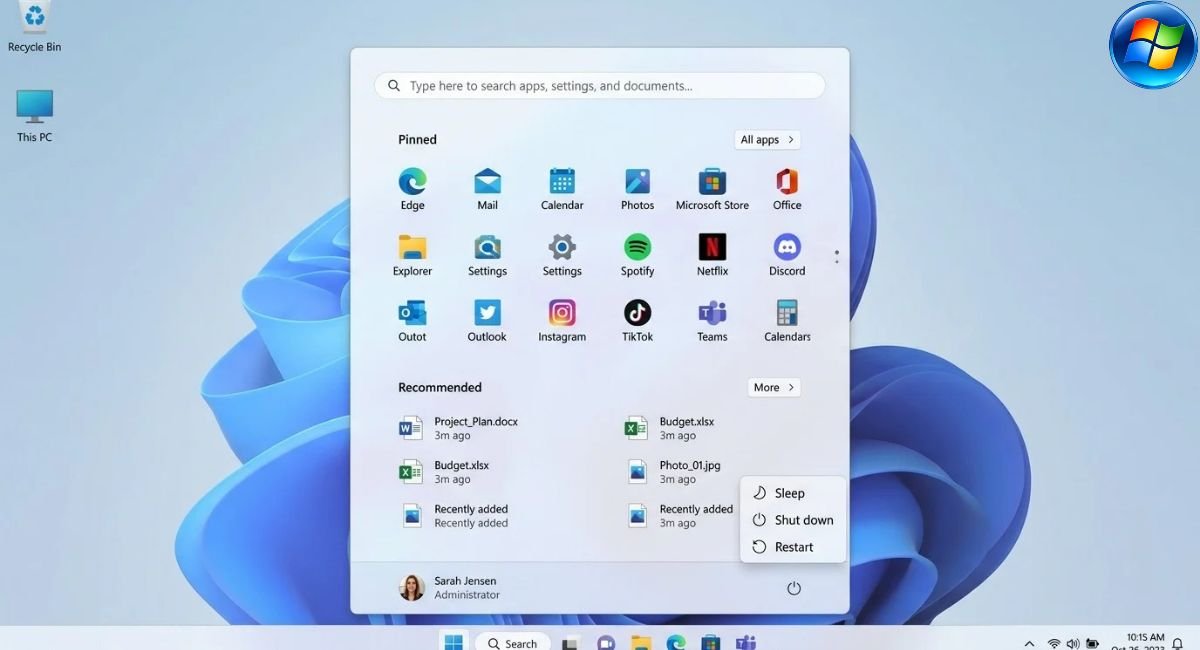
The Start Menu is one of the most important parts of Windows 11 for beginners.
Open the Start Menu
You can open Start by:
- Selecting the Start button
- Pressing the Windows key
From Start, you can access applications, search, account controls, and power options.
Find Apps and Settings with Search
Instead of browsing through every menu, press the Windows key and start typing.
For example:
Bluetooth
can help you find Bluetooth-related settings.
Similarly, searching for:
Windows Update
can help you quickly locate Windows Update settings.
This is often faster than manually browsing through Settings.
Pin and Unpin Apps
If you use an application frequently, you can pin it to an easily accessible location.
Pin commonly used applications such as:
- Browser
- File Explorer
- Calculator
- Microsoft Word
- Email application
Remove applications you rarely use from pinned areas to keep the interface organized.
Manage Recommended and Recent Items
Windows 11 can display recently used or recommended content in Start.
This can make frequently accessed files easier to find, but it may also reveal recent activity to someone using or viewing your computer.
If privacy is important, review the available Start and privacy settings.
How to Use Windows 11 Settings
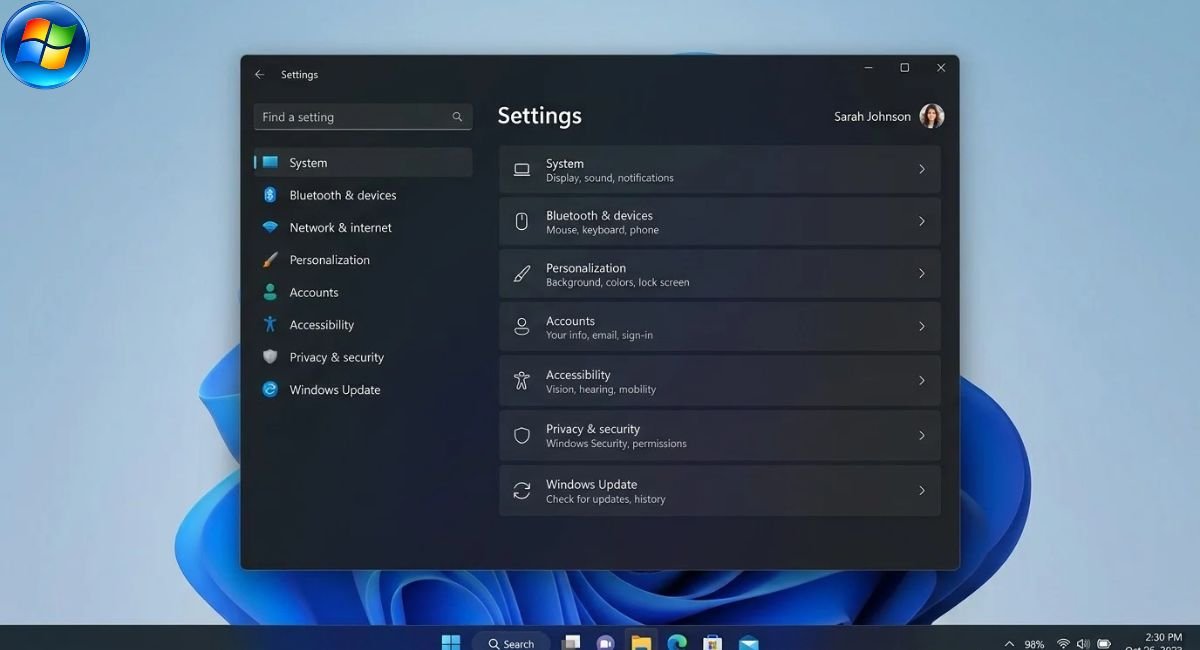
Settings is the central place for many Windows 11 configuration options.
Microsoft organizes Settings into areas such as:
- System
- Bluetooth & devices
- Network & internet
- Personalization
- Apps
- Accounts
- Accessibility
- Privacy & security
- Windows Update
You can open Settings by pressing Windows + I.
System Settings
System contains many important controls, including:
- Display
- Sound
- Notifications
- Storage
- Power
- Recovery
- Multitasking
- About
If you want to change how your PC behaves, System is one of the first sections to check.
Bluetooth & Devices
Use Bluetooth & devices to manage compatible hardware such as:
- Wireless keyboards
- Mice
- Headphones
- Printers
- Monitors
- Bluetooth devices
If a Bluetooth device refuses to connect, try removing the device from Windows and pairing it again.
Network & Internet
This section contains settings for:
- Wi-Fi
- Ethernet
- VPN-related options
- Network configuration
- Other connection settings
Use it when troubleshooting an internet or network problem.
Personalization
Personalization controls the appearance of Windows.
You can use it to change:
- Background
- Colors
- Themes
- Lock screen
- Taskbar-related appearance options
Accounts
Accounts contains settings related to:
- Sign-in
- Microsoft accounts
- Other users
- Account information
- Family-related controls
Privacy & Security
Privacy & security is especially important for beginners.
Depending on your Windows configuration, this area includes controls related to:
- App permissions
- Camera access
- Microphone access
- Location
- Windows Security
- Device protection
Review permissions regularly and avoid giving applications access to information they do not need.
Windows Update
Windows Update is where you check for system updates and manage related settings.
If an update causes a problem, troubleshoot the specific issue rather than leaving Windows permanently unprotected.
How to Use File Explorer in Windows 11
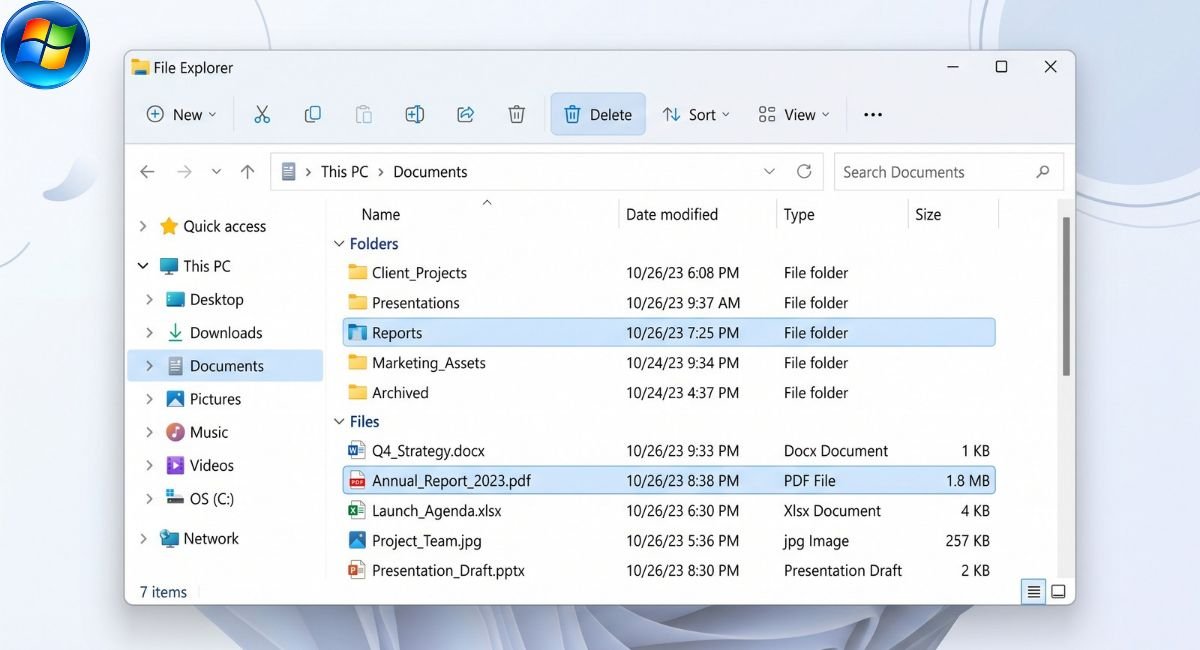
File Explorer is the main Windows tool for finding, opening, organizing, copying, moving, and managing files and folders.
Microsoft documents File Explorer as the Windows tool for managing files and folders on the PC and supported cloud locations. You can open it with Windows + E.
Open File Explorer
You can open File Explorer by:
- Pressing Windows + E
- Selecting File Explorer from the Taskbar
- Searching for File Explorer from Start
Find Files and Folders
Use the navigation area to move between common locations, drives, and folders.
If you know the file name but not where it is stored, use the File Explorer search box.
You can also search from File Explorer Home for relevant files on your PC and supported cloud locations.
Create a Folder
To create a folder:
- Open the location where you want the folder.
- Right-click an empty area.
- Select the option to create a new folder.
- Enter a descriptive name.
Use meaningful folder names so you can find information easily later.
Rename a File or Folder
Select the file or folder and choose Rename.
Use clear names rather than leaving files with confusing names such as:
Document1
A better name might be:
2026-Business-Plan
Copy and Paste Files
To copy a file:
- Select the file.
- Press Ctrl + C.
- Open the destination folder.
- Press Ctrl + V.
Copying creates another copy while leaving the original in its existing location.
Move Files
To move a file:
- Select the file.
- Press Ctrl + X.
- Open the destination folder.
- Press Ctrl + V.
You can also move files using File Explorer’s available commands or by dragging them to another location.
Delete Files
Select a file and choose Delete.
Deleted files may remain in the Recycle Bin before permanent removal.
Be careful when deleting important documents. For irreplaceable files, make sure another copy exists before permanently removing them.
Organize Downloads, Documents, and Pictures
Use appropriate folders for different types of information.
For example:
- Documents: Reports, PDFs, letters, spreadsheets, and work files
- Pictures: Photos and images
- Downloads: Files downloaded from the internet
- Desktop: Shortcuts and items you need temporarily
Avoid keeping hundreds of unrelated files on the Desktop. A simple folder structure makes searching and backup easier.
Search for Missing Files
If a file seems missing, check:
- Downloads
- Documents
- Pictures
- Desktop
- OneDrive
- Recycle Bin
- Other folders where you normally save files
File Explorer also supports options such as file-name extensions and hidden files through its View settings.
How to Install and Uninstall Apps in Windows 11
Windows 11 software can come from the Microsoft Store or from legitimate software publishers.
Install Apps from Microsoft Store
Microsoft Store provides a convenient way to find supported applications.
Before installing an app:
- Search for the application.
- Check the publisher.
- Read the description.
- Review available information.
- Install it if it meets your needs.
Install Apps from Official Websites
Some applications are distributed directly by their developers.
When downloading software from the web:
- Verify the website domain.
- Check the publisher.
- Avoid suspicious download portals.
- Be careful with fake download buttons.
- Keep Windows security protections enabled.
If an official developer website is available, prefer it over an unknown third-party download site.
Uninstall Apps
To remove an application, open:
Settings > Apps > Installed apps
Find the application and use the available uninstall option.
Removing software you no longer use can simplify the PC and recover storage space.
Stay Safe When Downloading Apps
Before installing software:
- Check the publisher.
- Use the Microsoft Store or official website when practical.
- Avoid suspicious download buttons.
- Do not disable security protections just to install unknown software.
- Read installation options carefully.
- Watch for bundled applications.
A common beginner mistake is clicking the first download button on a search results page without checking whether it belongs to the actual software publisher.
How to Connect to the Internet and Browse Safely
Once your Windows 11 PC is connected to the internet, you can use a web browser for websites, email, downloads, research, and online services.
Check Your Internet Connection
If websites do not load:
- Check whether Wi-Fi or Ethernet is connected.
- Test another website.
- Check another device on the same network.
- Restart the router if necessary.
- Restart the PC.
- Check Windows network settings.
If every device has a problem, the router or internet service may be responsible.
If only your Windows PC is affected, investigate its network settings and adapter.
Use Microsoft Edge
Microsoft Edge is Microsoft’s web browser and is included with Windows.
You can use the address bar to:
- Enter website addresses
- Search the web
- Open multiple tabs
- Download files
- Access online services
Browse and Download Safely
Be careful when downloading files from the internet.
Pay particular attention to executable files such as:
.exe.msi
Before entering a password or payment information, check the website address and make sure you are using the legitimate domain.
A website looking professional does not automatically mean it is trustworthy.
How to Customize
Windows 11 allows you to adjust the appearance and behavior of your PC.
Change the Desktop Background
Open:
Settings > Personalization > Background
You can select a supported picture, solid color, or slideshow.
Change Windows 11 Themes and Colors
Open:
Settings > Personalization
From there, you can adjust available themes, colors, and other visual options.
Customize the Taskbar
Taskbar settings allow you to control available icons and other Taskbar preferences.
Keep frequently used applications easy to access and remove unnecessary items if you prefer a cleaner workspace.
Microsoft provides Taskbar customization options for app pinning, icon alignment, and system-tray visibility.
Customize the Start Menu
Review your Start Menu after using Windows for a few days.
Pin the applications you use regularly and remove unnecessary shortcuts or items where the available settings allow it.
Adjust Display and Text Size
If text or icons are difficult to read, use Windows display and accessibility settings instead of relying on browser zoom for everything.
You can adjust:
- Text size
- Display scaling
- Resolution
- Accessibility options
Windows 11 Multitasking Features
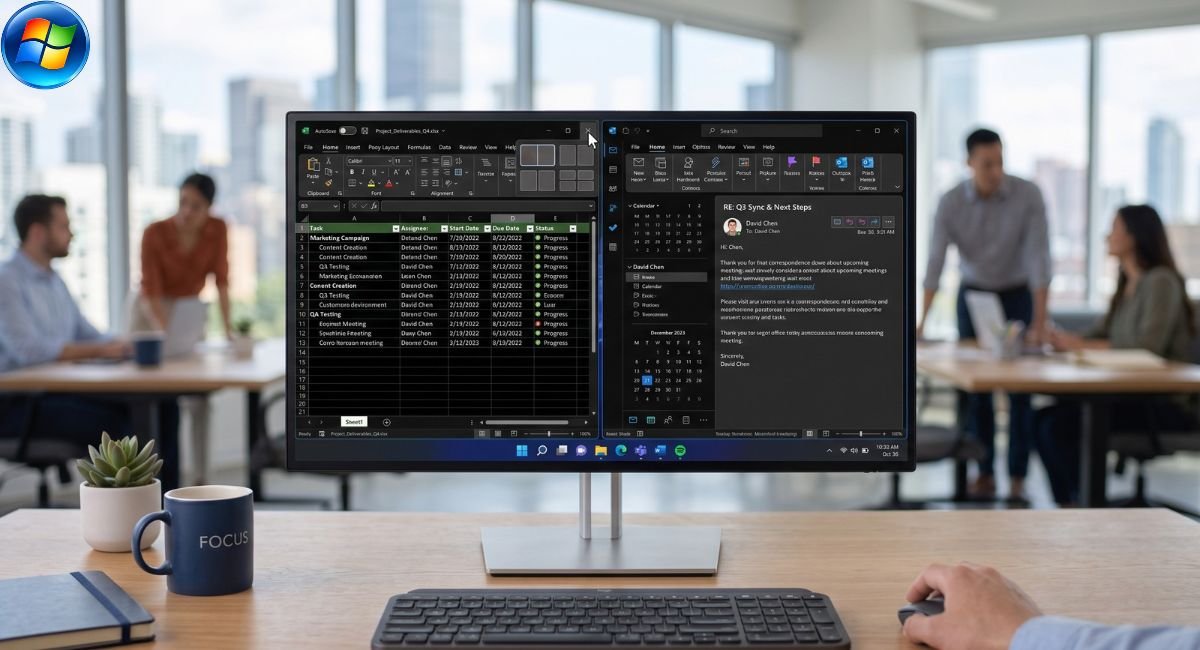
Windows 11 includes several tools that make working with multiple applications easier.
How to Use Snap Layouts
Hover over a window’s maximize button or press Windows + Z to view available Snap layouts.
Choose a layout and select other open applications to fill the remaining spaces.
For example, you could place:
- A browser on one side
- A document on the other side
This is useful for research, writing, studying, email, and other multitasking activities.
Snap Groups
Snap Groups help you return to groups of applications that you have arranged together.
This can be useful when you regularly work with the same combination of applications.
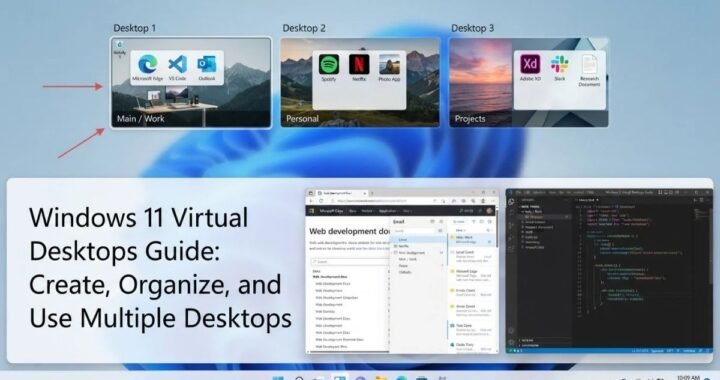
Virtual Desktops
Virtual desktops allow you to separate applications into different workspaces.
For example:
Desktop 1: Work applications
Desktop 2: Personal applications
This can make a busy computer easier to organize.
Task View
Task View lets you see open windows and manage virtual desktops.
It becomes especially useful when many applications are open at the same time.
Tips and Tricks for Beginners
Learning a few shortcuts can make Windows 11 much faster and easier to use.
Essential Windows 11 Keyboard Shortcuts
| Shortcut | What It Does |
|---|---|
| Windows + I | Open Settings |
| Windows + E | Open File Explorer |
| Windows + S | Open Search |
| Windows + Z | Open Snap layouts |
| Alt + Tab | Switch between open windows |
| Windows + D | Show the desktop |
| Windows + L | Lock the PC |
| Ctrl + C | Copy |
| Ctrl + V | Paste |
| Ctrl + X | Cut |
| Ctrl + Z | Undo |
Microsoft also documents common Windows shortcuts such as Ctrl+C, Ctrl+V, Ctrl+X, Ctrl+Z, and Alt+Tab.
Use Windows Search Instead of Browsing Menus
If you do not know where a setting is, press the Windows key and type what you need.
For example, search for:
- Bluetooth
- Display
- Sound
- Storage
- Windows Update
- Mouse
- Keyboard
This is often faster than manually opening every Settings category.
Use Snap for Side-by-Side Work
Use Snap when:
- Comparing two documents
- Following an online tutorial
- Writing while researching
- Monitoring email
- Comparing websites
Top 20 Windows 11 Tips
1. Learn Windows + I
Use Windows + I to open Settings quickly.
2. Learn Windows + E
Windows + E opens File Explorer immediately.
3. Use Search
Instead of browsing through menus, search for the application or setting you need.
4. Keep Windows Updated
Check Windows Update regularly and install available updates.
5. Back Up Important Files
Do not rely on a single copy of important documents or photos.
6. Use Folders
Organize files into Documents, Pictures, Projects, and other meaningful folders.
7. Check Software Publishers
Before installing an application, verify that it comes from a legitimate publisher.
8. Lock Your PC
Press Windows + L whenever you leave your computer unattended.
9. Use a Strong Password
Avoid passwords that are easy for other people to guess.
10. Use a Secure PIN
Your Windows Hello PIN should not be obvious or easily guessed.
11. Learn Alt + Tab
Use Alt + Tab to quickly switch between open applications.
12. Use Snap Layouts
Arrange multiple applications on the screen for easier multitasking.
13. Remove Unused Apps
Uninstall software you no longer need.
14. Review App Permissions
Check which applications can access your camera, microphone, location, and other resources.
15. Check Storage
Monitor available storage so your PC does not unexpectedly run out of space.
16. Organize Downloads
Move important downloaded files into appropriate folders instead of leaving everything in Downloads.
17. Be Careful With Email Attachments
Do not open unexpected or suspicious attachments.
18. Use Windows Security
Keep built-in security features enabled and updated.
19. Review Privacy Settings
Check application permissions and privacy controls periodically.
20. Restart When Troubleshooting
A simple restart can resolve temporary software and system problems.
Windows 11 Security and Privacy
Security should be part of your normal Windows routine, not something you think about only after a problem occurs.
Windows Security and Built-In Protection
Windows includes built-in security features that can help protect your computer against common threats.
Keep Windows and its security components updated.
Avoid installing multiple security products simply because you assume more antivirus programs automatically provide more protection. Conflicting security software can sometimes cause problems.
Windows Hello and PIN
Windows Hello supports convenient sign-in methods on compatible devices.
Depending on your hardware, you may be able to use:
- PIN
- Fingerprint
- Facial recognition
Use a secure sign-in method and never share your credentials.
Manage App Permissions
Review which applications can access:
- Camera
- Microphone
- Location
- Contacts
- Other supported resources
If an application does not have a legitimate reason to access a particular resource, review whether that permission should remain enabled.
Protect Your Personal Information
Good Windows security habits include:
- Using strong passwords
- Using secure sign-in methods
- Installing Windows updates
- Keeping security protections enabled
- Backing up important files
- Avoiding suspicious downloads
- Avoiding unknown email attachments
- Checking website addresses before entering sensitive information
Windows 11 Backup and File Protection
Important files should not exist in only one location.
What Is Windows Backup?
Windows Backup provides a way to preserve supported Windows content and settings through Microsoft’s backup experience.
Cloud storage availability depends on the Microsoft account and service plan you use.
A backup is different from simply keeping a file on your computer. If the PC’s storage fails, a file stored only on that computer may become inaccessible.
How OneDrive Works
OneDrive can synchronize supported files between your PC and Microsoft’s cloud service.
Synchronization is useful for accessing files across devices, but it should not automatically be treated as a complete independent backup strategy.
For particularly important files, maintaining additional copies is sensible.
How to Back Up Important Files
A practical approach can include:
- A working copy on your PC
- A cloud copy where appropriate
- A separate external backup for particularly important data
The right backup strategy depends on how valuable and replaceable your files are.
Windows Backup vs. OneDrive
| Feature | Windows Backup | OneDrive |
|---|---|---|
| Main purpose | Backup and restoration experience | Cloud storage and synchronization |
| Best for | Supported Windows content and settings | Accessing and synchronizing files |
| Internet required | For cloud-based functions | Yes for synchronization |
| Storage | Depends on connected service | Depends on account/storage plan |
| Complete replacement for every backup? | No | No |
The key point is simple: synchronization and backup are not always the same thing.
Windows 11 Accessibility Features
Windows 11 includes accessibility features designed to make the operating system easier to use.
Make Text and Icons Easier to See
If text or interface elements are too small, review Accessibility and display settings.
You can adjust text size and display-related options to make Windows more comfortable.
Use Magnifier
Magnifier enlarges parts of the screen and can help users who have difficulty reading small interface elements.
Use Narrator
Narrator is a built-in screen reader that can read interface elements and supported text aloud.
Accessibility for Older Users
For an older user, useful adjustments may include:
- Larger text
- Easier-to-see mouse pointer
- Appropriate display scaling
- Fewer unnecessary Taskbar shortcuts
- Simple application organization
- Clear folder structure
- Strong sign-in security
Mouse, Keyboard, and Hearing Settings
Windows Accessibility includes settings for areas such as:
- Keyboard
- Mouse
- Hearing
- Captions
- Interaction
- Visual accessibility
Explore these options if the default Windows interface is difficult to use.
How to Update Windows 11
Keeping Windows updated helps maintain security, compatibility, and system functionality.
Check for Windows Updates
Open:
Settings > Windows Update
Then select the option to check for updates.
Install available updates according to your normal update settings.
Install Optional Updates Carefully
Optional updates can include certain drivers and other components.
Do not install an optional driver simply because it appears in the list. If your hardware is already working correctly, consider whether the update is actually needed.
Restart Windows After an Update
Some updates require a restart before changes become fully active.
Save your work before restarting.
Why Windows Updates Matter
Updates can address:
- Security vulnerabilities
- Software bugs
- Compatibility issues
- Operating-system problems
- Feature changes
If an update causes a specific problem, troubleshoot that issue instead of permanently disabling updates.
Common Windows 11 Problems and How to Fix Them
Beginners often encounter simple problems that can be solved without advanced technical knowledge.
Windows 11 Is Running Slowly
Start with these checks:
- Restart the PC.
- Close applications you are not using.
- Check available storage.
- Review applications that start automatically.
- Install pending Windows updates.
- Check whether the PC meets the requirements of the software you are running.
Minimum Windows requirements do not guarantee that demanding applications will run quickly. Performance also depends on the processor, memory, storage, graphics hardware, software, and workload.
Wi-Fi Is Not Working
Try these steps:
- Check whether Wi-Fi is enabled.
- Confirm that the correct network is selected.
- Check the password.
- Test another device on the same network.
- Restart the router.
- Restart the PC.
- Check Network & internet settings.
If other devices cannot connect either, the issue may be outside the Windows PC.
An App Is Not Opening
Try:
- Close and reopen the application.
- Restart Windows.
- Check for an application update.
- Check for Windows updates.
- Use available repair or reset options.
- Reinstall the application if necessary.
If the problem affects only one application, check the software publisher’s support documentation.
Sound Is Not Working
Start with basic checks:
- Make sure the volume is not muted.
- Check the selected output device.
- Disconnect and reconnect headphones if applicable.
- Restart the PC.
- Check sound settings.
Camera or Microphone Is Not Working
Check:
- Whether the device is connected
- Whether the correct device is selected
- Windows privacy permissions
- Whether another application is already using the device
A File Is Missing
Search File Explorer first.
Then check:
- Downloads
- Documents
- Pictures
- Desktop
- OneDrive
- Recycle Bin
- Other likely folders
If the file was deleted and is not in the Recycle Bin, check your backup or cloud-storage history.
Windows Update Problems
If an update fails:
- Restart the computer.
- Check Windows Update again.
- Install other pending updates if appropriate.
- Review Microsoft’s troubleshooting documentation for persistent errors.
Avoid downloading unknown “Windows fixer” programs from random websites.
Windows 11 System Requirements
Before installing or upgrading to Windows 11, check whether your PC meets the current minimum requirements.
Microsoft currently lists these minimum hardware requirements:
| Requirement | Minimum |
|---|---|
| Processor | 1 GHz or faster, 2 or more cores, compatible 64-bit processor |
| RAM | 4 GB |
| Storage | 64 GB or greater |
| System Firmware | UEFI, Secure Boot capable |
| TPM | TPM 2.0 |
| Graphics | DirectX 12 compatible with WDDM 2.0 driver |
| Display | HD 720p, greater than 9 inches |
| Internet | Required for updates and some features |
Some Windows 11 features have additional hardware or service requirements. Microsoft also notes that Windows 11 Home requires internet connectivity and a Microsoft account during initial setup.
Can Windows 11 Run on 4GB RAM?
Yes. 4 GB is the minimum RAM requirement listed by Microsoft for Windows 11.
However, meeting the minimum requirement does not mean every workload will feel fast.
A PC with 4 GB of RAM may be suitable for some basic tasks, but multitasking, large browser sessions, demanding applications, and modern games can require substantially more resources.
The processor, storage, graphics hardware, background applications, and workload all affect performance.
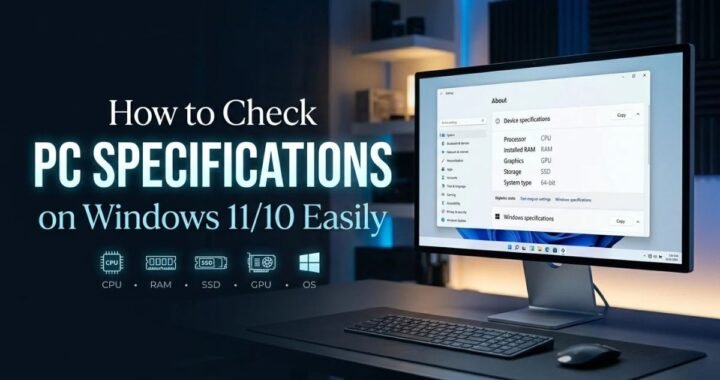
How to Check Your PC Specifications
To see basic hardware information, open:
Settings > System > About
You can also use Task Manager to inspect memory and processor usage.
If you are checking whether an existing Windows PC is eligible for Windows 11, Microsoft provides PC Health Check for compatibility assessment.
How to Download and Install Windows 11
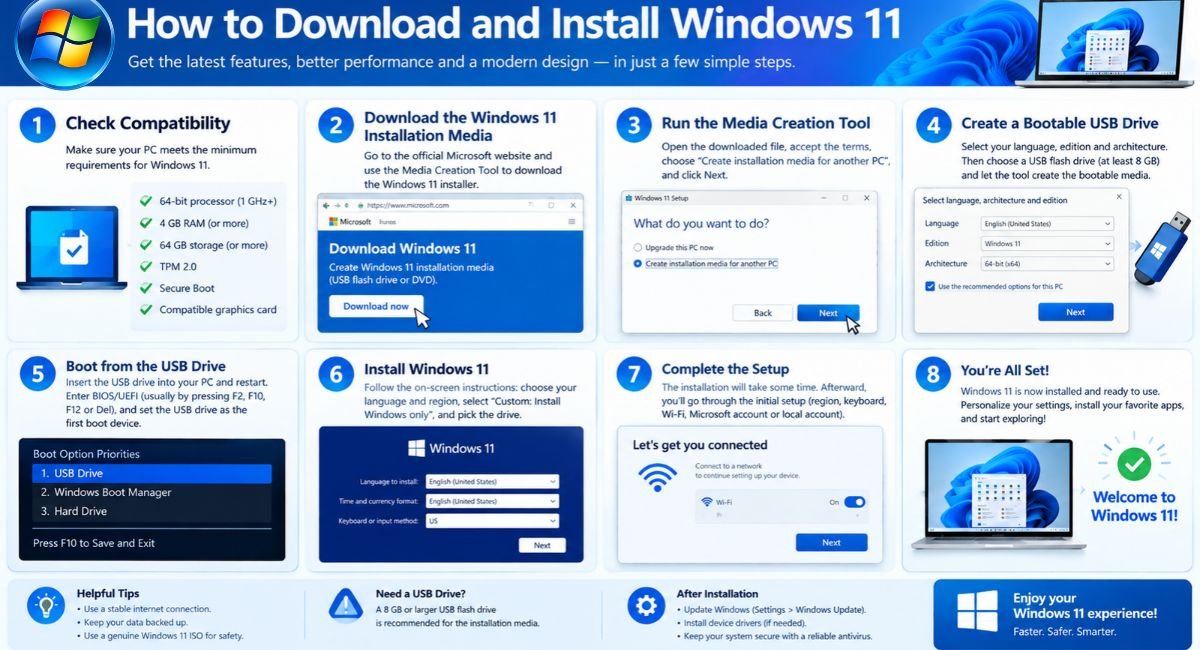
Only download Windows 11 installation files from Microsoft’s official resources.
Check Windows 11 Compatibility
Before installing Windows 11, confirm that the PC meets the minimum requirements.
If you are upgrading an existing Windows 10 PC, Microsoft’s PC Health Check can help determine whether the device meets the requirements.
Upgrade to Windows 11
For eligible devices, Windows Update can provide an upgrade path.
Microsoft’s installation guidance recommends checking compatibility first and using Windows Update when the upgrade is offered for an eligible device.
Before a major operating-system upgrade:
- Back up important files.
- Save your work.
- Make sure the PC has enough storage.
- Connect the computer to reliable power.
- Check that important applications and hardware are compatible.
Clean Install vs. Upgrade
| Factor | Upgrade | Clean Install |
|---|---|---|
| Existing setup | Generally preserves supported setup | Starts with a fresh system |
| Apps | Can remain installed | Usually need to be reinstalled |
| Personal files | Designed to preserve supported files | Requires careful backup |
| Difficulty | Easier for most beginners | More advanced |
| Best use | Existing compatible PC | Fresh system or major reset |
| Backup | Strongly recommended | Essential |
A clean installation can provide a fresh Windows environment, but it requires more preparation and should not be attempted casually by someone who has not backed up important data.
20 Things to Do After Setting Up Windows 11
If you have just started using Windows 11, this simple checklist can help:
- Connect to Wi-Fi or Ethernet.
- Complete your account setup.
- Create a secure PIN.
- Install available Windows updates.
- Check that sound works.
- Check Wi-Fi and Bluetooth.
- Test the camera and microphone if needed.
- Review privacy settings.
- Check Windows Security.
- Install essential applications.
- Remove unwanted applications.
- Organize your files.
- Create a backup plan.
- Customize the desktop.
- Customize the Taskbar.
- Learn Windows + I.
- Learn Windows + E.
- Learn Alt + Tab.
- Try Snap Layouts.
- Keep important files backed up.
Windows 11 Beginner Guide FAQ
How do I use Windows 11 as a beginner?
Start by learning the Start Menu, Taskbar, Search, Settings, File Explorer, and Windows Update. Then learn basic shortcuts such as Windows + I, Windows + E, Windows + Z, and Alt + Tab.
Once these functions become familiar, move on to customization, backups, privacy controls, accessibility, and troubleshooting.
What should I do first after installing Windows 11?
Connect to the internet, complete account and security setup, check for Windows updates, verify important hardware, install essential software, and establish a backup method for important files.
Where are Windows 11 settings?
Press Windows + I to open Settings. You can also open Start and select Settings.
How do I find a file in Windows 11?
Use Windows Search or open File Explorer and search for the file name or a relevant keyword.
Check common locations such as Downloads, Documents, Pictures, Desktop, OneDrive, and the Recycle Bin if you cannot find the file.
How do I install apps on Windows 11?
You can install supported applications through Microsoft Store or download software from the application’s official website.
Always verify the publisher and website before installing software.
How do I uninstall an app in Windows 11?
Open:
Settings > Apps > Installed apps
Find the application and select its available uninstall option.
Can Windows 11 run on 4GB RAM?
Yes. Microsoft lists 4 GB as the minimum RAM requirement. However, minimum requirements do not guarantee smooth performance for demanding workloads.
What are the most useful Windows 11 keyboard shortcuts?
Some useful shortcuts include:
- Windows + I: Open Settings
- Windows + E: Open File Explorer
- Windows + Z: Open Snap layouts
- Alt + Tab: Switch between windows
- Windows + L: Lock the PC
- Ctrl + C: Copy
- Ctrl + V: Paste
- Ctrl + Z: Undo
How do I keep Windows 11 secure?
Keep Windows updated, use Windows Security, choose a strong sign-in method, review application permissions, avoid suspicious downloads, and maintain backups of important files.
Should I back up my Windows 11 PC?
Yes. Important files should not exist in only one location. Consider keeping important information in more than one appropriate location, such as your PC, cloud storage, or a separate backup drive.
How do I make Windows 11 easier to use?
Start by customizing the Taskbar and Start Menu, adjusting text or display scaling if necessary, organizing your files, learning keyboard shortcuts, and using Windows Search instead of manually browsing through menus.
Final Windows 11 Beginner Checklist
If you are completely new to Windows 11, you do not need to master every feature immediately.
Focus on these basics first:
1. Start Menu — Learn how to open applications and access power options.
2. Search — Use Search when you cannot find an application, file, or setting.
3. Settings — Learn where system, network, personalization, account, privacy, and update controls are located.
4. File Explorer — Learn how to create folders, copy files, move files, rename files, and search for missing files.
5. Apps — Install software only from trusted sources and remove applications you no longer need.
6. Security — Use a secure sign-in method, keep Windows updated, and avoid suspicious downloads.
7. Backup — Maintain copies of important files.
8. Shortcuts — Learn Windows + I, Windows + E, Alt + Tab, Windows + L, and basic copy/paste shortcuts.
9. Multitasking — Try Snap Layouts and virtual desktops when you need to work with multiple applications.
10. Troubleshooting — Restarting the PC, checking updates, reviewing settings, and identifying whether a problem affects only your PC or the entire network can solve many basic issues.
Conclusion
Windows 11 may look different when you first start using it, but the essential concepts are straightforward. Start with the Start Menu, Search, Settings, File Explorer, Taskbar, and Windows Update. Once those become familiar, you can gradually explore customization, multitasking, accessibility, security, backups, and advanced features.
The most important habit is to learn Windows 11 step by step rather than trying to memorize everything at once. Keep your PC updated, protect important files, install software carefully, and use Windows Search and keyboard shortcuts to save time.
With these basics in place, you will have a solid foundation for using Windows 11 for everyday work, browsing, studying, entertainment, and personal tasks.