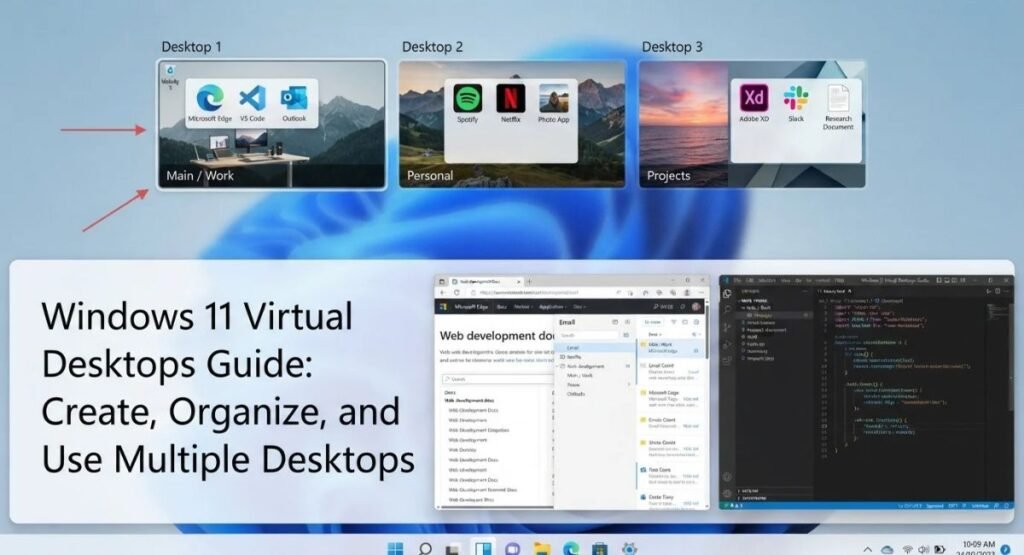
Windows 11 gives you a simple way to separate busy tasks without buying another monitor. With virtual desktops, you can create different spaces for work, study, projects, browsing, or personal activities. This Windows 11 Virtual Desktops Guide explains how the feature works and how to build a cleaner daily workflow.
Think of each desktop as a separate room inside the same PC. Your apps remain available, but you can place different windows into different spaces. Once you understand Task View, desktop switching becomes much easier. You can also rename desktops, assign wallpapers, move windows, and customize multitasking behavior.
What Are Virtual Desktops in Windows 11?
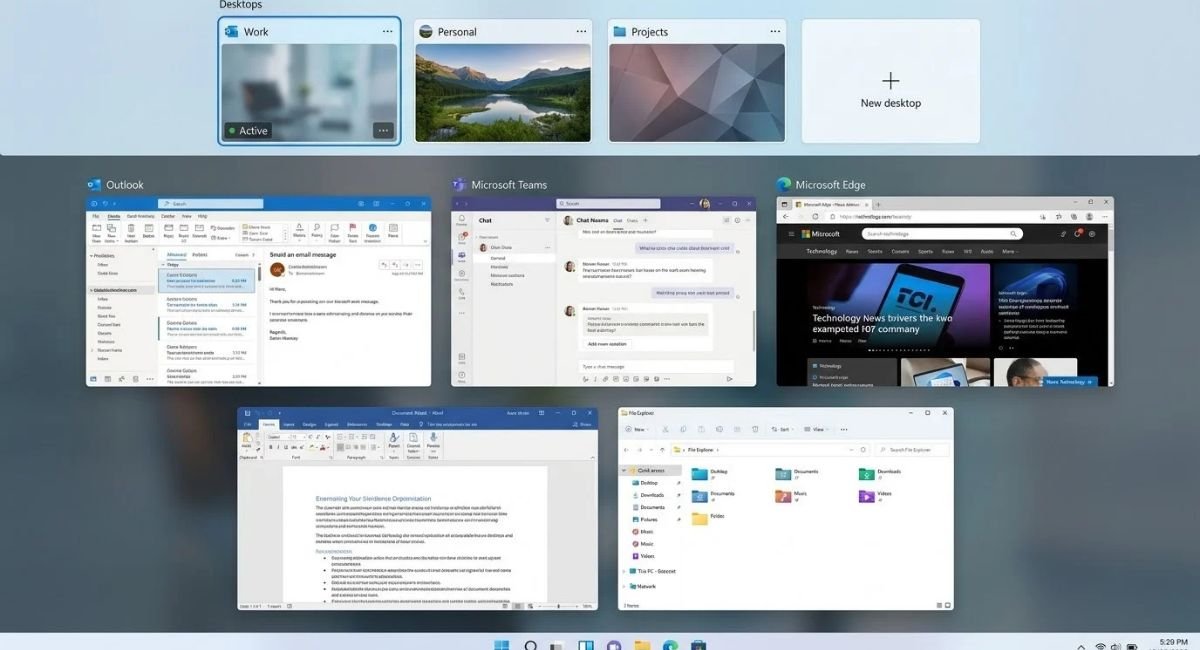
A virtual desktop is a separate workspace inside Windows where you can arrange open apps and windows. Windows 11 desktops let you create separate workspaces for different activities without physically adding another screen. Microsoft describes multiple desktops as a way to organize apps and tasks into focused work areas.
The useful part is separation. You might keep email and documents on a work desktop while using another for personal browsing. These virtual desktops don’t create another copy of Windows, though. They simply give you another organized desktop workspace inside the same Windows session.
Virtual Desktops vs. Multiple Monitors
A monitor gives you more physical screen space. A virtual desktop gives you more organized screen space. For example, a developer may keep coding tools on one desktop and documentation on another. That makes a Windows 11 workspace easier to manage without constantly minimizing windows.
| Feature | Virtual Desktops | Multiple Monitors |
|---|---|---|
| Physical screen space | No | Yes |
| Separate workspaces | Yes | Limited |
| Quick keyboard switching | Yes | Not in the same way |
| Useful for reducing clutter | Yes | Sometimes |
| Requires extra hardware | No | Usually |
How to Create and Access a Virtual Desktop
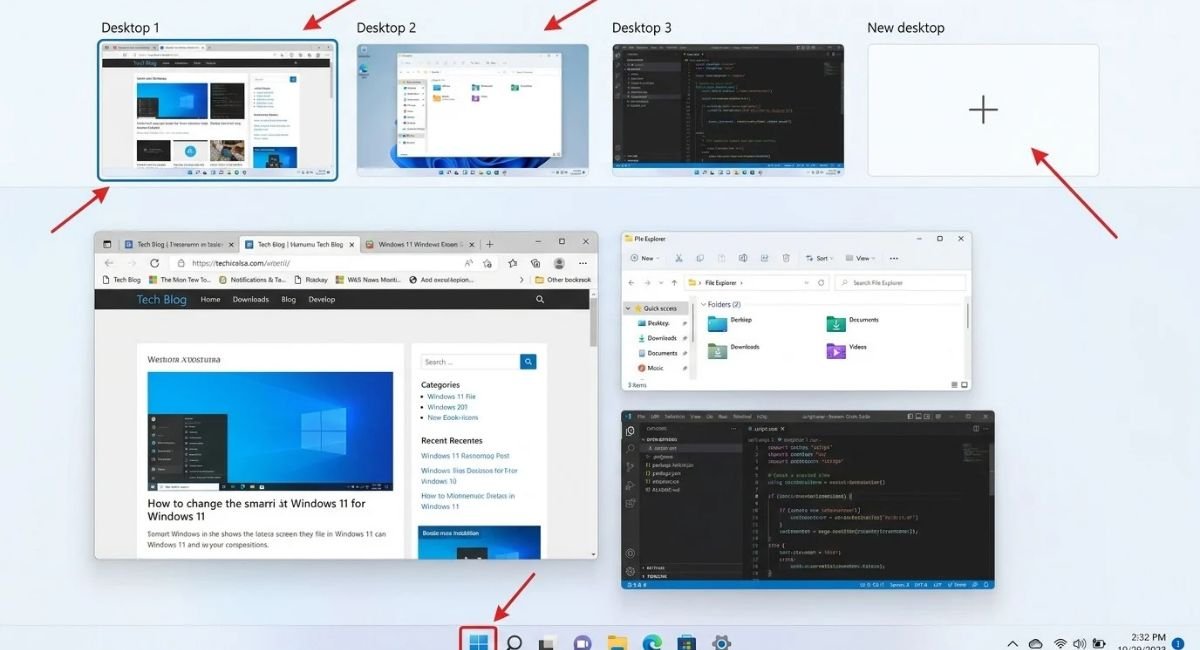
Creating a desktop takes only a moment. Press Win+Tab to open Windows Task View, then select New desktop. Windows immediately creates another workspace. You can then open the apps you need there. Microsoft also documents Win+Ctrl+D as the direct shortcut to create another desktop.
What Happens When You Create a New Desktop?
Creating a new desktop doesn’t duplicate your running applications. Instead, Windows gives you another workspace where you can open different programs. Your original desktop remains intact. This distinction matters because multiple desktops organize windows rather than creating isolated Windows installations.
How to Switch Between Virtual Desktops Quickly
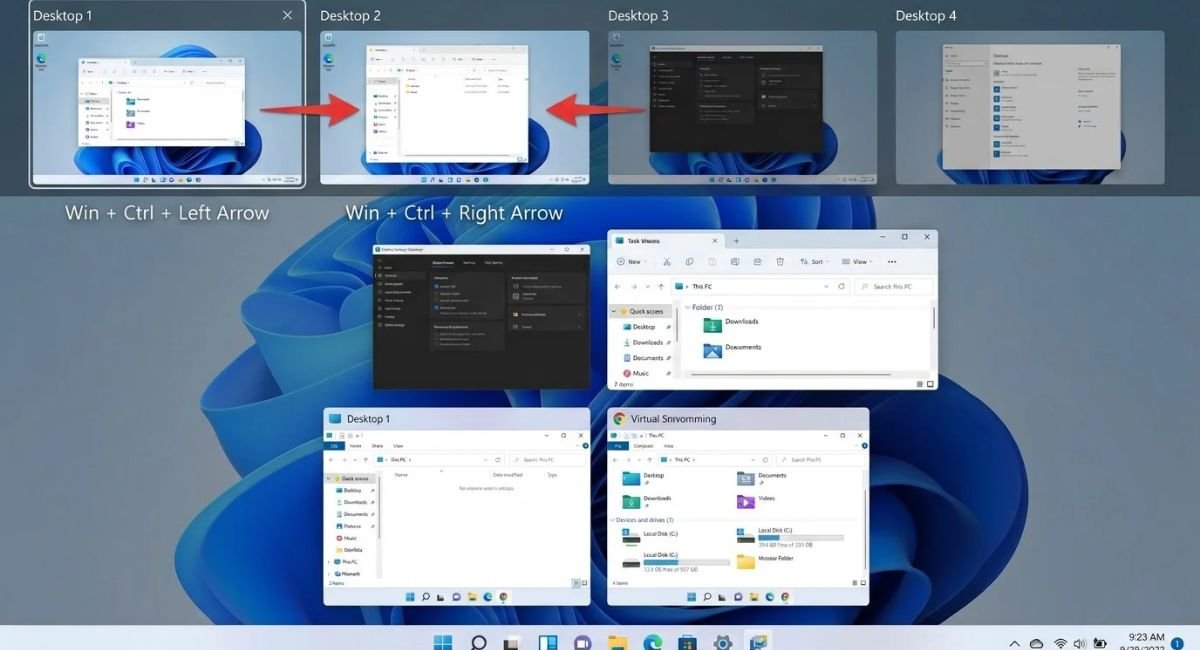
Once you create several workspaces, fast desktop switching becomes the real productivity boost. Open Task View when you want a visual overview. For faster movement, press Win+Ctrl+Right Arrow to move toward the next desktop or Win+Ctrl+Left Arrow to return to the previous one.
The Fastest Way to Switch Desktops
For frequent users, keyboard navigation usually feels quicker than clicking desktop thumbnails. Use the right-arrow shortcut for the next desktop and the left-arrow shortcut for the previous desktop. If you forget the shortcuts, Win+Tab remains the easiest visual fallback.
How to Rename and Organize Virtual Desktops
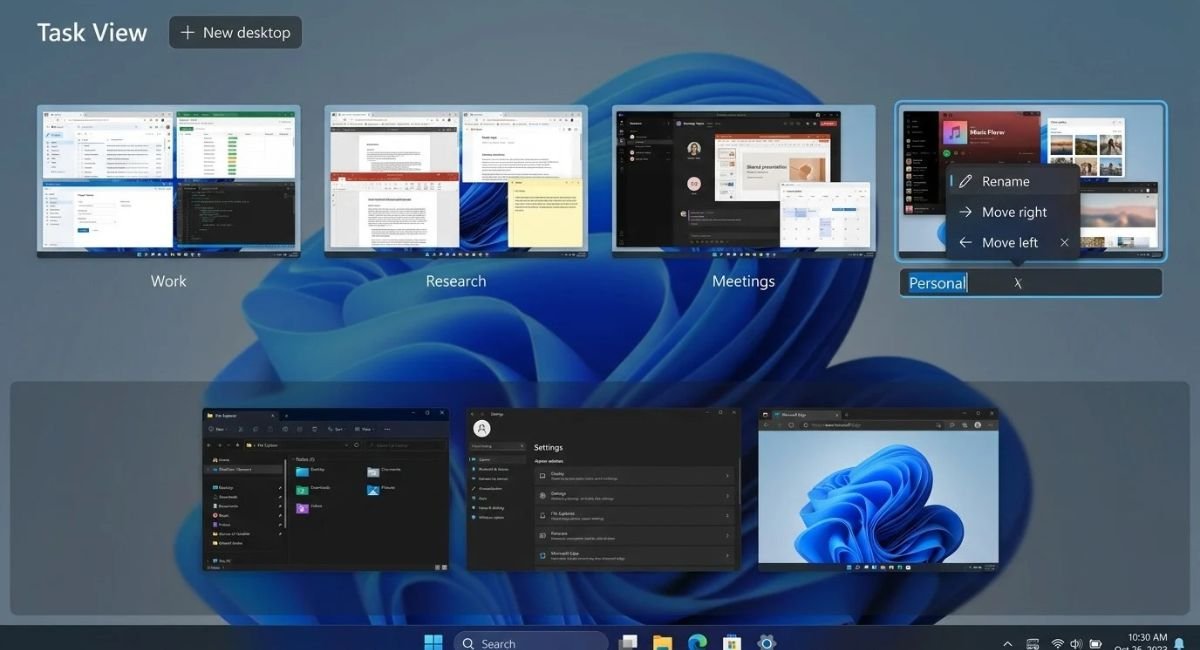
Names make a surprisingly big difference. Instead of keeping generic labels such as Desktop 1 and Desktop 2, you can name virtual desktops according to their purpose. Open Task View, right-click or select the desktop name, and choose the rename option available on your Windows build.
Best Virtual Desktop Names for Different Tasks
A useful naming system should describe the task rather than the application. For example, a focus desktop could contain only writing tools, while a reference desktop could hold research material. A scratch desktop can temporarily store downloads, experiments, and windows you don’t want cluttering your main workspace.
How to Move Apps and Windows Between Desktops
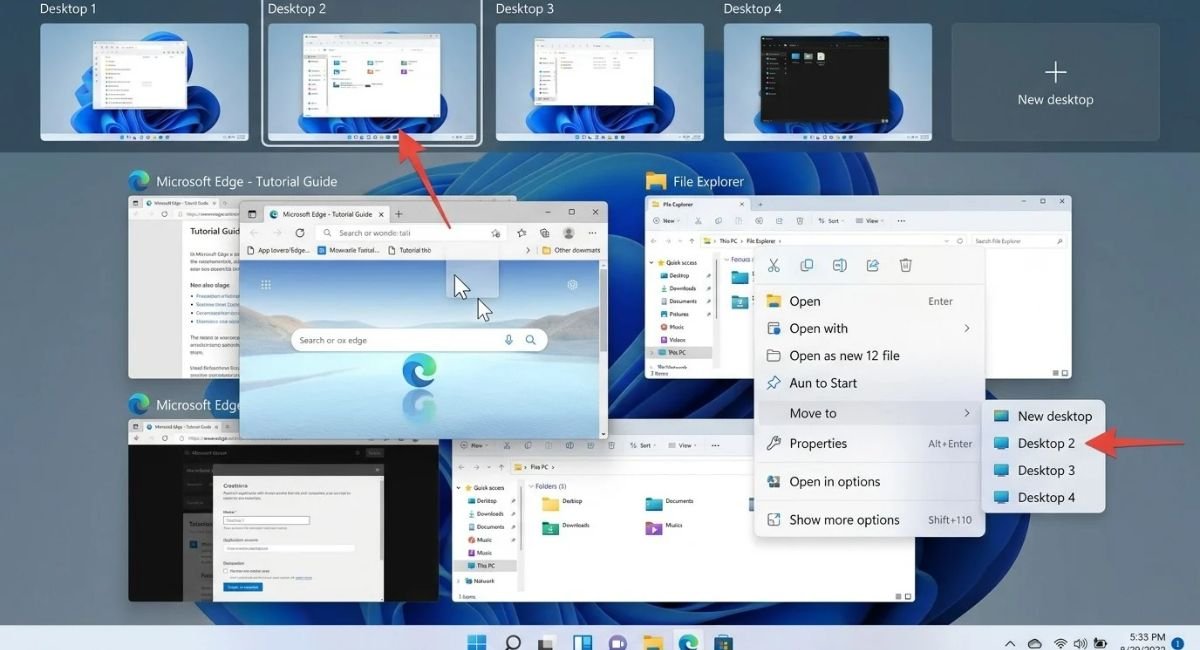
Sometimes an application starts in the wrong workspace. Fortunately, you don’t need to close it. Open Task View and find the application window. You can use drag and drop windows from its thumbnail onto another desktop. Microsoft also supports using the Move to option from the window’s context menu.
How to Keep an App Available on Multiple Desktops
Some workflows benefit from having the same window accessible across workspaces. A communication app or reference tool can be useful in several places. However, showing too many windows everywhere can defeat the purpose of separate workspaces, so use this behavior selectively.
How to Set Different Wallpapers for Each Desktop
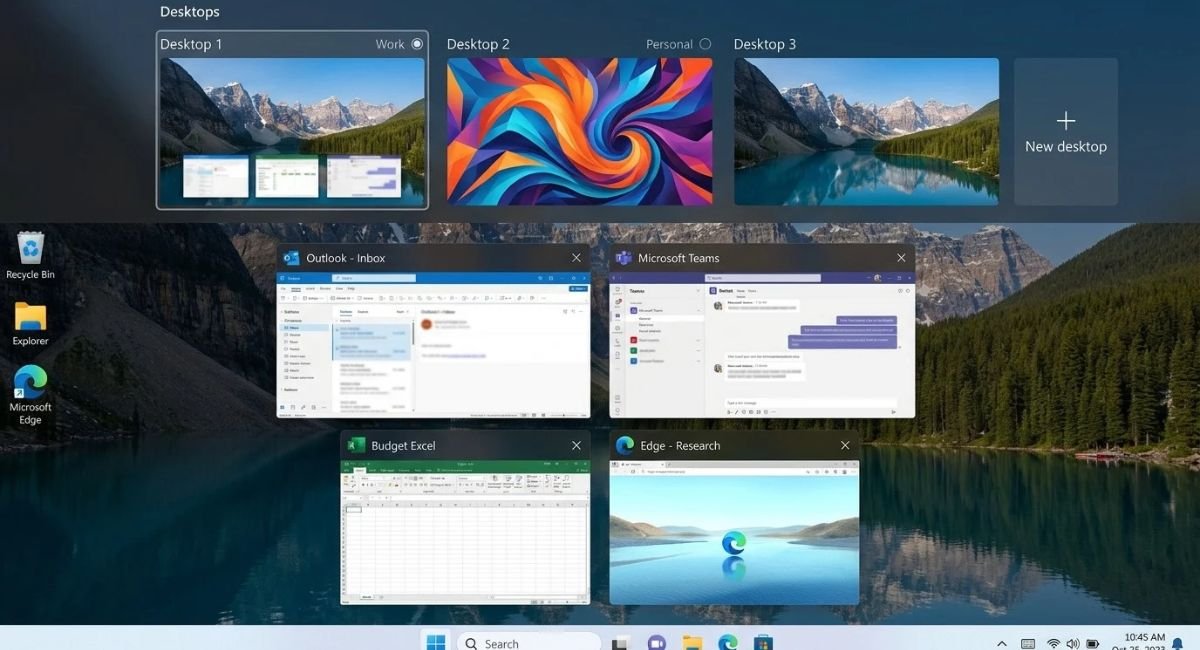
A distinct desktop wallpaper makes each workspace easier to recognize. Open Task View, right-click the desktop you want to customize, and choose the background option. Windows supports assigning a different picture to each desktop, while slideshow backgrounds aren’t supported for this per-desktop setup.
Why Different Wallpapers Make Desktops Easier to Manage
Visual separation works like color-coded folders. You can recognize the workspace before reading its name. When you change desktop wallpaper, remember that Windows handles this through Personalize, where you select a picture for the chosen desktop. Slideshow backgrounds aren’t supported for individual multiple-desktop backgrounds.
Virtual Desktops, Snap Layouts, and Widgets
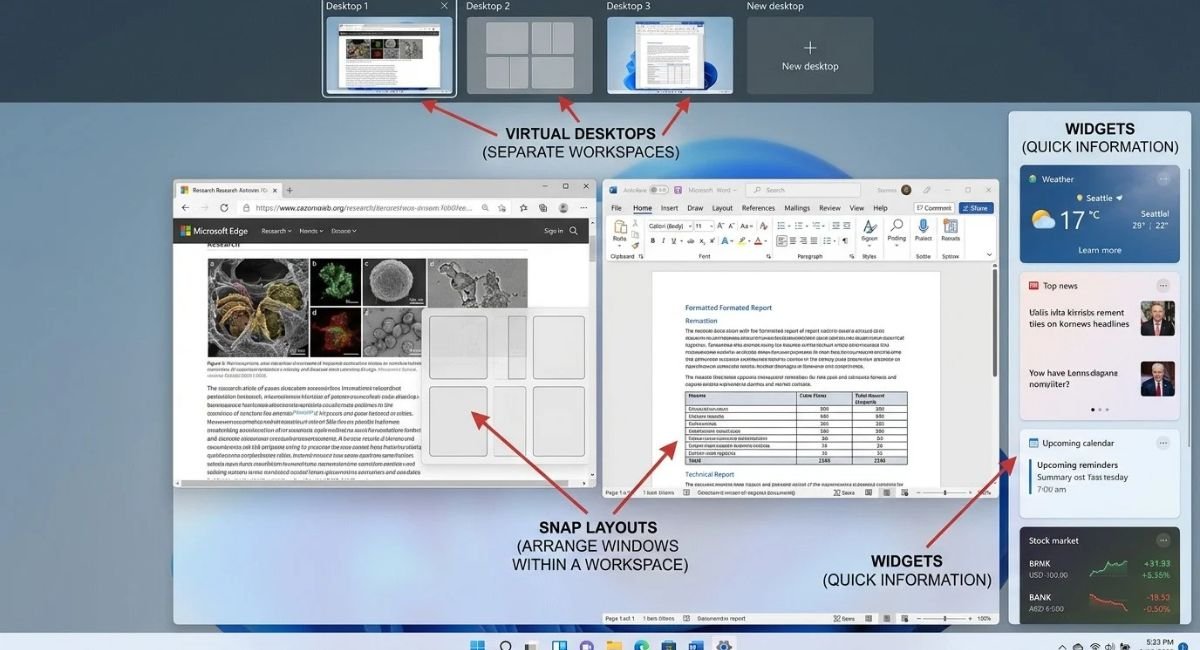
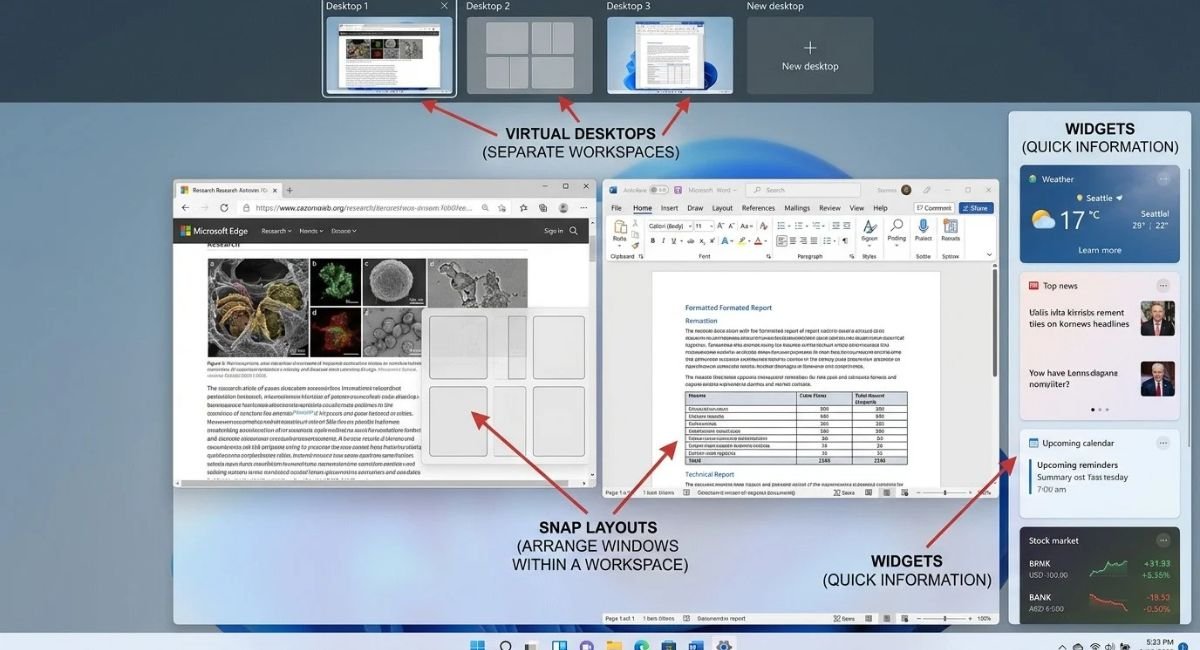
Virtual desktops solve one problem while Snap Layouts solve another. A desktop separates groups of work. Snap arranges several windows within that workspace. For example, your project desktop might place a browser beside Word using Windows 11 Snap Layouts.
Virtual Desktops vs. Snap Layouts
Use a new desktop when the type of work changes. Use Snap when the work stays the same but requires several windows. A writer might use one desktop for research and another for personal tasks. Within the research desktop, Snap can arrange the browser and document side by side.
Best Ways to Use Virtual Desktops for Work and Productivity
The strongest use case is task separation. Microsoft specifically highlights work and personal separation, project management, and meeting preparation as practical multiple-desktop scenarios. A work and personal desktops setup can therefore reduce clutter without forcing you to close useful applications.
For deeper Windows 11 productivity, create workspaces around activities rather than individual apps. A designer could use a project-based desktop for one client, while a researcher maintains a reference workspace. This creates a cleaner productivity workflow because each desktop has a defined purpose.
Example Windows 11 Virtual Desktop Setup
Consider a remote worker using four desktops during a normal day. The first becomes a focus workspace for deep work. The second handles meetings. The third stores research material. The fourth remains a personal space. This project workflow keeps unrelated windows from competing for attention.
| Desktop | Main purpose | Typical content |
|---|---|---|
| Focus | Deep work | Documents and editor |
| Meetings | Calls | Meeting apps and notes |
| Reference | Research | Browser and PDFs |
| Personal | Personal tasks | Browser and messaging |
Virtual Desktop Settings and Useful Keyboard Shortcuts
Windows provides dedicated virtual desktop settings under Settings → System → Multitasking. Expand the Desktops section to control whether the taskbar displays windows from the current desktop or from all desktops. You can also control which windows appear when using Alt+Tab.
Go to:Settings → System → Multitasking → Desktops
These Windows 11 Multitasking settings can dramatically change how your workspaces feel. If you want strong separation, choose windows on current desktop. If you prefer instant access to everything, choose windows on all desktops. Your choice should match how frequently you move between projects.
How to Change Multiple Desktop Taskbar and Alt+Tab Behavior
Windows gives you control over taskbar settings and Alt+Tab settings for multiple desktops. You can show windows on all desktops or limit them to windows on current desktop. This also affects how easily you can find applications without opening Task View.
| Shortcut | Action |
|---|---|
| Win+Tab | Open Task View |
| Win+Ctrl+D | Create a new virtual desktop |
| Win+Ctrl+Right Arrow | Switch to the desktop on the right |
| Win+Ctrl+Left Arrow | Switch to the desktop on the left |
| Win+Ctrl+F4 | Close the current desktop |
These are the core desktop shortcuts worth learning first. Microsoft lists the same combinations among its official multiple-desktop keyboard shortcuts.
How to Close or Remove a Virtual Desktop
When a project finishes, you can close a virtual desktop without shutting down Windows. Open Task View, locate the desktop, and select its close button. You can also use Win+Ctrl+F4 to close the desktop you’re currently using.
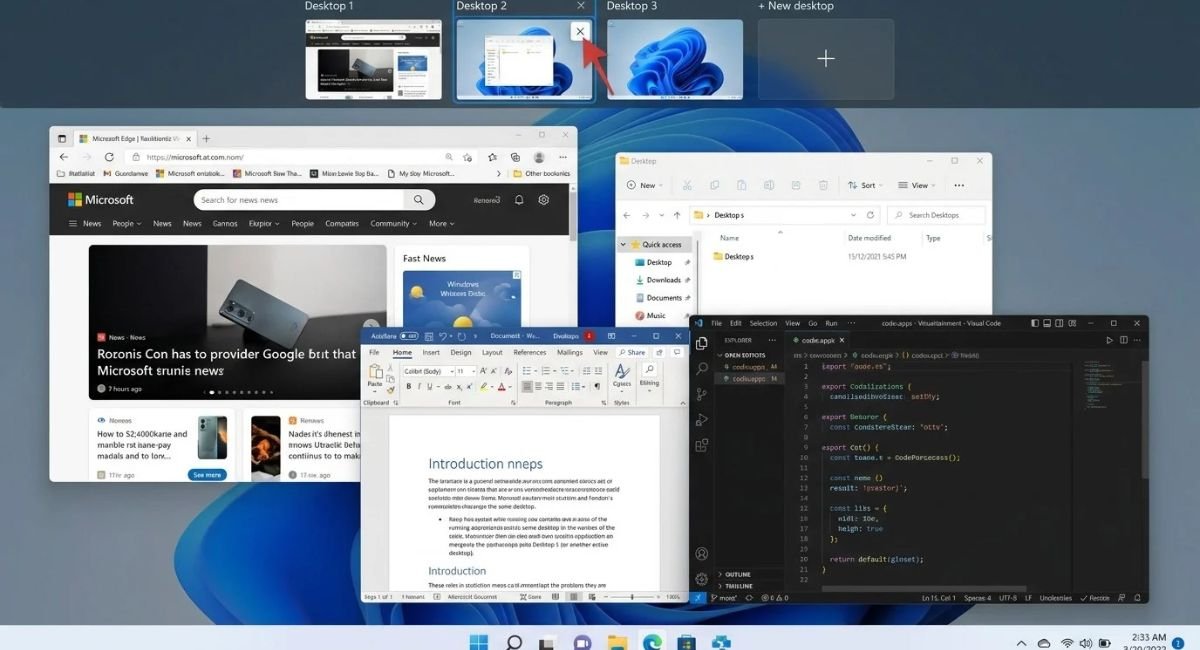
The important detail is what happens afterward. Closing a workspace doesn’t automatically close its applications. Windows moves the open windows on another desktop instead. This behavior makes it safer to clean up temporary workspaces after completing a task.
What Happens to Apps When You Close a Desktop?
Suppose you finish a temporary research workspace containing a browser and document. When you close that desktop, Windows moves those windows to another available desktop. In other words, close the current desktop doesn’t mean close the apps. Your work remains open.
Windows 11 Virtual Desktops Tips, Limits, and Common Mistakes
The biggest mistake is creating too many desktops. More workspaces don’t automatically mean better organization. If every small task receives its own desktop, switching becomes harder and the system loses its simplicity. Start with two or three spaces and expand only when your desktop workflow genuinely needs them.
Another common mistake is mixing unrelated tasks inside one workspace. A distraction-free workspace should have a clear purpose. Keep a focus workspace clean, use a reference workspace for supporting material, and reserve a scratch workspace for temporary tasks that don’t deserve permanent space.
A Practical Windows 11 Home Office Setup
A simple Windows 11 home office setup might use Work, Meetings, Research, and Personal desktops. Work contains your main documents. Meetings holds communication tools. Research stores browsers and reference files. Personal remains separate. This creates useful work/personal setup boundaries without adding another monitor.
Final Thoughts
A good Windows 11 Virtual Desktops Guide should go beyond explaining where the New desktop button sits. The real value comes from designing useful spaces around your daily tasks. Start small, give each desktop a purpose, and use shortcuts for faster navigation.
Once your setup feels natural, Windows 11 multitasking becomes far less chaotic. Combine virtual desktops with Snap Layouts, sensible taskbar behavior, and keyboard shortcuts. With the right desktop organization, your PC can feel less like a crowded desk and more like a well-arranged office.
Frequently Asked Questions
Are Virtual Desktops Available in Windows 11?
Yes. Windows 11 includes multiple desktop functionality through Task View. You can create, switch, rename, customize, and close desktops using the interface or supported shortcuts.
How Many Virtual Desktops Can I Create in Windows 11?
Windows supports multiple desktops, although Microsoft documentation does not present a simple everyday limit as the main feature specification. In practice, the useful limit depends more on how many workspaces you can comfortably organize.
Can I Have Different Wallpapers on Each Desktop?
Yes. Windows 11 supports different picture backgrounds for individual desktops. Microsoft notes that slideshow backgrounds aren’t supported for multiple-desktop customization.
Does Closing a Virtual Desktop Close My Apps?
No. Closing a desktop doesn’t automatically close the applications running there. Windows moves their open windows to another available desktop.
Can I Move an App From One Virtual Desktop to Another?
Yes. Task View lets you move application windows between desktops using drag and drop. You can also use the Move to option where available.