Introduction
Whether you are buying new hardware, installing a game, or fixing a Windows problem, knowing your computer’s hardware is important. Learning How to Check PC Specifications in Windows helps you quickly find details about your processor, RAM, storage, graphics card, and Windows version. You do not need third-party software for most checks because Windows includes several useful built-in tools. You can use Settings for basic details, while System Information provides deeper hardware information.
Task Manager also shows your components alongside current performance data. In this guide, you will learn how to check PC specs, identify important PC hardware, find system information, and understand which specifications matter most for upgrades, gaming, troubleshooting, and everyday computer use.
Why Should You Check Your PC Specs?
Your computer contains many hardware components, and each one affects how Windows and your applications work. Checking your PC specifications helps you understand what is inside your computer. You can find the processor, installed RAM, storage, GPU, Windows edition, and other device information. This becomes especially useful when your computer feels slow or an application does not work correctly.
You should also check your computer specifications before buying new hardware. A new RAM module, SSD, or graphics card may not work with every computer. Knowing your system model, motherboard model, and system type can help you avoid incompatible parts. It also helps when you need the correct device drivers or want to compare your computer with software requirements.
What PC Specifications Should You Check?
Different tasks require different information. Gamers usually care about the CPU, GPU, RAM, and storage. Someone troubleshooting Windows may need the Windows version, system type, BIOS version, and driver information. A user planning a hardware upgrade may need deeper information about the motherboard and existing components.
| Specification | What It Tells You | Why It Matters |
|---|---|---|
| Processor | CPU model and capabilities | Affects general performance |
| RAM | Installed memory | Helps with multitasking |
| SSD/HDD | Storage type and capacity | Affects storage and loading speed |
| GPU | Graphics processor | Important for games and graphics |
| Motherboard | Main hardware board | Important for upgrades |
| BIOS | Firmware information | Useful for hardware compatibility |
| System type | 32-bit or 64-bit | Affects software compatibility |
| Windows version | Installed Windows release | Important for support and updates |
How to Check PC Specs in Windows 11
Windows provides several ways to how to check PC specs in Windows 11 without third-party software. The easiest options include Windows Settings, System Information, Task Manager, Command Prompt, PowerShell, and the DirectX Diagnostic Tool. Each tool shows a different level of detail.
For a quick overview, Windows Settings is usually enough. If you need deeper computer hardware information, System Information is better. Task Manager is useful when you want to see specifications alongside real-time hardware performance. Command-line tools can provide even more technical details.
How to Find Basic Computer Specifications
If you only need your processor, RAM, Windows version, and system type, start with Windows Settings. This method is fast and beginner-friendly. It is also useful when someone asks you to provide your basic computer specs for technical support.
Windows 10 users can follow a similar process. The layout may look slightly different, but the same core information is available. Therefore, the basic process works for both Windows 11 PC specs and Windows 10 PC specs.
Check PC Specifications Using Settings
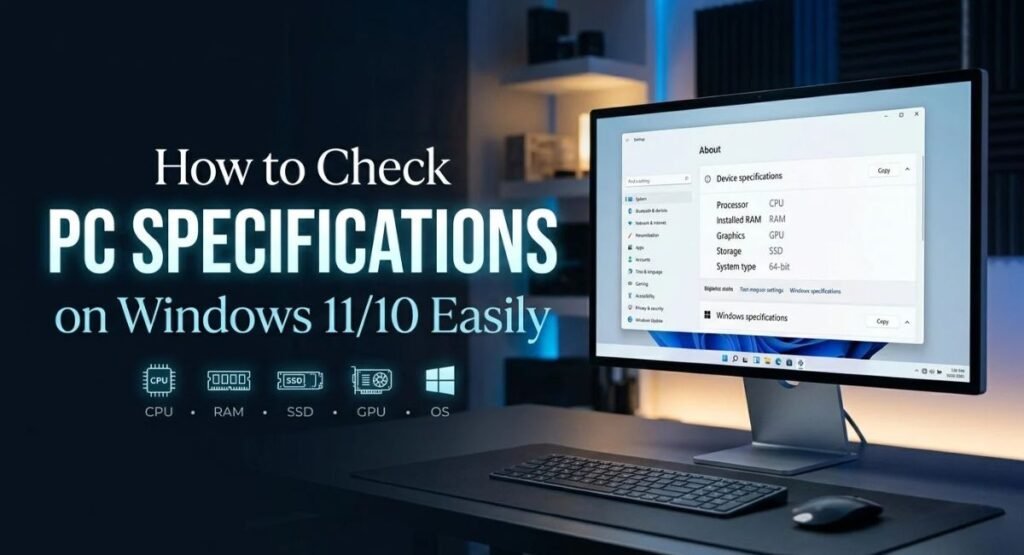
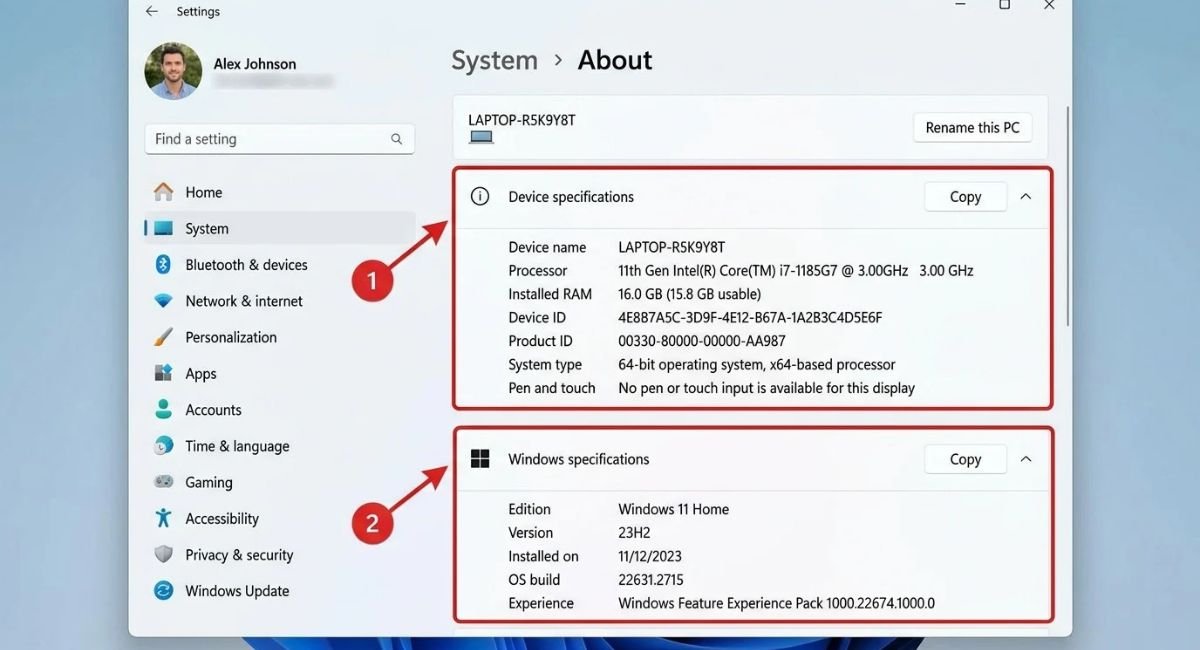
Windows Settings is the simplest place to check PC specifications using Settings. It provides basic device information without requiring commands or advanced tools. You can quickly see your processor, installed RAM, device name, Windows edition, and system type.
Go to:
Settings > System > About
The About page separates information into device and Windows specifications. Under Device specifications, you can see the processor and installed RAM. You can also identify whether your computer uses a 32-bit or 64-bit operating system. Under Windows specifications, you can see the Windows version and Windows edition.
Check Windows Version and System Type
Your system type tells you whether Windows is 32-bit or 64-bit. Most modern computers use 64-bit Windows. This matters because many modern applications and drivers are designed for 64-bit systems.
You can also check Windows version information from the About page. This can help when troubleshooting Windows problems or checking whether a feature is available on your computer. It is also useful when contacting technical support or downloading software with specific Windows requirements.
View Detailed PC Specs with System Information
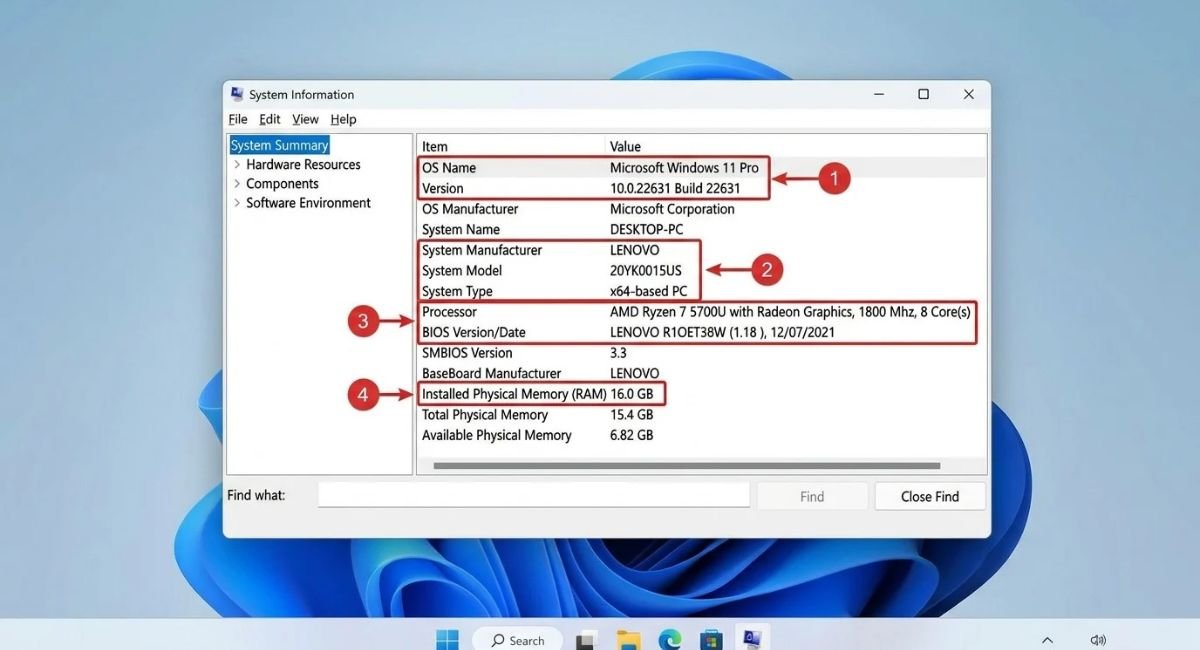
Windows includes a powerful utility called System Information. It provides far more details than the standard Settings page. You can view detailed PC specs such as the manufacturer, system model, processor, BIOS information, installed memory, Windows configuration, and hardware resources.
You can open this tool by searching for System Information in Windows. You can also open the Run dialog with Windows + R, type msinfo32, and press Enter. This makes it easy to use msinfo32 to view system information when you need deeper technical details.
How to Open System Information
The System Information window contains several categories. System Summary provides the most important information in one place. You can find the operating system, processor, BIOS version, system manufacturer, system model, and installed physical memory.
This tool is especially helpful when you need to check system information for troubleshooting. It can reveal details that are not visible in Windows Settings. Support technicians can use this information to determine the exact configuration of a computer before suggesting a fix.
Find Motherboard and BIOS Details
System Information can help you check motherboard model and identify important firmware information. The motherboard is the central circuit board that connects major PC hardware components. Its model can determine which processors, RAM types, storage devices, and expansion cards your computer supports.
The BIOS or UEFI firmware is also important. You can check BIOS version information before installing a firmware update. Never install a BIOS update simply because a newer version exists. The correct update depends on the exact motherboard or computer model.
Check CPU, RAM, Disk, and GPU in Task Manager
Task Manager is another convenient way to check PC specs using Task Manager. It is especially useful because it combines hardware information with current performance data. You can see your processor, memory, disk, network, and graphics processor from one interface.
Press Ctrl + Shift + Esc to open Task Manager. Select the Performance tab. You can then select CPU, Memory, Disk, Ethernet or Wi-Fi, and GPU. This lets you view hardware performance while Windows is running. It can also help you find a component that is causing a slowdown.

Check Your CPU and RAM
The CPU section shows your processor model and other CPU specifications. Depending on the processor, Task Manager may show base speed, current speed, cores, logical processors, cache, and utilization. These details help you understand the processing power of your computer.
The Memory section shows your total RAM and current memory usage. You can check installed RAM and see how much memory Windows is currently using. High memory usage does not always mean your RAM is faulty. Heavy applications can simply consume more memory.
Check Your GPU and Disk
The GPU section lets you check GPU information without opening another application. You can see the graphics processor name and monitor its current usage. This is useful for gaming, video editing, and graphics troubleshooting.
The Disk section shows storage activity and often identifies whether the drive is an SSD or HDD. You can check disk usage while opening applications or transferring files. High disk activity can sometimes explain slow computer performance.
Check PC Specs Using Command Prompt and PowerShell
Command Prompt and PowerShell provide another way to check PC specs using Command Prompt. These tools are useful when you want information quickly or need to troubleshoot a computer remotely. They are also helpful for advanced users who prefer commands over graphical menus.
Windows Terminal can host both Command Prompt and PowerShell. The Windows Terminal application does not replace these tools. Instead, it provides a modern interface for working with them. You can use built-in commands to inspect Windows and computer hardware information.
Check PC Specifications with Command Prompt
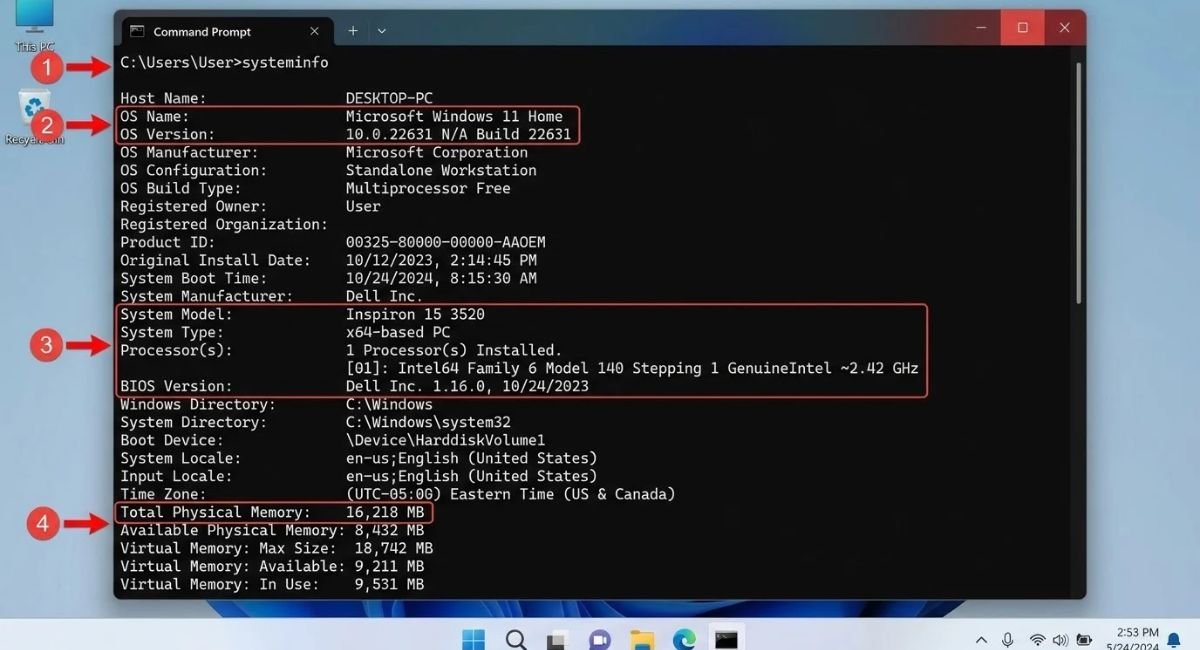
The systeminfo command provides a useful overview of your computer. Open Command Prompt and enter systeminfo. Windows will display information about the operating system, system model, processor, memory, BIOS, Windows installation, and network configuration.
You can use systeminfo command when you need a quick technical report. It is particularly useful during troubleshooting because it gathers several important details in one place. You can also copy the results and share them with a support technician.
Check Hardware Details with PowerShell
PowerShell provides more flexible options for retrieving hardware details. It can query information about processors, operating systems, memory, graphics hardware, and other components. This makes it valuable for advanced troubleshooting and system administration.
PowerShell is also useful when managing several computers. Instead of opening multiple windows manually, an administrator can use commands to collect similar information from many systems. For everyday users, however, Settings and Task Manager are usually easier.
Use DirectX Diagnostic Tool to Check Hardware
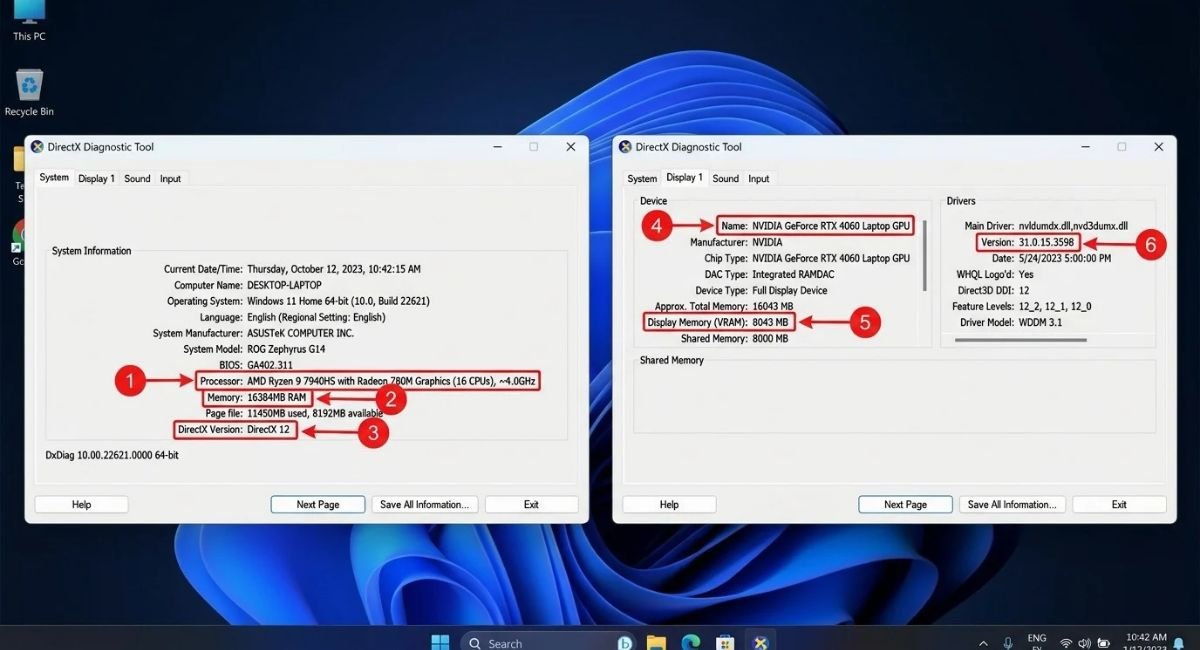
The DirectX Diagnostic Tool is commonly known as DxDiag. It is especially useful when you need to check graphics card or audio information. You can open it by pressing Windows + R, entering dxdiag, and pressing Enter.
The tool contains System, Display, Sound, and Input sections. The System tab provides basic Windows and hardware information. The Display tab provides important graphics information. Sound sections can help identify audio devices and related driver information.
Check Graphics and Display Information
Gamers can use DxDiag to check GPU performance and identify the installed graphics hardware. The Display section can show the GPU name, display memory, driver details, and DirectX information. This can help when comparing your computer with a game’s requirements.
DxDiag is also useful for troubleshooting graphics problems. If a game crashes or displays visual glitches, the graphics driver and hardware information can help identify possible causes. You can also save a DxDiag report and share it with technical support.
How to Understand Your PC Specifications
Finding your specifications is only the first step. You also need to understand what the numbers mean. A processor with more cores may handle demanding workloads better. More RAM can improve multitasking. An SSD can make Windows and applications feel much faster than an older hard drive.
The most important specification depends on what you do. A gaming computer needs strong graphics hardware. An office computer may benefit more from adequate RAM and fast storage. A workstation for video editing may need a powerful processor, plenty of memory, a capable GPU, and fast storage.
What Does CPU Mean?
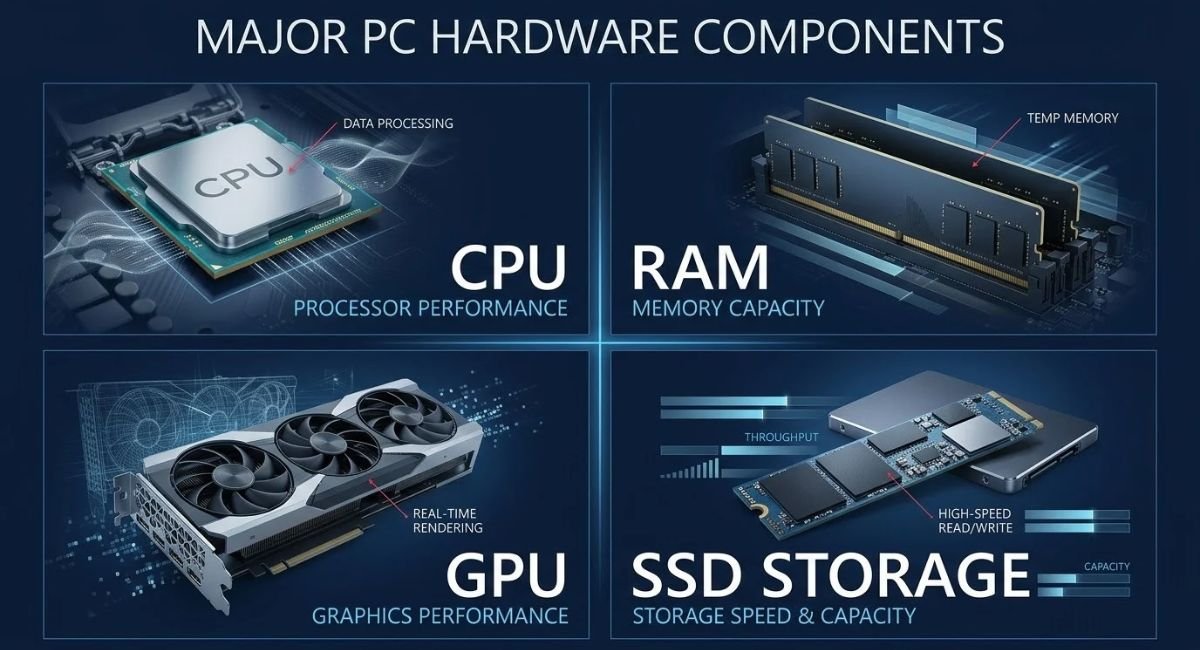
The CPU is the main processor inside your computer. It handles instructions from Windows and applications. When you check processor details, look at the processor family, generation, cores, threads, and other available specifications.
Clock speed matters, but it does not tell the whole story. Two processors can have similar clock speeds but deliver different performance. Processor architecture, core count, cache, generation, and power design can all affect computer performance.
How Much RAM Do You Have?
RAM is temporary working memory. Windows and applications use it while they are running. When you check CPU and RAM, remember that installed RAM is not the same as currently available RAM.
| RAM Capacity | Typical Use |
|---|---|
| 4 GB | Basic tasks and older systems |
| 8 GB | Web browsing and office work |
| 16 GB | Gaming and general multitasking |
| 32 GB | Heavy multitasking and creative work |
| 64 GB or more | Professional workloads |
These are general guidelines rather than strict rules. Modern software can require more memory. Your workload matters more than a single RAM number.
What Does GPU Mean?
A GPU is responsible for graphics processing. It can be integrated into the processor or installed as a dedicated graphics card. Integrated graphics are suitable for many everyday tasks. Dedicated GPUs are generally better for demanding games, 3D applications, and professional graphics workloads.
When you check graphics card information, look beyond the GPU name. Video memory, architecture, power requirements, and driver support also matter. A newer GPU is not automatically the best choice for every computer.
What Do SSD and HDD Mean?
An SSD and hard drive both store your files and applications. However, an SSD uses flash memory while a traditional hard drive uses spinning magnetic disks. SSDs generally provide much faster access times and make Windows feel more responsive.
Storage capacity also matters. A 512 GB SSD may provide enough space for many users. A larger drive can be useful if you store large games, videos, photos, or professional projects.
Which PC Specs Matter Most for Performance and Upgrades?
Not every specification has equal importance. The right hardware depends on your goal. If your computer feels slow during normal use, RAM and storage may deserve attention. If games run poorly, the GPU and CPU become more important.
Before buying anything, you should check PC before upgrading. Your motherboard, power supply, case, cooling system, and available slots can all affect compatibility. Checking one component alone is not enough for a safe hardware upgrade.
| Goal | Most Important Specifications |
|---|---|
| Everyday use | CPU, RAM, SSD |
| Office work | CPU, RAM, storage |
| Gaming | GPU, CPU, RAM |
| Video editing | CPU, GPU, RAM, SSD |
| Storage upgrade | Drive type, interface, capacity |
| RAM upgrade | Motherboard support and RAM type |
| CPU upgrade | Motherboard chipset and BIOS |
| GPU upgrade | Power supply, case space, motherboard |
Which Specs Matter for Gaming?
Gaming performance depends heavily on the graphics card. The processor also matters, especially in CPU-heavy games. RAM can affect multitasking and some modern games. Storage affects loading times rather than raw graphical performance in most situations.
If you want to check if PC can run a game, compare your CPU, GPU, RAM, and operating system with the game’s minimum and recommended requirements. Do not rely only on the amount of RAM. A computer can have plenty of memory but still have an unsuitable graphics card.
Which Specs Matter for Upgrading?
Hardware upgrades require careful compatibility checks. Before replacing RAM, confirm the supported memory type and maximum capacity. Before upgrading a CPU, check the motherboard socket, chipset, BIOS support, and power requirements.
Storage upgrades also need attention. Your computer may support SATA drives, M.2 SSDs, NVMe drives, or a combination of these. Checking the motherboard documentation before buying hardware can prevent an expensive mistake.
What to Do After Checking Your PC Specs
Once you know your hardware, use that information to make better decisions. You can compare your system specifications with software requirements, identify outdated hardware, download the correct drivers, or decide whether an upgrade is worthwhile.
Your specifications can also help you troubleshoot computer problems. Knowing your exact GPU can help you find the correct driver. Knowing your RAM capacity can help explain memory-related slowdowns. Knowing your storage type can help identify whether an old hard drive is limiting performance.
Save Your PC Specifications for Future Use
It is useful to keep a record of your important specifications. You can save screenshots or write down your CPU, RAM, GPU, storage, motherboard model, BIOS version, and Windows version. This saves time when contacting support later.
A saved hardware record is also helpful before major changes. If you install new drivers or perform an upgrade, you can compare the system before and after the change. This gives you a clearer picture of what actually improved PC performance.
Check Hardware Compatibility Before Upgrading
Always verify compatibility before purchasing hardware. Check the manufacturer’s specifications for your motherboard, computer model, power supply, and existing components. This is particularly important for processors, RAM, graphics cards, and M.2 SSDs.
The same principle applies to software and drivers. Before you update device drivers, identify the exact hardware model. Installing random or incorrect hardware drivers can cause instability. When possible, download drivers from the computer or component manufacturer’s official website.
Final Thoughts
Learning how to check PC specifications is a useful Windows skill. You do not need expensive software to identify your computer’s main hardware. Windows already provides several reliable tools for checking processors, RAM, storage, graphics hardware, Windows information, and system details.
Start with Settings when you need a quick overview. Use System Information for deeper specifications. Task Manager is ideal for monitoring real-time hardware performance. Command Prompt, PowerShell, and DxDiag provide additional information when you need more technical details.
Once you understand your PC hardware, you can make smarter upgrade decisions, install compatible software, choose the right drivers, and troubleshoot performance issues with greater confidence.
Frequently Asked Questions
How do I check my PC specifications in Windows 11?
The easiest method is Windows Settings. Go to Settings > System > About to see your processor, installed RAM, Windows edition, Windows version, and system type. For deeper information, open System Information with msinfo32 or use Task Manager.
How do I find my CPU and RAM information?
Open Settings and go to Settings > System > About for basic information. You can also open Task Manager and select Performance. The CPU and Memory sections provide additional information about your processor and RAM.
How do I check what graphics card I have?
Open Task Manager with Ctrl + Shift + Esc and select Performance. Choose GPU to see your graphics processor. You can also open the DirectX Diagnostic Tool with dxdiag to find graphics and driver information.
How do I check my motherboard model in Windows?
System Information can provide motherboard details. Press Windows + R, enter msinfo32, and press Enter. Look for the system manufacturer and system model information. Some computers may show more motherboard details than others.
Can I check my PC specifications without installing software?
Yes. Windows already includes several tools for this purpose. Windows Settings, System Information, Task Manager, Command Prompt, PowerShell, and DxDiag can all provide useful information without installing third-party software.