Introduction:
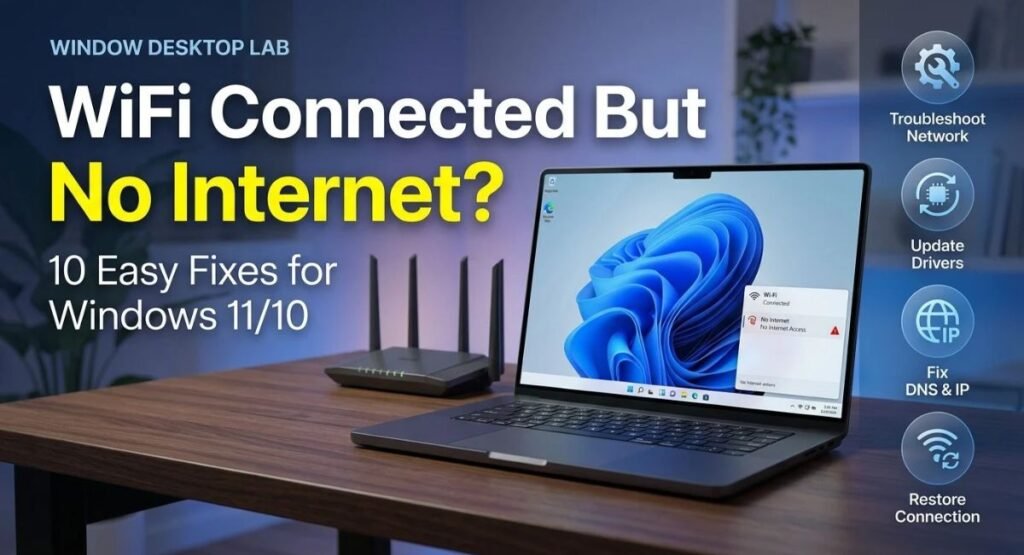
When your Wi-Fi shows connected but websites refuse to load, it can be frustrating. The WiFi Connected But No Internet in Windows problem can occur on Windows 11 and Windows 10 for several reasons, including router issues, incorrect DNS settings, outdated network drivers, or temporary internet outages. Sometimes, your Wi-Fi connection works perfectly, but your computer cannot reach the internet.
The good news is that you can often fix this issue without professional help. In this guide, you will learn simple, practical ways to restore internet access, troubleshoot network settings, and resolve common connection errors. Follow each solution step by step to get your internet working again.
Check If the Internet Is Down on Other Devices
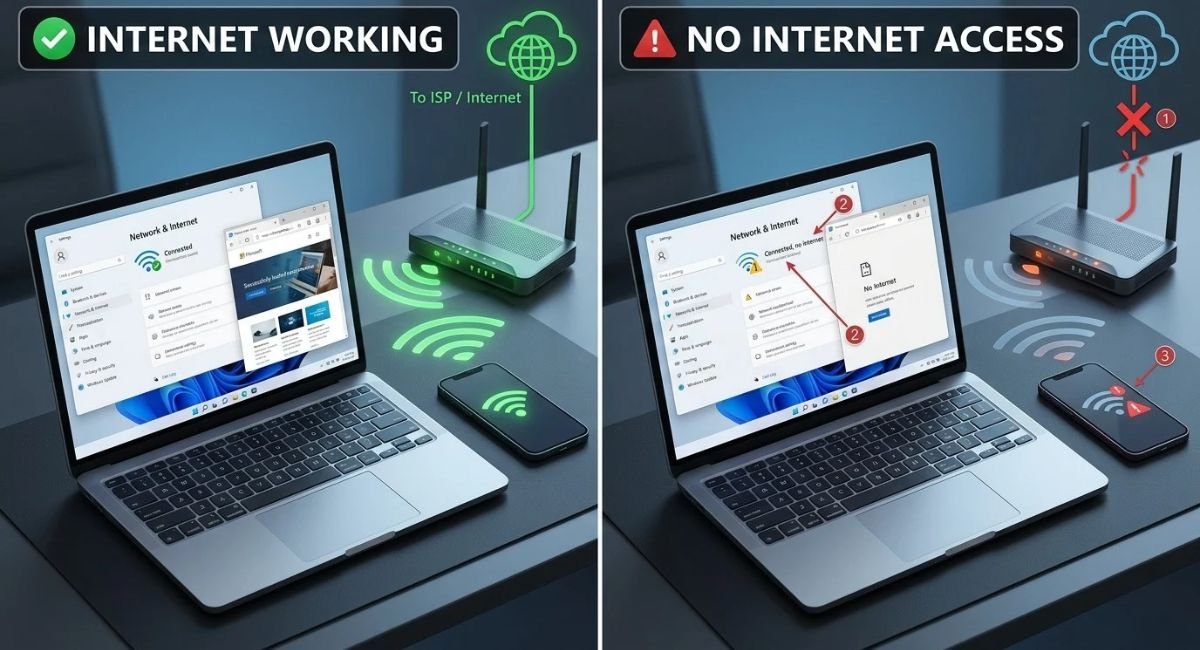
First, connect your phone or another computer to the same Wi-Fi network. Open a few websites to check whether the internet works on those devices. This simple test helps identify whether the issue affects your entire network or just one Windows PC.
| Test result | Likely cause | What to try |
|---|---|---|
| No device can access the internet | Router, modem, or ISP issue | Check for an outage and restart network equipment |
| Only one Windows PC has a problem | Windows settings or driver issue | Continue with the fixes below |
| Some websites work while others fail | DNS, browser, or website issue | Test another browser |
| Wi-Fi disconnects repeatedly | Signal or adapter issue | Check signal strength and wireless settings |
If every device has the same problem, contact your internet provider if restarting your equipment does not help. If only your computer is affected, continue to the next solution.
Restart Your Router, Modem, and Windows PC
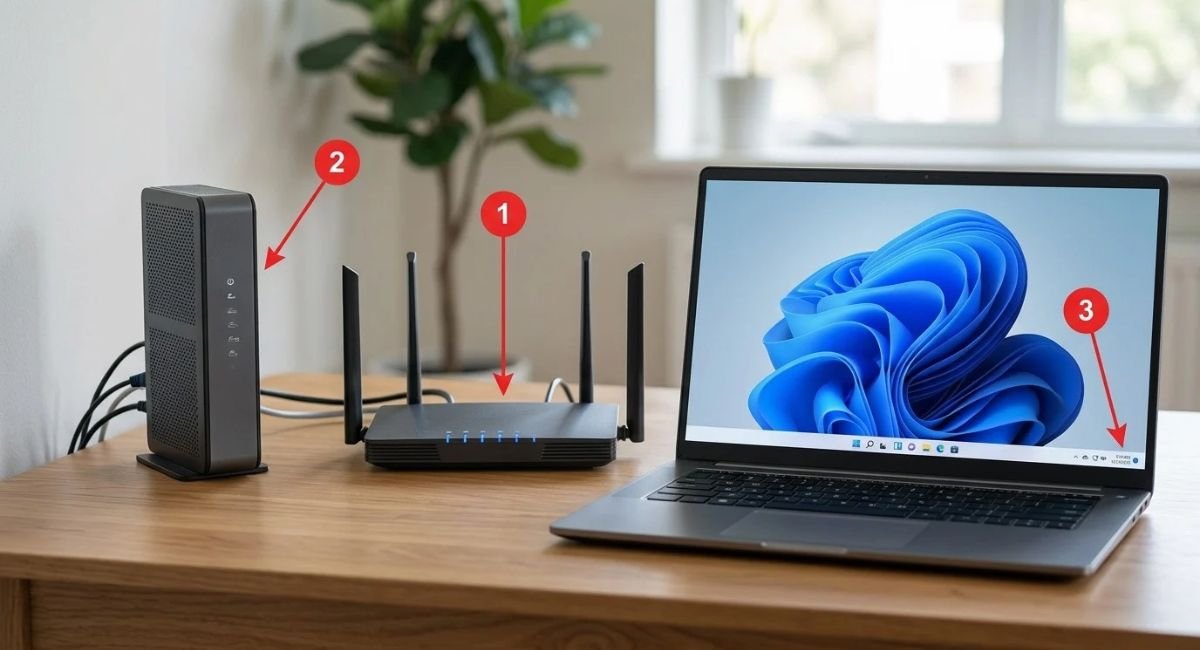
A temporary router or modem error can interrupt internet access even when your PC remains connected to Wi-Fi. Restarting your network equipment can establish a fresh connection with your internet service provider and resolve temporary connection problems.
Turn off your router and modem, then unplug their power cables. Wait approximately 30 seconds before reconnecting them. Allow the equipment a few minutes to restart fully, then restart your computer and test your connection again.
Forget and Reconnect to Your Wi-Fi Network
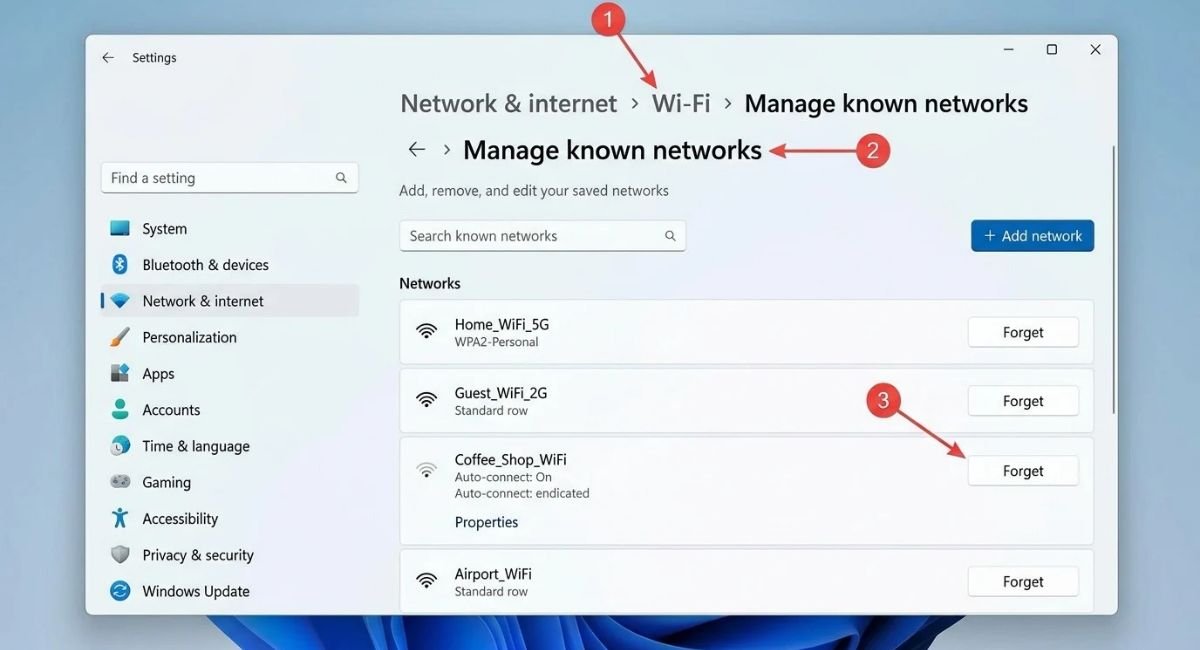
Windows may retain an outdated wireless profile or incorrect connection details. Forgetting the network removes its saved profile, allowing you to connect again with fresh settings. Make sure you know your Wi-Fi password before using this method.
Go to:
Settings > Network & internet > Wi-Fi > Manage known networks
Select your Wi-Fi network and choose Forget. Return to the available networks, select the same network, and enter its password. Check whether the connection now provides internet access.
Turn Off VPN, Proxy, and Conflicting Security Software
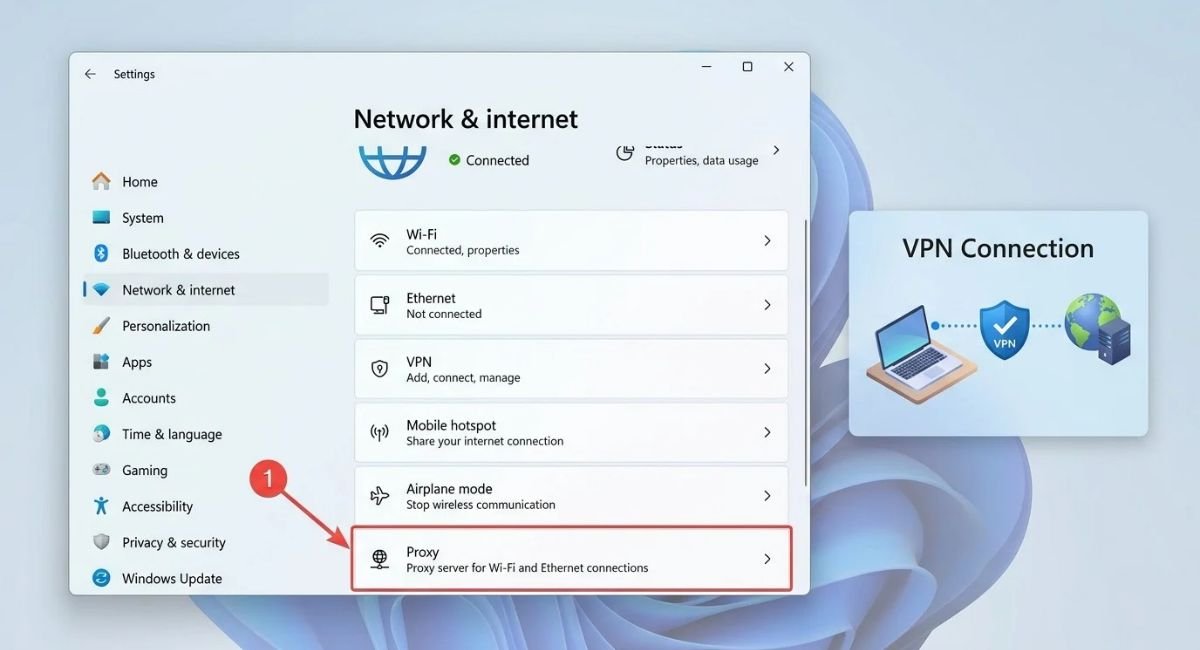
A VPN or proxy can sometimes interfere with internet access when its server, configuration, or connection fails. Temporarily disconnect your VPN and check whether websites open normally. If the connection starts working, inspect the VPN settings or contact its provider.
Go to:
Settings > Network & internet > Proxy
Check whether a manual proxy is enabled unexpectedly. Turn it off temporarily if you do not need it, then test your connection again. If security software appears to be blocking traffic, review its firewall settings rather than leaving protection disabled.
Run the Windows Network and Internet Troubleshooter
Windows includes troubleshooting tools that can identify common connection problems. On Windows 11, the Get Help app provides an automated network troubleshooter. It can detect certain connectivity issues and suggest or apply relevant fixes.
Go to:
Settings > System > Troubleshoot > Other troubleshooters
Find the network-related troubleshooter if it is available on your Windows version, then select Run. On Windows 11, you can also open the Get Help app and search for network or internet troubleshooting. Follow the on-screen instructions and test the connection afterward.
For additional guidance, see Microsoft’s official Wi-Fi troubleshooting guide.
Fix IP Address and DNS Server Problems
Windows needs a valid IP address to communicate with your router, while DNS translates website names into IP addresses. Incorrect network configuration or DNS problems can cause WiFi connected but no internet errors even when the wireless signal is strong.
Go to:
Settings > Network & internet > Wi-Fi > Hardware properties
Check your network details if your Windows version provides them. For most home networks, IP and DNS settings should be automatic unless your network administrator or internet provider has supplied specific settings.
Go to:
Settings > Network & internet > Advanced network settings > More network adapter options
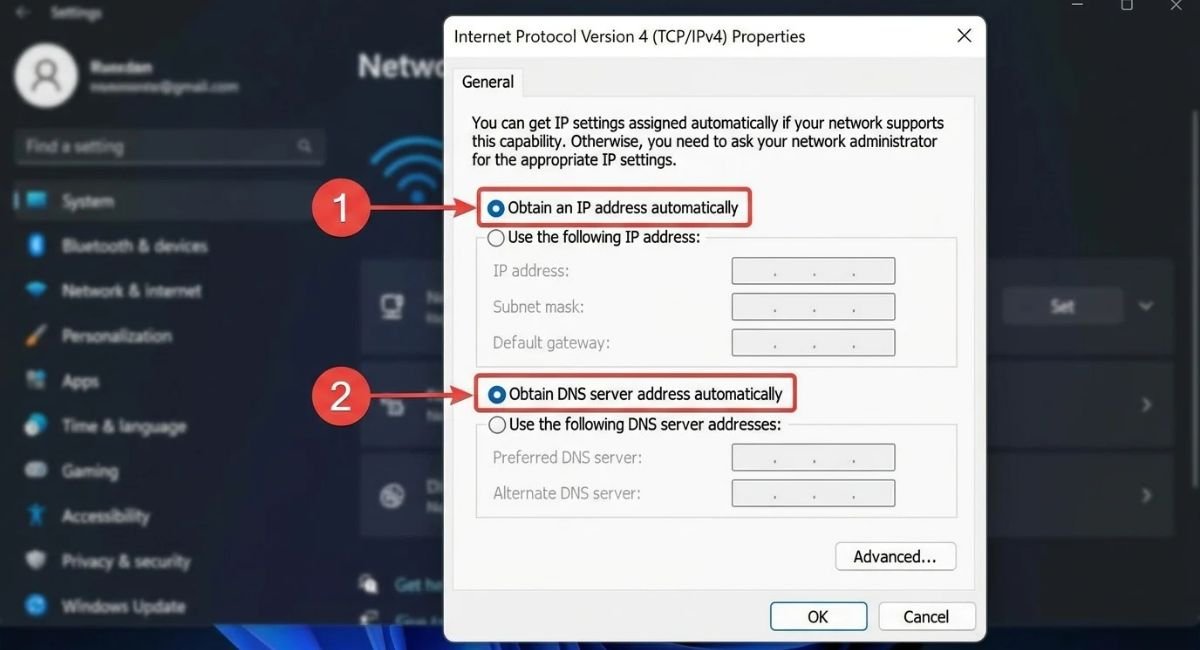
Open your Wi-Fi adapter’s properties, select Internet Protocol Version 4 (TCP/IPv4), and choose Properties. If your network uses automatic configuration, select Obtain an IP address automatically and Obtain DNS server address automatically. Save the changes and reconnect.
Reset Network Settings Using Command Prompt
If basic fixes fail, resetting network components may repair damaged TCP/IP or Winsock settings. These commands can help with persistent network problems in Windows, but run them carefully and restart your computer when finished.
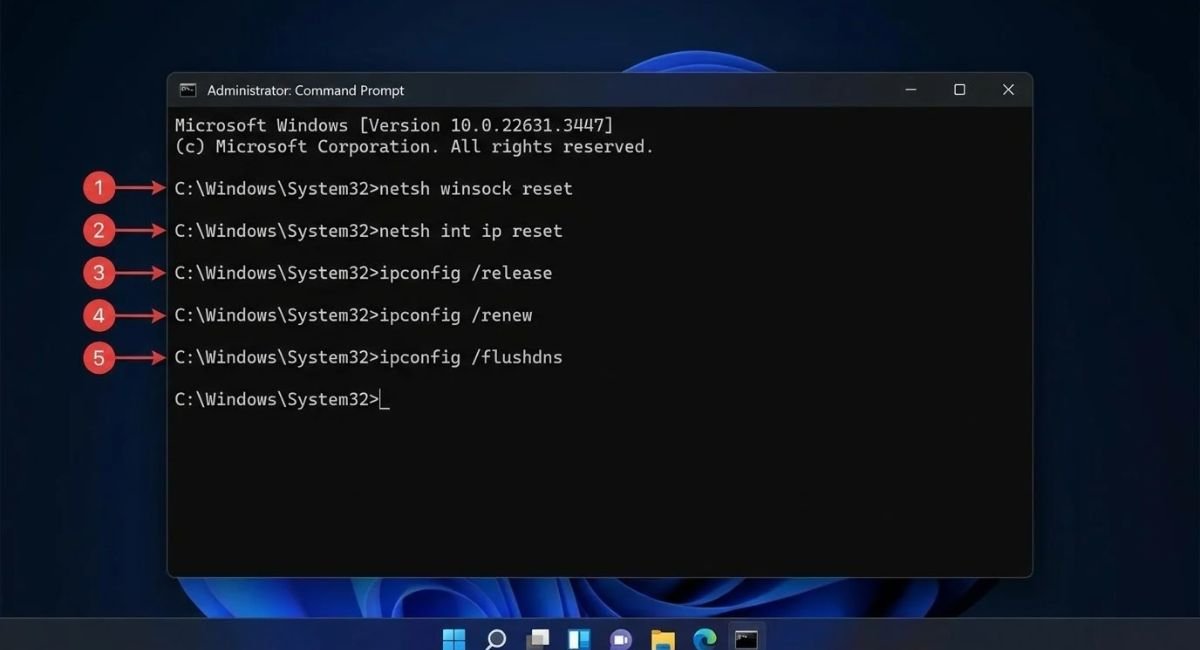
Search for Command Prompt, right-click it, and select Run as administrator. Approve the permission prompt, then enter each command separately in the order shown below.
netsh winsock reset
netsh int ip reset
ipconfig /release
ipconfig /renew
ipconfig /flushdns
Wait for each command to finish before entering the next one. Restart your PC and test the internet connection. If you use a manually configured IP address or specialized network settings, make sure you understand your configuration before resetting it.
Update or Reinstall Your Network Adapter Driver
An outdated, corrupted, or incompatible Wi-Fi driver can stop Windows from accessing the internet correctly. This can happen after a Windows update, driver change, or system error. Downloading the correct driver from your PC or adapter manufacturer’s official website is the safest approach.
Go to:
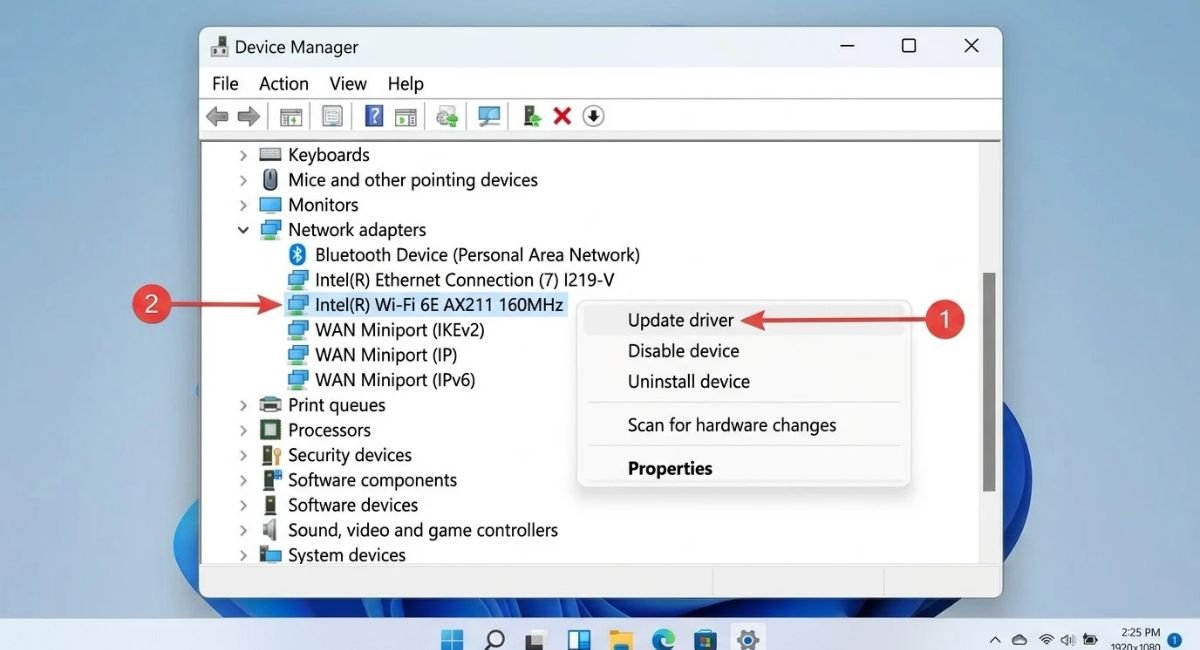
Device Manager > Network adapters
Right-click your wireless adapter and select Update driver. Follow the available options. If updating does not help, download a compatible driver from the manufacturer’s website before uninstalling the current one. You may need another device and a USB drive if your PC has no internet access.
After saving a suitable backup driver, you can uninstall the Wi-Fi adapter through Device Manager and restart your PC. Windows may reinstall a compatible driver automatically. If it does not, install the driver you downloaded.
Check Windows Network Settings and Data Limits
Incorrect connection settings can sometimes affect browsing, especially when a proxy, unusual IP configuration, or third-party network utility has changed them. Review your Wi-Fi settings and confirm that Airplane mode is off and Wi-Fi remains enabled.
Go to:
Settings > Network & internet
Check the Wi-Fi connection status and review any proxy or VPN settings that you use. A metered connection generally limits some background data usage; it does not normally disable internet access completely. If only one browser or application fails, test another browser before changing more network settings.
Go to:
Settings > Time & language > Date & time
Enable automatic time and time zone settings when appropriate. An incorrect system clock can cause certificate or sign-in errors on some websites. If you’re using public Wi-Fi, open a browser and check whether the network requires a sign-in page before providing internet access.
Perform a Network Reset or Reset Your Router
A Windows network reset removes and reinstalls network adapters and restores their settings to default values. Use it only after trying the earlier fixes because you may need to configure VPN software or other networking tools again.
Go to:
Settings > Network & internet > Advanced network settings > Network reset
On Windows 10, the path is generally Settings > Network & Internet > Status > Network reset. Select the reset option, confirm the action, and allow your computer to restart. Then reconnect to your Wi-Fi network and test internet access.
If other devices also cannot access the internet, the router or internet service may be responsible. Consider a router factory reset only if other troubleshooting fails and you have the details needed to configure it again. A factory reset can erase your Wi-Fi name, password, and provider settings.
Conclusion
Fixing WiFi connected but no internet problems is easier when you identify the cause before changing settings. Start by testing another device, restarting your router, and reconnecting to Wi-Fi. Then check DNS configuration, run network commands, and inspect your network adapter driver if needed.
If the issue continues, try a Windows network reset or contact your internet provider. For more guidance, use Microsoft’s Wi-Fi troubleshooting instructions and network settings guide. These resources provide additional help for diagnosing and resolving Windows connection problems.
Frequently Asked Questions
Why is WiFi connected but no internet on Windows 11?
This usually means your computer has joined the wireless network but cannot reach the internet. Common causes include an ISP outage, incorrect DNS settings, a faulty network driver, or a router problem. Test another device first to narrow down the cause.
Why does WiFi connected no internet Windows 10 happen?
Windows 10 can experience the same connection issues as Windows 11. Restart your router, reconnect to Wi-Fi, check proxy settings, and run the network commands described above. If the problem started after a driver update, check the manufacturer’s recommended driver.
Why am I connected to WiFi but cannot browse websites?
Your DNS settings, browser, proxy, firewall, or the website itself may be causing the problem. Try opening several websites in another browser. If no websites load, inspect your connection and DNS configuration before changing advanced settings.
Will a network reset delete my personal files?
No. A Windows network reset is not designed to delete personal documents, photos, or other personal files. However, it removes and reinstalls network adapters and resets related settings, so you may need to reconnect to Wi-Fi or reconfigure certain networking tools.
Should I change my DNS server to fix Wi-Fi problems?
Changing DNS may help when the current DNS server is unavailable or failing to resolve website names. However, it will not fix every connection problem. First check whether other devices can access the internet and whether your PC has a valid network configuration.