Inroduction
Bluetooth is useful for connecting wireless headphones, speakers, mice, keyboards, controllers, and other accessories to a Windows 11 PC. However, Bluetooth does not always work as expected. A device may refuse to connect, keep disconnecting, appear connected without sound, or Bluetooth may disappear from Windows completely.
The cause can be something simple, such as a low battery or pairing problem, but it can also be related to a Bluetooth driver, Windows setting, power management, wireless interference, or the Bluetooth adapter itself.
The best approach is to start with the simple checks and move to advanced fixes only when necessary. This guide explains how to troubleshoot the most common Bluetooth problems in Windows 11 without making unnecessary system changes.
Find the Bluetooth Problem First
If Bluetooth Not Working Before changing drivers or Windows settings, identify exactly what is going wrong. Different Bluetooth problems can require different solutions.
- Bluetooth is missing from Settings: Check Bluetooth settings and Device Manager.
- Your device does not appear: Check pairing mode and Bluetooth discovery.
- The device appears but will not connect: Remove it and pair it again.
- Headphones or speakers connect without sound: Check the Windows audio output.
- The microphone does not work: Check the selected input device and app permissions.
- Bluetooth keeps disconnecting: Check battery level, drivers, interference, and power management.
- Bluetooth stopped working after an update: Check Windows updates and whether driver rollback is available.
- Bluetooth is missing from Device Manager: Check the manufacturer’s drivers, wireless adapter, and hardware.
This quick diagnosis can save time because you can jump directly to the section that matches your problem instead of trying every fix.
Turn On Bluetooth and Check Airplane Mode
The first thing to check is whether Bluetooth is enabled. If Bluetooth is turned off or Airplane mode is enabled, your computer may not be able to connect to Bluetooth devices.
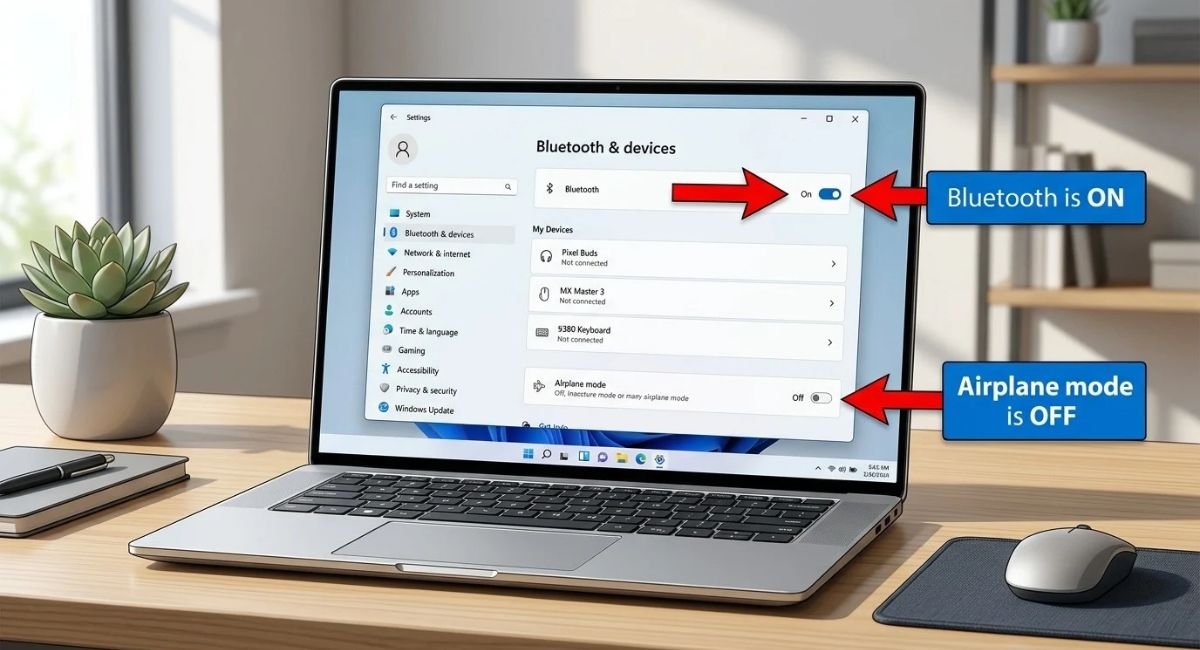
Press Windows + A to open Quick Settings and make sure Bluetooth is turned on.
You can also check it from:
Start → Settings → Bluetooth & devices
Make sure Bluetooth is enabled there as well.
Turn Off Airplane Mode
Airplane mode can disable wireless connections, including Bluetooth.
Go to:
Settings → Network & internet → Airplane mode
Make sure Airplane mode is turned off.
If both Wi-Fi and Bluetooth are unavailable, check whether your laptop has a physical wireless switch or a keyboard shortcut that controls wireless connectivity.
Some laptops use a function key with a wireless icon, while others use manufacturer-specific software to control wireless features.
Restart Your PC and Bluetooth Device
A simple restart can fix temporary Bluetooth problems without changing any system settings.
First, turn off the Bluetooth device you are trying to connect. If it has a removable battery or rechargeable battery, make sure it has enough power.
Then:
- Turn the Bluetooth device off.
- Wait a few seconds.
- Turn it back on.
- Put it into pairing mode if necessary.
- Restart your Windows 11 PC.
- Try connecting again.
Keep the Bluetooth device reasonably close to the computer while testing it.
If Bluetooth works after restarting but stops working again later, continue with the driver and power-management fixes below.
Remove the Bluetooth Device and Pair It Again
If Windows detects your Bluetooth device but cannot connect to it, the saved pairing may be causing the problem.
Go to:
Settings → Bluetooth & devices → Devices
Find the device and select the three-dot menu next to it. Choose Remove device.
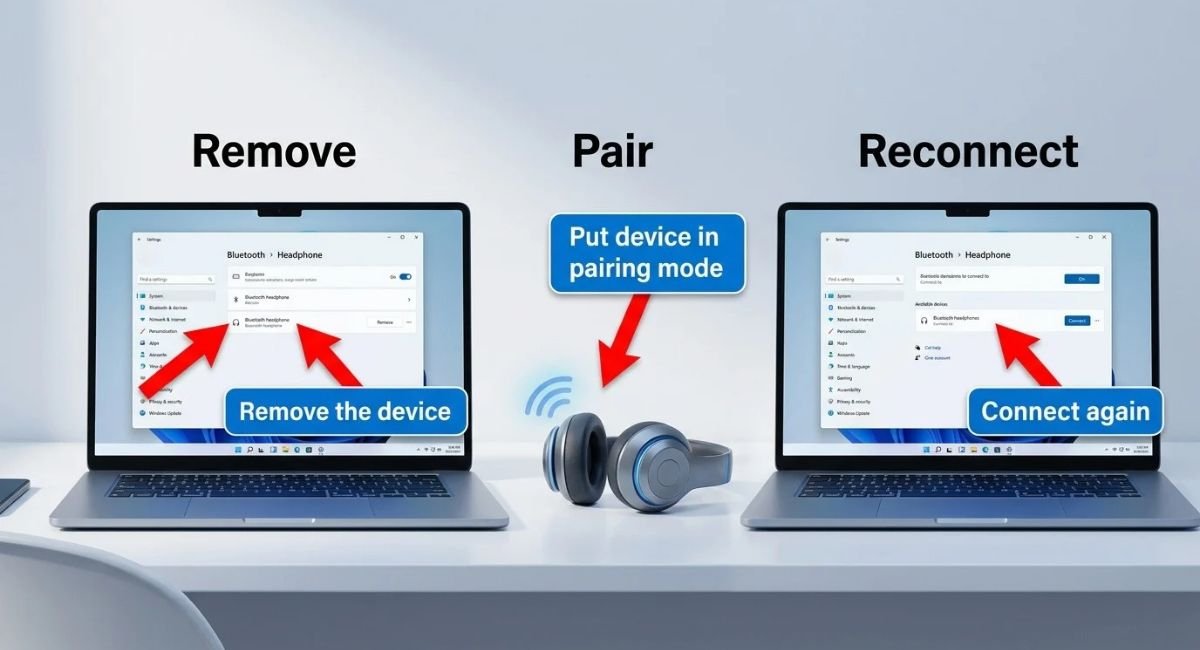
After removing it:
- Turn on the Bluetooth device.
- Put it into pairing mode.
- Select Add device in Windows.
- Choose Bluetooth.
- Select your device from the list.
- Complete the pairing process.
This is especially useful when a device worked previously but suddenly stopped connecting.
If the device does not appear at all, make sure it is actually in pairing mode. Simply turning on a Bluetooth headset, mouse, keyboard, or speaker does not always make it discoverable.
Run the Windows 11 Bluetooth Troubleshooter
Windows 11 provides Bluetooth troubleshooting through the Get Help app.
Open Start, search for Get Help, and follow the Bluetooth troubleshooting instructions.
The automated troubleshooting process can identify some common problems involving Bluetooth settings, drivers, and connectivity.
If it does not solve the problem, move on to the troubleshooting section that matches your specific symptom rather than repeatedly running the same troubleshooter.
Restart the Bluetooth Support Service
Windows uses the Bluetooth Support Service to help manage Bluetooth functionality. Restarting the service can help when Bluetooth is behaving unexpectedly.
Press:
Windows + R
Type:
services.msc
Press Enter.
Find Bluetooth Support Service in the list.
Right-click it and select Restart.
If the service is not running, select Start instead.
Afterward, try connecting your Bluetooth device again.
If the problem continues, the Bluetooth driver, adapter, or power-management settings may need attention.
Update the Bluetooth Driver
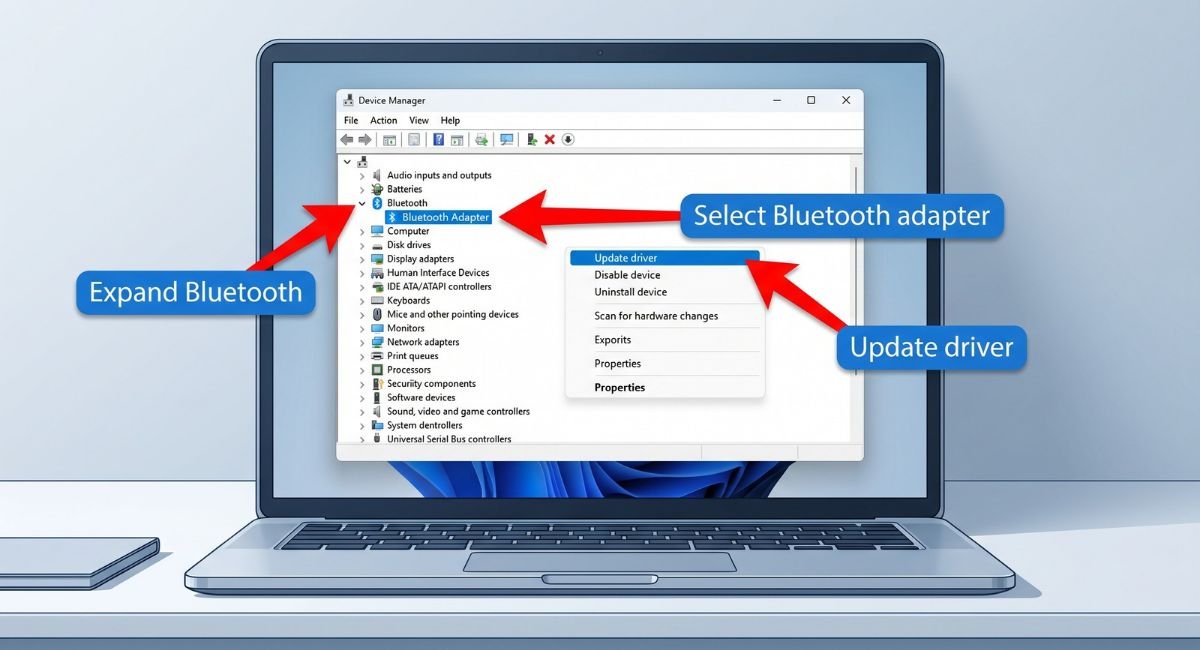
A Bluetooth driver allows Windows to communicate with the Bluetooth adapter. An outdated, damaged, or incompatible driver can cause connection and detection problems.
To check for a driver update:
- Right-click the Start button.
- Select Device Manager.
- Expand Bluetooth.
- Right-click your Bluetooth adapter.
- Select Update driver.
- Choose Search automatically for drivers.
The adapter may have a name containing Bluetooth, Radio, or the manufacturer’s name.
Restart your PC if Windows installs a new driver.
If Windows Cannot Find a New Driver
Windows may not always find the newest driver through Device Manager.
If no update is available, visit your PC manufacturer’s official support website and search for your exact computer model.
For example, if you have a Dell, HP, Lenovo, ASUS, Acer, or another manufacturer’s laptop, use the support page for that specific model.
The driver should match your computer model and the Windows version you are using. Avoid downloading Bluetooth drivers from unknown third-party websites.
Roll Back or Reinstall the Bluetooth Driver
If Bluetooth stopped working after a recent driver or Windows update, rolling back the driver can sometimes restore the previous working configuration.
Open:
Device Manager → Bluetooth → Bluetooth adapter → Properties → Driver
If Roll Back Driver is available, select it and follow the instructions.
Reinstall the Bluetooth Driver
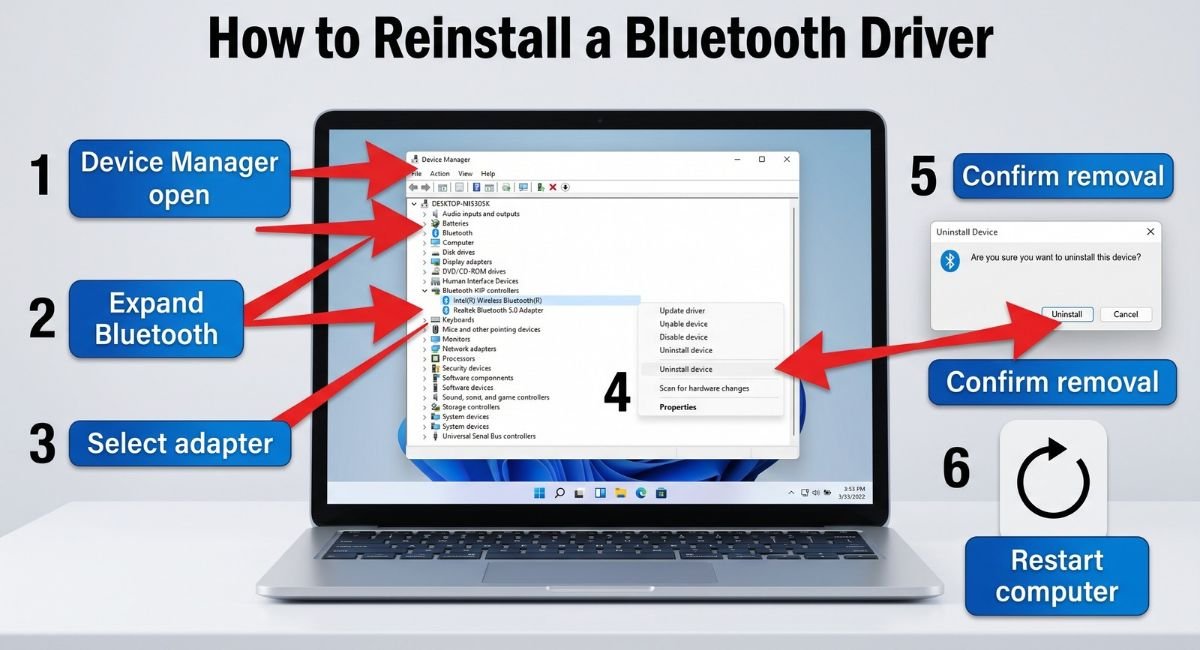
If updating or rolling back the driver does not help, you can reinstall it.
- Open Device Manager.
- Expand Bluetooth.
- Right-click the Bluetooth adapter.
- Select Uninstall device.
- Confirm the removal.
- Restart the computer.
Windows will normally attempt to reinstall the driver after restarting.
If the adapter does not return, open Device Manager and select:
Action → Scan for hardware changes
If Windows still cannot restore the adapter, install the correct Bluetooth driver from your PC manufacturer’s official support website.
Fix Bluetooth Missing From Windows 11 Settings
Sometimes Bluetooth disappears completely from the Windows 11 Settings app or Quick Settings.
First, restart the PC and make sure Airplane mode is turned off.
Then open Device Manager and check whether the Bluetooth adapter is listed.
If the adapter is present, try updating or reinstalling its driver.
If it is not present, continue with the next section.
Fix Bluetooth Missing From Device Manager
If Bluetooth is not listed in Device Manager, the problem may be more than a simple pairing issue.
Open Device Manager and check the following areas:
- Bluetooth
- Other devices
- Devices with a warning icon
- View → Show hidden devices
You can also select:
Action → Scan for hardware changes
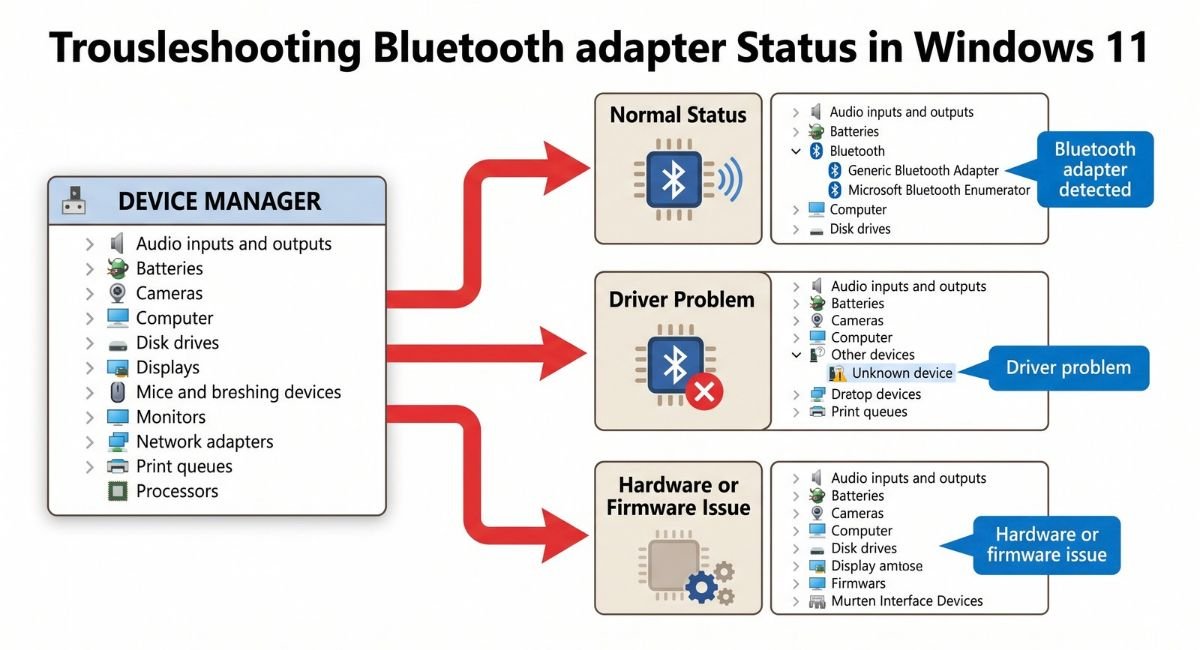
Different results can point to different causes:
- Bluetooth adapter is listed normally: The adapter is being detected, so driver or Windows settings may be involved.
- Unknown device or warning icon appears: A missing, damaged, or incompatible driver may be the cause.
- Bluetooth adapter is completely absent: Check manufacturer drivers, wireless hardware, BIOS/UEFI settings, and whether the PC actually includes Bluetooth hardware.
If the adapter appears after scanning, update its driver.
If it remains missing, visit the manufacturer’s support website and search for drivers for your exact PC model. Depending on the computer, you may need a Bluetooth, wireless, chipset, BIOS, UEFI, or firmware update.
Check Whether Your PC Has Bluetooth Hardware
Not every desktop computer includes built-in Bluetooth.
If you are using a desktop PC, check the computer’s specifications to confirm that Bluetooth hardware is installed.
If your PC does not have built-in Bluetooth, you may need a compatible USB Bluetooth adapter or another supported Bluetooth solution.
Fix Bluetooth Headphones and Speakers With No Sound
A Bluetooth device can show as connected while Windows is sending audio somewhere else.
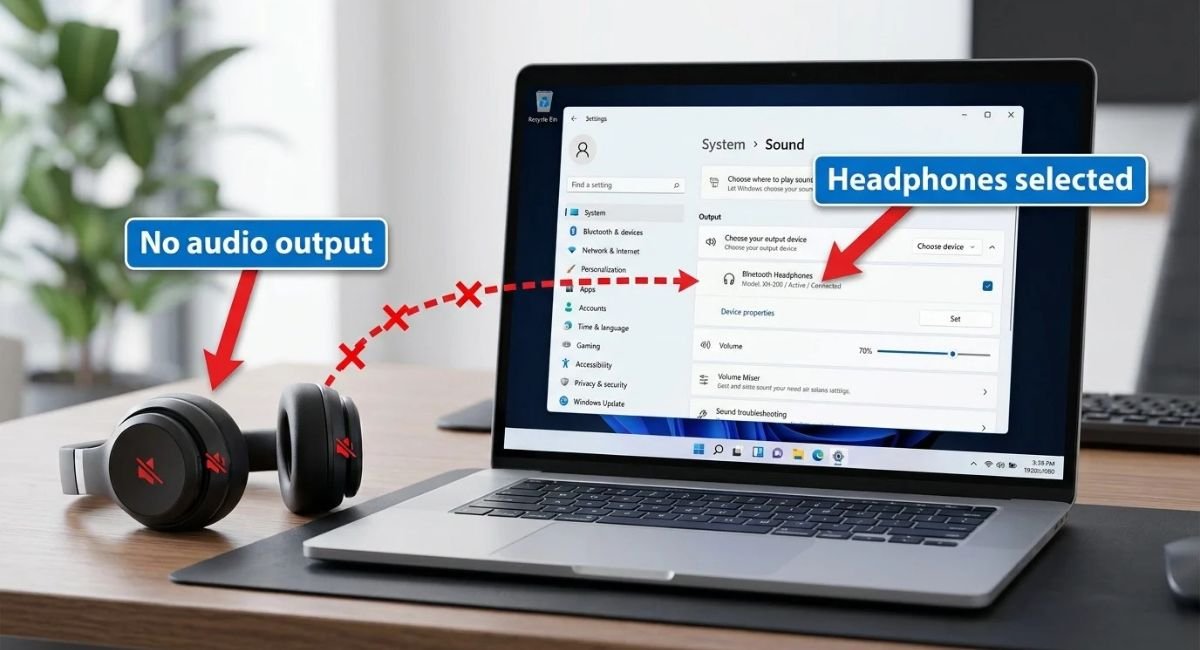
If your headphones or speaker are connected but you cannot hear anything, open:
Settings → System → Sound
Under Output, select your Bluetooth headphones or speaker.
You can also click the speaker icon on the Windows taskbar and select the correct output device.
If there is still no sound:
- Check the volume on the Bluetooth device.
- Check the Windows volume.
- Confirm that the Bluetooth device is selected as the output.
- Remove and re-pair the device.
- Check for Bluetooth driver updates.
If the headphones or speaker work normally with another device, such as a phone, the problem may be related to the Windows connection, settings, or driver.
Fix a Bluetooth Microphone Not Working
Bluetooth headsets can sometimes play audio correctly while their microphone does not work.
Open:
Settings → System → Sound
Scroll to Input and select your Bluetooth headset or microphone if it is listed.
Test the microphone from the Windows sound settings.
If the microphone works in Windows but not in a specific application, check the application’s microphone settings and permissions. The application may be using a different microphone.
If the Bluetooth microphone does not appear in Windows at all, remove the headset and pair it again.
Fix Bluetooth Mouse or Keyboard Not Working
If a Bluetooth mouse or keyboard will not connect, start with the simple checks.
- Check or replace the batteries.
- Turn the device off and on.
- Put it into pairing mode.
- Remove the old Bluetooth connection from Windows.
- Pair the device again.
If it connects but repeatedly disconnects, check the Bluetooth driver and power-management settings.
If Windows cannot find the mouse or keyboard, make sure it is in pairing mode and check Bluetooth device discovery.
Testing the accessory with another computer can also help determine whether the problem is with Windows or the Bluetooth device.
Stop Bluetooth From Disconnecting
Repeated disconnections can be caused by a driver problem, power management, low battery, interference, or a weak connection.
First, make sure the Bluetooth device has enough battery and stays reasonably close to the PC.
Then check the Bluetooth adapter’s power settings.
Open:
Device Manager → Bluetooth → Bluetooth adapter → Properties
If a Power Management tab is available, look for:
Allow the computer to turn off this device to save power
If the option is enabled and Bluetooth regularly disconnects, you can clear the checkbox and select OK.
You should also check Windows power-saving settings if the problem mainly occurs when the laptop is running on battery.
Check Bluetooth Device Discovery
If your Bluetooth device does not appear when you try to connect it, make sure the accessory is in pairing mode.
Windows 11 also provides Bluetooth discovery options under:
Settings → Bluetooth & devices → Devices
Look for Bluetooth devices discovery.
If available, try Advanced discovery when a device cannot be found using the default setting.
Remember that the accessory itself must also be discoverable. Some headphones, keyboards, mice, and speakers require you to hold a pairing button before Windows can find them.
Fix Wi-Fi and Bluetooth Problems Happening Together
If Wi-Fi and Bluetooth stop working at the same time, the problem may involve the wireless adapter or its drivers rather than the Bluetooth accessory.
Check for:
- Windows updates
- Bluetooth driver updates
- Wi-Fi driver updates
- Manufacturer-provided wireless drivers
- Power-management settings
- Airplane mode
Wireless interference can also affect Bluetooth performance.
For example, some USB 3.0 devices and hubs can interfere with nearby wireless connections. If Bluetooth becomes unreliable when a USB device is connected close to the computer, move the device or hub farther away and test the connection again.
Check for Windows 11 Updates
Windows updates can include system and driver changes that may affect Bluetooth compatibility.
Go to:
Settings → Windows Update
Select Check for updates and install available updates.
Restart your PC afterward.
If Bluetooth stopped working immediately after a driver or Windows update, check whether Roll Back Driver is available for the Bluetooth adapter in Device Manager.
For manufacturer-specific problems, also check the support page for your PC model.
Repair Windows System Files
System-file repair should not be your first choice for a normal Bluetooth pairing problem.
Consider using it when Bluetooth problems occur together with other Windows issues, such as broken system features or unexplained system errors.
Open Windows Terminal as administrator and run:
DISM /Online /Cleanup-Image /RestoreHealth
Wait for the command to finish.
Then run:
sfc /scannow
Restart the computer after both commands have completed.
If Bluetooth is the only feature that is not working, focus on the Bluetooth adapter, driver, pairing, and Windows settings before using system repair commands.
Quick Bluetooth Troubleshooting Guide
| Bluetooth Problem | What to Check First |
|---|---|
| Bluetooth is missing from Settings | Device Manager and Bluetooth driver |
| Device does not appear | Pairing mode and discovery |
| Device appears but will not connect | Remove and re-pair |
| Headphones connect but have no sound | Windows Sound output |
| Bluetooth microphone does not work | Windows Sound input |
| Mouse or keyboard will not connect | Battery, pairing mode, and re-pairing |
| Bluetooth keeps disconnecting | Driver, battery, interference, and power management |
| Bluetooth stopped after an update | Driver rollback and Windows Update |
| Bluetooth missing from Device Manager | Manufacturer driver, firmware, and hardware |
| Wi-Fi and Bluetooth fail together | Wireless adapter and drivers |
| Bluetooth problems occur with other Windows errors | DISM and SFC |
When to Contact the PC Manufacturer
If Bluetooth is still missing after checking Device Manager and installing the correct manufacturer driver, the problem may involve firmware, BIOS/UEFI, or hardware.
This is especially important when:
- Bluetooth is completely absent from Device Manager.
- The wireless adapter is not detected.
- The correct manufacturer driver does not restore Bluetooth.
- Wi-Fi and Bluetooth fail together.
- Bluetooth stopped working after a firmware or BIOS change.
In these situations, check the support page for your exact PC model or contact the manufacturer’s support team.
Frequently Asked Questions
How do I fix Bluetooth not working in Windows 11?
Start by making sure Bluetooth is enabled and Airplane mode is turned off. Restart the PC and Bluetooth device, then remove and pair the device again. If the problem continues, use the Get Help Bluetooth troubleshooter and check the Bluetooth driver in Device Manager.
Why is Bluetooth not showing in Windows 11?
Bluetooth can disappear when Windows cannot detect the Bluetooth adapter or its driver. Check Device Manager, including Other devices and hidden devices. If the adapter is missing, install the appropriate driver from your PC manufacturer’s support website.
How do I reinstall the Bluetooth driver in Windows 11?
Open Device Manager, expand Bluetooth, right-click the Bluetooth adapter, and select Uninstall device. Restart the PC and allow Windows to reinstall the driver. If the adapter does not return, install the correct driver from the manufacturer’s support website.
Why is my Bluetooth device connected but there is no sound?
Open Settings → System → Sound and make sure your Bluetooth headphones or speaker are selected under Output. Also check the device’s volume and try removing and pairing the device again if necessary.
Why are my Bluetooth headphones not connecting?
Make sure the headphones have enough battery and are in pairing mode. Remove the existing Bluetooth connection from Windows and pair the headphones again. If they still do not connect, check the Bluetooth driver and test the headphones with another device.
Why does Bluetooth keep disconnecting in Windows 11?
Repeated disconnections can be caused by power management, outdated drivers, low battery, interference, or a weak connection. Check the Bluetooth adapter’s power settings, keep the device reasonably close to the PC, and update the driver if necessary.
Conclusion
Bluetooth problems in Windows 11 can usually be narrowed down by identifying what is actually failing. A device that will not pair requires different troubleshooting from Bluetooth that has completely disappeared from Windows.
Start with the basics: check Bluetooth and Airplane mode, make sure the accessory has enough battery, restart both devices, and try pairing it again.
If that does not work, move on to the Bluetooth troubleshooter, Bluetooth Support Service, and driver checks. For repeated disconnections, investigate power management and wireless interference.
When Bluetooth is missing from Settings or Device Manager, focus on the Bluetooth adapter, manufacturer drivers, firmware, and hardware rather than repeatedly trying to pair the accessory.
Following the fixes in this order helps you troubleshoot the actual cause without making unnecessary changes to Windows.
References
- Microsoft Support — Fix Bluetooth problems in Windows
- Microsoft Support — Update drivers through Windows Update
- Microsoft Support — Update or reinstall device drivers
- Microsoft Support — Repair Windows system files with DISM and SFC