Introduction
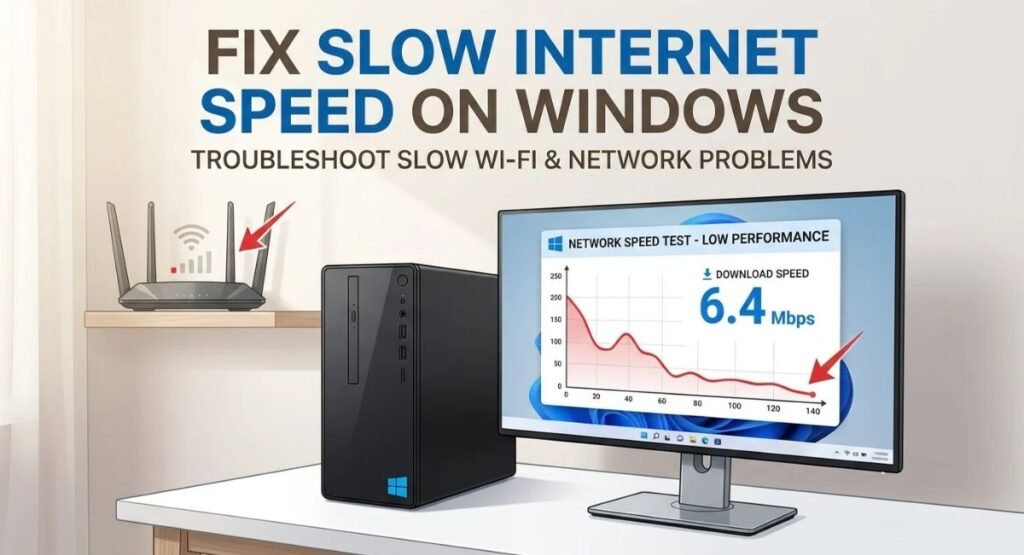
Slow internet on a Windows PC can make websites take longer to load, videos buffer, downloads become frustratingly slow, and online meetings or games unstable. However, slow internet does not always mean there is a problem with your internet plan or Internet Service Provider (ISP).
The cause can be something on the computer, such as a weak Wi-Fi signal, background downloads, Windows Update activity, an outdated network adapter driver, incorrect network settings, DNS problems, or a faulty Ethernet connection. Router problems, wireless interference, network congestion, and ISP issues can also affect performance.
Before changing advanced Windows settings, first determine where the problem is happening. If other devices on the same network work normally while your Windows PC is slow, focus on the computer. If every device is slow, the problem is more likely related to the router, Wi-Fi environment, modem, or ISP.
Why Is My Internet So Slow on Windows?
Slow internet on a Windows computer can have several causes, including:
- Weak Wi-Fi signal
- Wireless interference
- Background applications using bandwidth
- Windows Update downloads
- Delivery Optimization activity
- Cloud synchronization
- Outdated, damaged, or incompatible network drivers
- Problems with the Wi-Fi or Ethernet adapter
- Incorrect network configuration
- DNS problems
- Faulty Ethernet cables or router ports
- Router or modem problems
- ISP congestion
- High latency or packet loss
Internet speed is also not the only factor that matters. A connection can have a reasonable download speed but still feel slow because of high latency, packet loss, unstable Wi-Fi, or heavy background traffic.
The goal is therefore not simply to increase a speed-test number. The goal is to identify what is causing the slowdown.
Check Whether the Problem Is Your PC or the Network
Before changing Windows settings, compare the affected PC with another device connected to the same router.
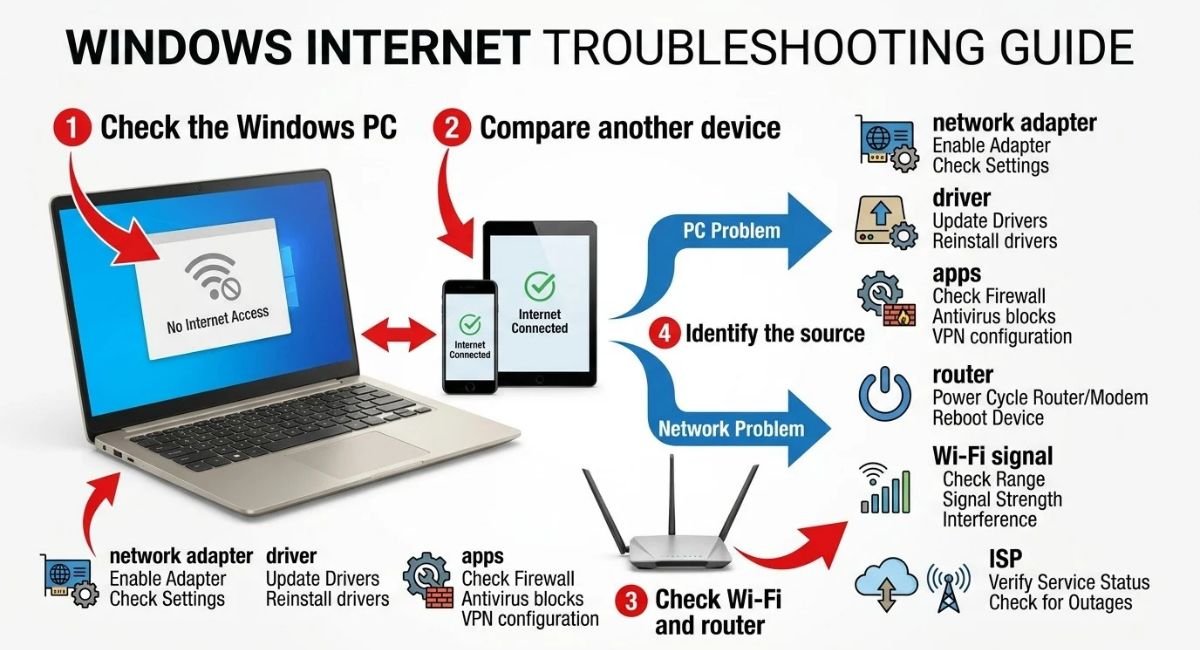
For example, if your phone gets normal speeds over the same Wi-Fi connection while your Windows laptop is slow, the problem is more likely to be related to the computer.
If your phone, another computer, smart TV, and other connected devices are all slow, investigate the router, modem, Wi-Fi environment, or ISP instead.
| What you notice | What to investigate |
|---|---|
| Only one Windows PC is slow | Windows settings, drivers, apps, or network adapter |
| All devices are slow | Router, modem, Wi-Fi, or ISP |
| Wi-Fi is slow but Ethernet is normal | Wi-Fi signal, interference, or wireless adapter |
| Ethernet is slow but Wi-Fi is normal | Cable, router port, or Ethernet adapter |
| Internet slows during updates | Windows Update or Delivery Optimization |
| Problem started after a driver update | Network adapter driver |
| Websites are slow to begin loading | DNS, browser, or network latency |
| High ping or unstable connection | Wi-Fi interference, congestion, or packet loss |
This comparison is one of the most useful troubleshooting steps because it tells you whether to concentrate on Windows or the network itself.
Test Your Internet Speed and Connection Quality
Run a reputable internet speed test on the affected Windows PC and note:
- Download speed
- Upload speed
- Latency or ping
- Whether the results change between tests
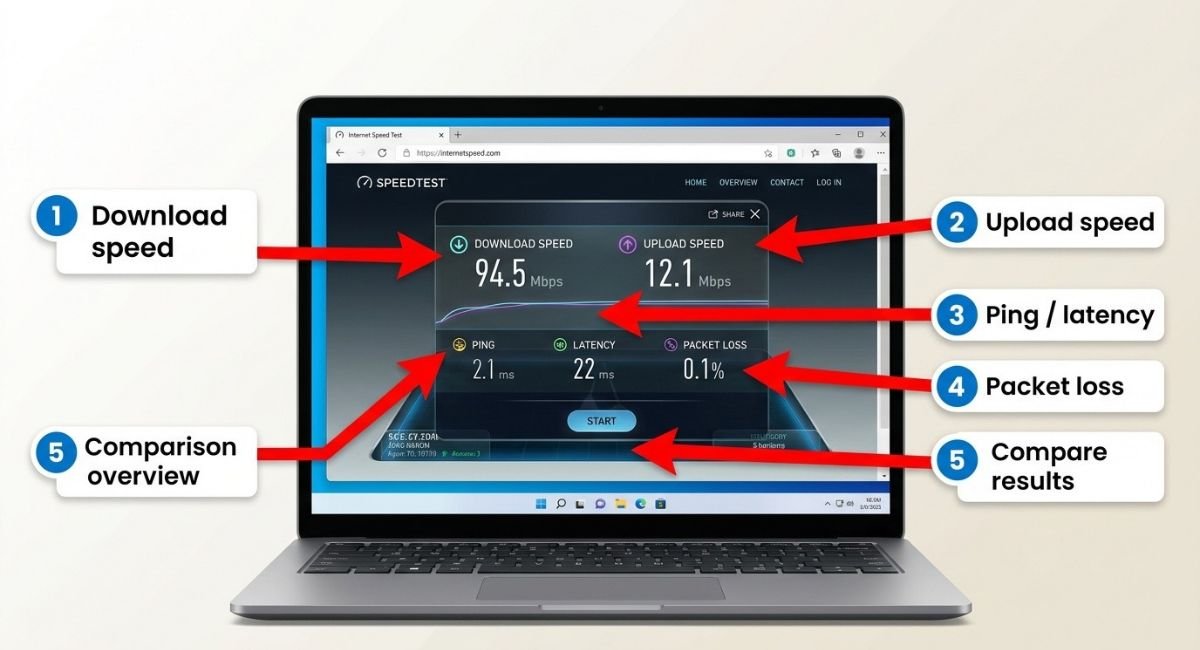
Run the test more than once instead of relying on a single result because temporary congestion can affect individual tests.
Then run a similar test on another device connected to the same router.
If the other device performs normally but the Windows PC remains much slower, concentrate on the PC.
If all devices show poor results, investigate the router, modem, Wi-Fi environment, or ISP before making advanced Windows changes.
It is also useful to test the PC closer to the router. If performance improves significantly, wireless range or interference may be contributing to the problem.
Check for Latency or Packet Loss
If browsing speed looks normal but online games, video calls, or other real-time applications remain unstable, latency or packet loss may be the problem.
Open Command Prompt and run:
ping 8.8.8.8
You can also test a domain name:
ping google.com
Repeatedly high response times or packet loss can point to a network-quality problem rather than a simple lack of bandwidth.
Restart Your Router and Modem
If multiple devices are experiencing slow internet, restart the network equipment before changing Windows settings.
Turn off or unplug the modem and router, wait briefly, and then power them back on. Allow the connection to reconnect completely before testing the internet again.
If other devices return to normal after the restart but the Windows PC remains slow, continue with the computer-focused troubleshooting below.
Test Wi-Fi Versus Ethernet
If you normally use Wi-Fi, connect the Windows PC directly to the router with an Ethernet cable if possible.
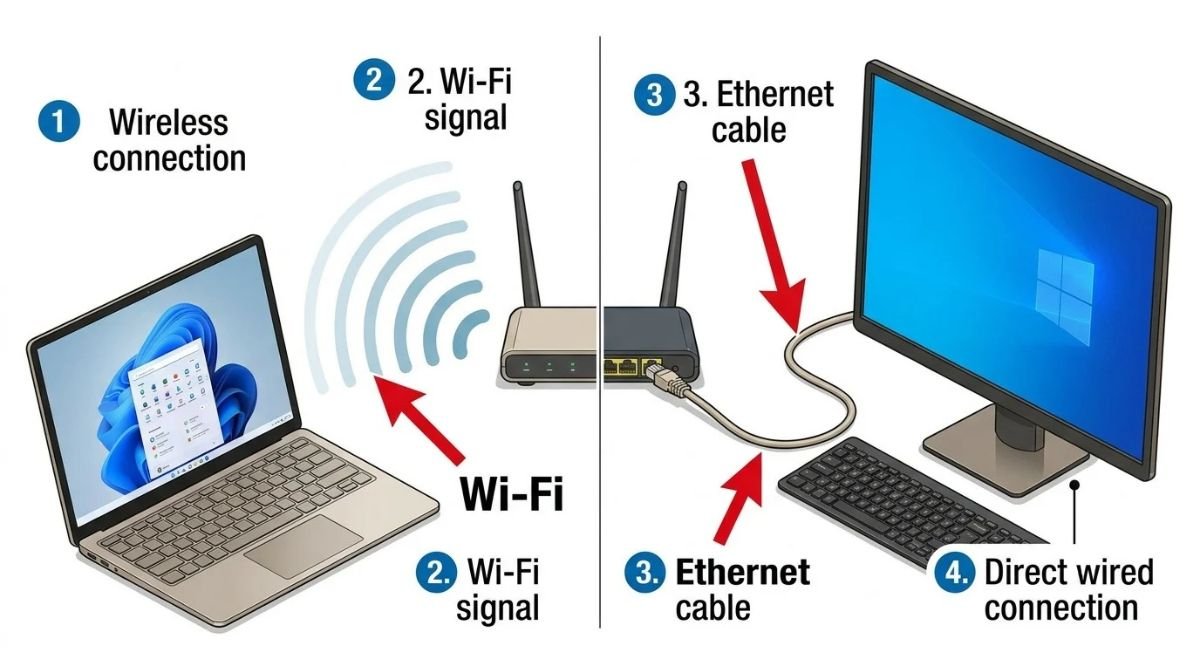
This comparison can quickly identify whether the problem is related to the wireless connection.
If Ethernet is faster while Wi-Fi remains slow, investigate:
- Wi-Fi signal strength
- Wireless interference
- Wi-Fi frequency
- Router placement
- Wi-Fi adapter
- Wireless driver
If both Wi-Fi and Ethernet are slow on the same PC, investigate Windows networking, drivers, background applications, and other computer-related causes.
If every device connected to the router is slow, focus on the network rather than Windows.
Check Windows Update and Background Network Activity
Windows and installed applications can use network bandwidth while you are doing other tasks.
Common sources include:
- Windows Update
- Delivery Optimization
- OneDrive and other cloud-storage services
- Microsoft Store
- Steam and other game launchers
- Browser downloads
- Backup applications
- Video conferencing software
- File synchronization tools
- Software update utilities
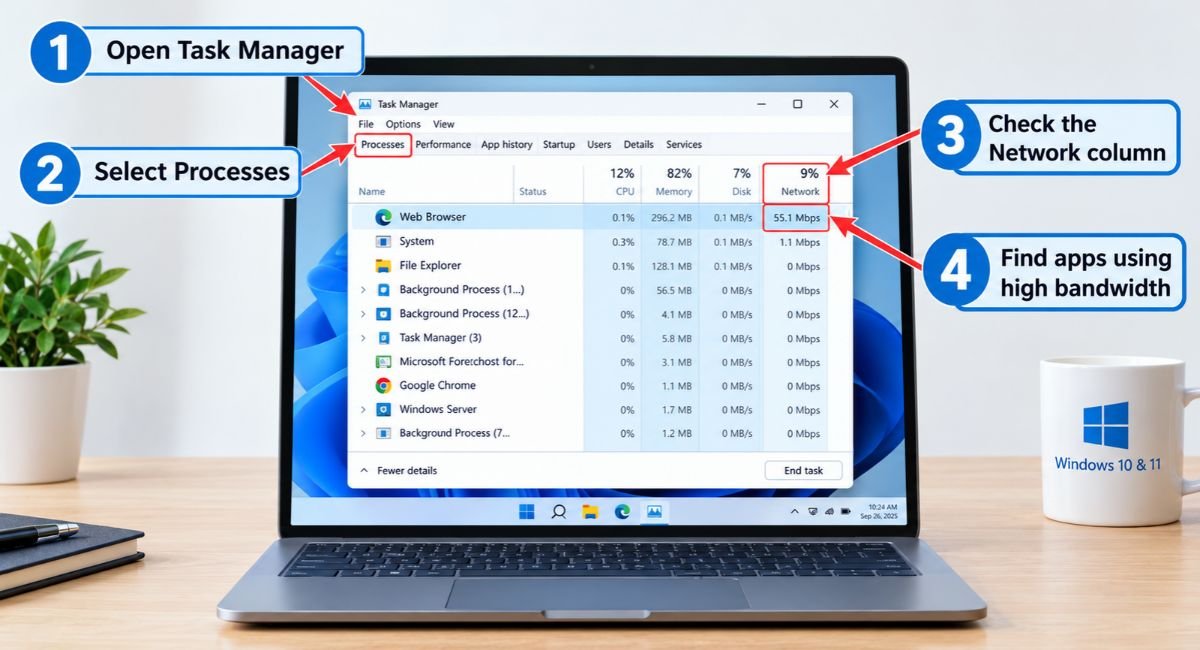
Open Task Manager by pressing:
Ctrl + Shift + Esc
Select Processes and check the Network column.
Look for applications that are currently transferring a large amount of data. If an application is using significant bandwidth, pause or close it when appropriate and then test the connection again.
Windows also provides data-usage information under:
Settings → Network & internet → Data usage
Be careful when ending processes in Task Manager. Do not terminate unfamiliar Windows processes simply because they appear to be using system resources.
Check Delivery Optimization
Windows uses Delivery Optimization to manage certain update and Microsoft Store downloads.
If a large update is downloading, internet performance may temporarily decrease, particularly on a connection with limited bandwidth.
Check:
Settings → Windows Update → Advanced options → Delivery Optimization
On some Windows versions, Delivery Optimization can also be accessed through the Windows Update settings under Update & Security.
If background downloads are affecting browsing, streaming, gaming, or video calls, Windows provides controls that can limit how much bandwidth update-related activity uses.
There is usually no reason to permanently disable Windows update functionality just because a download temporarily uses bandwidth.
Check Your Wi-Fi Signal and Frequency
A weak wireless signal can make the internet feel slow even when your broadband connection is working normally.
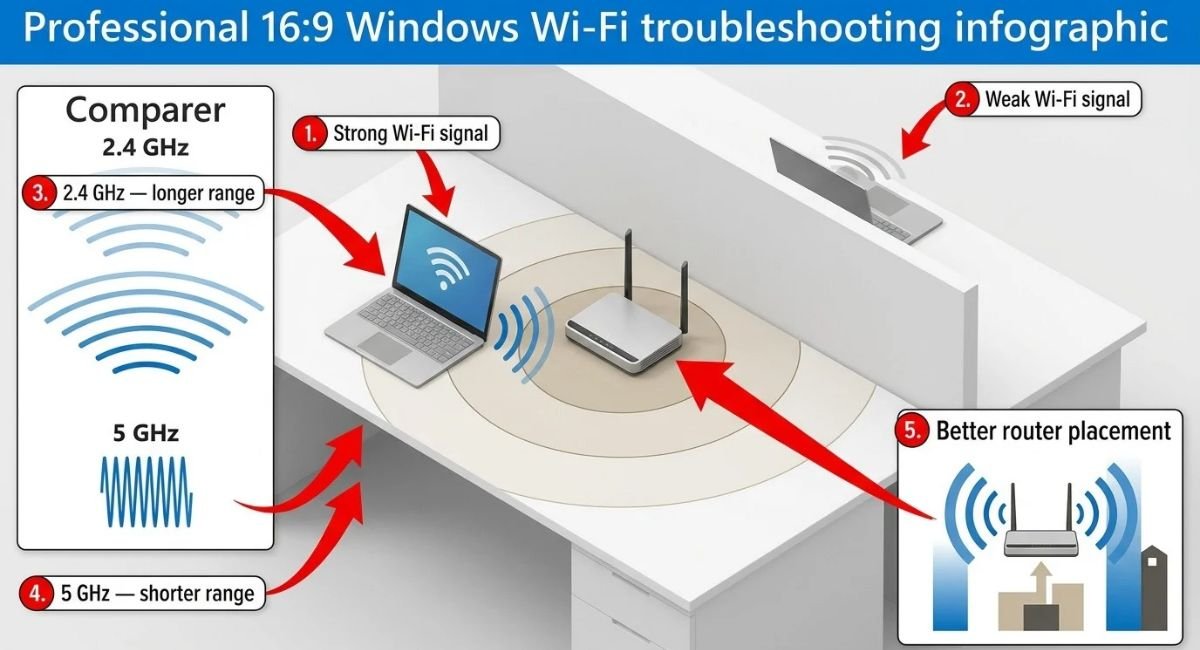
Move the PC closer to the router and test the connection again.
If your router provides multiple Wi-Fi bands, such as 2.4 GHz and 5 GHz, test the available options.
In general:
- 2.4 GHz usually provides better range and can work better through walls.
- 5 GHz can provide higher performance at shorter distances.
Actual performance depends on the router, Wi-Fi adapter, interference, distance, and surrounding environment.
If the connection becomes significantly faster when the PC is closer to the router, focus on signal strength, interference, router placement, or the wireless adapter rather than immediately changing advanced Windows settings.
Update or Reinstall the Network Adapter Driver
A network adapter driver allows Windows to communicate with the Wi-Fi or Ethernet hardware.
An outdated, damaged, or incompatible driver can cause slow or unstable internet.
Open:
Start → Device Manager
Expand:
Network adapters
Find the Wi-Fi or Ethernet adapter being used by the PC.
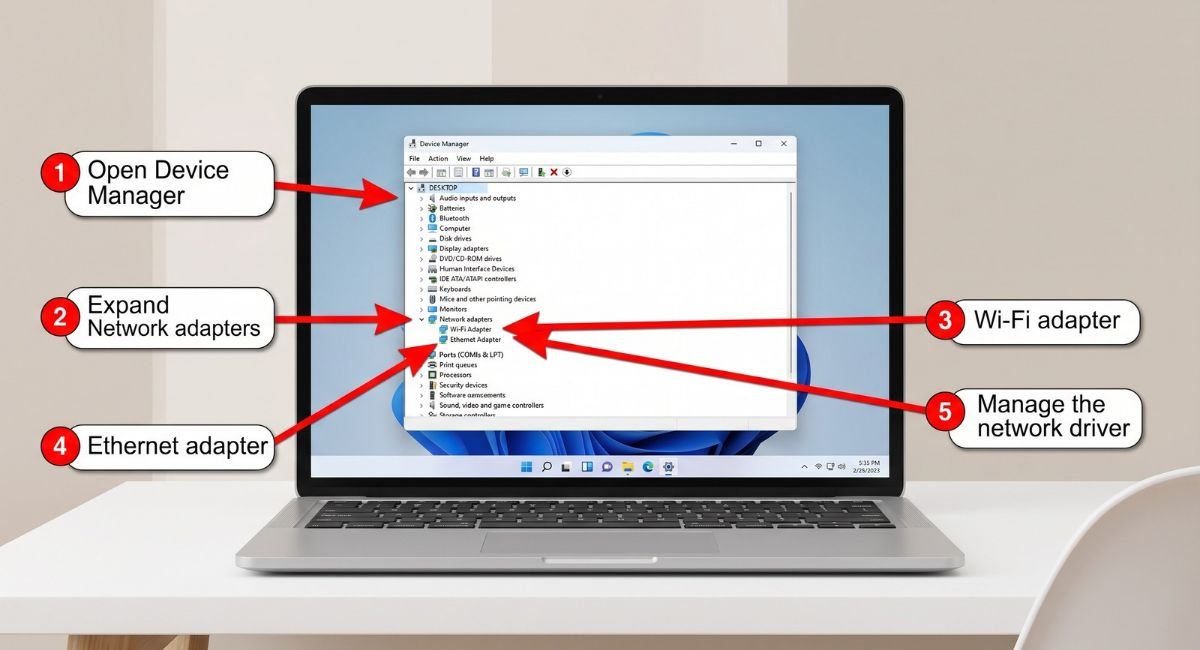
For the latest compatible driver, check the official support website of your PC or laptop manufacturer. Manufacturer-provided drivers are often preferable because they may be customized for the specific hardware.
Avoid downloading network drivers from unknown third-party websites because installing an incorrect driver can create additional connection problems.
If the problem started immediately after a driver update, check whether rolling back the driver resolves the issue.
If normal troubleshooting does not help, uninstalling the network adapter driver and restarting Windows can sometimes resolve driver-related problems. Before doing this, make sure you have access to an appropriate driver if Windows does not automatically reinstall one.
Check Wi-Fi Adapter Power Management
On some laptops, wireless power-saving settings can affect adapter behavior.
Open:
Device Manager → Network adapters → Your Wi-Fi adapter → Properties → Power Management
If the option is available, look for:
Allow the computer to turn off this device to save power
If you suspect power management is affecting the connection, temporarily disable the option and test the connection again.
If there is no improvement, restore the previous setting.
Reset TCP/IP and Winsock
If Windows networking has become misconfigured, resetting core network components can help.
Open Command Prompt as administrator and run these commands one at a time:
netsh winsock reset
netsh int ip reset
ipconfig /release
ipconfig /renew
ipconfig /flushdns
Restart the computer after running the commands.
These commands reset Winsock, reset parts of the TCP/IP configuration, renew the computer’s IP address, and clear the DNS resolver cache.
This is a targeted troubleshooting step and is generally preferable to immediately performing a complete Network Reset.
Check DNS When Websites Are Slow to Start
DNS translates domain names, such as websites, into IP addresses.
A DNS problem can make websites slow to begin loading or prevent some domains from resolving correctly. However, changing DNS does not normally increase your actual internet bandwidth.
If websites are slow to start while other internet activity appears normal, DNS is worth investigating.
First, clear the DNS cache:
ipconfig /flushdns
You can also check the current network configuration with:
ipconfig /all
Look for the DNS Servers entry.
DNS settings can also be found through the network properties in Windows settings. For most users, Automatic (DHCP) is the appropriate configuration unless the network requires manual DNS settings.
Avoid changing DNS simply because an online guide promises a major internet-speed increase. First determine whether DNS is actually related to the symptoms.
Check Ethernet Cable and Router Port
If Ethernet is slow, check the physical connection before changing advanced Windows settings.
Try:
- A different Ethernet cable
- A different router port
- The same cable and port with another computer
- Wi-Fi on the affected PC for comparison
If another cable immediately restores normal performance, the original cable may be faulty.
If only one router port behaves poorly, the router port may be contributing to the problem.
If Ethernet remains slow while Wi-Fi works normally, investigate the Ethernet adapter and its driver.
Advanced Network Adapter Settings
Most slow internet problems do not require changing advanced Windows networking settings.
However, if basic troubleshooting has failed and the problem appears to be adapter-specific, you can investigate settings such as TCP Auto-Tuning and Large Send Offload.
Check TCP Auto-Tuning
Windows uses TCP receive-window auto-tuning to dynamically manage network communication.
For most users, the normal configuration should be left unchanged.
To view the current configuration, open Command Prompt as administrator and run:
netsh int tcp show global
Look for:
Receive Window Auto-Tuning Level
If necessary, the normal configuration can be restored with:
netsh int tcp set global autotuninglevel=normal
TCP Auto-Tuning is an advanced troubleshooting area, not a universal internet-speed optimization.
Test Large Send Offload
Large Send Offload, commonly called LSO, allows supported network adapters to handle some TCP segmentation work through the hardware.
It is designed as a performance feature, so disabling it should not be treated as a guaranteed internet-speed improvement.
If you are troubleshooting a persistent adapter-specific problem, you can temporarily test the setting.
Open:
Device Manager → Network adapters → Your adapter → Properties → Advanced
Look for options such as:
- Large Send Offload v2 (IPv4)
- Large Send Offload v2 (IPv6)
The exact options depend on the network adapter and driver.
Change only one setting at a time and test the connection afterward. If disabling LSO does not improve the problem, restore the original setting.
When Windows Internet Is Slow After an Update
If internet performance becomes slow after a Windows update, first check whether Windows is still downloading updates or other Microsoft content.
Delivery Optimization can use network bandwidth for update-related downloads.
Then check the network adapter driver, especially if the problem started immediately after a driver change.
If the problem continues, compare the PC with another device on the same network and run Windows network troubleshooting.
If Windows networking appears misconfigured, the TCP/IP and Winsock reset commands can help.
Avoid making multiple advanced changes at the same time. Testing one change at a time makes it much easier to identify the actual cause.
Common Mistakes When Fixing Slow Internet
Changing DNS Without a DNS Problem
DNS can affect how quickly domain names are resolved, but changing DNS does not increase the bandwidth provided by your internet connection.
If downloads are slow across multiple applications, changing DNS alone is unlikely to solve the underlying problem.
Installing Internet Optimization Software
Be cautious with programs that promise dramatic improvements in internet speed through hidden system changes.
Some applications modify networking settings without clearly explaining what they changed, which can make troubleshooting more difficult.
Windows already provides several tools for diagnosing network problems, so third-party optimization software should not be the first option.
Changing TCP Settings Randomly
TCP settings can affect network behavior, but changing them without a specific troubleshooting reason can make the problem harder to diagnose.
Check the current configuration first and change advanced settings only when there is a clear reason to test them.
Disabling Network Features Permanently
Features such as LSO exist for network performance and compatibility.
Do not permanently disable network features simply because an online guide claims they will make every PC faster.
If you are testing an adapter setting for a specific problem, make one change at a time and restore the original setting if it does not help.
Resetting the Network Too Early
Network Reset can solve Windows configuration problems, but it also removes installed network adapters and resets their settings.
Try simpler troubleshooting first.
Use Network Reset as a Last Resort
If the previous troubleshooting methods have failed and Windows networking still appears misconfigured, Windows provides a Network Reset option.
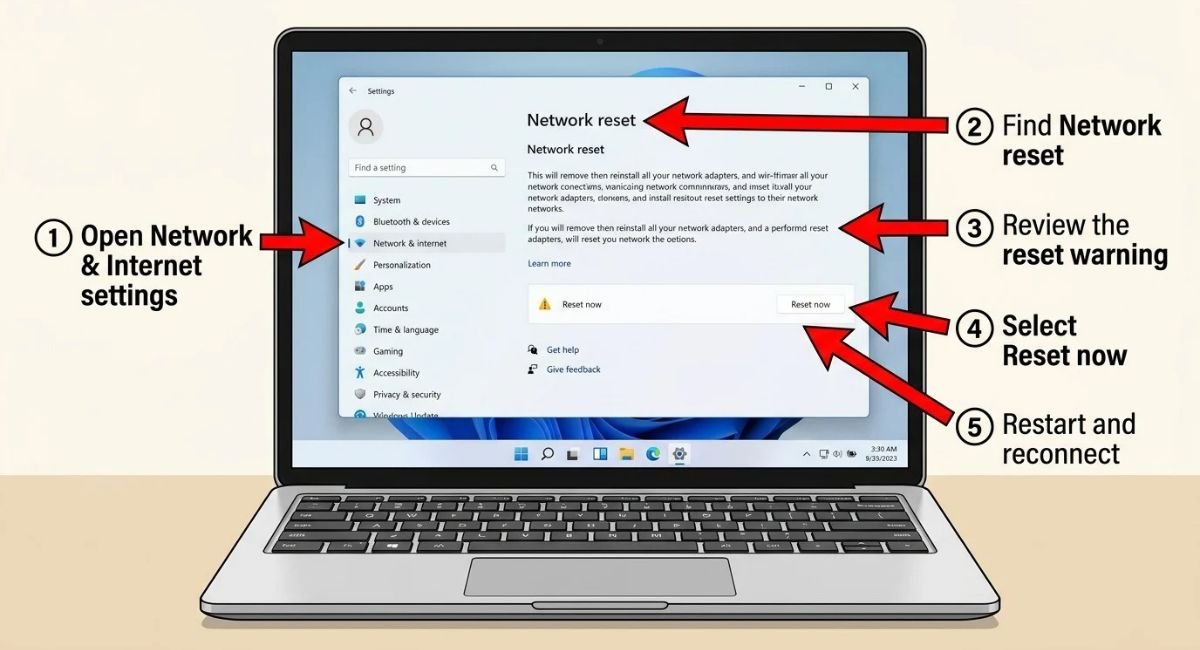
Look for:
Settings → Network & internet → Advanced network settings → Network reset
Depending on the Windows version, the exact location may differ slightly.
Select:
Reset now
Network Reset removes installed network adapters and their settings and then reinstalls the adapters after the PC restarts.
Afterward, you may need to reconnect to Wi-Fi and reconfigure certain networking software, including VPN or virtual network adapters.
Because of these changes, Network Reset should be treated as a last troubleshooting option, not the first solution for a slightly slow connection.
The Best Troubleshooting Order
If you are not sure where to begin, follow this order:
- Compare the Windows PC with another device on the same network.
- Run multiple speed tests and check latency.
- Restart the router and modem if multiple devices are affected.
- Test Wi-Fi versus Ethernet.
- Check Windows Update and background downloads.
- Check applications using network resources.
- Test the Wi-Fi connection closer to the router.
- Update or troubleshoot the network adapter driver.
- Check Wi-Fi adapter power management if relevant.
- Reset TCP/IP and Winsock.
- Check DNS if websites are slow to start.
- Check the Ethernet cable and router port.
- Investigate advanced TCP or adapter settings only when there is a specific reason.
- Use Network Reset as a last resort.
The important part is to make one meaningful change at a time.
If you change the driver, DNS, TCP settings, router configuration, and Windows network settings simultaneously, you will not know which change solved the problem.
Frequently Asked Questions
Why is my internet so slow on my computer but not other devices?
If other devices connected to the same network work normally, the problem is more likely to be specific to your Windows PC. Check the Wi-Fi connection, background applications, Windows Update activity, network adapter driver, and network configuration.
Why is my laptop internet so slow on Windows?
A Windows laptop can experience slow internet because of weak Wi-Fi, an outdated network driver, background downloads, Windows Update activity, wireless interference, or network configuration problems. Comparing the laptop with another device on the same network can help isolate the cause.
Why is my internet slow on Ethernet?
Slow Ethernet can be caused by a faulty cable, router port, network adapter, driver, or Windows network configuration. Try another Ethernet cable and router port before changing advanced Windows settings.
Why is internet slow after a Windows update?
The slowdown may be related to Windows Update downloads, Delivery Optimization, a changed network driver, or network configuration. Check update activity and the network adapter before using Network Reset.
Does changing DNS make internet faster?
DNS can sometimes affect how quickly websites begin loading, but it does not normally increase your actual internet bandwidth. If downloads are slow across multiple applications, investigate the network connection instead of changing DNS alone.
Should I use Network Reset to fix slow internet?
Network Reset can help when Windows networking is misconfigured, but it should be a later troubleshooting option. It removes network adapters and resets their configuration, so simpler troubleshooting should be attempted first.
Conclusion
Slow internet on Windows 11 or Windows 10 does not necessarily mean that your internet plan or ISP is the problem. The slowdown can originate from Wi-Fi conditions, background applications, Windows Update, Delivery Optimization, network drivers, DNS, Windows network configuration, Ethernet hardware, the router, or the ISP.
The most effective approach is to identify where the problem occurs before changing advanced settings.
Start by comparing the Windows PC with another device, running speed and latency tests, checking background network activity, testing Wi-Fi and Ethernet, investigating Windows Update, and checking the network adapter driver.
If those checks do not solve the problem, move to TCP/IP and Winsock resets, DNS troubleshooting, and other advanced options. Settings such as TCP Auto-Tuning and Large Send Offload should only be tested when there is a specific technical reason.
Network Reset should remain a last resort because it removes network adapters and resets their configuration.
By following a controlled troubleshooting process, you can narrow the problem down to Windows, the network adapter, Wi-Fi, Ethernet, the router, or the ISP without making unnecessary changes.