Introduction
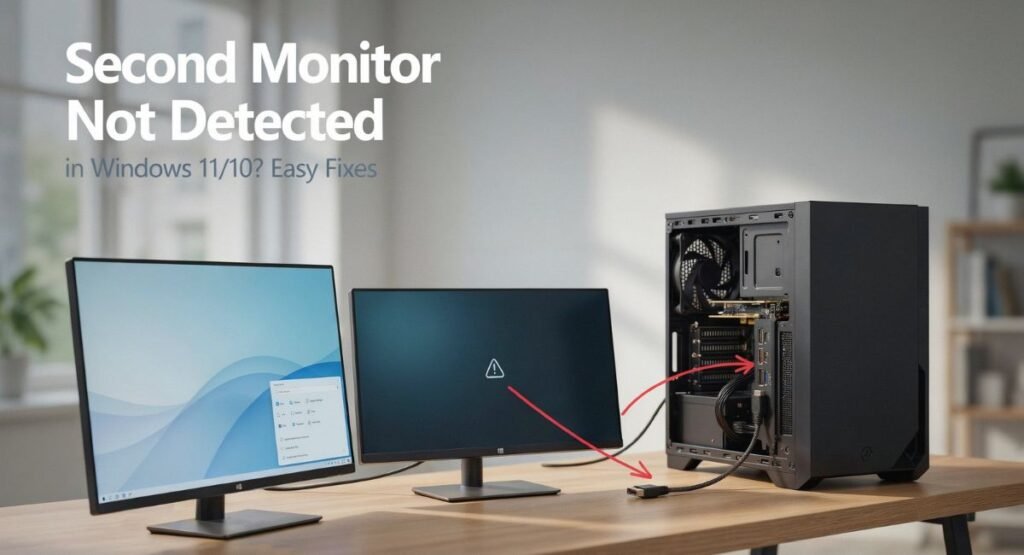
Setting up a second screen can make your workspace more flexible, but Second Monitor Not Detected in Windows can quickly become frustrating. You may connect the cable correctly, power on the display, and still see nothing on the desktop. In some cases, Windows detects the monitor but uses the wrong display mode or input. Other times, outdated drivers, faulty cables, incorrect display settings, or adapter issues cause the problem.
The good news is that most display problems can be fixed without replacing your monitor. In this guide, you’ll learn practical ways to identify the cause and fix a second monitor not showing issue in Windows 10 or Windows 11.
Check the Connection
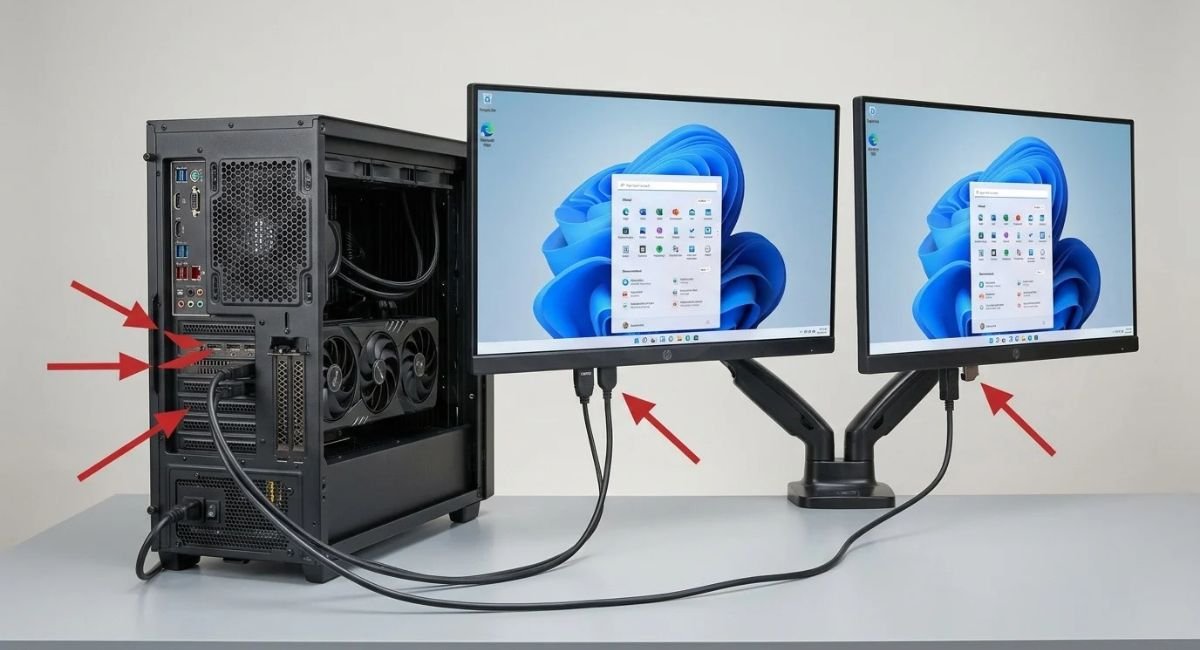
Start with the physical setup because a loose connection can make an external monitor not detected message seem like a Windows problem. Make sure the monitor has power and the cable sits firmly at both ends. Then check monitor cables for damage, bent pins, or loose connectors.
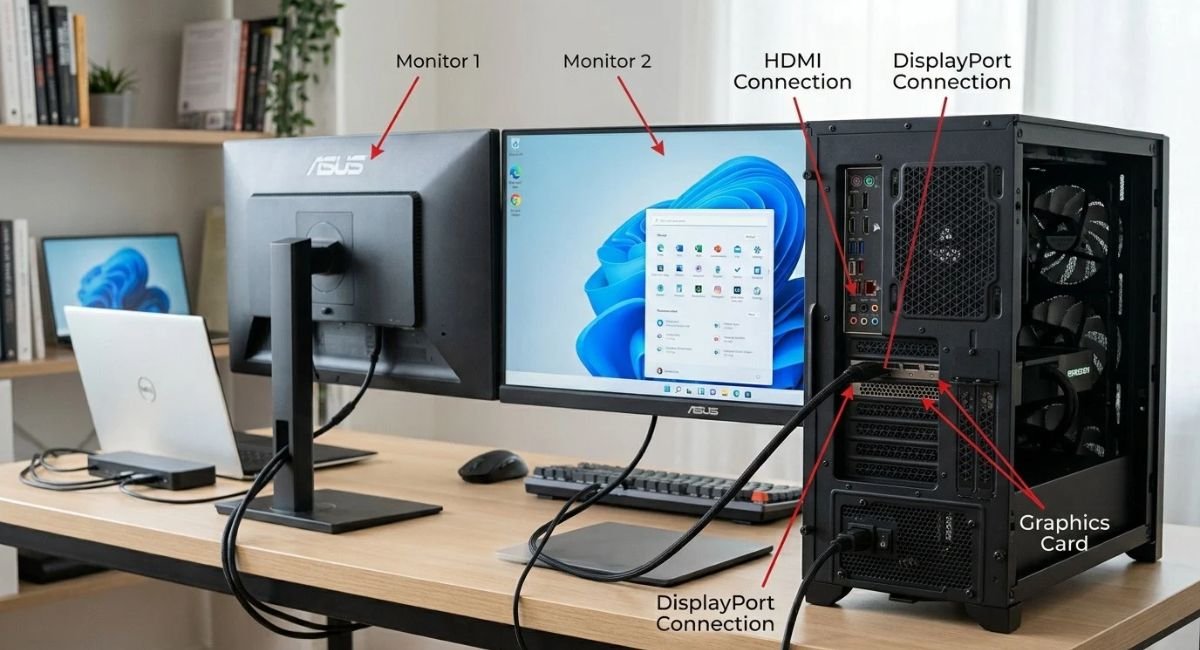
Next, check HDMI and DisplayPort connections carefully. Try another HDMI cable or DisplayPort cable if possible. On a desktop, connect the screen to the graphics card rather than the motherboard when you use a dedicated GPU. These simple checks often solve basic monitor detection problems quickly.
Check the Input
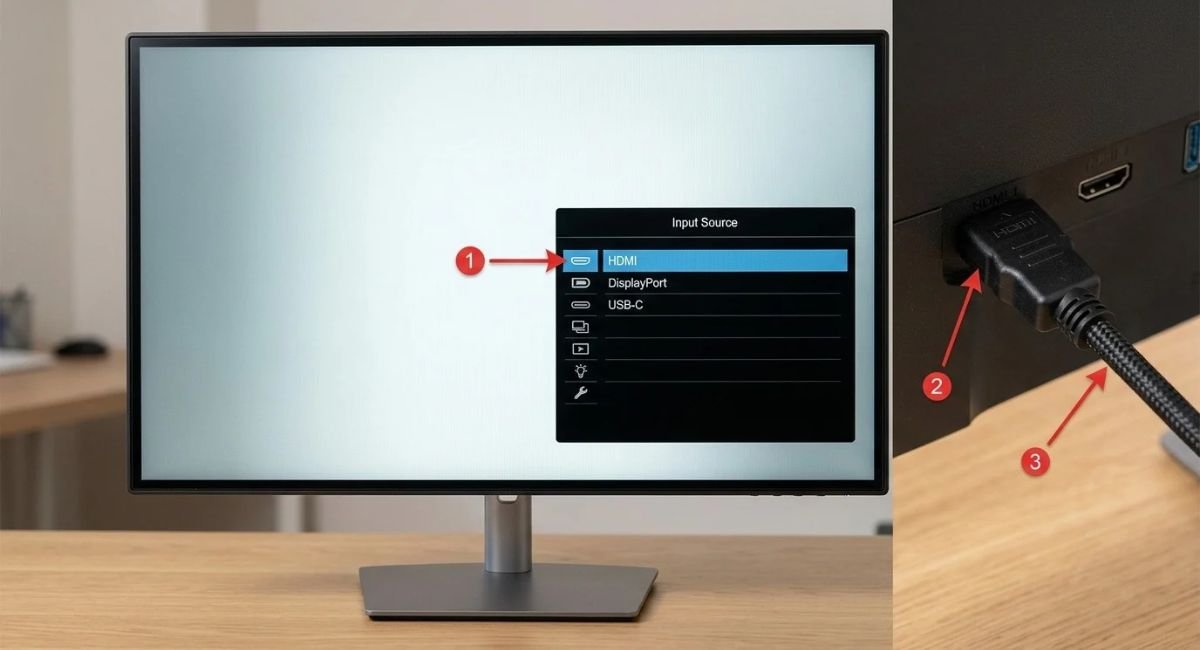
Your monitor may receive a signal through several inputs. If Windows sends video through HDMI while the monitor waits for DisplayPort, the screen can remain blank. Open the monitor menu and select the correct monitor input for the cable you connected.
For example, a monitor with HDMI, DisplayPort, and USB-C may not automatically choose the active connection. Select the matching monitor input source manually. Also check the HDMI port, DisplayPort port, or USB-C port for damage or compatibility issues before moving to Windows settings.
Detect the Display
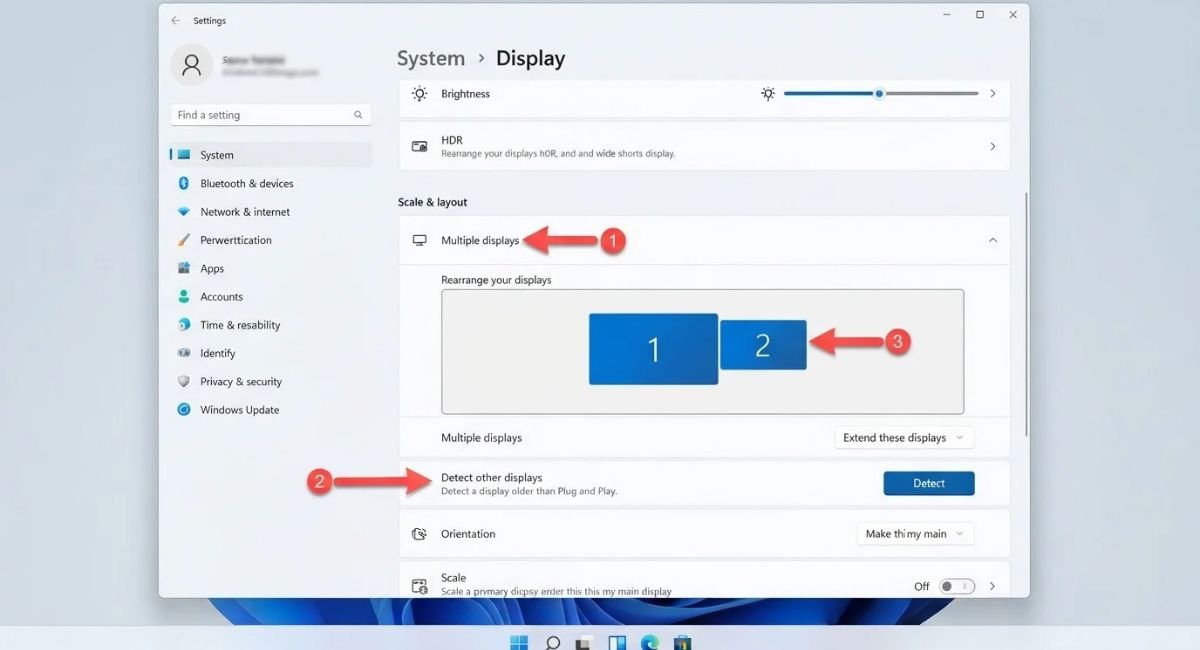
Windows has a built-in option to force Windows to detect a display.
Go to:
Settings > System > Display
Expand Multiple displays and select Detect. Windows will then scan for connected screens that haven’t appeared automatically.
If Windows still cannot find the screen, use the graphics reset shortcut. Press Windows + Ctrl + Shift + B. Your displays may flicker briefly. This action can restart the graphics driver without restarting the entire PC. It is a useful step when Windows cannot recognize second monitor connections.
Change Display Mode
Windows may recognize the monitor but use the wrong projection mode. Press Windows + P to open the Windows projection mode menu. Choose Extend when you want both screens to act as separate workspaces. This option is normally the right choice for a dual monitor setup.
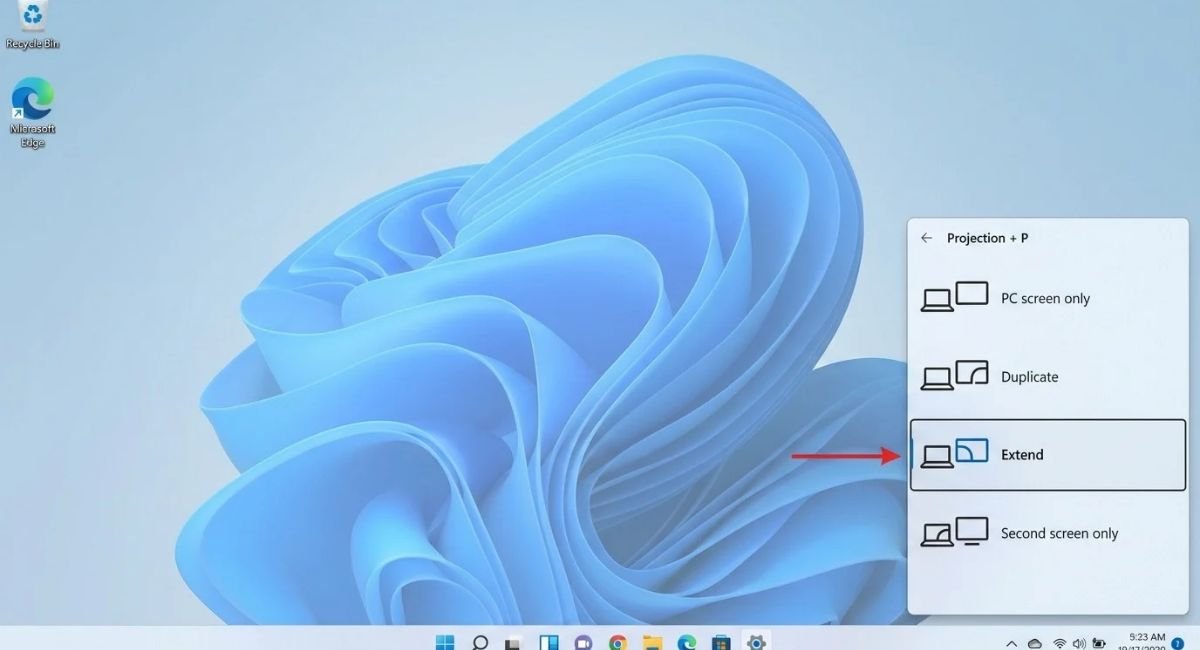
The menu also includes PC Screen Only, Duplicate displays, and Second Screen Only. The first disables the external screen. Duplicate mirrors the same image. Second Screen Only uses the external display by itself. If your second monitor not showing issue appears after connecting it, check this menu first.
Check Display Settings
Windows can detect a screen without arranging it correctly. Open the display settings and select Identify to see which number belongs to each monitor. Windows will place a number on each connected screen. You can then drag the displays into their physical positions and extend the desktop across them.
Go to:
Settings > System > Display
Under the Multiple displays section, select Identify to check which display is labeled 1 or 2.
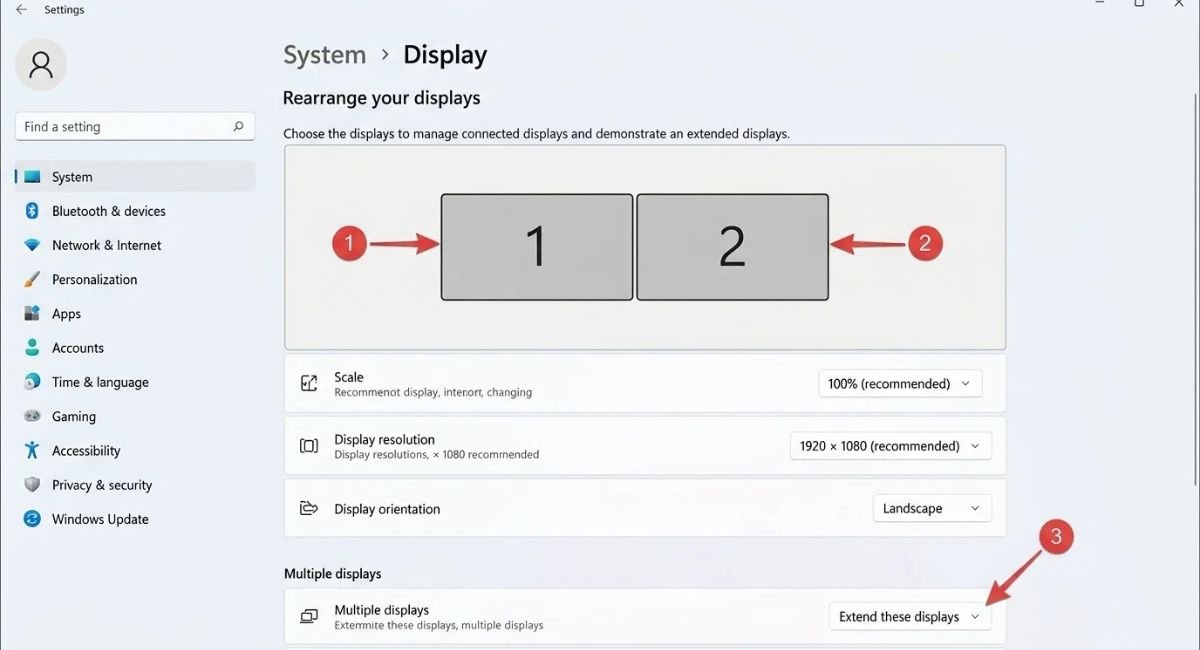
Also review the display resolution and scaling options. Use the recommended display settings whenever possible. If one screen uses an unsupported resolution, Windows may behave unexpectedly. These multiple display settings also control orientation, scaling, and which screen acts as the main display.
Fix Graphics Drivers
A damaged or outdated driver can stop Windows from communicating correctly with a monitor.
Go to:
Device Manager > Display adapters
Locate your graphics hardware. Then update graphics drivers through Windows or install the current package from Intel, AMD, or NVIDIA.
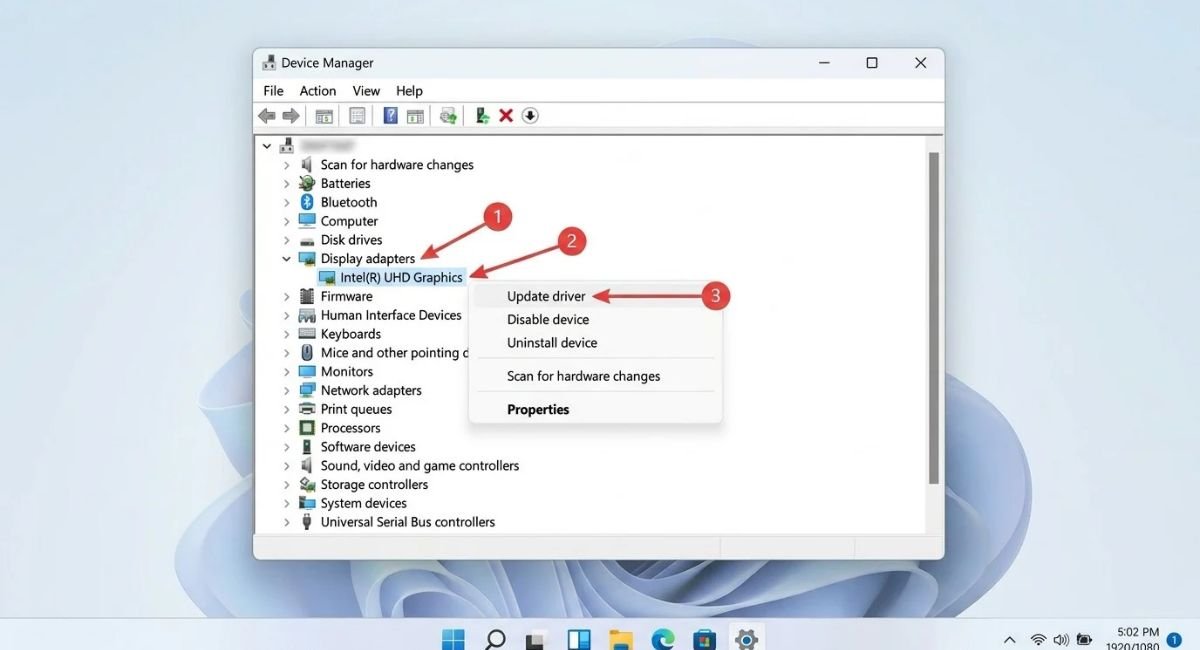
If updating doesn’t help, you can reinstall graphics drivers or uninstall display driver software and install a fresh version. A recent driver update can also create problems. In that situation, rolling back the graphics driver may restore normal detection. The same process applies to many GPU driver problems.
Check Refresh Rate
Different screens can use different refresh rates. Matching them isn’t always necessary, but unsupported combinations can cause instability.
Go to:
Settings > System > Display > Advanced display
Check the refresh rate for each screen. Select a rate supported by the monitor and graphics hardware.
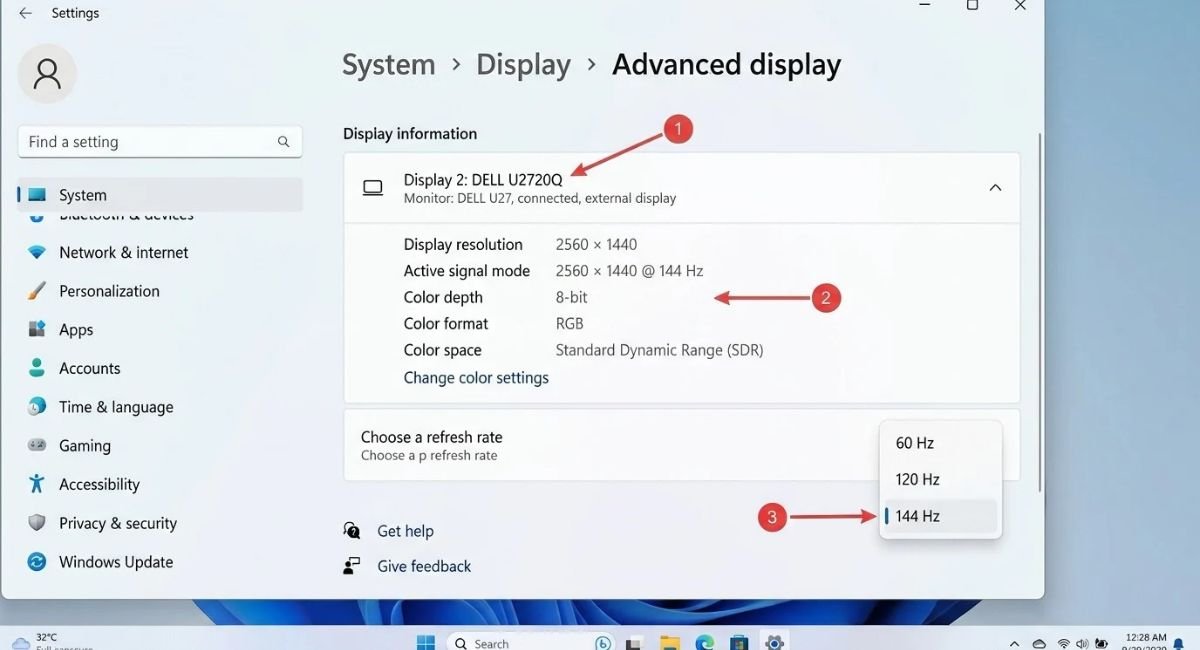
You should also check the display resolution on both screens. Avoid forcing an unusually high refresh rate through an adapter or dock. If the monitor works directly but fails through a display adapter, the adapter may not support the required bandwidth.
Restart and Power
Sometimes a simple restart clears a temporary display state. After changing drivers or display options, restart the computer and reconnect the second screen. This is especially useful when the second monitor suddenly stopped working after sleep, an update, or a driver change.
Power management can also interfere with external displays. Review power-saving settings and sleep settings if the display stops working after sleep. With some systems, disabling Link State Power Management can help when PCI Express power management affects display stability. USB-C and Thunderbolt setups may also need a fresh reconnect.
Test Cables and Docks
If Windows still doesn’t recognize the display, change one connection at a time. Test another HDMI cable or test another DisplayPort cable. You can also try another display port on the graphics card. This creates a simple isolation test without changing several variables together.
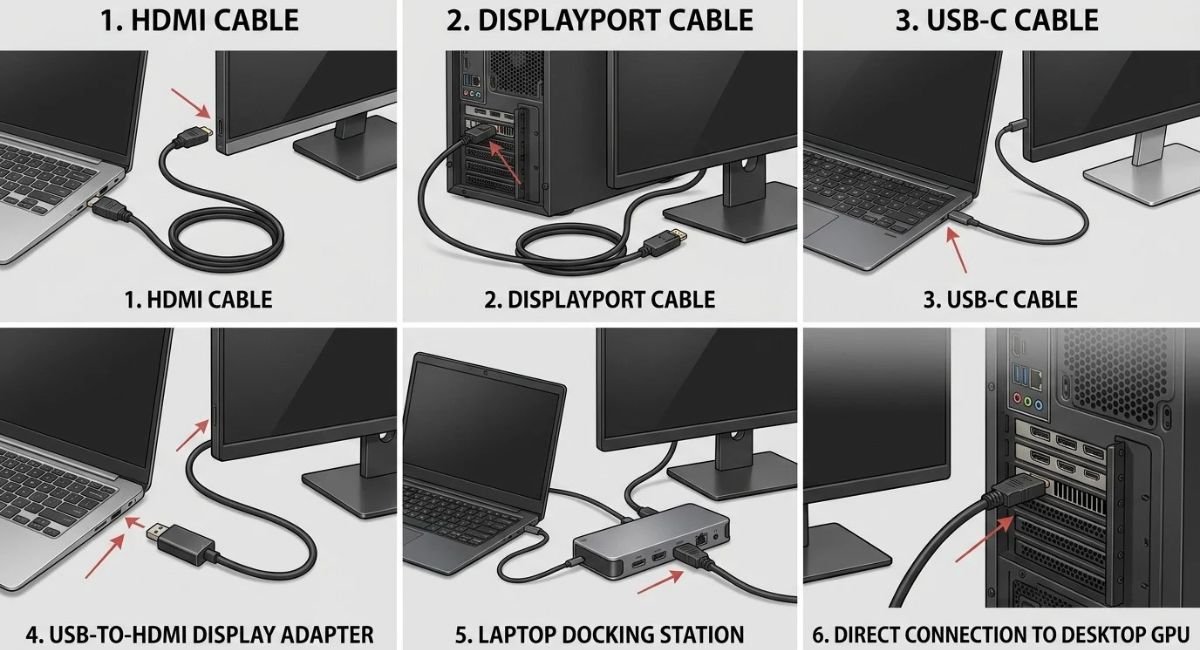
Docks and hubs can introduce another layer of complexity. If you use a docking station, USB hub, or adapter, connect monitor directly to PC and test again. Not every USB-C connection supports USB-C video output. Your laptop may require DisplayPort Alt Mode or Thunderbolt display support.
Check Hardware Limits
Every computer has certain hardware limitations. A graphics card may support only a specific number of screens at once. Laptops can also have different laptop display support depending on their processor, GPU, ports, and firmware. Check the manufacturer’s specifications before assuming Windows has failed.
Docking hardware has limits too. Basic devices may support one external display, while more advanced docks can support several. These docking station limitations can create a confusing situation where one screen works while another doesn’t. Check GPU compatibility and multi-monitor support before replacing working hardware.
Test the Hardware
If the problem continues, test monitor on another computer using the same cable. Then test another monitor on your PC. This quick comparison helps you isolate hardware problems without guessing. If one monitor fails everywhere, you may have a monitor hardware problem.
A useful case is when the monitor works but Windows does not detect it on one computer. If another display works on that same port, the original monitor or its settings may be responsible. If neither display works, focus on the PC, GPU, port, driver, or adapter.
Quick Troubleshooting Table
| Problem | What to Check | Useful Action |
|---|---|---|
| Screen has no signal | Cable and input | Reseat cable and select the correct input |
| Windows doesn’t see the screen | Display settings | Select Detect |
| Wrong screen mode | Projection settings | Choose Extend |
| Driver problem | Device Manager | Update or reinstall the driver |
| Flickering display | Refresh rate | Use a supported rate |
| Screen disappears after sleep | Power management | Review sleep and power options |
| Dock connection fails | Dock or adapter | Connect the monitor directly |
| One port fails | GPU port | Try another compatible port |
| Hardware fault suspected | Monitor or PC | Test another computer or display |
Final Thoughts
When a second monitor not detected problem appears, don’t change everything at once. Start with power, cables, input selection, and Windows projection mode. Then check display settings, drivers, refresh rates, and power management. Finally, test the dock, ports, GPU, and monitor separately.
A methodical approach makes troubleshooting much easier. Once you know which component fails, the solution becomes far clearer. Whether you’re building a new dual monitor setup or fixing a screen that suddenly disappeared, these checks can help restore your second display without unnecessary hardware changes.
Frequently Asked Questions
How to activate 2nd monitor Windows 11?
Connect the monitor, then press Windows + P and select Extend. You can also go to Settings > System > Display > Multiple displays > Detect.
Why is my second monitor suddenly not detected?
Check the cable, monitor input, ports, graphics driver, and Windows display settings. Restarting the graphics driver with Windows + Ctrl + Shift + B may also help.
How do I get my computer to recognize my 2nd monitor?
Go to Settings > System > Display > Multiple displays and click Detect. If it still doesn’t appear, reconnect the cable or try another port.
Why is Windows 11 not finding my second monitor?
Common causes include a faulty cable, incorrect input source, outdated graphics driver, or unsupported display connection.
How do I activate my 2nd monitor?
Press Windows + P and choose Extend to activate the second monitor as part of your desktop.
Related Links