
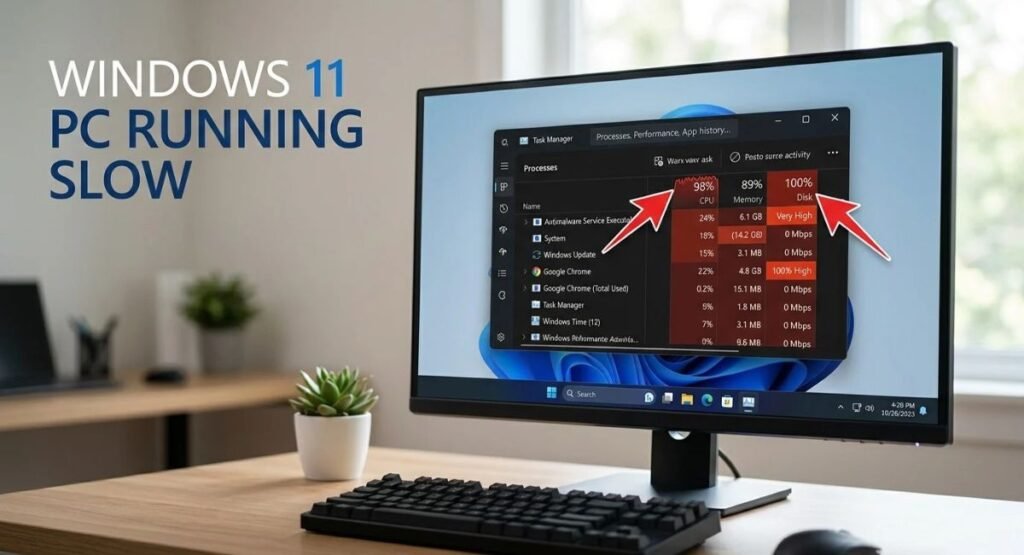
If your computer is running slow, everyday tasks can quickly become frustrating. Windows 11 may take longer to start, apps might open slowly, and you may notice freezing, lagging, or delayed responses when switching between programs. A slow PC can be caused by several things, including too many startup apps, high CPU or RAM usage, limited storage space, background processes, outdated drivers, malware, or older hardware. The good news is that you can often improve performance without replacing your computer.
In this guide, we’ll show you how to identify the cause of slow PC performance and walk through practical Windows 11 fixes that can help your computer feel faster and more responsive.
Why Is My Computer Running Slow on Windows 11?
There can be several reasons why a Windows 11 PC becomes slow. Sometimes the problem is caused by one application using too many resources. In other cases, several smaller issues can add up and make the entire system feel sluggish.
Common causes include:
- Too many apps starting with Windows
- High CPU, RAM, or disk usage
- Too many applications running in the background
- Low available storage space
- Too many visual effects on older hardware
- Outdated Windows or device drivers
- Malware or unwanted software
- A recent software or Windows update
- Older or underpowered hardware
Before changing a lot of settings, it is better to find out which of these is actually affecting your PC.
Check What Is Slowing Down Your Windows 11 PC
The easiest place to start is Task Manager. It can show you which applications and processes are using your CPU, memory, and disk.
Check CPU, Memory, and Disk Usage
Press Ctrl + Shift + Esc to open Task Manager.
Select the Processes tab and look at the CPU, Memory, and Disk columns.
If one application is consistently using a large amount of CPU, memory, or disk resources, it may be contributing to the slowdown.
You can also open the Performance tab to see overall CPU, memory, disk, network, and other system activity.
For example, if memory usage is consistently very high while you have only a few programs open, your PC may not have enough RAM for the way you use it. If disk usage stays unusually high, you may need to investigate the application or process causing the activity.
Do not end Windows processes simply because they are using resources. Focus first on applications you recognize and are not currently using.
A Quick Way to Identify the Problem
The symptoms you notice can give you a useful starting point:
| What you notice | What to check first |
|---|---|
| PC is slow immediately after signing in | Startup apps |
| Apps take a long time to open | CPU, RAM, and disk usage |
| Disk usage stays very high | Task Manager and storage |
| PC becomes slow after using it for a while | Background apps and resource usage |
| PC became slow after an update | Windows Update and update history |
| Slowdown appeared after installing software | Recently installed apps |
| PC is always slow | Hardware and storage |
Finding the cause first can save you from making unnecessary changes.
Disable Unnecessary Startup Apps
If your computer takes a long time to become responsive after you sign in, startup applications are one of the first things you should check.
Many programs are configured to launch automatically when Windows starts. You may not need all of them running immediately, and several programs starting at the same time can increase the workload on your PC.
Turn Off Apps You Do Not Need at Startup
Open:
Settings > Apps > Startup
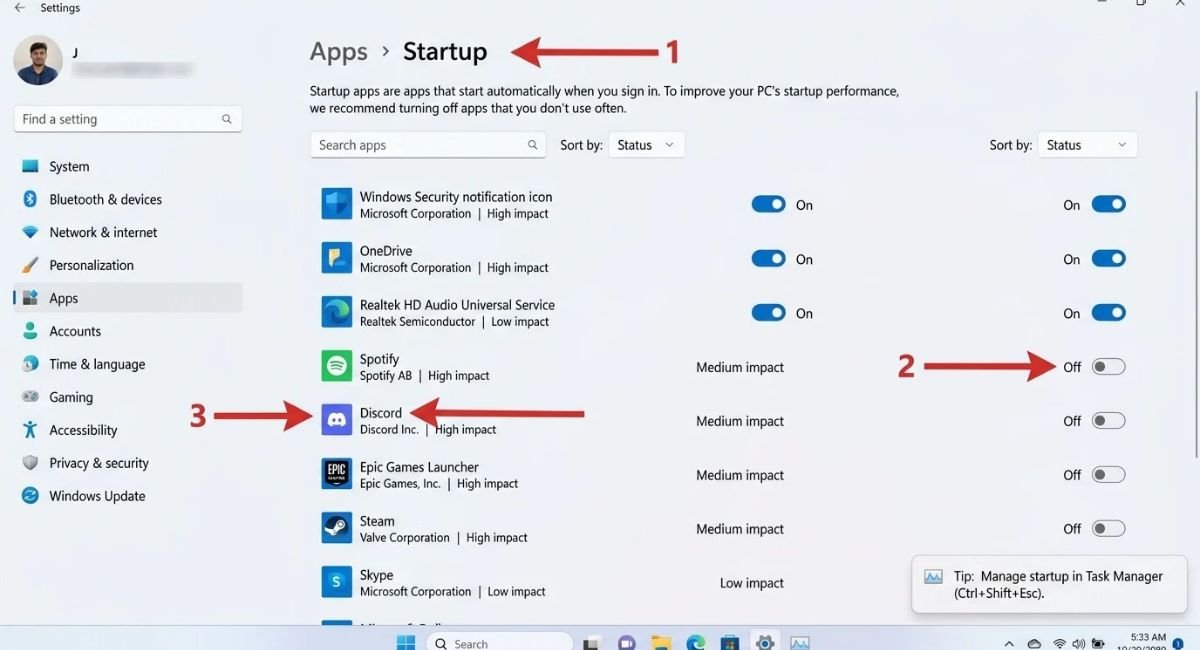
You will see applications that can start automatically with Windows. Turn off startup for programs you do not need immediately after signing in.
You can also check:
Task Manager > Startup apps
Task Manager can show the startup impact of applications, which can help you decide which programs are worth disabling.
Avoid disabling software that you know is essential for your hardware or the way you use your computer.
For example, you may not need a game launcher, messaging application, or media utility to start automatically. You can simply open it yourself when you actually need it.
Why Startup Apps Can Make Windows Feel Slow
Startup programs do not necessarily make the PC slow all the time. Their biggest impact is often noticeable immediately after login, when several applications are loading simultaneously.
Reducing unnecessary startup programs can help Windows become usable faster after you sign in.
Close Unnecessary Background Apps
Some applications continue performing tasks even when you are not actively using them. They may sync files, check for updates, send notifications, or perform other background tasks.
Limit Background Activity
For supported applications, Windows 11 provides background activity controls through:
Settings > System > Power & battery > Battery usage
Select an application and look for Manage background activity when the option is available.
Depending on the application, Windows may provide options such as Always, Power optimized, or Never.
Do not disable background activity for every application. Some apps rely on it for notifications, syncing, or other features.
Close Programs From the System Tray
Also check the icons near the notification area of the taskbar.
Some programs continue running there after you close their main window. If you are not using a particular utility, launcher, monitoring program, or other resource-heavy application, closing it can free up system resources.
Task Manager is still the better place to investigate the actual cause if you are unsure which program is consuming resources.
Free Up Storage Space on Windows 11
A nearly full system drive can cause problems beyond simply leaving you with less room for your files. Windows needs available space for temporary files, updates, caching, and other system operations.
If your C: drive is almost full, cleaning it up is worth doing.
Delete Unnecessary Temporary Files
Go to:
Settings > System > Storage > Temporary files
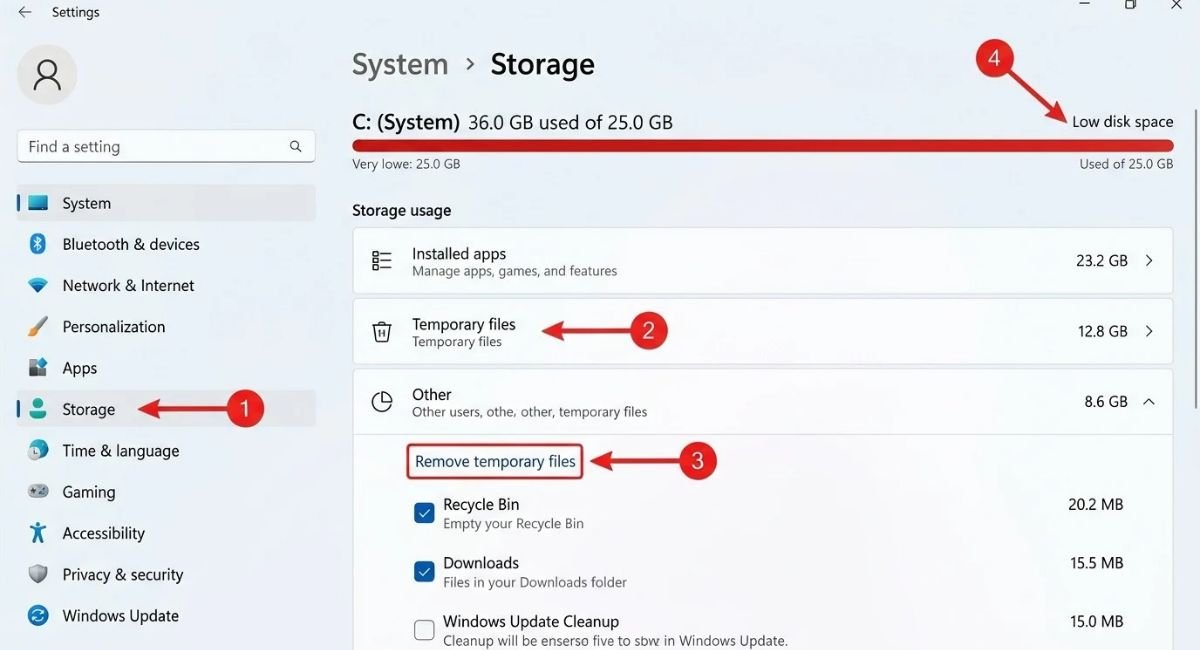
Windows will show categories of files that can potentially be removed.
Review the list carefully before deleting anything, especially if you have files you may still need.
You can also enable Storage Sense under:
Settings > System > Storage
Storage Sense can automatically remove certain unnecessary temporary files and help keep your storage under control.
Clean Up Downloads and Recycle Bin
Your Downloads folder can become surprisingly large over time. Old installers, ZIP files, videos, documents, and other downloads may be taking up space without you realizing it.
Review:
File Explorer > Downloads
Delete files you no longer need.
You can also empty the Recycle Bin after confirming that you do not need any of the deleted files.
Do not delete files simply because they are large. Make sure you know what a file is before removing it.
Keep Enough Free Space
Open:
Settings > System > Storage
Check how much space is available on your system drive.
If the drive is almost full, remove unnecessary files or move large personal files to another suitable storage location.
Reduce Windows 11 Visual Effects and Animations
Windows 11 uses transparency, animations, and other visual effects to make the interface look modern. These effects normally have a relatively small performance impact on newer PCs, but reducing them can make a noticeable difference on older or lower-powered hardware.
Turn Off Transparency Effects
Open:
Settings > Accessibility > Visual effects
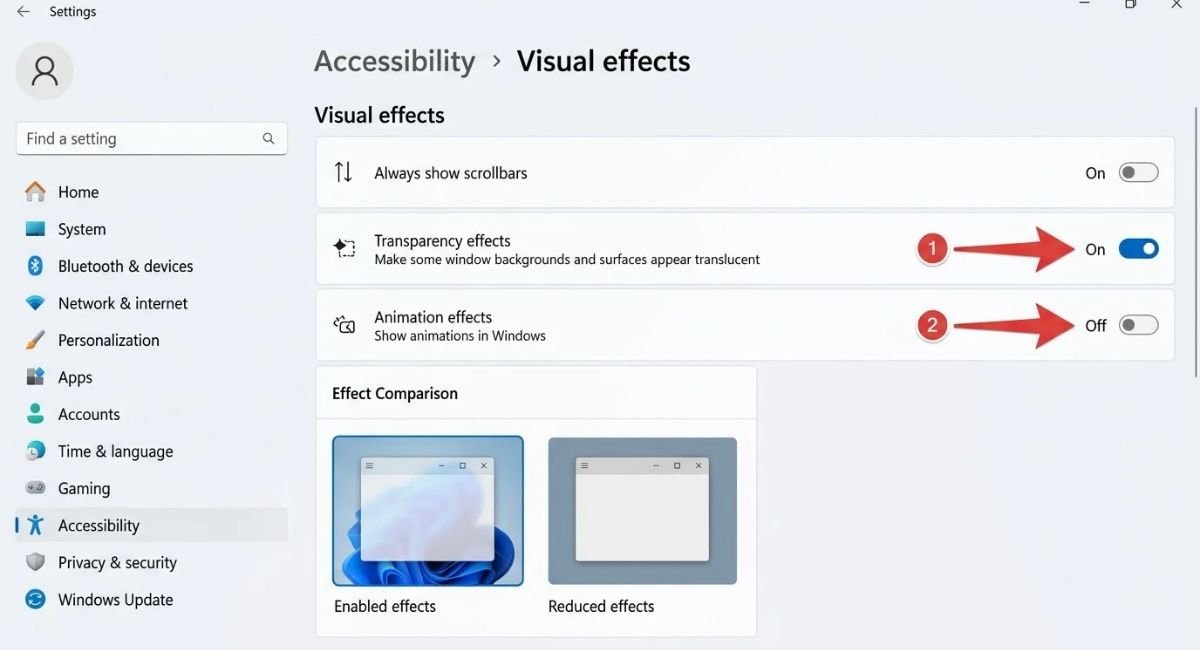
Turn Transparency effects off.
This reduces some of the visual processing used by Windows throughout the interface.
Turn Off Animation Effects
In the same Visual effects section, turn Animation effects off.
Menus and transitions may feel more immediate because Windows is no longer displaying the same animation effects.
Adjust Windows for Best Performance
For a more aggressive performance adjustment, search Windows for:
Adjust the appearance and performance of Windows
Open the result and select the Visual Effects tab.
Choose:
Adjust for best performance
This disables many visual effects at once.
If you do not like the simplified appearance, you can manually enable individual effects afterward.
Update Windows 11 and Your Drivers
If your PC has recently started behaving differently or becoming slower, check for Windows updates and available driver updates.
Updates can include bug fixes, compatibility improvements, and other changes that may address performance-related problems.
Check for Windows Updates
Go to:
Settings > Windows Update
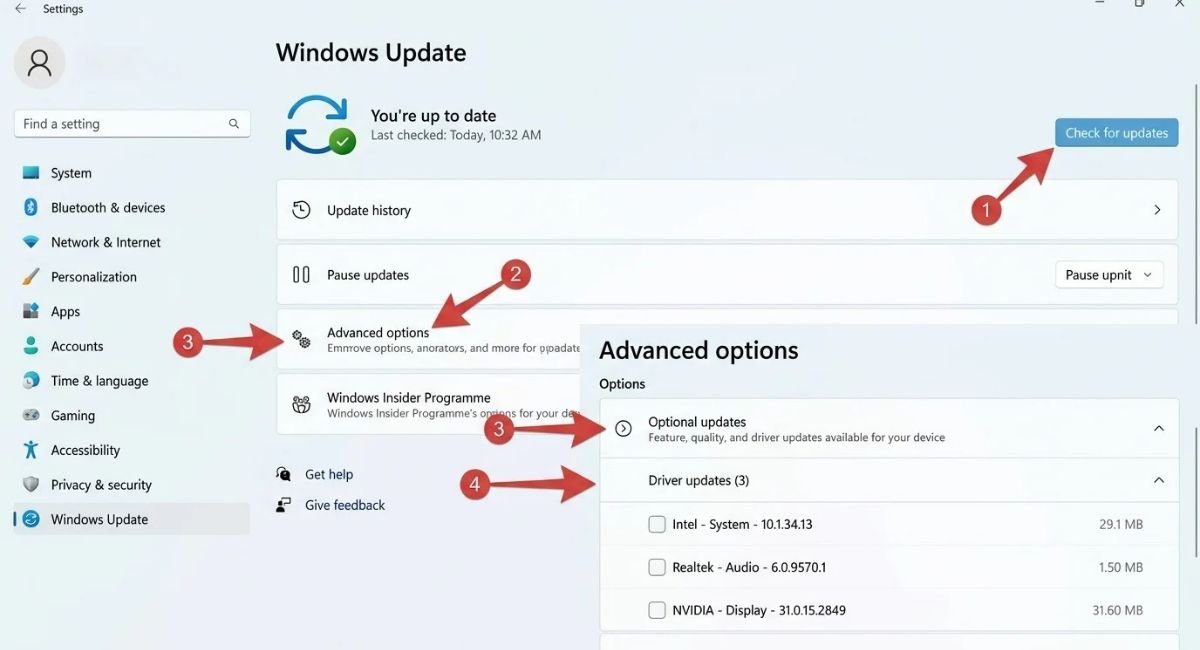
Select:
Check for updates
Install available updates and restart your PC if Windows asks you to.
You can also check:
Windows Update > Advanced options > Optional updates
Optional driver updates may be available there.
Update Important Device Drivers
Drivers allow Windows to communicate correctly with your hardware. Graphics, network, audio, storage, and other device drivers can affect system stability and performance.
Start with Windows Update and optional updates.
For graphics hardware, you can also check the official support website of your GPU manufacturer when appropriate.
Avoid random third-party driver updater programs that claim to update every driver automatically. They are usually unnecessary and can sometimes create additional problems.
What If Your PC Became Slow After a Windows 11 Update?
If the slowdown started immediately after a Windows update, check whether additional updates are available first.
You can also open:
Settings > Windows Update > Update history
Look for updates installed around the time the problem started.
If there is a clear connection between a particular update and the performance problem, Windows provides recovery options that may allow you to uninstall a recent update when appropriate.
Do not remove an update simply because Windows feels slightly different afterward. First make sure the timing and symptoms strongly point to the update.
Set Power Mode to Best Performance
Windows 11 allows you to choose how it balances performance and power consumption.
Go to:
Settings > System > Power & battery > Power mode
If available, select:
Best performance
This can be useful when running demanding applications or when your laptop is plugged into power.
Keep in mind that higher performance can increase power consumption, heat, and battery drain on laptops.
For normal everyday use, Balanced can be a better choice if you want a compromise between performance and battery life.
Scan Windows 11 for Malware
If your computer has suddenly become slow without an obvious explanation, malware is another possibility worth checking.
Malicious software can run in the background and consume CPU, memory, disk, or network resources.
Run a Scan With Windows Security
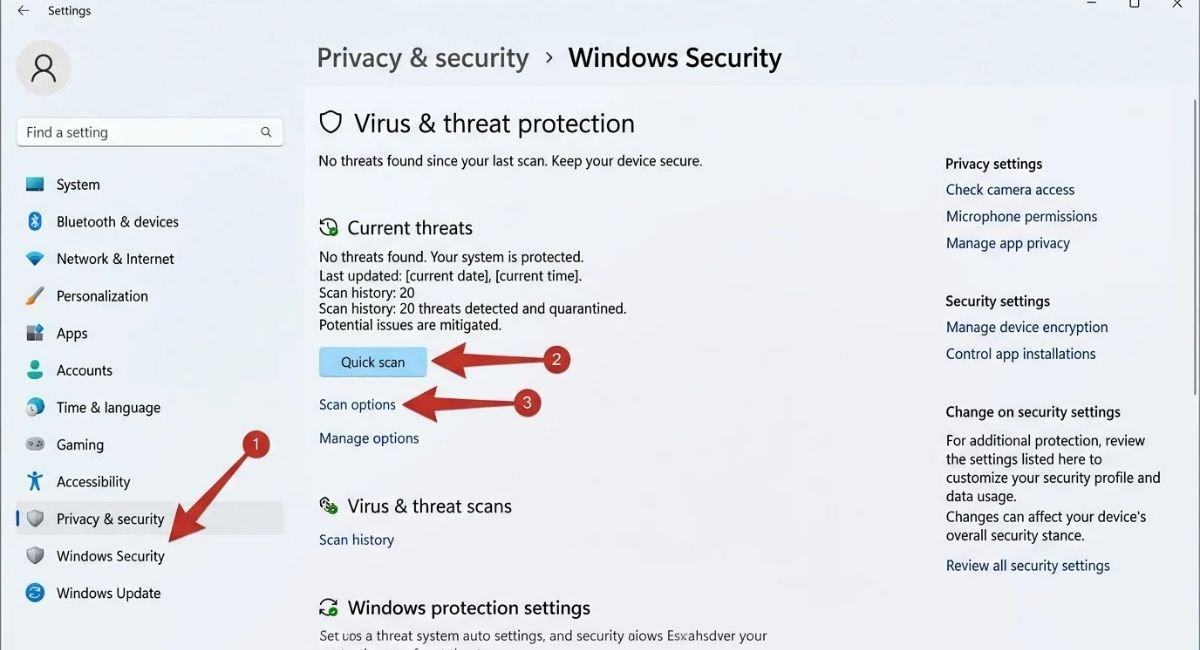
Open:
Settings > Privacy & security > Windows Security > Virus & threat protection
From there, use the available scanning options.
If you suspect a deeper problem, consider running a more thorough scan rather than relying only on a quick check.
Be Careful With Unknown Processes
Task Manager can show processes you do not recognize, but an unfamiliar process is not automatically malware. Many legitimate Windows components have names that may not be familiar to everyday users.
If you find something suspicious, investigate the application before terminating or deleting it.
What If Your Computer Suddenly Became Slow?
A computer that has been gradually slowing down is different from one that suddenly becomes slow.
If the problem appeared recently, think about what changed shortly before it happened.
Recently Installed Software
If you installed a new application, game, utility, browser extension, or driver shortly before the slowdown, temporarily removing the software may help determine whether it is related.
Go to:
Settings > Apps > Installed apps
Review recently installed applications and remove software you no longer need.
Recently Installed Windows Updates
Check:
Settings > Windows Update > Update history
If the slowdown began immediately after an update, investigate that update before making unrelated system changes.
Check Startup Apps
If the PC is slow mainly after you sign in, return to:
Settings > Apps > Startup
and check which applications are launching automatically.
Check Task Manager
If the computer becomes slow while you are actively using it, open Task Manager and check CPU, memory, and disk usage.
This can tell you whether a particular application or resource is responsible.
Check Your Available Storage
If the slowdown appeared after downloading or installing a large amount of data, check:
Settings > System > Storage
A drive that suddenly becomes almost full can contribute to performance problems.
The key here is to focus on what changed recently rather than changing every Windows setting at once.
What If Windows 11 Is Still Slow?
If you have checked applications, startup programs, storage, updates, drivers, and malware but the computer is still consistently slow, the problem may be related to the hardware or a deeper Windows issue.
Check Your Hardware
Look at:
- Installed RAM
- SSD or hard-drive type
- Available storage
- CPU
- Device age
- Temperature and cooling
- Hardware compatibility
If Windows is installed on an older mechanical hard drive, the drive itself can become a major performance limitation.
Likewise, a computer with limited RAM may struggle when several modern applications or browser tabs are open at the same time.
Consider Adding More RAM
If memory usage frequently stays high and your computer supports a RAM upgrade, adding more memory may improve multitasking performance.
Before buying RAM, check the specifications of your laptop, desktop, or motherboard to make sure the new memory is compatible.
Consider Upgrading to an SSD
If your PC still uses a traditional mechanical hard drive, replacing it with a compatible SSD can make a major difference in boot times, application loading, and general system responsiveness.
However, check your computer’s specifications before purchasing an SSD to make sure the drive type and capacity are supported.
Consider Windows Recovery or Reinstallation
If Windows remains slow after you’ve ruled out the common causes, a recovery option may be worth considering.
Windows 11 provides several recovery tools for systems that are experiencing persistent problems. Depending on the situation, these can include troubleshooting, uninstalling a problematic update, resetting Windows, or reinstalling the operating system.
Recovery should not be your first step for a simple slowdown. Try the less disruptive troubleshooting steps first.
Before using a recovery or reset option, make sure important personal files are backed up. Some recovery methods can remove applications, settings, or data depending on the option you choose.
Frequently Asked Questions
How Do I Fix a Slow Computer on Windows 11?
Start by opening Task Manager and checking CPU, memory, and disk usage. Then review startup apps, background applications, available storage, Windows updates, drivers, and malware. If the PC remains slow after these checks, investigate whether limited RAM, an older hard drive, or other hardware is responsible.
How Can I Make My Windows 11 PC Faster?
Start with the cause rather than applying every performance tweak at once. Disable unnecessary startup apps, close programs you do not need, free up storage space, keep Windows and drivers updated, and reduce visual effects if your hardware struggles with them.
Why Is My Windows 11 Computer Slow Even When No Programs Are Open?
Windows can still have background processes, startup applications, syncing services, updates, security scans, and other tasks running even when no visible programs are open.
Open Task Manager and check CPU, memory, and disk usage to find out what is actually consuming resources.
Why Is My Computer Running Slow All of a Sudden?
A sudden slowdown can be caused by a newly installed application, Windows update, driver, malware, storage problem, or a process using unusually high system resources.
Think about what changed shortly before the problem appeared, then use Task Manager and Windows Update history to narrow it down.
How Do I Clean Up My Computer to Make It Run Faster?
Go to:
Settings > System > Storage > Temporary files
Review the available cleanup options and remove files you no longer need. Also check your Downloads folder and Recycle Bin.
Storage cleanup can help when low disk space is contributing to the problem, but it will not fix every type of slowdown.
Should I Disable Windows Search to Make Windows 11 Faster?
Usually, no.
Windows Search indexing can temporarily use CPU or disk resources, particularly while indexing new files. If you notice increased activity, it is generally better to allow indexing to finish and then check whether performance returns to normal.
Disabling Windows Search can make finding files and applications less convenient.
Does More RAM Make Windows 11 Faster?
More RAM can help if your computer regularly runs out of available memory while multitasking.
If memory usage is already comfortably below your system’s limits, adding RAM may not make a noticeable difference. Check Task Manager first to see whether memory is actually a limitation.
Is an SSD Better Than a Hard Drive for Windows 11?
An SSD is generally much faster than a traditional mechanical hard drive for tasks such as starting Windows, opening applications, and loading files.
If your Windows 11 installation is still running from an older HDD, upgrading to a compatible SSD can significantly improve overall responsiveness.
External Resources
