Introduction
When your network suddenly stops working, you may discover that your network adapter is missing from Windows. This problem can prevent your PC from connecting to Wi-Fi or Ethernet, leaving you without internet access. Sometimes, the adapter disappears after a Windows update, while other times, a corrupted driver or disabled device causes the issue. Fortunately, you don’t always need professional help to fix it.
In this guide, you’ll learn how to fix a network adapter not showing in Windows 10/11 using simple, practical solutions. We’ll cover Device Manager, network adapter drivers, Windows settings, and hardware checks to help you restore your network connection and get back online.
Why Is the Network Adapter Missing in Windows 10/11?
A network adapter missing from Windows can have several causes. An outdated or corrupted network adapter driver may prevent Windows from detecting your Wi-Fi or Ethernet device. Sometimes, Windows hides the adapter or disables it after a system update.
Hardware problems are also possible, particularly when the adapter disappears completely. A disabled wireless device, incorrect BIOS setting, or damaged network card can cause similar symptoms. Identifying the likely cause helps you choose the right fix instead of changing settings unnecessarily.
Common Causes of a Missing Network Adapter
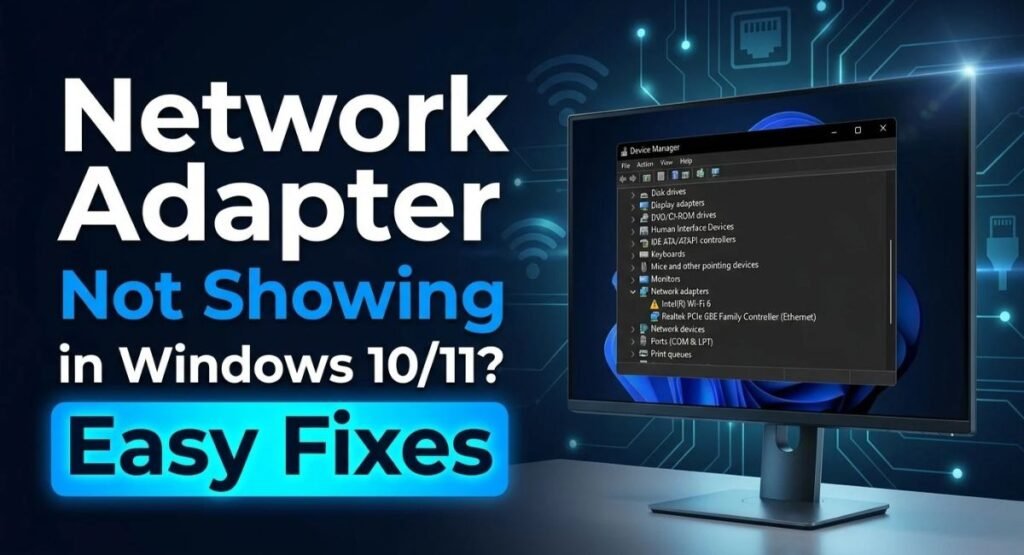
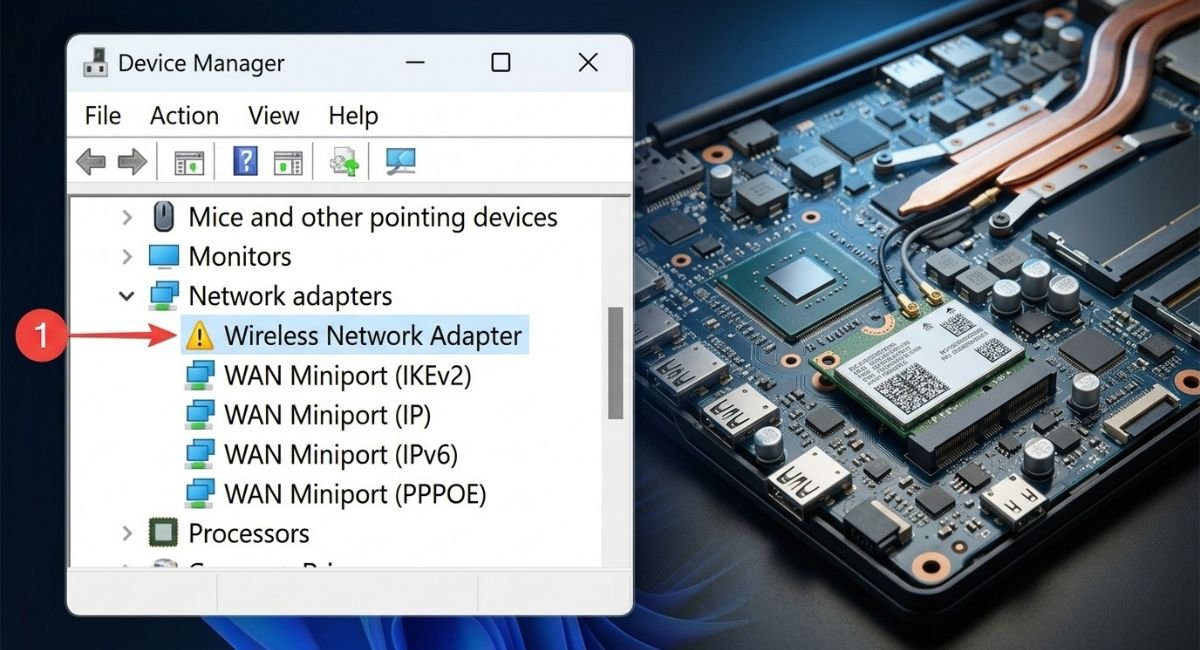
Common reasons include a corrupted driver, incomplete Windows update, disabled adapter, or incorrect network configuration. A wireless network adapter missing from Device Manager may also indicate that Windows cannot detect the hardware. If the device appears with a warning symbol, investigate its driver first.
Wi-Fi Adapter vs. Ethernet Adapter
A missing Wi-Fi adapter prevents your PC from detecting wireless networks. A missing Ethernet adapter affects wired connections instead. Both devices usually appear under Network adapters in Device Manager. Check which connection has disappeared before applying the troubleshooting steps below.
Restart Your PC and Check Network Connections
First, restart your computer. A temporary Windows service or driver issue can prevent the network adapter from showing correctly. Select Start, choose Power, and click Restart. After Windows loads, check whether Wi-Fi or Ethernet has returned.
If the problem continues, inspect your physical connections. For Ethernet, make sure the cable fits securely into the PC and router. If you’re using a USB network adapter, disconnect it and reconnect it to another USB port. These basic checks can rule out simple connection problems.
Check the Physical Network Connection
For a wired connection, check the Ethernet cable and router port. Try another cable if available. For a USB Wi-Fi adapter, reconnect the device and wait a few seconds. If Windows still cannot detect it, continue to Device Manager to investigate the missing network hardware.
Show Hidden Network Adapters in Device Manager
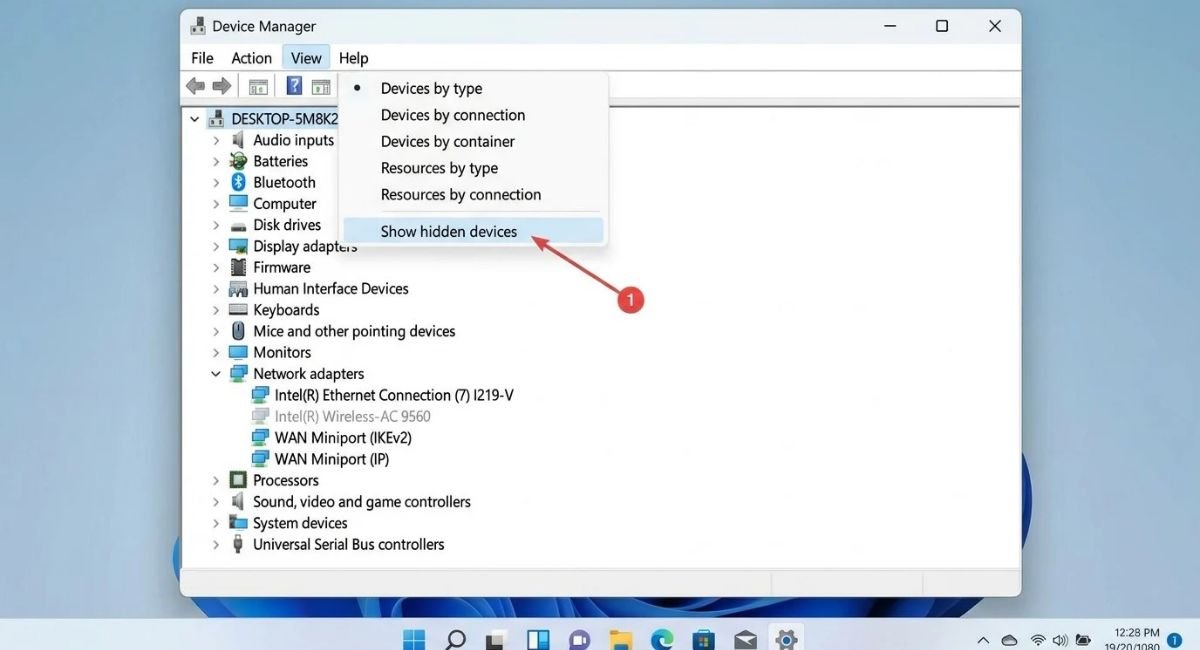
Device Manager may hide devices that Windows no longer detects or currently considers unavailable. Checking hidden devices is a useful first step when your network adapter is not showing in Windows. You can also scan for hardware changes to see whether Windows detects the device again.
Press Windows + X and select Device Manager. Open the View menu and choose Show hidden devices. Expand Network adapters and look for a faded Wi-Fi or Ethernet device. If you find one, right-click it and check whether you can enable or update it.
Scan for Hardware Changes
In Device Manager, select your computer name at the top of the device list. Open the Action menu and choose Scan for hardware changes. Windows will search for connected hardware and attempt to detect available devices. If the adapter appears, check its status before moving to the next fix.
Enable Wi-Fi Adapter in Windows Settings and BIOS
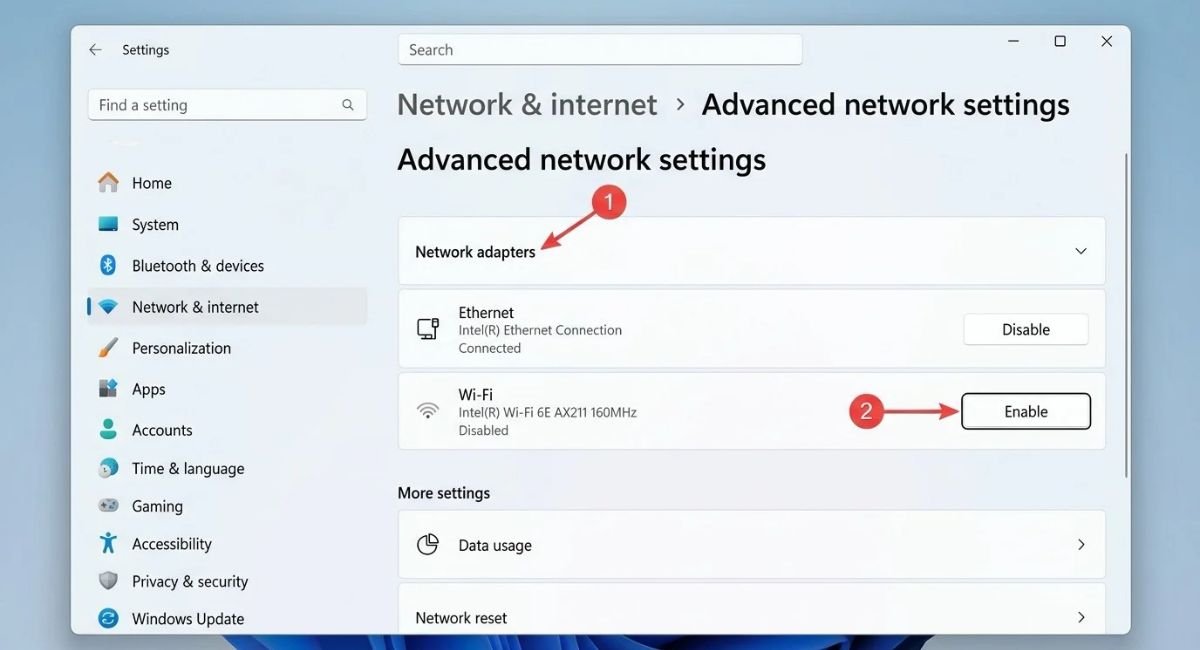
Sometimes, Windows disables a network adapter instead of removing it completely. Open Settings and navigate to the advanced network settings page. Check whether your Wi-Fi or Ethernet adapter appears as disabled. If you see an Enable option, select it and check your connection again.
If the adapter remains missing, check whether your computer has a wireless switch or function-key shortcut. Some computers also provide wireless-device controls in BIOS or UEFI. These options vary by manufacturer, so consult your PC’s official support documentation before changing firmware settings.
Go to:
Settings > Network & internet > Advanced network settings
Check Wireless Settings in BIOS or UEFI
Restart your PC and enter BIOS or UEFI using the key specified by your computer manufacturer. Look for wireless, WLAN, or onboard network settings. If wireless networking is disabled, enable it and save the changes. Avoid changing unrelated firmware options because they may affect system startup or other devices.
Update, Roll Back, or Reinstall the Network Adapter Driver
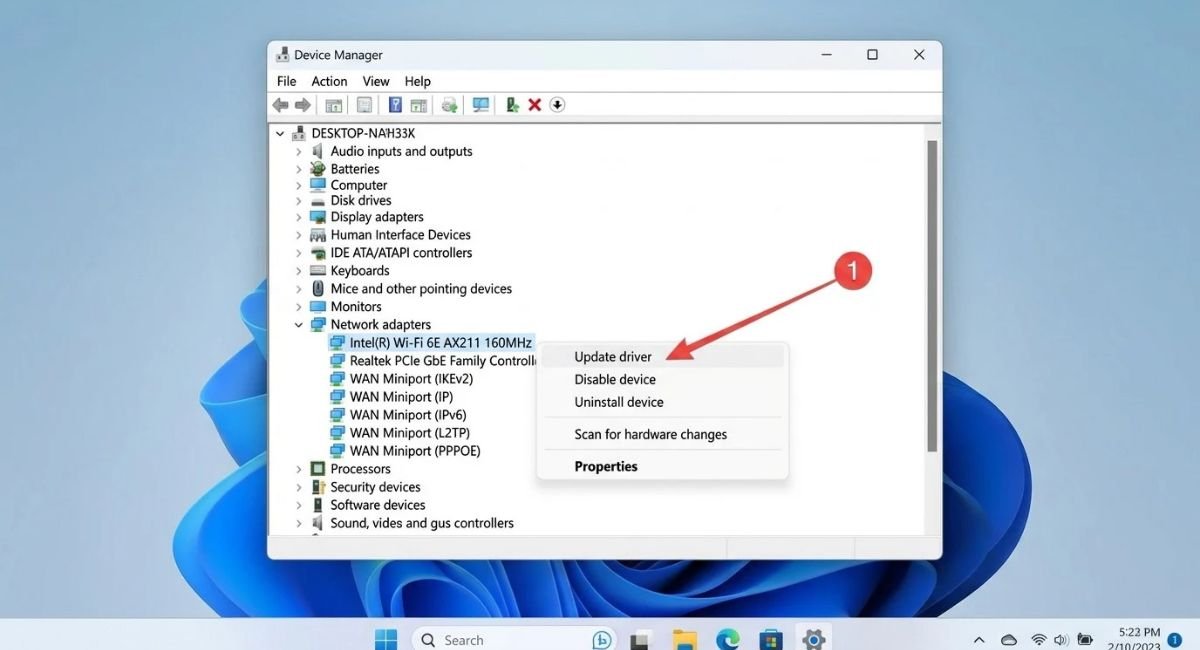
A damaged or incompatible network adapter driver can stop Windows from detecting your device correctly. If the adapter appears in Device Manager, right-click it and open Properties to check its status. You can then update the driver or reinstall it if Windows reports a problem.
If the issue started immediately after a driver update, rolling back the driver may help. Otherwise, download a compatible driver from your PC manufacturer’s official website using another device if necessary. Save it to a USB drive and transfer it to the affected computer if internet access is unavailable.
Roll Back or Reinstall the Driver
Open Device Manager, right-click the network adapter, and select Properties. Under the Driver tab, choose Roll Back Driver if the option is available and the issue began after an update. To reinstall, uninstall the device and restart Windows. Before uninstalling, make sure you have access to a compatible replacement driver.
Add the Missing Network Adapter Manually
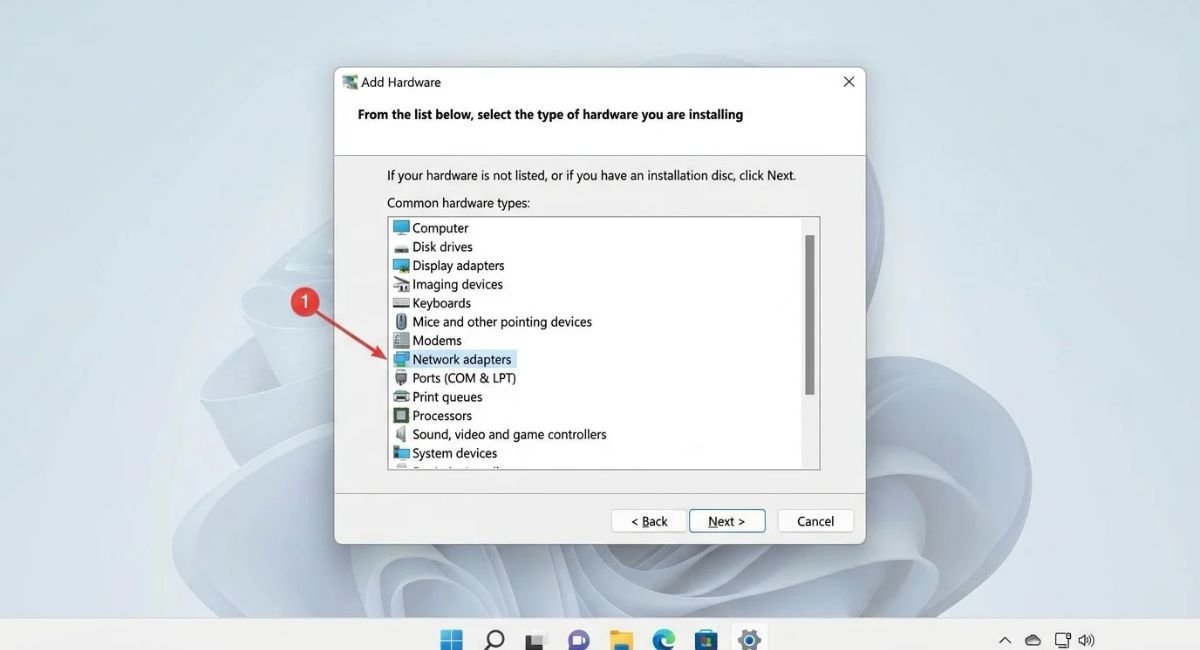
If Windows detects the device but doesn’t install its driver automatically, you can try adding legacy hardware through Device Manager. Open Device Manager, select your computer name, and open Action. Choose Add legacy hardware if the option is available, then follow the wizard.
This method does not repair a physically disconnected or damaged adapter. It also may not work with modern Plug and Play devices. If Windows cannot find compatible hardware, download the correct driver from the computer or adapter manufacturer’s official website instead.
Install a Compatible Network Driver
Find your PC model on the manufacturer’s official support website. Download the correct wireless or Ethernet driver for your Windows version and system architecture. Transfer the installer using a USB drive if needed, then run it and restart the computer. Avoid third-party driver download sites that may provide incorrect or unsafe files.
Reset Winsock and Network Settings
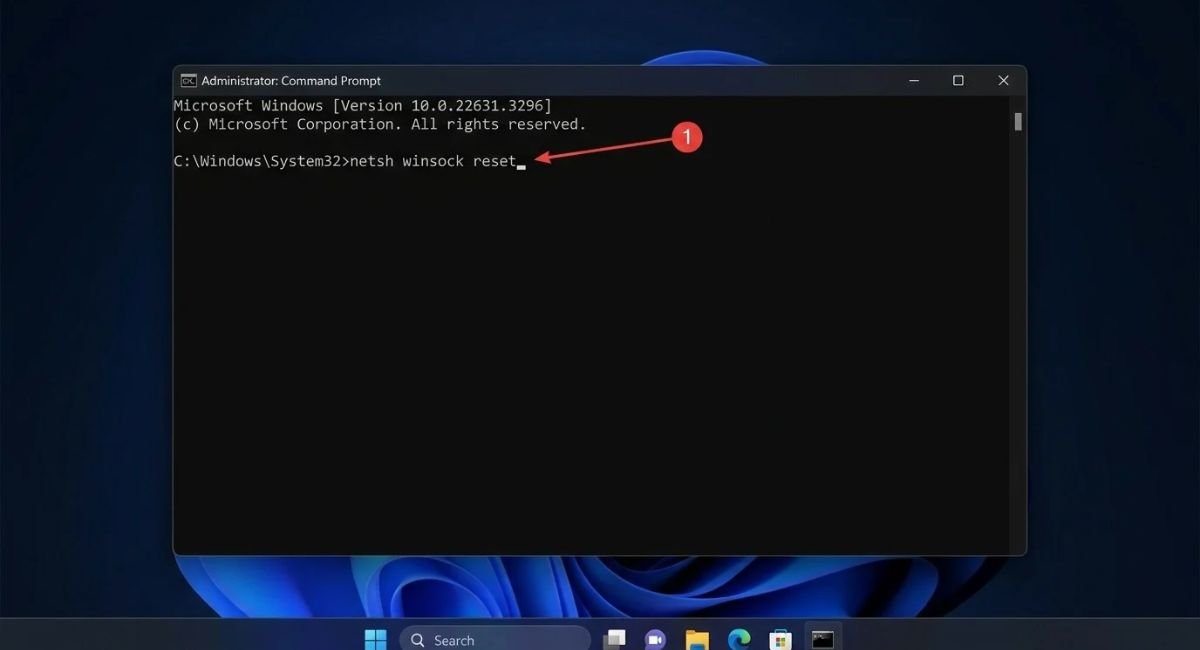
Windows networking components can become corrupted and interfere with connectivity. Resetting Winsock may help when network software or configuration changes have caused problems. Open Command Prompt as an administrator and run the command below. Restart your PC afterward and check whether the adapter returns.
netsh winsock reset
A Winsock reset does not repair a missing physical adapter or guarantee that its driver will return. If the adapter is still absent, consider Windows network reset after recording any custom network settings. Network reset may remove installed network adapters and restore networking components to their default configuration.
Reset Windows Network Settings
Open Settings and find the Network reset option under Advanced network settings. Review the warning before confirming, because Windows may remove and reinstall network adapters and reset related settings. You may need to reconnect to Wi-Fi or reinstall networking software afterward.
Check for Windows Updates and Run the Network Troubleshooter
Windows updates sometimes include fixes for networking and device compatibility issues. Open Windows Update and check for available updates. Install appropriate updates, restart your PC, and inspect Device Manager again. If the problem began after a recent update, also consider whether a compatible driver is available from your PC manufacturer.
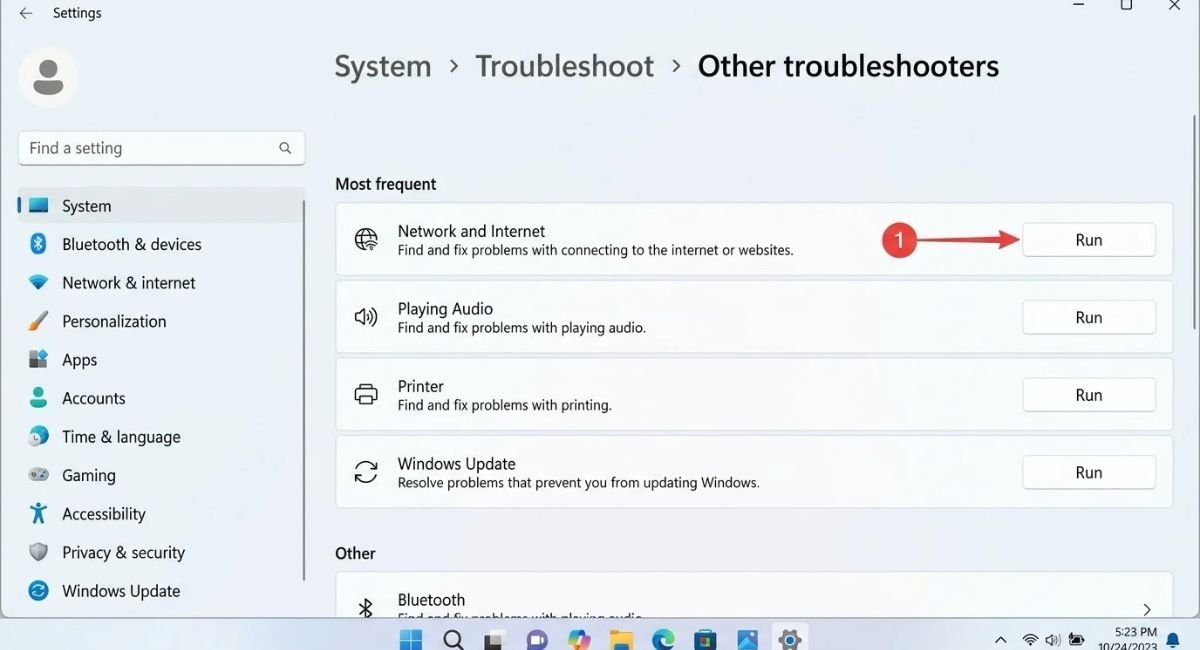
Windows includes troubleshooting tools that can identify certain connection and configuration problems. Run the relevant network troubleshooter from Settings if it is available on your Windows version. Follow its recommendations, but remember that a troubleshooter may not resolve hardware detection or missing-driver problems.
Go to:
Settings > System > Troubleshoot > Other troubleshooters
Check for Optional Driver Updates
Open Windows Update and look under Advanced options for Optional updates, if available. Check the driver updates listed there for your network device. Install only a suitable driver, then restart Windows and check whether the adapter appears in Device Manager.
Perform a Hard Reset or System Restore
If the network adapter disappeared after a major system change, a full shutdown may help clear a temporary hardware detection issue. Shut down your PC, disconnect external accessories, and follow the manufacturer’s instructions for a power reset. Avoid opening the computer unless you’re qualified to work with its internal components.
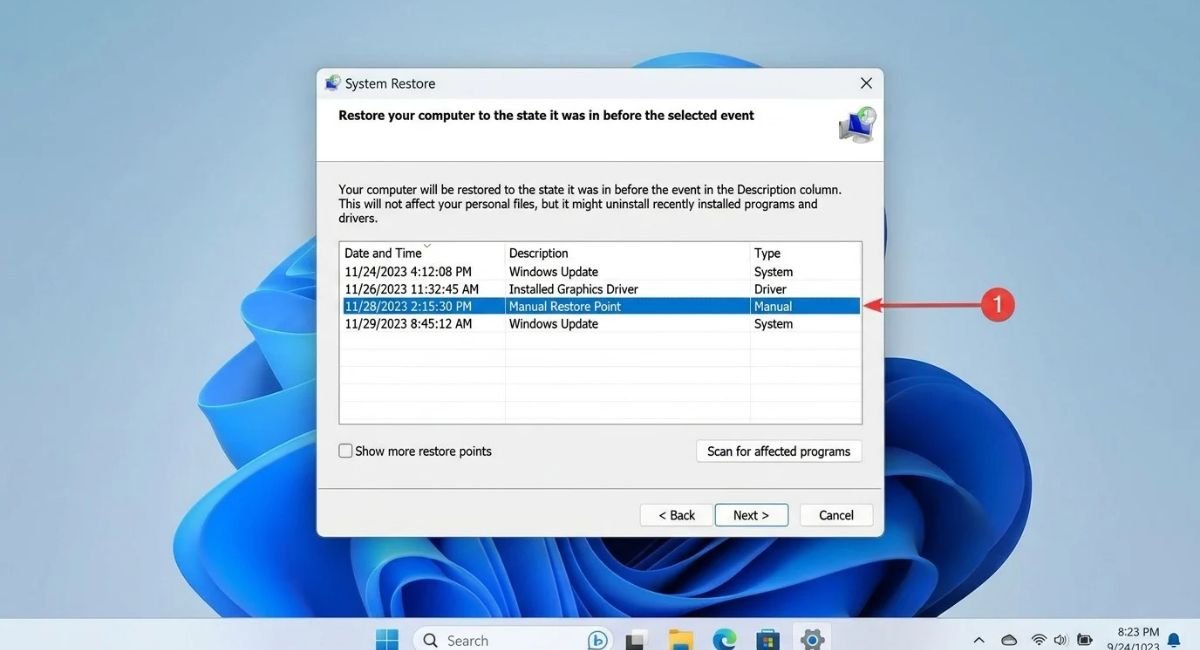
System Restore is another option if the problem began recently and a suitable restore point exists. Search Windows for System Restore and open the recovery wizard. Choose a restore point from before the issue started. Review the affected programs before confirming, and back up important files as a precaution.
Use System Restore Carefully
System Restore can revert system files, drivers, and settings to an earlier state. It normally does not remove personal documents, but it can affect applications and drivers installed after the selected restore point. If no restore point exists, skip this step and continue with hardware checks.
Check for Network Adapter Hardware Problems
If the adapter remains missing after these fixes, Windows may not be detecting the hardware. Check Device Manager again and look for unknown devices or warning symbols. For a desktop PC, a network card may be loose or faulty. For a laptop, the wireless adapter or its connection may require professional inspection.
You can test an external USB Wi-Fi adapter to see whether Windows can establish a network connection through another device. If the USB adapter works while the built-in adapter remains missing, the internal adapter or its driver may be the cause. Contact your computer manufacturer’s support team if the problem persists.
When to Seek Hardware Repair
Consider professional support if the adapter remains undetected after installing the correct driver and checking the manufacturer’s recommended settings. A technician can inspect the internal network card and its connection. If the adapter has failed, replacing it or using a compatible external network adapter may restore connectivity.
Quick Troubleshooting Reference
| Problem | What to try first |
|---|---|
| Adapter hidden in Device Manager | Enable Show hidden devices |
| Adapter disabled | Check Advanced network settings |
| Driver missing or corrupted | Install a compatible manufacturer driver |
| Problem after an update | Check driver updates or consider rollback |
| Network configuration issue | Reset Winsock or network settings |
| Adapter never detected | Check hardware and manufacturer support |
Conclusion
A network adapter not showing in Windows can interrupt both Wi-Fi and Ethernet connections, but the cause is not always hardware failure. Start by checking hidden devices, adapter settings, and driver status. Then try network resets, Windows updates, and the manufacturer’s troubleshooting guidance.
If Windows still cannot detect the adapter, investigate possible hardware problems before replacing anything. Using the correct driver and following the steps in order gives you the best chance of restoring your connection safely.
Frequently Asked Questions
Why Is My Network Adapter Not Showing in Windows 11?
A missing network adapter can result from a corrupted driver, disabled device, Windows update, or hardware problem. Open Device Manager, enable Show hidden devices, and scan for hardware changes. If it remains missing, install the correct driver from your computer manufacturer’s support website.
How Do I Restore a Missing Wi-Fi Adapter in Device Manager?
Open Device Manager and select View > Show hidden devices. Expand Network adapters and check whether your Wi-Fi device appears. If it does, try enabling it or updating its driver. If the device is absent, check Windows Update and your PC manufacturer’s driver downloads.
Why Did My Network Adapter Disappear After a Windows Update?
A Windows update may install an incompatible driver or change device settings. Check Device Manager for warning symbols, look for optional driver updates, and consider rolling back the driver if the problem began immediately after an update. Download drivers only from a trusted manufacturer source.
Can I Reinstall a Network Adapter Without Internet Access?
Yes. Use another computer or phone to access your PC manufacturer’s official support website. Download the correct network driver, copy it to a USB drive, and transfer it to the affected PC. Run the installer and restart Windows to complete the installation.
How Do I Know If My Network Adapter Is Damaged?
Hardware failure is possible when Windows cannot detect the adapter after driver and configuration checks. Unknown devices or error codes may offer clues, but they do not prove physical damage. Testing a compatible USB network adapter or consulting a technician can help identify the cause.