Introduction
Is your laptop constantly losing its Wi-Fi connection while browsing, streaming, or working online? This problem can interrupt important tasks and make even simple activities frustrating. Wi-Fi Keeps Disconnecting in Windows is a common issue caused by outdated drivers, weak signals, incorrect network settings, or router problems. Fortunately, you don’t need advanced technical skills to fix it.
Windows 11 and Windows 10 offer several built-in tools that can help restore a stable connection. In this guide, you’ll discover 10 easy fixes, from restarting your router to updating network drivers and resetting network settings, so you can get back online confidently.
Why Does WiFi Keep Disconnecting in Windows 11/10?
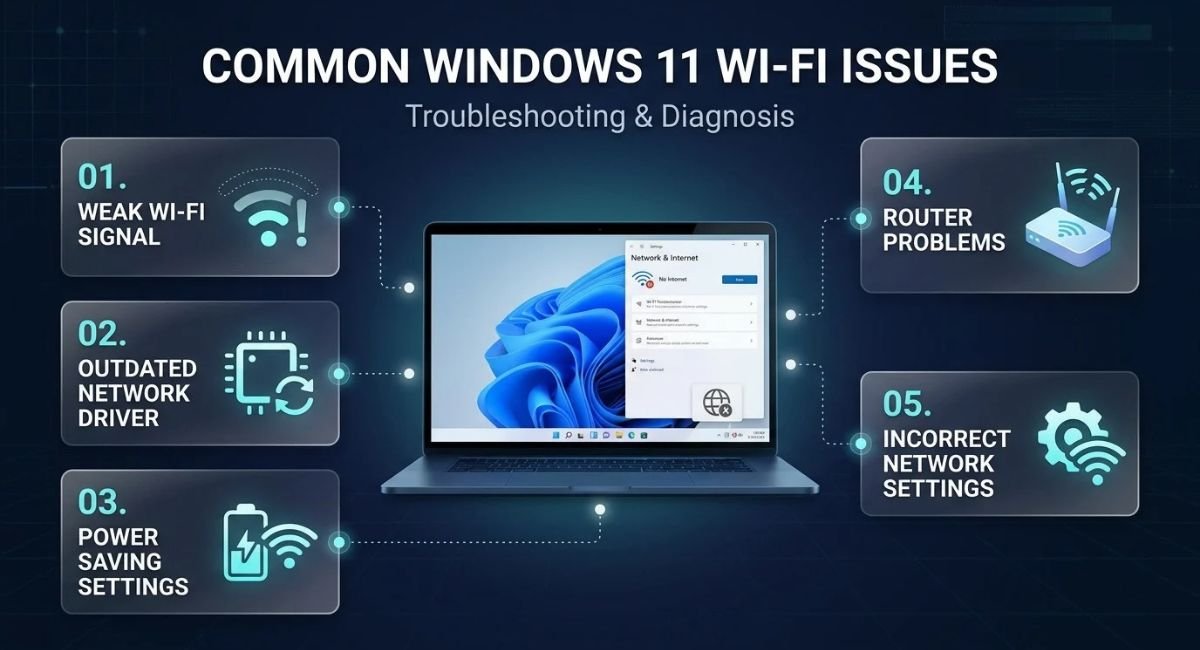
Several issues can cause an unstable wireless connection. Common causes include weak signal strength, outdated network drivers, aggressive power-saving settings, router problems, and corrupted network configurations. A recent Windows update may also affect compatibility with certain wireless adapters.
First, determine whether the problem affects only your laptop or every device on your network. If your phone and other computers disconnect too, investigate the router or internet service. However, if only your Windows laptop loses its connection, focus on its Wi-Fi adapter, drivers, and network settings.
How to Identify the Source of the Problem
Notice when the disconnection happens. If Wi-Fi drops when your laptop sleeps, power-management settings may be responsible. If it disconnects in one room but works near the router, signal strength could be the issue. Repeated problems after an update may point to a driver or Windows configuration change.
You can also test another device on the same network. If other devices remain connected, troubleshoot the laptop first. This simple test helps you avoid changing router settings unnecessarily.
Restart Your Laptop and Wi-Fi Router
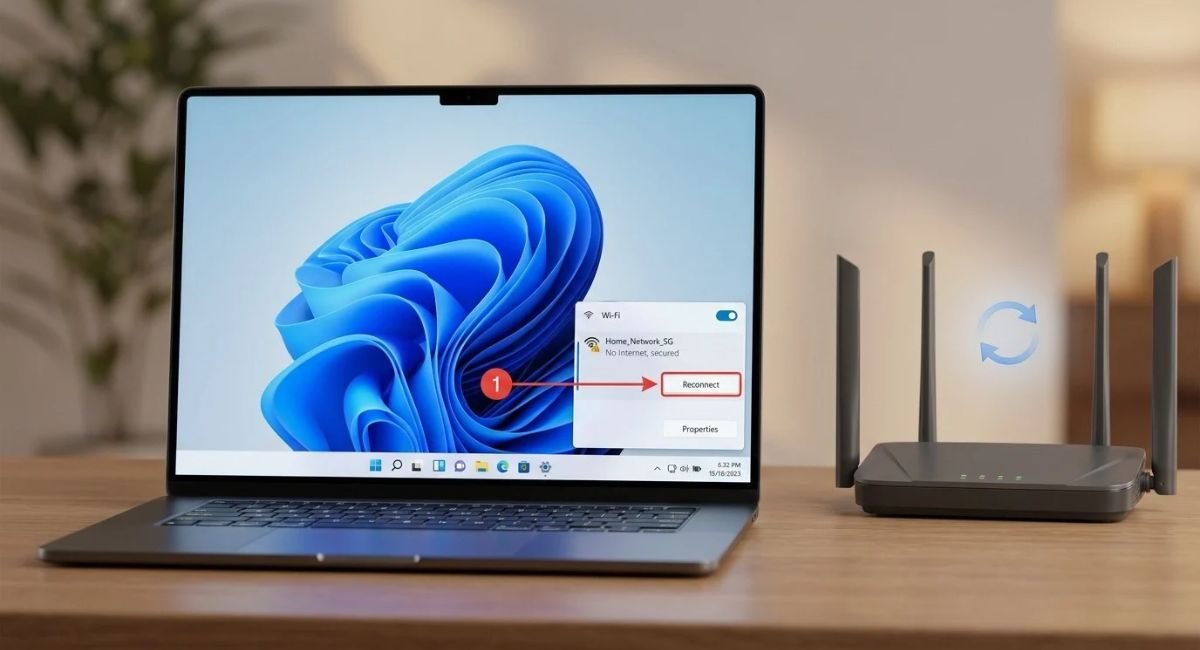
Restarting your laptop and router is a simple first step. It can clear temporary network errors, refresh the wireless connection, and resolve minor software glitches. Save your work before restarting your computer.
Next, unplug your router’s power cable and wait about 30 seconds. Reconnect it and allow the device a few minutes to establish its internet connection. Restart your laptop and reconnect to your Wi-Fi network. If you use a separate modem, follow its manufacturer’s recommended restart procedure.
Forget and Reconnect to Your Wi-Fi Network
If restarting does not help, remove the saved Wi-Fi profile and reconnect. Windows will create a fresh connection profile when you enter the network password again. Make sure you know the correct password before forgetting the network.
Go to:
Settings > Network & internet > Wi-Fi > Manage known networks
Select your network and choose Forget. Return to the Wi-Fi list, select the same network, and enter its password. Test the connection to see whether it stays stable.
Disable Power Saving for the Wi-Fi Adapter
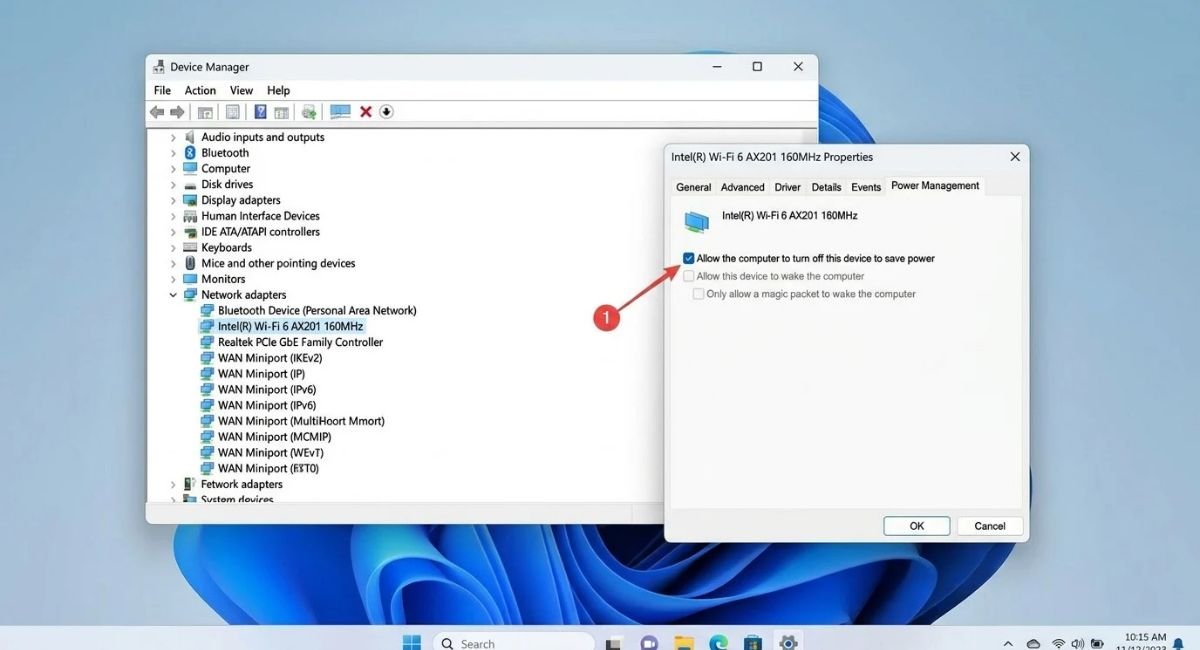
Windows may reduce power consumption by allowing the computer to turn off certain network devices. Depending on the adapter and driver, this setting can contribute to connection problems. Changing it is worth trying if Wi-Fi disconnects during sleep, after waking, or while the laptop runs on battery.
Open Device Manager and locate your wireless adapter. Check whether its Properties window contains a Power Management tab. If the option is available, disable the setting that allows Windows to turn off the device to save power. Click OK and test the connection.
Go to:
Device Manager > Network adapters > Your Wi-Fi adapter > Properties > Power Management
Check Your Laptop’s Power Plan
Some laptops use manufacturer utilities or power plans that manage wireless performance separately. If disconnections continue, check your laptop manufacturer’s power-management application for wireless power-saving options.
Avoid disabling unrelated power settings. Change only the options relevant to the wireless adapter, then test whether the connection improves.
Update or Reinstall Your Wi-Fi Driver
An outdated, corrupted, or incompatible network driver can cause frequent disconnections. Driver problems may appear after a Windows update, a system upgrade, or the installation of new networking software. Updating the driver can restore compatibility and improve connection stability.
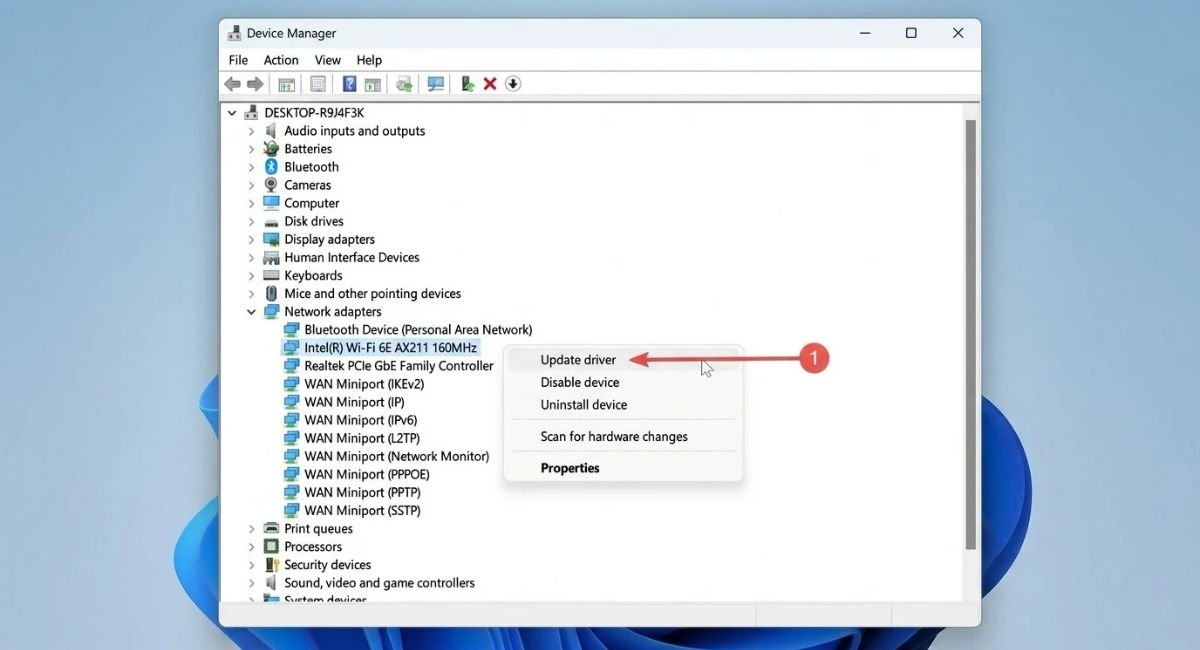
Open Device Manager, expand Network adapters, and right-click your wireless adapter. Choose Update driver, then select the available automatic search option. Windows may find a compatible driver, although the newest version is not always available through this method.
Go to:
Device Manager > Network adapters > Your Wi-Fi adapter
Reinstall the Wireless Network Driver
If updating does not resolve the problem, reinstalling the adapter driver may help. In Device Manager, right-click the Wi-Fi adapter and choose Uninstall device. Read the confirmation carefully before proceeding. If Windows offers an option to remove the driver package, do not select it unless you have a suitable replacement driver available.
Restart your computer and allow Windows to detect the adapter again. If the driver does not reinstall correctly, download the appropriate version from your laptop or wireless adapter manufacturer’s official website. Before uninstalling anything, make sure you have another way to access the internet or transfer the driver installer.
Roll Back a Recently Updated Driver
If the problem began immediately after a driver update, rolling back may be more effective than installing another version. Open the adapter’s Properties window and look for the Driver tab. If Roll Back Driver is available, follow the instructions and restart your laptop afterward.
Run the Windows Network Troubleshooter
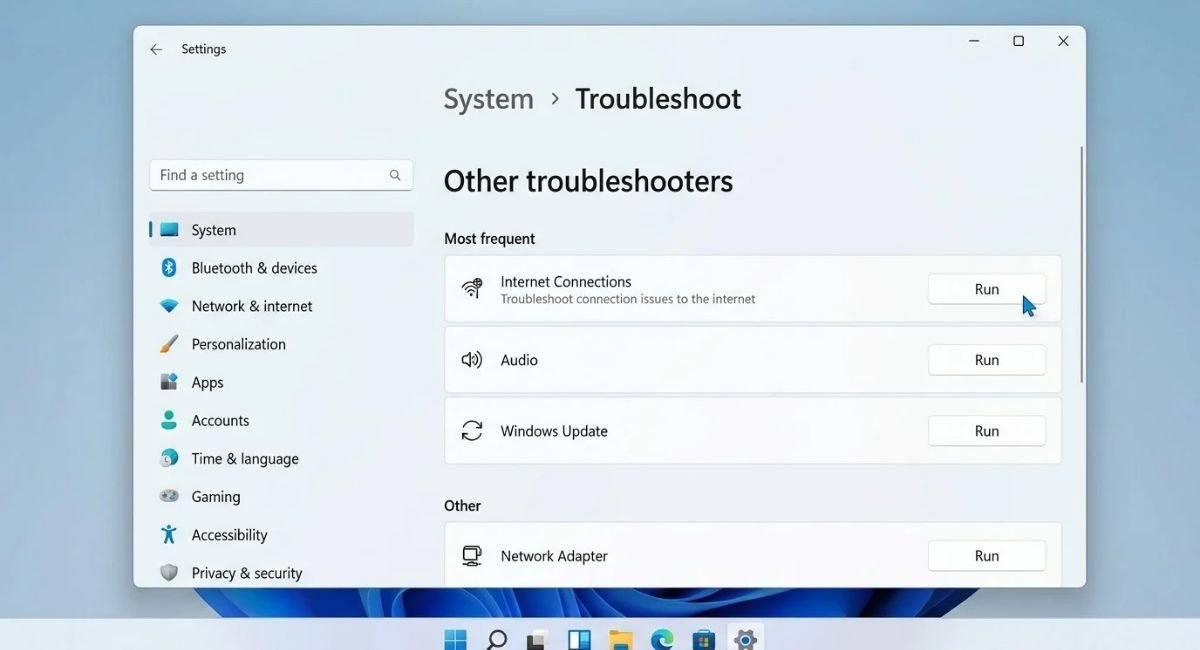
Windows includes built-in troubleshooting tools that can identify some common network problems. Depending on your Windows version, the available options and their names may differ. The troubleshooter may detect connectivity issues, incorrect settings, or problems with the network adapter.
Open Windows Settings and locate the network troubleshooting options. Run the relevant troubleshooter and follow its recommendations. If Windows applies a repair, reconnect to Wi-Fi and check whether the connection remains stable.
Go to:
Settings > System > Troubleshoot > Other troubleshooters
Check the Network Connection After Troubleshooting
The troubleshooter may report that it could not identify the problem. That does not necessarily mean your connection is working correctly. Continue with the next fixes if the laptop still disconnects.
Also, note any error message the tool provides. The wording may help you identify a driver issue, a gateway problem, or another specific cause.
Reset TCP/IP and Flush the DNS Cache
Windows uses networking components such as TCP/IP and DNS to communicate with websites and other devices. Incorrect network configuration or temporary software problems can sometimes interfere with connectivity. Resetting these components may help when ordinary troubleshooting fails.
Before proceeding, save your work and close applications that depend on the internet. Search for Command Prompt, right-click it, and choose Run as administrator. Enter the following commands one at a time, pressing Enter after each command.
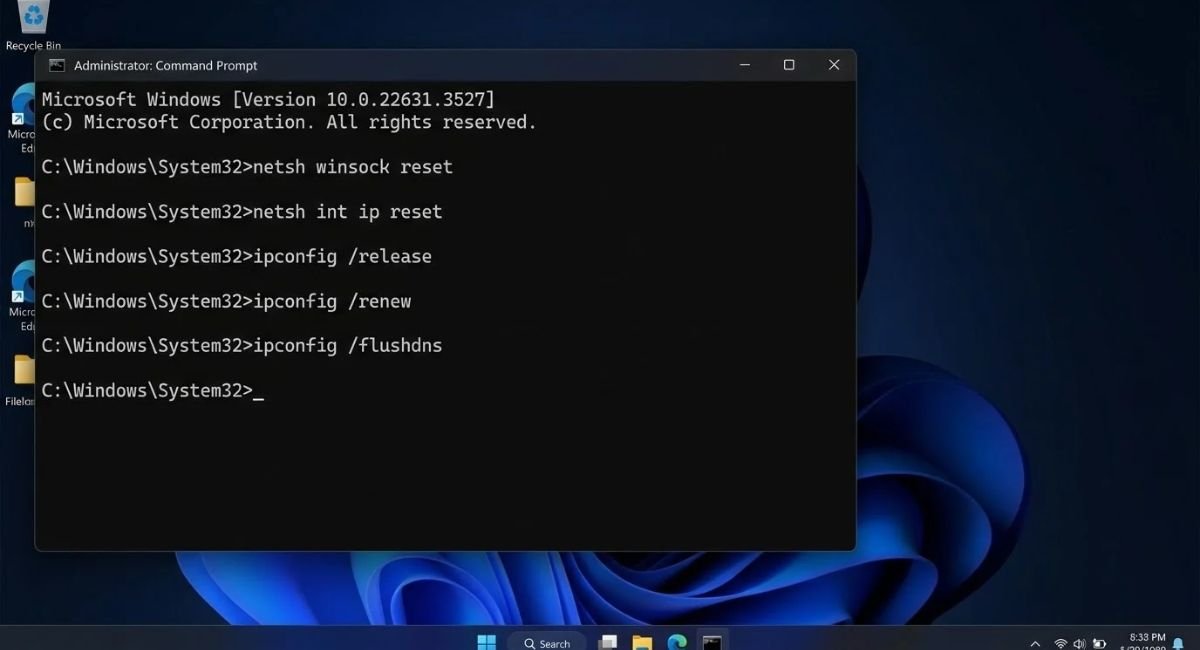
Run these commands in the order shown:
netsh winsock reset
netsh int ip reset
ipconfig /release
ipconfig /renew
ipconfig /flushdns
Restart your laptop after the commands finish. Some commands may temporarily disconnect your computer from the network, which is expected. If a command returns an error, read the message rather than repeatedly running it without understanding the cause.
Test Your Wi-Fi Connection Again
After restarting, connect to your usual wireless network and test several websites. Check whether the connection remains stable during normal browsing or video playback.
If the problem continues, do not keep repeating the reset commands. Move to the adapter settings and DNS checks instead.
Change Wi-Fi Adapter Settings for Better Stability
Some wireless adapters offer advanced options that affect roaming, preferred bands, and transmission behavior. Incorrect values can sometimes contribute to an unstable connection, particularly on laptops that move between access points. However, available options vary by adapter and driver.
Open Device Manager, select your wireless adapter, and open its Properties window. Choose the Advanced tab if it exists. Review the available settings and change only one option at a time. Record the original value so you can restore it if performance gets worse.
Go to:
Device Manager > Network adapters > Your Wi-Fi adapter > Properties > Advanced
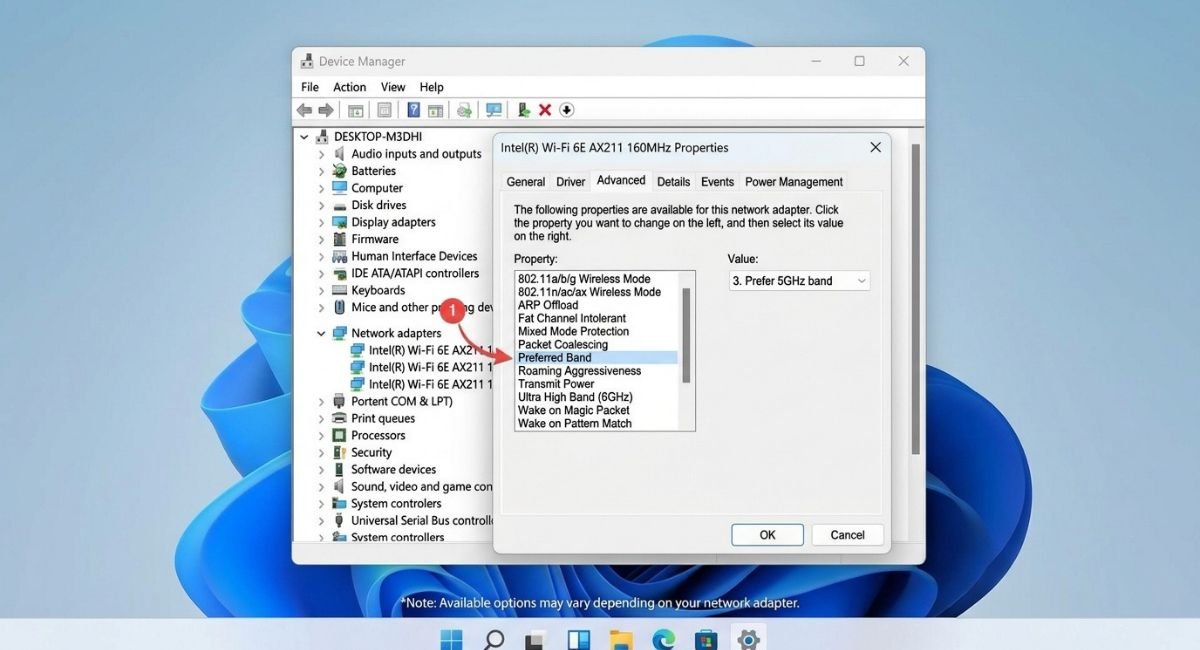
Review the Preferred Band and Roaming Settings
If your router supports both 2.4 GHz and 5 GHz, the preferred-band option may influence which network band your laptop uses. The 2.4 GHz band usually reaches farther, while 5 GHz can offer higher speeds at shorter distances. Choose a setting that matches your router and the signal conditions in your home.
Roaming Aggressiveness controls how readily a compatible adapter searches for another access point. If you use a single router, changing this setting may make little difference. Avoid copying random values from another computer because wireless adapters do not all use the same options.
Change Your DNS Server
A DNS server translates website names into IP addresses. DNS problems can prevent websites from loading even when your laptop appears connected to Wi-Fi. Changing DNS servers may help with certain name-resolution issues, although it will not fix a weak signal or a failing router.
You can test a reputable public DNS provider, such as Cloudflare, if your network administrator or internet provider has not required specific DNS settings. Before changing anything, record your current configuration so you can restore it if necessary.
Go to:
Settings > Network & internet > Wi-Fi > Hardware properties > DNS server assignment
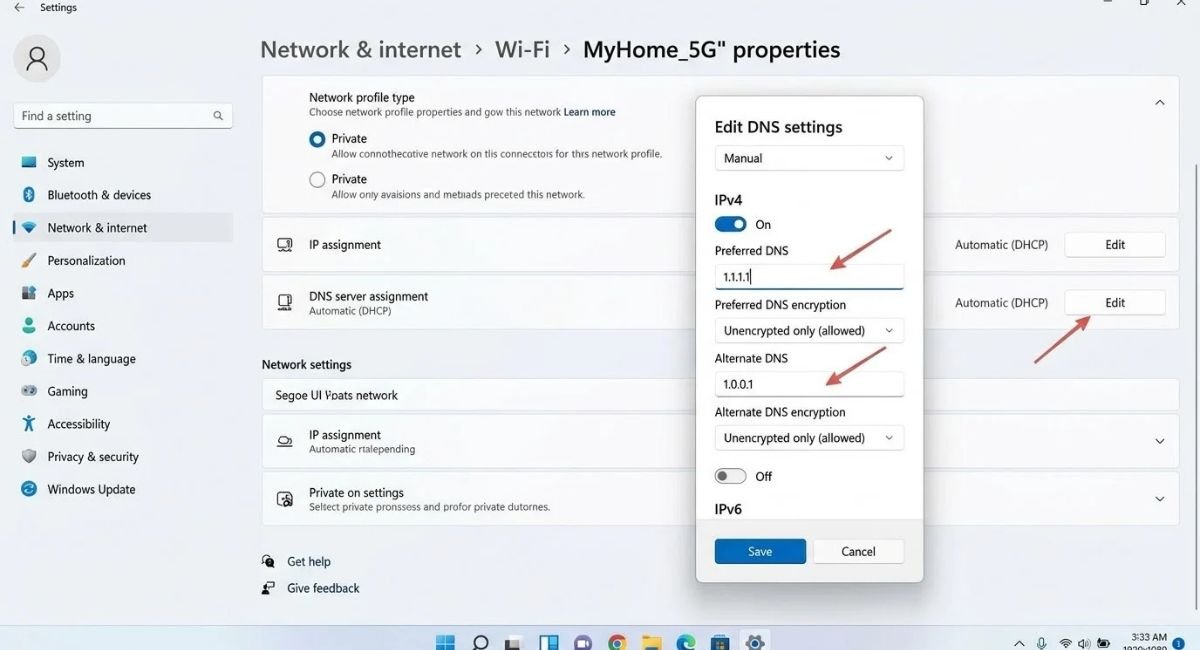
Enter the DNS Addresses
Select the edit option for DNS server assignment and switch to manual configuration if the interface offers it. Enable IPv4 and enter 1.1.1.1 as the preferred DNS server and 1.0.0.1 as the alternate server. Save your changes and reconnect if Windows requires it.
Test several websites afterward. If browsing does not improve, restore your previous DNS settings or use the configuration recommended by your network administrator. Remember that changing DNS servers will not resolve every type of Wi-Fi disconnection.
Reset Network Settings in Windows 11/10
A network reset removes and reinstalls network adapters and restores many networking components to their default settings. This can help when the connection remains unstable despite driver updates and other troubleshooting steps. However, it is a more disruptive fix than restarting your router.
Before using it, save your Wi-Fi password and note any custom network settings. You may need to reinstall VPN software or configure virtual network adapters afterward. If you use a work-managed computer, consult your IT administrator before resetting its network configuration.
Go to:
Settings > Network & internet > Advanced network settings > Network reset
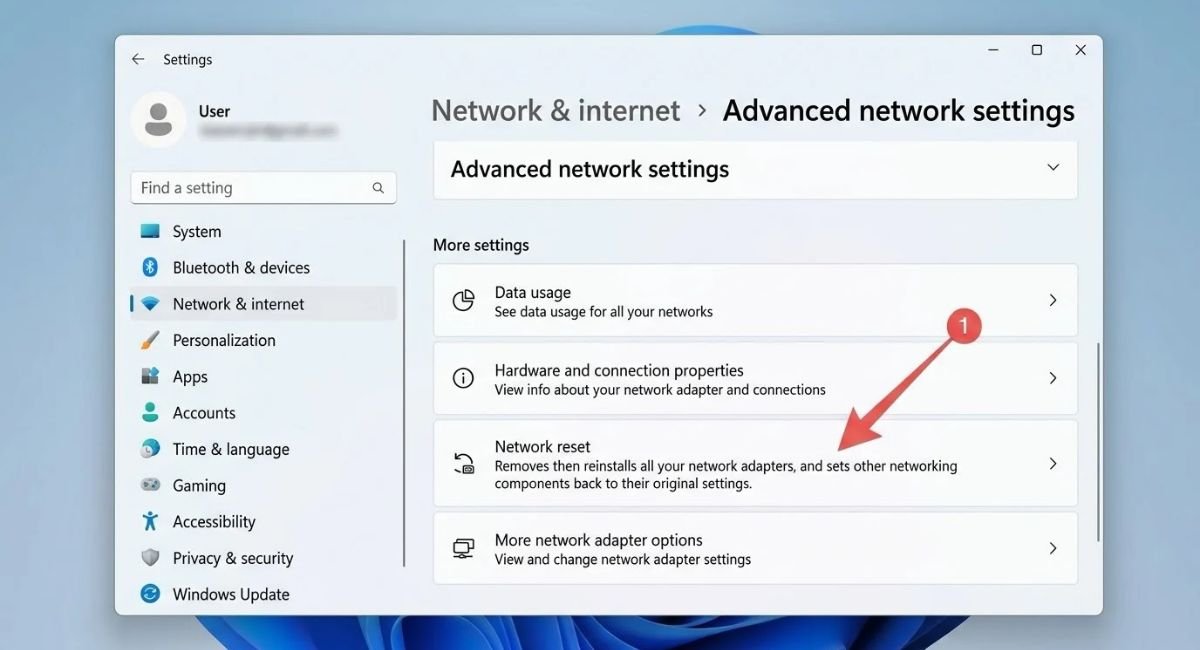
Complete the Network Reset
Open Network reset and review the information Windows displays. Select the reset option and confirm if prompted. Your computer may restart automatically or require a manual restart to complete the process.
Afterward, reconnect to your Wi-Fi network and test the connection. If the laptop still disconnects, investigate router firmware, wireless interference, and possible hardware issues.
Repair Windows System Files and Check for Updates
Damaged Windows system files or incomplete updates can sometimes affect networking features. Running System File Checker can help identify and repair protected system files. It is a useful check when network problems occur alongside other Windows errors or unusual system behavior.
Open Command Prompt or Windows Terminal as an administrator. Run the command below and wait for the scan to finish. Do not close the window while the scan is running.
sfc /scannow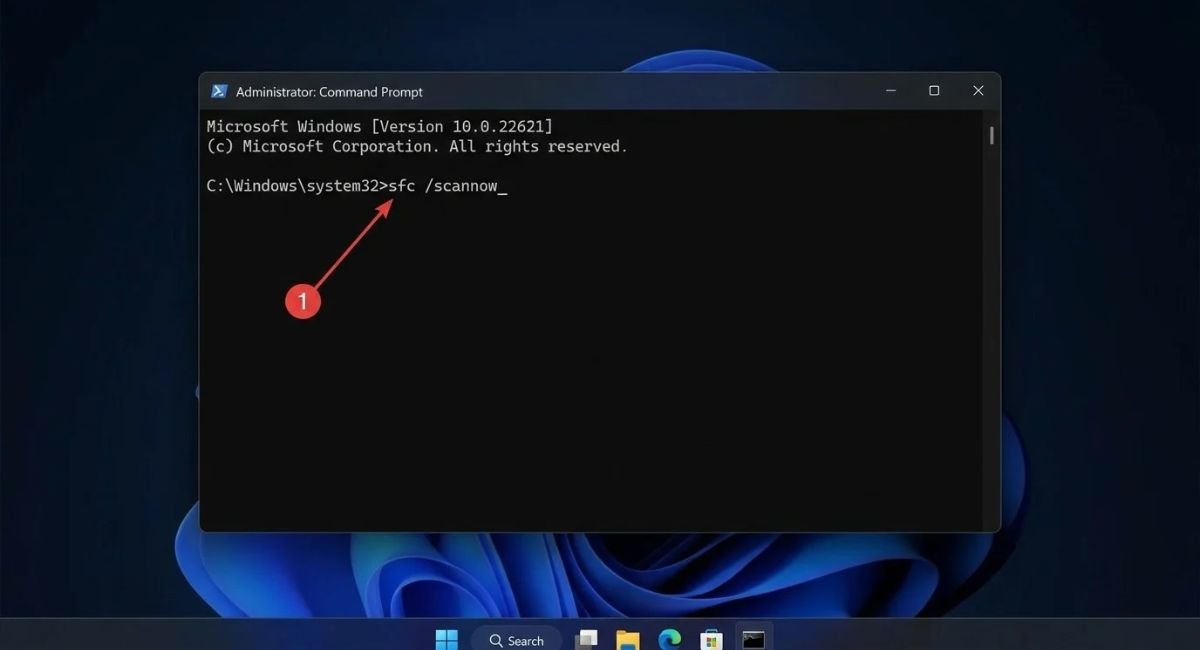
Check Windows Update
After the scan finishes, open Windows Update and check for available updates. Install appropriate updates, then restart your computer if required. Updates can contain fixes for system components and network compatibility, although an update is not guaranteed to solve every connection problem.
Go to:
Settings > Windows Update
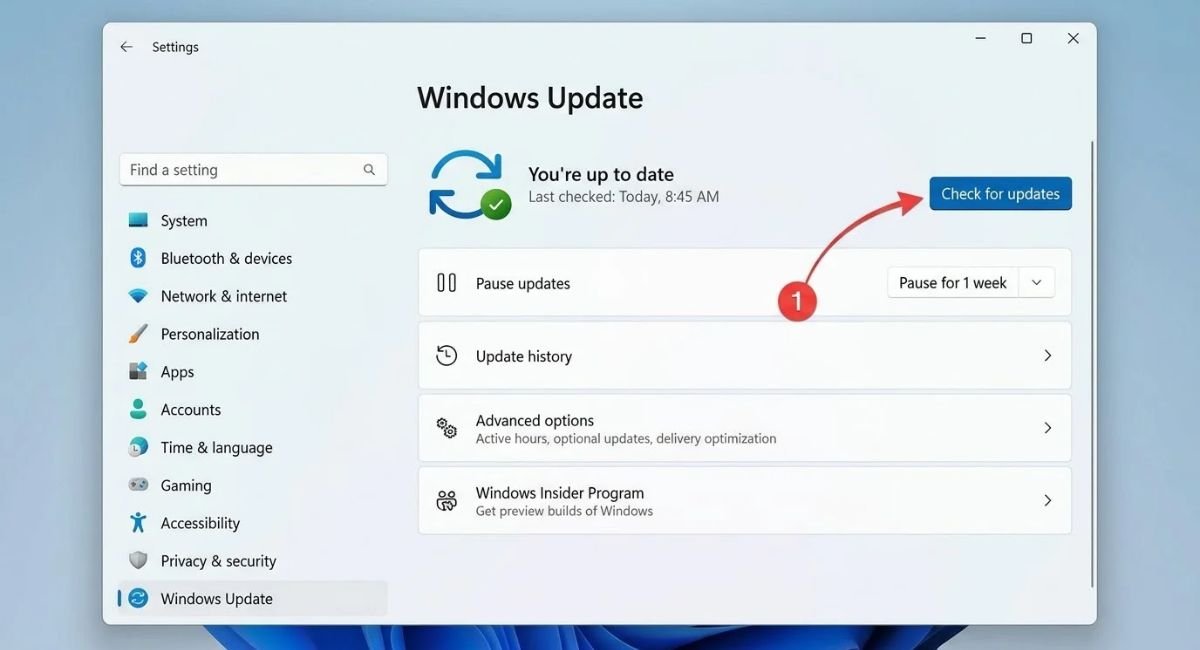
If the disconnections started directly after a recent update, review the timing before making further changes. A compatible driver from your laptop manufacturer may be a better solution than removing Windows updates without a clear reason.
Check Router Issues and Improve Wi-Fi Signal
Your laptop may disconnect because of router problems rather than Windows itself. Distance, thick walls, nearby wireless networks, overheating, outdated router firmware, and temporary service interruptions can all affect connection stability.
Move closer to the router and test the connection again. If the signal improves, consider changing the router’s position to a more open, central location. Keep it away from large metal objects and other sources of interference. Restart the router if you have not already done so.

Check Whether Other Devices Disconnect
Connect a phone or another computer to the same Wi-Fi network and observe its behavior. If multiple devices lose connectivity at the same time, the router, modem, or internet service may be responsible. Contact your internet provider if the connection repeatedly drops across devices.
If only your laptop disconnects, return to the adapter and driver fixes. You can also test the laptop on another trusted Wi-Fi network. If it disconnects there too, the laptop’s wireless adapter or Windows configuration deserves closer attention.
Improve Router Placement and Firmware
Place the router in an open area where its signal can reach the rooms you use most. Check the manufacturer’s official instructions before updating router firmware. Use the correct firmware for your exact router model, and avoid interrupting the update process.
If your router regularly loses its connection, overheats, or requires frequent restarts, it may need further troubleshooting or replacement. Confirm the cause before purchasing new equipment.
Final Thoughts
When Wi-Fi keeps disconnecting in Windows 11/10, start with the simplest checks. Restart your laptop and router, reconnect to your wireless network, and review the adapter’s power settings. If the problem persists, update the driver, reset networking components, and test your router.
Make one change at a time so you can identify what actually helps. If several devices disconnect together, contact your internet provider or router manufacturer. If only your laptop has the problem across different networks, the wireless adapter or its driver may need further attention.
Frequently Asked Questions
Why does my laptop keep disconnecting from Wi-Fi but my phone works?
If your phone remains connected, the issue may involve the laptop’s Wi-Fi adapter, driver, or power-management settings. Restart the laptop, update its wireless driver, and check the adapter’s power settings first.
Why does Wi-Fi disconnect after sleep in Windows 11?
Windows power management or the wireless driver’s behavior may contribute to this problem. Check the adapter’s Power Management tab if available, then install a compatible driver from your computer manufacturer’s website.
Can a Windows update cause Wi-Fi disconnections?
Yes, an update can sometimes expose a driver compatibility problem. Check for a newer compatible wireless driver, and consider rolling back the driver if the issue began immediately after its update.
Will resetting network settings delete my files?
A Windows network reset does not normally delete personal documents, photos, or other files. However, it removes or resets networking components and settings, so you may need to reconnect to Wi-Fi or reconfigure VPN software.
Why does Wi-Fi keep disconnecting even when the signal is strong?
A strong signal does not guarantee a stable connection. Driver errors, router issues, DHCP problems, interference, or software conflicts can still cause disconnections. Test another device and another network to narrow down the cause.