Windows 11 Keyboard Shortcuts Complete Cheat Sheet
Windows 11 keyboard shortcuts help you complete everyday tasks without repeatedly clicking through menus. You can open applications, manage files, switch between windows, take screenshots, and control your desktop with a few simple key combinations.
The problem is remembering which shortcut does what. Some combinations work across Windows, while others are designed for specific applications. Your keyboard may also use different function and media keys depending on the device.
This guide covers the most useful Windows 11 keyboard shortcuts, including a complete cheat sheet, File Explorer commands, window management, audio controls, and custom shortcuts. You’ll also learn how to troubleshoot shortcuts that stop working and restore custom assignments when necessary.
You don’t need to memorize every combination. Start with the shortcuts you use most often and gradually add others to your routine.
What Are Windows 11 Keyboard Shortcuts?
Keyboard shortcuts are combinations of keys that let you perform actions without navigating menus with a mouse. Some require one key, such as F2, while others combine keys, such as Ctrl + Shift + Esc.
For example, pressing Windows + E opens File Explorer. Pressing Alt + Tab switches between open applications, while Ctrl + S saves a document in many programs.
Most shortcuts fall into three categories:
- Windows shortcuts: Open system tools, manage windows, and navigate the desktop.
- Application shortcuts: Perform actions inside programs such as browsers, editors, and office applications.
- Custom shortcuts: Use assigned key combinations to launch applications or perform supported actions.
Not every shortcut works in every program. Applications can override common combinations or assign different actions to the same keys.
Best Windows 11 Keyboard Shortcuts You Should Learn First
If you’re new to Windows 11, begin with a handful of shortcuts that make everyday computer use easier.
Essential Windows Key Shortcuts
| Shortcut | Action |
|---|---|
| Windows + E | Open File Explorer |
| Windows + I | Open Settings |
| Windows + R | Open the Run dialog |
| Windows + S | Open Windows Search |
| Windows + A | Open Quick Settings |
| Windows + D | Show or hide the desktop |
| Windows + L | Lock your computer |
| Windows + Tab | Open Task View |
| Windows + X | Open the Quick Link menu |
| Ctrl + Shift + Esc | Open Task Manager |
Common Copy, Paste, and Editing Shortcuts
| Shortcut | Action |
|---|---|
| Ctrl + C | Copy selected content |
| Ctrl + X | Cut selected content |
| Ctrl + V | Paste copied or cut content |
| Ctrl + A | Select all content |
| Ctrl + Z | Undo the last action |
| Ctrl + Y | Redo an action in supported apps |
| Ctrl + S | Save the current file |
| Ctrl + P | Open the print dialog |
| Ctrl + F | Find text or content |
| Ctrl + N | Create a new document or window in supported apps |
For example, if you want to move a document to another folder, select it and press Ctrl + X. Open the destination folder and press Ctrl + V.
Learning these basic combinations first makes it easier to build your own collection of useful shortcuts.
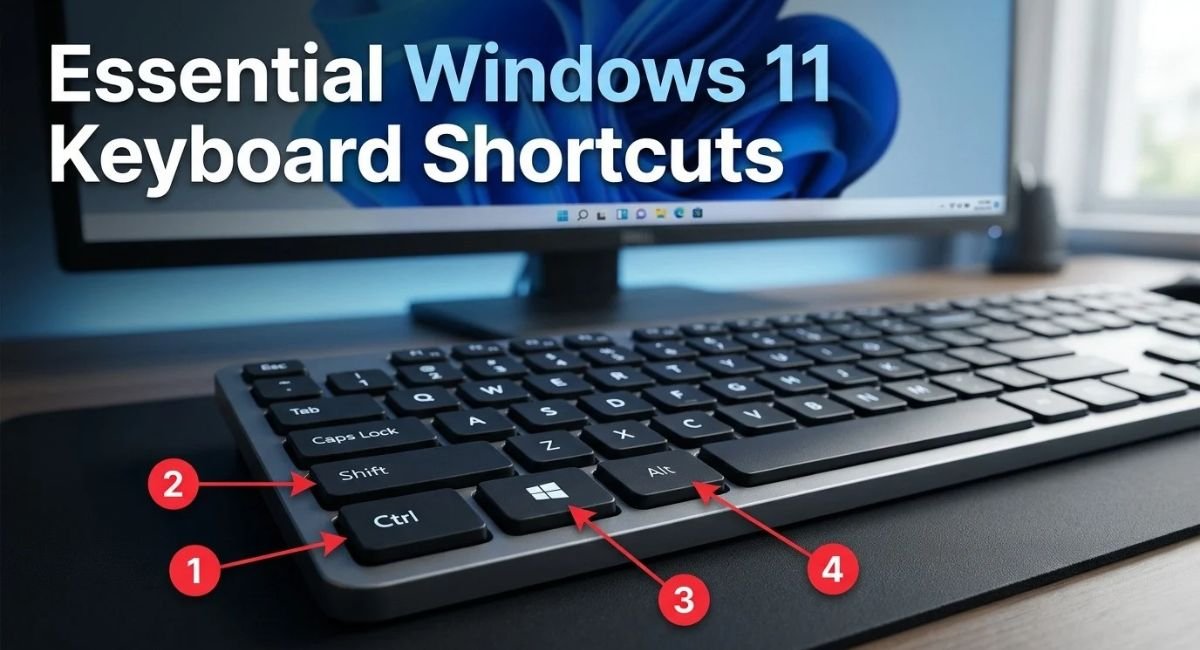
Complete Windows 11 Keyboard Shortcuts List (Cheat Sheet)
Use these tables as a quick reference when you forget a combination. Some shortcuts vary by application or Windows version, so test them in the program you’re using.
General Keyboard Shortcuts
| Shortcut | Action |
|---|---|
| Alt + F4 | Close the active window or application |
| Alt + Tab | Switch between open applications |
| F2 | Rename a selected file or folder |
| F5 | Refresh the active window in supported apps |
| Esc | Cancel an action or close certain menus |
| Ctrl + Shift + Esc | Open Task Manager |
| Windows + I | Open Settings |
| Windows + R | Open Run |
| Windows + S | Search Windows |
Windows Key Shortcuts
| Shortcut | Action |
|---|---|
| Windows + E | Open File Explorer |
| Windows + D | Show or hide the desktop |
| Windows + L | Lock the computer |
| Windows + M | Minimize all windows |
| Windows + Tab | Open Task View |
| Windows + P | Choose a display mode |
| Windows + K | Open the Cast connection panel |
| Windows + V | Open clipboard history when enabled |
| Windows + . | Open the emoji panel |
| Windows + H | Start voice typing |
| Windows + U | Open Accessibility settings |
| Windows + N | Open notifications and calendar |
| Windows + W | Open Widgets |
File Explorer Shortcuts
| Shortcut | Action |
|---|---|
| Ctrl + N | Open a new File Explorer window |
| Ctrl + Shift + N | Create a new folder |
| Ctrl + L | Focus the address bar |
| Alt + Left Arrow | Go back |
| Alt + Right Arrow | Go forward |
| Alt + Up Arrow | Open the parent folder |
| Ctrl + W | Close the active window |
| F2 | Rename the selected item |
| Ctrl + A | Select all items |
| Alt + Enter | Open Properties for a selected item |
Taskbar and System Shortcuts
| Shortcut | Action |
|---|---|
| Windows + 1–9 | Open or switch to a pinned taskbar app by position |
| Windows + T | Cycle through taskbar apps |
| Windows + B | Focus the notification area |
| Windows + X | Open the Quick Link menu |
| Windows + A | Open Quick Settings |
| Windows + N | Open notifications and calendar |
| Ctrl + Shift + Esc | Open Task Manager |
Windows + 1 targets the first pinned taskbar app, while Windows + 2 targets the second. The result depends on the order of the pinned applications.
Clipboard and Screenshot Shortcuts
| Shortcut | Action |
|---|---|
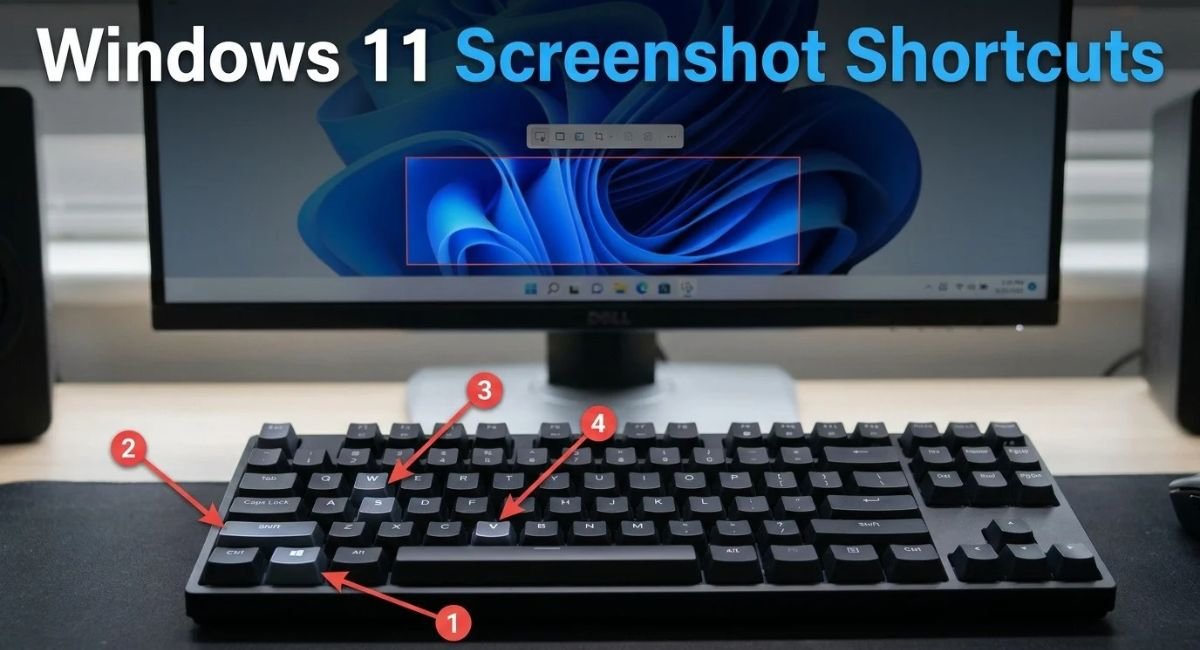
| Windows + Shift + S | Open the screen snipping toolbar |
| Windows + PrtScn | Save a screenshot on supported configurations |
| Alt + PrtScn | Capture the active window on supported configurations |
| PrtScn | Capture the screen or open a configured screenshot experience |
| Windows + V | Open clipboard history when enabled |
| Ctrl + C | Copy selected content |
| Ctrl + V | Paste content |
Press Windows + Shift + S when you want to capture just part of your screen. Select the desired area, then paste or save the capture as needed.
Browser and App Shortcuts
These combinations work in many browsers and desktop applications, although individual programs can use different commands.
| Shortcut | Action |
|---|---|
| Ctrl + T | Open a new browser tab |
| Ctrl + W | Close the active tab or window |
| Ctrl + Shift + T | Reopen a recently closed browser tab |
| Ctrl + Tab | Move to the next tab |
| Ctrl + Shift + Tab | Move to the previous tab |
| Ctrl + L | Focus the address bar in many browsers |
| Ctrl + D | Bookmark the current page in many browsers |
| Ctrl + R | Reload the current page in many browsers |
| Ctrl + Plus (+) | Zoom in in many applications |
| Ctrl + Minus (-) | Zoom out in many applications |
Remember that these are generally application-specific shortcuts. Their behaviour can change depending on the software you’re using.
Windows 11 Keyboard Shortcuts for Window Management
Windows management shortcuts help you arrange open applications, move between tasks, and use multiple monitors more efficiently.
Snap Windows and Use Snap Layouts
Windows 11 includes built-in snapping features that arrange windows on your screen.
| Shortcut | Action |
|---|---|
| Windows + Left Arrow | Snap the active window toward the left |
| Windows + Right Arrow | Snap the active window toward the right |
| Windows + Up Arrow | Maximize the window or move it into an available upper position |
| Windows + Down Arrow | Restore or minimize the window, depending on its state |
| Windows + Z | Open Snap Layouts on supported Windows 11 versions |
Snap Layouts are especially useful on wide monitors. You can keep a browser open beside a spreadsheet or arrange multiple windows for research.
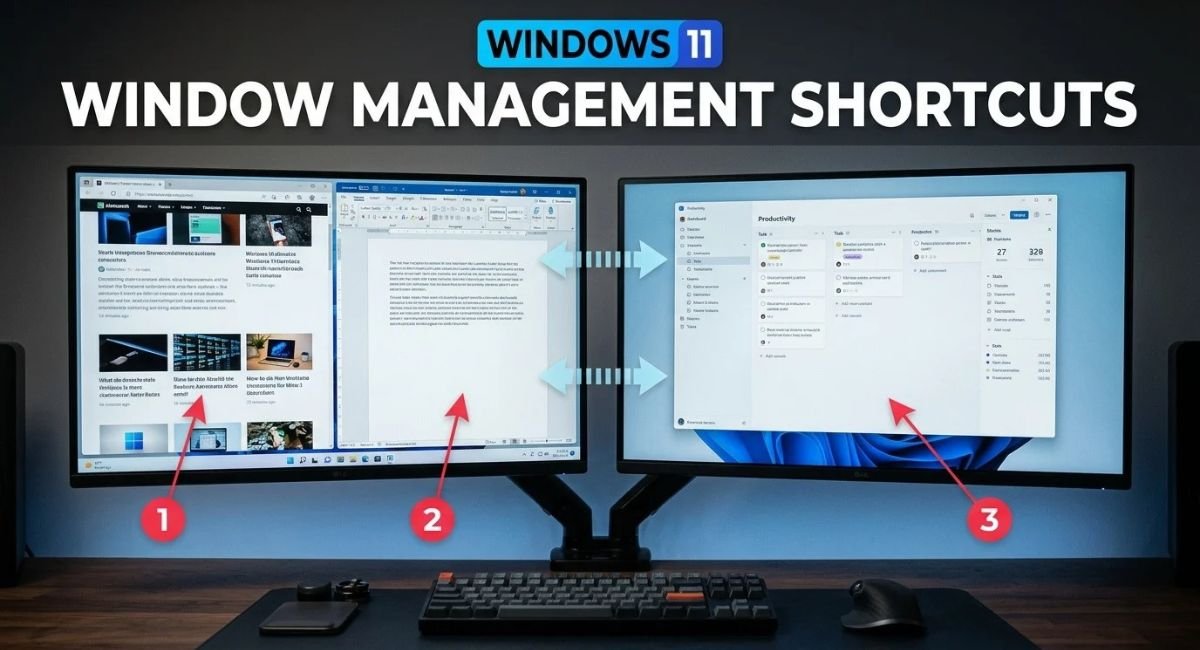
For example, open your browser and a document. Press Windows + Left Arrow while the browser is active, then use Windows + Right Arrow with the document to arrange them side by side.
Maximize, Minimize, and Switch Windows
| Shortcut | Action |
|---|---|
| Alt + Tab | Switch between open applications |
| Alt + Shift + Tab | Move backward through the task switcher |
| Windows + Up Arrow | Maximize the active window |
| Windows + Down Arrow | Restore or minimize the active window |
| Windows + M | Minimize all windows |
| Windows + Home | Minimize other windows while keeping the active window visible |
Alt + Tab is particularly useful when you regularly move between email, a browser, and a document. It lets you switch tasks without searching the taskbar.
Move Windows Between Monitors
If you use two monitors, you can move an active window between displays without dragging it with the mouse.
- Windows + Shift + Left Arrow: Move the active window to the monitor on the left.
- Windows + Shift + Right Arrow: Move the active window to the monitor on the right.
This is useful when moving a presentation to a second display or bringing a window back to your primary monitor.
File Explorer Keyboard Shortcuts in Windows 11
File Explorer shortcuts help you manage documents, downloads, folders, and external drives with fewer clicks.
File and Folder Management Shortcuts
| Shortcut | Action |
|---|---|
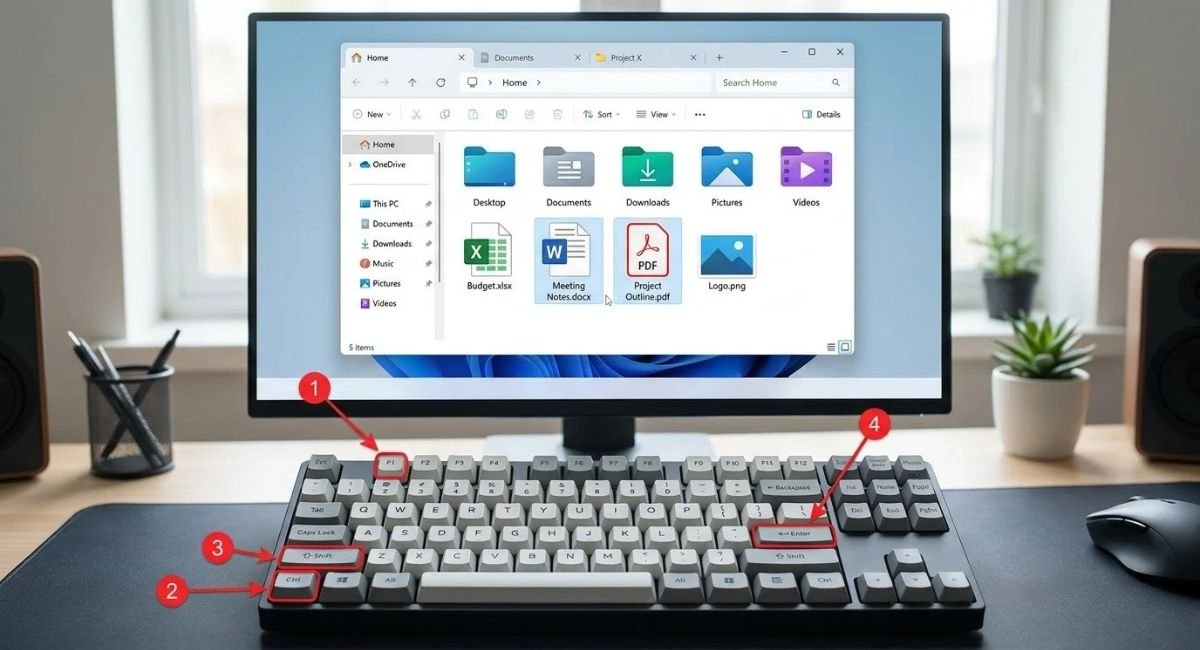
| Ctrl + Shift + N | Create a new folder |
| F2 | Rename a selected item |
| Ctrl + C | Copy a file or folder |
| Ctrl + X | Cut a file or folder |
| Ctrl + V | Paste a file or folder |
| Delete | Send selected items to the Recycle Bin under normal circumstances |
| Shift + Delete | Delete selected items without using the Recycle Bin under normal circumstances |
| Alt + Enter | Open Properties |
| Ctrl + A | Select all items |
Be careful with Shift + Delete. Files deleted this way normally bypass the Recycle Bin, which makes recovery more difficult.
Navigation and Tab Shortcuts
| Shortcut | Action |
|---|---|
| Alt + Left Arrow | Return to the previous location |
| Alt + Right Arrow | Move forward |
| Alt + Up Arrow | Open the parent folder |
| Ctrl + L | Select the address bar |
| Ctrl + N | Open another File Explorer window |
| Ctrl + W | Close the active window |
| Ctrl + Tab | Move to the next tab in supported versions |
| Ctrl + Shift + Tab | Move to the previous tab in supported versions |
For example, to create a folder for work documents, open the destination in File Explorer, press Ctrl + Shift + N, type a name, and press Enter.
Before moving a large number of files, double-check the destination folder. This simple step can prevent accidental file organisation problems.
Windows 11 Keyboard Shortcuts for Volume and Audio Control
Volume controls differ between keyboards. Many laptops have dedicated media keys, while some require the Fn key to access volume functions.
Volume Up, Down, and Mute Shortcuts
Windows doesn’t provide one universal default keyboard combination for volume up and down that works on every standard keyboard.
Common options include:
- Press the dedicated volume-up key to increase sound.
- Press the volume-down key to reduce sound.
- Use the mute key to turn audio on or off.
- Press Windows + A to open Quick Settings and adjust the volume slider.
Keyboard Media Keys and Audio Controls
Media keys may let you pause playback, skip tracks, or adjust the volume. Their behaviour depends on your keyboard, drivers, and active application.
If your laptop uses the F1–F12 row for volume or brightness, try holding Fn while pressing the relevant key. Some keyboards also have an Fn Lock feature.
To choose a different sound output, open Settings with Windows + I, select System, and then choose Sound. You can select available speakers, headphones, and other audio devices there.
Desktop, Taskbar, and Virtual Desktop Shortcuts
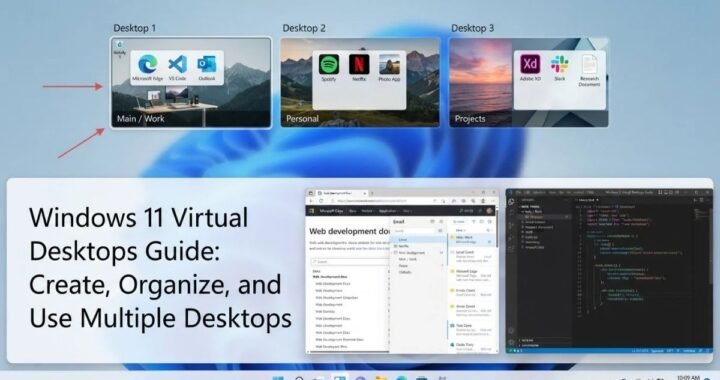
Virtual desktops help you separate tasks without closing your applications. For example, you can keep work applications on one desktop and personal browsing on another.
Taskbar App Shortcuts
- Windows + 1–9: Open or switch to the corresponding pinned taskbar app.
- Windows + T: Move focus through taskbar applications.
- Windows + B: Focus the notification area.
If your browser is the first pinned application and File Explorer is second, Windows + 1 and Windows + 2 can provide quick access to them.
Create and Switch Virtual Desktops
| Shortcut | Action |
|---|---|
| Windows + Ctrl + D | Create a new virtual desktop |
| Windows + Ctrl + Left Arrow | Switch to the desktop on the left |
| Windows + Ctrl + Right Arrow | Switch to the desktop on the right |
| Windows + Ctrl + F4 | Close the current virtual desktop |
Closing a virtual desktop doesn’t necessarily close all its applications. Windows can move the open windows to another desktop.
Desktop and Notification Shortcuts
| Shortcut | Action |
|---|---|
| Windows + D | Show or hide the desktop |
| Windows + N | Open notifications and calendar |
| Windows + A | Open Quick Settings |
| Windows + L | Lock the computer |
| Windows + Tab | Open Task View |
These combinations make it easier to access the desktop, review notifications, and organise different types of work.
How to Create Custom Keyboard Shortcuts in Windows 11
Windows lets you assign shortcut keys to certain desktop application shortcuts. For more advanced remapping, Microsoft PowerToys offers additional options.
Create Shortcuts for Apps and Programs
For a traditional desktop application, follow these steps:
- Find the application’s desktop shortcut. Create one first if necessary.
- Right-click the shortcut and select Properties.
- Open the Shortcut tab, if available.
- Select the Shortcut key field.
- Press your desired key combination.
- Select Apply, then OK.
Windows may assign a combination that uses Ctrl + Alt with the selected key. This method doesn’t work for every shortcut type or application.
Assign a Custom Shortcut Key
Choose a combination that’s easy to remember and unlikely to conflict with another program. Avoid replacing shortcuts you already use frequently, such as Ctrl + C or Ctrl + S.
After assigning a key, test it to confirm that it opens the correct application. If nothing happens, verify that the shortcut is supported and that the target application is installed in the expected location.
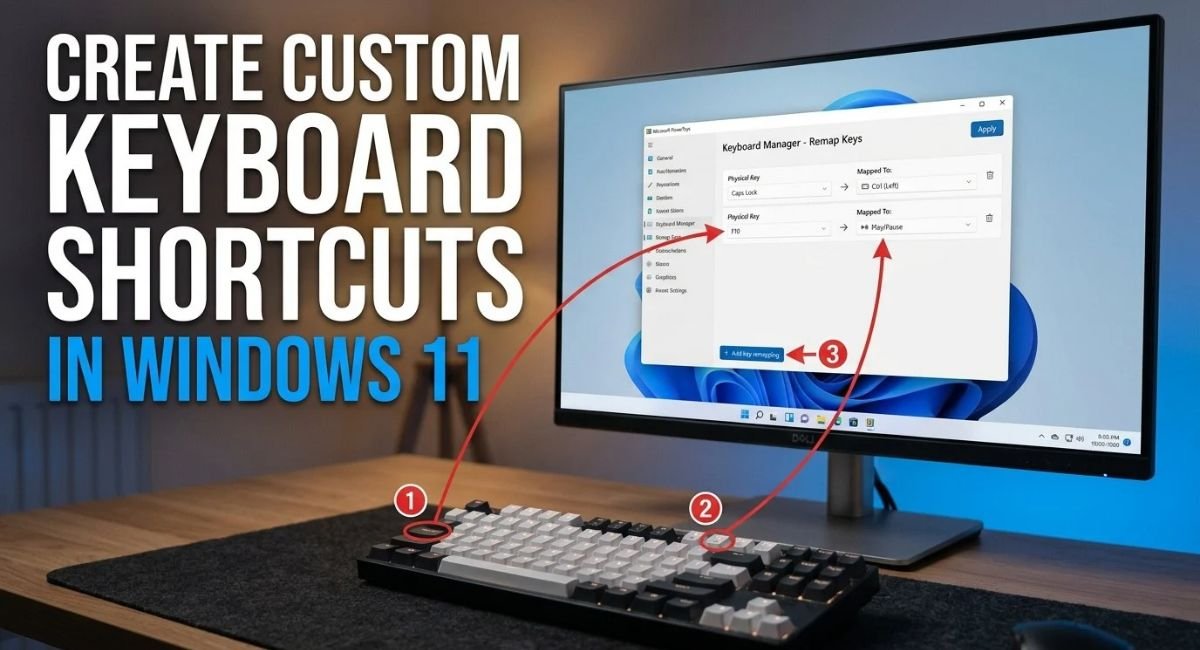
Customize Keyboard Shortcuts Using PowerToys
Microsoft PowerToys includes Keyboard Manager, which can remap supported keys and key combinations. It also offers app-specific remapping options.
To get started:
- Install Microsoft PowerToys from its official Microsoft source.
- Open PowerToys Settings.
- Select Keyboard Manager.
- Choose Remap a key or Remap a shortcut.
- Add your desired mapping.
- Apply the changes and test the new combination.
PowerToys must be running for its mappings to work. Some system-reserved combinations cannot be remapped, and certain applications may behave differently when running with elevated permissions.
See the official PowerToys Keyboard Manager documentation for supported options and limitations.
Remove a Custom Keyboard Shortcut
If a custom shortcut causes problems, return to the settings or Properties window where you created it.
For a desktop shortcut, clear its assigned shortcut key if the option is available. In PowerToys, open Keyboard Manager and delete the relevant mapping.
You can also temporarily disable Keyboard Manager to check whether it is responsible for the problem. Test the original shortcut again before making further changes.
How to Change or Edit Windows 11 Keyboard Shortcuts
You can change some shortcuts, but Windows doesn’t provide one universal interface for editing every built-in combination.
Change App-Specific Keyboard Shortcuts
Some applications include keyboard settings or a dedicated shortcut editor. Open the program’s settings and look for options labelled Keyboard Shortcuts, Hotkeys, or Key Bindings.
Depending on the application, you may be able to change editing commands, game controls, or productivity actions. If an application doesn’t support custom assignments, check whether a compatible remapping tool can provide the behaviour you need.
Before changing a familiar shortcut, record its original assignment. This makes it easier to restore the previous behaviour if the new combination causes a conflict.
How to Turn Off Keyboard Shortcuts in Windows 11
Windows doesn’t have one universal switch that disables every keyboard shortcut. However, you can turn off certain accessibility activation shortcuts or remove custom mappings that trigger unwanted actions.
Turn Off Sticky Keys and Filter Keys
Sticky Keys and Filter Keys are accessibility features, not general shortcut controls.
To review them:
- Press Windows + I to open Settings.
- Select Accessibility.
- Choose Keyboard.
- Review Sticky Keys and Filter Keys.
- Turn off the features you don’t need.
Sticky Keys helps people use modifier keys without holding multiple keys at once. Filter Keys changes how Windows responds to brief or repeated keystrokes.
Disable Specific Accessibility Shortcuts
If a feature activates when you repeatedly press a key, review its settings for an option that controls the activation shortcut.
Disable only the specific activation behaviour you don’t want. Avoid turning off accessibility features unnecessarily, especially if you rely on them for comfortable keyboard use.
Turn Off Unwanted Custom Mappings
If a remapped key triggers the wrong action, remove its assignment in the tool that created it. In PowerToys, open Keyboard Manager and delete the relevant mapping.
Avoid unknown third-party utilities or registry edits just to disable common keyboard shortcuts. They can create additional problems and make troubleshooting harder.
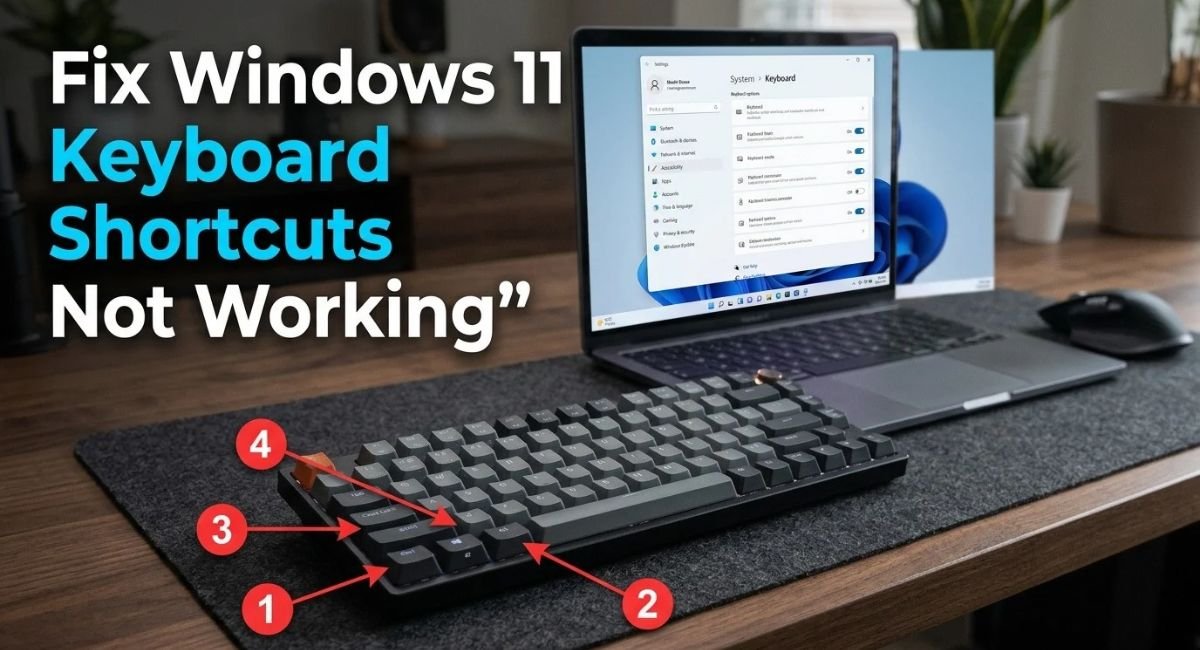
How to Fix Windows 11 Keyboard Shortcuts Not Working
When a shortcut stops working, first determine whether the issue affects one application or the entire operating system. A problem limited to one program may be caused by its settings or a conflicting key assignment.
Check Keyboard and Function Keys
Test the individual keys used by the shortcut. If Ctrl, Alt, Shift, or the Windows key isn’t responding, combinations that depend on that key may fail too.
If you use an external keyboard, reconnect it or try a different USB port. For a wireless keyboard, check its connection and battery. On laptops, test whether pressing Fn changes the behaviour of the function row.
Turn Off Conflicting Accessibility Settings
Open Settings, select Accessibility, and choose Keyboard. Review Sticky Keys, Filter Keys, and related options.
These features serve useful purposes, so don’t disable them automatically. Change the settings only if their behaviour appears connected to the problem.
Update or Reinstall Keyboard Drivers
Driver problems can affect keyboard behaviour, although they aren’t the cause of every shortcut issue.
- Right-click Start and open Device Manager.
- Expand Keyboards.
- Right-click the relevant keyboard device.
- Select Update driver and follow the instructions.
If the issue started after a driver change, consult your computer or keyboard manufacturer’s support guidance. Windows may reinstall a keyboard device after a restart.
Avoid downloading drivers from unverified websites.
Restart Windows Explorer
If desktop, taskbar, or other Windows shell shortcuts behave incorrectly, restarting Windows Explorer may help.
- Press Ctrl + Shift + Esc to open Task Manager.
- Find Windows Explorer in the process list.
- Right-click it and choose Restart, if available.
- Wait for the desktop and taskbar to reload.
- Test the shortcut again.
The taskbar may briefly disappear during the restart. Save your work before troubleshooting if you have important applications open.
Test for Application or Shortcut Conflicts
Close applications that remap keys or intercept keyboard input, such as keyboard utilities and gaming tools.
If you use PowerToys, temporarily disable Keyboard Manager and test the original shortcut. If it works again, review your mappings and remove the conflicting entry.
If many unrelated shortcuts fail, install available Windows updates and restart your computer. Continue with driver or system troubleshooting only if the simpler checks don’t resolve the problem.
How to Reset Keyboard Shortcuts in Windows 11
There isn’t one Windows setting that resets every keyboard shortcut to its original state. The correct method depends on whether the shortcut belongs to Windows, an application, or a remapping utility.
Restore Default App Shortcuts
If you changed a shortcut inside an application, open that application’s keyboard settings. Look for an option such as Reset, Restore Defaults, or Reset Key Bindings.
Not every application offers this feature. If you can’t find it, consult the application’s official documentation before deleting configuration files or resetting other preferences.
Reset Custom Shortcut Assignments
For a desktop shortcut, open Properties and clear the assigned Shortcut key if you want to remove it.
For PowerToys Keyboard Manager, open the remapping list and delete the entries you no longer need. You can also disable Keyboard Manager temporarily to test whether the default shortcuts work again.
Restart the affected application and test the original combination. A full Windows reset is usually unnecessary when the problem is limited to one custom shortcut.
Is There a Complete Windows 11 Keyboard Shortcuts Cheat Sheet PDF?
You can use Microsoft’s official keyboard shortcuts reference and save a copy as a PDF through your browser’s Print command.
Follow these steps:
- Open the official Microsoft keyboard shortcuts guide.
- Press Ctrl + P.
- Select Save as PDF as the printer or destination.
- Choose the pages and layout you want.
- Save the file to a folder you can find easily.
You can also print this article or save it as a PDF for offline reference. A short custom cheat sheet containing your most-used commands may be easier to consult than a very long list.
Frequently Asked Questions
What are the most useful Windows 11 keyboard shortcuts?
Some of the most useful shortcuts are Windows + E for File Explorer, Windows + I for Settings, Alt + Tab for switching applications, Ctrl + C and Ctrl + V for copying and pasting, and Windows + Shift + S for screenshots.
How do I create custom keyboard shortcuts in Windows 11?
For supported desktop shortcuts, right-click the shortcut, open Properties, and use the Shortcut key field if available. You can also use Microsoft PowerToys Keyboard Manager to remap supported keys and combinations.
How do I fix Windows 11 keyboard shortcuts not working?
Check the keyboard keys, reconnect the device, review accessibility settings, and close applications that remap shortcuts. You can also restart Windows Explorer, update drivers through trusted sources, and test whether the issue occurs in more than one application.
Can I change or disable keyboard shortcuts in Windows 11?
You can change certain application shortcuts and use tools such as PowerToys Keyboard Manager to remap supported combinations. Windows doesn’t provide one universal switch for disabling every built-in shortcut, and some system-reserved combinations cannot be changed.
Is there a complete Windows 11 keyboard shortcuts cheat sheet PDF?
You can open Microsoft’s official keyboard shortcuts reference and save it as a PDF through your browser’s Print option. You can also print this guide to keep your most frequently used combinations available offline.
Conclusion
Windows 11 keyboard shortcuts make everyday computer tasks easier by reducing the need to navigate menus. Start with the basics for copying, switching applications, opening File Explorer, and taking screenshots. Then practise window snapping and virtual desktop controls when you’re ready.
If a shortcut stops working, check the keyboard, application settings, accessibility features, and remapping tools before attempting advanced repairs. You can customize some combinations, but not every built-in Windows shortcut is editable.
Choose five shortcuts from this guide and use them during your normal workday. Once they become familiar, add a few more. A small amount of regular practice can make navigating Windows 11 more comfortable and efficient.