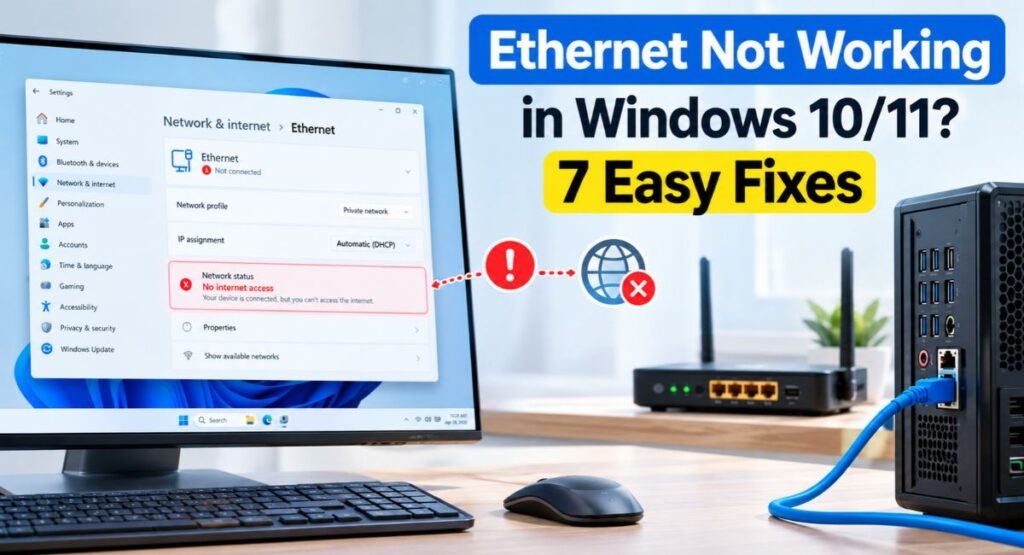
Ethernet is usually more stable than Wi-Fi, but a wired connection can still stop working because of a bad cable, disabled network adapter, driver problem, incorrect IP settings, or a Windows networking issue.
If your PC shows Ethernet connected but no internet, the Ethernet option is missing, or Windows keeps disconnecting the wired connection, you can usually identify the cause without replacing your hardware.
This guide explains the most useful ways to fix Ethernet Not Working in Windows 10/11, starting with simple connection checks and moving to Windows network settings and advanced repairs.
Why Is Ethernet Not Working in Windows?
An Ethernet connection can stop working for several reasons:
- Damaged or loose Ethernet cable
- Faulty router or Ethernet port
- Disabled Ethernet adapter
- Outdated or corrupted network driver
- Incorrect IPv4 or DHCP settings
- DNS or TCP/IP problems
- Windows Update-related network issues
- Faulty Ethernet hardware
The best approach is to start with the physical connection and then move into Windows settings. This avoids changing advanced settings when the real problem is simply a cable or router port.
Check the Ethernet Cable, Port, and Connection
Before changing anything in Windows, make sure the physical connection is working.
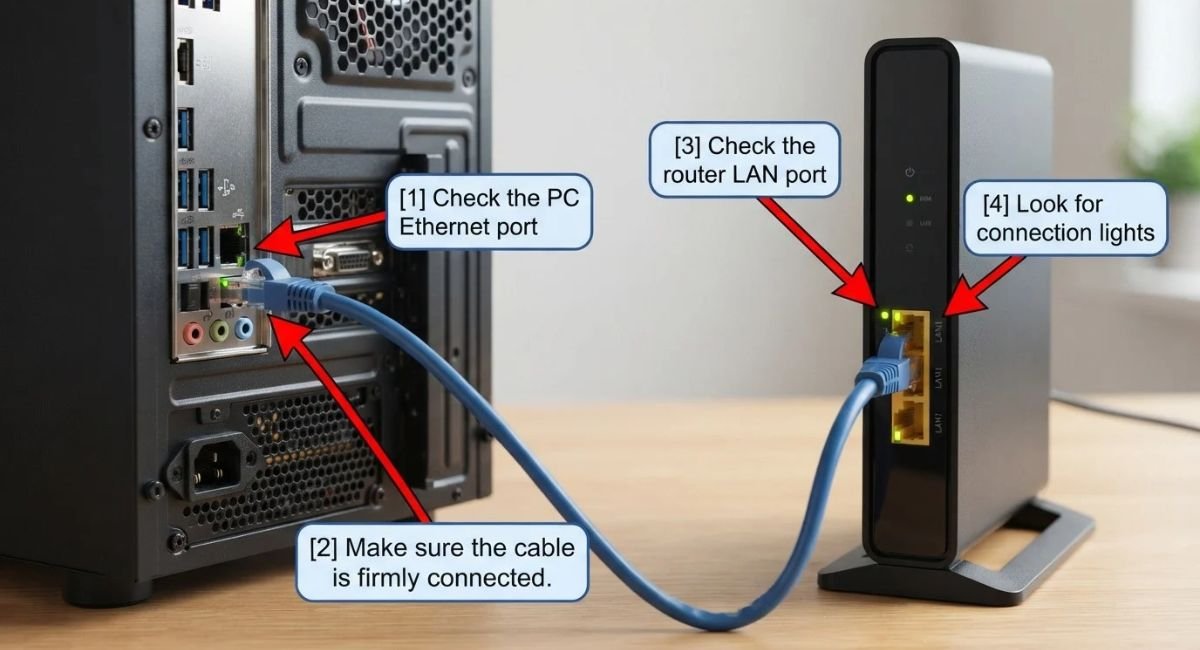
Check that the Ethernet cable is firmly connected to both the PC and router. If your router has several LAN ports, try another port.
If possible, test with a different Ethernet cable. Microsoft also recommends trying another cable when troubleshooting Ethernet connection problems.
Look at the Ethernet port on your PC and router for activity lights. If there are no lights at all, the problem could be the cable, router port, network adapter, or physical hardware.
You can also connect another computer to the same cable and router port. If the second device works normally, the problem is more likely related to your PC.
Restart Your PC, Modem, and Router
A simple restart can clear temporary network problems.
First, restart your PC. If the problem continues, restart the modem and router:
- Turn off the modem and router.
- Wait about 30 seconds.
- Turn them back on.
- Wait until the internet connection is restored.
- Connect the Ethernet cable again.
If Wi-Fi works on the same router while Ethernet does not, the internet service itself may be working. The problem is then more likely related to the Ethernet cable, port, adapter, driver, or Windows configuration.
Run the Windows Network Troubleshooter
Windows includes network diagnostics that can check common connection problems and suggest fixes. Microsoft currently directs users to the Get Help app for network and internet troubleshooting.
Open Windows Search and type:
Network and Internet troubleshooter
Follow the prompts and allow Windows to run the available network tests.
If Windows identifies a problem with the Ethernet adapter or network configuration, apply the recommended fix and test the connection again.
Disable and Re-Enable the Ethernet Adapter
Sometimes the Ethernet adapter is available but is disabled or temporarily stuck.
Enable a Disabled Ethernet Adapter
Open:
Settings > Network & internet > Advanced network settings
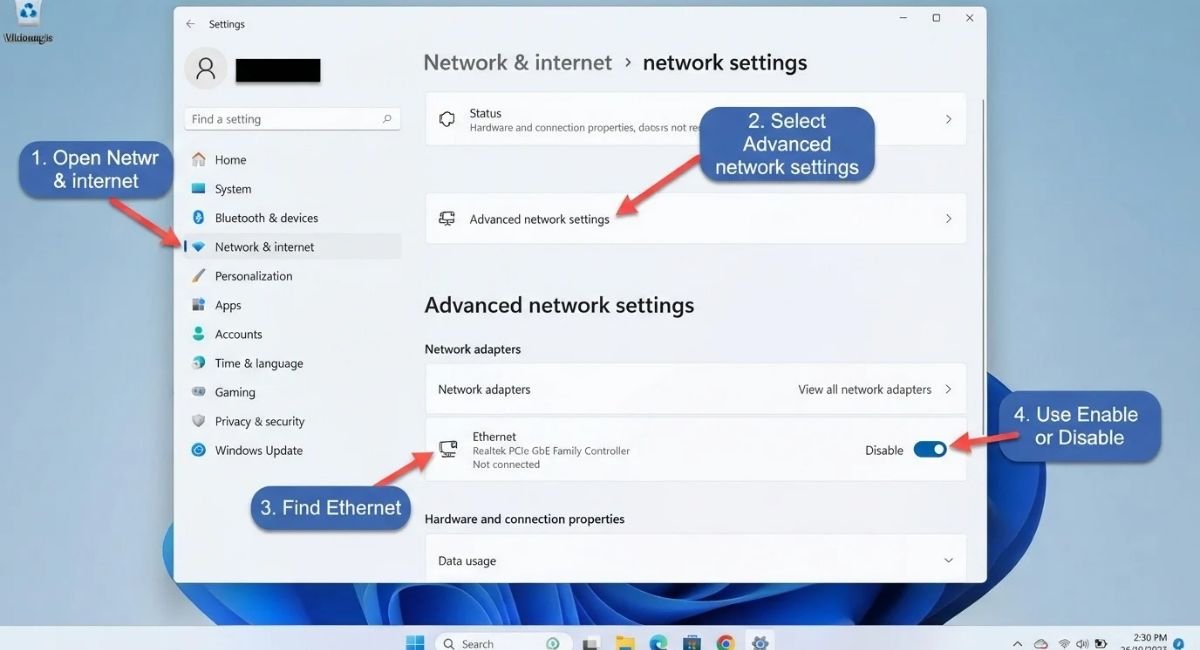
Look for the Ethernet adapter under Network adapters.
If it is disabled, select Enable.
You can also check the adapter through Device Manager:
Right-click Start > Device Manager > Network adapters
Find your Ethernet adapter and make sure it is enabled.
If the adapter is already enabled, disabling it and enabling it again can refresh the connection.
Update or Reinstall the Ethernet Driver
A damaged or incompatible network driver can prevent Ethernet from working correctly. This is especially worth checking if the problem started after a Windows update or driver change.
Update the Ethernet Driver
Open:
Right-click Start > Device Manager > Network adapters
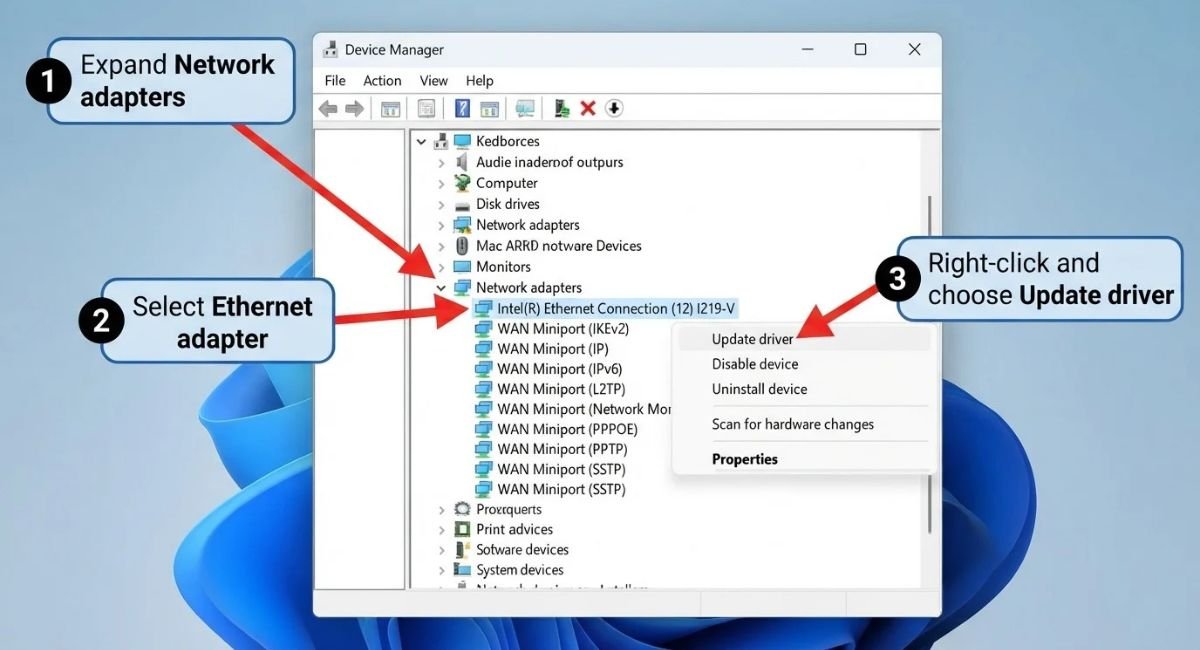
Right-click your Ethernet adapter and select:
Update driver
Follow the available options and restart your PC if Windows installs an update.
If Windows cannot find a suitable driver, check your PC or motherboard manufacturer’s support website for the correct Ethernet driver.
Reinstall the Ethernet Driver
If updating does not help, reinstalling the adapter can repair a corrupted driver installation.
In Device Manager:
- Expand Network adapters.
- Right-click your Ethernet adapter.
- Select Uninstall device.
- Confirm the uninstall.
- Restart the PC.
Microsoft notes that Windows can automatically reinstall the network adapter driver after restarting. If it does not, you may need to install the correct driver manually.
If your PC has no internet connection, download the driver from another device and transfer it using a USB drive.
Check Ethernet IP and DHCP Settings
If Ethernet connects but Windows cannot get a proper network address, the problem may be related to IP configuration.
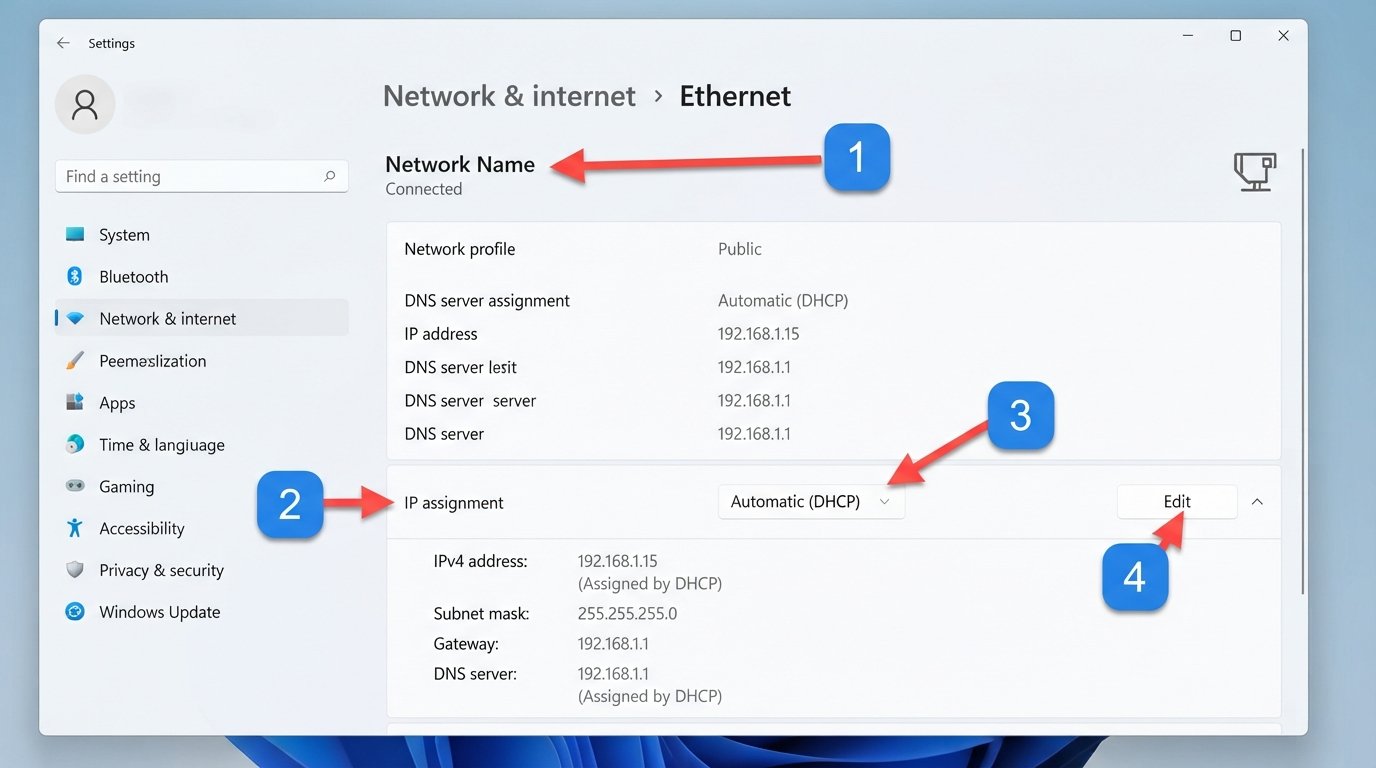
For most home networks, Windows should normally obtain the IP address and DNS server automatically through DHCP. Microsoft recommends Automatic (DHCP) for typical network connections.
Open:
Settings > Network & internet > Ethernet
Find the IP assignment settings and check whether they are configured for Automatic (DHCP) unless you intentionally use a manual IP configuration.
Incorrect manual IP, gateway, or DNS settings can prevent the computer from communicating properly with the router.
Fix “Ethernet Doesn’t Have a Valid IP Configuration”
The Ethernet doesn’t have a valid IP configuration error usually means Windows is not receiving a usable IP address from the network.
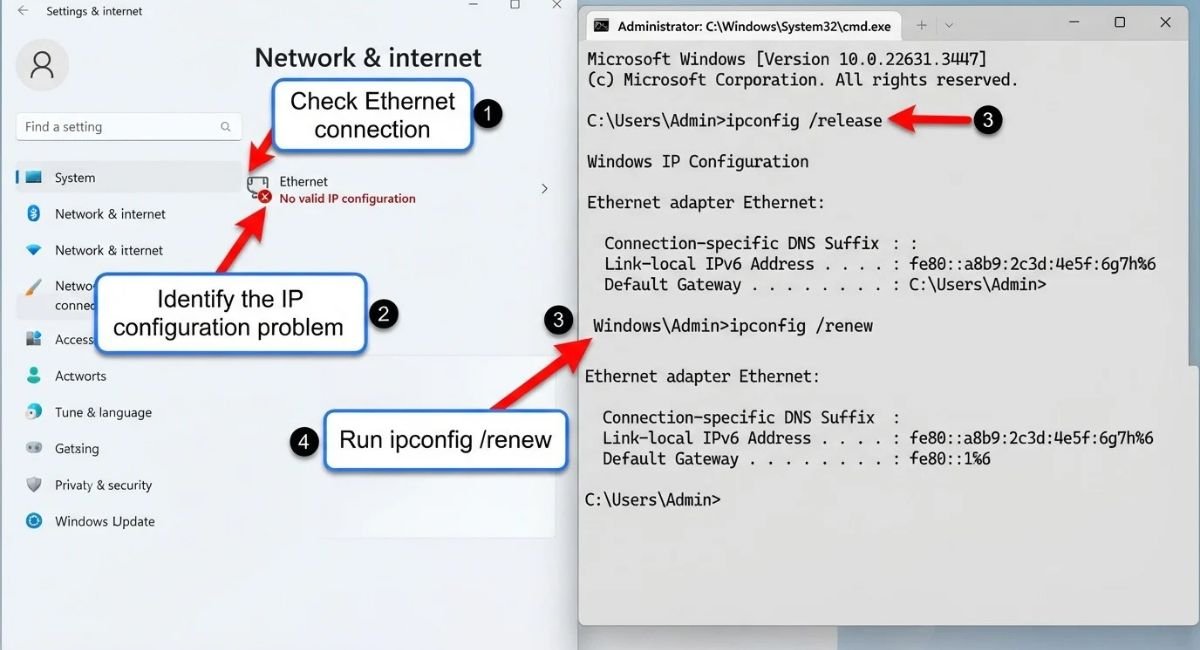
First, restart the router and PC and check that the Ethernet adapter is enabled.
If the problem remains, open Command Prompt as Administrator and run these commands one at a time:
netsh winsock reset
netsh int ip reset
ipconfig /release
ipconfig /renew
ipconfig /flushdns
Restart your PC after running the commands.
These commands reset parts of the Windows networking stack, renew the IP address, and clear the DNS resolver cache. Microsoft includes these commands in its Ethernet troubleshooting guidance.
Renew the IP Address and Flush DNS
If Ethernet appears connected but websites still do not load, refreshing the IP and DNS information can help.
Open Command Prompt as Administrator and run:
ipconfig /release
ipconfig /renew
ipconfig /flushdns
The first two commands release and request a new IP address. The third clears cached DNS information.
If the issue is caused by a temporary IP or DNS problem, the connection may start working immediately afterward.
Fix Ethernet Connection After a Windows Update
If Ethernet stopped working immediately after a Windows update, the update or a related driver change may be involved.
Start by restarting the PC and checking for additional Windows updates.
Then check the Ethernet adapter in Device Manager and update or reinstall its driver if necessary.
If the problem clearly began after an update and normal troubleshooting does not help, Windows recovery options may provide additional ways to address update-related problems.
Avoid removing updates simply because Ethernet is slow or unstable unless the timing strongly suggests an update-related problem. Try the less disruptive driver and network fixes first.
Check if Ethernet Is Disabled or Missing in Windows
If the Ethernet option does not appear in Windows settings, check Device Manager.
Open:
Right-click Start > Device Manager > Network adapters
Look for an Ethernet, LAN, or wired network adapter.
Enable a Disabled Ethernet Adapter
If the adapter appears with a disabled status, right-click it and select Enable device.
If it has a warning icon, open its properties to check the reported device status and error information.
Check Why the Ethernet Option Is Missing
If the Ethernet adapter is completely missing from Device Manager, possible causes include:
- Missing or corrupted driver
- Disabled hardware in BIOS/UEFI
- Hardware failure
- Incorrect driver installation
If reinstalling the correct driver does not make the adapter appear, check your computer or motherboard manufacturer’s documentation for hardware-specific troubleshooting.
When Ethernet Is Connected but There Is No Internet
Sometimes Windows recognizes the Ethernet cable and shows a connection, but websites still cannot load.
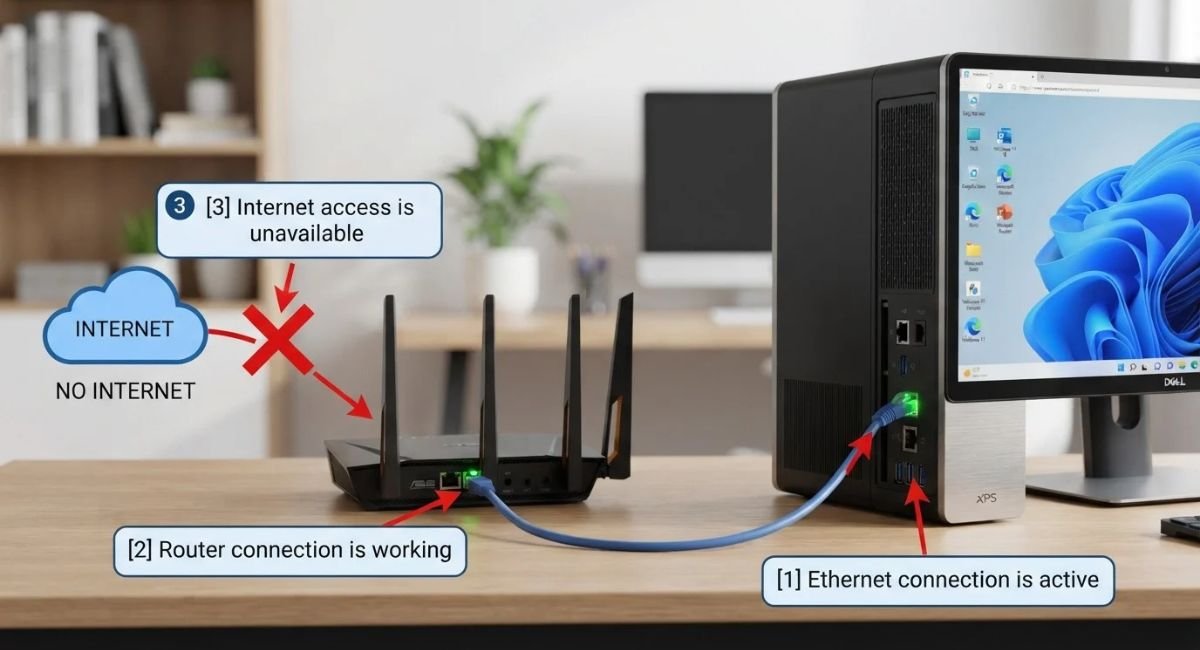
In this situation, first determine whether the problem affects only your PC.
Try Wi-Fi on the same PC or connect another device to the same router. If other devices have internet access, focus on your computer’s Ethernet adapter and network settings.
If Windows shows Connected but there is no internet, check these areas:
- Ethernet cable and router port
- IP and DHCP settings
- DNS configuration
- Network adapter driver
- TCP/IP and Winsock settings
Running the network commands mentioned earlier can often resolve software-based connection problems.
Disable Ethernet Adapter Power Management
Windows can use power-management features to reduce power consumption. In some situations, adapter power settings can contribute to connection problems.
Open:
Device Manager > Network adapters
Right-click your Ethernet adapter and select Properties.
Look for the Power Management tab and review the available options.
If you are experiencing random Ethernet disconnects, test whether disabling the option that allows Windows to turn off the device to save power makes a difference.
This is mainly useful when Ethernet works normally but keeps disconnecting rather than when the adapter does not work at all.
What to Do If Ethernet Still Isn’t Working
If the cable, router, adapter, driver, and IP settings all appear normal, Windows’ network configuration may need a complete reset.
Reset the Network Settings
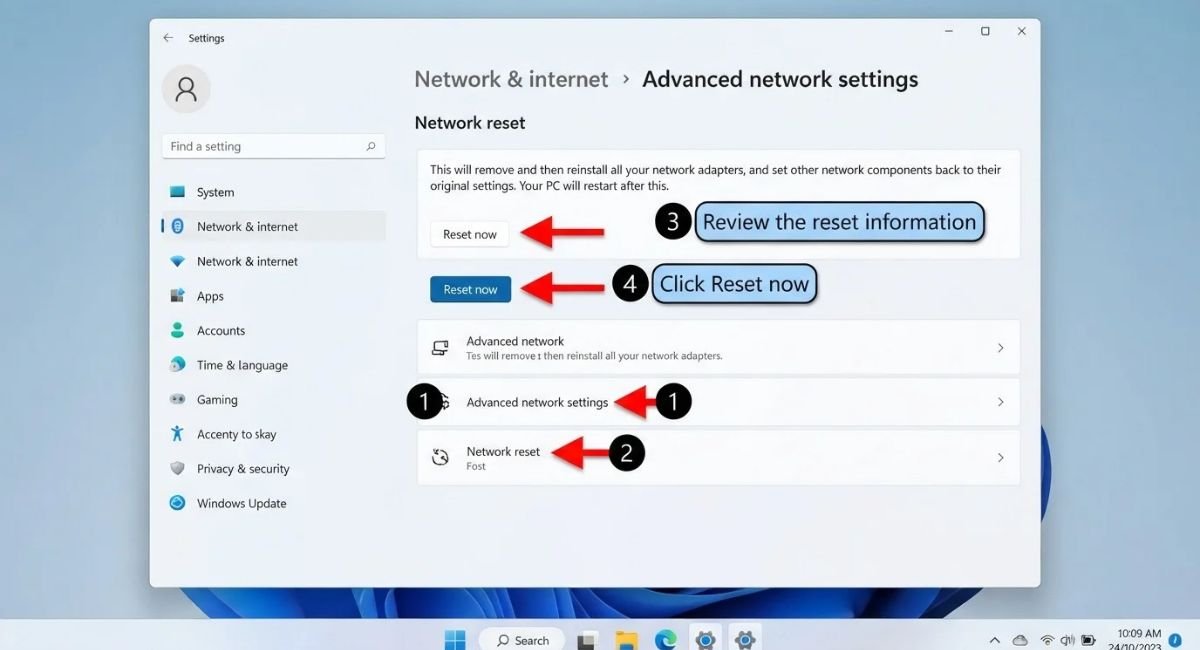
Windows 11:
Go to:
Settings > Network & internet > Advanced network settings > Network reset
Then select Reset now.
Windows 10:
Go to:
Settings > Network & Internet > Status > Network reset
Then select Reset now.
Network Reset removes installed network adapters and their settings, then reinstalls the adapters after restarting Windows. Microsoft recommends using this as a last step because it can also affect VPN clients and other networking software.
After the reset, reconnect your Ethernet cable and test the connection.
When to Check for Hardware Problems
If Ethernet still does not work after reinstalling the driver and resetting Windows networking, hardware becomes a more likely cause.
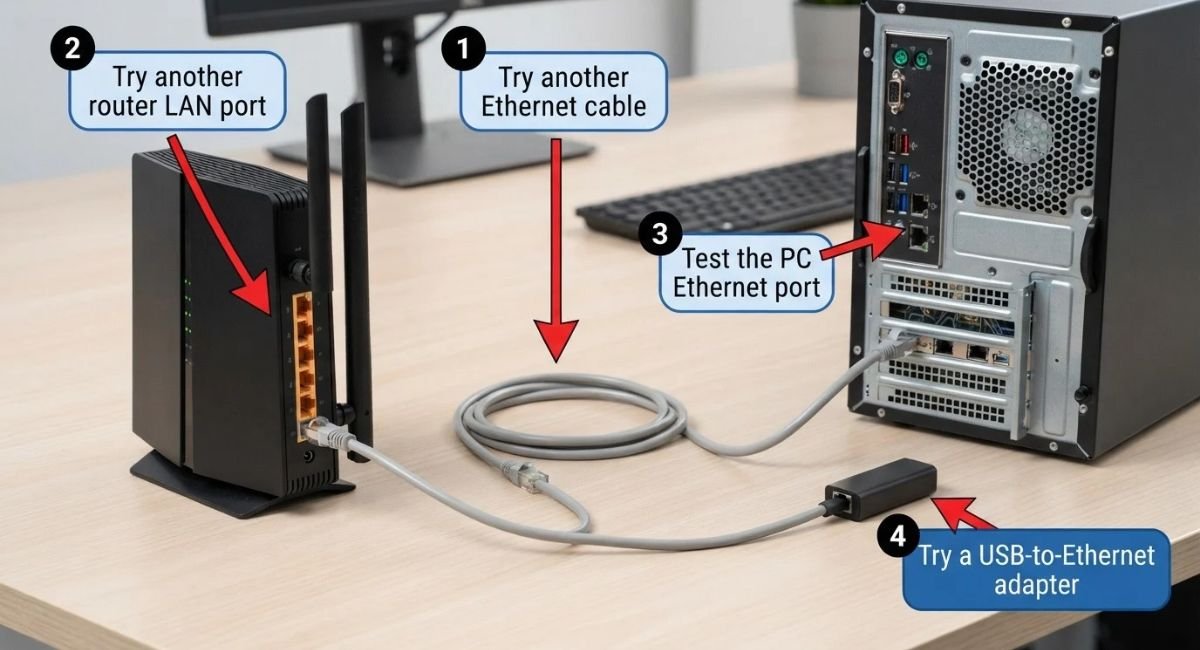
Consider testing:
- A different Ethernet cable
- A different router LAN port
- Another computer using the same cable
- A USB Ethernet adapter, if available
If another computer works with the same cable and router port but your PC’s built-in Ethernet adapter does not, the PC’s Ethernet hardware may need further inspection.
For desktops, also check whether the Ethernet port is physically damaged. For laptops, a USB-to-Ethernet adapter can help determine whether the built-in network adapter is the problem.
How to Test the Ethernet Connection After Troubleshooting
After applying a fix, do not immediately move through every other method.
Test the connection first.
Open a website and check whether the internet works normally. You can also open Command Prompt and run:
ipconfig
Check whether the Ethernet adapter has received a normal local IP address.
If the connection works after one particular fix, there is no need to continue changing additional network settings.
Frequently Asked Questions
Why is my Ethernet not working in Windows 11?
Check the Ethernet cable and router port first, then verify that the Ethernet adapter is enabled. If the hardware connection is fine, update or reinstall the network driver and check the IP and DHCP settings.
Why is my Ethernet connected but I have no internet?
Windows may recognize the Ethernet connection while still having an IP, DNS, router, or TCP/IP problem. Restart the router, check DHCP settings, and run the Windows network commands to refresh the connection.
How do I fix Ethernet that doesn’t have a valid IP configuration?
Restart the router and PC, make sure the Ethernet adapter uses automatic DHCP, and run netsh int ip reset, ipconfig /release, and ipconfig /renew from an administrator Command Prompt.
Why is Ethernet missing from Windows 11?
A missing Ethernet option can be caused by a disabled, missing, or incorrectly installed network adapter driver. Check Device Manager under Network adapters and install the correct driver if necessary.
Why is my Ethernet not working but Wi-Fi is working?
If Wi-Fi works on the same PC, the internet connection itself may be fine. Check the Ethernet cable, router LAN port, wired network adapter, driver, and Ethernet IP settings.
Conclusion
When Ethernet Not Working in Windows 10/11, start with the simplest possibilities: check the cable and router port, restart your network equipment, and make sure the Ethernet adapter is enabled.
If the physical connection is fine, move on to the network driver, DHCP/IP settings, and Windows network commands. For persistent problems, reinstalling the adapter or using Network Reset can help.
The key is to test the connection after each major fix instead of changing many settings at once. That makes it much easier to identify what actually caused the Ethernet problem.