Introduction
When Windows 11 randomly restarts, it can interrupt your work, gaming, or other important tasks without warning. Your computer may reboot because of overheating, outdated drivers, corrupted system files, or faulty hardware. Sometimes, a recent Windows update or incompatible application can also trigger unexpected restarts.
The good news is that you can often resolve this issue with a few simple troubleshooting steps. In this guide, you’ll discover 10 practical ways to fix random restarts, identify common causes, and prevent your PC from rebooting unexpectedly. Whether your computer restarts during startup or while you’re working, these solutions will help you troubleshoot the problem and improve system stability.
Why Does Windows 11 Keep Restarting Randomly?
A computer can restart unexpectedly for several reasons. For example, a processor that gets too hot may trigger protective shutdowns. A faulty driver can also cause a system crash. Sometimes, Windows restarts after an update or encounters a critical error that prevents it from running normally.
The timing of each restart offers useful clues. If your PC restarts during gaming, check temperatures and graphics drivers first. If it happens while idle, investigate system errors, scheduled updates, and hardware stability. When the problem starts after installing new software, a driver, or an update, that recent change deserves attention.
Common Causes of Random Restarts in Windows 11
Overheating, incompatible drivers, corrupted system files, malware, and faulty hardware are common possibilities. A weak or failing power supply can also cause sudden restarts, particularly on desktop computers under heavy load. However, one symptom rarely proves the cause, so check the evidence before replacing hardware.
Signs That Can Help Identify the Problem
Pay attention to what happens immediately before your computer restarts. A blue screen may display a stop code, while a sudden black screen could point toward power or hardware trouble. Repeated failures during startup suggest a different problem from restarts that happen only when running demanding applications.
10 Ways to Fix Windows 11 Randomly Restarting
Before changing system settings, save your work and back up important files. If your computer stays on long enough, begin with overheating checks and recent software changes. These first steps are simple and can help you avoid unnecessary repairs.
Work through the following fixes one at a time. After each change, use your computer normally and see whether the restarts return. This approach helps you identify which solution works instead of changing several settings without knowing what fixed the problem.
Check Your PC for Overheating
Heat can make a computer unstable, especially during gaming, video editing, or other demanding tasks. To Check CPU temperature, use a reputable monitoring utility or your computer manufacturer’s diagnostic software. If temperatures rise sharply under load, inspect airflow, fan operation, and dust buildup before moving to more advanced fixes.
To Clean computer cooling fans, shut down your PC, unplug it, and follow the manufacturer’s cleaning instructions. Keep air vents clear and place laptops on hard, flat surfaces rather than blankets. If fans stop spinning, unusual noises develop, or the computer becomes extremely hot, seek professional help instead of opening components you’re unfamiliar with.
Go to: Windows Settings
Settings > System > Power & battery

Disable Automatic Restart on System Failure
Windows may restart automatically after a critical system failure. That behavior can hide the error message you need to diagnose the problem. You can Disable automatic restart temporarily to see whether Windows displays a blue screen and a useful stop code during the next failure.
Press Windows + R, type sysdm.cpl, and press Enter. Open the Advanced tab, then select Settings under Startup and Recovery. Under System failure, clear the Automatic restart checkbox and select OK. These Windows System Properties and Startup and Recovery settings help expose crashes, but changing this option won’t repair the underlying cause.
Update Device Drivers
Drivers help Windows communicate with your graphics card, network adapter, motherboard, and other devices. Outdated or incompatible versions can cause crashes, particularly after a Windows upgrade. To Update device drivers, start by checking Windows Update and your manufacturer’s official support page for compatible versions.
Right-click Start and Open Device Manager. Look for warning symbols beside devices, then open a device’s Properties to review its status. You can also check official releases to Update graphics drivers or Update network adapter drivers when those components appear related to the problem. Avoid installing several driver utilities at once because they can make troubleshooting harder.
Install Pending Windows Updates
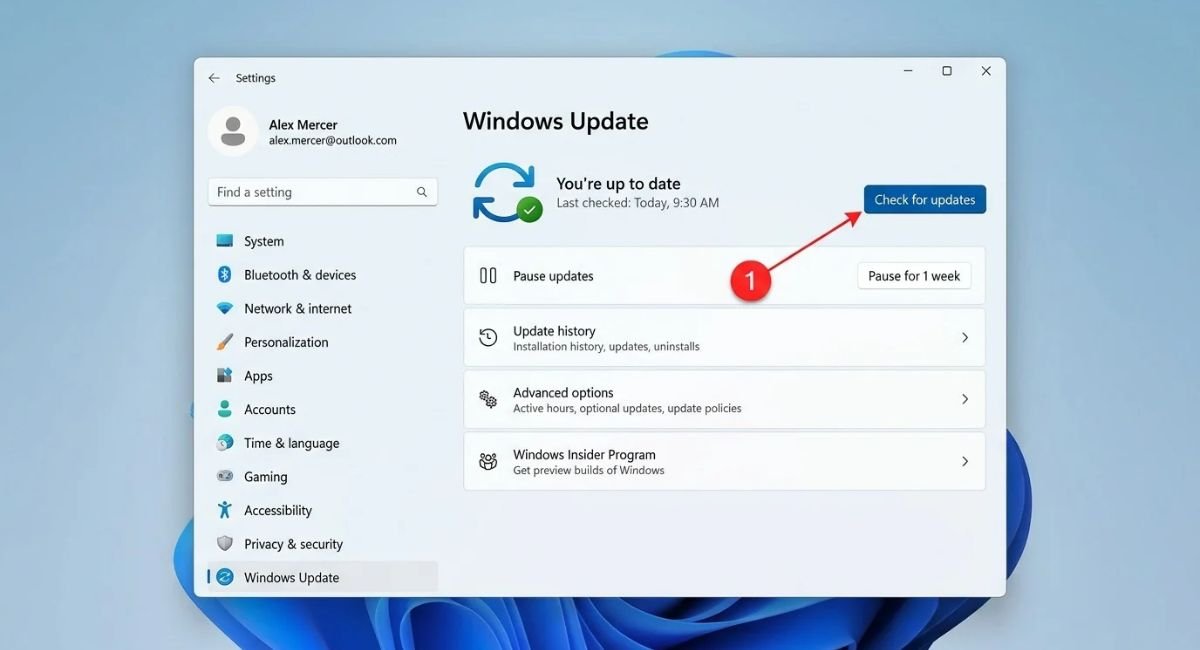
Microsoft releases updates that can address security problems, bugs, and compatibility issues. To Update Windows 11, open Settings and select Windows Update. Choose Check for updates and install available updates that apply to your device. Restart when prompted, then check whether the unexpected restarts continue.
If the problem began immediately after a specific update, don’t assume that installing more updates will always solve it. Review your update history and note the date when the issue started. In some cases, removing a problematic recent update through Windows Recovery options may help. Back up important files before making significant system changes.
Go to: Windows Settings
Settings > Windows Update
Disable Fast Startup
Fast Startup helps Windows start more quickly after shutdown by saving some system information. However, on certain computers, startup-related issues can make troubleshooting more difficult. Temporarily disabling this feature is worth testing when restarts began after a hardware, driver, or system configuration change.
Open Control Panel and select Hardware and Sound, then Power Options. Choose Choose what the power buttons do and select Change settings that are currently unavailable. If the option appears, clear Turn on fast startup and save your changes. Restart the computer and observe its behavior before deciding whether to keep the setting disabled.
Scan for Malware and Viruses
Malware can interfere with normal system operation, consume resources, or change important settings. Although random restarts don’t automatically indicate an infection, scanning your computer is sensible if you notice unfamiliar applications, suspicious pop-ups, or unusual activity. Use Windows Security rather than downloading an unknown repair program.
Open Windows Security and select Virus & threat protection. Run a quick scan first, then consider a full scan if concerns remain. You can also Scan for malware or viruses using Microsoft Defender Offline when a deeper check is appropriate. Save your work before starting an offline scan because the computer will restart during the process.
Run System File Checker and DISM
Damaged Windows components can lead to crashes, update failures, and unstable behavior. Built-in repair tools can help Check for corrupted Windows files and restore damaged system components. They won’t repair faulty RAM, overheating, or a failing power supply, but they’re useful when software corruption is a possible cause.
Search for Command Prompt, right-click it, and choose Run as administrator. Enter the following DISM repair commands and then the SFC /scannow command in the order shown. Allow each operation to finish before proceeding.
DISM.exe /Online /Cleanup-image /Restorehealth
sfc /scannow
The DISM command repairs the Windows image that System File Checker relies on. Next, Run System File Checker to scan protected system files and replace damaged copies when possible. This process can take several minutes, so don’t close the window before verification reaches 100%.
Afterward, read the result message and restart your PC. If Windows reports that it repaired files, test the computer again. If it cannot repair everything, review Microsoft’s instructions before attempting manual changes. You can find the official procedure in Microsoft’s System File Checker guide.

Perform a Clean Boot
Third-party applications and background services sometimes conflict with Windows. A clean boot starts the system with essential Microsoft services and a reduced set of startup applications. This can help Identify software conflicts without removing your personal files or reinstalling Windows.
Press Windows + R, type msconfig, and press Enter. Open Services, select Hide all Microsoft services, and then choose Disable all. Next, open the Startup tab and select Open Task Manager. You can Disable startup applications there before restarting the computer to test whether the issue disappears.
If the restarts stop, a disabled application or service may be responsible. Re-enable items in small groups and restart after each change until the problem returns. That process helps narrow down the culprit. Once testing finishes, restore normal startup settings and re-enable the services and applications you still need.
Follow Microsoft’s clean boot instructions if you need the complete procedure.
Check Your RAM, Hard Drive, and Other Hardware
Hardware faults can cause sudden restarts even when Windows and its drivers appear up to date. Faulty memory may trigger crashes, while storage problems can damage files or prevent Windows from loading properly. On desktop computers, a failing power supply may also cause abrupt shutdowns when the system needs more power.
Start by using Windows Memory Diagnostic to check for possible RAM problems. You should also review your storage drive’s health using manufacturer tools and make sure sufficient free space remains. To Diagnose hardware problems, run any built-in diagnostics provided by your computer manufacturer. If you suspect a failing component, back up your files before the situation gets worse.
For desktop computers, Check power supply unit (PSU) symptoms carefully. Sudden shutdowns under heavy load, unstable power, or a system that fails to turn on consistently can indicate a power problem. However, those symptoms aren’t conclusive. Don’t open a power supply yourself; seek qualified repair assistance if you suspect a hardware fault.
Update BIOS or Reset Your PC
A BIOS or UEFI update may resolve specific hardware compatibility or stability problems. However, firmware updates carry risks if the wrong file is used or power is interrupted. Check your PC or motherboard manufacturer’s support page and install an update only when it applies to your exact model or addresses a relevant issue.
If other fixes fail, consider whether you need to Reset this PC. Open Settings, select System, then Recovery, and choose Reset PC. The Keep my files option reinstalls Windows while preserving personal files, although applications and settings may be removed. The Cloud download Windows 11 option downloads a fresh Windows copy, while Local reinstall uses files already on the device.
Back up your documents, photos, and other important data before resetting. Keep your laptop connected to power and make sure you have any required recovery information. A reset may resolve deep software problems, but it won’t fix a defective motherboard, damaged RAM, or failing power supply.
For more details, consult Microsoft’s Windows recovery options.
How to Find Out What Is Causing Random Restarts
Rather than trying every possible repair, use Windows’ built-in diagnostic tools to gather clues. Event Viewer, Reliability Monitor, and blue-screen stop codes can help connect a restart with a driver, application, update, or hardware event. None of these tools proves the cause on its own, but together they can narrow the possibilities.
Start by recording when each restart happens and what you were doing beforehand. If the same error appears repeatedly, focus on that evidence first. This method makes it easier to Troubleshoot unexpected shutdowns and avoid unnecessary driver changes, system resets, or hardware replacements.
Check Event Viewer for Critical Errors
Right-click Start and open Event Viewer. Navigate to Windows Logs, then System, and look at the events recorded around the time of the restart. Critical events or errors may provide useful details, but entries such as Kernel-Power Event ID 41 generally indicate that Windows shut down unexpectedly rather than identify the exact cause.
Look for Blue Screen Stop Codes
If a blue screen appears, write down the stop code before the computer restarts. Codes related to memory or hardware can help direct further testing. Search the exact code in Microsoft’s support documentation and compare it with recent driver changes, installed hardware, or other symptoms.
Check Reliability Monitor for Recent Failures
Search Windows for Reliability Monitor and open View reliability history. This tool displays a timeline of application failures, Windows errors, and other system events. Look for failures that began on the same day as the random restarts. A pattern can help you identify a recent change worth investigating.
What to Do If Windows 11 Keeps Restarting in a Loop
A restart loop is more serious because it may prevent you from reaching the desktop. Disconnect newly added USB devices and other unnecessary peripherals, then try starting the computer again. If Windows still cannot load, use the Windows Recovery Environment to access repair tools instead of repeatedly attempting a normal startup.
Windows may enter its recovery environment automatically after repeated startup failures. If it doesn’t, you may need compatible Windows installation or recovery media. Some recovery operations can affect files or encrypted drives, so prepare your BitLocker recovery key when applicable and back up data whenever possible before proceeding.
Enter Windows Recovery Environment or Safe Mode
From the recovery screen, select Troubleshoot, then Advanced options, and choose Startup Settings if available. Restart and select Safe Mode. If Windows works in Safe Mode, a driver, startup application, or third-party service may be involved. If you cannot reach recovery options, use Microsoft’s official recovery instructions.
Try Startup Repair or System Restore
Startup Repair can look for common problems that prevent Windows from starting. Open Troubleshoot, select Advanced options, and choose Startup Repair. If the problem began after a recent system change, System Restore may also help when a suitable restore point exists. Neither option guarantees success, but both are worth trying before a full reset.
Seek Professional Hardware Support When Necessary
If the computer keeps restarting before Windows loads, overheats severely, or produces repeated memory-related errors, stop experimenting with advanced settings. A technician can test the power supply, RAM, motherboard, and storage drive. Professional diagnosis is especially important when the PC shuts down abruptly or shows signs of electrical damage.
Frequently Asked Questions
Why does Windows 11 restart randomly without warning?
Common causes include overheating, driver problems, system errors, Windows updates, and faulty hardware. Check when the restarts occur and look for stop codes or recent changes. Those clues can help you choose the right troubleshooting method.
Can faulty drivers cause Windows 11 to restart repeatedly?
Yes. An incompatible or damaged driver can make Windows unstable and trigger system crashes. Check Windows Update and your hardware manufacturer’s website for suitable drivers. If the problem began immediately after a driver update, consider rolling back that driver.
Can Windows Update cause random restarts?
Windows may restart to finish installing updates, which is normal when scheduled or requested. However, a failed update or compatibility problem can sometimes cause repeated crashes. Check your update history if the issue began shortly after an installation.
How do I stop Windows 11 from restarting automatically?
First, determine whether Windows is restarting because of a crash or a scheduled update. Disabling automatic restart after a system failure can help reveal a stop code, but it doesn’t fix the underlying fault. Investigate the error before changing other settings.
Will resetting Windows 11 fix random restarts?
A reset can fix some software problems by reinstalling Windows. However, it won’t repair overheating, faulty RAM, or a failing power supply. Back up important files and try simpler diagnostic steps first to avoid unnecessary data loss.
Final Thoughts
Unexpected restarts can be frustrating, but you don’t need to replace your computer immediately. Start with temperature checks, driver updates, and Windows repair tools. If those steps don’t help, investigate hardware, review system errors, and consider recovery options only after backing up your important files.
When Windows 11 randomly restarts, the most useful next step is to identify a pattern instead of guessing. Note any stop codes, recent updates, or demanding tasks that trigger the problem. If the same failure continues after careful troubleshooting, a qualified technician can help determine whether a physical component needs repair.
For more troubleshooting guidance, visit Microsoft Support and use the documentation that matches your Windows version and device.