Introduction
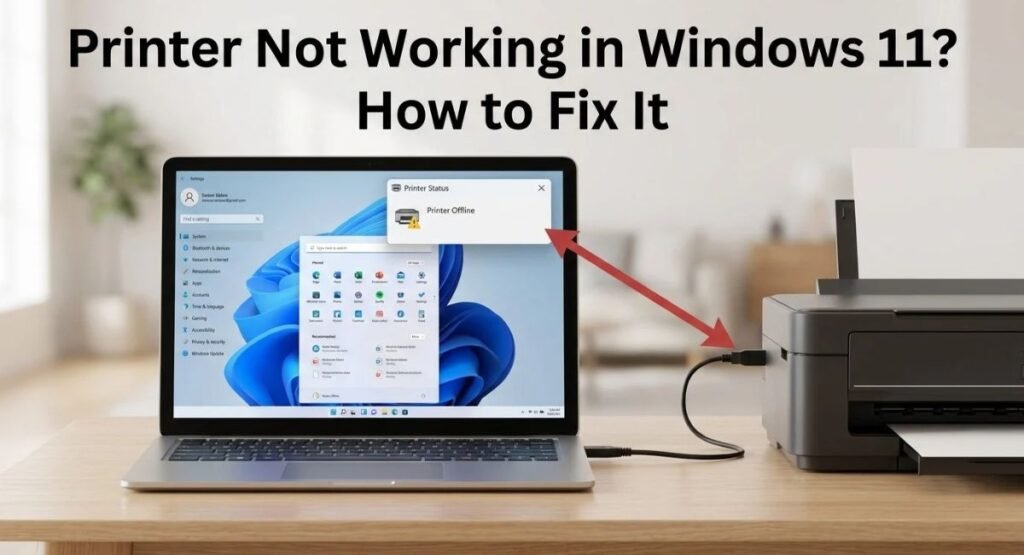
A Printer Not Working issue in Windows 11 can prevent documents, photos, and other files from printing even when the printer appears connected. The problem may come from a stuck print queue, connection failure, outdated driver, Print Spooler issue, network configuration, or a recent Windows update. In some cases, Windows may not detect the printer at all, while other problems occur when printing through a shared or wireless connection. The good news is that most printer problems can be fixed with a few simple checks.
This guide explains practical Windows 11 solutions of Printer Not Working , starting with basic connection and queue checks and moving to driver, network, sharing, and system fixes when necessary.
Fix Printer Not Working on Windows 11
Before making advanced changes, check whether the printer is powered on, has paper and ink or toner, and shows no error on its display.
Then print a test page if your printer provides that option. If the printer itself reports an error, fix that issue first. If the printer appears normal but Windows cannot print, continue with the steps below.
Restart Your Printer and Check the Connection
A temporary communication problem can prevent Windows 11 from sending jobs to the printer.
Restart the Printer and PC
Turn off the printer and unplug it from power for about 30 seconds. Turn it back on and wait until it is ready.
Restart your Windows 11 PC as well. This can refresh the connection between Windows and the printer.
Check the USB or Wi-Fi Connection
For USB printers, make sure the cable is firmly connected to both the printer and PC. If possible, try another USB port.
For wireless printers, make sure the printer and PC are connected to the same Wi-Fi network. A printer connected to a different network may not be detected by Windows.
Check the Default Printer and Print Queue
Windows may send the document to another printer or leave an earlier job stuck in the queue.
Set the Correct Default Printer
Go to:
Settings > Bluetooth & devices > Printers & scanners
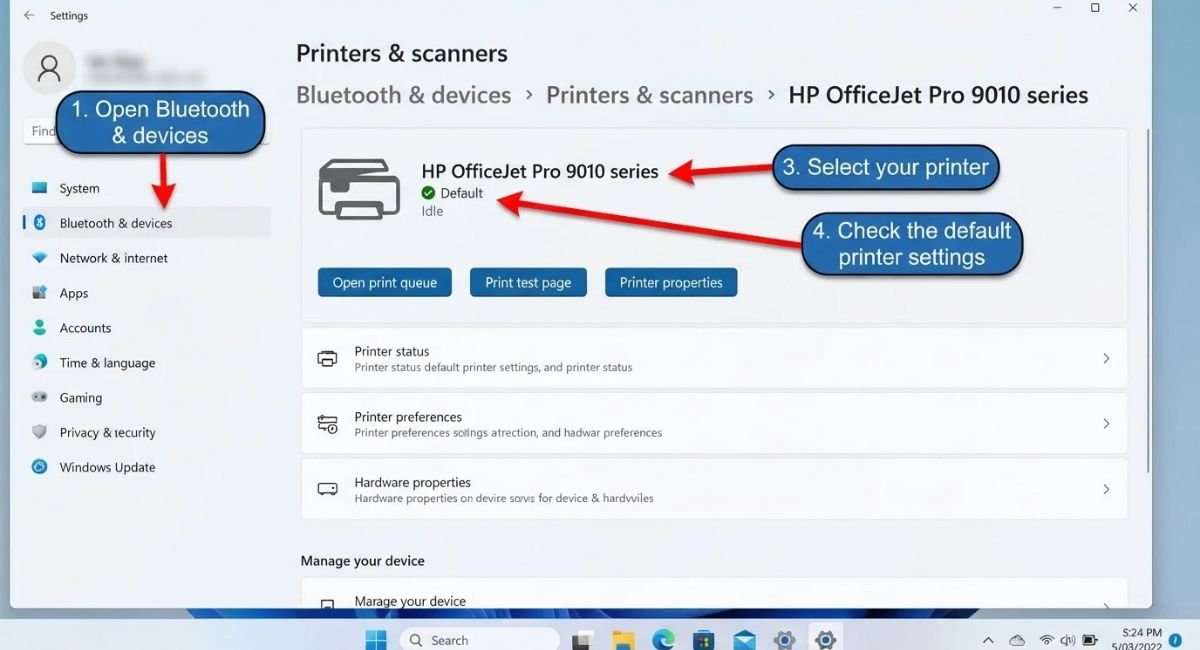
Select your printer and make sure Windows is using the correct device.
If you have several printers installed, confirm that you are sending the document to the printer you actually want to use.
Cancel Stuck or Pending Print Jobs
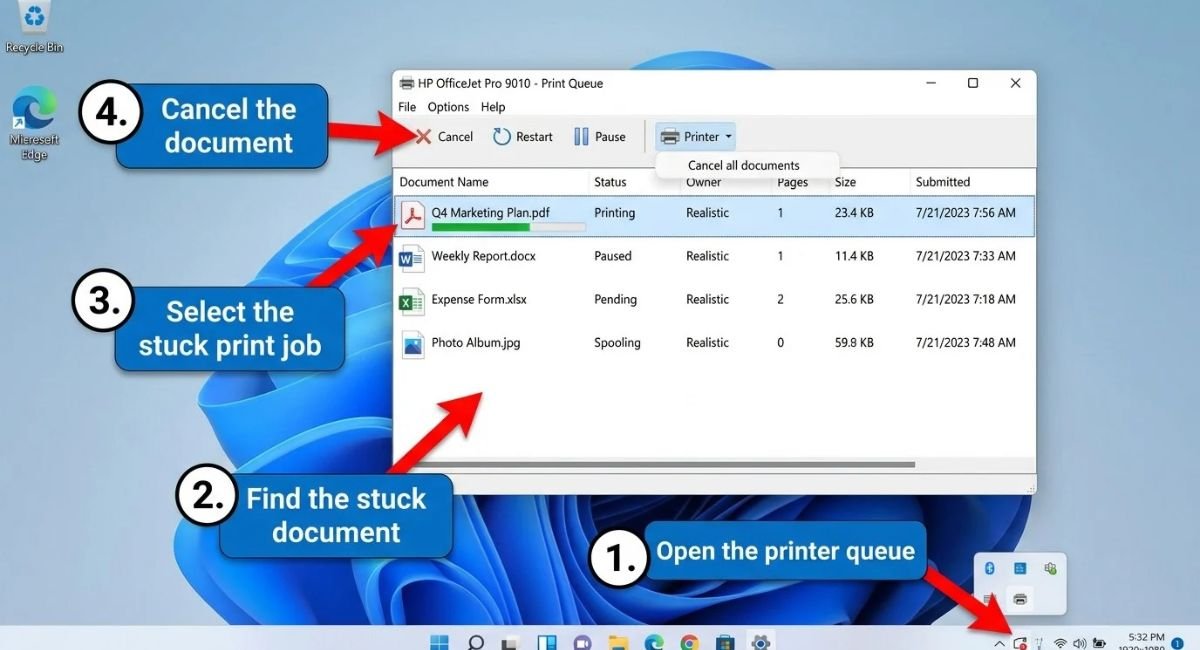
Open your printer from Printers & scanners and select the option to view the print queue.
Cancel documents that are stuck in Pending, Printing, or Error status. Then try printing the document again.
Run the Windows 11 Printer Troubleshooter
Windows includes troubleshooting tools that can identify common printer configuration and service problems.
Go to:
Settings > System > Troubleshoot > Other troubleshooters
Find Printer and run the available troubleshooter.
Follow the recommended steps and test the printer again when the process finishes.
Restart the Print Spooler Service
The Print Spooler manages print jobs in Windows. If the service becomes stuck, documents may remain in the queue without reaching the printer.
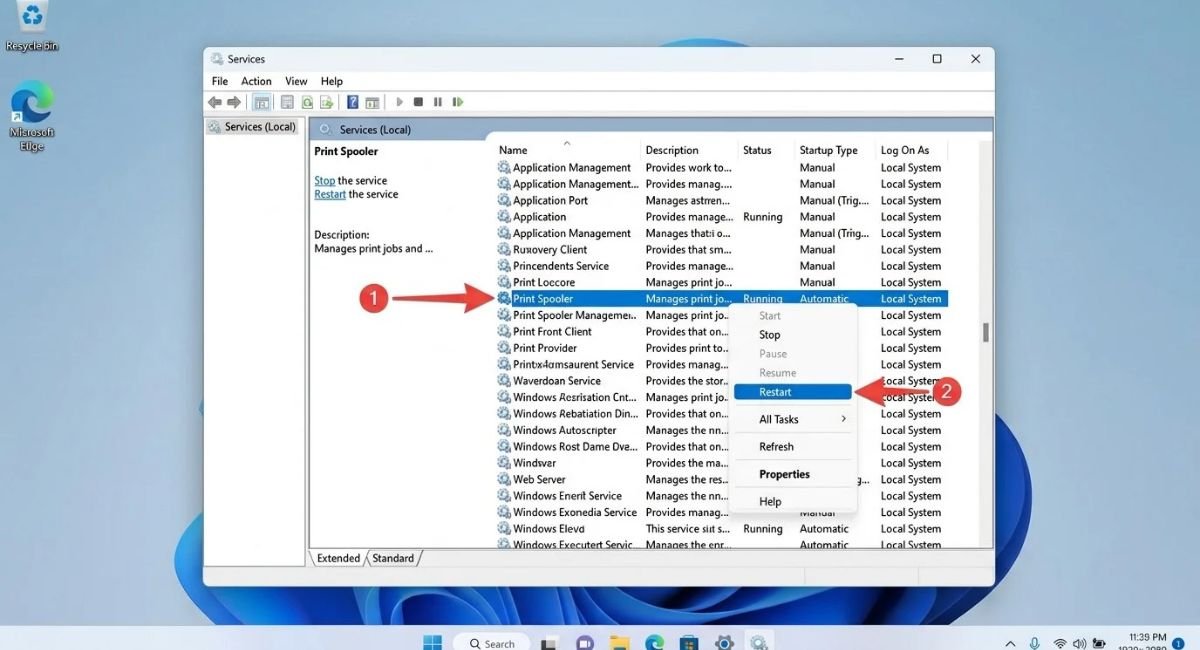
Press Windows + R, type:
services.msc
Press Enter.
Find Print Spooler, right-click it, and select Restart.
Clear the Print Spooler Folder
If restarting the service does not clear a permanently stuck queue, you can clear its temporary files.
- Stop the Print Spooler service.
- Open:
C:\Windows\System32\spool\PRINTERS
- Delete the files inside the folder.
- Return to Services and start Print Spooler again.
Only remove the files inside the PRINTERS folder, not the folder itself.
Update or Reinstall the Printer Driver
A damaged or outdated driver can stop Windows 11 from communicating correctly with a printer.
Update the Printer Driver
Open Device Manager and expand Printers or Print queues.
Right-click the relevant printer and select Update driver.
You can also check Windows Update for available driver updates.
Reinstall the Printer Driver
If updating does not solve the problem, remove the existing printer driver and install the latest driver supplied by the printer manufacturer.
Download drivers only from the manufacturer’s official website and choose the version designed for your Windows system.
Remove and Re-Add the Printer
If Windows has an incorrect or damaged printer configuration, removing the device and adding it again can create a fresh connection.
Go to:
Settings > Bluetooth & devices > Printers & scanners
Select the affected printer and choose Remove.
Restart Windows if necessary, then return to Printers & scanners and select Add device.
Add a Wireless Printer
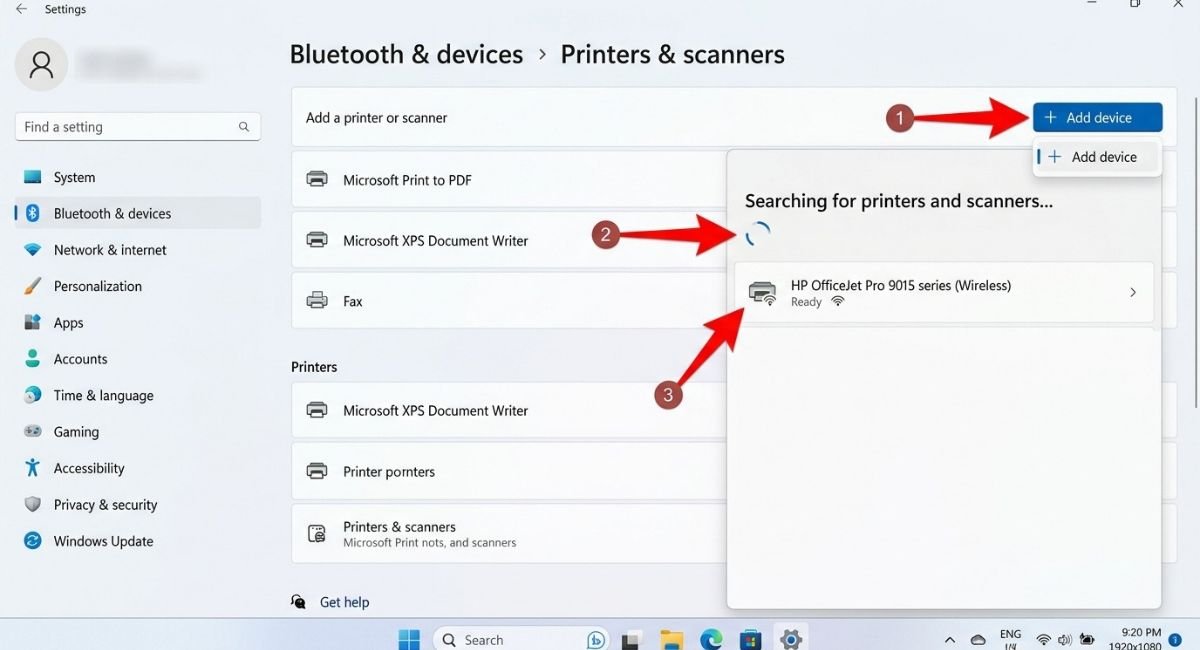
For a wireless printer, make sure it is already connected to the same network as your PC.
If Windows cannot find it automatically, use the available manual-add option and provide the printer information requested by Windows.
Add a Printer Manually
Manual installation can help when automatic detection fails.
Depending on the printer, Windows may allow you to add it using its IP address, hostname, or another available connection method.
This is also one of the main solutions when a printer does not appear in Windows 11’s printer list.
Fix Network and Shared Printer Problems
Network printers and shared printers can fail for reasons that do not affect locally connected USB printers.
Check the Printer IP Address and Network Connection
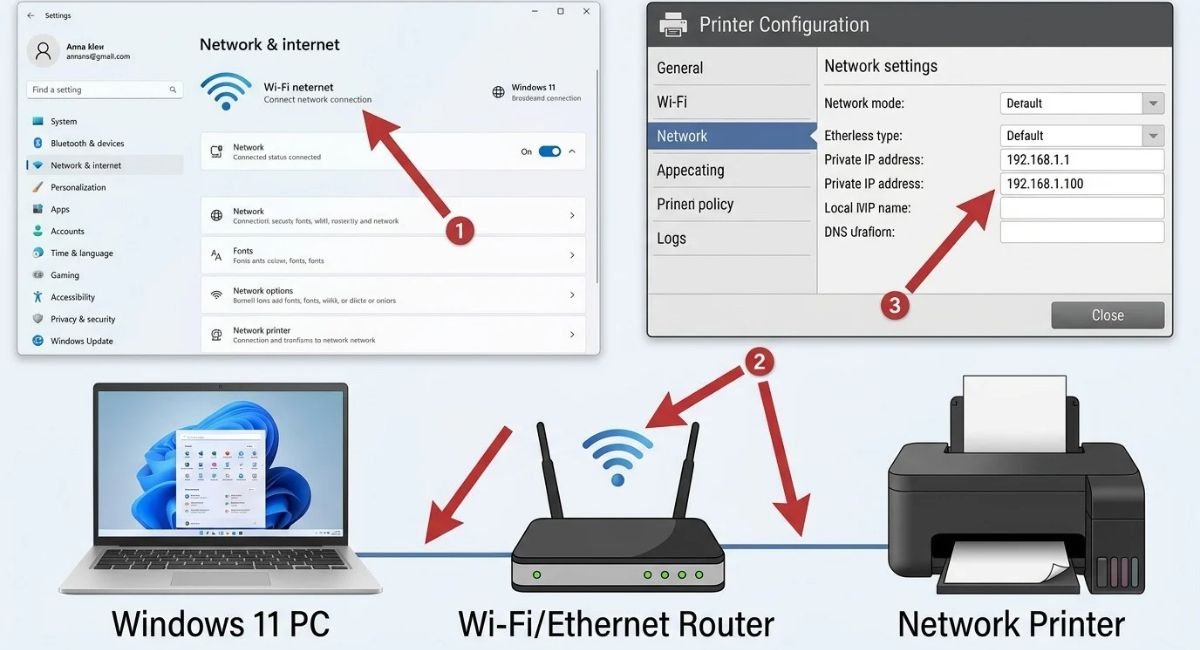
If the printer is connected through Wi-Fi or Ethernet, check its current IP address from the printer’s network settings.
A changed IP address can cause Windows to lose contact with the device.
If the printer is shared from another Windows PC, make sure the host computer is turned on and connected to the network.
Reconnect a Shared Printer
For a shared printer, remove the unavailable connection and add the shared printer again using its current network or computer path.
The Windows PC hosting the printer must also allow printer sharing.
Check Printer Sharing Settings
On the computer connected to the printer, verify that printer sharing is enabled and that the relevant network-sharing settings allow other devices to connect.
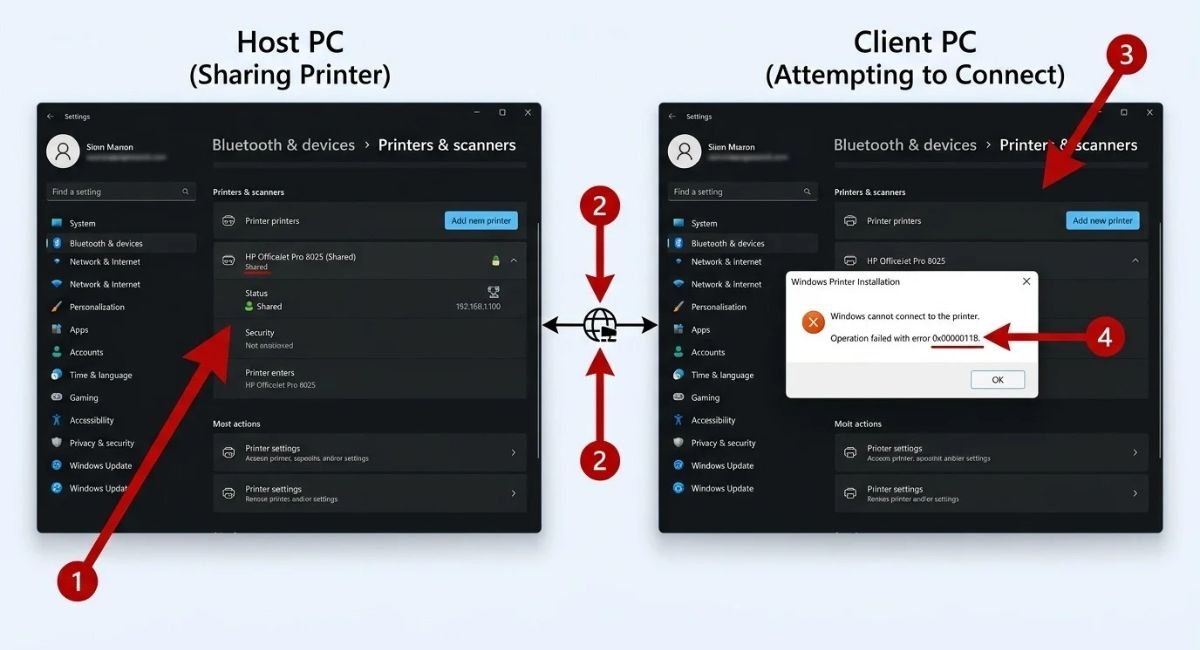
If Windows displays error 0x0000011B while connecting to a shared printer, the issue is commonly related to Windows printer security and shared-printer configuration.
For this specific error, first install available Windows updates on both computers and make sure the shared printer connection is configured correctly. Avoid applying random registry fixes from unofficial websites unless you understand the security implications.
Fix Printer Not Working After a Windows 11 Update
If the printer worked normally before a Windows 11 update and stopped immediately afterward, the update or a changed driver may be involved.
First, check:
Settings > Windows Update
Install any newer updates that are available.
Then check the printer manufacturer’s support page for a Windows 11-compatible driver or firmware update.
If the manufacturer has released a driver specifically for the affected Windows version, use that driver instead of relying on an old installation.
Fix HP, Canon, and Epson Printer Problems
Printer brands can use different drivers and setup software, so brand-specific tools may be necessary when standard Windows troubleshooting does not work.
Fix HP Printer Problems
Use HP’s official support and printer setup tools to check the printer driver, device status, and wireless configuration.
Fix Canon Printer Problems
Check Canon’s official support page for the correct Windows 11 printer driver and model-specific setup software.
Fix Epson Printer Problems
Use Epson’s official support resources to obtain the correct driver, utilities, and firmware for your printer model.
The exact software depends on the printer model, so avoid installing drivers intended for a different device.
Fix Printer and Scanner Not Working in Windows 11
Some multifunction printers can print but fail to scan because scanning uses separate Windows components and manufacturer software.
If printing works but scanning does not, check whether the scanner is detected under:
Settings > Bluetooth & devices > Printers & scanners
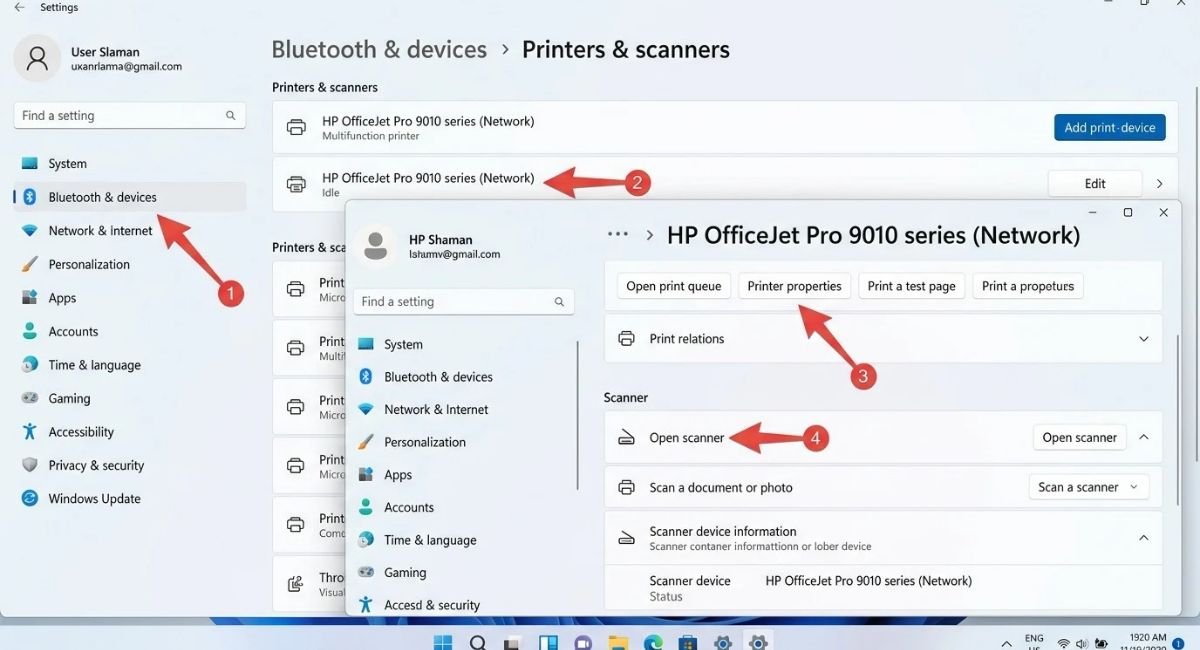
Also make sure the manufacturer’s scanning application or Windows scanning software can detect the device.
For a USB multifunction printer, check that Windows recognizes the device without an error in Device Manager.
Repair Windows System Files
If several Windows components are behaving incorrectly—not just the printer—damaged system files may be involved.
Open Terminal or Command Prompt as administrator and run:
DISM /Online /Cleanup-Image /RestoreHealth
After it completes, run:
sfc /scannow
Restart the PC after both commands finish and test the printer again.
These commands are not printer-specific repairs, so use them when you also notice other Windows problems or when the normal printer fixes have failed.
What to Do If Your Printer Is Connected but Not Printing
If Windows says the printer is connected but nothing comes out, identify where the failure occurs instead of repeating every troubleshooting step.
- Documents remain pending: check the print queue and Print Spooler.
- Printer disappears or cannot be detected: remove and add the printer again.
- Windows shows a driver problem: update or reinstall the driver.
- Network printer cannot be reached: check its network connection and IP address.
- Shared printer cannot connect: check sharing and the host PC.
- Printer works from one application but not another: check that application’s selected printer and print settings.
This approach helps you focus on the actual cause instead of applying unrelated fixes.
Fix Printer Not Printing Multiple Copies
If the printer works normally but prints only one copy when you request several, the problem may be related to the application’s print settings rather than the printer connection.
Open the application’s Print window and check the Copies setting.
If the application is set to print one copy, increase the number before printing.
If multiple copies are selected but only one prints, test another application. If the second application works correctly, the issue is likely related to the original application’s print settings or printing behavior.
Conclusion
Most Windows 11 printer problems come down to a connection issue, stuck print queue, Print Spooler problem, driver problem, incorrect device configuration, or network-sharing issue.
Start with the basic connection and queue checks, then move to the Spooler, driver, and printer reinstallation steps. For network and shared printers, focus specifically on the network or sharing configuration instead of repeating the general printer fixes.
If the problem started after a Windows 11 update, check Windows Update and the printer manufacturer’s latest driver before making more advanced changes.
Frequently Asked Questions
Why is my printer connected but not printing in Windows 11?
Check the print queue first, then verify that the Print Spooler is running. If those are normal, check the printer driver and device configuration.
How do I fix a printer not showing in Devices and Printers in Windows 11?
Open Settings > Bluetooth & devices > Printers & scanners and try adding the printer again. For network printers, make sure the PC and printer are on the same network.
How do I fix a printer that stopped working after a Windows 11 update?
Install available Windows updates and check the printer manufacturer’s website for a current Windows 11 driver. A newer driver may restore compatibility.
How do I fix Windows 11 when it can’t connect to a shared printer?
Check that the host PC is online, printer sharing is enabled, and the shared printer connection is still valid. If Windows shows a specific error, troubleshoot that error separately.
How do I fix printer error 0x0000011B in Windows 11?
Update Windows on the computers involved and verify the shared printer configuration. If the error remains, use the printer manufacturer’s or Microsoft’s current guidance rather than applying an unverified registry modification.
Recommended Links
- Fix printer connection and printing problems in Windows
Microsoft Support — Fix printer connection and printing problems - Fix printer not found and printer not recognized errors
Microsoft Support — Fix printer not found or recognized errors - Download and install the latest printer drivers
Microsoft Support — Download and install printer drivers - Fix Print Spooler service not running errors
Microsoft Support — Fix Print Spooler errors