Introduction
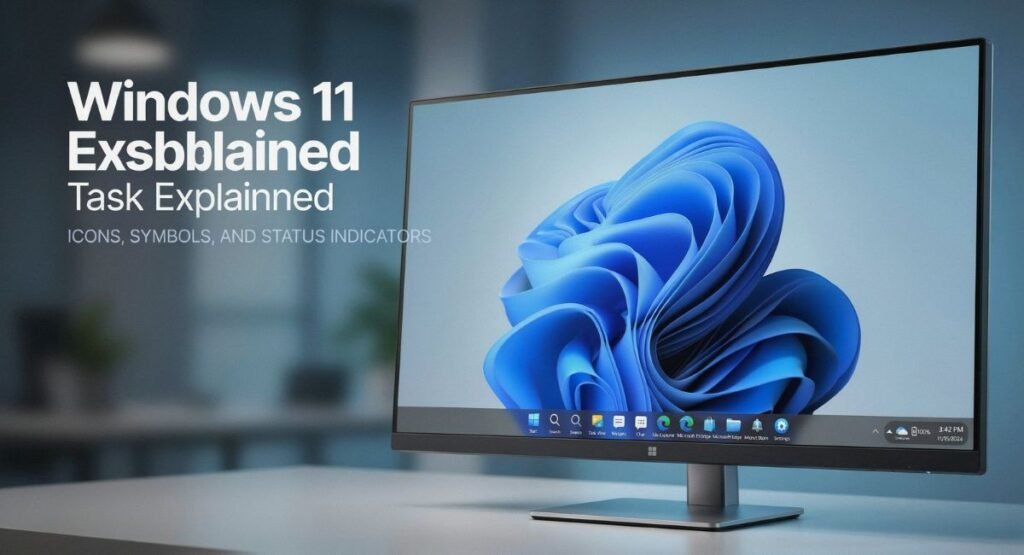
Windows 11 Taskbar Explained can help you understand the small icons and symbols that appear at the bottom of your screen. These indicators provide useful information about your internet connection, battery, notifications, running apps, privacy activity, and cloud synchronization. Learning the meaning of Windows 11 taskbar icons makes it easier to recognize normal activity and spot potential problems quickly.
Whether you are trying to understand a Wi-Fi symbol, battery warning, notification badge, or OneDrive status, the taskbar provides important information at a glance. In this guide, you will learn what the most common Windows 11 Taskbar Explained indicators mean, how to customize them, and what to do when taskbar icons disappear or stop updating.
What Do the Windows 11 Taskbar Icons Mean?
Windows uses small Windows 11 taskbar symbols to communicate status without opening Settings. Some icons belong to apps, while others represent built-in Windows features. These taskbar icon meanings can change as your PC connects to a network, charges its battery, receives notifications, or uses privacy-sensitive hardware.
The Windows 11 icons meaning becomes easier to understand when you divide them into groups. Network icons show connectivity. Battery icons show power. Notification and privacy icons highlight activity that may need your attention. Meanwhile, system tray icons usually represent background apps and Windows services.
| Taskbar Area | What It Usually Shows |
|---|---|
| Network | Wi-Fi or Ethernet connection |
| Battery | Power and charging state |
| Apps | Open and pinned applications |
| Notifications | Alerts and reminders |
| Privacy | Microphone, camera, or location activity |
| Cloud | OneDrive and synchronization |
| System Tray | Background apps and Windows tools |
These Windows 11 status icons work as quick visual signals. You don’t need to open a full settings page every time you want basic information. A glance at the Windows system tray can often tell you what your PC is doing.
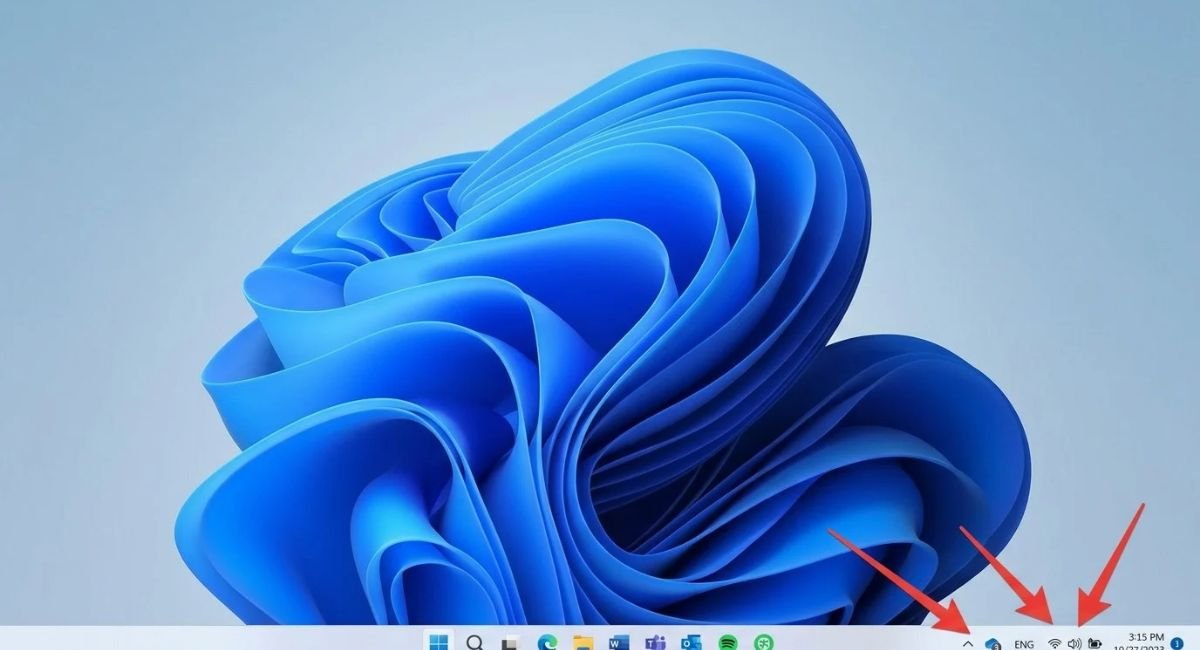
Network Icons Wi-Fi and Ethernet
The network section is one of the most useful parts of the Windows 11 taskbar. The Wi-Fi icon, Ethernet icon, and other network icons tell you about your current connection. A normal connection usually means your computer is connected to the internet and can reach online services.
However, a connected Wi-Fi signal doesn’t always guarantee internet access. Windows may show a different internet connection icon when your PC connects to a router but cannot reach the internet. You might also see limited connectivity or another warning when the connection has a problem.
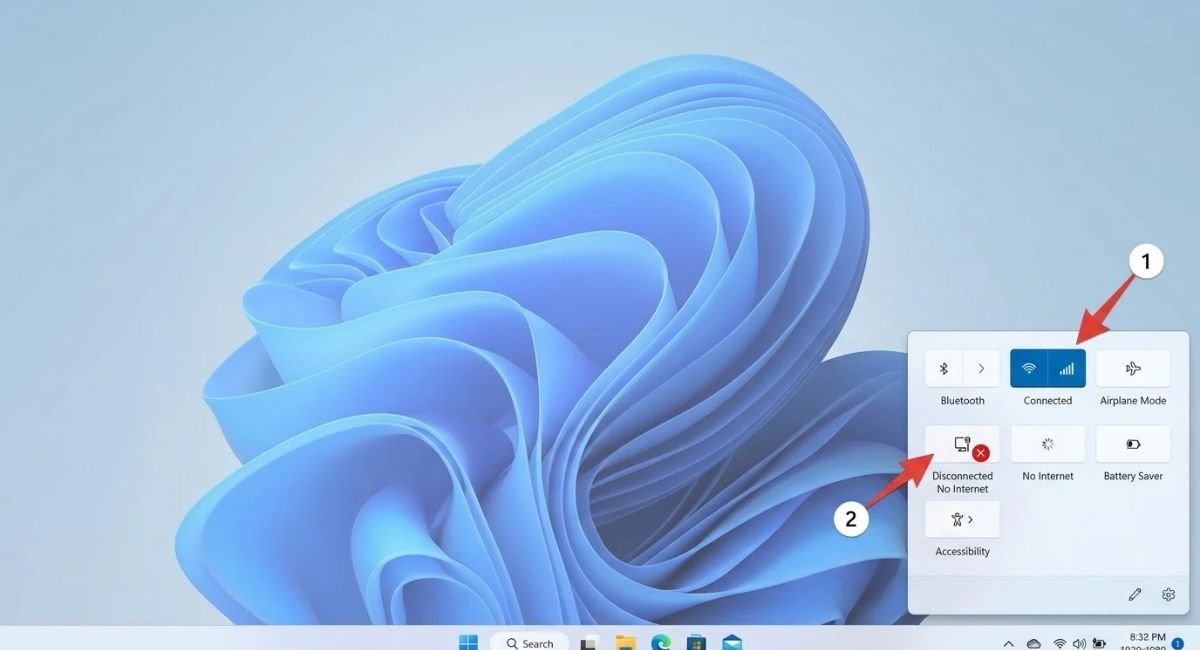
What Does the Wi-Fi Icon Mean?
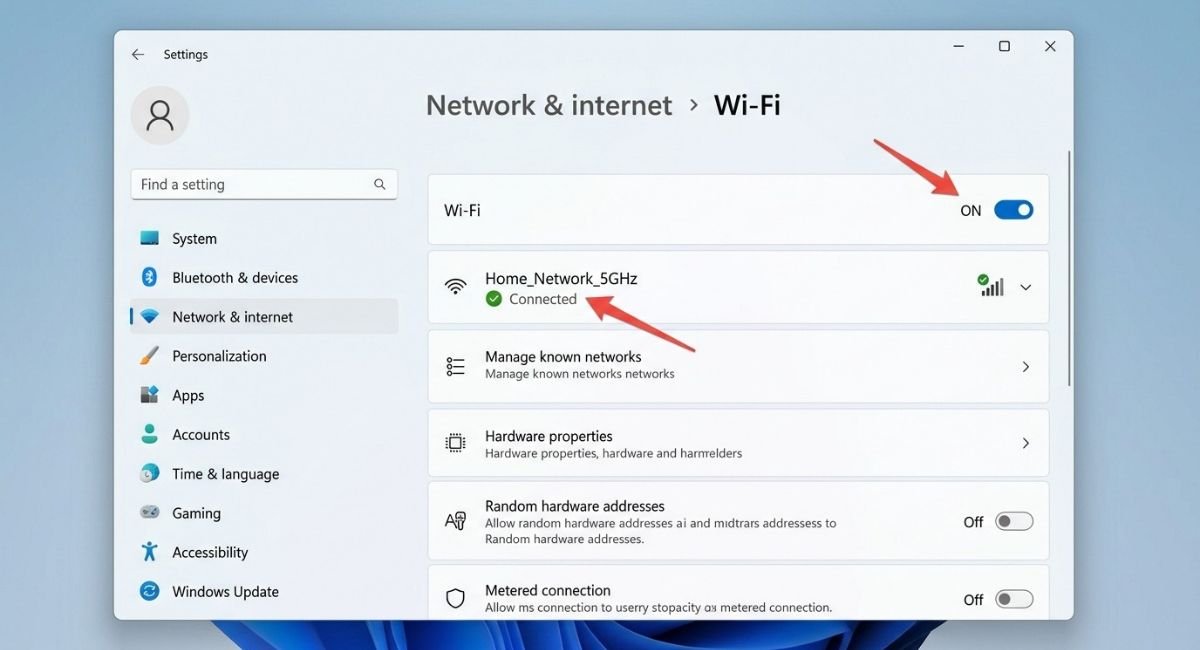
The Wi-Fi connection status changes according to your network condition. A normal Wi-Fi symbol usually means Windows has established a wireless connection. If the icon changes or shows a warning, check whether websites and other online services actually work.
A useful distinction matters here. Your PC can remain connected to your router while having no internet access. This can happen during an ISP outage, DNS problem, router failure, or captive-portal sign-in.
Go to:
Settings > Network & internet > Wi-Fi
What Does the Ethernet Icon Mean?
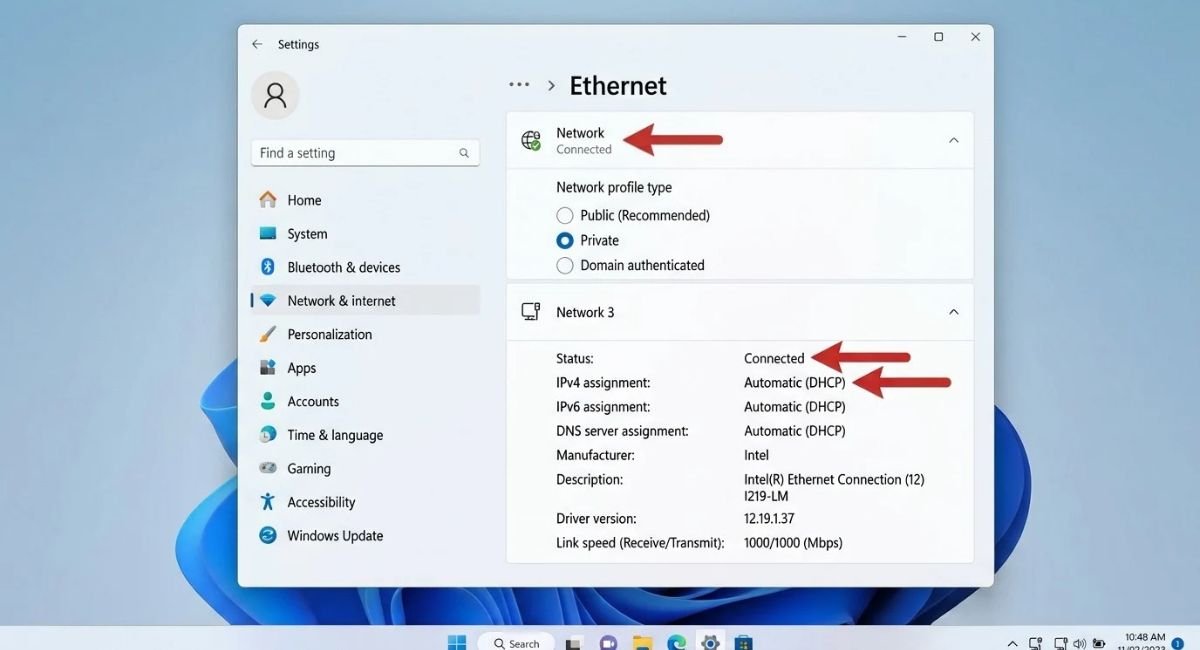
The Ethernet connection status tells you whether Windows detects a wired network connection. A normal Ethernet symbol usually means your network cable and adapter are working. If Windows shows a warning or disconnected state, check the cable, router port, and network adapter.
If you experience an unstable connection, don’t immediately assume the taskbar icon identifies the exact cause. The icon reports connection state. It doesn’t diagnose every underlying network problem.
Go to:
Settings > Network & internet > Ethernet
Pinned Apps and App Status Indicators
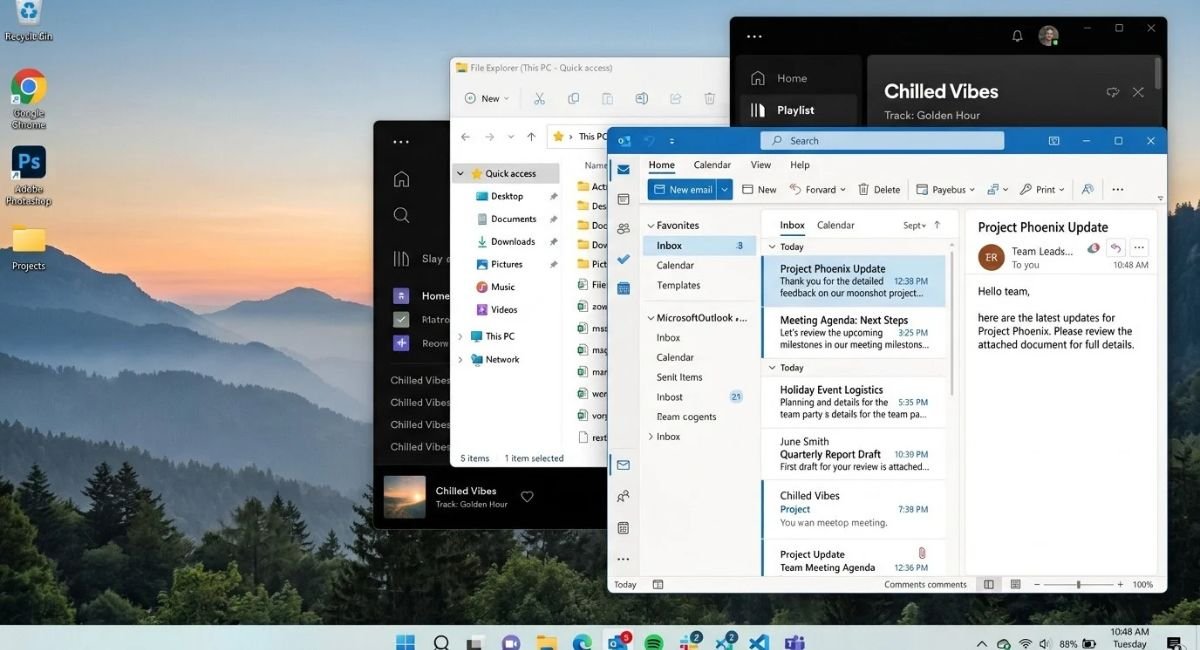
The taskbar also contains pinned app icons for programs you want to access quickly. When an application starts, Windows can add visual cues beneath its icon. These app status indicators help you tell whether an app is running or needs attention.
For example, an active application may show a taskbar indicator while a different app in focus becomes visually distinct. Windows can also indicate activity when you have multiple app windows open. These small changes prevent the taskbar from becoming a guessing game.
How Windows Shows an App Is Running
When you launch a pinned program, its icon can show that the running application is active. Windows also uses taskbar indicators to help distinguish open programs from apps that are simply pinned.
The exact appearance can vary with Windows updates and application behavior. Therefore, treat the indicator as a visual status cue rather than a detailed diagnostic message.
What Do Taskbar Badges and Flashing Icons Mean?
Sometimes an app wants your attention. It might display an app notification, badge, or flashing indicator. This can happen when a message arrives, a task finishes, or an application needs you to respond to a permission request.
Some apps also show a progress bar while they perform a task. You might see this during downloading files, copying files, or installing updates. The taskbar lets you monitor the activity without keeping the full application window open.
Battery and Power Icons
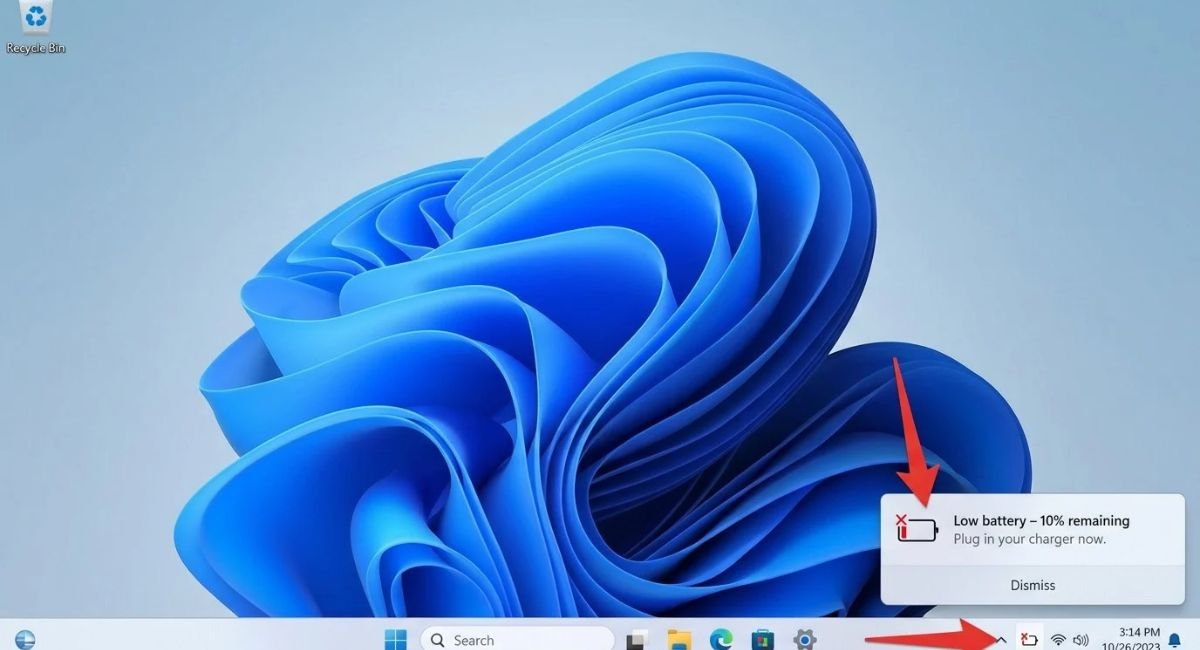
On laptops, the battery icon provides a quick view of your power condition. The battery icon can change when the device connects to a charger, reaches a low level, or enters another power state. Checking the battery status regularly can help you catch charging problems early.
A normal charging state may indicate battery charging. Some compatible devices can also report fast charging. If the battery keeps falling while connected to power, check the charger, cable, power adapter, and charging port before assuming Windows itself has failed.
Common Battery Icons in Windows 11
The battery indicator can communicate several conditions. A low battery state means you should connect power soon. A critical battery level requires more immediate action because Windows may shut down to protect the device.
A battery warning can have different causes. The adapter might not provide enough power, the battery may have degraded, or Windows may have detected another power issue. If the problem continues across chargers and outlets, professional testing may be appropriate because battery replacement could eventually become necessary.
What to Do When the Battery Icon Looks Wrong
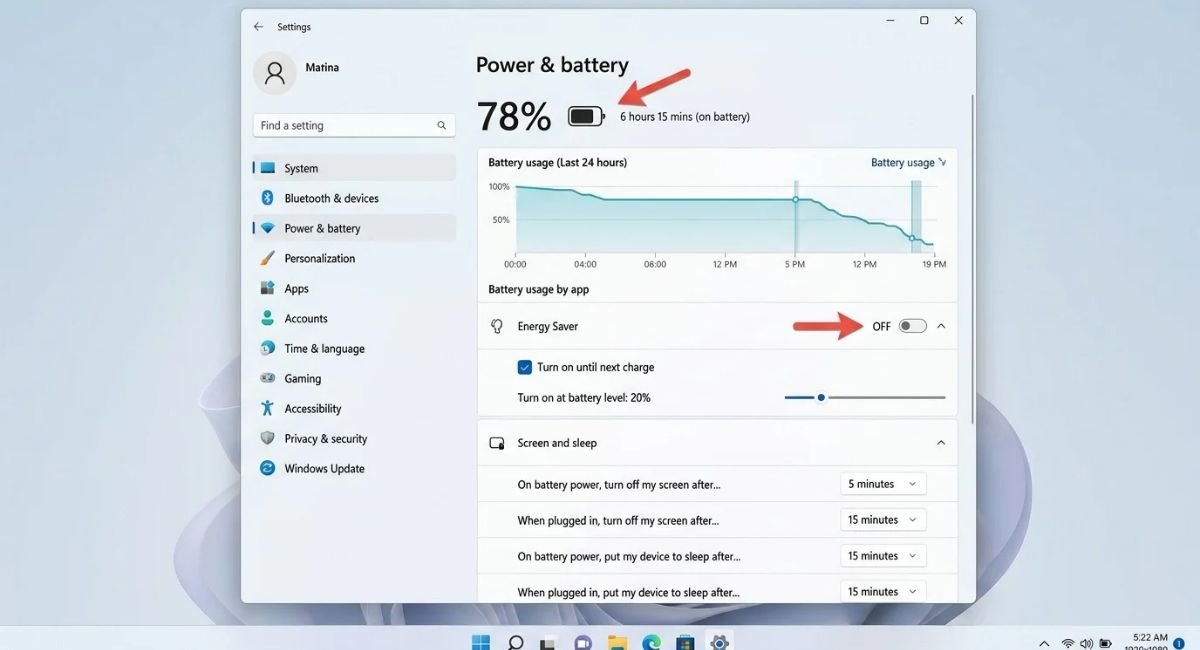
Start with the simple checks. Confirm that the charger is firmly connected and that the power adapter is suitable for your laptop. Then open Windows power settings and check whether Windows reports normal charging behavior.
Don’t rely on the taskbar symbol alone. If Windows reports unusual battery behavior, compare the icon with the detailed battery information in Settings. This gives you a clearer picture of whether the issue involves software, charging hardware, or battery health.
Go to:
Settings > System > Power & battery
Windows Update and System Status Icons
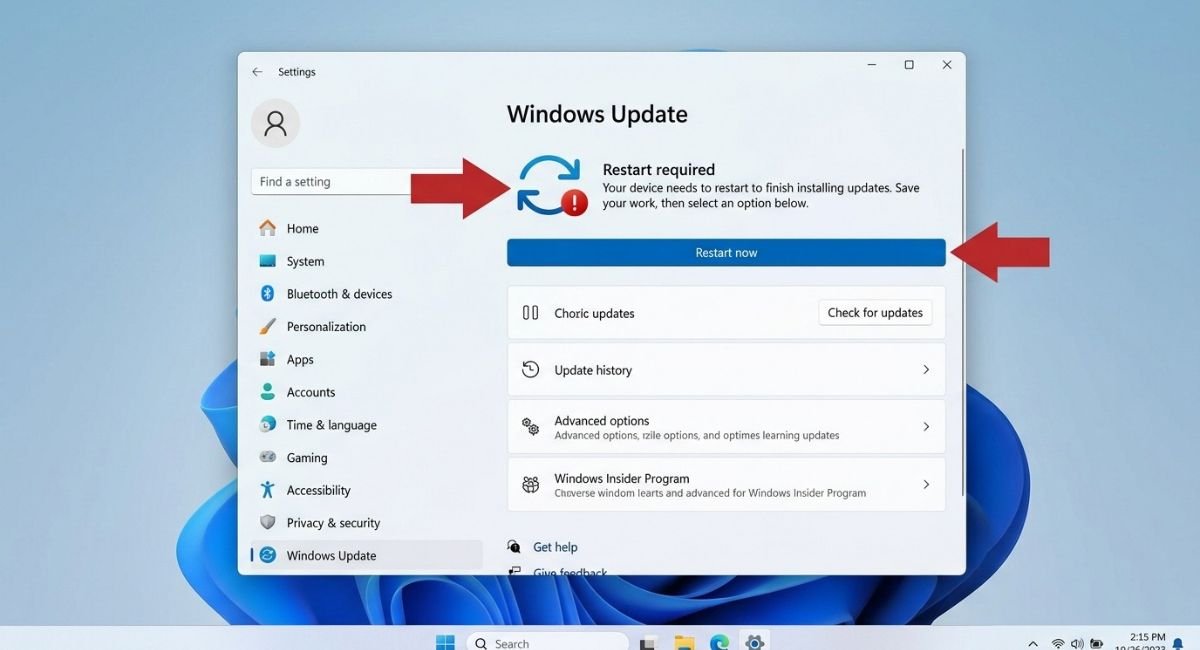
Windows also uses taskbar indicators to show important system activity. A Windows Update icon or update notification can appear when an update needs attention. These messages can relate to security improvements, reliability changes, feature updates, or a pending restart.
When Windows has finished preparing an update, you may see a restart required message. Restarting allows Windows to complete changes that cannot finish while the operating system is running normally. This can include security patches and bug fixes.
Go to:
Settings > Windows Update
What Does the Windows Update Icon Mean?
A Windows Update indicator generally means Windows wants you to review or complete an update-related action. The exact symbol can vary between Windows versions and releases. Therefore, open Windows Update when you’re unsure rather than guessing from the icon alone.
A background update may happen with little interruption. Other updates require you to restart the PC. Checking Settings gives you more information than the small taskbar symbol can provide.
Restart Required vs. Update Available
These two situations aren’t identical. An available update means Windows has an update ready for installation or another update step. Restart required means Windows needs a reboot to finish changes already made.
If you’re working on an important task, you can usually review the update status before restarting. However, delaying security-related updates for too long can leave your system without newer protections.
Notification and Alert Icons
Windows uses a notification icon to give you quick access to alerts. These can include messages from apps, reminders, system events, and security-related information. The alert icon becomes more useful when you understand which notifications deserve immediate attention.
For example, unread notifications may indicate that an app has something new to show you. Windows can also display Windows notifications for a calendar reminder, system change, or security warning. Not every alert requires action, but important warnings shouldn’t be ignored automatically.
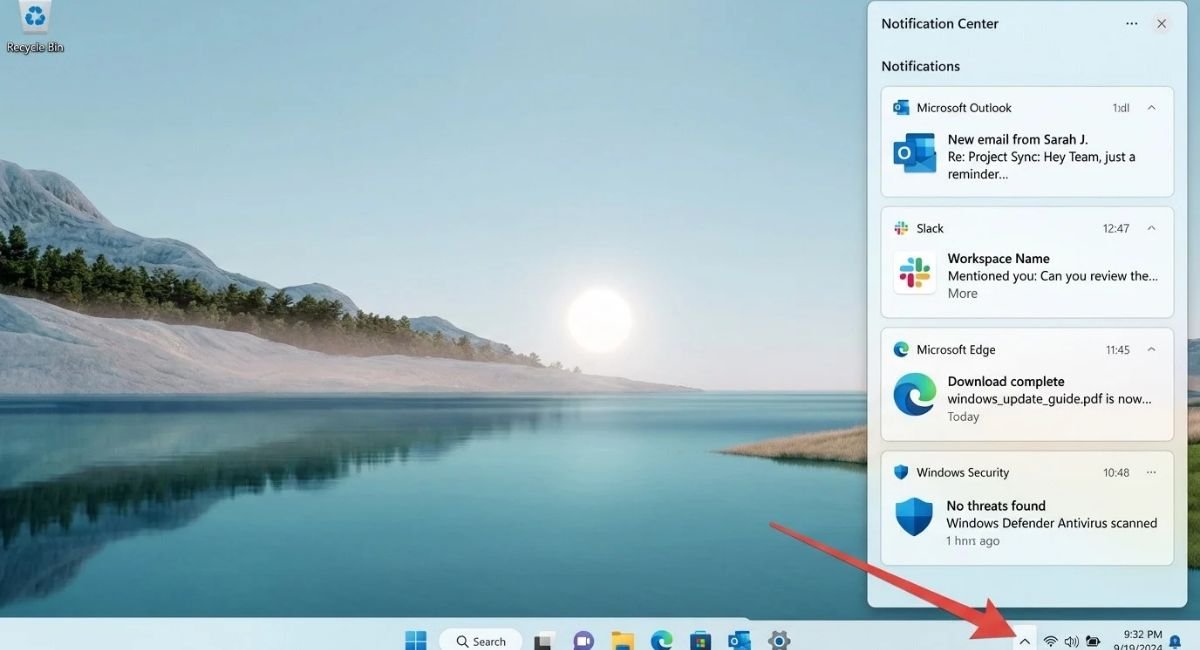
What Does the Notification Bell Mean?
The notification area helps you see whether new information is waiting. A badge or visual change can indicate pending alerts. Selecting the notification area opens the relevant notification experience so you can review the messages.
This is especially useful when several applications run quietly in the background. Instead of checking every program individually, you can use the taskbar as a central signal for new activity.
How to Manage Taskbar Notifications
You can control notification behavior through Windows settings. If you want to review which applications can send alerts, use the notification settings page.
Go to:
Settings > System > Notifications
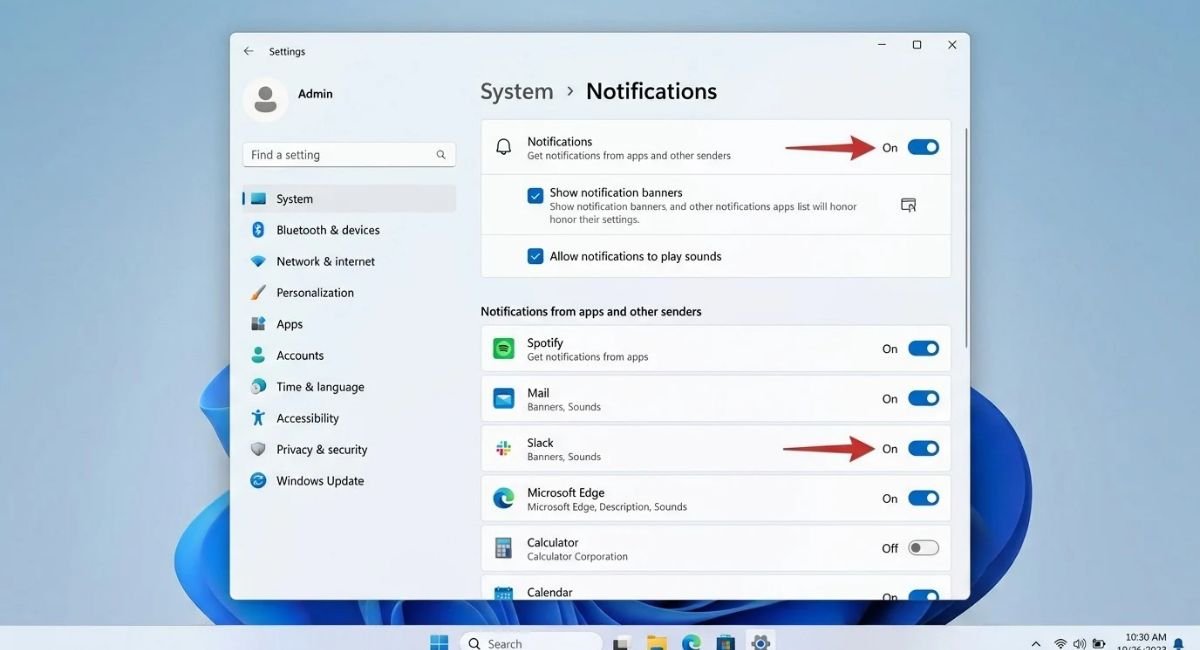
From there, you can adjust notification behavior according to your preferences. If one application produces too many alerts, changing its notification permission can make the desktop calmer. This approach is better than disabling every Windows notification when only one app causes the distraction.
Microphone, Camera, and Location Icons
Privacy indicators provide another important layer of information. Windows can show a microphone icon, camera icon, or location icon when applications use certain hardware or location features. These privacy indicators help you understand when sensitive capabilities are active.
For example, an online meeting can trigger microphone access or webcam access. A maps or weather application may use location access. Seeing an indicator isn’t automatically evidence of suspicious activity. Instead, use it as a reason to check which app requested access.
Go to:
Settings > Privacy & security
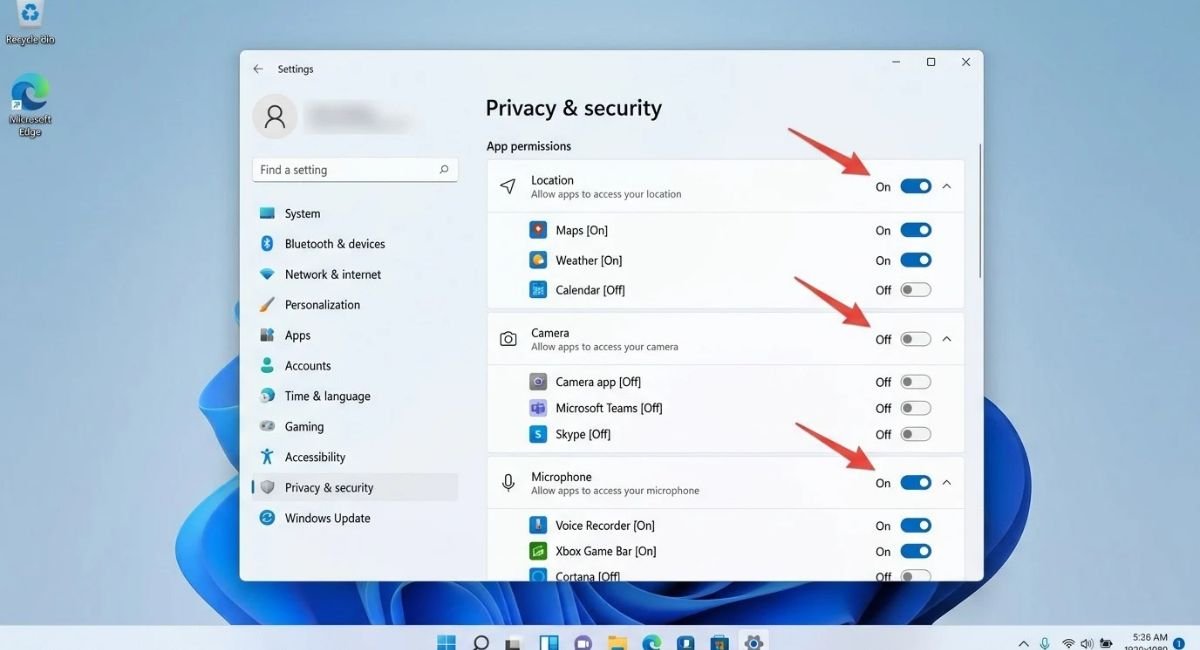
What Does the Microphone Icon Mean?
A microphone indicator can appear when an application uses your microphone. Meeting software, voice assistants, recording tools, and communication apps are common examples.
If you don’t expect microphone access, review the application’s app permissions.
Go to:
Settings > Privacy & security > Microphone
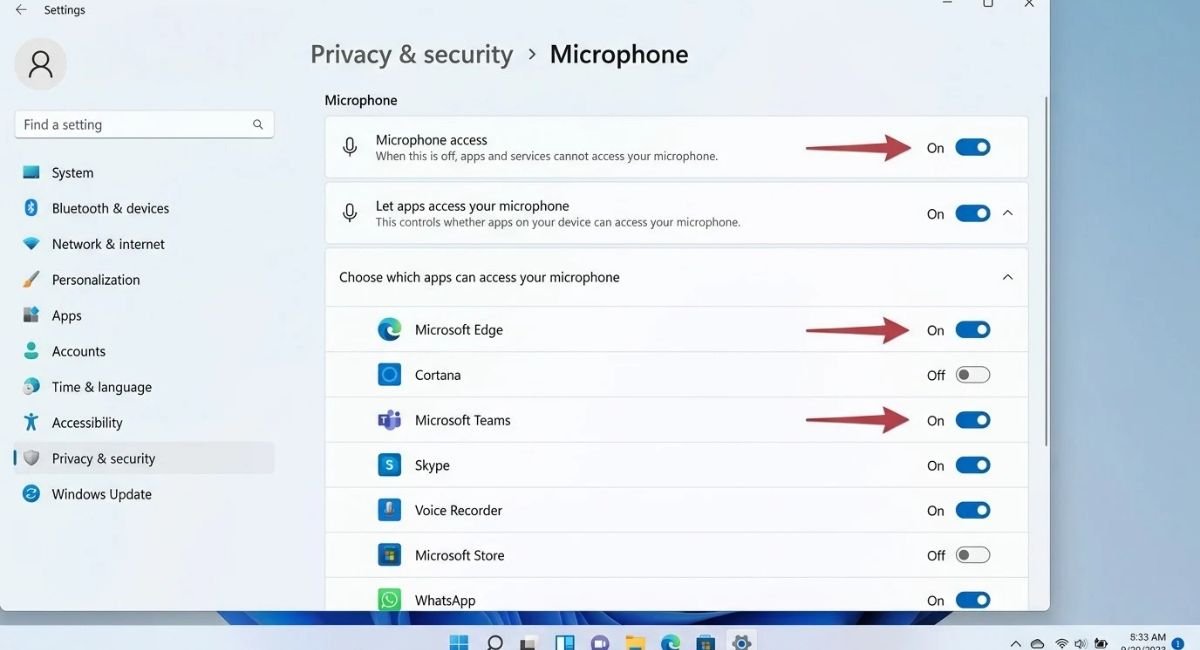
What Does the Camera Icon Mean?
The camera indicator provides a similar privacy signal. Video meeting software, camera applications, and other programs can activate the webcam when you grant them permission.
Unexpected camera access deserves a closer look. Check which application is running and review your privacy settings. Keeping unnecessary applications away from your webcam reduces unwanted access.
Go to:
Settings > Privacy & security > Camera
What Does the Location Icon Mean?
The location indicator tells you that an application or Windows feature is using location services. Navigation, weather, and location-aware applications can have legitimate reasons to request this information.
If the icon appears unexpectedly, review location access and your privacy settings.
Go to:
Settings > Privacy & security > Location
Sync and Cloud Status Icons
Cloud services use their own sync icon to show file activity. The most familiar example for Windows users is the OneDrive icon. It can display different overlays to communicate whether files are uploading, downloading, synchronized, or experiencing a problem.
The OneDrive sync status becomes particularly useful when you work across multiple devices. A sync in progress indicator means Windows is still processing changes. A sync completed state indicates that the service has finished its current synchronization work.
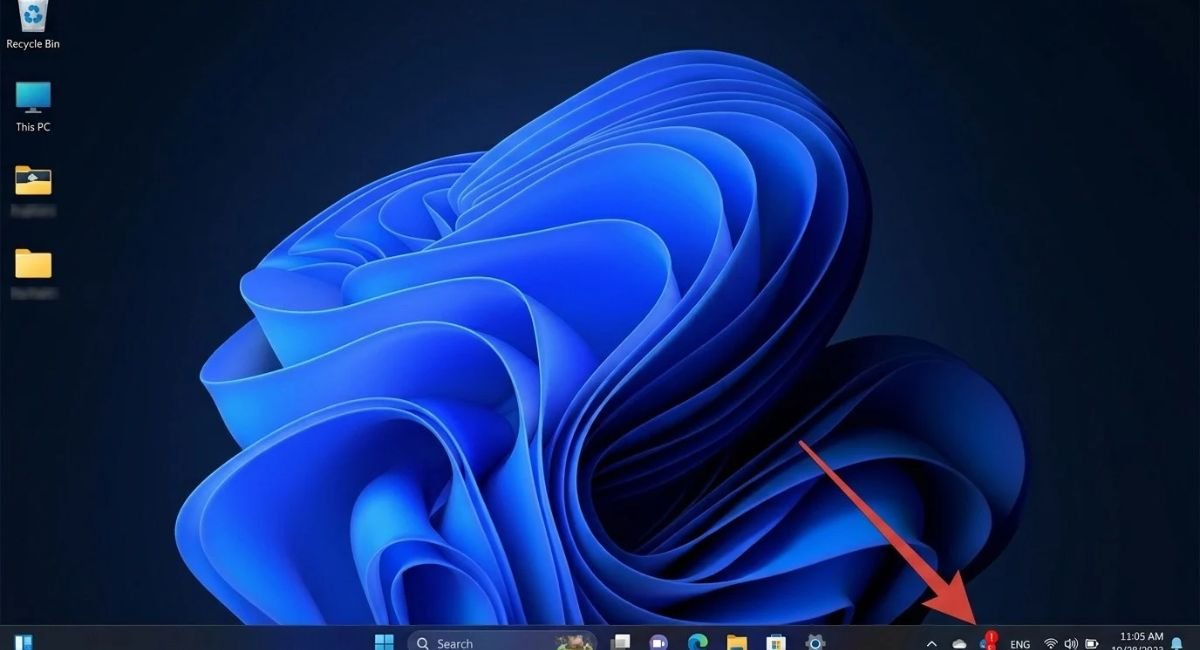
What Do OneDrive Sync Icons Mean?
The OneDrive icon can change according to synchronization activity. A normal status can indicate that files are synchronized. An activity symbol can show that OneDrive is currently processing files.
When you see a sync error, open OneDrive and review its message. A sync paused state can occur for several reasons, including account issues, storage limitations, or user-controlled pause settings.
Why Does a Sync Icon Keep Spinning?
A continuously active sync symbol usually means OneDrive has more work to complete. Large files, many file changes, slower connections, or cloud-service issues can extend synchronization time.
Look for a checkmark status when synchronization completes. If the process repeatedly fails, check the OneDrive message rather than relying only on the taskbar indicator.
Why Are Taskbar Icons Missing or Not Working?
Missing taskbar icons don’t always indicate a serious Windows problem. Some icons appear only when their related feature is active. Others may move into the hidden overflow area. Windows also allows users to control which notification area icons remain visible.
When a normally visible icon disappears, first check taskbar settings and the system tray. If the icon still doesn’t return, restarting the affected application or Windows Explorer can refresh the taskbar. A complete PC restart can also clear temporary interface glitches.
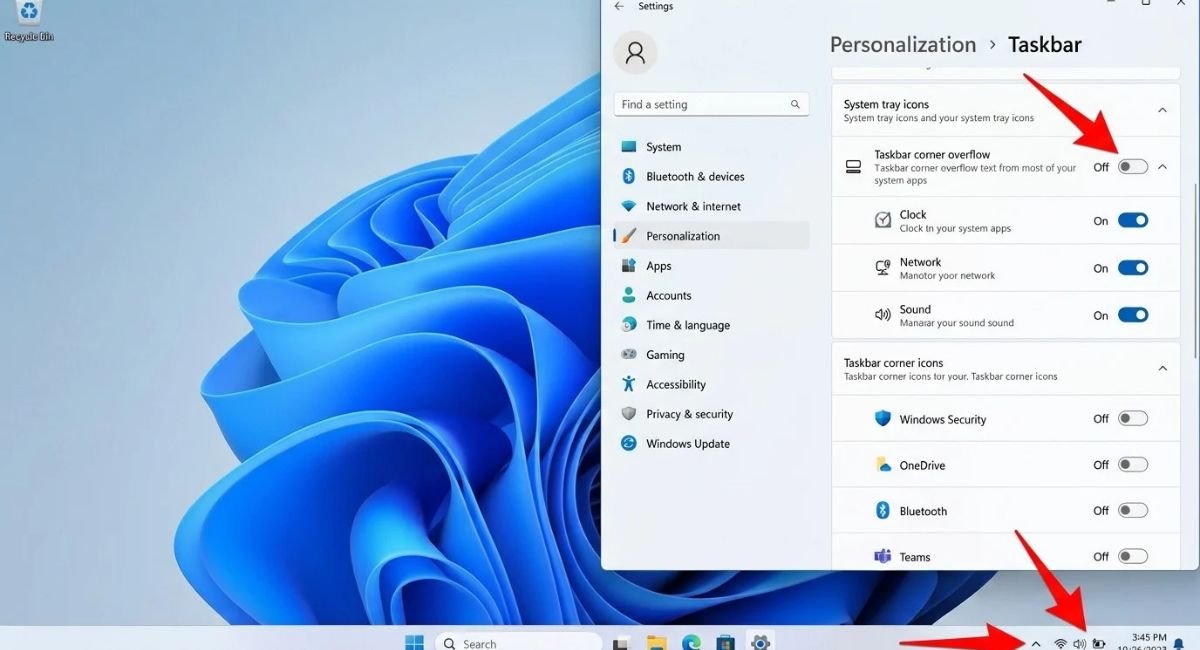
Taskbar Icons Disappeared
Start by checking the taskbar settings.
Go to:
Settings > Personalization > Taskbar
Look through the available taskbar and system tray options. Some applications may appear under the hidden icon area instead of the main taskbar.
If only one application’s icon disappeared, open that application again. If several Windows icons disappeared at once, the problem may involve the taskbar interface rather than the individual programs.
Taskbar Icons Not Updating
A stale status indicator can sometimes remain after an application finishes an operation. Closing and reopening the application can refresh its state. Restarting Windows Explorer can also reload the taskbar interface.
Before changing advanced Windows settings, try these simple steps. They often resolve temporary display problems without creating additional configuration issues.
When a Missing Icon Is Normal
Some icons are conditional. For example, a camera indicator won’t normally appear when no application uses the camera. A battery icon also makes more sense on supported portable devices than on a traditional desktop PC.
This is why understanding context matters. A missing icon can simply mean its related feature isn’t currently active.
How to Customize Windows 11 Taskbar Icons
Windows gives you several ways to change how the taskbar behaves. Open the taskbar settings to access the main customization controls.
Go to:
Settings > Personalization > Taskbar
From there, you can adjust taskbar items, system tray visibility, alignment, and other available options.

You can also manage which applications remain visible in the taskbar area. Customization helps reduce clutter and makes frequently used tools easier to reach. However, some core Windows controls remain part of the system interface and aren’t treated like ordinary app shortcuts.
Show or Hide Taskbar Icons
Taskbar settings let you control several groups of icons. Depending on your Windows version, you can manage system tray icons and other available taskbar controls.
If your taskbar feels crowded, hiding rarely used icons can make the interface cleaner. You can still access supported hidden icons through the overflow area when needed.
Move Icons Between the Taskbar and Overflow Area
Windows can place less frequently used tray icons inside the overflow area. You can manage visible icons by using the available taskbar controls and supported drag-and-drop behavior.
This creates a useful balance. Keep frequently checked tools visible while allowing less important Windows taskbar icons to stay out of the way.
Change Taskbar Behavior
Windows also provides settings for taskbar alignment, badges, automatic hiding, and other behavior. These options let you shape the desktop around the way you work.
If you prefer a cleaner workspace, automatic hiding can provide more screen space. If you need constant access to status information, keeping the taskbar visible may work better.
Windows 11 Taskbar Explained: Quick Reference
The fastest way to understand the taskbar is to connect each symbol with the information it provides. The table below summarizes the major taskbar indicators discussed in this guide.
| Icon or Indicator | General Meaning | What to Check |
|---|---|---|
| Wi-Fi | Wireless network state | Connection and internet access |
| Ethernet | Wired network state | Cable and network adapter |
| Battery | Power condition | Charging and battery level |
| Update | Windows needs attention | Windows Update settings |
| Bell | Notifications | Unread alerts |
| Microphone | Microphone activity | App permissions |
| Camera | Camera activity | Webcam access |
| Location | Location activity | Location permissions |
| OneDrive | Cloud synchronization | Sync status |
| App Indicator | Application activity | Running or active app |
Remember that icon designs can change with Windows updates. The Windows 11 system status experience isn’t completely static. Microsoft can adjust visual indicators and taskbar behavior in newer releases..
Frequently Asked Questions
What do the icons on the Windows 11 taskbar mean?
They communicate different types of status information. Network symbols show connectivity. Battery symbols show power. Other indicators can represent notifications, privacy activity, app status, or cloud synchronization.
What does the Wi-Fi icon mean in Windows 11?
The Wi-Fi symbol normally shows your wireless connection state. However, being connected to Wi-Fi doesn’t always mean you have internet access. Windows can connect to a router while still having no internet access.
Why did my Windows 11 taskbar icons disappear?
The icons may be hidden, moved into the overflow area, or temporarily affected by an interface problem. Check Taskbar settings first. Then restart the affected application or Windows Explorer if necessary.
What does the battery symbol mean on Windows 11?
The battery symbol communicates your device’s power condition. It can indicate charging, low power, or another battery state. If the symbol shows a warning, check the charger and detailed battery information in Windows settings.
How do I customize taskbar icons in Windows 11?
Open the taskbar settings to manage available taskbar items, system tray icons, and several taskbar behavior options. The exact controls can vary between Windows releases.
Go to:
Settings > Personalization > Taskbar
Related Links
Customize the Taskbar in Windows — Microsoft Support
Navigate and Explore the Windows Taskbar — Microsoft Support
Notifications and Do Not Disturb in Windows — Microsoft Support