Introduction
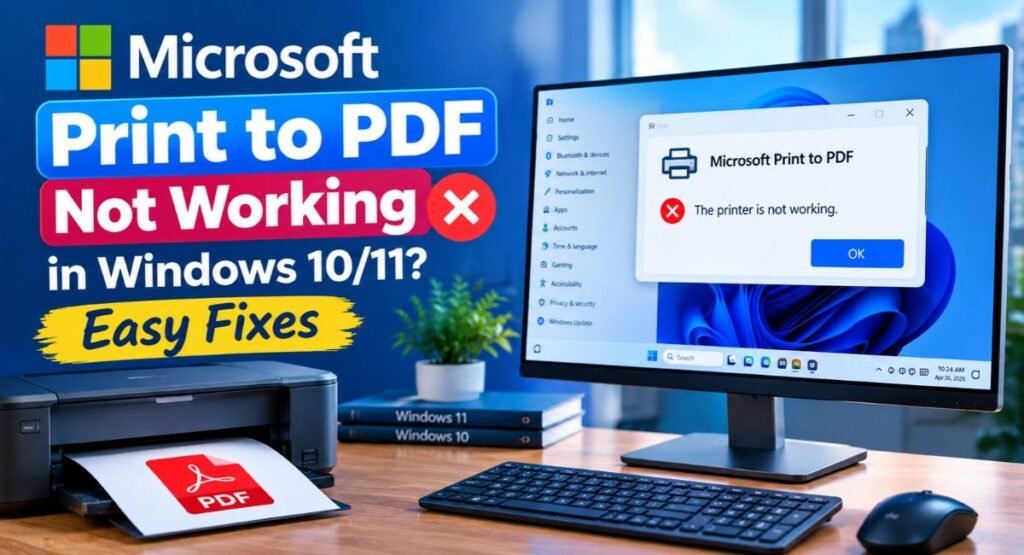
Have you tried saving a document as a PDF, only to find that Windows refuses to create the file? Microsoft Print to PDF Not Working can happen when the built-in PDF printer is disabled, misconfigured, or affected by a stuck Windows service. The problem may also appear after an update or when Windows can’t process the selected file name or save location. Fortunately, you don’t need third-party PDF software to fix it.
In this guide, you’ll learn practical ways to restore Microsoft Print to PDF, check Windows features, restart the Print Spooler, repair the printer, and troubleshoot common PDF printing problems on Windows 10 and Windows 11.
Why Is Microsoft Print to PDF Not Working in Windows 10/11?
Several problems can cause the Microsoft Print to PDF feature to stop working. Windows may have disabled the feature, the virtual printer may have become corrupted, or the Print Spooler service may be stuck. Sometimes the printer works correctly but fails because of the selected file name or save location.
The problem can also appear after a Windows update or system change. You may see Microsoft Print to PDF missing, find the printer but receive no output, or complete the printing process without finding the PDF afterward. First, check whether Windows still detects the virtual printer.
Go to:
Settings > Bluetooth & devices > Printers & scanners
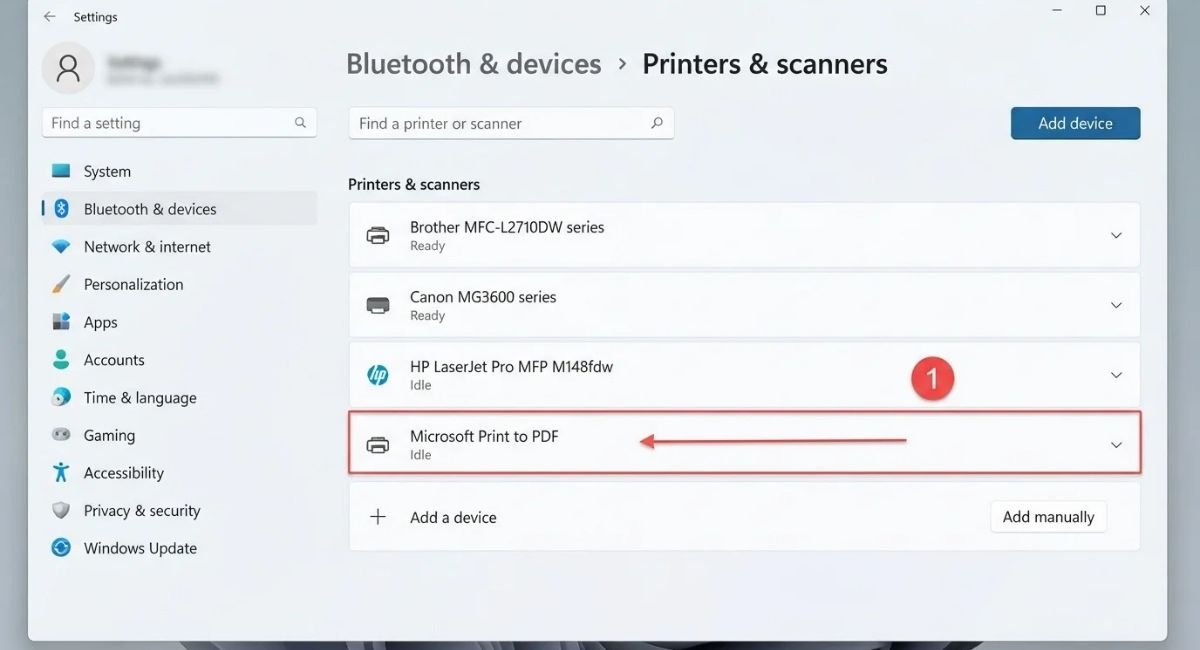
On Windows 10, open Settings > Devices > Printers & scanners instead. Check whether Microsoft Print to PDF appears in the list. If it’s present, continue with the troubleshooting methods below.
Check If Microsoft Print to PDF Is Available and Enabled
Windows includes Microsoft Print to PDF as an optional Windows component. If this component becomes disabled, the virtual printer can disappear from your system. Re-enabling it is one of the simplest ways to repair a Windows built-in PDF printer that has stopped working.
You can manage this component through Windows Features. The process doesn’t require another PDF application. Instead, Windows lets you enable or disable its built-in printing components directly from Control Panel.
Go to:
Control Panel > Programs > Turn Windows features on or off
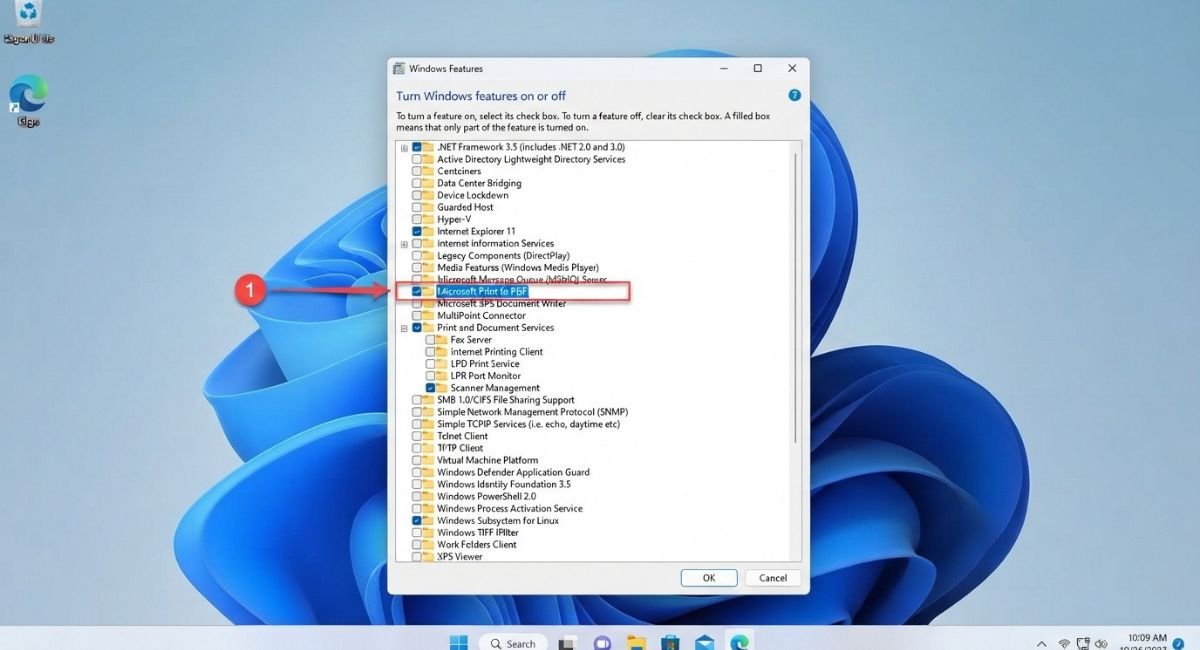
Find Microsoft Print to PDF in the list. If the checkbox is empty, select it and click OK. If it is already enabled, clear the checkbox, restart Windows, and enable it again. This disable-and-enable process can refresh the Windows printing feature.
Check the PDF Save Location and User Folder
Sometimes Microsoft Print to PDF completes the printing process, but the resulting file isn’t saved where you expect. This can make it appear that the PDF printing issue comes from the printer when the actual problem is simply the selected destination folder.
When Windows asks where to save the PDF, check the selected location carefully. Look inside common folders such as Desktop, Downloads, and the Documents folder. You can also search your computer for PDF files to confirm whether Windows created the document successfully.
Go to:
File Explorer > This PC > Users
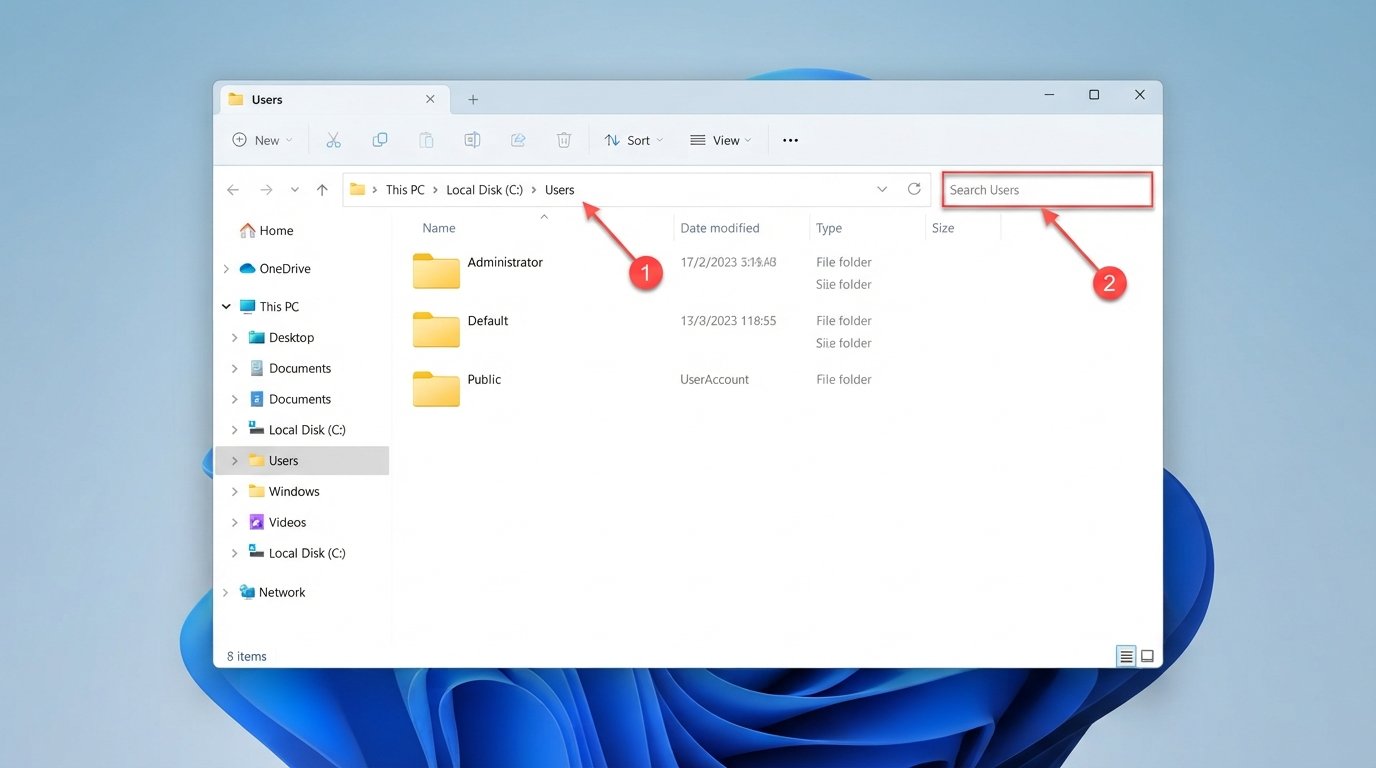
If you don’t find the PDF in the expected location, search File Explorer for *.pdf. This can confirm whether Windows created the file somewhere else. Checking the Users folder, Desktop, Downloads, and Documents folder is especially useful when a PDF file not appearing problem occurs.
Disable and Re-Enable Microsoft Print to PDF
If the printer appears in Windows but refuses to create PDF files, reinstalling the Windows feature can refresh its components. This method is particularly useful when Microsoft Print to PDF stopped working after an update or system change.
Open Windows Features and temporarily disable Microsoft Print to PDF. Restart the computer after disabling the feature. Then return to the same location, enable it again, and restart Windows once more. This gives Windows a fresh opportunity to register the virtual printer.
Go to:
Control Panel > Programs > Turn Windows features on or off
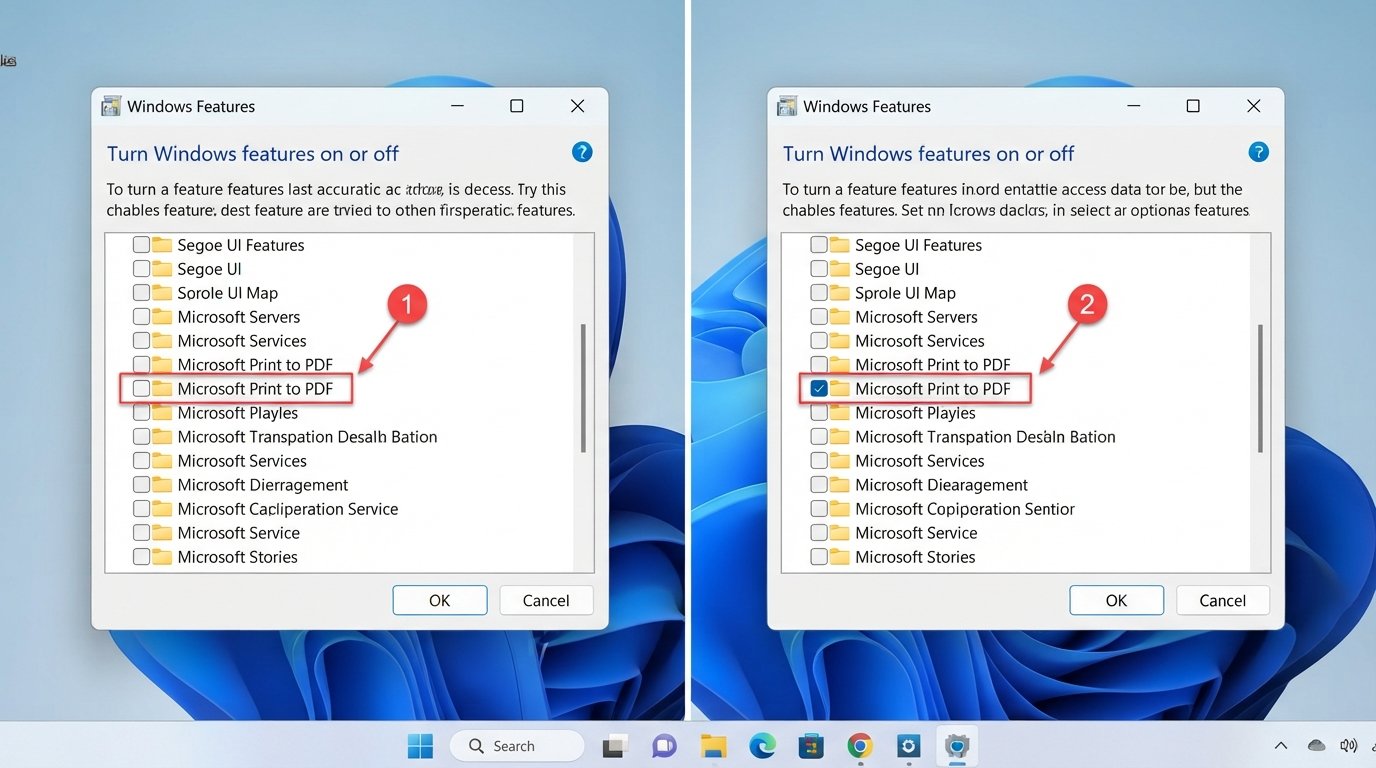
After restarting, open the printer settings and check whether Microsoft Print to PDF has returned. Try printing a simple text document before testing a larger file. This makes it easier to determine whether the Microsoft PDF printer itself is working correctly.
Set Microsoft Print to PDF as the Default Printer
Windows can sometimes select another printer when an application sends a print request. Setting Microsoft Print to PDF as the default printer can help when the PDF option doesn’t behave as expected.
This is especially useful if you regularly switch between physical printers, network printers, and virtual printers. Windows 11 can also manage your default printer automatically, so check that setting if Windows keeps selecting a different printer.
Go to:
Settings > Bluetooth & devices > Printers & scanners
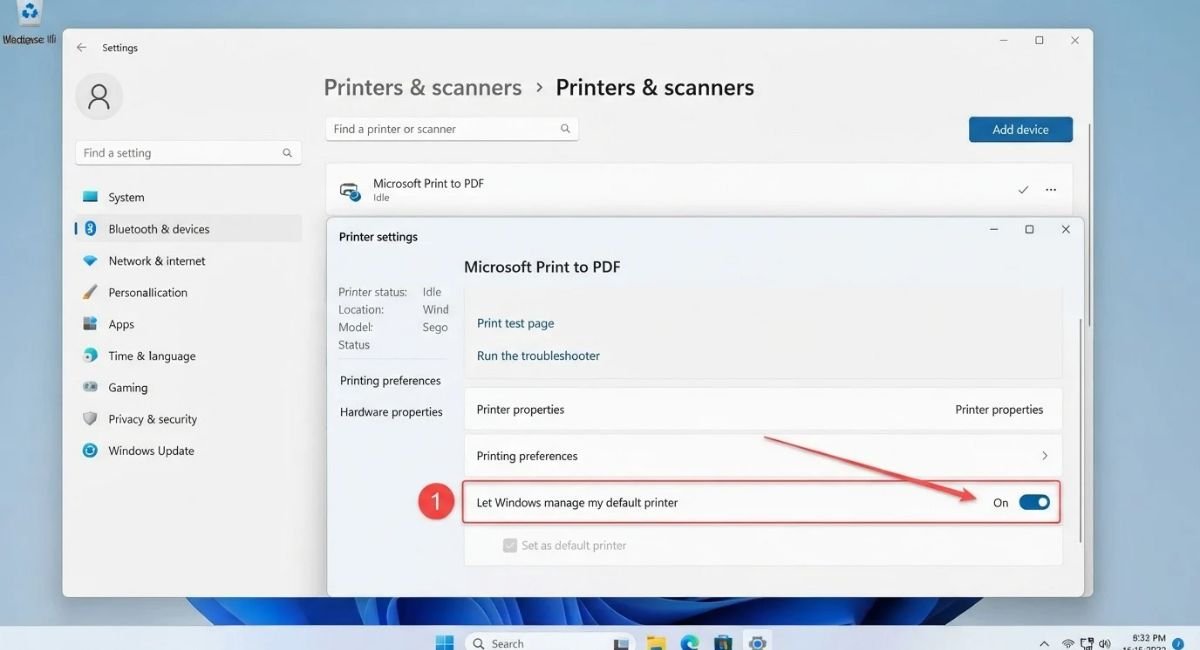
Select Microsoft Print to PDF and check its available printer management options. Then reopen the application you’re using and try printing again. If the printer isn’t listed at all, continue with the reinstall methods below.
Restart the Print Spooler Service
The Print Spooler manages print jobs in Windows. When this service becomes stuck, documents can remain in a queue, printers may stop responding, and a PDF printer not responding problem can appear.
Restarting the service is safe and usually takes less than a minute. You don’t need to reinstall Windows or delete your documents. The restart simply refreshes the service responsible for handling printing requests.
Go to:
Windows Search > Services
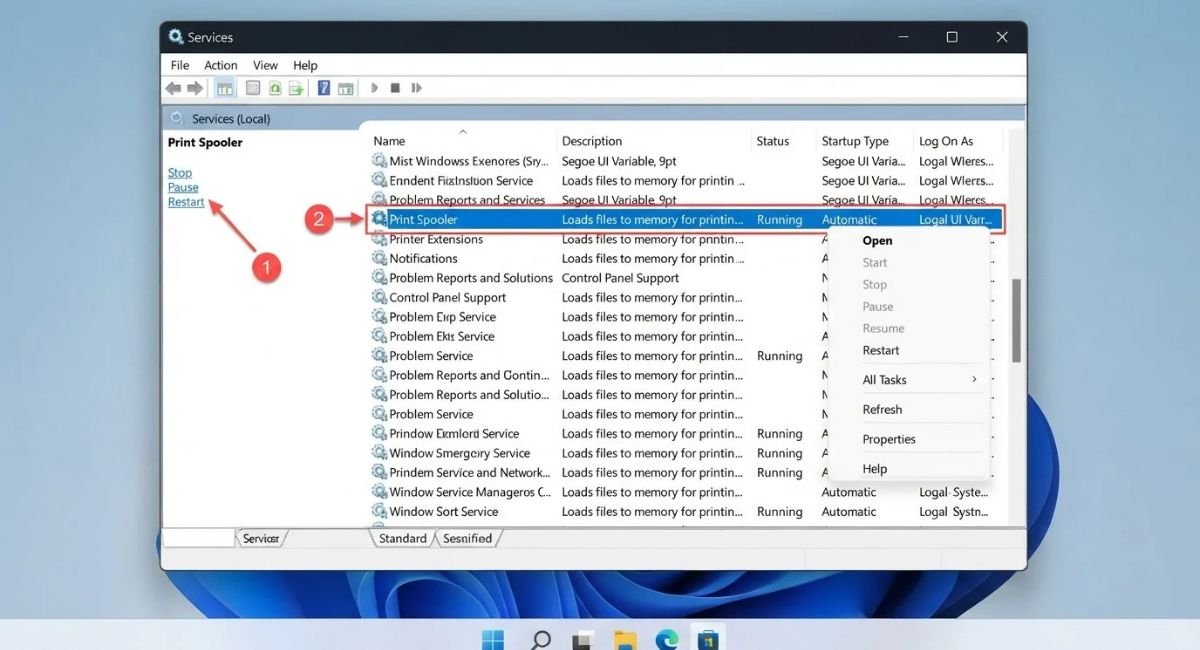
Find Print Spooler, right-click it, and select Restart. If Restart isn’t available, choose Stop and then Start. Afterward, try printing the same document again. This simple printer troubleshooting step can resolve many temporary Windows PDF printing failures.
Reinstall or Update Microsoft Print to PDF
When the virtual printer installation becomes damaged, removing and adding it again can restore normal operation. A corrupted Microsoft Print to PDF driver or printer configuration may prevent applications from communicating correctly with the PDF printer.
Start by checking whether Windows still lists Microsoft Print to PDF. If necessary, remove the printer and restart your computer. Then enable the Microsoft Print to PDF Windows feature again so Windows can recreate the required components.
Go to:
Settings > Bluetooth & devices > Printers & scanners
After reinstalling it, print a small test document. If physical printers also have problems, update their drivers through Windows Update or the manufacturer’s official website. Avoid downloading random Microsoft Print to PDF driver packages from unofficial websites because Windows normally provides the required component.
Check the PDF File Name and Save Location
An unusual file name can sometimes interfere with the PDF creation process. If you receive an error after clicking Print, try a simple name such as test.pdf and save it to the Desktop.
Avoid unusual symbols while testing. In particular, remove special characters from file name and avoid complicated punctuation. If you suspect the file name is responsible, remove comma from PDF file name and try again.
Go to:
Print > Microsoft Print to PDF > Print > Save As
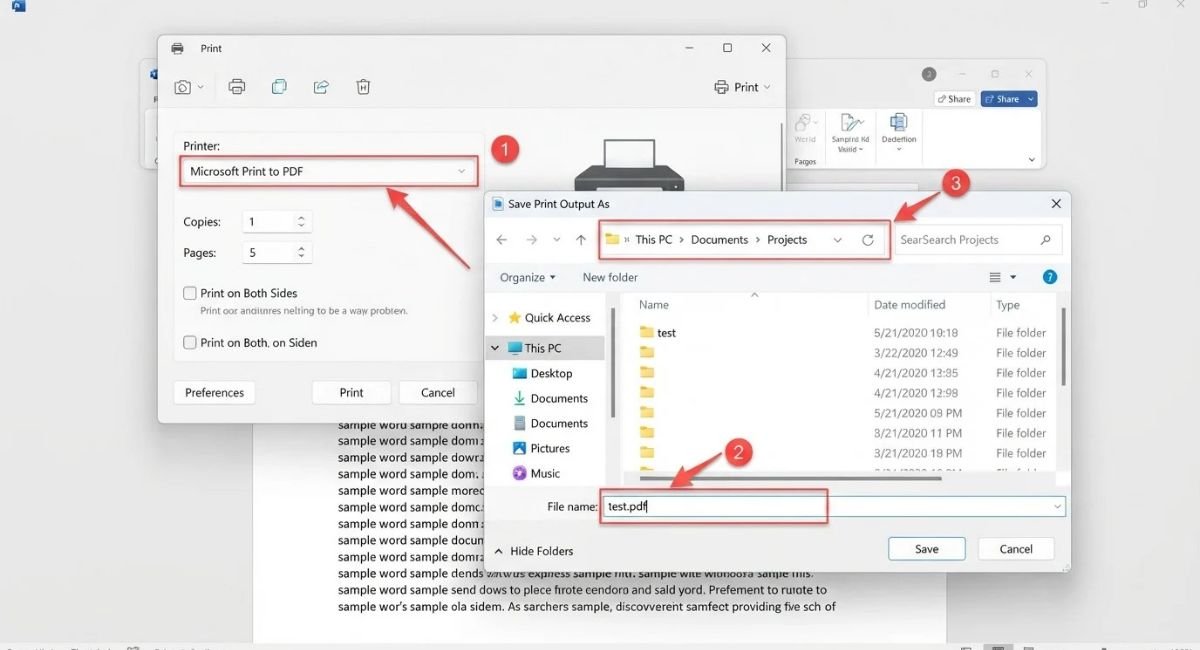
Choose an easy folder such as Desktop and use a short file name. This helps separate a printer problem from a file-naming problem. If the PDF saves successfully, you can return to your original folder and normal naming convention afterward.
Update Windows and Fix System Issues
A Windows update can contain fixes for built-in components and printing problems. If your system is behind on updates, install available updates and restart the computer before trying advanced repairs.
If Windows components themselves are damaged, System File Checker can scan protected system files and repair corrupted files. You can run sfc /scannow from an elevated Command Prompt. If Windows reports deeper component corruption, DISM can be used before running SFC again.
Go to:
Settings > Windows Update
After updating Windows, restart your PC and test Microsoft Print to PDF again. If the feature still fails, use Windows printer troubleshooting tools before considering advanced system repair. Keeping Windows current can also help prevent recurring PDF printing settings and compatibility problems.
How to Print a Document to PDF in Windows 10/11
Once Microsoft Print to PDF is working correctly, you can use it from almost any application that provides a standard Print command. Open your document, webpage, image, or other printable file and press Ctrl + P to open the print dialog.
Select Microsoft Print to PDF from the printer list. Choose your available print settings, click Print, and then select where you want Windows to save the PDF. The process doesn’t require a physical printer or third-party PDF software.
Go to:
File > Print > Microsoft Print to PDF
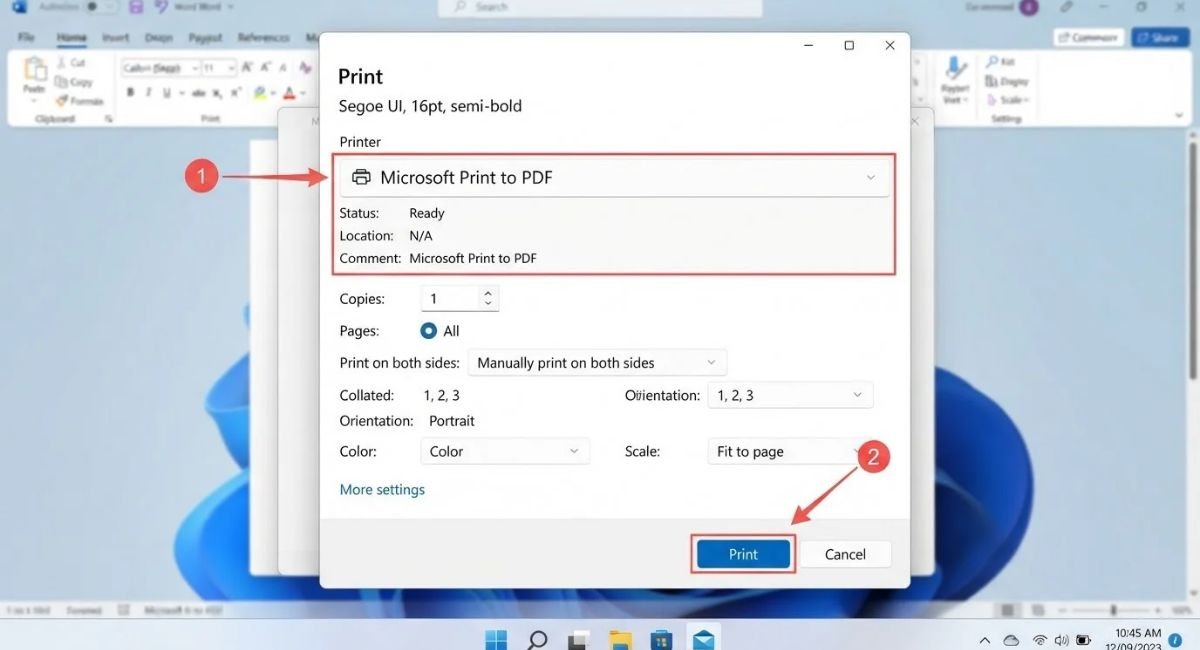
Use a simple file name while testing the feature. If the PDF appears in the selected folder, the Print to PDF feature is working normally. You can then return to your usual documents and printing workflow.
Microsoft Print to PDF Not Working: Common Problems and Solutions
Different symptoms can point toward different causes. The table below can help you identify the most likely solution without repeating every troubleshooting step.
| Problem | Likely Cause | Best Solution |
|---|---|---|
| Microsoft Print to PDF is missing | Windows feature disabled | Enable it in Windows Features |
| PDF doesn’t appear | Wrong save location | Check the PDF save location |
| Printer doesn’t respond | Print Spooler problem | Restart Print Spooler |
| PDF fails to save | File name or folder issue | Use a simple file name and Desktop |
| Printer disappeared after update | Feature registration issue | Disable and re-enable the feature |
| PDF printer won’t print | Corrupted installation | Reinstall Microsoft Print to PDF |
| Other printers also fail | Windows printing service problem | Restart Print Spooler and update drivers |
These symptoms can overlap, so don’t assume one cause applies to every computer. Start with the simplest check and test the printer after each major change. This approach makes it easier to identify the actual cause.
Final Thoughts
A broken Microsoft Print to PDF feature doesn’t necessarily mean you need additional PDF software. In many cases, the problem comes from a disabled Windows component, a stuck Print Spooler, a damaged printer installation, or an incorrect save location.
Start by checking whether the feature exists in Windows Features. Then restart the Print Spooler, verify the default printer, test a simple PDF file name, and reinstall the feature if necessary. These methods cover the most common PDF printing issue scenarios and can restore the Windows PDF printer without complicated repairs.
If the problem continues, update Windows and repair damaged system files. Microsoft also recommends using built-in printer troubleshooting tools, keeping printer drivers updated, and reinstalling printers when Windows cannot communicate with them correctly.
Frequently Asked Questions
Why is Microsoft Print to PDF not working?
Microsoft Print to PDF not working can happen because the Windows feature is disabled, the Print Spooler is stuck, or the virtual printer installation has become damaged. Re-enabling the feature and restarting Print Spooler are good first steps.
Why is Microsoft Print to PDF missing?
If Microsoft Print to PDF is missing from the printer list, check Windows Features. The built-in PDF printer may have been disabled or removed during a system change. Enabling the feature again can restore it.
Why does Microsoft Print to PDF print but not save?
Check the selected PDF save location and search your computer for .pdf files. Also try saving a test file to the Desktop with a simple name such as test.pdf.
Can I reinstall Microsoft Print to PDF?
Yes. You can disable Microsoft Print to PDF through Windows Features, restart Windows, and enable it again. This refreshes the built-in PDF printer without requiring third-party software.
Does Microsoft Print to PDF work on Windows 10 and Windows 11?
Yes. Microsoft Print to PDF is available as a built-in Windows printing feature on supported Windows versions. The settings interface differs slightly between Windows 10 and Windows 11, but the basic troubleshooting process remains similar.