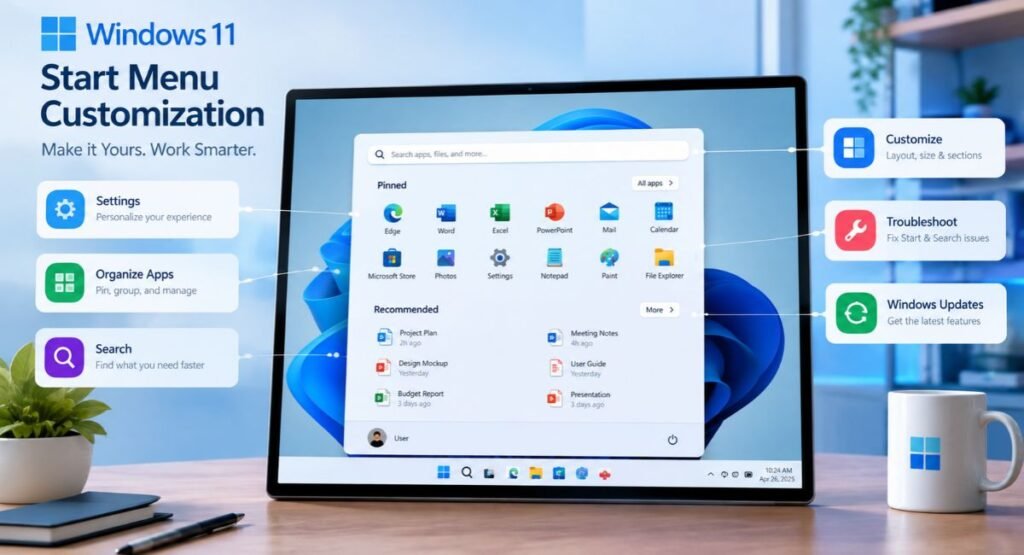
The Windows 11 Start Menu is the central place to launch apps, search for files and settings, access your account, and use power options. Its centered design is one of the biggest changes for people moving from Windows 10, but Windows 11 provides several ways to customize the Start experience.
You can organize pinned apps, create app folders, control Start sections, add folder shortcuts, change taskbar alignment, and use Search to launch apps and find files. On supported Windows 11 builds, Microsoft has also introduced additional Start Menu customization options.
This guide explains how the Windows 11 Start Menu works, how to customize it, how to make it feel more familiar to Windows 10 users, and what to do when Start or Search stops working.
What Is the Windows 11 Start Menu?
The Windows 11 Start Menu provides quick access to applications, files, settings, account controls, and power options.
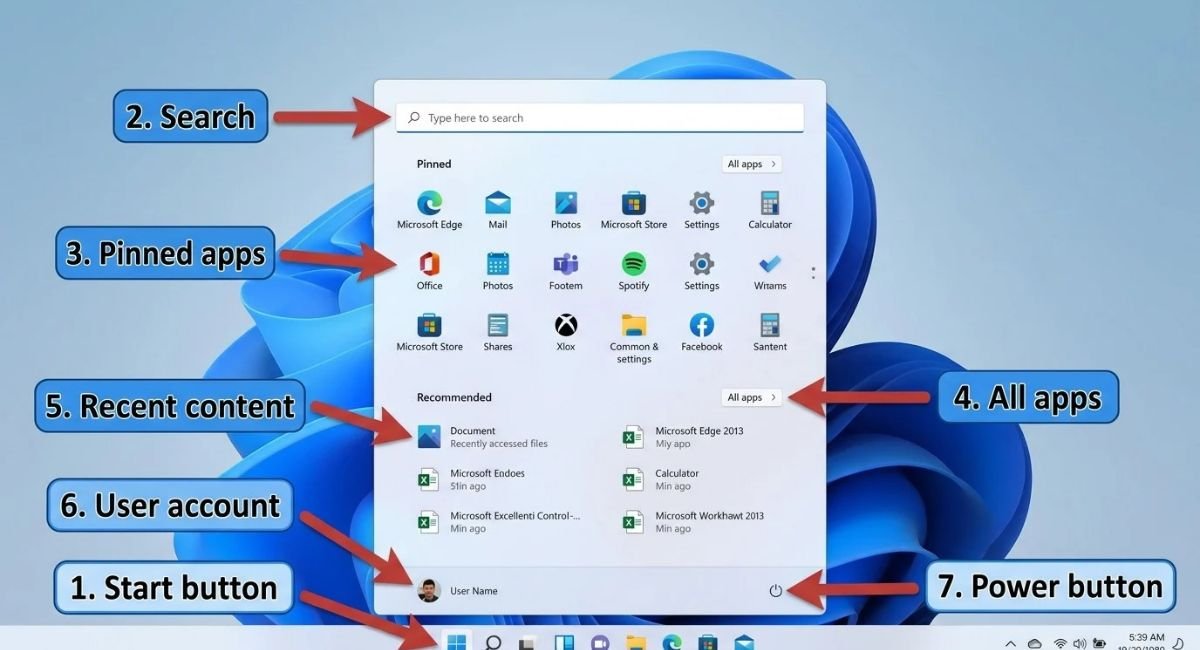
You can open it by selecting the Start button on the taskbar or pressing the Windows key on your keyboard.
Microsoft’s current Start Menu documentation describes several main areas, including Search, Pinned apps, All apps, recommendations or recent content, account controls, and power options. The exact appearance and available controls can vary depending on your Windows 11 version and installed updates.
The Start Menu can include:
- Search
- Pinned apps and shortcuts
- All apps
- Recent or recommended content
- User account options
- Power controls
- Folder shortcuts
- Additional sections introduced through Windows updates
Because Microsoft continues to update Windows 11, an older screenshot or tutorial may not exactly match the Start Menu on your PC.
How to Open the Windows 11 Start Menu
There are two simple ways to open Start.
Select the Start button on the taskbar, or press the Windows key on your keyboard.
You can also start typing immediately after opening Start to search for something.
For example, press the Windows key, type Notepad, and select Notepad from the search results.
This approach can be faster than manually browsing through installed applications, especially when you have many programs on your PC.
How to Customize the Windows 11 Start Menu
Most Start Menu customization options are available through:
Settings > Personalization > Start
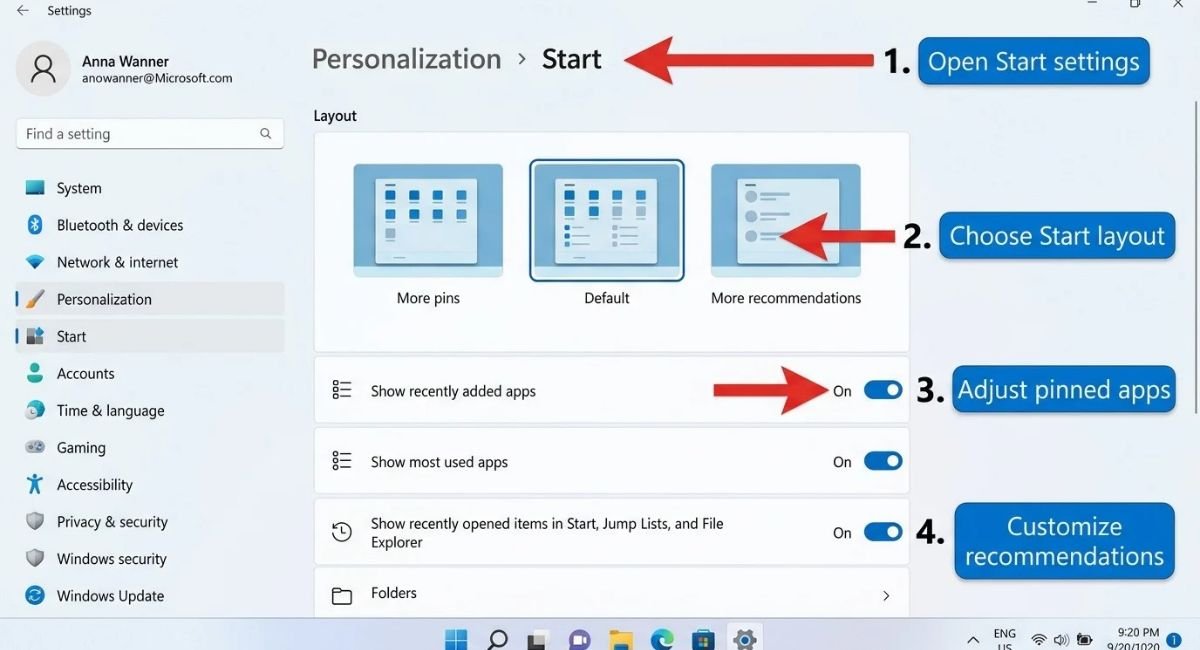
The exact options depend on your Windows 11 version and installed updates.
Customize Pinned Apps
Pinned apps provide quick access to programs you use regularly.
To pin an application:
- Open Start.
- Find the application through Search or All apps.
- Right-click the application.
- Select Pin to Start.
You can drag pinned applications to rearrange them.
To remove an application, right-click it and select Unpin from Start.
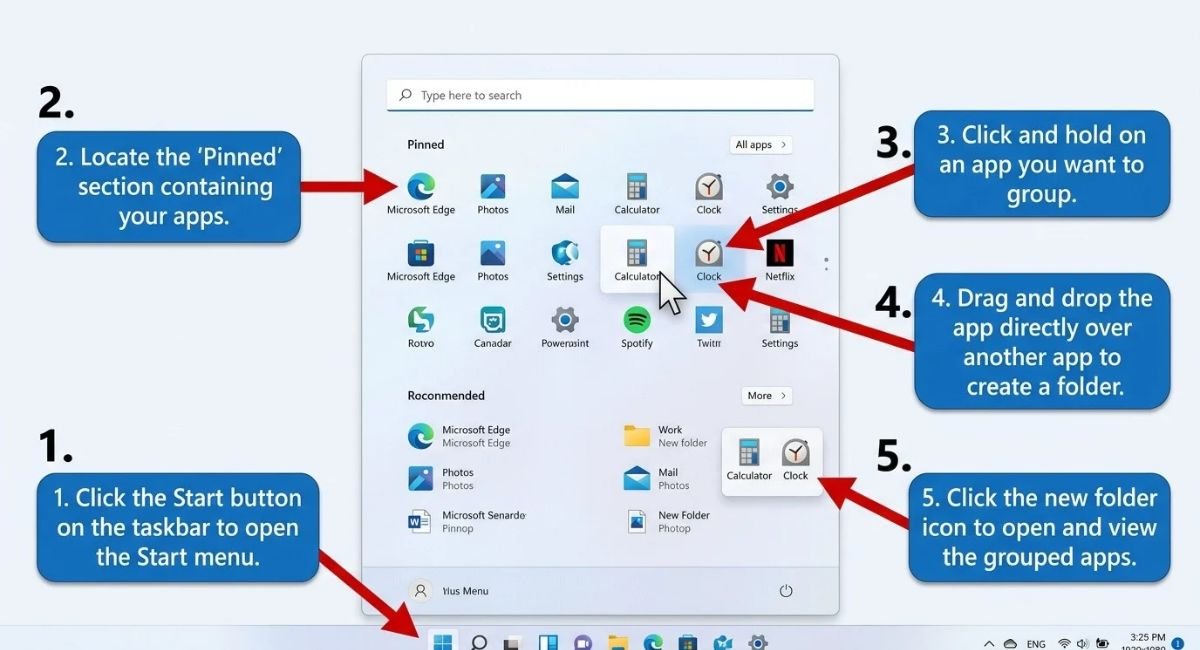
Microsoft also supports organizing pinned applications into folders. Drag one pinned app over another to create a folder, then add other related apps and rename the folder if needed.
A simple organization system can make Start easier to use. For example, you could group work applications, media apps, utilities, and communication tools into separate folders.
Show or Hide Start Menu Sections
Windows 11 Start includes different sections for pinned items, installed applications, and recent or recommended content.
On supported newer builds, Microsoft has added more direct control over these sections.
The September 22, 2026 KB5124006 preview update for Windows 11 26H1 introduced section-level controls that allow users to independently show or hide Start sections. It also introduced additional Start Menu personalization options.
If you do not see these controls, your Windows version may not include the feature yet.
Manage Recent Content
The area historically known as Recommended has been renamed Recent in the Windows 11 26H1 changes documented by Microsoft.
This area can provide access to recently used content and applications.
If you prefer a cleaner Start Menu, Microsoft also provides controls for managing the content and sections displayed in Start. On supported builds, you can reduce the amount of information shown without installing third-party software.
Hide Your Name and Profile Picture
Supported Windows 11 26H1 builds include an option to hide your name and profile picture from Start.
You can find the setting under:
Settings > Personalization > Start
Look for:
Hide your name and profile picture on Start
This only changes what is displayed in the Start interface. It does not remove your Windows or Microsoft account.
Add Folder Shortcuts to Start
Windows 11 can also provide shortcuts to common folders in the Start account area.
Depending on your configuration, available folders can include:
- Documents
- Downloads
- Music
- Pictures
- Videos
- Network
- Personal folder
Microsoft documents these folder shortcuts as part of Start customization.
Adding frequently used folders can save time if you often access them from Start instead of opening File Explorer first.
How to Move the Windows 11 Start Menu to the Left
Windows 11 normally centers taskbar icons, including the Start button.
If you prefer the traditional Windows arrangement, you can move the taskbar icons to the left.
Right-click an empty area of the taskbar and select:
Taskbar settings > Taskbar behaviors > Taskbar alignment > Left
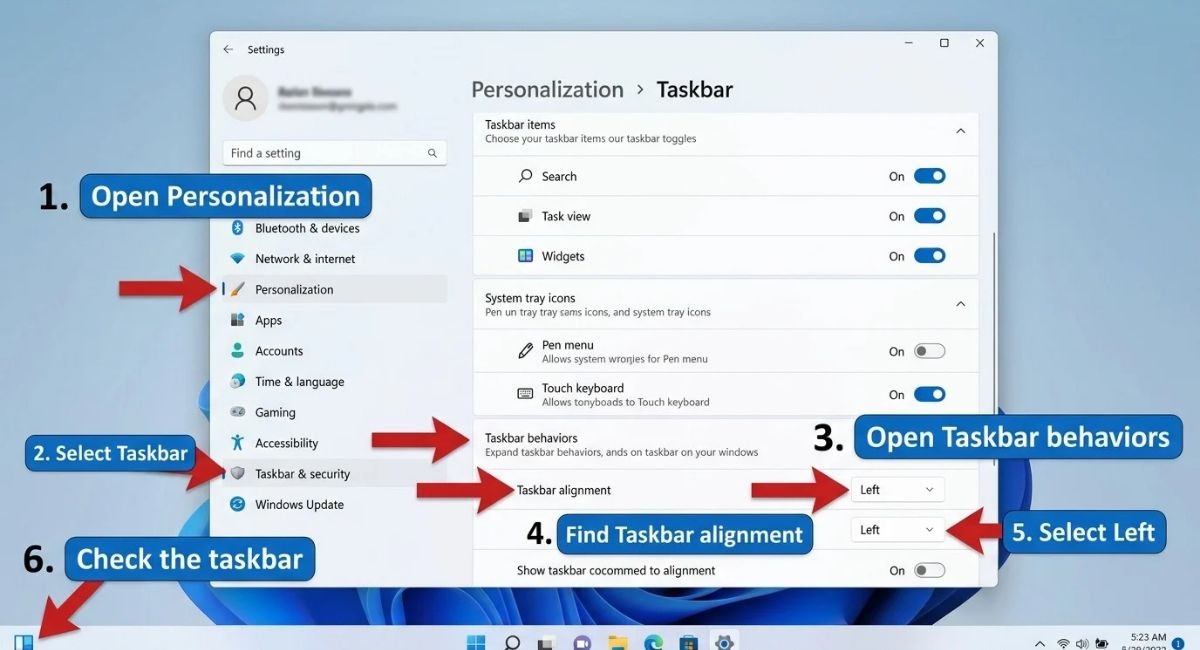
Microsoft currently documents Center and Left alignment options for the Windows 11 taskbar.
Changing this setting moves the Start button and other taskbar icons. It does not restore the Windows 10 Start Menu design.
How to Make the Windows 11 Start Menu Look Like Windows 10
Windows 11 does not include a single built-in setting that completely restores the Windows 10 Start Menu.
Windows 10 used a different design centered around Live Tiles, while Windows 11 uses pinned applications, an app list, and recent content.
You can make Windows 11 feel more familiar by:
- Moving taskbar alignment to the left
- Pinning frequently used applications
- Organizing apps into folders
- Using All apps to browse installed programs
- Reducing unnecessary Start content
- Using Search to launch applications quickly
If you want a much closer Windows 10-style interface, third-party Start Menu replacement software is available. However, it is not necessary for normal Start customization.
Before installing a replacement, check its compatibility with your Windows 11 version, developer reputation, update history, privacy policy, permissions, and uninstall process.
How to Access All Apps in Windows 11
The All or All apps section provides access to applications installed on your computer.
Open Start and select All or All apps.
Microsoft’s current Start Menu documentation also describes different ways to view installed applications, including Category, Grid, and List views on supported Windows 11 versions. Start can remember your most recently selected view.
If you frequently use only a handful of programs, pinned apps may be faster. If you have many applications installed, All apps provides a more complete way to browse them.
Can You Show All Apps by Default?
The behavior depends on your Windows 11 version and available Start controls.
Microsoft’s current documentation says the Pinned and All sections can remember their last-used view. If you expand an appropriate section to display its content, Windows can remember that selection the next time you open Start.
If your version does not behave this way, opening Start and selecting All remains the simplest way to access the complete application list.
Windows 11 Start Menu Size Options
Start Menu sizing has changed across Windows 11 versions.
Microsoft’s September 22, 2026 documentation for Windows 11 26H1’s KB5124006 preview update introduced three Start Menu size choices:
- Automatic
- Small
- Large
The setting is available under:
Settings > Personalization > Start > Start menu size
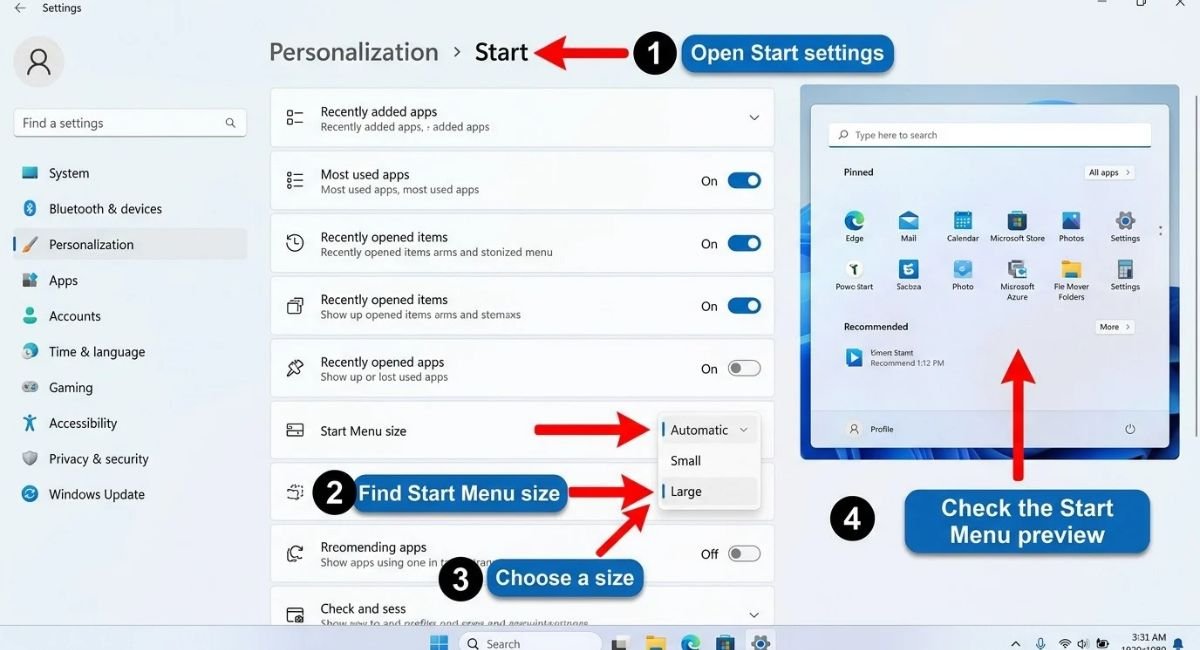
Microsoft lists Automatic as the default option in this update.
Small Start Menu
The Small option provides a more compact Start experience.
It may be useful if you primarily launch applications through Search or pinned shortcuts and want Start to occupy less screen space.
Large Start Menu
The Large option provides more room for Start content.
It can be useful if you frequently browse pinned apps, recent content, or other Start sections.
Automatic Start Menu Size
Automatic is the default option documented for the 26H1 update.
If you do not have a specific preference, leaving Start on Automatic is the simplest choice.
Can You Freely Resize the Windows 11 Start Menu?
You should not rely on older tutorials that tell you to drag the borders of the Windows 11 Start Menu like a normal resizable window.
On supported Windows 11 26H1 builds, Microsoft provides dedicated Automatic, Small, and Large controls instead.
If these options are missing on your PC, check your Windows version and installed updates.
Windows 11 Start Menu Search
Windows Search allows you to find applications, settings, files, and other information without manually browsing through Start.
Open Start and begin typing, or use the Search feature on the taskbar.
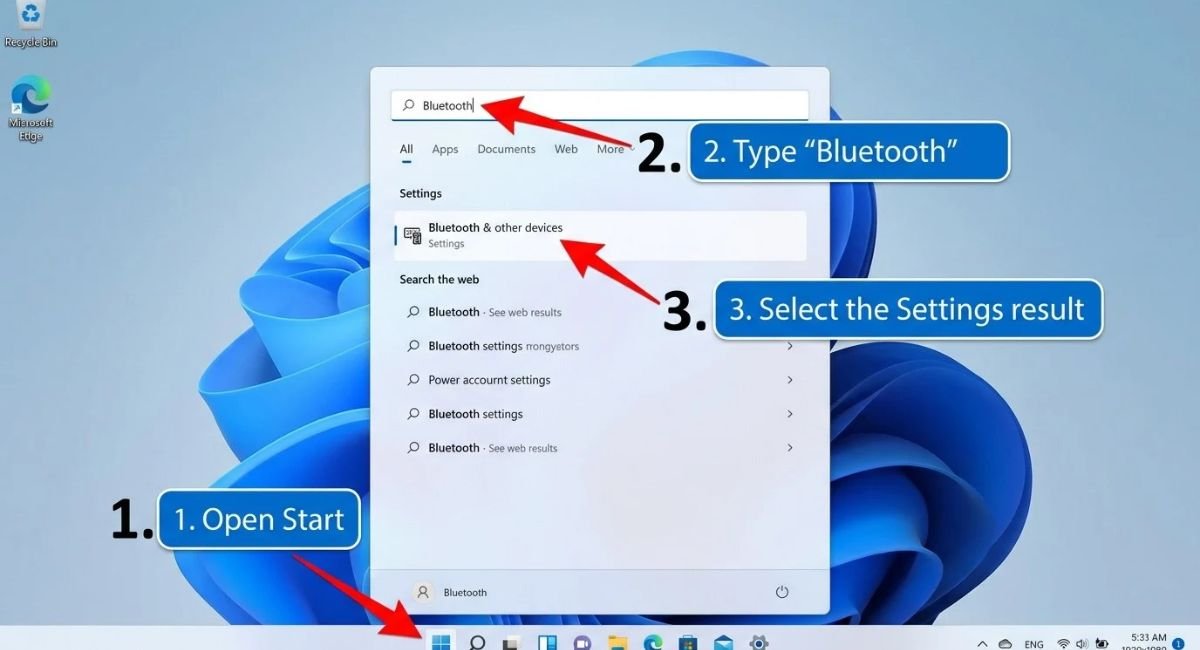
For example:
- Search
Bluetoothto find related settings. - Search
Calculatorto locate the Calculator app. - Search a document name to find a file.
- Search
Settingsto quickly access Windows configuration options.
Microsoft says Windows Search can provide results for apps, files, settings, and web content. Windows also uses indexing to help return local search results more quickly.
What to Do When Windows 11 Start Search Is Not Working
If Start opens correctly but Search does not return expected results, treat it as a Search or indexing problem.
Try the following:
- Restart the computer.
- Install pending Windows updates.
- Check Windows Search settings.
- Make sure the relevant files or folders are included in indexing.
- Run the available Search and Indexing troubleshooting tools.
- Use Windows repair tools if system components may be damaged.
Microsoft provides Search and Indexing troubleshooting options through Windows’ indexing settings.
Windows 11 Start Menu Not Working or Not Opening
A Start Menu that does not open or stops responding can have several causes, including a temporary Windows shell problem, damaged system components, an update-related issue, or a problem with the current user profile.
Start with the least disruptive troubleshooting methods.
Restart Windows Explorer
Windows Explorer manages important parts of the Windows desktop environment, including the taskbar and other Windows shell components.
If Start suddenly becomes unresponsive, restarting Explorer can refresh the shell.
Open Task Manager with:
Ctrl + Shift + Esc
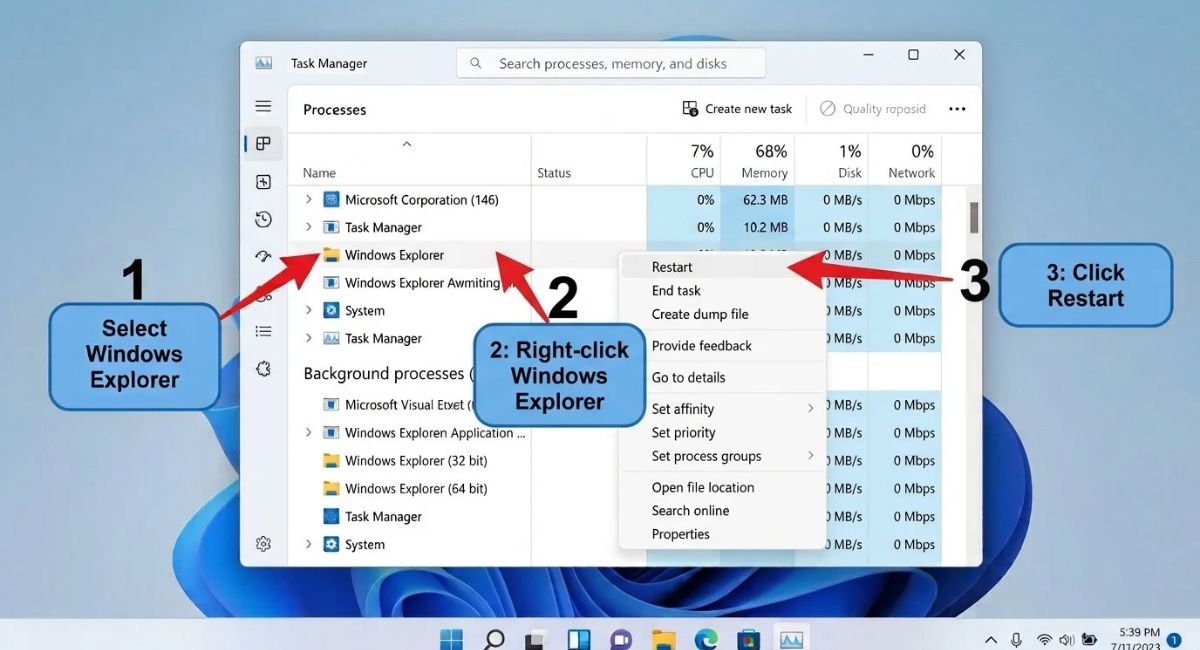
Find Windows Explorer, right-click it, and select Restart.
The taskbar and desktop may briefly disappear before returning.
Restarting Explorer does not reinstall Windows or delete personal files. It simply reloads the Windows shell process.
Restart the Computer
A normal restart is another useful first troubleshooting step.
Temporary shell problems, background processes, and software conflicts can sometimes clear after restarting Windows.
If Start continues to fail after a restart, move on to the other troubleshooting methods rather than repeatedly rebooting the PC.
Install Windows Updates
Windows updates can contain fixes for Start, Search, Explorer, taskbar components, and other Windows features.
Open:
Settings > Windows Update
and select Check for updates.
If the problem started after a recent Windows update, check Microsoft’s release information for your Windows version before uninstalling anything.
Run DISM and System File Checker
If Start continues to malfunction, corrupted or missing Windows system files may be involved.
Microsoft recommends running DISM and then System File Checker (SFC) to repair Windows components and system files.
Open Command Prompt as administrator and run:
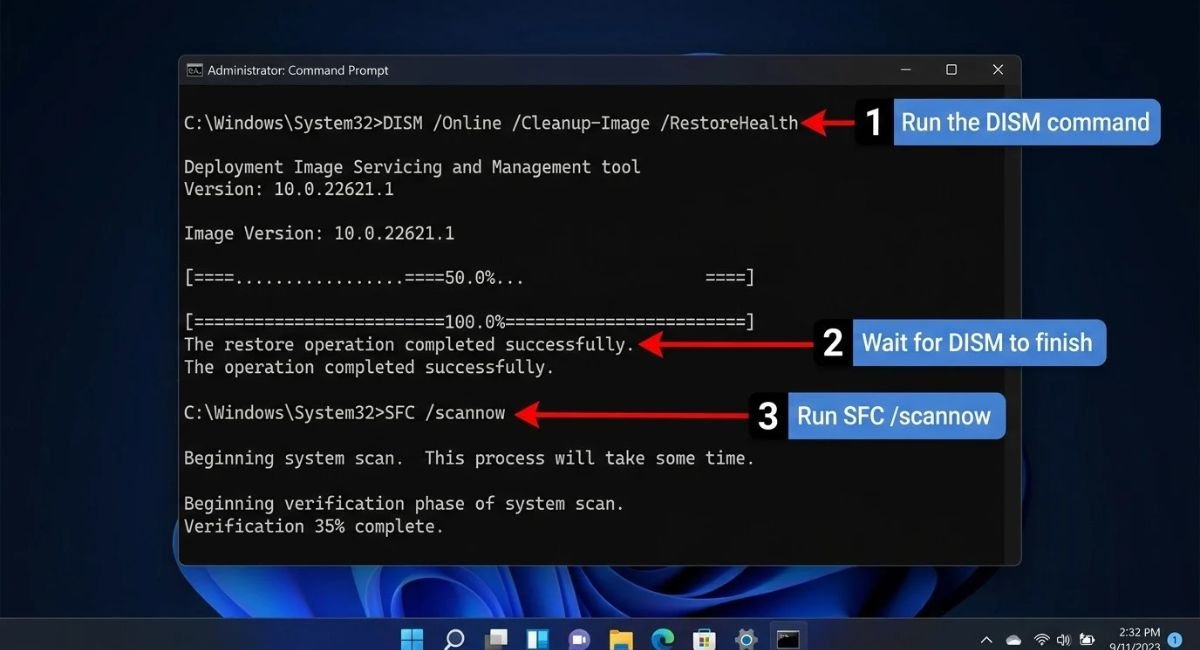
DISM.exe /Online /Cleanup-image /Restorehealth
Wait for the operation to complete. Then run:
sfc /scannow
Do not close the Command Prompt window until SFC reaches 100 percent.
These tools are built into Windows, so there is normally no need to download a third-party “Start Menu repair” utility.
Check Another Windows User Account
If Start works correctly under another Windows account, the issue may be associated with your original user profile rather than the entire Windows installation.
Testing another account can therefore help identify whether the problem is system-wide or profile-specific.
Before permanently moving to another profile, back up important files and remember that account-specific settings and application data may not automatically transfer.
Reinstall the Current Windows Version
If major Windows components remain damaged after normal troubleshooting, supported Windows 11 PCs may offer Fix problems using Windows Update.
Microsoft says this recovery option reinstalls the same Windows version, repairs system files and components, and preserves apps, files, and settings.
You can find it under:
Settings > System > Recovery
Then look for:
Fix problems using Windows Update > Reinstall now
This is a more advanced recovery option and should generally be considered after simpler troubleshooting methods have failed.
What’s New in the Windows 11 Start Menu?
Microsoft continues to change the Start Menu through Windows updates, so the exact interface can differ between Windows 11 versions.
One notable recent example is the September 22, 2026 KB5124006 preview update for Windows 11 26H1.
Microsoft documented several Start Menu changes in that update, including:
- Automatic, Small, and Large Start Menu sizes
- Renaming Recommended to Recent
- An option to hide your name and profile picture
- Independent controls for Start sections
These features are associated with the 26H1 update and should not automatically be assumed to be available on every Windows 11 installation. KB5124006 is documented by Microsoft as a Preview update, and feature availability can also vary during gradual rollouts.
Before following a Windows tutorial, check your Windows version and build.
You can find this information by opening:
Settings > System > About
Review the Windows specifications and OS build information shown on the page.
Can You Download or Replace the Windows 11 Start Menu?
Is There an Official Windows 11 Start Menu Download?
There is no normal standalone Microsoft installer for the standard Windows 11 Start Menu.
The Start experience is integrated into Windows, and Microsoft distributes its changes and fixes through Windows updates.
Be cautious with websites offering a separate “Windows 11 Start Menu download.” An unknown executable claiming to repair or replace a Windows system component could introduce security or compatibility problems.
Windows 11 Start Menu Replacement Apps
Third-party Start Menu applications can change the appearance and behavior of Start.
They may appeal to users who want a Windows 10-inspired interface or additional customization options that Windows does not provide natively.
Before installing one, check:
- Compatibility with your Windows 11 version
- Developer reputation
- Update history
- Privacy policy
- Required permissions
- Independent reviews
- Uninstallation options
- Compatibility after major Windows updates
For ordinary Start customization, third-party software is usually unnecessary because Windows 11 already provides built-in controls for pinned apps, folders, taskbar alignment, Start sections, and other features.
Frequently Asked Questions About the Windows 11 Start Menu
How do I move the Windows 11 Start Menu to the left?
Right-click the taskbar, select Taskbar settings, expand Taskbar behaviors, and change Taskbar alignment to Left. This moves the Start button and other taskbar icons to the left.
How do I make Windows 11 Start Menu look like Windows 10?
Windows 11 cannot completely restore the Windows 10 Start Menu through a built-in setting. You can move taskbar icons to the left, organize pinned apps, use folders, and reduce unnecessary Start content. A third-party Start replacement can provide a more Windows 10-like interface.
How do I disable Recommended or Recent in Windows 11?
The available controls depend on your Windows 11 version. Newer 26H1 builds include section-level controls for Start, while Microsoft’s general Start customization options also allow users to manage recommendation content.
Why is my Windows 11 Start Menu not opening?
A temporary Windows shell problem, damaged system components, an update issue, or a user-profile problem can cause Start to stop responding. Start by restarting Windows Explorer and the computer, then install available updates. If the problem continues, DISM and SFC can help repair Windows components.
Why is Windows 11 Start Menu Search not working?
Search problems can involve Windows Search, indexing, updates, system components, or the current user profile. Restart Windows, install pending updates, check Search settings, and use the available Search and Indexing troubleshooting tools if necessary.
Can I resize the Windows 11 Start Menu?
On supported Windows 11 26H1 builds, Microsoft provides Automatic, Small, and Large Start Menu size options. Older Windows 11 versions may not have these controls.
Can I hide my name and profile picture from Start?
On supported Windows 11 26H1 builds, yes. The option is available under Settings > Personalization > Start > Hide your name and profile picture on Start.
Conclusion
The Windows 11 Start Menu provides several ways to organize your apps, access files and settings, and personalize the Windows desktop experience.
For a more traditional layout, you can move the taskbar icons to the left. You can also pin frequently used applications, organize them into folders, add useful folder shortcuts, and control which Start sections are displayed on supported Windows 11 versions.
Windows 11 Start Menu Search can make it faster to launch applications and find files or settings, while the All apps section provides a complete view of installed programs.
If Start stops working, begin with simple troubleshooting such as restarting Windows Explorer, restarting the PC, and installing Windows updates. If the problem continues, built-in tools such as DISM and SFC can help repair corrupted Windows components. For more serious problems, the Fix problems using Windows Update recovery option can reinstall the current Windows version while preserving apps, files, and settings on supported systems.
The Start Menu will continue to change as Microsoft updates Windows 11. If a setting mentioned in an older tutorial is missing, check your Windows version and build before assuming the feature has been removed.
For most users, the built-in Windows 11 Start Menu provides enough customization without installing third-party replacement software.
Sources